> ## Documentation Index
> Fetch the complete documentation index at: https://docs.gameball.co/llms.txt
> Use this file to discover all available pages before exploring further.
# How Do I Configure Different Reward Campaigns for My Customers Based on Tags?
> Simulate different rewards through reward campaigns for your customers based on tags.
Through tags, you can simulate endless rewards to be automatically granted to a group of your customers based on their applied tags. You will be able to add tag(s) to your reward campaigns; [customers who have that same tag applied](/product-documentation/understanding-your-customers/gameball-customers) will be the only ones able to participate in and enroll in these campaigns.
To let you understand this more and how you can do magic through tags, check the illustration below.
***
## How to Add Tag(s) on a Reward Campaign
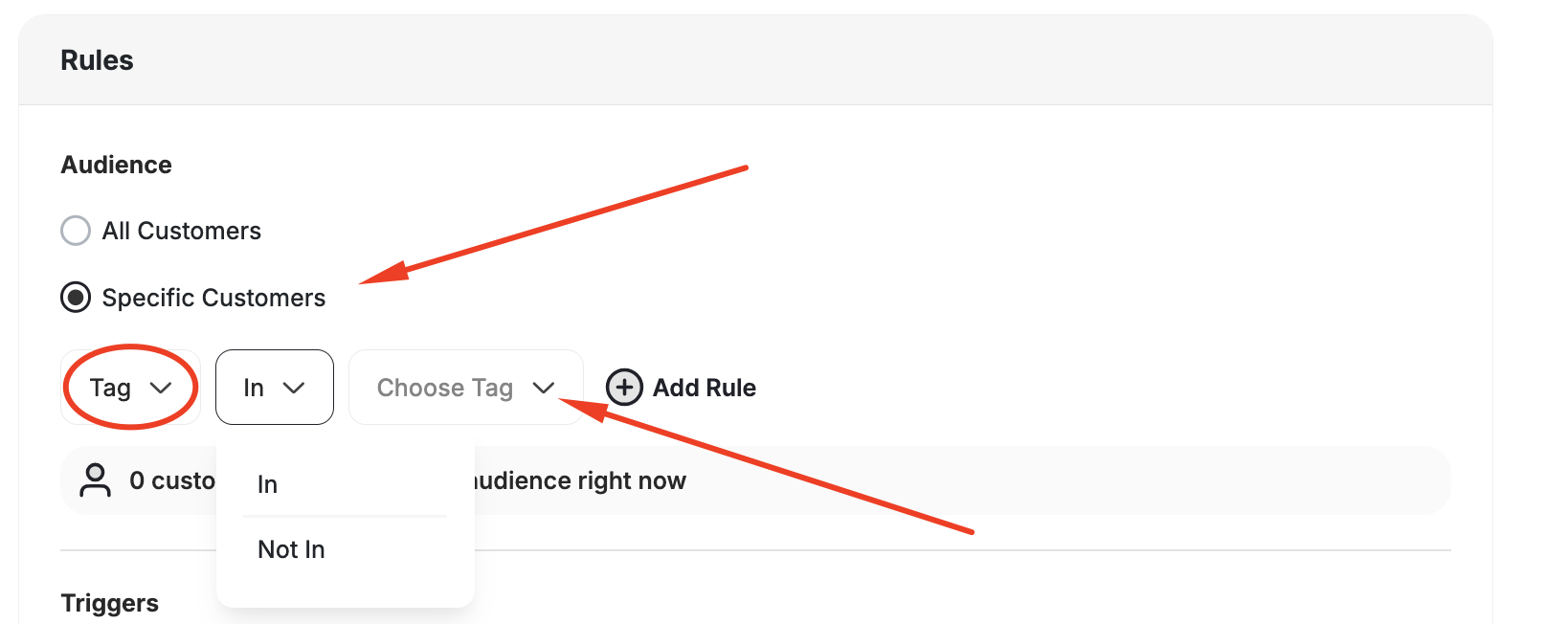
During the [reward campaign creation](/product-documentation/rewards-campaigns/reward-campaign-general-setup-guide) or editing of a campaign template, add a tag at the first step under the **Audience**.
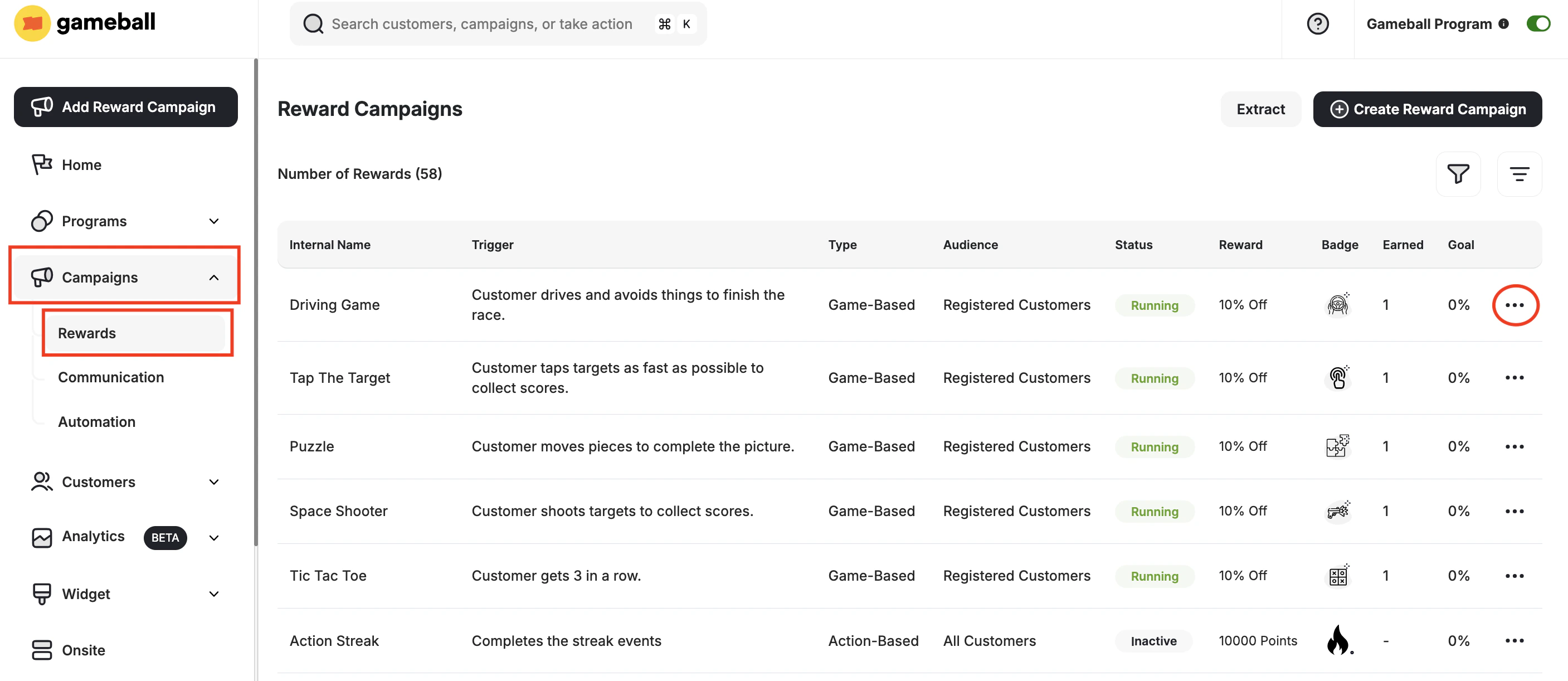
 On your **Gameball dashboard**, navigate to **Campaigns > Rewards**.
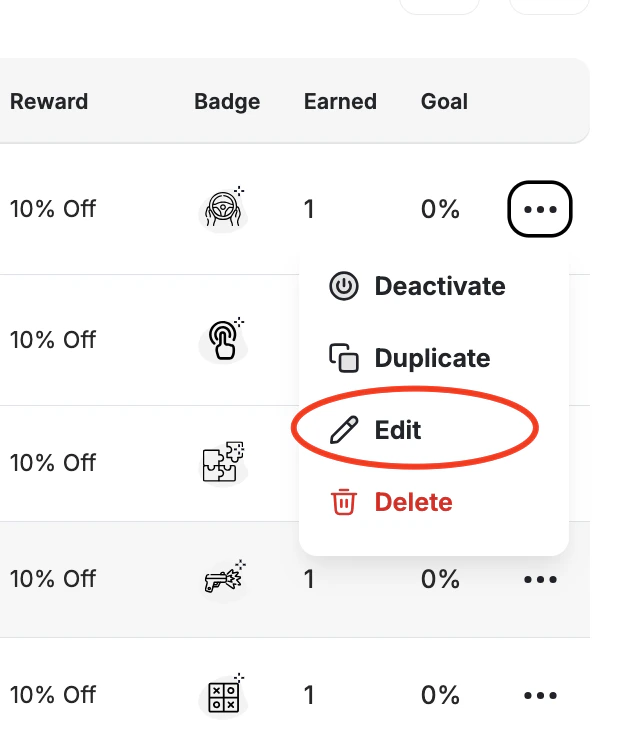
Click the **three-dot icon** at any campaign, then click **Edit**.
On your **Gameball dashboard**, navigate to **Campaigns > Rewards**.
Click the **three-dot icon** at any campaign, then click **Edit**.
 Repeat the same step as if you are adding a tag to a campaign that is being created.
 You can remove tags from the reward campaign from the same place.
***
## What Else?
Learn how to apply and manage tags on customer profiles in Gameball.
Customer tags automatically sync with Gameball customers' tags for Shopify stores.
You can remove tags from the reward campaign from the same place.
***
## What Else?
Learn how to apply and manage tags on customer profiles in Gameball.
Customer tags automatically sync with Gameball customers' tags for Shopify stores.