> ## Documentation Index
> Fetch the complete documentation index at: https://docs.gameball.co/llms.txt
> Use this file to discover all available pages before exploring further.
# How Do I Set Up a Reward Campaign?
> A step-by-step guide to configuring campaign settings, audience targeting, rewards, notifications, and more.
This guide walks you through the essential setup steps for any reward campaign on Gameball, including how to define your audience, choose triggers and rewards, control repeatability, and track success with goal-based performance metrics.
***
## Audience
This is where you decide who will see and interact with your campaign. Gameball gives you flexible options to target the right users.
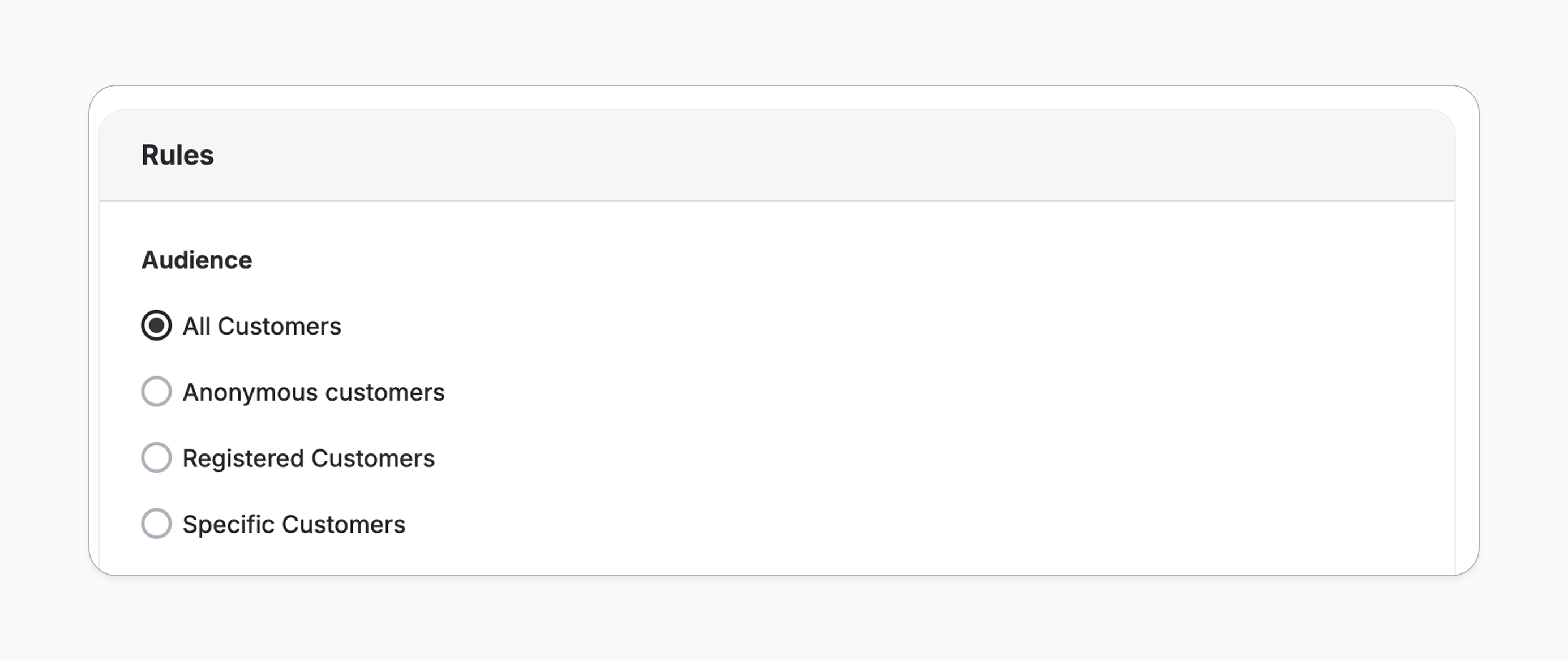 The campaign will be visible to everyone, whether they are signed in or not.
Only customers who are logged into their accounts will be able to see and engage with the campaign.
This option is not available for all campaigns.
Targets visitors who haven't signed up yet. Great for encouraging signups or collecting emails before they can join the campaign.
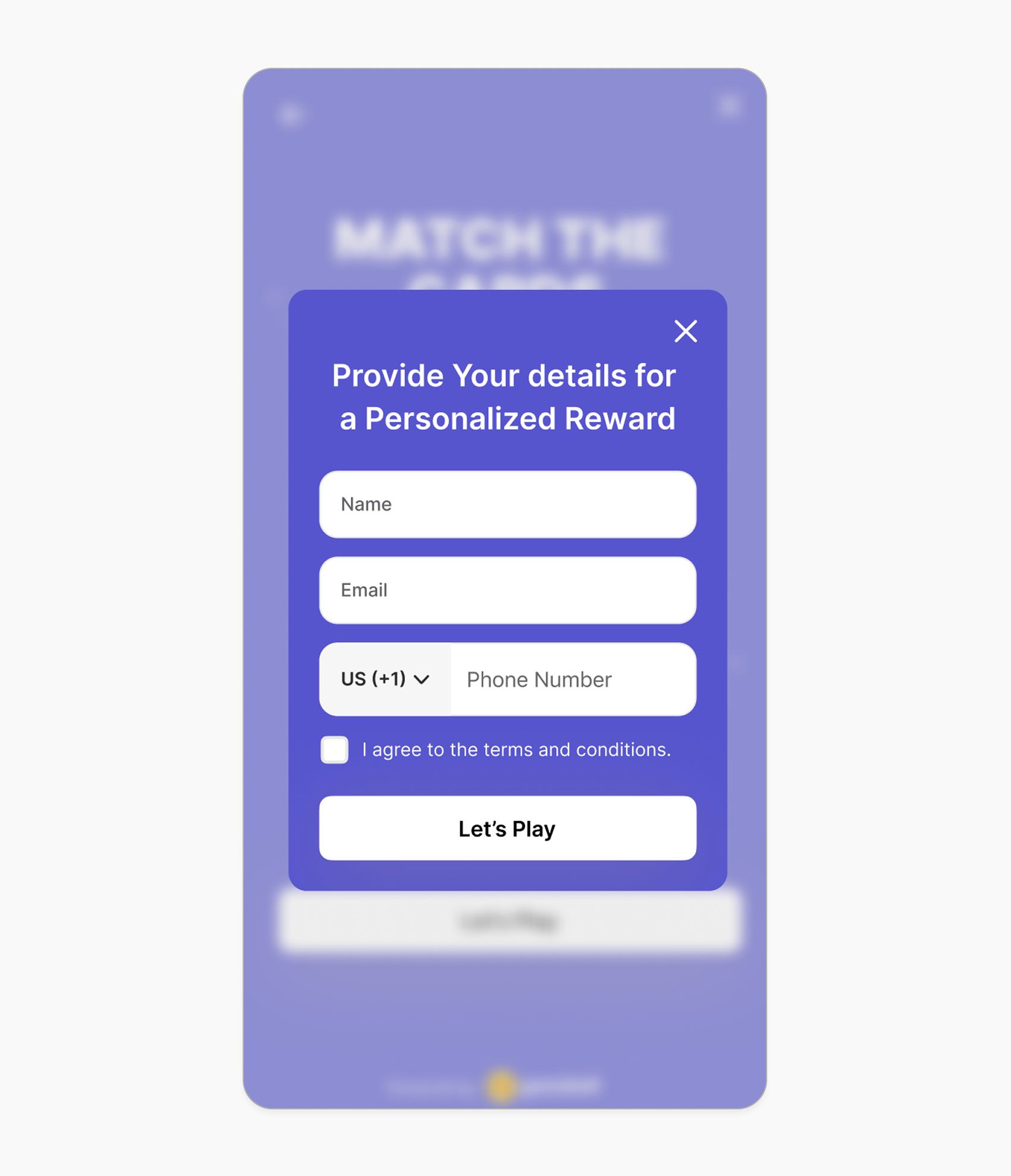
* If you choose **Anonymous** as the audience, the campaign will be available to visitors who are not yet identified on your store.
* Once enabled, a lead form will automatically appear prompting the customer to enter their information (e.g. name, email).
* This is a great way to collect leads and retarget potential customers later.
* You can fully customize this form by navigating to **Customize Design > Lead Form**.
The campaign will be visible to everyone, whether they are signed in or not.
Only customers who are logged into their accounts will be able to see and engage with the campaign.
This option is not available for all campaigns.
Targets visitors who haven't signed up yet. Great for encouraging signups or collecting emails before they can join the campaign.
* If you choose **Anonymous** as the audience, the campaign will be available to visitors who are not yet identified on your store.
* Once enabled, a lead form will automatically appear prompting the customer to enter their information (e.g. name, email).
* This is a great way to collect leads and retarget potential customers later.
* You can fully customize this form by navigating to **Customize Design > Lead Form**.
 * Available for **Shopify** and **Non-platform** only.
* This option is not available for all campaigns.
Narrow down your audience using detailed filters:
* **Segment**: Target predefined or custom audience segments from your dashboard. [Learn more](/product-documentation/customer-segmentation)
* **RFM Segment**: Reach users based on their Recency, Frequency, and Monetary values. [Learn more](/product-documentation/customer-segmentation)
* **Tag**: Include or exclude users based on specific tags assigned to them. [Learn more](/product-documentation/understanding-your-customers/gameball-customers)
* **Customer Attribute**: Use custom fields like level, join date, total orders, etc.
***
## Trigger
Triggers vary between campaigns, some are based on actions like orders or referrals, others on social interactions such as likes or shares, and some are tied to special occasions like birthdays or anniversaries.
[Check the guide for trigger details per campaign](/product-documentation/rewards-campaigns/reward-campaign-intro)
***
## Repeatability
Set how many times a customer can receive the reward from your campaign.
Customers can receive the reward every time the trigger is fulfilled, with no limit.
* Available for **Shopify** and **Non-platform** only.
* This option is not available for all campaigns.
Narrow down your audience using detailed filters:
* **Segment**: Target predefined or custom audience segments from your dashboard. [Learn more](/product-documentation/customer-segmentation)
* **RFM Segment**: Reach users based on their Recency, Frequency, and Monetary values. [Learn more](/product-documentation/customer-segmentation)
* **Tag**: Include or exclude users based on specific tags assigned to them. [Learn more](/product-documentation/understanding-your-customers/gameball-customers)
* **Customer Attribute**: Use custom fields like level, join date, total orders, etc.
***
## Trigger
Triggers vary between campaigns, some are based on actions like orders or referrals, others on social interactions such as likes or shares, and some are tied to special occasions like birthdays or anniversaries.
[Check the guide for trigger details per campaign](/product-documentation/rewards-campaigns/reward-campaign-intro)
***
## Repeatability
Set how many times a customer can receive the reward from your campaign.
Customers can receive the reward every time the trigger is fulfilled, with no limit.
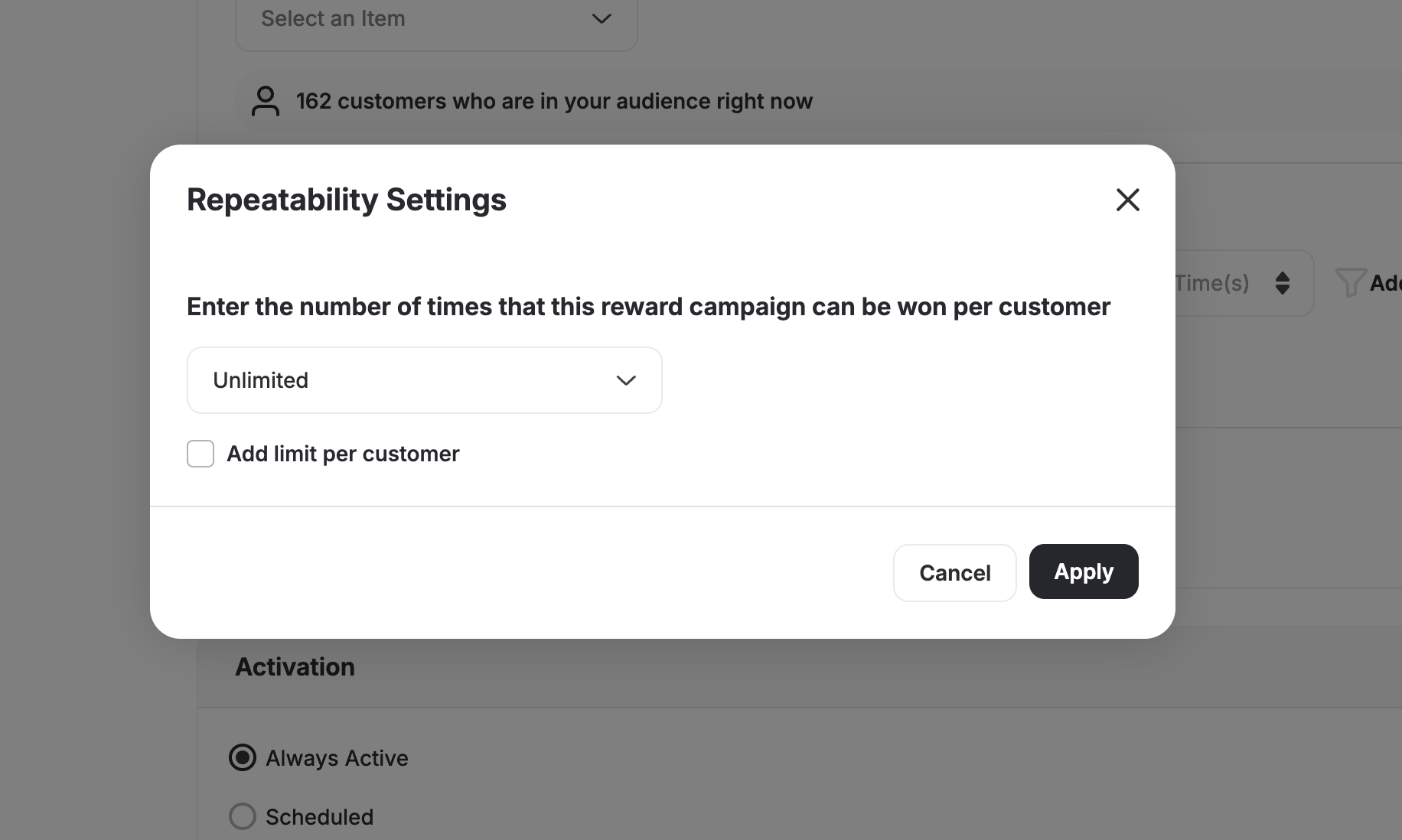 Customers can receive the reward only a specific number of times (e.g., 1 time only), even if the trigger keeps happening.
e.g., 10 times only
Customers can receive the reward only a specific number of times (e.g., 1 time only), even if the trigger keeps happening.
e.g., 10 times only
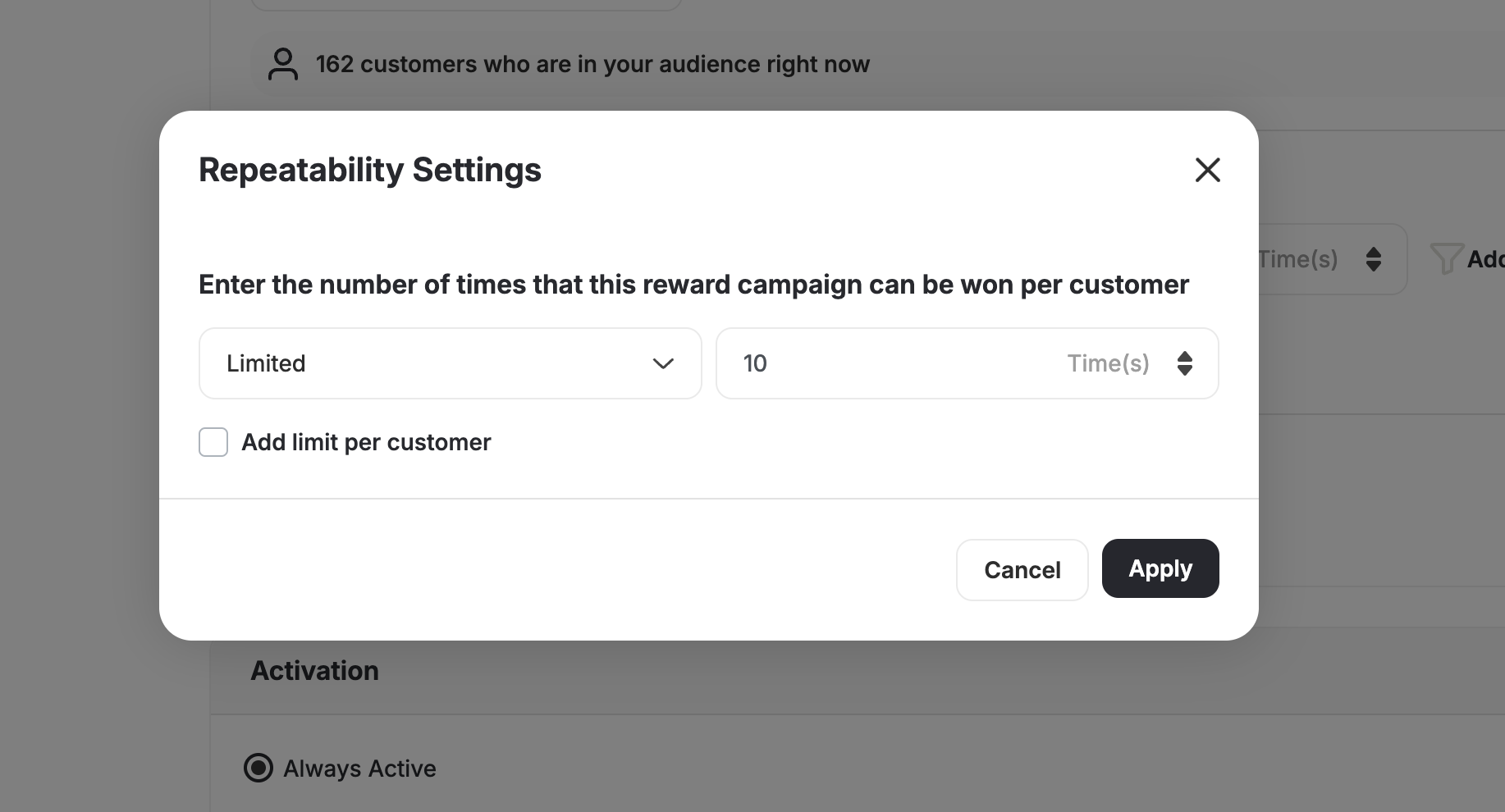 Customers can receive the reward every time the trigger is fulfilled, but only once (or a set number of times) per day.
e.g., 1 time per day
Customers can receive the reward every time the trigger is fulfilled, but only once (or a set number of times) per day.
e.g., 1 time per day
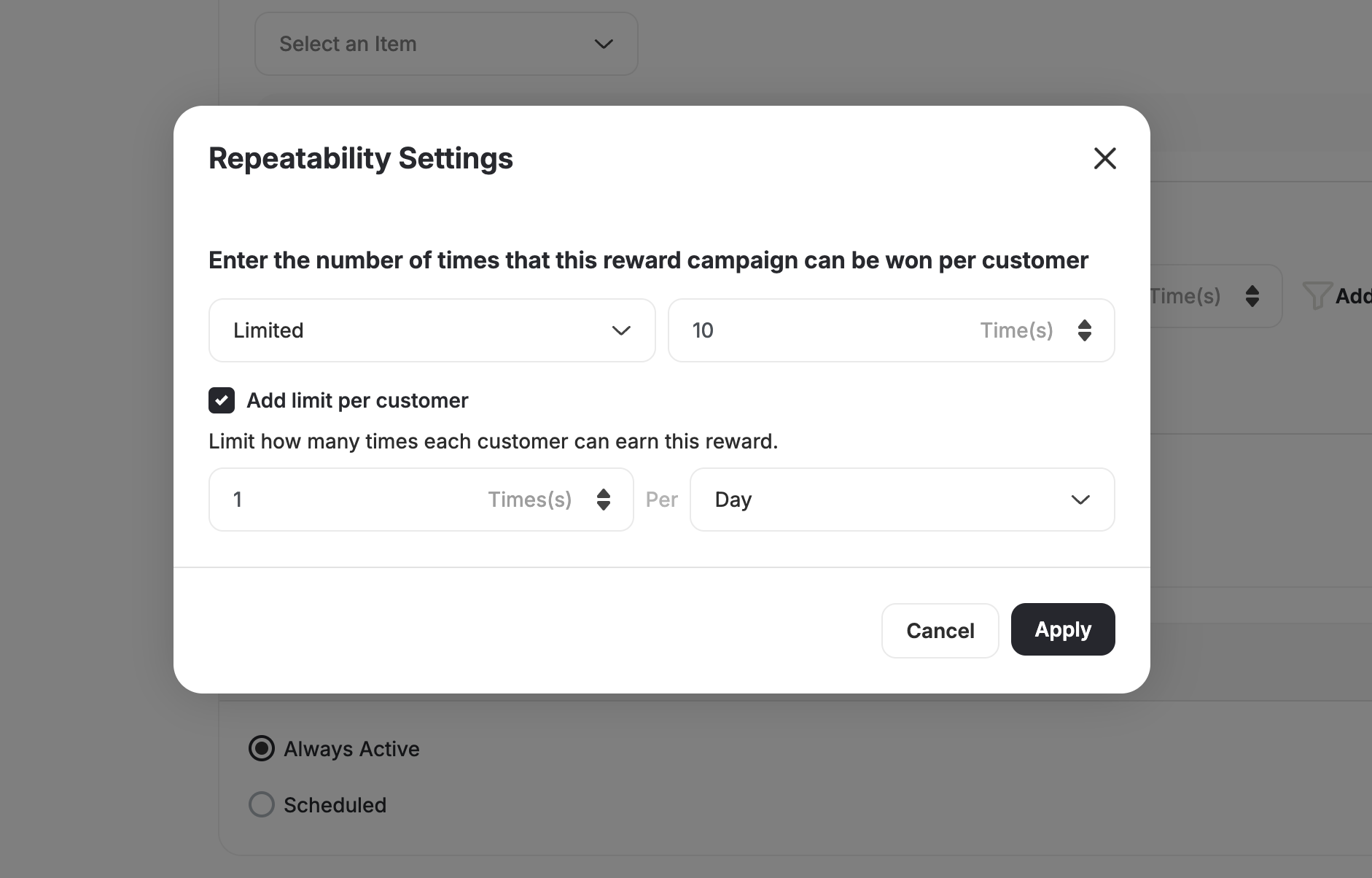
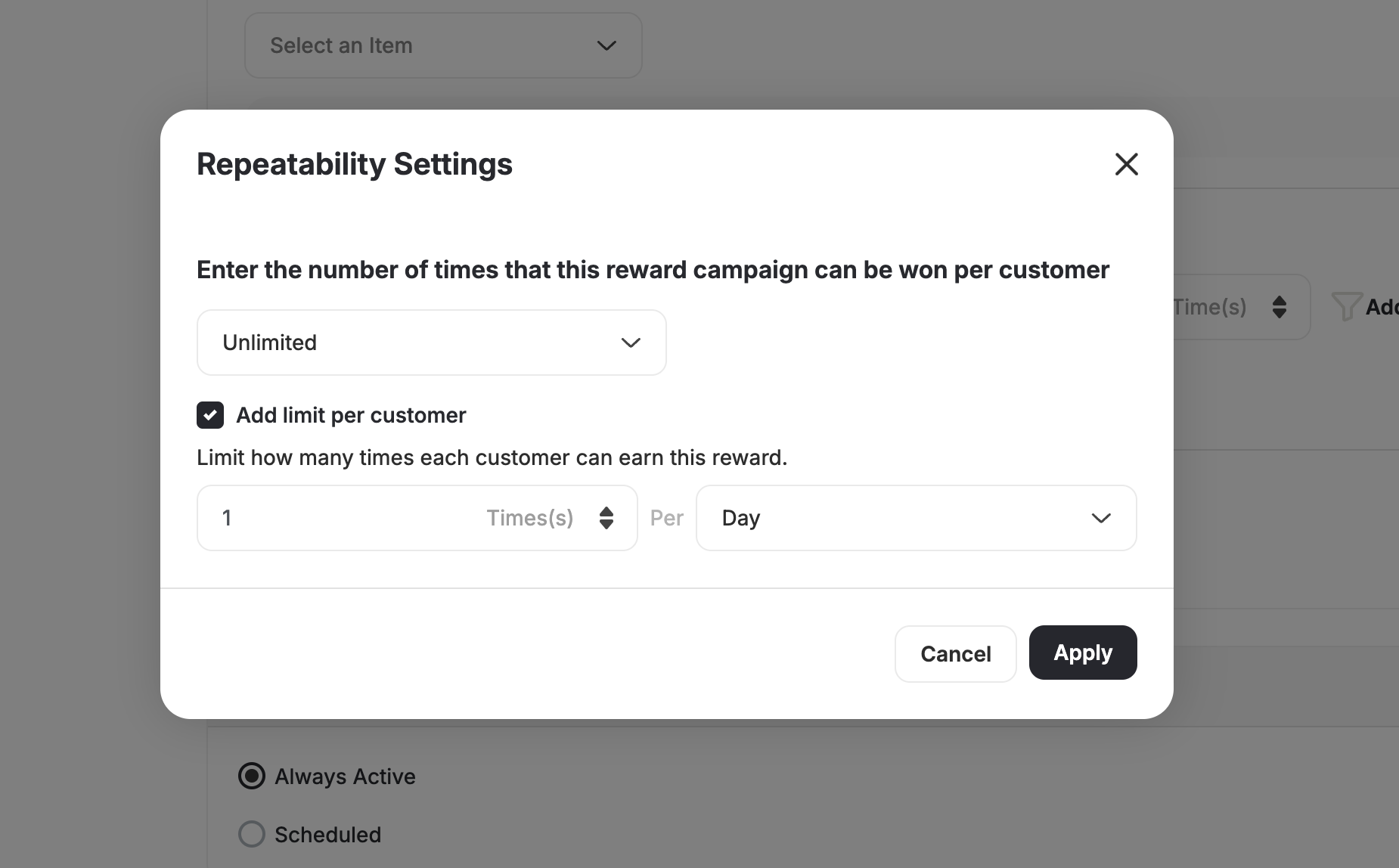 Customers can receive the reward a limited number of times overall, and also only once (or a set number of times) per day.
e.g., 1 time per day, with a maximum of 10 times in total.
Customers can receive the reward a limited number of times overall, and also only once (or a set number of times) per day.
e.g., 1 time per day, with a maximum of 10 times in total.
 ***
## Activation
Decide when the campaign will be active for your customers.
***
## Activation
Decide when the campaign will be active for your customers.
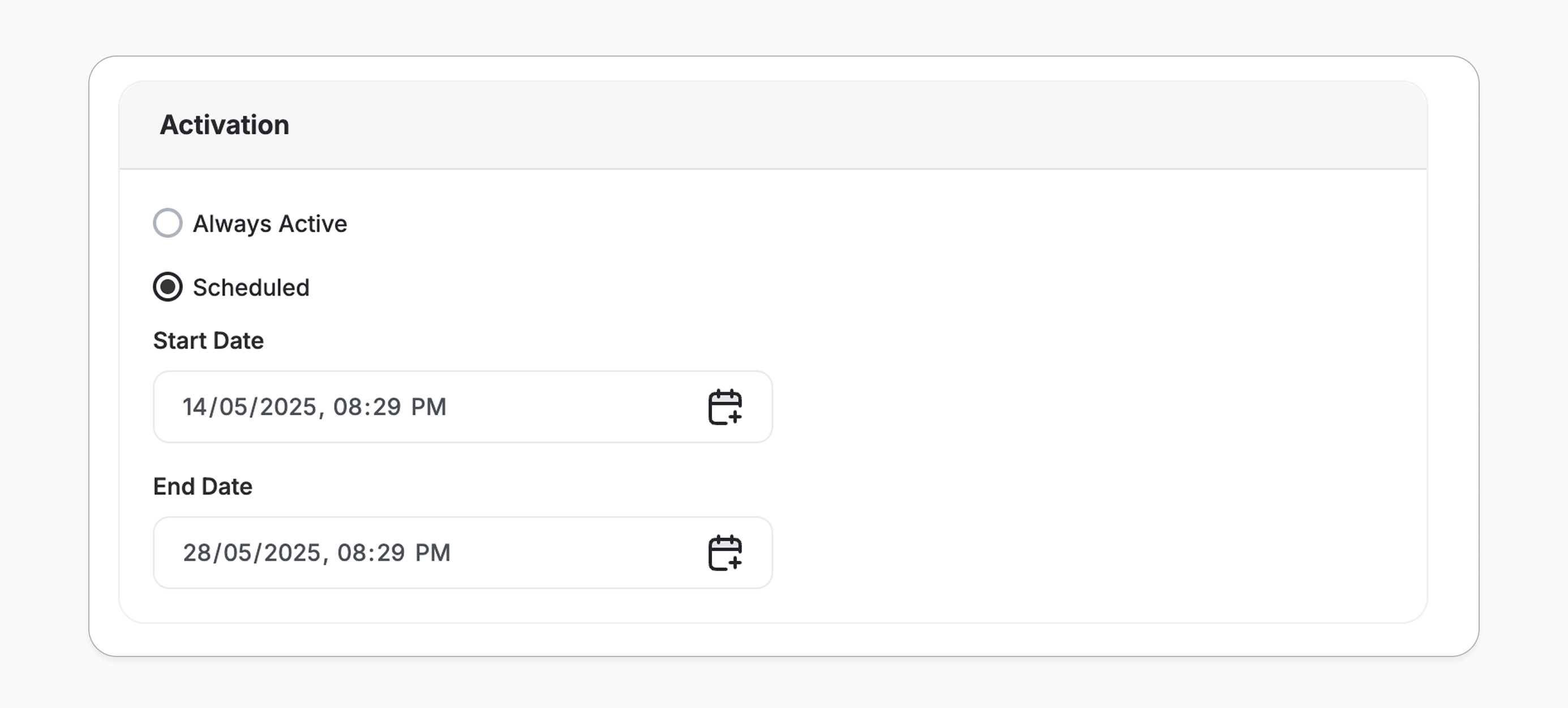 The campaign will run continuously unless you manually deactivate it.
Set a start and end date for the campaign. It will only be visible and active during that time period.
***
## Details
Set up what your customers will see on Gameball's widget in your app or website.
The campaign will run continuously unless you manually deactivate it.
Set a start and end date for the campaign. It will only be visible and active during that time period.
***
## Details
Set up what your customers will see on Gameball's widget in your app or website.
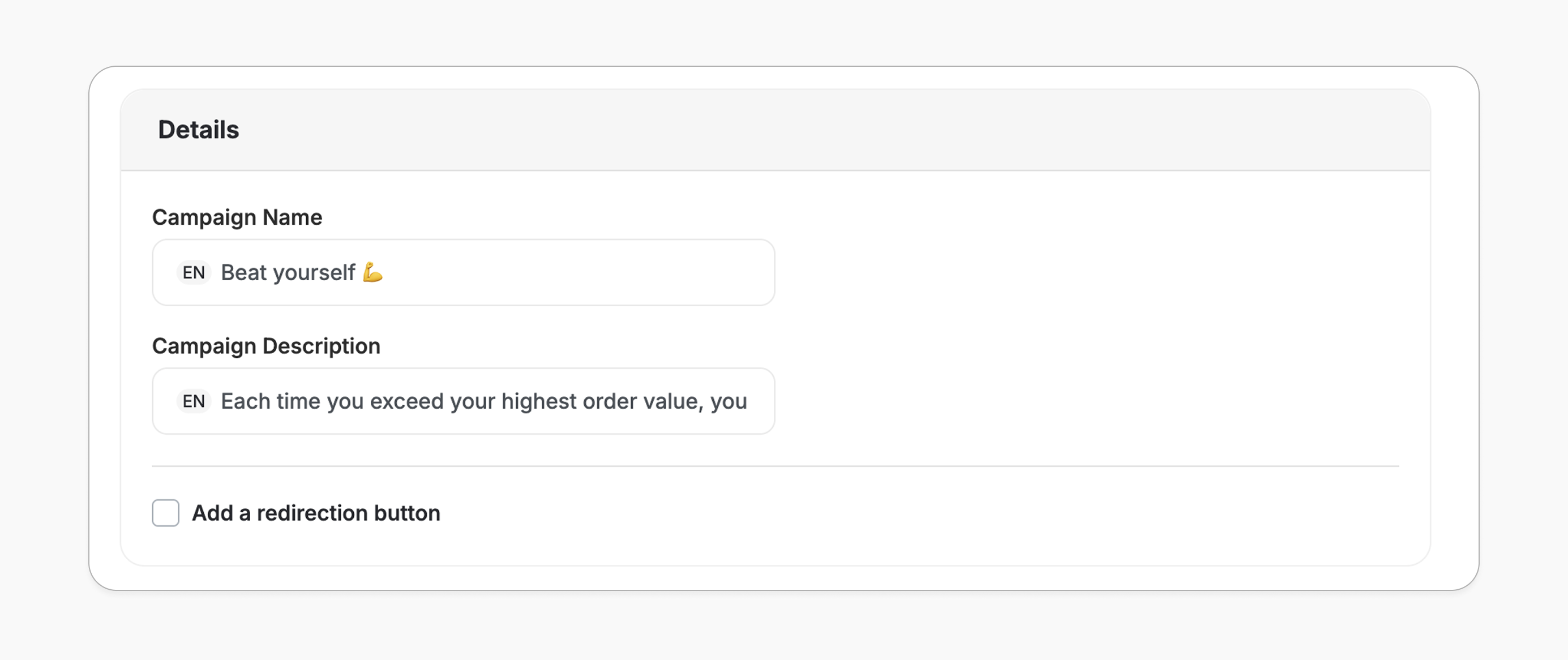 **Campaign Name**
The title of the campaign as it will appear to your customers.
**Campaign Description**
A short message explaining what the campaign is about.
**Redirection Link** \[Optional]
1. **Redirection URL**: e.g., `https://example.com`
2. **Button Text**: Text that appears on the button.
3. **Query Parameters (optional)**: Add custom parameters to personalize or track the link (e.g., UTM-source)
4. This option is not available in all campaigns.
***
## Reward
Set the type of reward customers will receive when they complete the campaign.
Choose one of the following reward types: points, free product, free shipping, etc.
[Learn how to set up each reward type and advanced options.](/product-documentation/rewards-campaigns/faqs/understanding-rewards-types)
***
## Badge
**Icon**
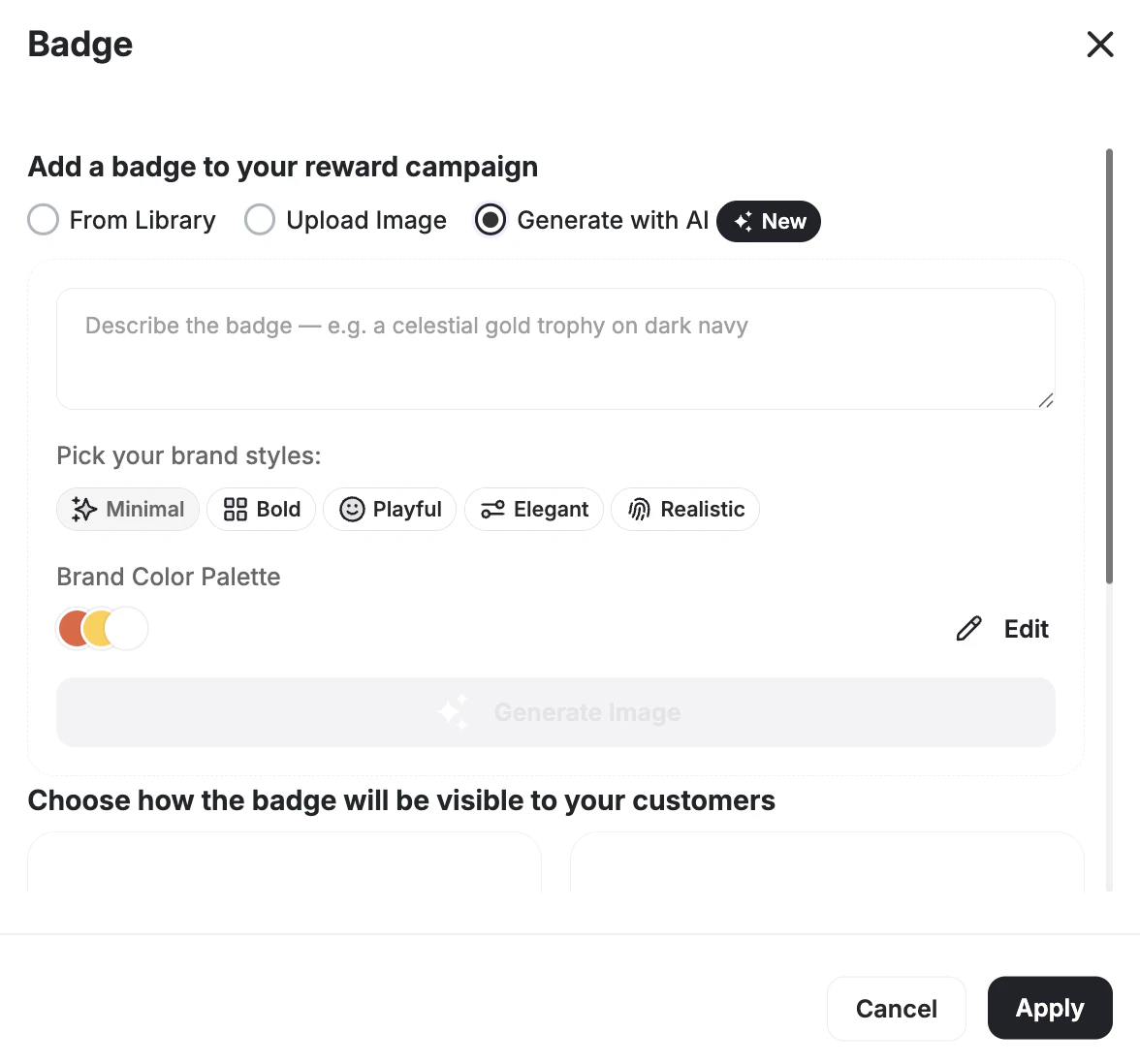
Choose a badge icon for your campaign in one of three ways:
* **Gameball Library** — Select from a curated set of pre-made badge icons.
* **Upload** — Upload your own custom image.
* **AI Image Studio** — Generate a custom badge image by typing a text prompt directly in the dashboard. No design tools or external software needed. Generated images go through automatic post-processing — background removal, light/dark theme injection based on your widget mode, and edge-filling — so assets are production-ready without any manual cleanup.
When clicking **Regenerate**, your last submitted prompt is pre-filled so you can refine it without retyping. Switching between **Generate with AI**, **From Library**, and **Upload** tabs does not clear your prompt. Style selection is locked while a generation is in progress.
Images in the library are organized by their intended slot — backgrounds appear only in background pickers, pointer images only in pointer slots — so purpose-specific assets never show up in the wrong context.
**Campaign Name**
The title of the campaign as it will appear to your customers.
**Campaign Description**
A short message explaining what the campaign is about.
**Redirection Link** \[Optional]
1. **Redirection URL**: e.g., `https://example.com`
2. **Button Text**: Text that appears on the button.
3. **Query Parameters (optional)**: Add custom parameters to personalize or track the link (e.g., UTM-source)
4. This option is not available in all campaigns.
***
## Reward
Set the type of reward customers will receive when they complete the campaign.
Choose one of the following reward types: points, free product, free shipping, etc.
[Learn how to set up each reward type and advanced options.](/product-documentation/rewards-campaigns/faqs/understanding-rewards-types)
***
## Badge
**Icon**
Choose a badge icon for your campaign in one of three ways:
* **Gameball Library** — Select from a curated set of pre-made badge icons.
* **Upload** — Upload your own custom image.
* **AI Image Studio** — Generate a custom badge image by typing a text prompt directly in the dashboard. No design tools or external software needed. Generated images go through automatic post-processing — background removal, light/dark theme injection based on your widget mode, and edge-filling — so assets are production-ready without any manual cleanup.
When clicking **Regenerate**, your last submitted prompt is pre-filled so you can refine it without retyping. Switching between **Generate with AI**, **From Library**, and **Upload** tabs does not clear your prompt. Style selection is locked while a generation is in progress.
Images in the library are organized by their intended slot — backgrounds appear only in background pickers, pointer images only in pointer slots — so purpose-specific assets never show up in the wrong context.
 **Visibility**
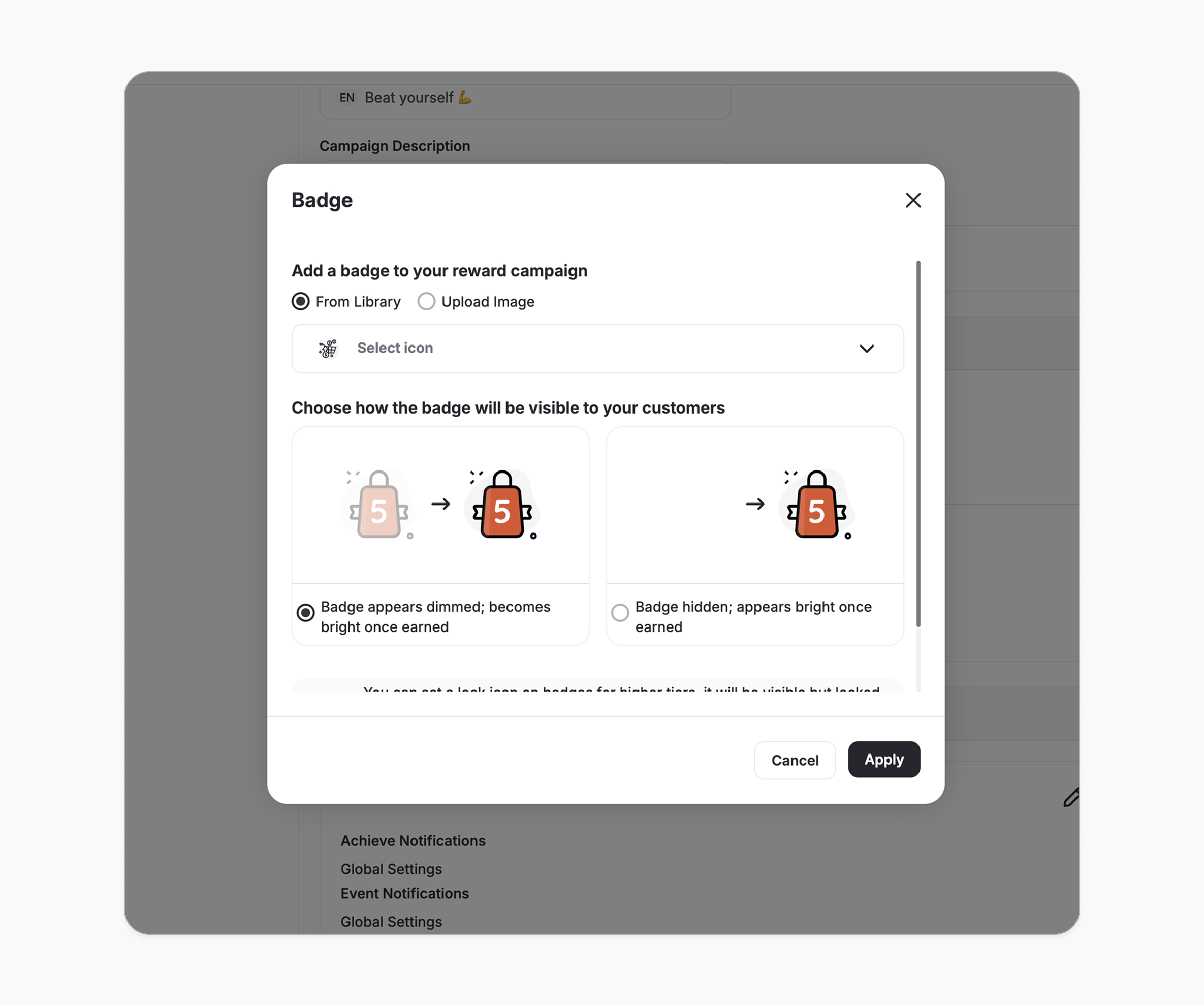
By default, no badge is selected, meaning the campaign won't appear on the widget. You can choose to:
* **Show dimmed badge until earned**: Badge appears faded, then becomes bright when achieved.
* **Show only when earned**: Badge is hidden until the customer earns it.
**Visibility**
By default, no badge is selected, meaning the campaign won't appear on the widget. You can choose to:
* **Show dimmed badge until earned**: Badge appears faded, then becomes bright when achieved.
* **Show only when earned**: Badge is hidden until the customer earns it.
 **Tier-locked**
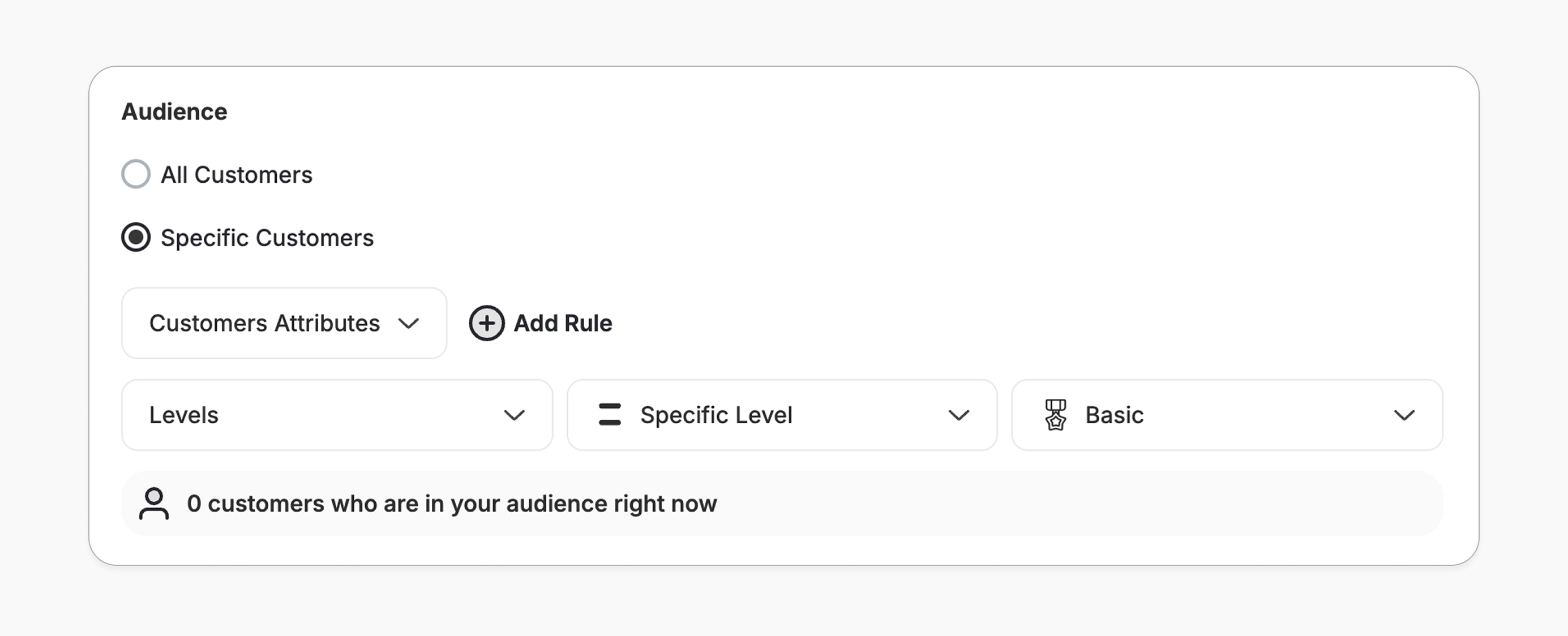
* By default, the badge is hidden if you're not part of the selected audience, except when the audience is a specific tier. In that case, the badge will appear with a lock icon, indicating it will unlock once the user reaches that tier.
* To enable this, apply an audience filter based on the tier from the campaign's main configuration page.
**Tier-locked**
* By default, the badge is hidden if you're not part of the selected audience, except when the audience is a specific tier. In that case, the badge will appear with a lock icon, indicating it will unlock once the user reaches that tier.
* To enable this, apply an audience filter based on the tier from the campaign's main configuration page.
 ***
## Notification
Keep your customers engaged and informed by setting up notifications for their actions and achievements.
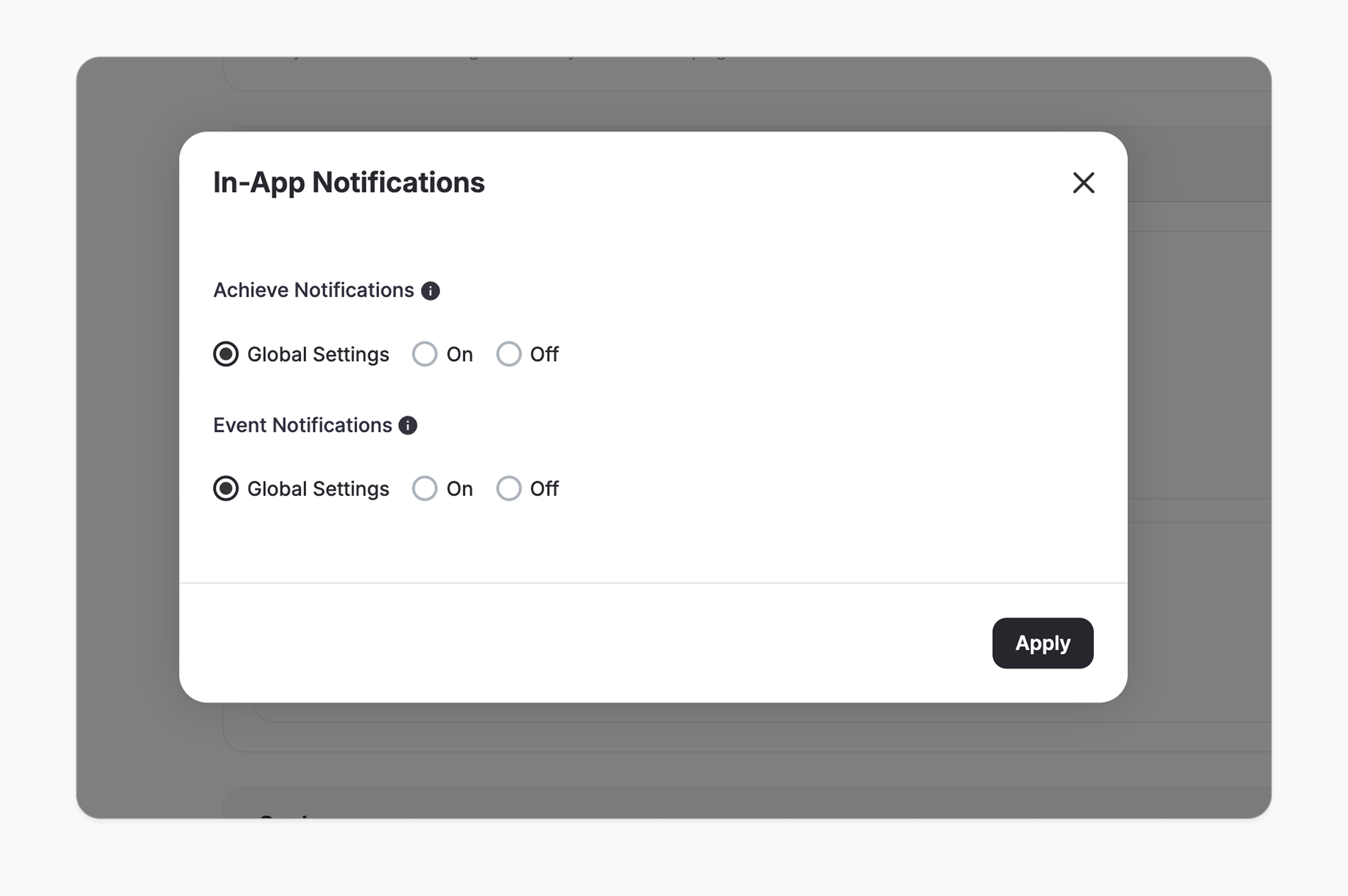
**Achievement Notification**
Choose whether to notify customers when they **successfully achieve** the campaign reward.
***
## Notification
Keep your customers engaged and informed by setting up notifications for their actions and achievements.
**Achievement Notification**
Choose whether to notify customers when they **successfully achieve** the campaign reward.
 **Event Notification**
Notify customers when they complete an **action that brings them closer** to achieving the campaign.
Uses the default notification preferences you've already set in your Notifications settings.
[Learn more about configuring global notifications](/product-documentation/rewards-campaigns/reward-campaign-general-setup-guide)
This overrides global settings and **forces notifications ON**, even if they are disabled globally. Allows you to customize the notification content.
This overrides global settings and **forces notifications OFF**, even if they are enabled globally. Customers will not receive any notifications for this campaign.
***
## Goal
Measure the impact of your campaign by tracking a specific action you want your customers to complete.
**Event Notification**
Notify customers when they complete an **action that brings them closer** to achieving the campaign.
Uses the default notification preferences you've already set in your Notifications settings.
[Learn more about configuring global notifications](/product-documentation/rewards-campaigns/reward-campaign-general-setup-guide)
This overrides global settings and **forces notifications ON**, even if they are disabled globally. Allows you to customize the notification content.
This overrides global settings and **forces notifications OFF**, even if they are enabled globally. Customers will not receive any notifications for this campaign.
***
## Goal
Measure the impact of your campaign by tracking a specific action you want your customers to complete.
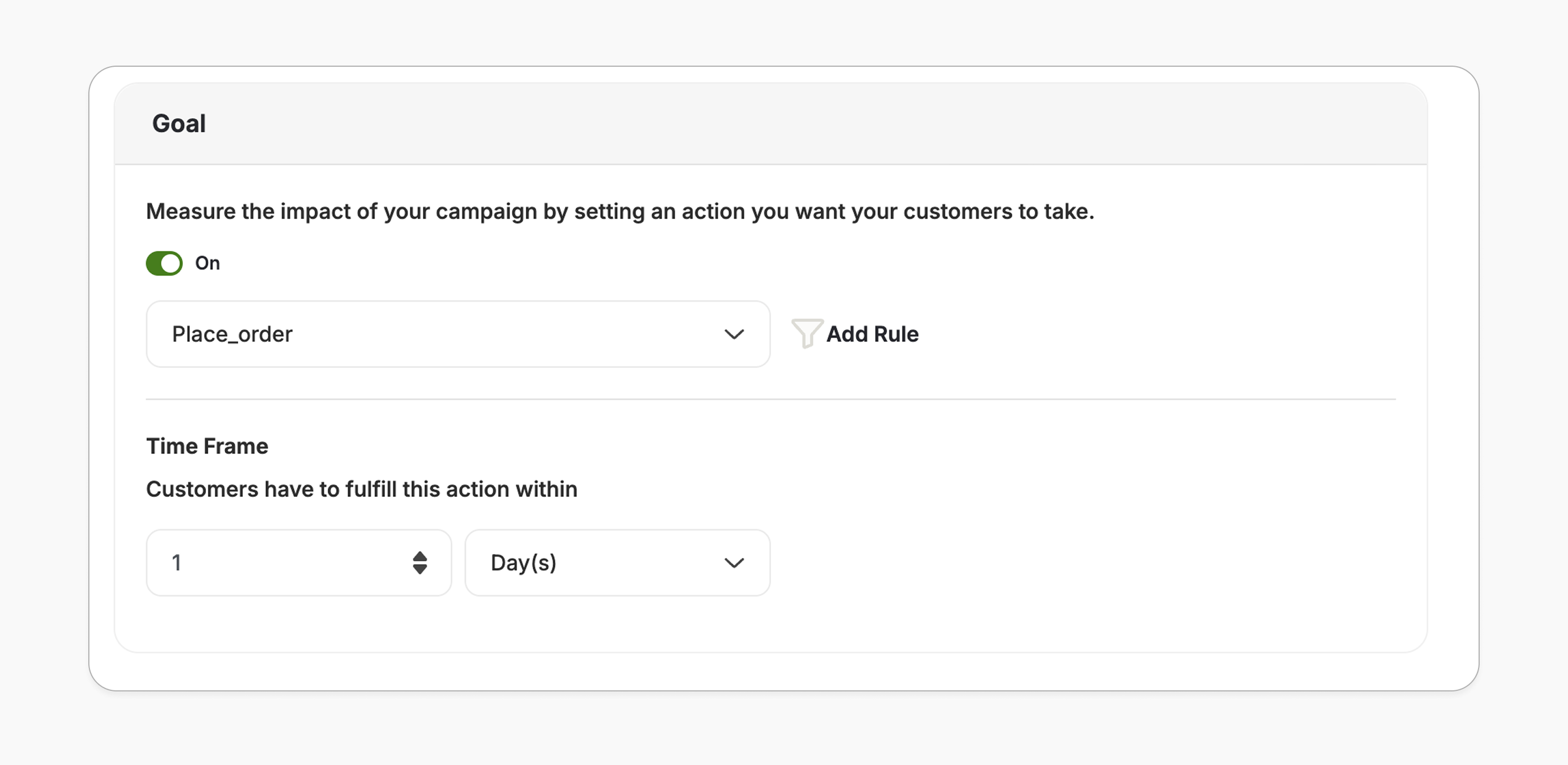 **Action**
Choose an event like `place_order`, and optionally add filters such as order value, location, or product category to refine it.
**Time Frame**
The goal time frame defines how long customers have to complete the action after the campaign starts (e.g., within 7 days). The count starts from when the campaign starts, not when it ends.
***
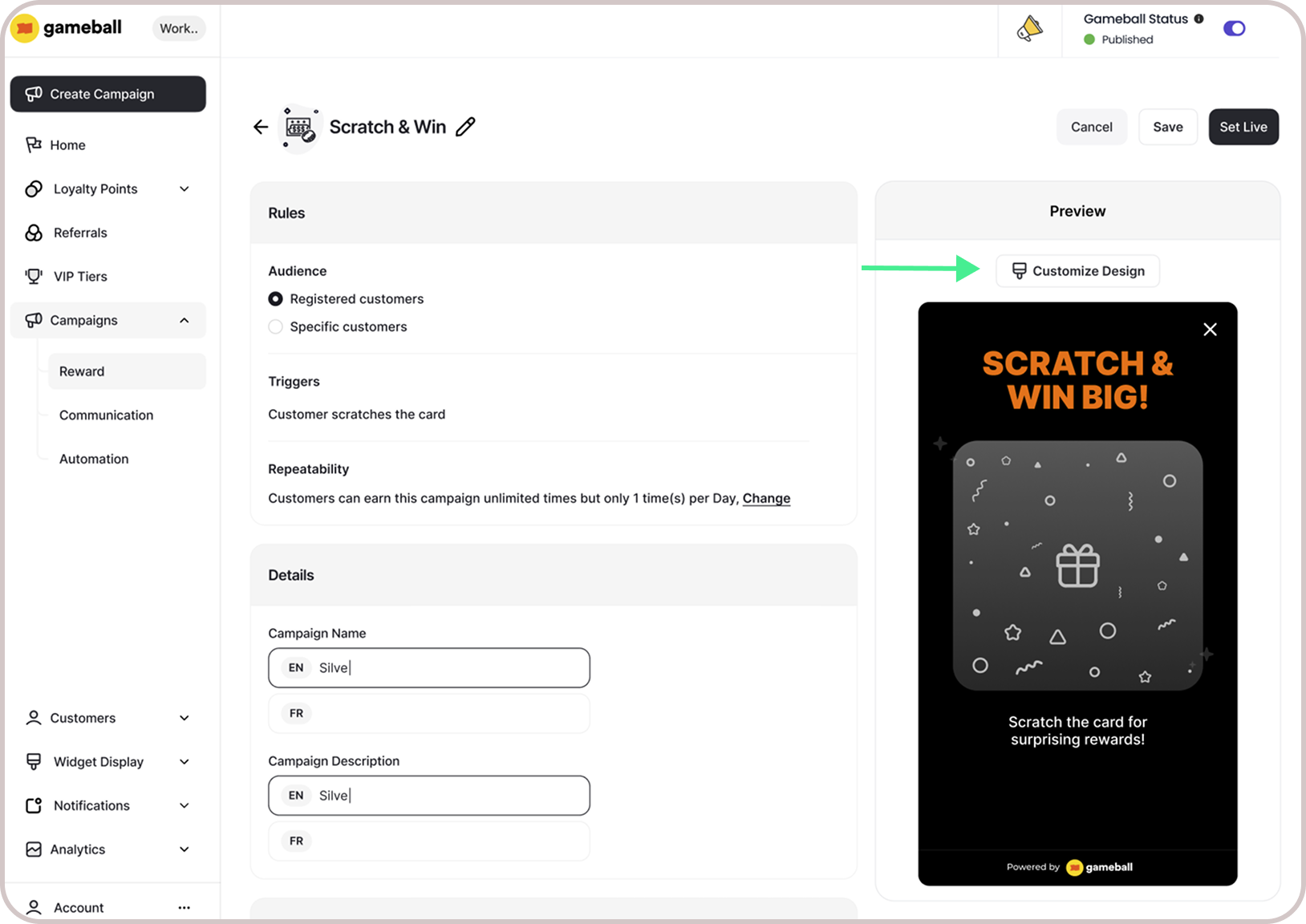
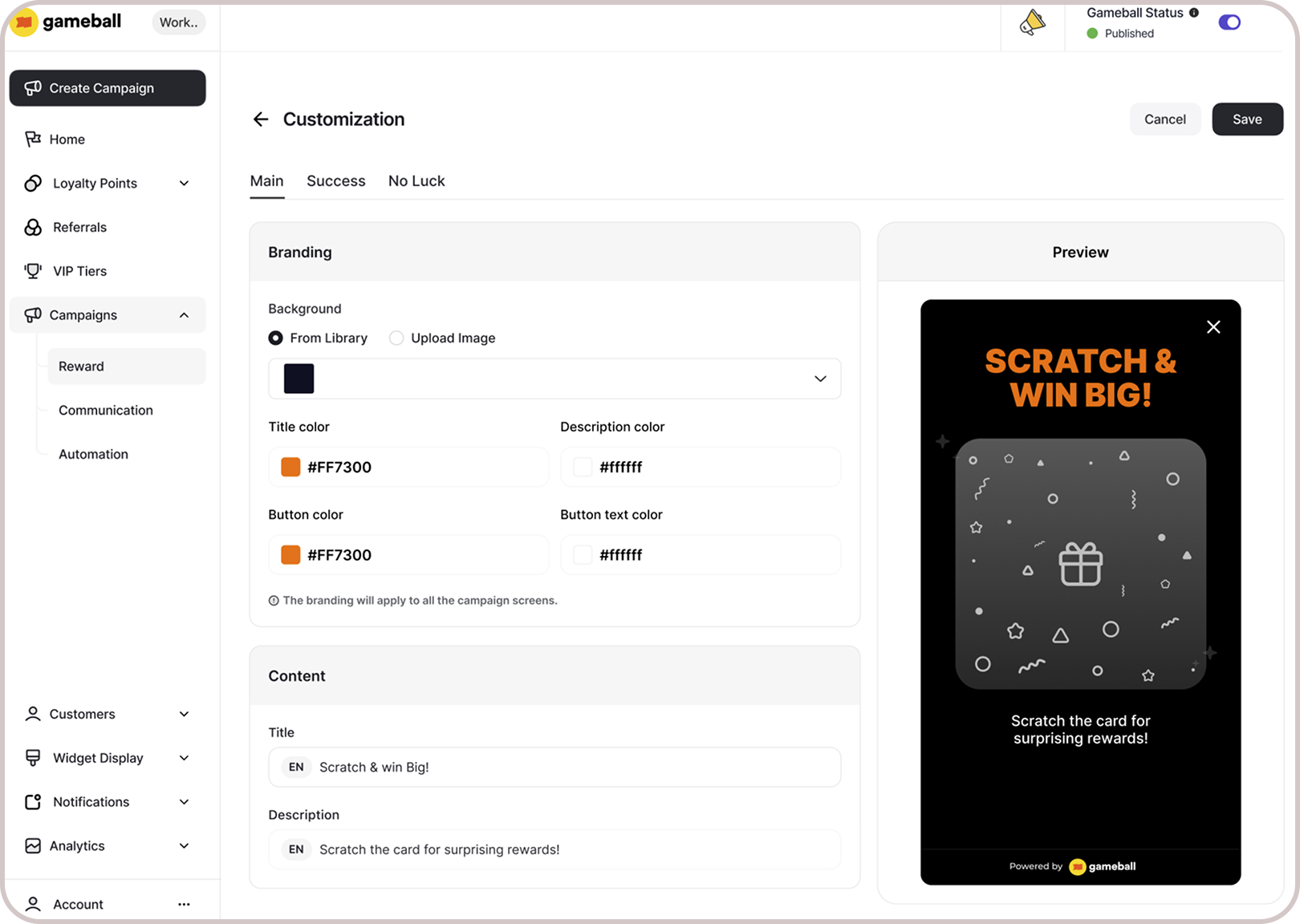
## Customization
### Design and Content
You can fully customize each stage of the campaign through dedicated tabs representing the different screens in the flow:
* **Banner (For game-based campaigns)**
* **Intro / Main Screen**
* **Lead Form (if audience set to Anonymous Customers - Not logged in)**
* **Success Screen**
* **No Luck Screen**
For each screen, you can tailor the following elements:
* **Branding**: Adjust background colors, text colors, and upload custom artworks.
* **Content**: Edit the headlines, descriptions, and call-to-action messages to match your tone and messaging.
This allows you to create a fully branded, on-theme experience that aligns with your business identity.
**Action**
Choose an event like `place_order`, and optionally add filters such as order value, location, or product category to refine it.
**Time Frame**
The goal time frame defines how long customers have to complete the action after the campaign starts (e.g., within 7 days). The count starts from when the campaign starts, not when it ends.
***
## Customization
### Design and Content
You can fully customize each stage of the campaign through dedicated tabs representing the different screens in the flow:
* **Banner (For game-based campaigns)**
* **Intro / Main Screen**
* **Lead Form (if audience set to Anonymous Customers - Not logged in)**
* **Success Screen**
* **No Luck Screen**
For each screen, you can tailor the following elements:
* **Branding**: Adjust background colors, text colors, and upload custom artworks.
* **Content**: Edit the headlines, descriptions, and call-to-action messages to match your tone and messaging.
This allows you to create a fully branded, on-theme experience that aligns with your business identity.
 Customizing the lead form also allows you to add a hyperlink to the "terms and services" so that customers can read and accept them before clicking submit.
***
## Budget Control
Budget Control system allows you to define, monitor, and enforce spending limits for reward-based campaigns. This provides tighter cost governance, clearer visibility, and automated safeguards against overspending.
Customizing the lead form also allows you to add a hyperlink to the "terms and services" so that customers can read and accept them before clicking submit.
***
## Budget Control
Budget Control system allows you to define, monitor, and enforce spending limits for reward-based campaigns. This provides tighter cost governance, clearer visibility, and automated safeguards against overspending.
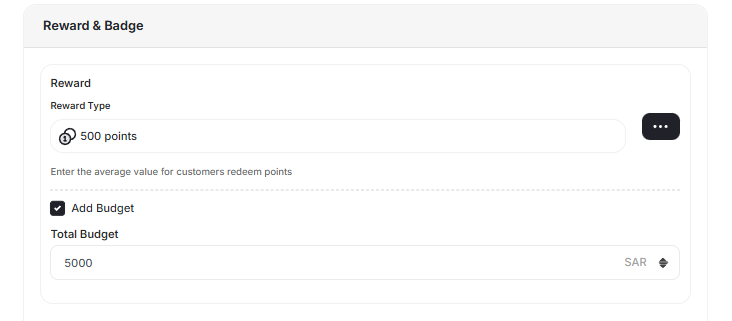 When creating a campaign, you can enable Budget Control to set a Total Budget, which is always defined in the workspace currency and cannot be changed afterward. Once activated, the system uses the entered amount as the campaign's full spending limit and automatically displays any additional configuration fields needed based on the reward type to ensure accurate cost calculation.
Budget Control requires a valid numerical value, and negative or non-numeric entries are not allowed. If Budget Control is turned on for a campaign that is already active or has been active before, tracking begins only from that moment, previous spending is not counted.
Turning the feature off resets the budget entirely, clears all accumulated metrics, and removes budget-related data from the campaign preview; re-enabling it starts fresh tracking with no historical records.
When editing an existing budget, the system prevents you from saving a value lower than the issued or actual spend and displays a warning if the current costs already exceed the proposed amount. Within the campaign overview, a dedicated Budget card shows the Total Budget, Issued Cost (liability), and Actual Spend (redeemed rewards), and tracking continues even if the campaign becomes inactive since previously issued rewards may still be redeemed.
You will also receive automated email alerts when spending reaches 50%, 80%, and 100% of the budget, and the campaign is automatically deactivated upon hitting 100% to prevent any further spending.
Yes. Once a campaign reaches 100% of its budget, it is automatically deactivated. You will also receive email notifications when the budget reaches 50%, 80%, and 100%.
As for the badge, its visibility depends on two things:
1. Whether the customer has completed the campaign.
2. The badge visibility setting you selected when configuring the campaign.
If a customer has earned the campaign reward, the badge will still appear for them. If not, its visibility will follow the rules you set.
**What does "badge visibility" mean?**
When setting up a campaign, you can choose how (or if) the campaign's badge appears inside the widget. You have three options:
**1. No Badge**
The campaign will not appear anywhere in the widget, whether the customer earns it or not.
**2. Always Visible**
The badge will appear dimmed before the customer earns it. Once earned, it becomes highlighted and will remain visible permanently, even if the campaign is later deactivated.
**3. Visible If Earned**
The badge remains hidden until the customer earns the reward. After achievement, it appears highlighted and stays visible permanently, even if the campaign is deactivated.
When creating a campaign, you can enable Budget Control to set a Total Budget, which is always defined in the workspace currency and cannot be changed afterward. Once activated, the system uses the entered amount as the campaign's full spending limit and automatically displays any additional configuration fields needed based on the reward type to ensure accurate cost calculation.
Budget Control requires a valid numerical value, and negative or non-numeric entries are not allowed. If Budget Control is turned on for a campaign that is already active or has been active before, tracking begins only from that moment, previous spending is not counted.
Turning the feature off resets the budget entirely, clears all accumulated metrics, and removes budget-related data from the campaign preview; re-enabling it starts fresh tracking with no historical records.
When editing an existing budget, the system prevents you from saving a value lower than the issued or actual spend and displays a warning if the current costs already exceed the proposed amount. Within the campaign overview, a dedicated Budget card shows the Total Budget, Issued Cost (liability), and Actual Spend (redeemed rewards), and tracking continues even if the campaign becomes inactive since previously issued rewards may still be redeemed.
You will also receive automated email alerts when spending reaches 50%, 80%, and 100% of the budget, and the campaign is automatically deactivated upon hitting 100% to prevent any further spending.
Yes. Once a campaign reaches 100% of its budget, it is automatically deactivated. You will also receive email notifications when the budget reaches 50%, 80%, and 100%.
As for the badge, its visibility depends on two things:
1. Whether the customer has completed the campaign.
2. The badge visibility setting you selected when configuring the campaign.
If a customer has earned the campaign reward, the badge will still appear for them. If not, its visibility will follow the rules you set.
**What does "badge visibility" mean?**
When setting up a campaign, you can choose how (or if) the campaign's badge appears inside the widget. You have three options:
**1. No Badge**
The campaign will not appear anywhere in the widget, whether the customer earns it or not.
**2. Always Visible**
The badge will appear dimmed before the customer earns it. Once earned, it becomes highlighted and will remain visible permanently, even if the campaign is later deactivated.
**3. Visible If Earned**
The badge remains hidden until the customer earns the reward. After achievement, it appears highlighted and stays visible permanently, even if the campaign is deactivated.