> ## Documentation Index
> Fetch the complete documentation index at: https://docs.gameball.co/llms.txt
> Use this file to discover all available pages before exploring further.
# How Do I Create an Action-based Reward Campaign?
> Learn how to create and configure an Action-Based reward campaign from scratch.
## Plan Availability
| Plan | Available |
| ---------- | --------- |
| Pro & Guru | Yes |
| Plan | Available |
| ---------- | --------- |
| Growth | Yes |
| Enterprise | Yes |
Reward campaigns are powerful tools for driving customer engagement and loyalty. With Gameball, you can easily create and configure reward campaigns tailored to your business objectives, and reward your customers for any action that they perform on your platform.
Let's say, for example, that you want to reward your customers when they visit a certain product page with a 100-point reward. Once the customer completes this action, the event will be sent to Gameball, and the customer will earn their reward. [Learn more about Gameball Events](/product-documentation/rewards-campaigns/start-from-scratch/setup-reward-campaign).
***
## Creating a New Action-Based Reward Campaign
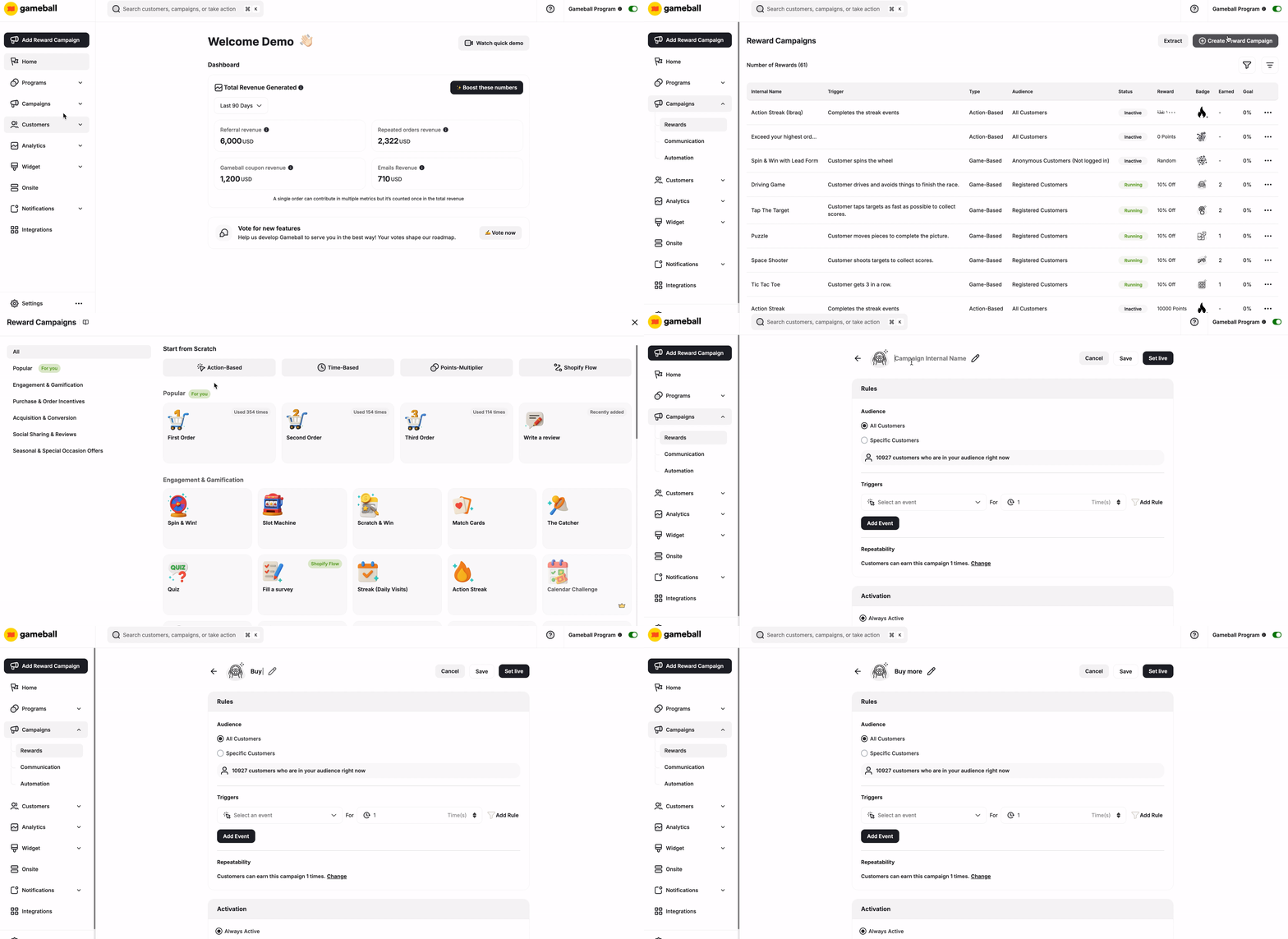
Log in to your **Gameball Dashboard**. Navigate to the **Campaigns** section on the left side menu and click on **Rewards**.
Click **Create Reward Campaign**. Choose **Action Based Reward** from the **'Start from Scratch'** section.
Give your new campaign an **internal name** for your team, and then start the configuration.
 ***
## Configuration of an Action-Based Reward Campaign
Define the rules that determine when customers receive the campaign's rewards. Utilize Gameball's event-based engine to create sequences of rules that customers must follow to earn rewards.
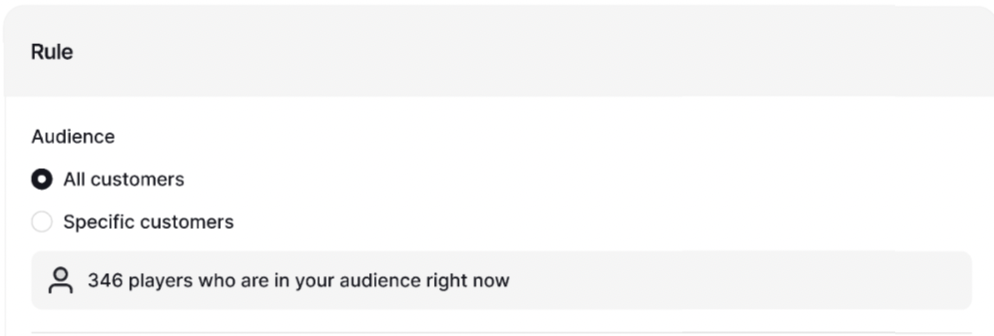
Choose who is eligible to view and participate in this campaign:
* All Customers
* Specific Customers:
* Segments
* Tags
* Customer Attributes
* Combination of Segments, Tags, or Customer Attributes
After choosing the campaign's audience, you will be able to view the number of customers that are currently eligible to participate in this campaign.
***
## Configuration of an Action-Based Reward Campaign
Define the rules that determine when customers receive the campaign's rewards. Utilize Gameball's event-based engine to create sequences of rules that customers must follow to earn rewards.
Choose who is eligible to view and participate in this campaign:
* All Customers
* Specific Customers:
* Segments
* Tags
* Customer Attributes
* Combination of Segments, Tags, or Customer Attributes
After choosing the campaign's audience, you will be able to view the number of customers that are currently eligible to participate in this campaign.
 Choose the rules that grant the customers the campaign's reward once achieved.
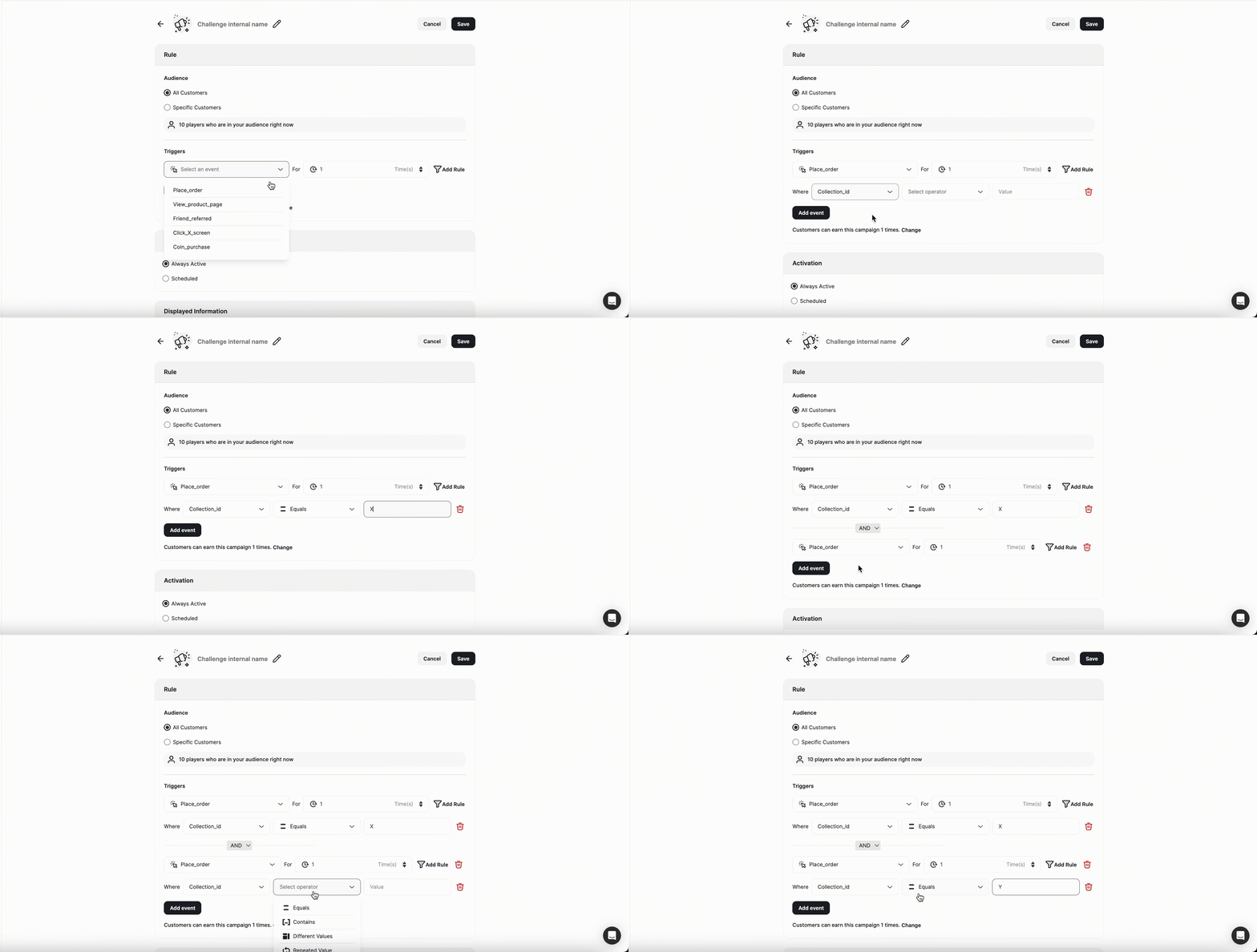
Let's say you want to reward the campaign's audience once they complete **1 order from Collection X, and 1 order from Collection Y**:
1. Select **Place Order** for the **Choose Event** dropdown menu.
2. Make your **After Counter** to **1** (this sets how many times the event should be achieved before rewarding the campaign).
3. **Add** a **Rule**, where the **Collection ID** equals **X**.
4. Add another Rule to complete the second part of the trigger. Click on **Add Rule**.
5. Select **Place Order** for the **Choose Event** dropdown menu.
6. Make your **After Counter** to **1**.
7. **Add** a **Rule**, where the **Collection ID** equals **Y**.
Check this article about [using the event engine](/product-documentation/rewards-campaigns/start-from-scratch/setup-reward-campaign) to understand more about how to create a campaign trigger.
Choose the rules that grant the customers the campaign's reward once achieved.
Let's say you want to reward the campaign's audience once they complete **1 order from Collection X, and 1 order from Collection Y**:
1. Select **Place Order** for the **Choose Event** dropdown menu.
2. Make your **After Counter** to **1** (this sets how many times the event should be achieved before rewarding the campaign).
3. **Add** a **Rule**, where the **Collection ID** equals **X**.
4. Add another Rule to complete the second part of the trigger. Click on **Add Rule**.
5. Select **Place Order** for the **Choose Event** dropdown menu.
6. Make your **After Counter** to **1**.
7. **Add** a **Rule**, where the **Collection ID** equals **Y**.
Check this article about [using the event engine](/product-documentation/rewards-campaigns/start-from-scratch/setup-reward-campaign) to understand more about how to create a campaign trigger.
 Define the repeatability settings to specify how many times customers can achieve the campaign's rewards.
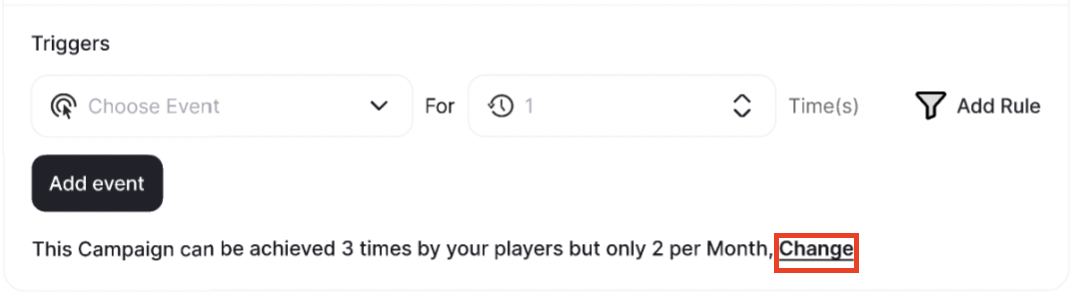 **No Limit Per Customer:**
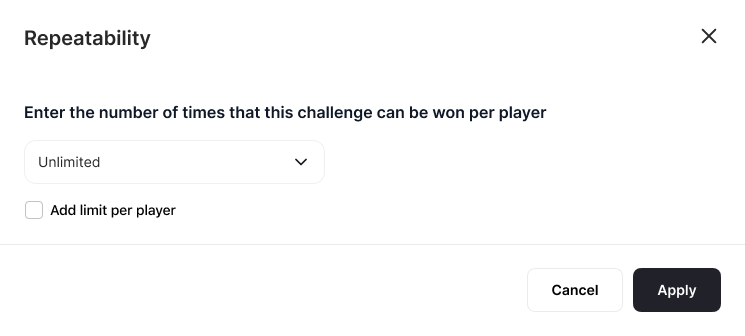
* **Unlimited per customer**: this campaign can be achieved by your customers every time the trigger is fulfilled.
**No Limit Per Customer:**
* **Unlimited per customer**: this campaign can be achieved by your customers every time the trigger is fulfilled.
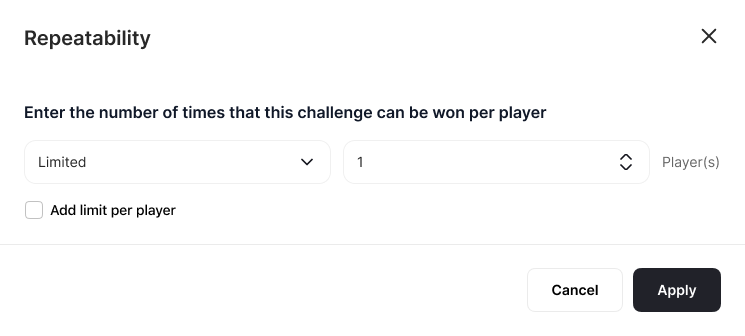
 * **Limited to 1 time or more:** this campaign can be achieved 1 time(s) after fulfilling the trigger.
 **With a Limit Per Customer:**
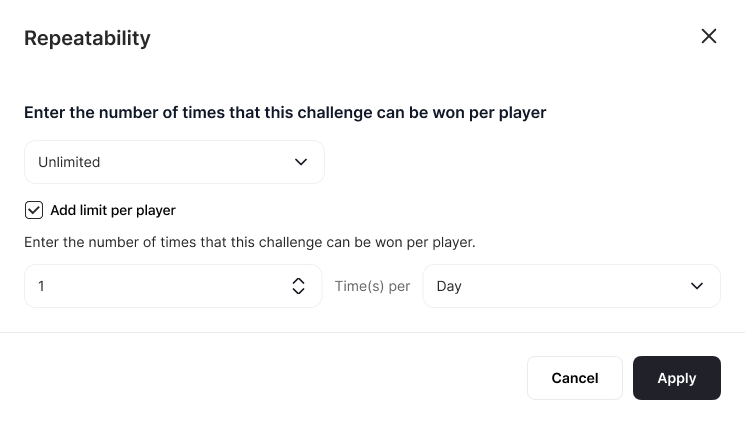
* **Unlimited Repeatability with a limit of 1 per day**: This campaign can be achieved by your customers every time the trigger is fulfilled, however, every customer can achieve it only 1 or more times/day.
**With a Limit Per Customer:**
* **Unlimited Repeatability with a limit of 1 per day**: This campaign can be achieved by your customers every time the trigger is fulfilled, however, every customer can achieve it only 1 or more times/day.
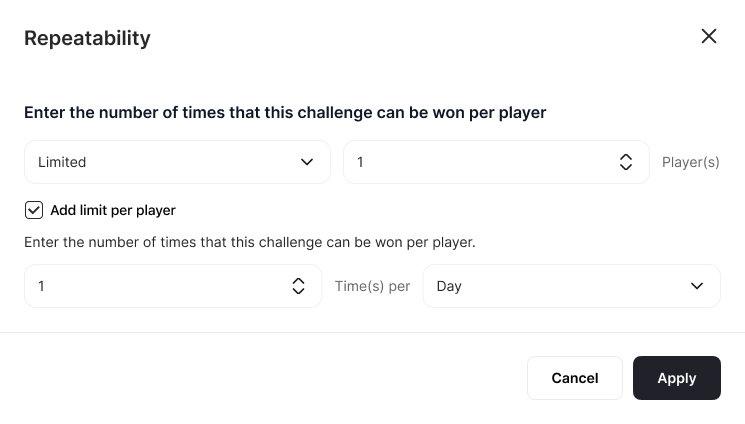
 * **Limited Repeatability with a limit of 1 per day**: This campaign can be achieved by your customers every time the trigger is fulfilled until the limit you've set, however, every customer can achieve it only 1 or more times/day.
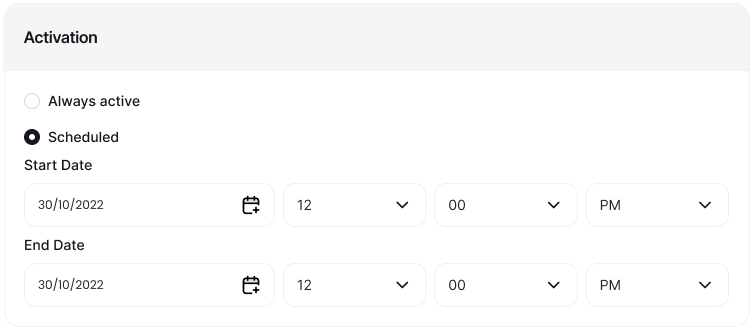
 Choose when this campaign will be available for your customers:
* **Always Active**: The campaign will always be available for its audience unless you deactivate it.
* **Scheduled**: The campaign will have a certain **start date** and **end date**. Before and after these dates, the campaign will not be visible to the audience.
Choose when this campaign will be available for your customers:
* **Always Active**: The campaign will always be available for its audience unless you deactivate it.
* **Scheduled**: The campaign will have a certain **start date** and **end date**. Before and after these dates, the campaign will not be visible to the audience.
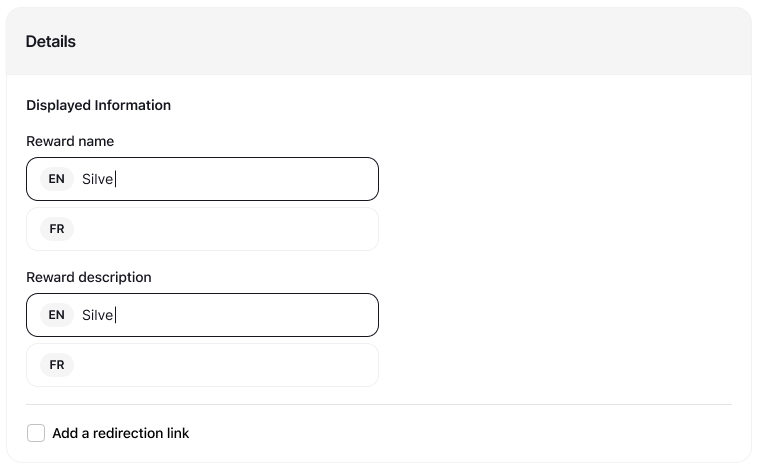
 Set up the information that will be displayed to the customers on Gameball's widget on your website/mobile app:
* Reward Name
* Reward Information
* \[Optional] Redirection Link (Navigates the customers to a desired page on the website/mobile app).
Set up the information that will be displayed to the customers on Gameball's widget on your website/mobile app:
* Reward Name
* Reward Information
* \[Optional] Redirection Link (Navigates the customers to a desired page on the website/mobile app).
 **Rewards**
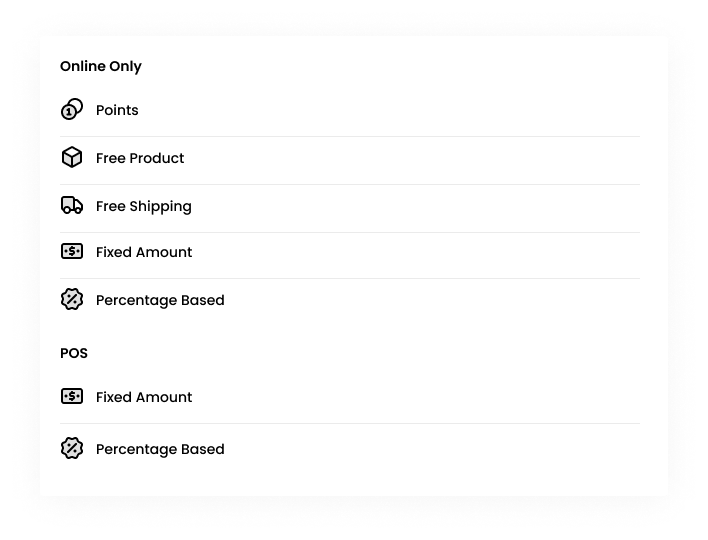
Choose the type of reward that you will offer the audience once they achieve this campaign, and define the reward parameters to ensure it aligns with your campaign goals.
Choose one of the following **Reward Types**:
* Points
* Free Product
* Free Delivery
* Fixed Amount
* Percentage Based Discount
[Learn more on how to set up each Reward type.](/product-documentation/rewards-campaigns/start-from-scratch/setup-reward-campaign)
**Rewards**
Choose the type of reward that you will offer the audience once they achieve this campaign, and define the reward parameters to ensure it aligns with your campaign goals.
Choose one of the following **Reward Types**:
* Points
* Free Product
* Free Delivery
* Fixed Amount
* Percentage Based Discount
[Learn more on how to set up each Reward type.](/product-documentation/rewards-campaigns/start-from-scratch/setup-reward-campaign)
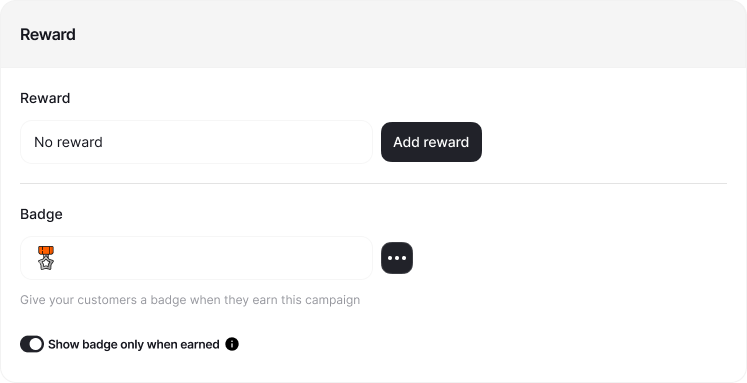
 **Badge**
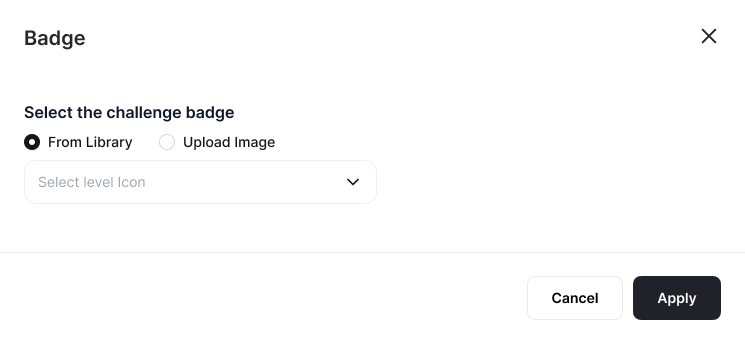
Along with the reward, the customer will be rewarded a Badge for the campaigns they achieve. Customize badge settings to visually represent the campaign's achievement:
1. Choose a **Badge Icon** for this campaign. You have three options:
* **Gameball Library** — Pick from a curated set of pre-made icons.
* **Upload** — Upload your own custom image.
* **AI Image Studio** — Type a text prompt to generate a custom image directly in the dashboard.
**Badge**
Along with the reward, the customer will be rewarded a Badge for the campaigns they achieve. Customize badge settings to visually represent the campaign's achievement:
1. Choose a **Badge Icon** for this campaign. You have three options:
* **Gameball Library** — Pick from a curated set of pre-made icons.
* **Upload** — Upload your own custom image.
* **AI Image Studio** — Type a text prompt to generate a custom image directly in the dashboard.
 2. Configure **Badge Visibility**:
* By **default, no badge** will be chosen (Campaign not visible on the widget).
* You can choose for it to be:
* Dimmed and becomes bright upon earning
2. Configure **Badge Visibility**:
* By **default, no badge** will be chosen (Campaign not visible on the widget).
* You can choose for it to be:
* Dimmed and becomes bright upon earning
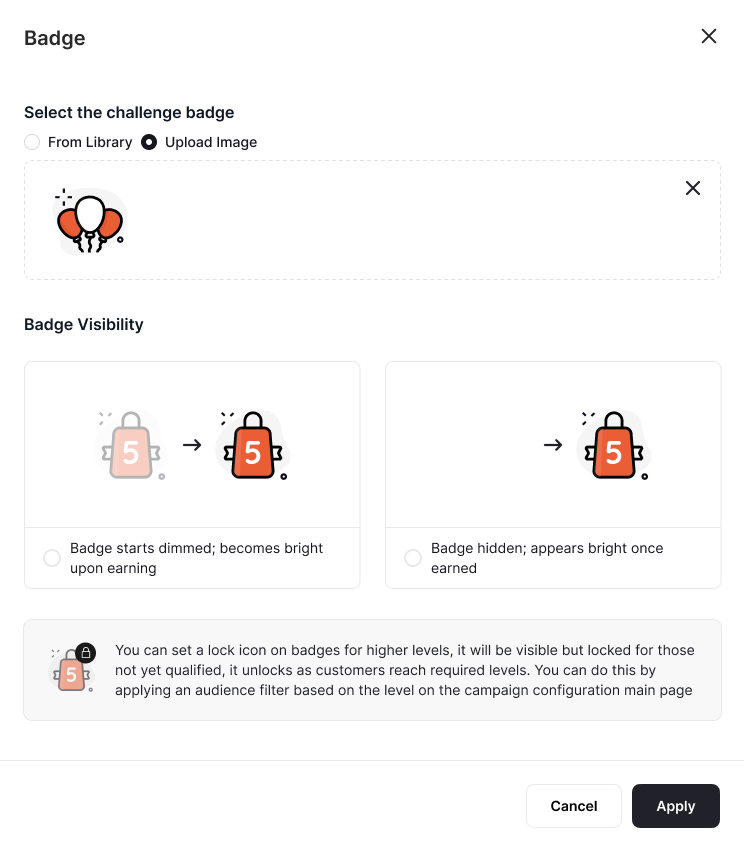 * Only **show badge when earned**
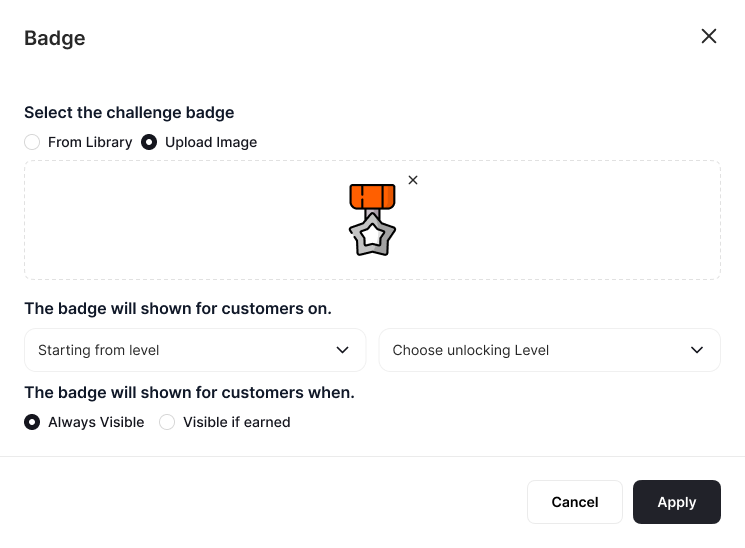
 3. Configure **Badge Unlocking Process:**
By default, the badge will be unlocked to all tiers; it will appear dimmed until earned. However, you can choose for the badge to start appearing to customers when they are on a certain tier:
3. Configure **Badge Unlocking Process:**
By default, the badge will be unlocked to all tiers; it will appear dimmed until earned. However, you can choose for the badge to start appearing to customers when they are on a certain tier:
 Configure **in-app and email notifications** to keep customers informed about their progress and achievements.
Decide whether you'd like to inform your customers upon achieving a reward campaign.
Select whether to notify customers after every completed action that brings them closer to achieving the reward campaign.
For both Notification types, you have the option to choose from the following:
Configure **in-app and email notifications** to keep customers informed about their progress and achievements.
Decide whether you'd like to inform your customers upon achieving a reward campaign.
Select whether to notify customers after every completed action that brings them closer to achieving the reward campaign.
For both Notification types, you have the option to choose from the following:
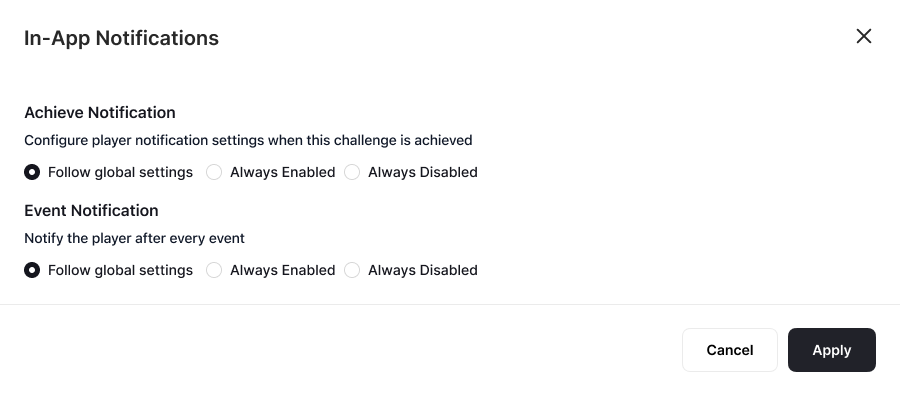 * **Follow Global Settings:** Notifications will adhere to the predefined notification settings you configured in the notifications section. [Learn more about sending real-time notifications for reward campaign programs.](/product-documentation/rewards-campaigns/start-from-scratch/setup-reward-campaign)
* **Always Enabled**: Customers will receive a notification after completing an event or reward campaign.
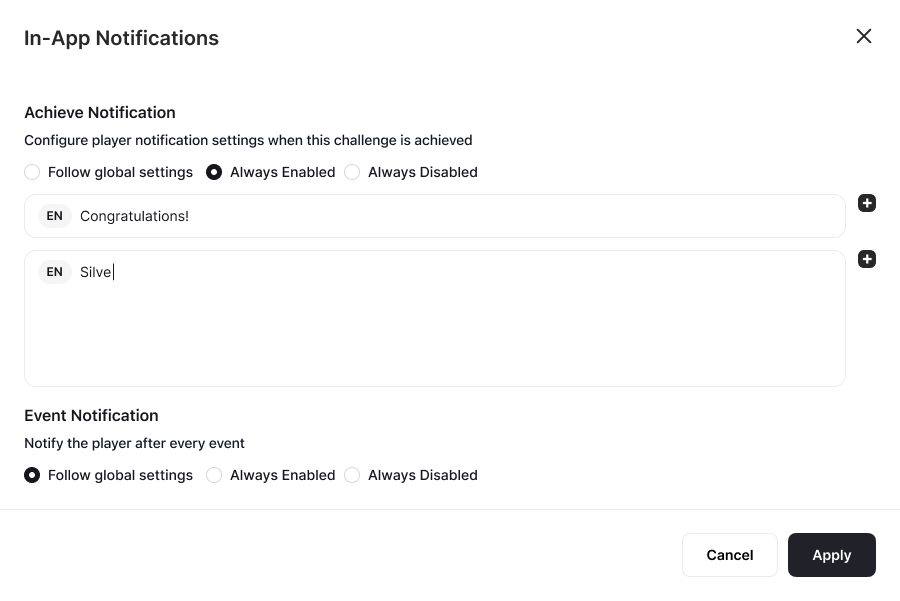
* **In-app Notification:** Add Notification **Title** and Notification **Body**.
* **Follow Global Settings:** Notifications will adhere to the predefined notification settings you configured in the notifications section. [Learn more about sending real-time notifications for reward campaign programs.](/product-documentation/rewards-campaigns/start-from-scratch/setup-reward-campaign)
* **Always Enabled**: Customers will receive a notification after completing an event or reward campaign.
* **In-app Notification:** Add Notification **Title** and Notification **Body**.
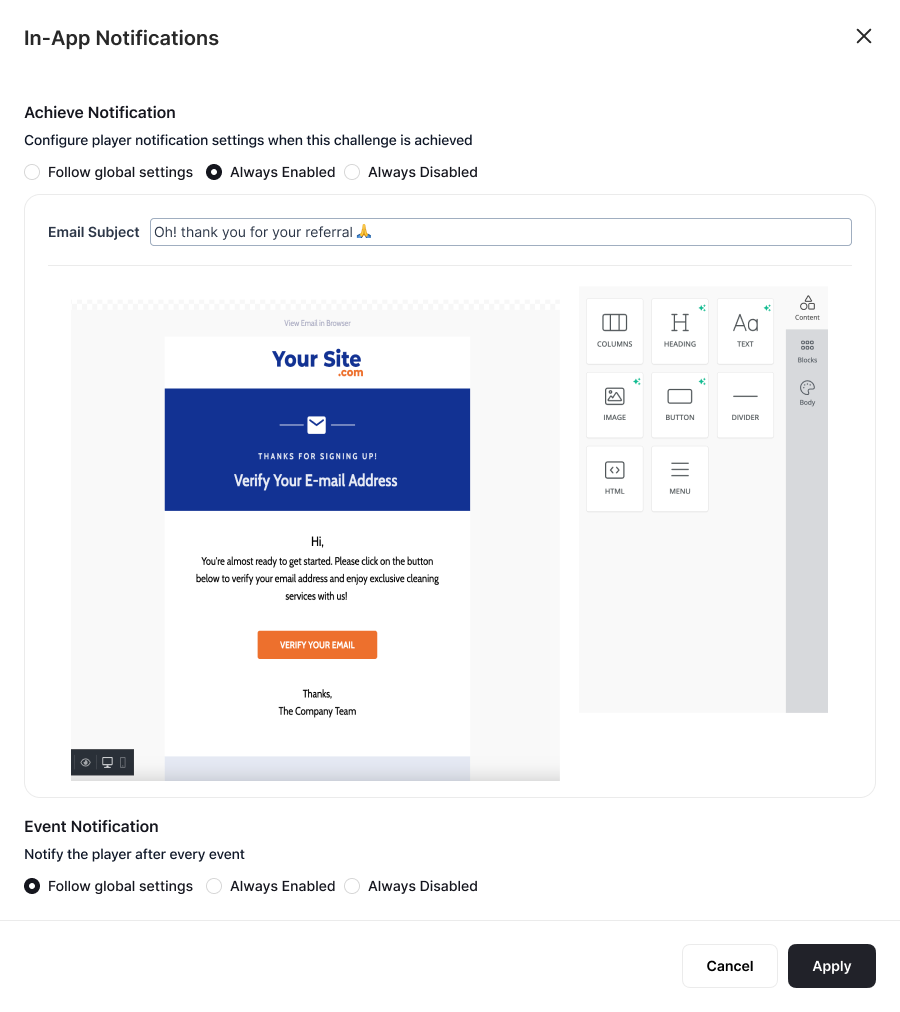
 * **Email:** Add Email Subject and use the Email Builder to Customize the Email.
 * **Always Disabled:** Customers will not receive any notifications after completing an event or reward campaign.
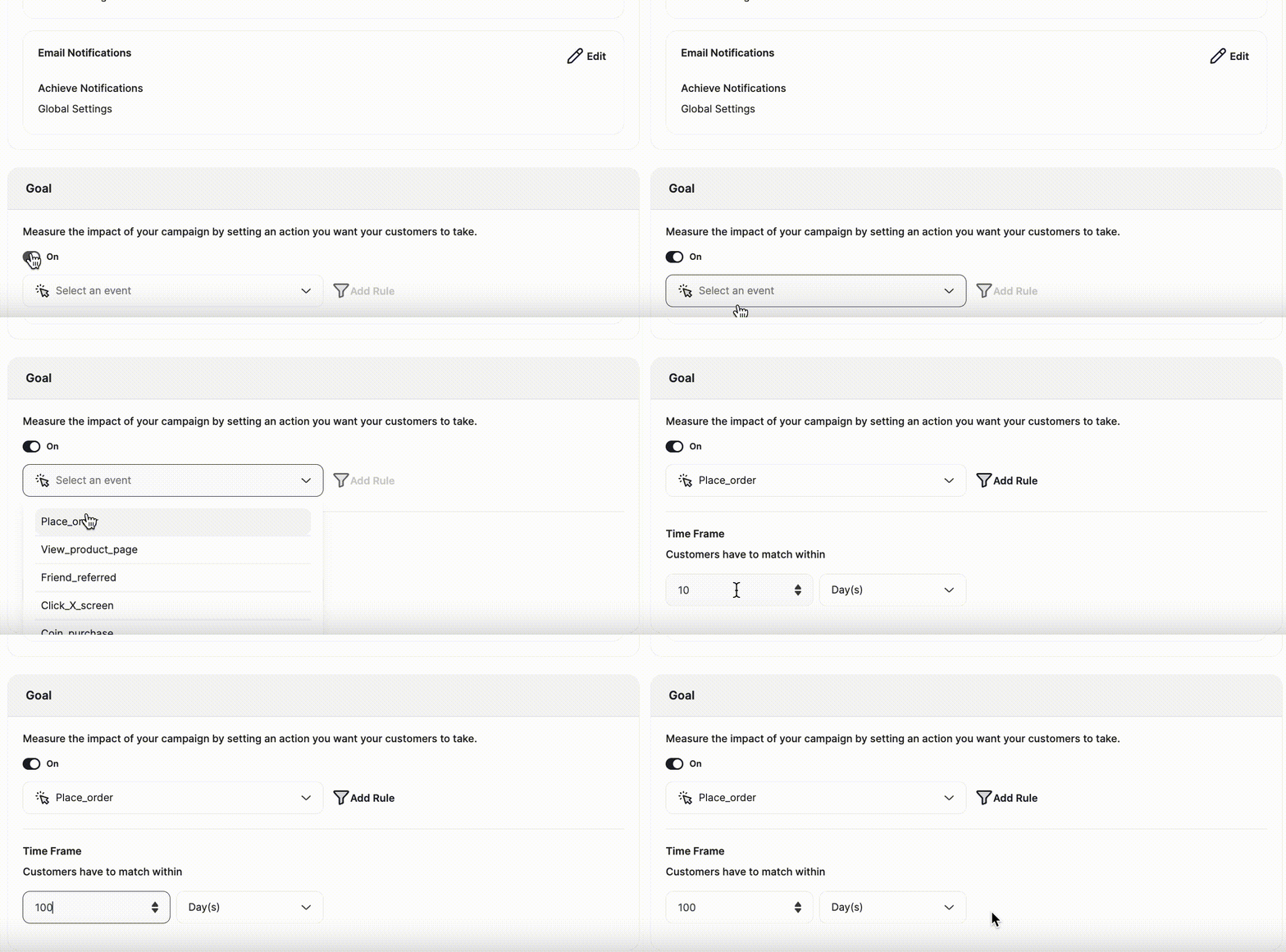
Define the campaign's goal to monitor its performance and effectiveness:
* Toggle the goal setting on or off based on your preference.
* Set event-based goals using the event engine to track customer actions and outcomes.
* **Always Disabled:** Customers will not receive any notifications after completing an event or reward campaign.
Define the campaign's goal to monitor its performance and effectiveness:
* Toggle the goal setting on or off based on your preference.
* Set event-based goals using the event engine to track customer actions and outcomes.
 Now that you have created and configured your campaign, remember to press **Save**, **Preview**, and then **Activate** your campaign.
There are other types of Reward Campaigns. Learn how to create and configure each of them below:
* [Create & Configure a Time-based Reward Campaign](/product-documentation/rewards-campaigns/start-from-scratch/create-time-based-reward-campaign)
* [Create & Configure a Points Multiplier Reward Campaign](/product-documentation/rewards-campaigns/start-from-scratch/create-point-multiplier-reward-campaign)
***
## Related Articles
Explore the full setup guide for reward campaigns, including events, rewards, and notifications.
Now that you have created and configured your campaign, remember to press **Save**, **Preview**, and then **Activate** your campaign.
There are other types of Reward Campaigns. Learn how to create and configure each of them below:
* [Create & Configure a Time-based Reward Campaign](/product-documentation/rewards-campaigns/start-from-scratch/create-time-based-reward-campaign)
* [Create & Configure a Points Multiplier Reward Campaign](/product-documentation/rewards-campaigns/start-from-scratch/create-point-multiplier-reward-campaign)
***
## Related Articles
Explore the full setup guide for reward campaigns, including events, rewards, and notifications.