> ## Documentation Index
> Fetch the complete documentation index at: https://docs.gameball.co/llms.txt
> Use this file to discover all available pages before exploring further.
# How Do I Set Up Calendar Campaign?
> Learn how to schedule interconnected or independent campaigns using calendar campaigns.
## Plan Availability
| Plan | Available |
| ------------- | --------- |
| Contact Sales | Yes |
Gameball Reward Campaigns often work as a powerful tool to engage customers in various ways. But each reward campaign is deployed on its own. In a special season, we know you sometimes want to deploy multiple reward campaigns as part of one theme. This is why Gameball has created the new Calendar Campaign.
The **Calendar Campaign** empowers you to create and manage multiple interconnected or independent campaigns, offering complete control over scheduling. Each campaign consists of **entities** (sub-campaigns), which can be customized based on your needs.
Customers will also find themselves ranking on a **leaderboard** that compares their performance and interaction with other customers who are also interacting with the campaign.
The Calendar Campaign leaderboard is **campaign-specific** — it ranks customers based on their performance within this campaign only, and is available as part of the Calendar Campaign feature. This is separate from the **program-wide leaderboard** in Widget General Settings, which ranks customers across your entire loyalty program and requires a specific plan or add-on.
***
## How Calendar Campaigns Work
You can define the number of entities within a campaign, making it flexible for various durations and events. For example:
Use 30 entities for a month-long challenge, deploying a new game or action every day.
Use 7 entities for a week-long event such as Black Friday week.
Use 3 entities for a short festival such as Eid or a holiday weekend.
***
## Creating a Calendar Campaign
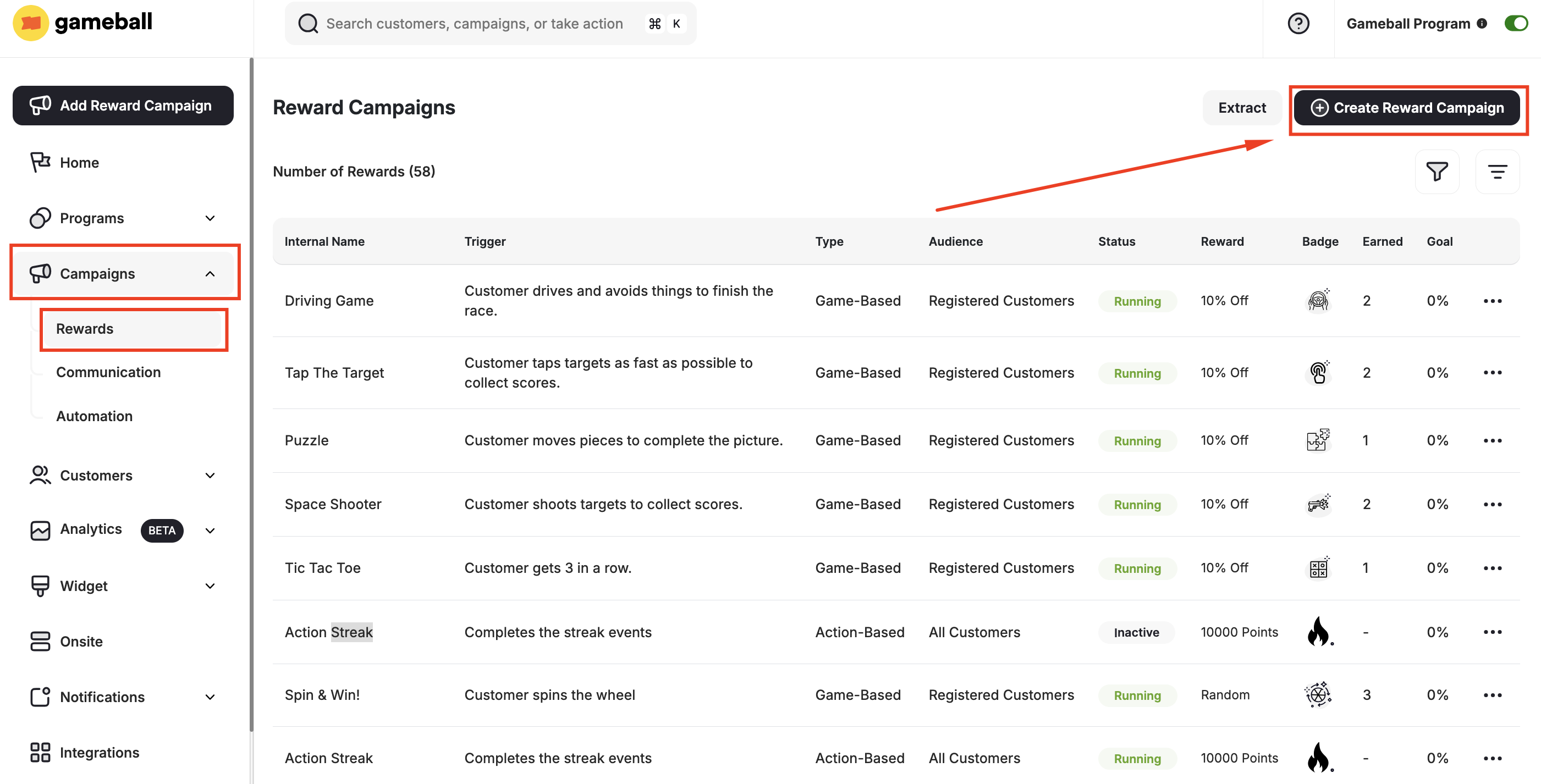
From the left bar, choose **Reward** under **Campaigns**. Click **Create New Reward Campaign**.
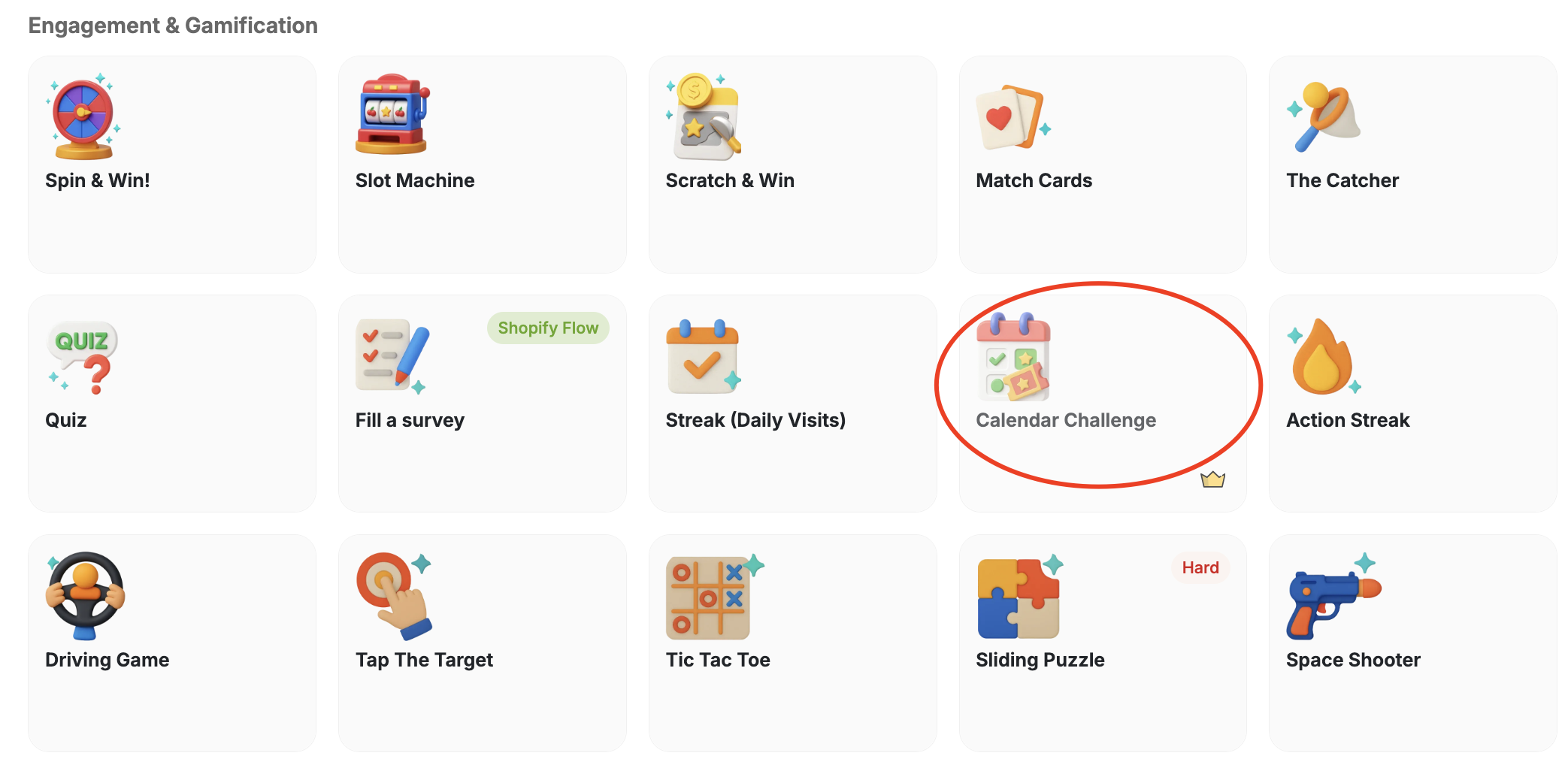
 Scroll down to choose the **Calendar Campaign** under **Engagement & Gamification**.
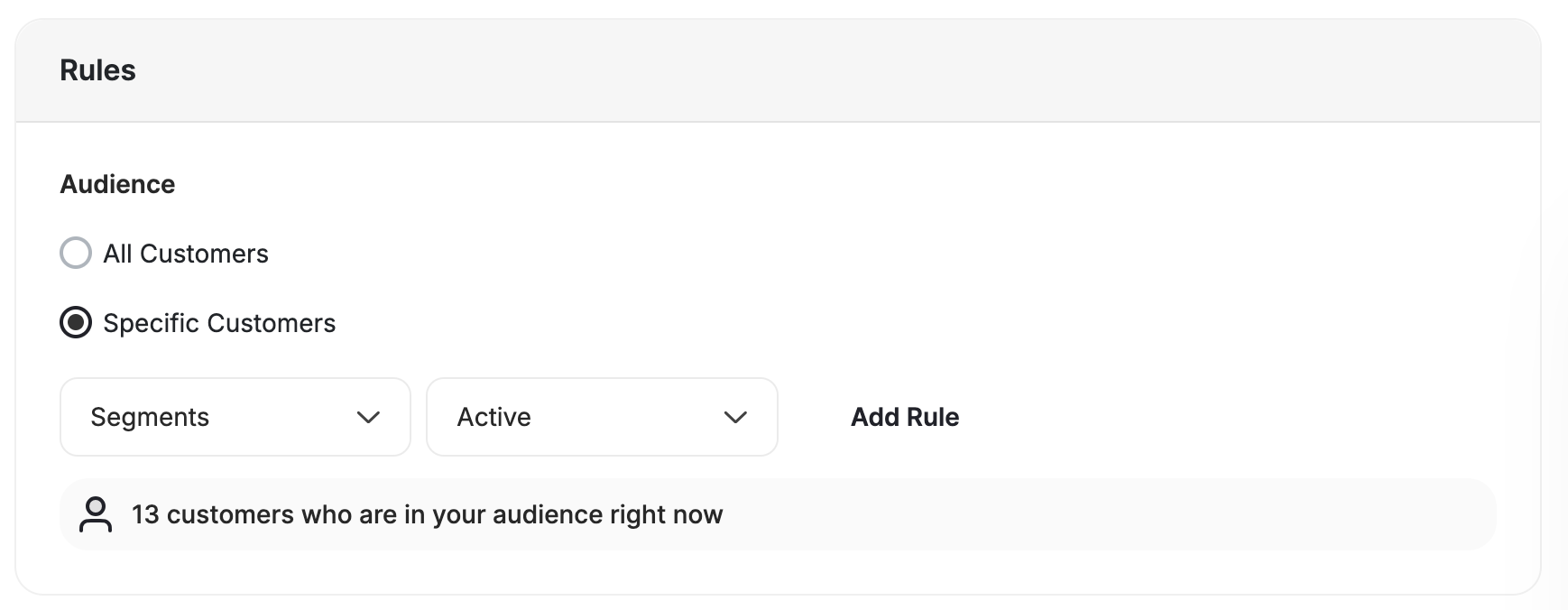
 Select who will participate in the campaign.
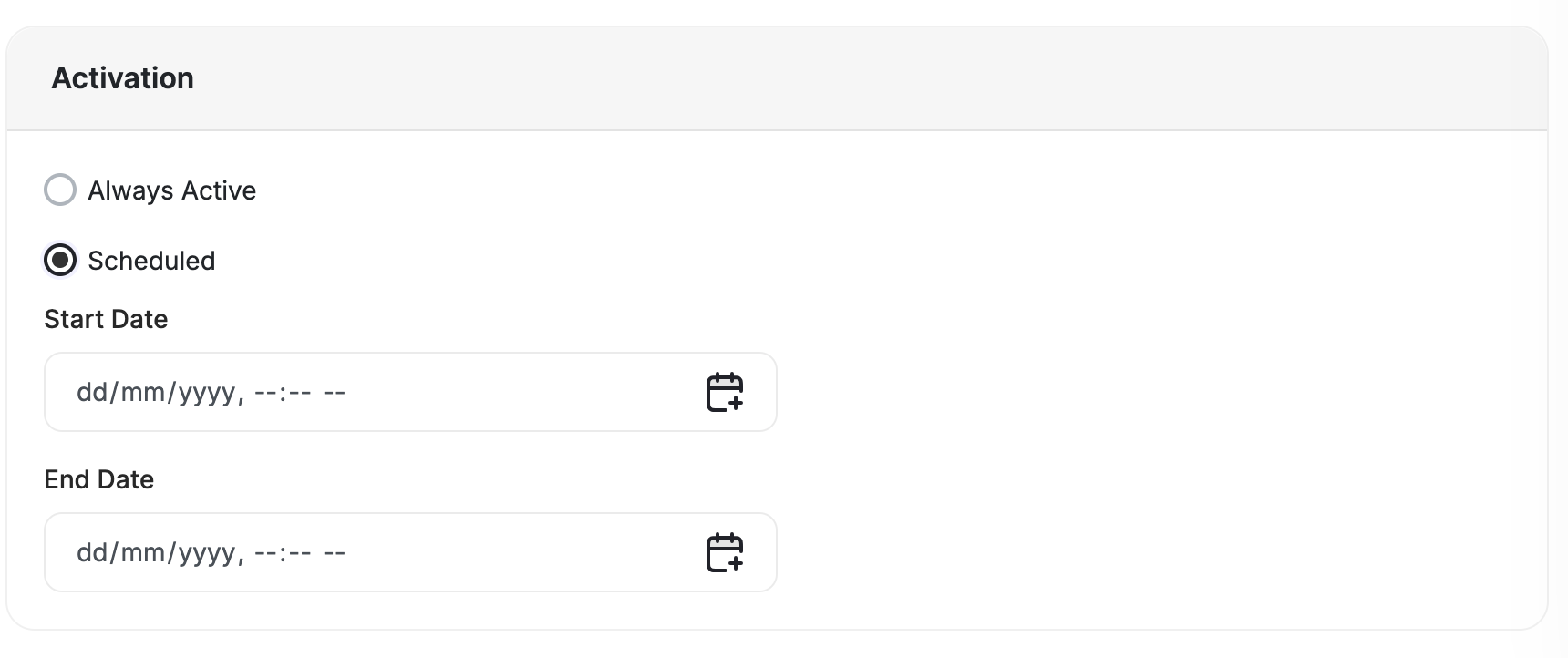
 Configure the activation window for the overall campaign.
 Add individual sub-campaigns (entities) to the calendar.
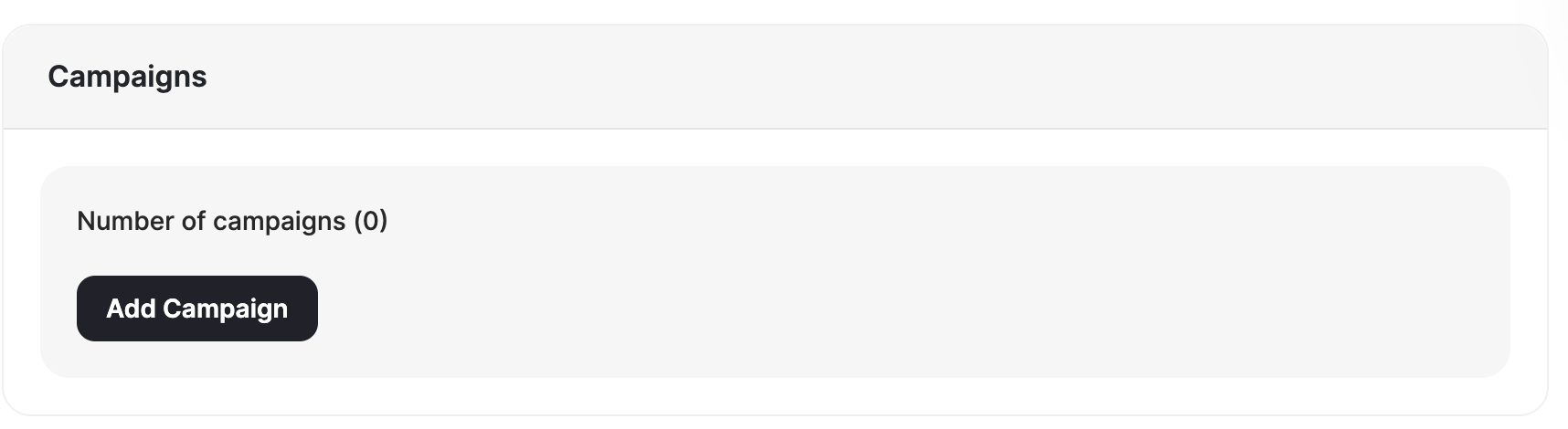 Each entity within the campaign can feature one of the following engaging games:
Let customers spin to win prizes from a randomized wheel of rewards.
Reward customers when all three slots align in this luck-based game.
Challenge customers with trivia questions to earn rewards.
Give customers a digital scratch card to reveal their prize.
Each entity within the campaign can feature one of the following engaging games:
Let customers spin to win prizes from a randomized wheel of rewards.
Reward customers when all three slots align in this luck-based game.
Challenge customers with trivia questions to earn rewards.
Give customers a digital scratch card to reveal their prize.
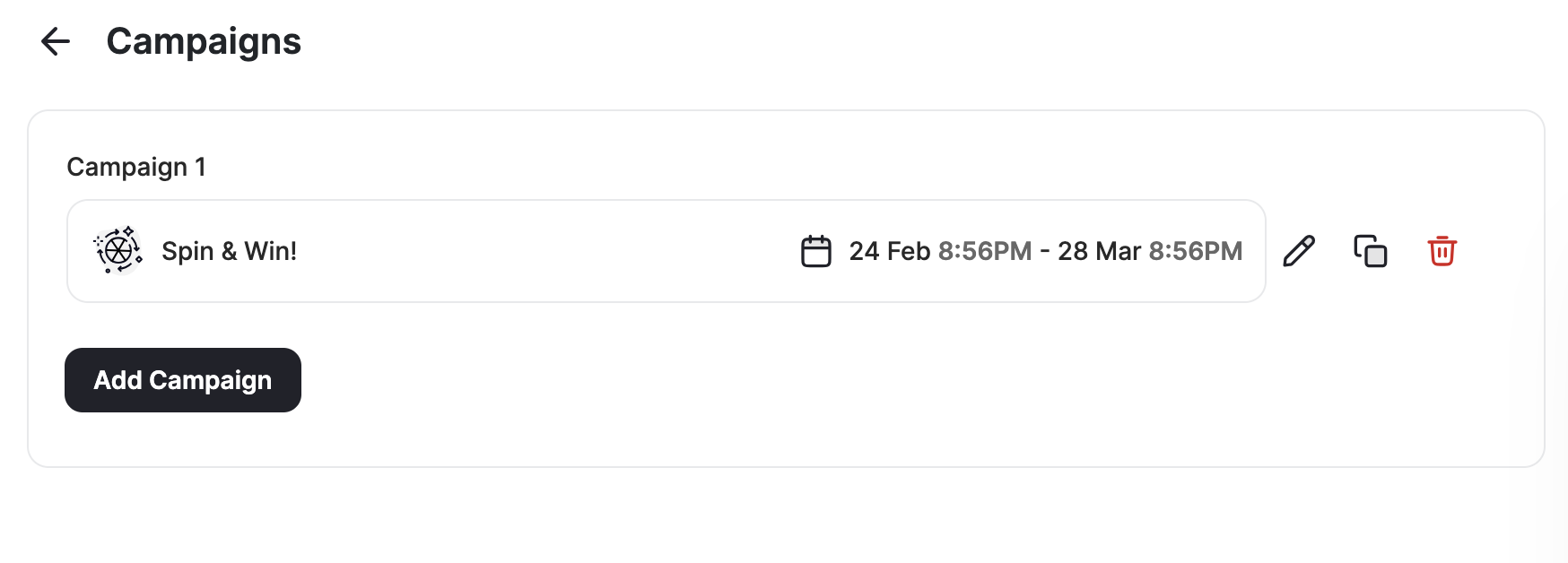
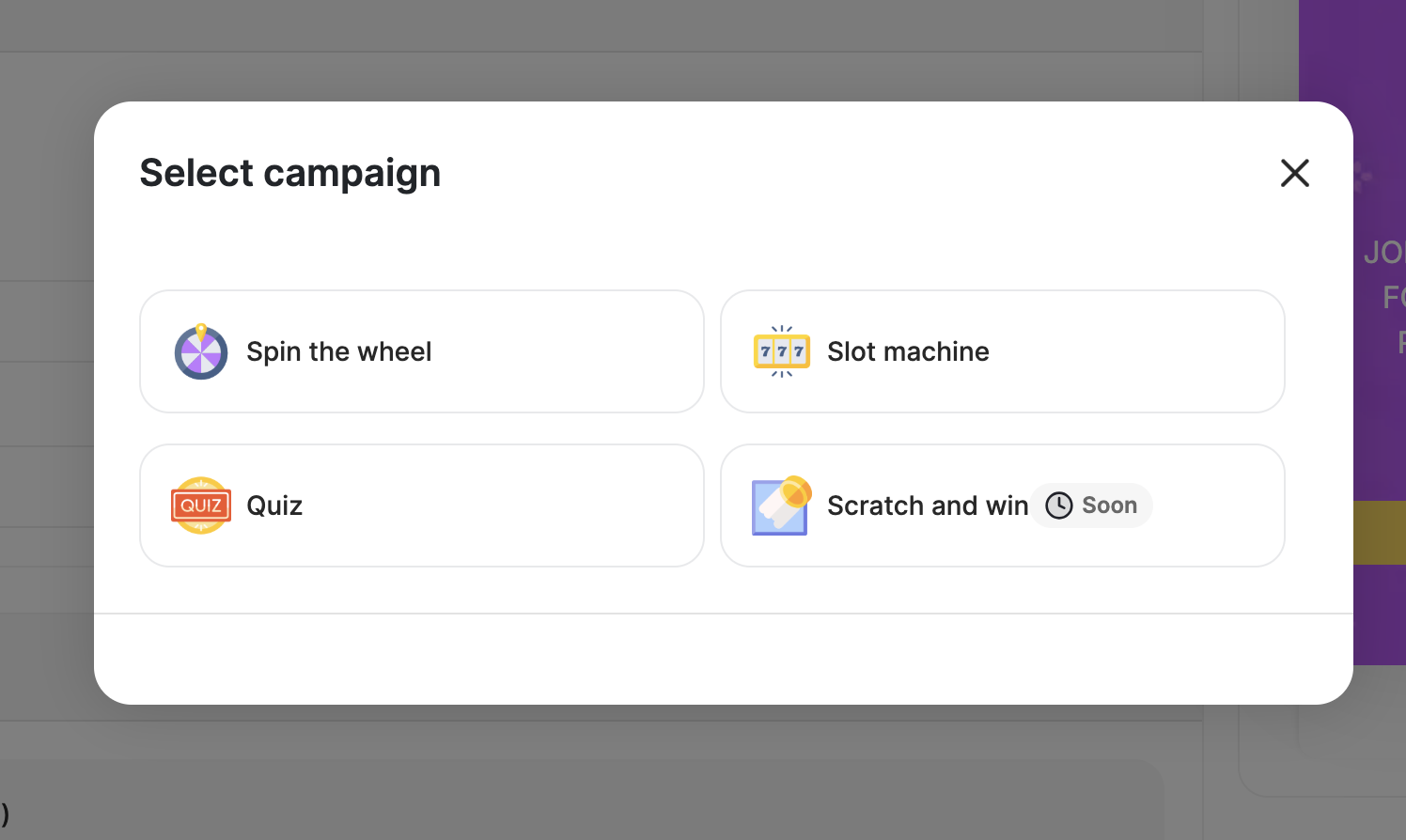 Each entity can have its own unlock and lock dates through **Custom Scheduling**, allowing campaigns to run sequentially or independently, depending on your strategy.
When you are done with creating the first Entity (sub-campaign), click **Save** and choose if you want to add more campaigns.
Each entity can have its own unlock and lock dates through **Custom Scheduling**, allowing campaigns to run sequentially or independently, depending on your strategy.
When you are done with creating the first Entity (sub-campaign), click **Save** and choose if you want to add more campaigns.
 ***
## How Calendar Campaign Looks on the Widget
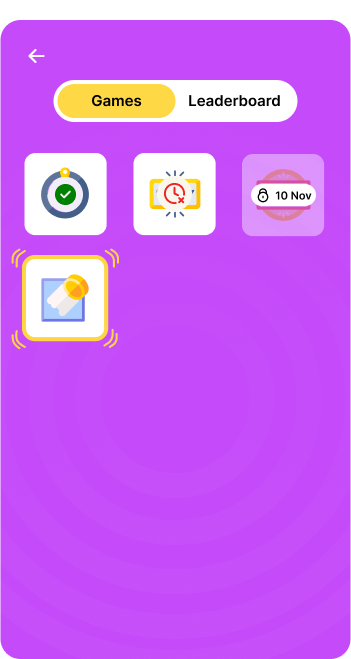
After adding multiple entities to your calendar campaign, the customers will be able to see all scheduled sub-campaigns ahead of their unlock time to motivate them to come back and proceed with their wins.
***
## How Calendar Campaign Looks on the Widget
After adding multiple entities to your calendar campaign, the customers will be able to see all scheduled sub-campaigns ahead of their unlock time to motivate them to come back and proceed with their wins.
 ***
## Customize Calendar Campaign and Leaderboard
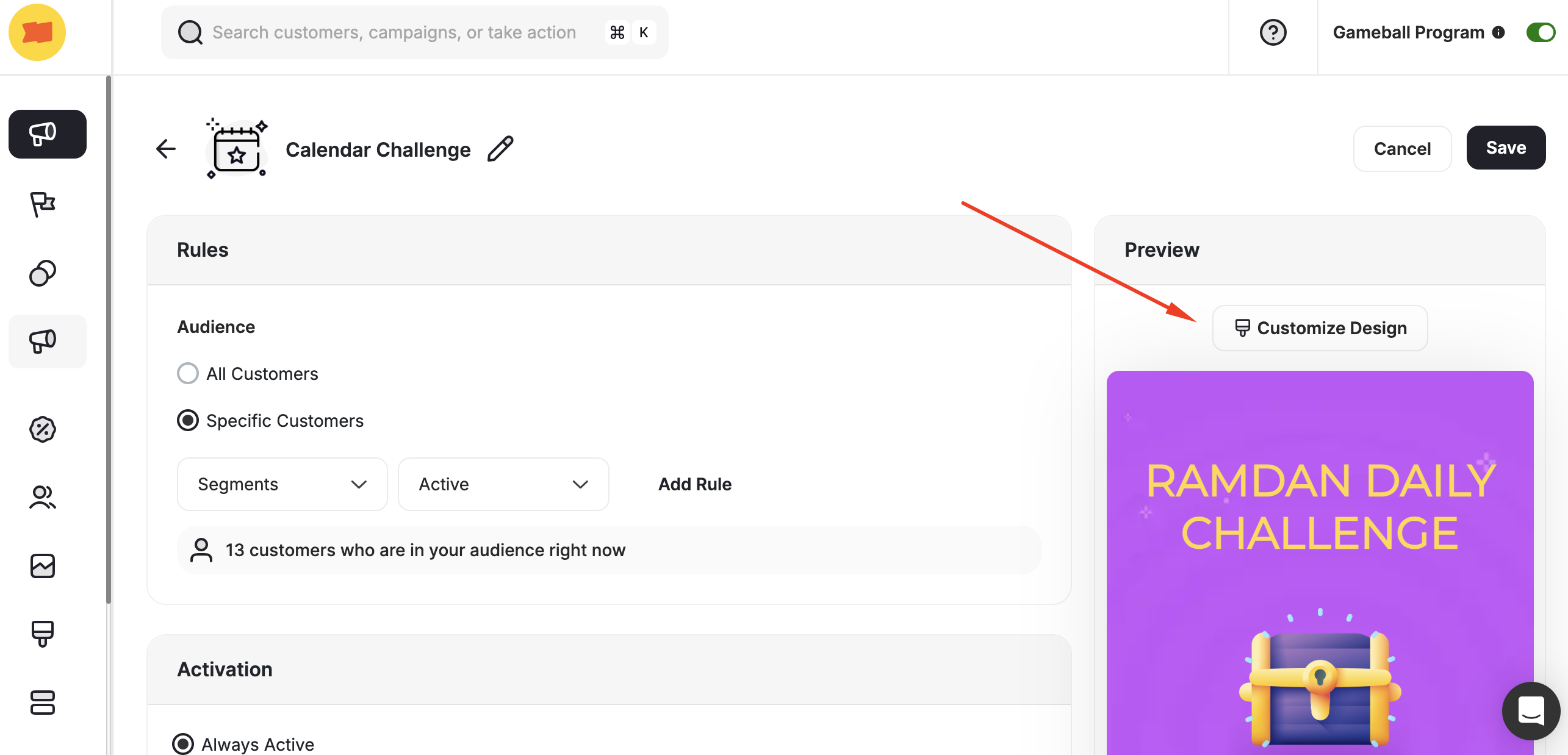
To design the calendar campaign as well as the leaderboard, click on **Customize Design**.
***
## Customize Calendar Campaign and Leaderboard
To design the calendar campaign as well as the leaderboard, click on **Customize Design**.
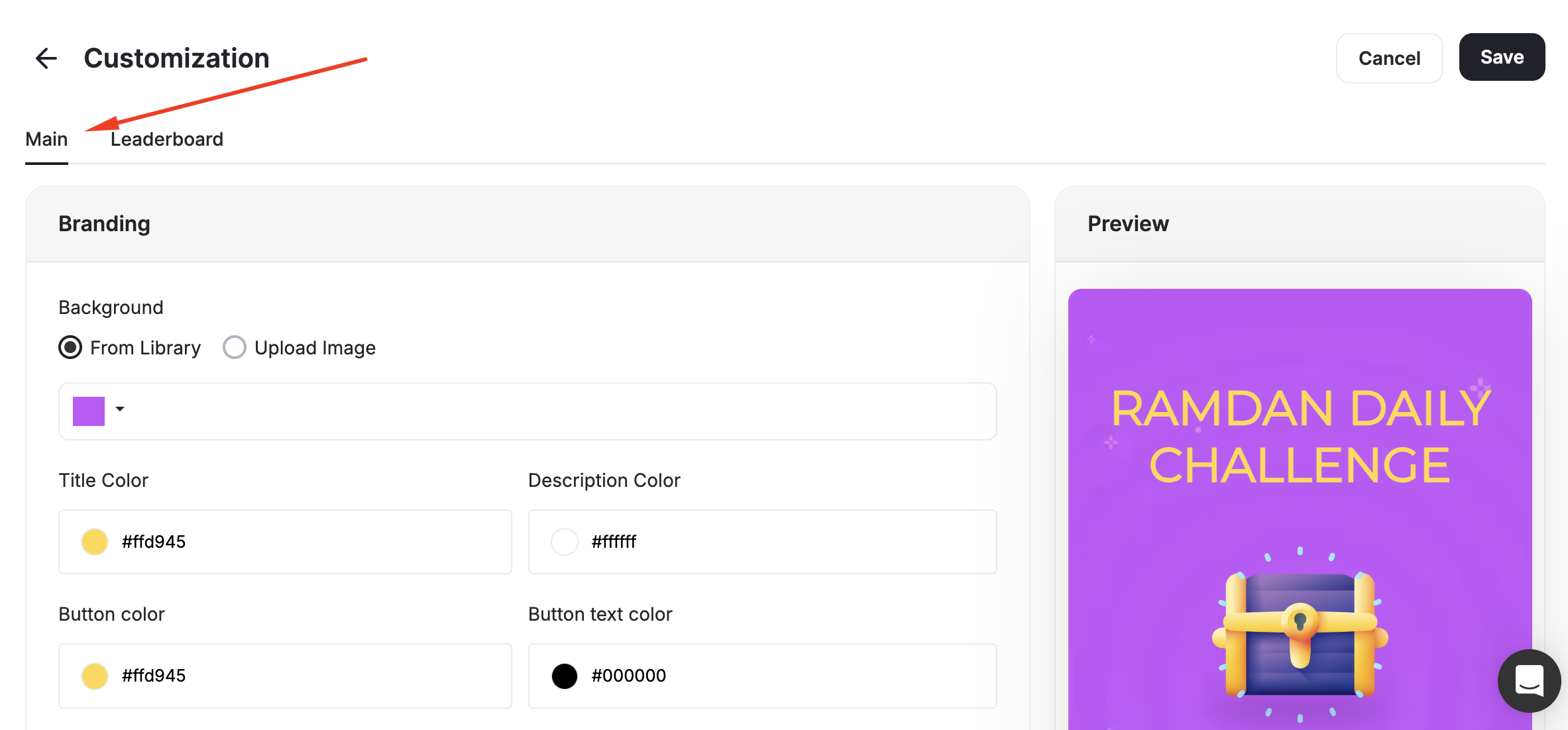
 Select background colors, the campaign's main image, and write down the content.
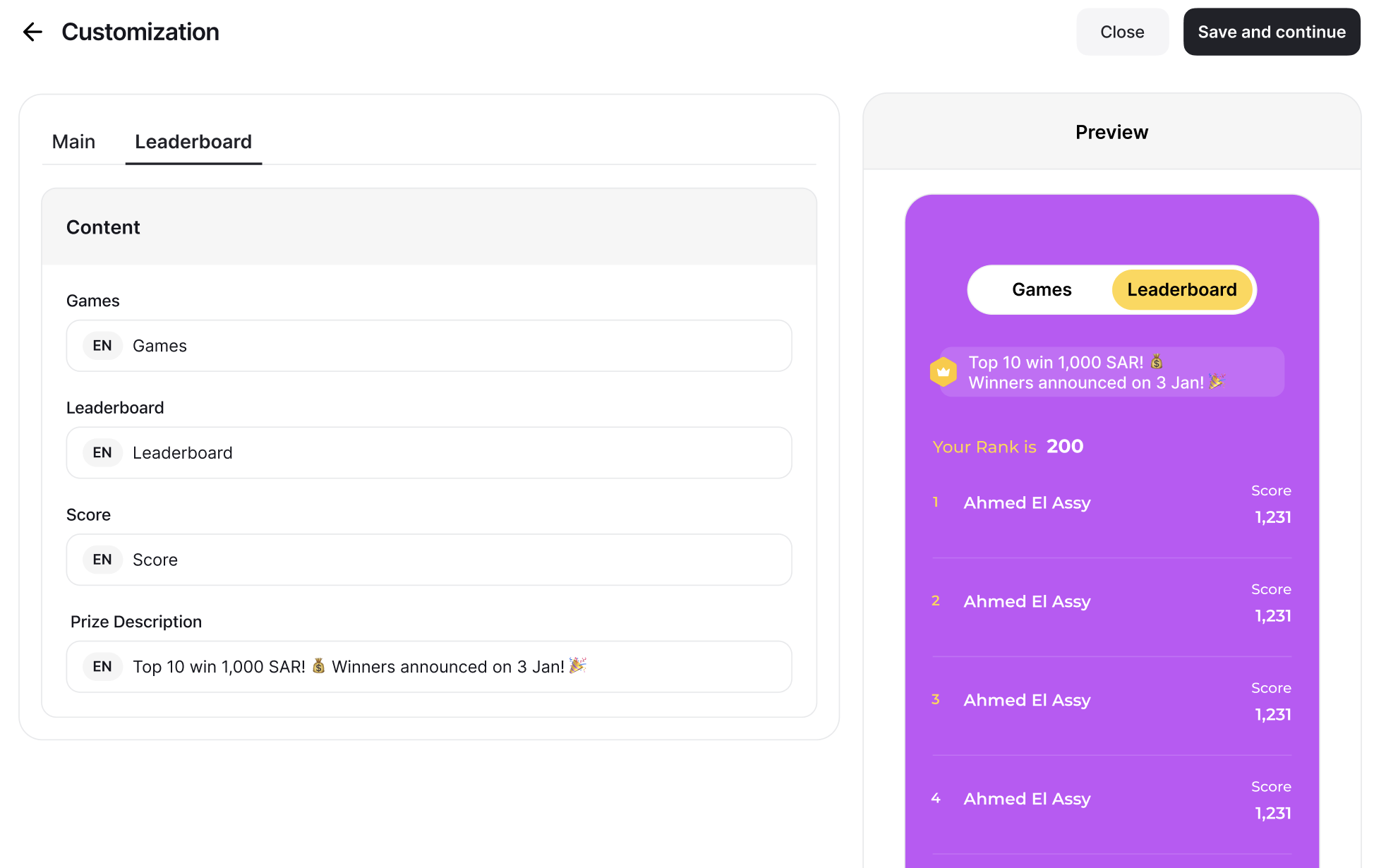
 Type down the main content of this interface, such as the game titles, prize description, etc.
 ***
## Personalize the Widget Banner
You can fully personalize how the calendar campaign banner appears in the customer widget — including the title, image, description, and CTA button text. Navigate to **Widget > Content > Games** in your dashboard.
***
## Personalize the Widget Banner
You can fully personalize how the calendar campaign banner appears in the customer widget — including the title, image, description, and CTA button text. Navigate to **Widget > Content > Games** in your dashboard.
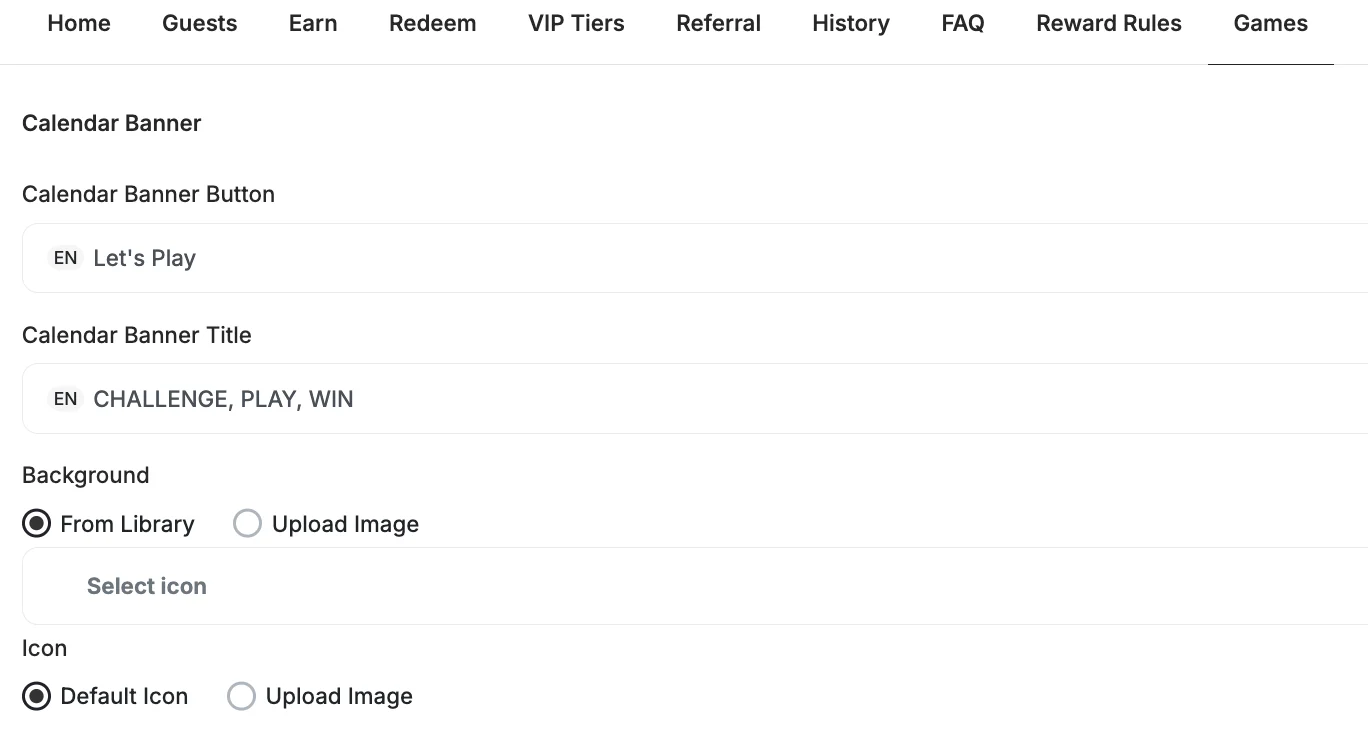 | Field | Description |
| -------------------------- | --------------------------------------------------- |
| **Calendar Banner Title** | The headline displayed on the banner |
| **Calendar Banner Button** | The CTA text customers click to enter the campaign |
| **Background** | Choose an image from the library or upload your own |
| **Icon** | Use the default icon or upload a custom image |
When multiple calendar campaigns run simultaneously, a selector appears in the dashboard so you can configure the banner for each campaign independently.
***
## Use Cases
Engage your audience with a daily trivia game for 30 days. Participants answer a new question every day, keeping them excited and consistently interacting with the campaign.
Keep customers engaged with a new game each day. The campaign offers a mix of exciting experiences, such as **Spin the Wheel**, **Slot Machine**, **Trivia Quiz**, and **Scratch and Win**. This variety ensures daily excitement and sustained customer participation throughout the campaign.
Introduce a new game each week to sustain customer interest and interaction. Weekly games can vary in style and mechanics, offering fresh experiences to participants.
Collaborate with brands to sponsor specific games. These games will feature full branding integration, including logos, icons, rewards, and custom visuals. For example, an Adidas-sponsored game could include Adidas-themed graphics, exclusive rewards, and tailored branding throughout the experience.
***
## Related Articles
Learn the full setup process for creating and activating reward campaigns.
Explore all reward types available and how to configure each one.
Configure in-app and email notifications triggered when customers earn rewards.
| Field | Description |
| -------------------------- | --------------------------------------------------- |
| **Calendar Banner Title** | The headline displayed on the banner |
| **Calendar Banner Button** | The CTA text customers click to enter the campaign |
| **Background** | Choose an image from the library or upload your own |
| **Icon** | Use the default icon or upload a custom image |
When multiple calendar campaigns run simultaneously, a selector appears in the dashboard so you can configure the banner for each campaign independently.
***
## Use Cases
Engage your audience with a daily trivia game for 30 days. Participants answer a new question every day, keeping them excited and consistently interacting with the campaign.
Keep customers engaged with a new game each day. The campaign offers a mix of exciting experiences, such as **Spin the Wheel**, **Slot Machine**, **Trivia Quiz**, and **Scratch and Win**. This variety ensures daily excitement and sustained customer participation throughout the campaign.
Introduce a new game each week to sustain customer interest and interaction. Weekly games can vary in style and mechanics, offering fresh experiences to participants.
Collaborate with brands to sponsor specific games. These games will feature full branding integration, including logos, icons, rewards, and custom visuals. For example, an Adidas-sponsored game could include Adidas-themed graphics, exclusive rewards, and tailored branding throughout the experience.
***
## Related Articles
Learn the full setup process for creating and activating reward campaigns.
Explore all reward types available and how to configure each one.
Configure in-app and email notifications triggered when customers earn rewards.