> ## Documentation Index
> Fetch the complete documentation index at: https://docs.gameball.co/llms.txt
> Use this file to discover all available pages before exploring further.
# How Do I Set Up Mission?
> Encourage users to explore features, complete onboarding, or reach milestones by guiding them through a collection of tasks.
| Platform | Plan |
| ------------ | ---------- |
| Shopify | Pro & Guru |
| Salla | Pro & Guru |
| Non-Platform | Add-on |
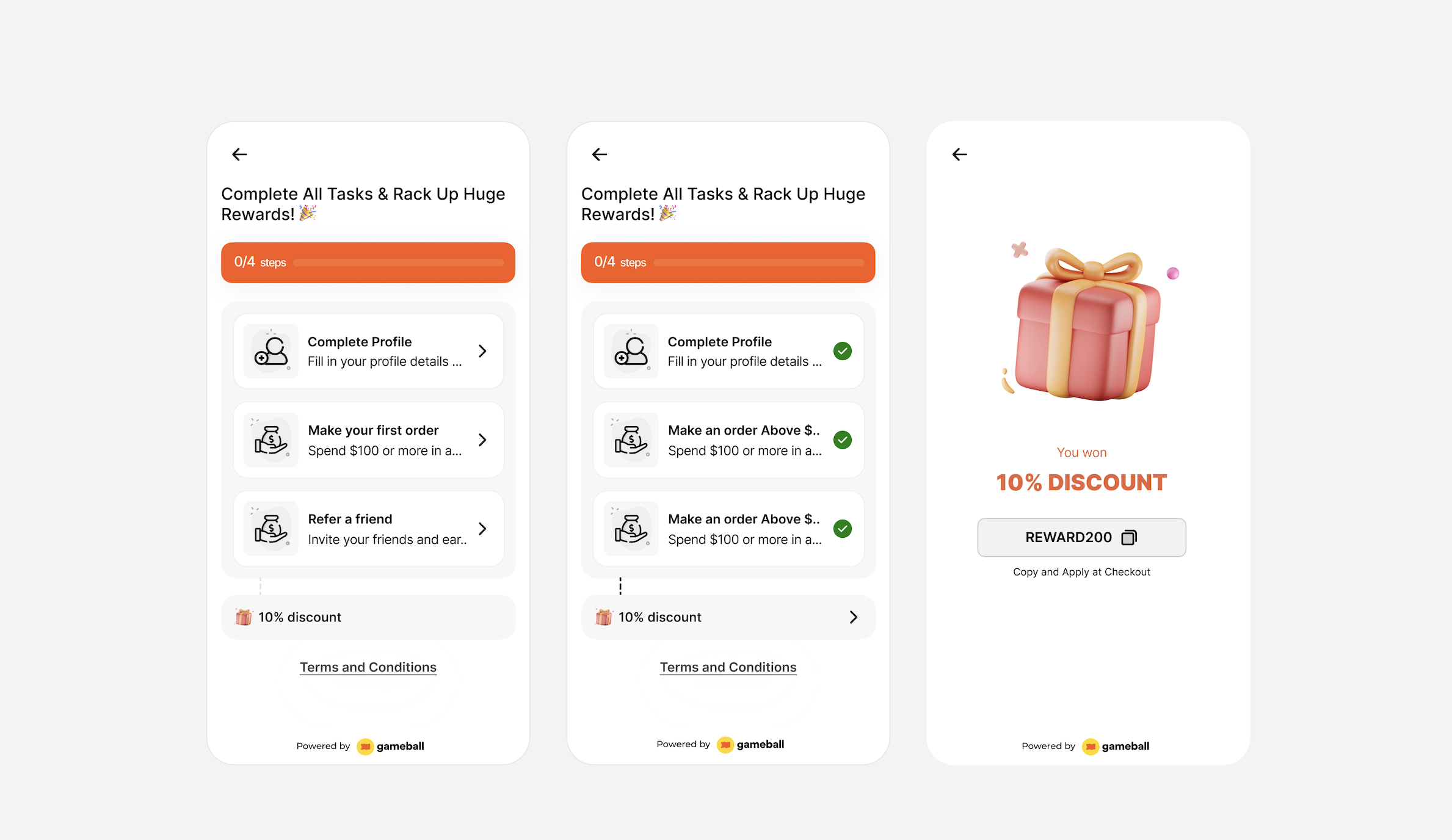
The **Mission Campaign** lets you define up to **10 different actions/tasks**. Once a customer completes *all* tasks -- regardless of order -- they earn a reward and unlock a badge. It's perfect for onboarding flows, multi-step journeys, and targeted engagement.
**Use Cases:**
1. **User Onboarding**
Complete "Create Account," "Verify Email," and "Place First Order".
2. **Complete Your Profile**
"Upload profile picture", "Add address" and "Add payment method".
3. **Repeat Purchase Encouragement**
"Place Second Order", "Purchase with min-value \$100", and "Leave a Review".
4. **Milestone Engagement**
"Make a \$100 purchase," "Add 3 items to cart," and "Refer a friend."
 ***
## How to Set Up
Log in to your Gameball dashboard.
Click **Add Reward Campaign**.
Choose the **Mission** template.
Edit the campaign's setup to match your goals.
Click **Set Live** to activate the campaign.
***
## Campaign Trigger
**Tasks**
Add up to **10 tasks**.
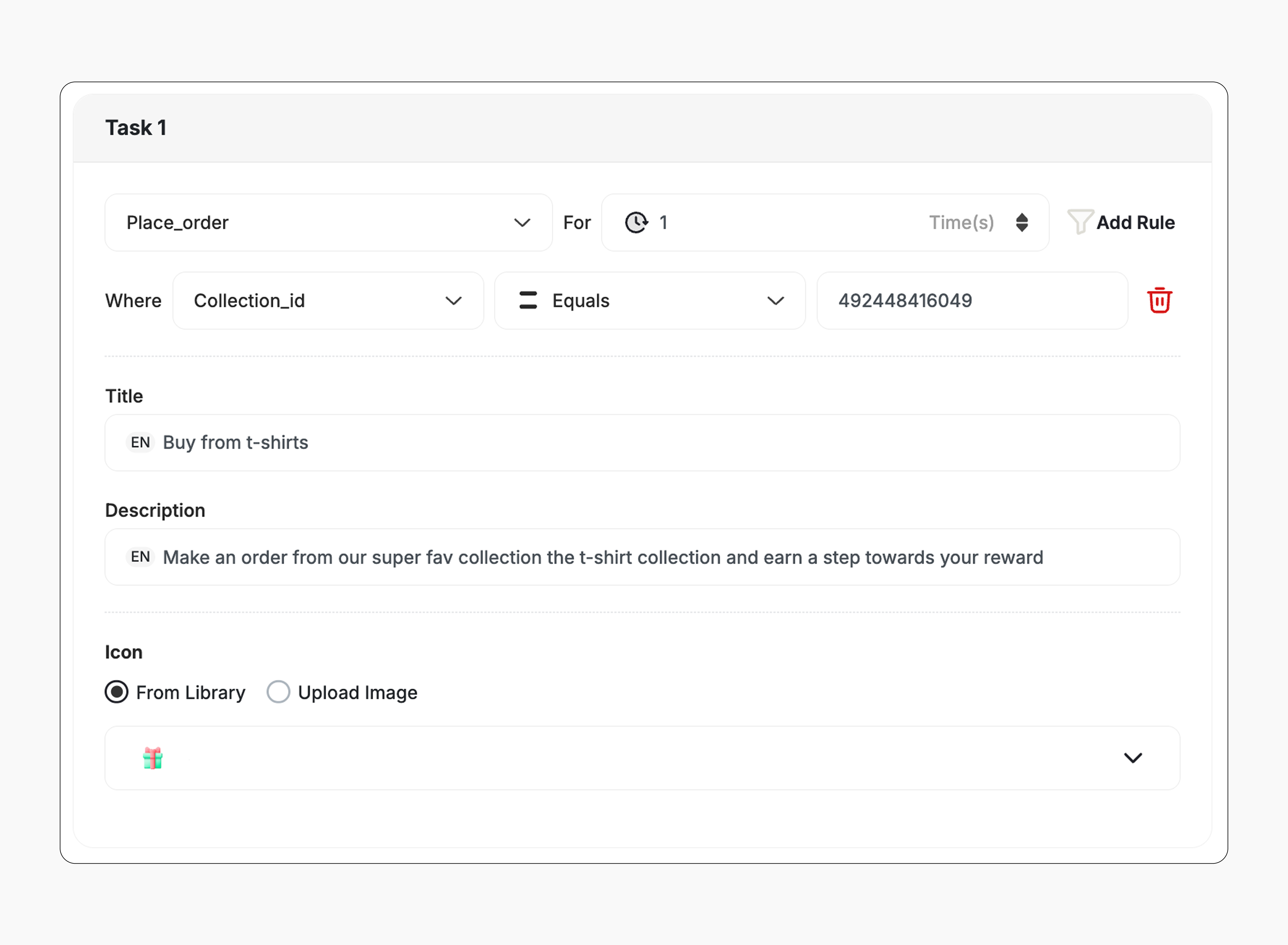
You can define **an event** for each task, such as placing an order, visiting a product page, and so on.
You can **add rules** for each event -- for example:
* Specific order value
* Specific product/category requirement
Configure each task content and Icon.
***
## How to Set Up
Log in to your Gameball dashboard.
Click **Add Reward Campaign**.
Choose the **Mission** template.
Edit the campaign's setup to match your goals.
Click **Set Live** to activate the campaign.
***
## Campaign Trigger
**Tasks**
Add up to **10 tasks**.
You can define **an event** for each task, such as placing an order, visiting a product page, and so on.
You can **add rules** for each event -- for example:
* Specific order value
* Specific product/category requirement
Configure each task content and Icon.
 **Rewards**
Each task includes an optional **"Task Reward"** configuration.
**Rewards**
Each task includes an optional **"Task Reward"** configuration.
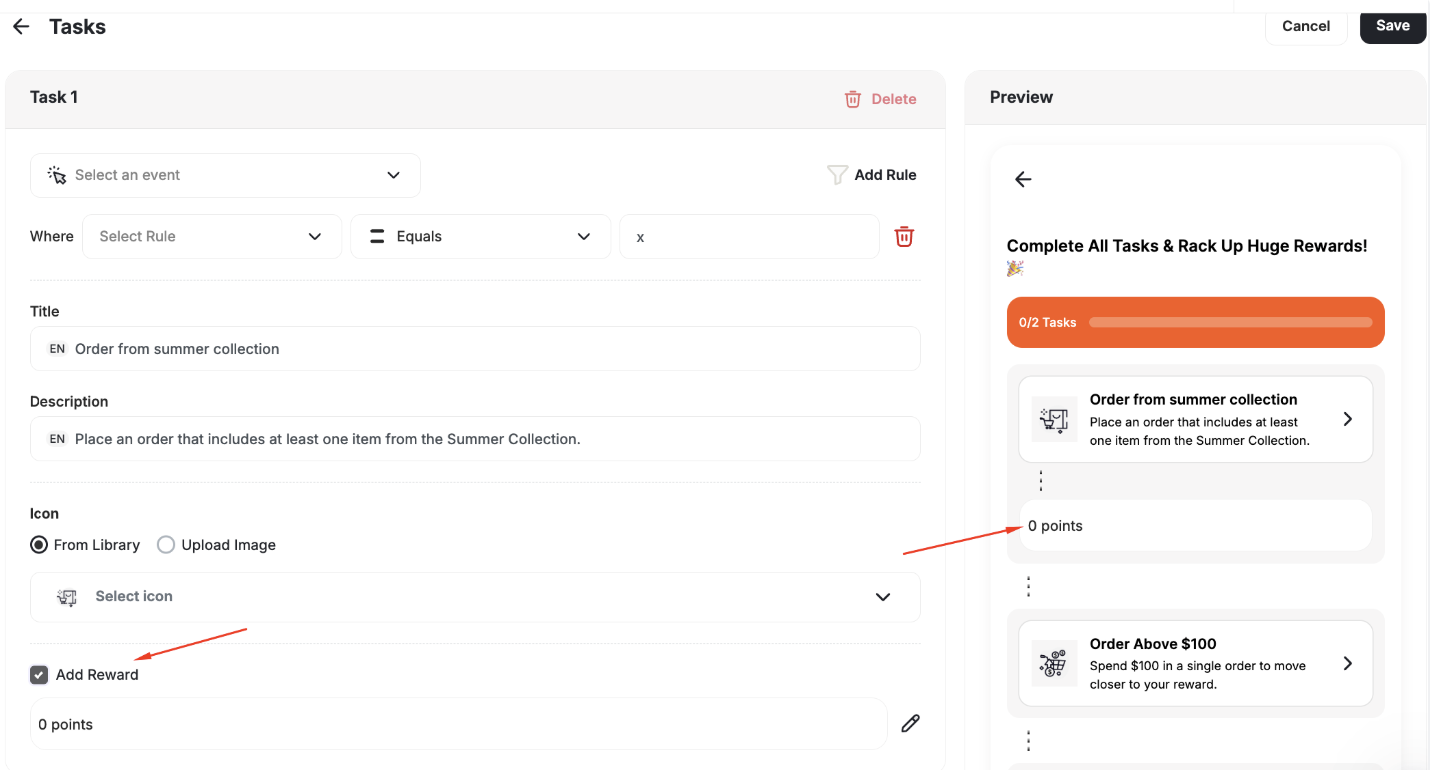 * Task rewards can be configured independently per task.
* If no task reward is set, it only contributes to overall mission progress and no immediate reward is granted until the end of the mission.
**Repeatability**
* No repeatability option.
This template uses the standard reward campaign setup. See the [Generic Setup Guide](/product-documentation/rewards-campaigns/start-from-scratch/setup-reward-campaign) for details.
***
## How It Works for Customers
The customer can start the mission by completing any of the required tasks (e.g., creating an account, placing an order).
They complete the remaining tasks in **any order** until all are finished.
They receive notifications after each task if event notification is enabled.
After completing all tasks, the customer receives the reward immediately (points, discount, badge -- based on your setup).
Missions are non-repeatable by default, so the reward can only be earned once per customer.
## Customization
**Design & Content**
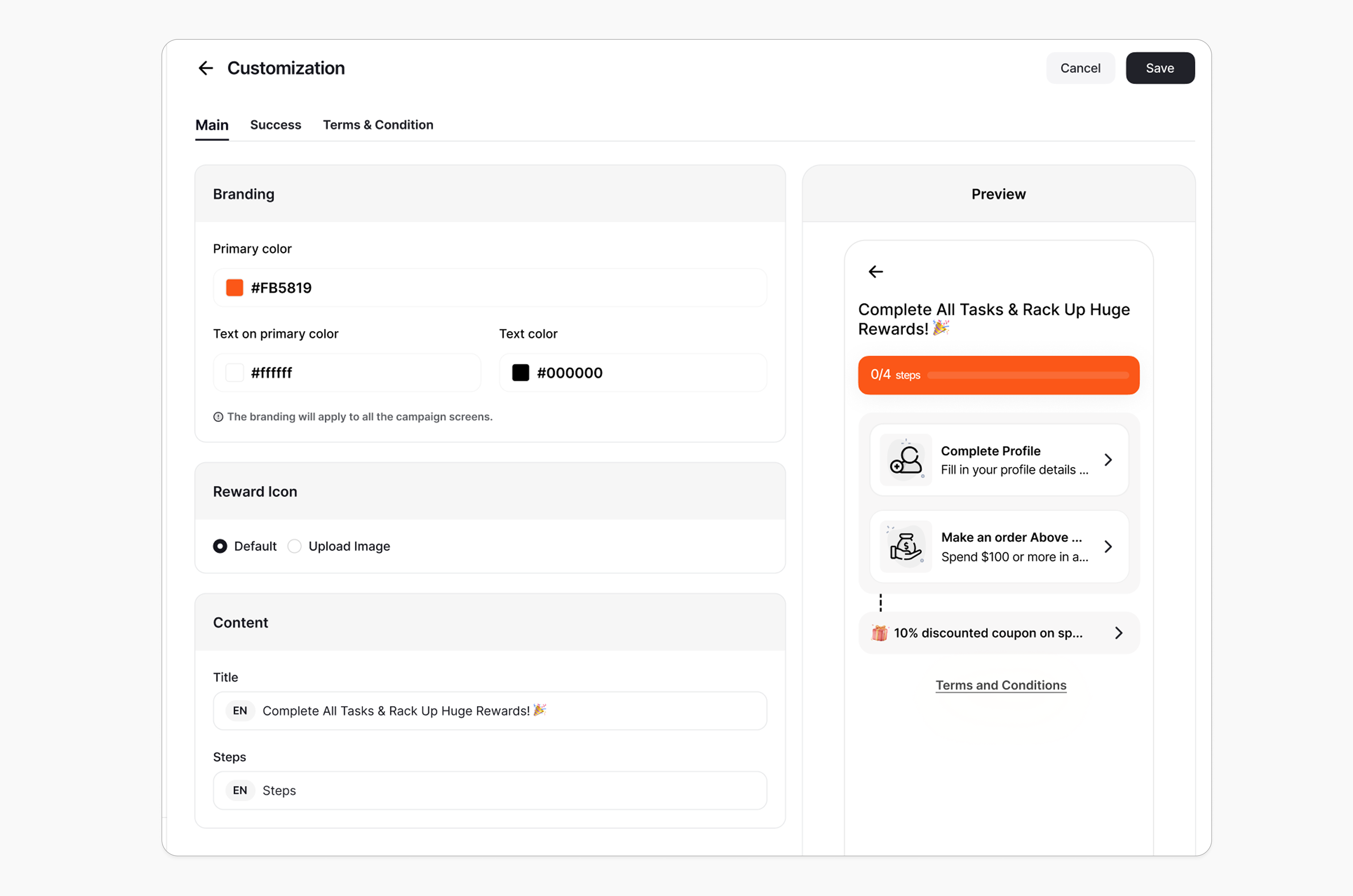
You can fully customize each stage of the campaign through dedicated tabs representing the different screens in the flow:
* **Main Screen**
* **Success Screen**
* **Terms & conditions**
For each screen, you can tailor the following elements:
* **Branding**: Adjust background colors, text colors, and upload custom artworks.
* **Content**: Edit the headlines, descriptions, and call-to-action messages to match your tone and messaging.
This allows you to create a fully branded, on-theme experience that aligns with your business identity.
* Task rewards can be configured independently per task.
* If no task reward is set, it only contributes to overall mission progress and no immediate reward is granted until the end of the mission.
**Repeatability**
* No repeatability option.
This template uses the standard reward campaign setup. See the [Generic Setup Guide](/product-documentation/rewards-campaigns/start-from-scratch/setup-reward-campaign) for details.
***
## How It Works for Customers
The customer can start the mission by completing any of the required tasks (e.g., creating an account, placing an order).
They complete the remaining tasks in **any order** until all are finished.
They receive notifications after each task if event notification is enabled.
After completing all tasks, the customer receives the reward immediately (points, discount, badge -- based on your setup).
Missions are non-repeatable by default, so the reward can only be earned once per customer.
## Customization
**Design & Content**
You can fully customize each stage of the campaign through dedicated tabs representing the different screens in the flow:
* **Main Screen**
* **Success Screen**
* **Terms & conditions**
For each screen, you can tailor the following elements:
* **Branding**: Adjust background colors, text colors, and upload custom artworks.
* **Content**: Edit the headlines, descriptions, and call-to-action messages to match your tone and messaging.
This allows you to create a fully branded, on-theme experience that aligns with your business identity.
 ## Editing a Live Mission
Editing a live mission should be done with care to ensure a smooth experience for your customers. Below, we break down each scenario and its impact.
### Editing a Task
**Editing task Content:**
* If a customer changes (title, image, description), it is instantly updated for **all users**, regardless of progress.
**Editing Event:**
* If the user has already completed the task, their task remains marked as completed.
* If the task is not yet completed, the updated event/condition will take effect. Any progress already made will be preserved, and the user must fulfill the **remaining requirement** based on the new condition.
**Example:**
Task: *Spend \$1000 on Collection A*
* A user spends \$500 before the customer updates the task to *Collection B*.
* The $500 spent is preserved, and the user must now spend the **remaining $500 on Collection B\*\* to complete the task.
### Deleting a Task
If a task is deleted, it will be removed for **all customers**, **regardless of their progress** -- whether completed or not.
**Impact on Customers In Progress:**
* If a task is deleted while some users are still in progress, the task will be removed from their task list. Their overall progress will be recalculated. If this were their **only pending task**, the campaign would be **marked as complete,** and the **final reward would be granted**.
**Impact on Analytics & Customer Activity:**
* Deleted tasks will continue to appear in both the analytics and customer task lists, but without a specific task number. They will be clearly labeled as "Deleted".
### Adding a New Task
* If the mission is **already completed**, the newly added task will **not appear** for the customer, and the mission will remain marked as **earned**.
* If the mission is **still in progress**, the new task will be **visible**, and the customer must **complete it** along with the others to earn the reward.
### De-activate
* Customer progress is **saved**.
* Any actions performed while the campaign is inactive **will not** be counted toward the campaign.
### Re-activate
Customers resume from the **last saved state**. Progress continues as normal.
### Task Overlap Handling
**A single customer action can fulfill multiple tasks at once.**
* For example, if a player makes a **\$200 purchase with 5 items**, it can **simultaneously complete two tasks**:
* *Task A: Spend \$200*
* *Task B: Buy 5 items*
***
## Related Articles
Step-by-step guide to configuring any reward campaign.
Explore the different reward types you can offer customers.
Configure how customers are notified when they earn a reward.
## Editing a Live Mission
Editing a live mission should be done with care to ensure a smooth experience for your customers. Below, we break down each scenario and its impact.
### Editing a Task
**Editing task Content:**
* If a customer changes (title, image, description), it is instantly updated for **all users**, regardless of progress.
**Editing Event:**
* If the user has already completed the task, their task remains marked as completed.
* If the task is not yet completed, the updated event/condition will take effect. Any progress already made will be preserved, and the user must fulfill the **remaining requirement** based on the new condition.
**Example:**
Task: *Spend \$1000 on Collection A*
* A user spends \$500 before the customer updates the task to *Collection B*.
* The $500 spent is preserved, and the user must now spend the **remaining $500 on Collection B\*\* to complete the task.
### Deleting a Task
If a task is deleted, it will be removed for **all customers**, **regardless of their progress** -- whether completed or not.
**Impact on Customers In Progress:**
* If a task is deleted while some users are still in progress, the task will be removed from their task list. Their overall progress will be recalculated. If this were their **only pending task**, the campaign would be **marked as complete,** and the **final reward would be granted**.
**Impact on Analytics & Customer Activity:**
* Deleted tasks will continue to appear in both the analytics and customer task lists, but without a specific task number. They will be clearly labeled as "Deleted".
### Adding a New Task
* If the mission is **already completed**, the newly added task will **not appear** for the customer, and the mission will remain marked as **earned**.
* If the mission is **still in progress**, the new task will be **visible**, and the customer must **complete it** along with the others to earn the reward.
### De-activate
* Customer progress is **saved**.
* Any actions performed while the campaign is inactive **will not** be counted toward the campaign.
### Re-activate
Customers resume from the **last saved state**. Progress continues as normal.
### Task Overlap Handling
**A single customer action can fulfill multiple tasks at once.**
* For example, if a player makes a **\$200 purchase with 5 items**, it can **simultaneously complete two tasks**:
* *Task A: Spend \$200*
* *Task B: Buy 5 items*
***
## Related Articles
Step-by-step guide to configuring any reward campaign.
Explore the different reward types you can offer customers.
Configure how customers are notified when they earn a reward.