> ## Documentation Index
> Fetch the complete documentation index at: https://docs.gameball.co/llms.txt
> Use this file to discover all available pages before exploring further.
# How Do I Set Up Quiz?
> Engage and entertain your customers with this gamified reward campaign and let them win for solving your quiz.
| Platform | Plan |
| ------------ | -------------------- |
| Shopify | Starter, Pro, & Guru |
| Salla | Starter, Pro, & Guru |
| Non-Platform | Add-on |
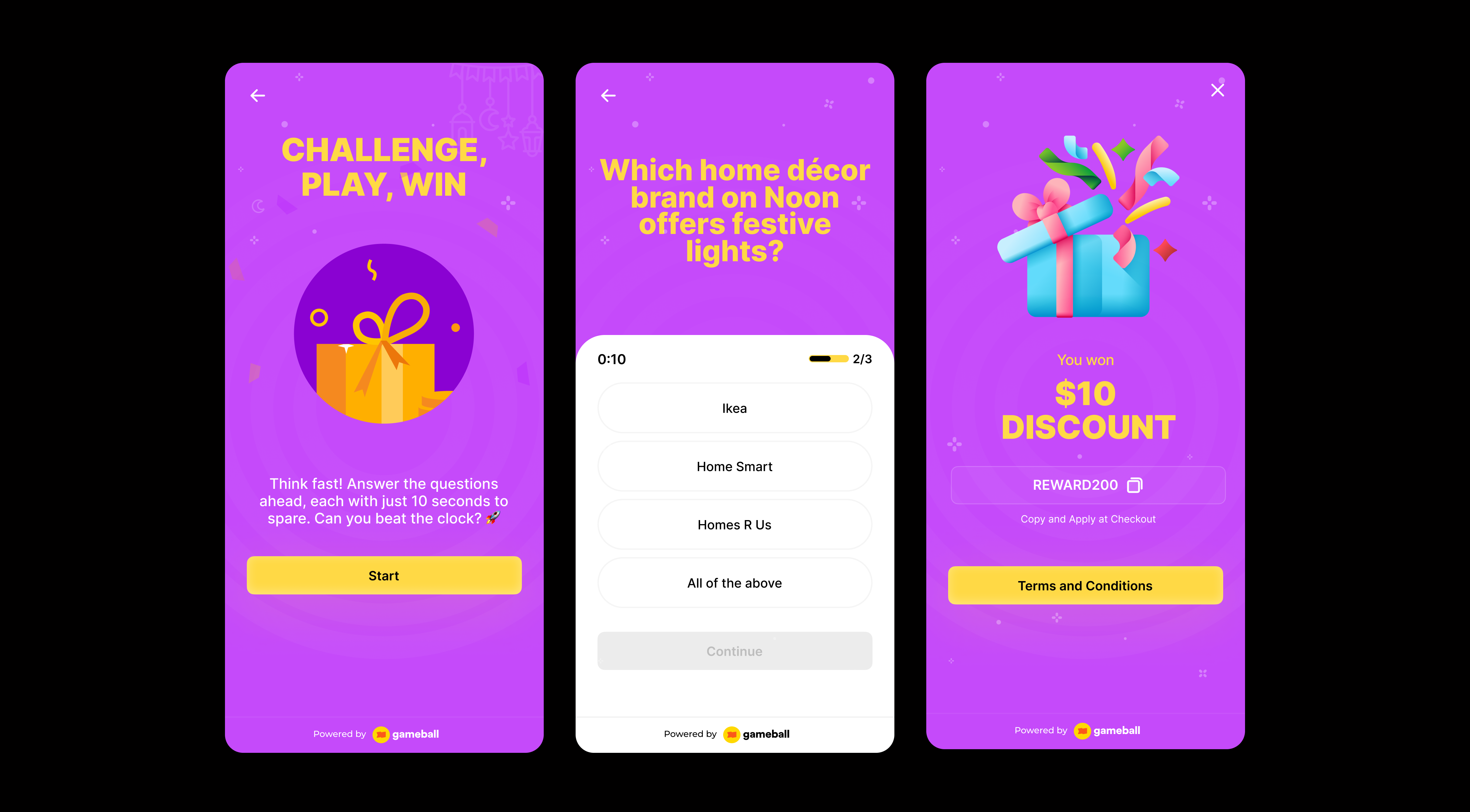
Add an educational and interactive twist to your loyalty program with the **Quiz** campaign. Let your customers answer questions to earn rewards based on their knowledge and engagement.
**Use Cases:**
1. **Brand-Sponsored Quizzes:** Partner with brands to feature their products in quiz questions and offer branded rewards.
2. **Seasonal Campaigns:** Run themed quizzes for holidays or events like Valentine's Day or Black Friday with exclusive offers.
3. **Educational Quizzes:** Teach users about your products or industry and reward them for learning.
 ***
## How to Set Up
Log in to your Gameball dashboard.
Click **Add Reward Campaign**.
Choose the **Quiz** template.
Edit the campaign's setup to match your goals.
Click **Set Live** to activate the campaign.
***
## Campaign Trigger
Customers can access the quiz through the **Badges** section in the widget. Tapping the badge redirects them to a screen where they can start playing and trigger the campaign to begin.
Use the `#gameball-quiz` deep link to trigger the quiz campaign from a custom banner or button on your website or app. [Learn more](/product-documentation/rewards-campaigns/start-from-scratch/setup-reward-campaign).
**Audience**
* **Registered Customers:** Customers who have an account on your platform (signed up).
* **Anonymous Customers:** Visitors browsing anonymously without providing any contact information or identifiable details (not signed up).
* Visitors can open the game, submit basic information through the lead form, play, and receive rewards, matching the standalone game URL experience.
* Widget deep links that open a specific game work for guests as well. The widget would open directly into the game screen and allow participation without login.
* **Specific Customers:** You can choose for a specific selection of customers to participate in this campaign by filtering using segments, tags or customer attributes.
**Repeatability**
* No Repeatability.
* The quiz can only be played once per customer.
**Platform Visibility**
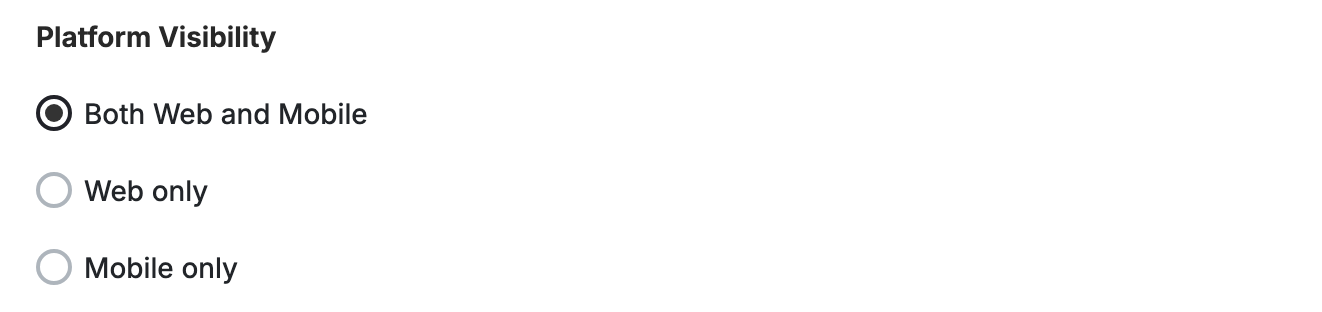
You can choose whether the game campaign is shown on web, mobile, or both, giving you better control over engagement strategies across platforms.
***
## How to Set Up
Log in to your Gameball dashboard.
Click **Add Reward Campaign**.
Choose the **Quiz** template.
Edit the campaign's setup to match your goals.
Click **Set Live** to activate the campaign.
***
## Campaign Trigger
Customers can access the quiz through the **Badges** section in the widget. Tapping the badge redirects them to a screen where they can start playing and trigger the campaign to begin.
Use the `#gameball-quiz` deep link to trigger the quiz campaign from a custom banner or button on your website or app. [Learn more](/product-documentation/rewards-campaigns/start-from-scratch/setup-reward-campaign).
**Audience**
* **Registered Customers:** Customers who have an account on your platform (signed up).
* **Anonymous Customers:** Visitors browsing anonymously without providing any contact information or identifiable details (not signed up).
* Visitors can open the game, submit basic information through the lead form, play, and receive rewards, matching the standalone game URL experience.
* Widget deep links that open a specific game work for guests as well. The widget would open directly into the game screen and allow participation without login.
* **Specific Customers:** You can choose for a specific selection of customers to participate in this campaign by filtering using segments, tags or customer attributes.
**Repeatability**
* No Repeatability.
* The quiz can only be played once per customer.
**Platform Visibility**
You can choose whether the game campaign is shown on web, mobile, or both, giving you better control over engagement strategies across platforms.
 This template uses the standard reward campaign setup. See the [Generic Setup Guide](/product-documentation/rewards-campaigns/start-from-scratch/setup-reward-campaign) for details.
## Quiz Setup
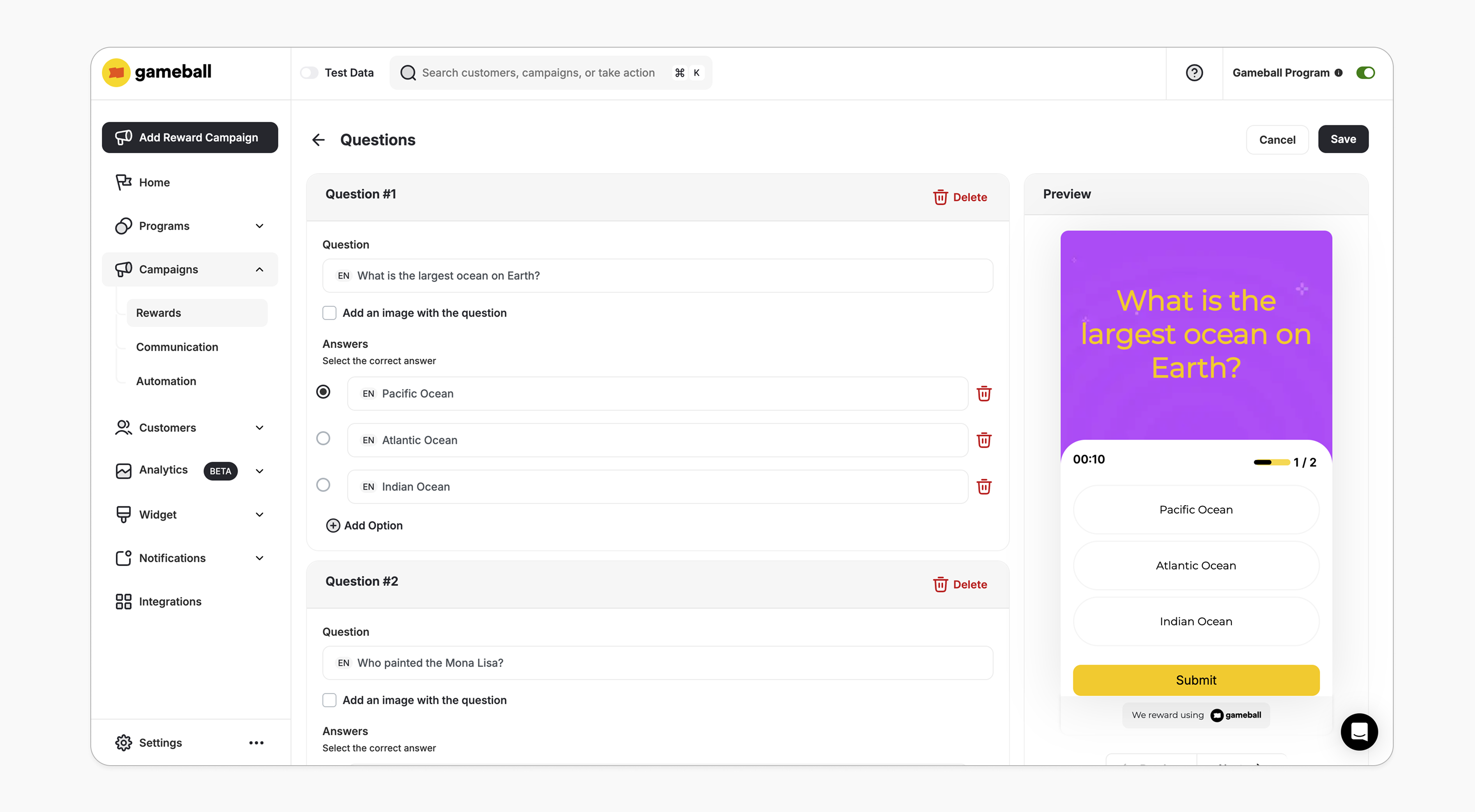
**Questions**
* Minimum: **1 question**
* Each question must include:
* The question text
* An **optional image**
* At least **1 answer** should be added
* One **correct answer** must be selected
This template uses the standard reward campaign setup. See the [Generic Setup Guide](/product-documentation/rewards-campaigns/start-from-scratch/setup-reward-campaign) for details.
## Quiz Setup
**Questions**
* Minimum: **1 question**
* Each question must include:
* The question text
* An **optional image**
* At least **1 answer** should be added
* One **correct answer** must be selected
 **Timer**
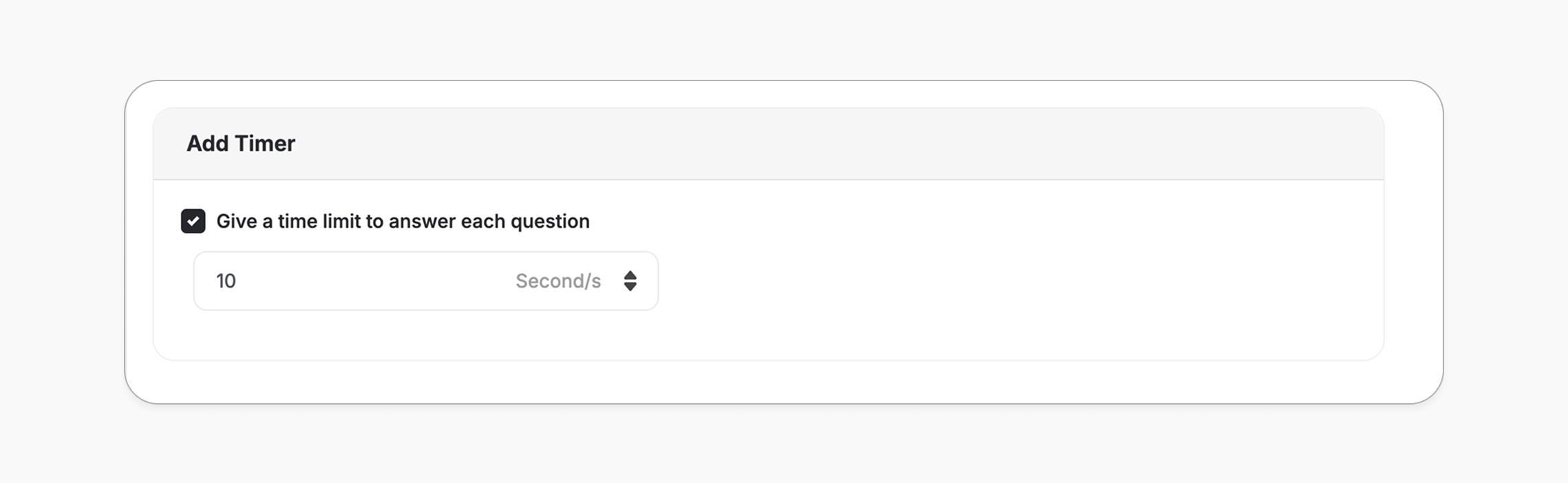
* Question Timer (**Optional**)
* At the end of configuring your questions, you can enable a timer that applies to each question individually (e.g., 10 or 20 seconds per question).
* This helps increase challenge and customer engagement.
**Timer**
* Question Timer (**Optional**)
* At the end of configuring your questions, you can enable a timer that applies to each question individually (e.g., 10 or 20 seconds per question).
* This helps increase challenge and customer engagement.
 ***
## How It Works for Customers
Customers are presented with a set of questions.
Customers will earn the reward only if they answer all questions correctly.
Getting 0 answers right is always considered failure, and the customer will receive the "No Luck" widget screen. Customer must answer **All** questions right for them to win.
The customer is notified via the widget or email, depending on your configuration, when they earn a reward. [Learn more](/product-documentation/rewards-campaigns/start-from-scratch/setup-reward-campaign).
The quiz reward is all-or-nothing. Customers must answer **all** questions correctly to earn the reward — there is no partial reward for getting some questions right, and no consolation reward for incorrect answers. Conditional payouts (e.g., different rewards based on correctness) are not supported.
## Customization
**Design & Content**
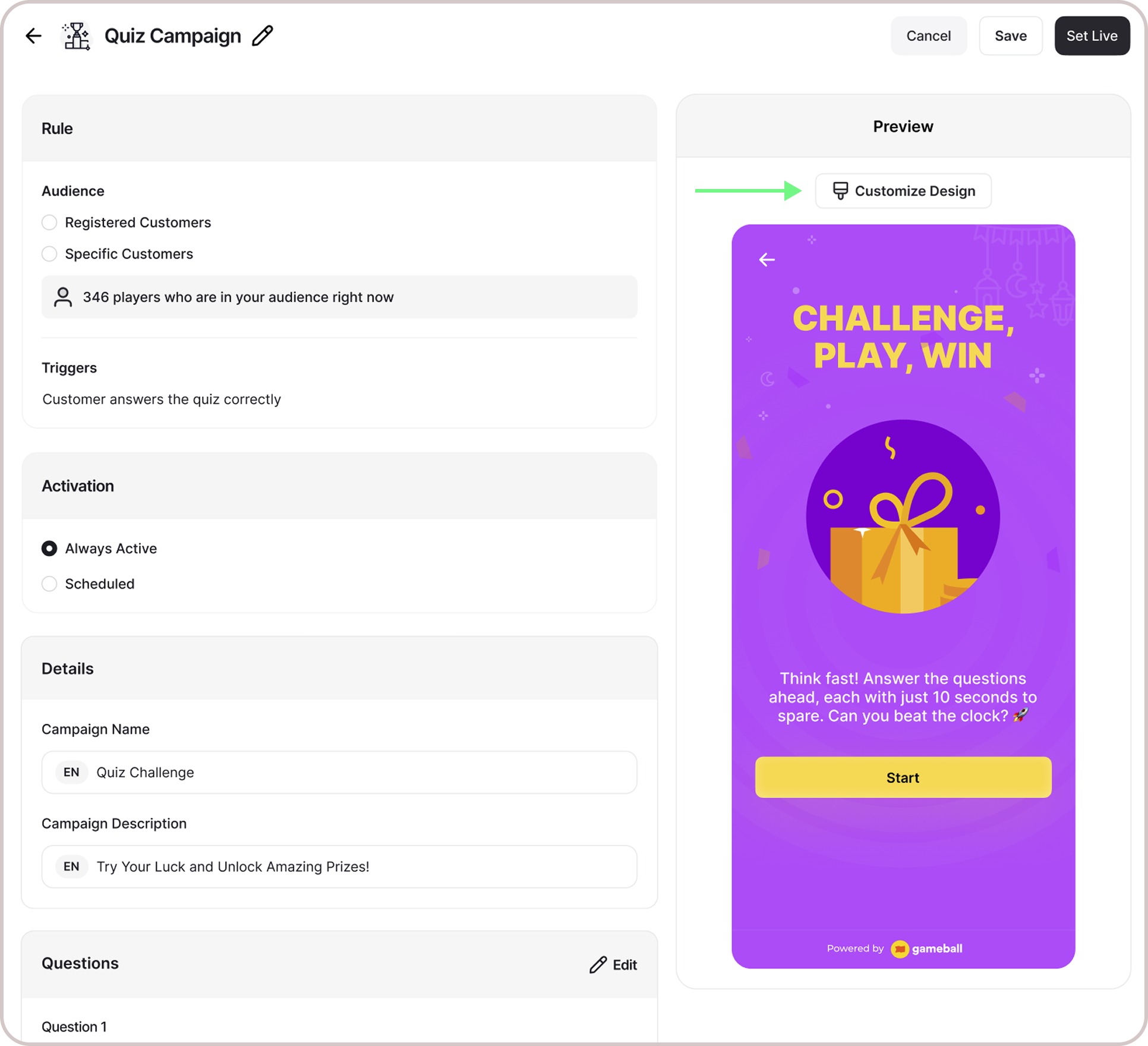
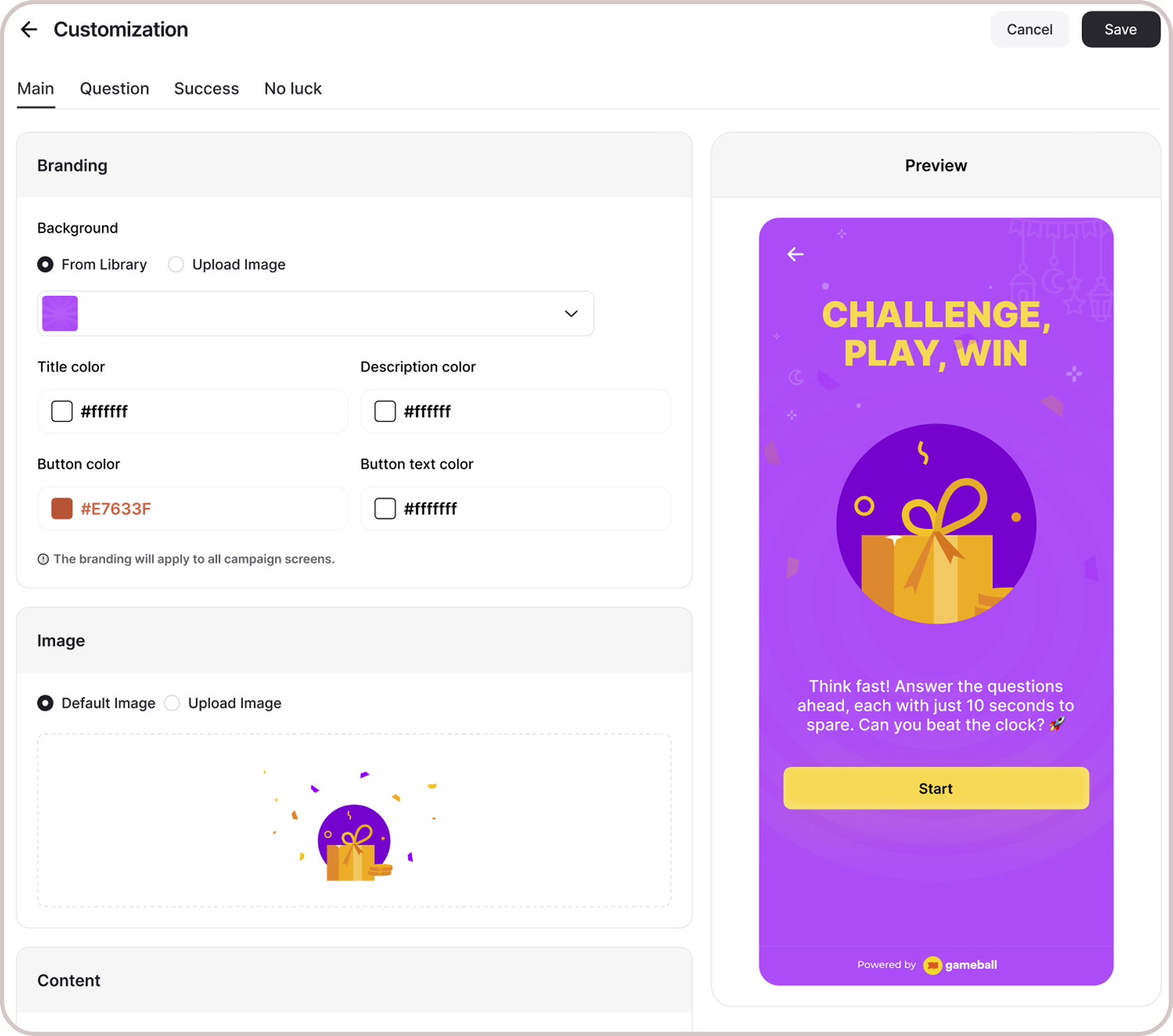
You can fully customize each stage of the campaign through dedicated tabs representing the different screens in the flow:
* **Banner**
* **Intro / Main Screen**
* **Questions Screen**
**Game General Rule:**
* **Time Duration**: Set how long each game lasts (e.g., 10s, 20s, 60s).
* **Mistakes/Lives**: Choose how many lives a customer has (e.g., 1, 3, or unlimited).
* **Default Values**: Existing defaults remain if no customization is made.
* **Tooltips**: Added help text explaining how time and lives impact gameplay.
* **Success Screen**
* **No Luck Screen**
For each screen, you can tailor the following elements:
* **Branding**: Adjust background colors, text colors, and upload custom artworks. Text color customization is available across all banner options — From Library, Upload Image, and Use AI.
* **Content**: Edit the headlines, descriptions, and call-to-action messages to match your tone and messaging.
This allows you to create a fully branded, on-theme experience that aligns with your business identity.
***
## How It Works for Customers
Customers are presented with a set of questions.
Customers will earn the reward only if they answer all questions correctly.
Getting 0 answers right is always considered failure, and the customer will receive the "No Luck" widget screen. Customer must answer **All** questions right for them to win.
The customer is notified via the widget or email, depending on your configuration, when they earn a reward. [Learn more](/product-documentation/rewards-campaigns/start-from-scratch/setup-reward-campaign).
The quiz reward is all-or-nothing. Customers must answer **all** questions correctly to earn the reward — there is no partial reward for getting some questions right, and no consolation reward for incorrect answers. Conditional payouts (e.g., different rewards based on correctness) are not supported.
## Customization
**Design & Content**
You can fully customize each stage of the campaign through dedicated tabs representing the different screens in the flow:
* **Banner**
* **Intro / Main Screen**
* **Questions Screen**
**Game General Rule:**
* **Time Duration**: Set how long each game lasts (e.g., 10s, 20s, 60s).
* **Mistakes/Lives**: Choose how many lives a customer has (e.g., 1, 3, or unlimited).
* **Default Values**: Existing defaults remain if no customization is made.
* **Tooltips**: Added help text explaining how time and lives impact gameplay.
* **Success Screen**
* **No Luck Screen**
For each screen, you can tailor the following elements:
* **Branding**: Adjust background colors, text colors, and upload custom artworks. Text color customization is available across all banner options — From Library, Upload Image, and Use AI.
* **Content**: Edit the headlines, descriptions, and call-to-action messages to match your tone and messaging.
This allows you to create a fully branded, on-theme experience that aligns with your business identity.
 ***
## Customer Report
You can extract a customer list report directly from the quiz campaign page. The report includes one row per participating customer with the following columns:
| Column | Description |
| --------------- | ------------------------------------------------------------------------ |
| Customer Id | The unique identifier of the customer in Gameball. |
| Customer Name | The customer's full name. |
| Customer Email | The email address associated with the customer's account. |
| Reward | The reward the customer earned upon completing the quiz. |
| Points Value | The points value of the earned reward. |
| Achieved At | The date and time the customer completed the quiz and earned the reward. |
| Correct Answers | The number of questions the customer answered correctly. |
| Success State | Whether the customer won or did not win the quiz. |
To segment customers by quiz outcome, use the [Get Customer Campaigns Progress API](https://docs.gameball.co/api-reference/customers/progress/get-customer-campaigns-progress) and check the `achievedCount` field. Customers with `achievedCount > 0` answered correctly and won. You can then tag those customers using the Gameball tagging API to create segments based on quiz performance.
***
## Important Notes
**Customer Eligibility**
Games in the widget update dynamically based on customer eligibility, ensuring customers only see games they can still participate in.
**Games are hidden when customers become ineligible.**
If a customer no longer belongs to the game's target segment, the game is automatically removed from the widget and won't reappear unless eligibility is restored.
***
## Related Articles
Step-by-step guide to configuring any reward campaign.
Explore the different reward types you can offer customers.
Configure how customers are notified when they earn a reward.
***
## Customer Report
You can extract a customer list report directly from the quiz campaign page. The report includes one row per participating customer with the following columns:
| Column | Description |
| --------------- | ------------------------------------------------------------------------ |
| Customer Id | The unique identifier of the customer in Gameball. |
| Customer Name | The customer's full name. |
| Customer Email | The email address associated with the customer's account. |
| Reward | The reward the customer earned upon completing the quiz. |
| Points Value | The points value of the earned reward. |
| Achieved At | The date and time the customer completed the quiz and earned the reward. |
| Correct Answers | The number of questions the customer answered correctly. |
| Success State | Whether the customer won or did not win the quiz. |
To segment customers by quiz outcome, use the [Get Customer Campaigns Progress API](https://docs.gameball.co/api-reference/customers/progress/get-customer-campaigns-progress) and check the `achievedCount` field. Customers with `achievedCount > 0` answered correctly and won. You can then tag those customers using the Gameball tagging API to create segments based on quiz performance.
***
## Important Notes
**Customer Eligibility**
Games in the widget update dynamically based on customer eligibility, ensuring customers only see games they can still participate in.
**Games are hidden when customers become ineligible.**
If a customer no longer belongs to the game's target segment, the game is automatically removed from the widget and won't reappear unless eligibility is restored.
***
## Related Articles
Step-by-step guide to configuring any reward campaign.
Explore the different reward types you can offer customers.
Configure how customers are notified when they earn a reward.