> ## Documentation Index
> Fetch the complete documentation index at: https://docs.gameball.co/llms.txt
> Use this file to discover all available pages before exploring further.
# How Do I Set Up Stamps?
> Ensure your customers keep coming back to repeat the same action over and over.
## Plan Availability
| Plan | Available |
| ---------- | --------- |
| Pro & Guru | Yes |
| Plan | Available |
| ------ | --------- |
| Add-on | Yes |
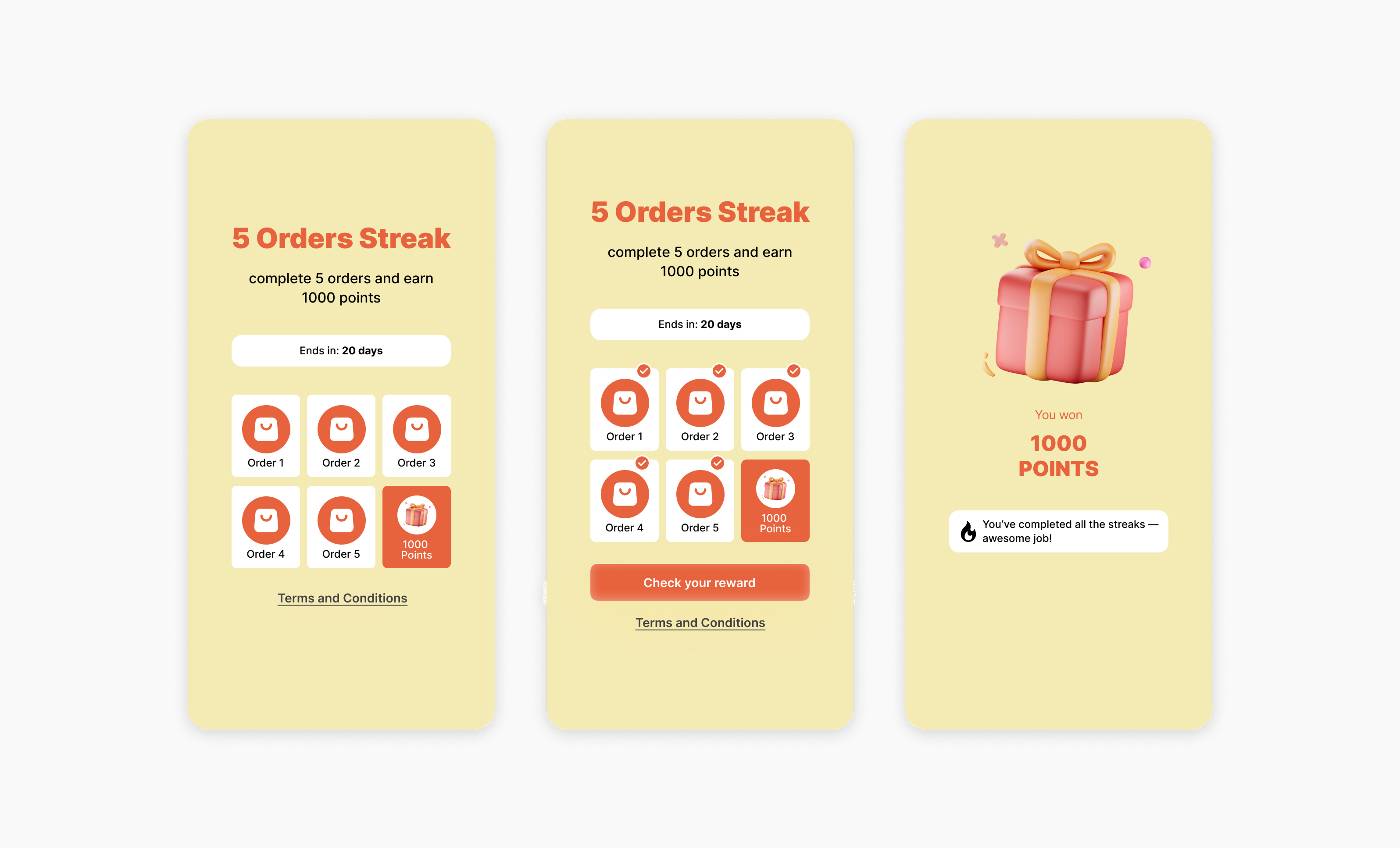
The **Stamps** campaign allows you to reward customers for completing a specific action multiple times in a row. It's a powerful way to boost repeat behavior and long-term engagement.
 ***
## Use Cases
Place 3 orders within this month to earn a reward.
Make 5 orders over \$100 each to get rewarded.
Make 3 orders, each one from a specific collection (Kids, Women, Men).
Refer 3 friends to get a premium membership.
***
## Creating a Stamps Campaign
Open Gameball and click **Add Reward Campaign**.
Select the **Stamps** template.
Edit the campaign's setup (see configuration sections below).
Click **Set Live** to activate the campaign.
***
## Campaign Configuration
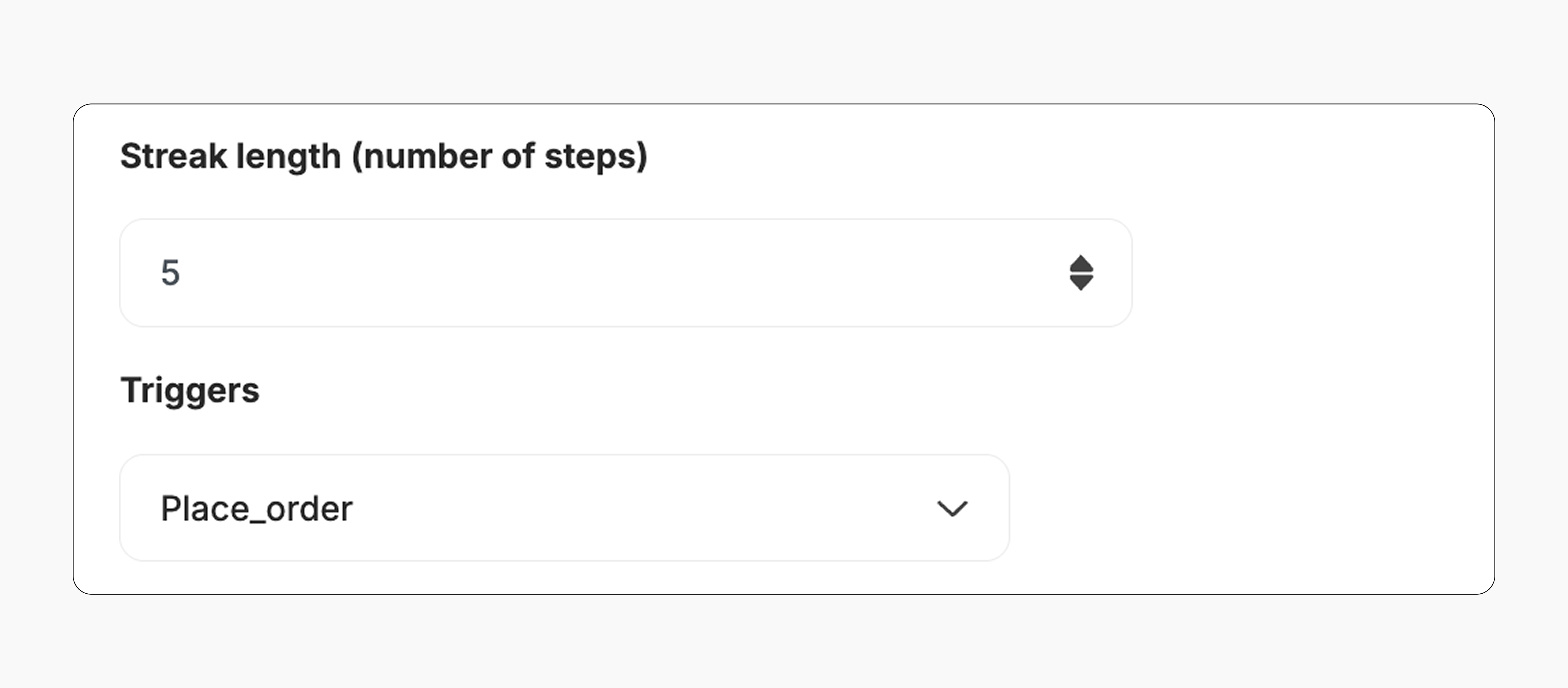
Choose how many times a customer needs to complete the action to earn a reward.
*Example:* "The customer must place 5 orders to receive a reward."
Select the action you'd like to track -- such as placing an order, referring a friend, etc.
***
## Use Cases
Place 3 orders within this month to earn a reward.
Make 5 orders over \$100 each to get rewarded.
Make 3 orders, each one from a specific collection (Kids, Women, Men).
Refer 3 friends to get a premium membership.
***
## Creating a Stamps Campaign
Open Gameball and click **Add Reward Campaign**.
Select the **Stamps** template.
Edit the campaign's setup (see configuration sections below).
Click **Set Live** to activate the campaign.
***
## Campaign Configuration
Choose how many times a customer needs to complete the action to earn a reward.
*Example:* "The customer must place 5 orders to receive a reward."
Select the action you'd like to track -- such as placing an order, referring a friend, etc.
 You can set specific conditions for each action in the streak.
*Example:*
* Order 1 must be at least \$100
* Order 2 must be at least \$300
You can set specific conditions for each action in the streak.
*Example:*
* Order 1 must be at least \$100
* Order 2 must be at least \$300
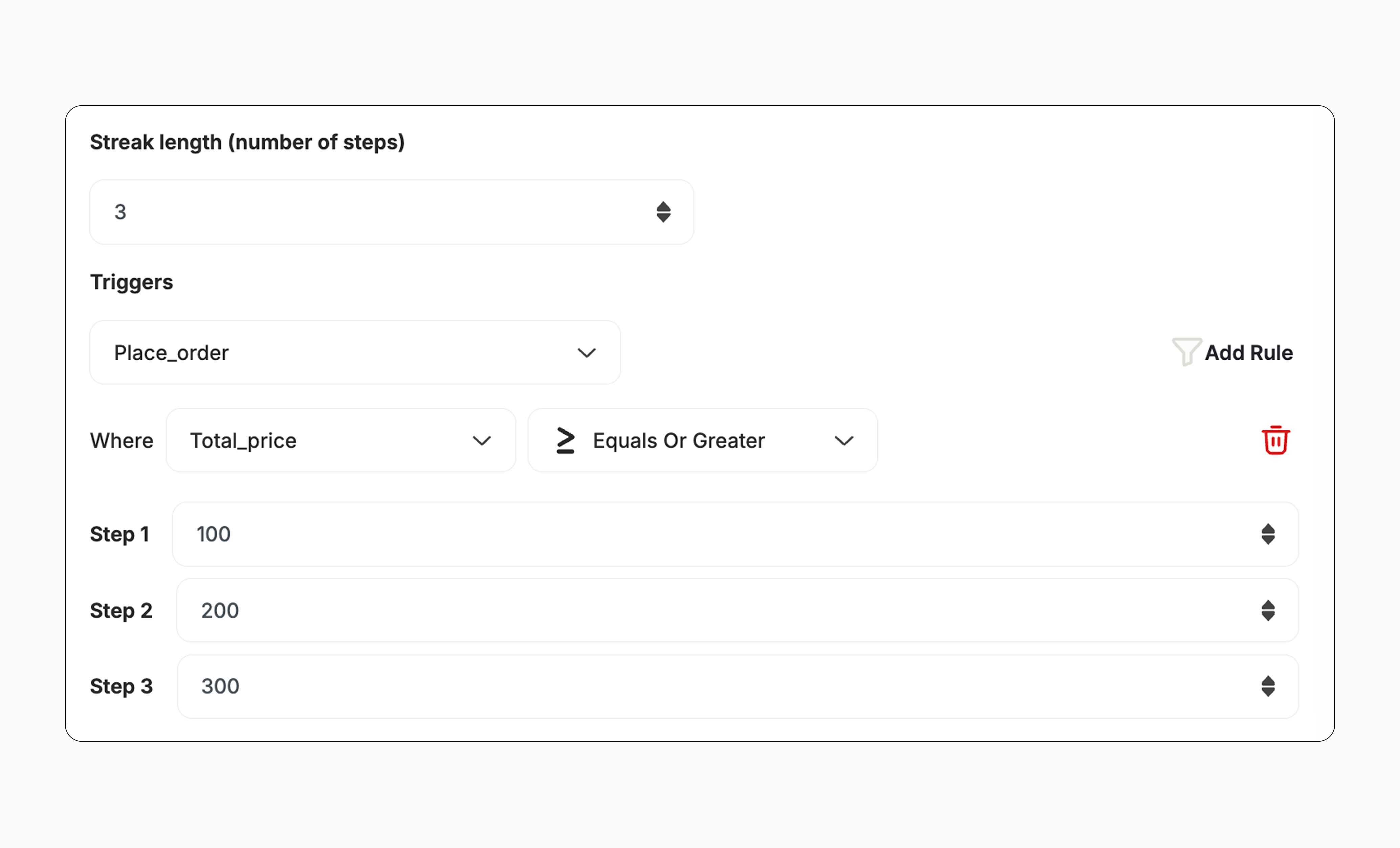 * You can set **one condition per action** in the streak. For example, require an order to meet a minimum amount or come from a specific collection.
* You **can use different collections for each action**, but you cannot mix condition types (e.g., minimum amount for one action and collection for another). Different values or amounts can be set for each step.
This template uses the standard reward campaign setup. See the [Generic Setup Guide](/product-documentation/rewards-campaigns/start-from-scratch/setup-reward-campaign) for details.
***
## End User Experience
**How it works:**
The customer starts by completing the first required action (e.g., placing an order).
They complete each step in the streak in sequence.
They receive notifications after each step if event notification is enabled. [Learn more](/product-documentation/rewards-campaigns/start-from-scratch/setup-reward-campaign).
After finishing all the steps, the customer receives the reward immediately (points, discount, badge -- based on your setup).
If allowed, they can repeat the streak to earn the reward again as per the repeatability setup. [Learn more](/product-documentation/rewards-campaigns/start-from-scratch/setup-reward-campaign).
***
## Customization
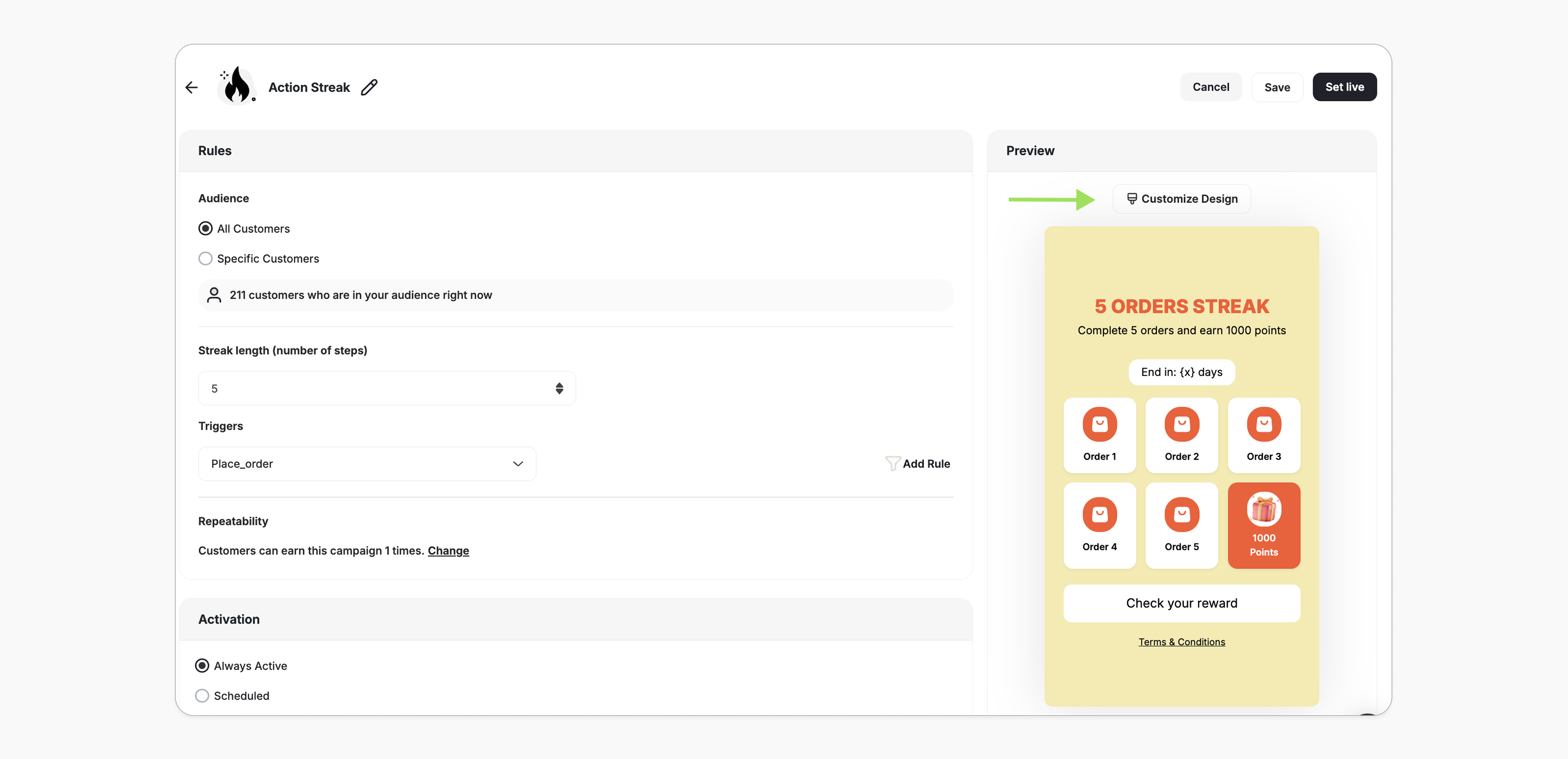
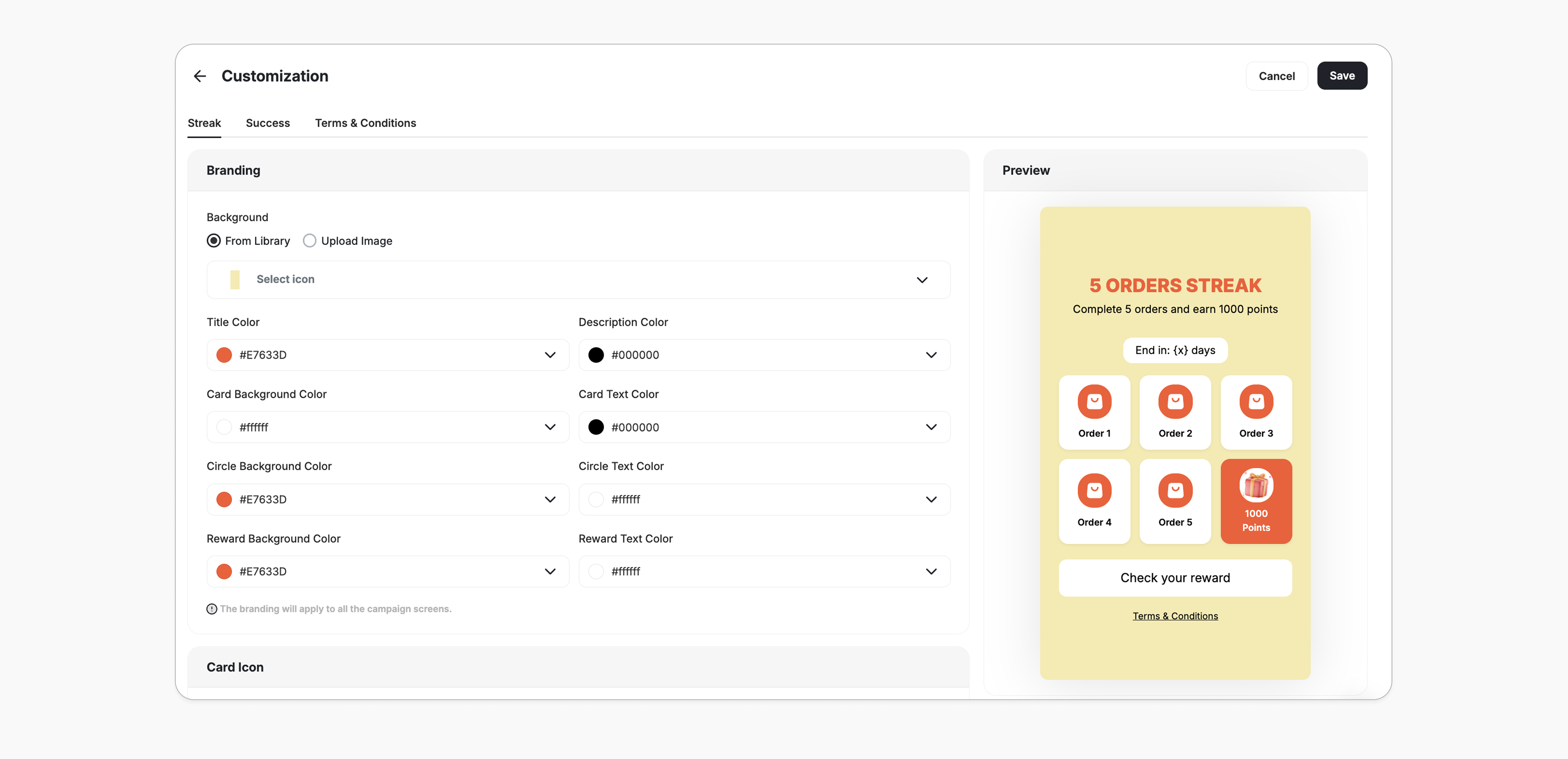
You can fully customize each stage of the campaign through dedicated tabs representing the different screens in the flow:
Configure the banner that appears in the widget to promote the Stamps campaign.
Set up the main campaign screen with headlines, descriptions, and call-to-action messages.
Customize the message and visuals shown when a customer completes the stamp cycle and earns a reward.
Add the terms and conditions for participation in this campaign.
For each screen, you can tailor:
* **Branding**: Adjust background colors, text colors, and upload custom artworks.
* **Content**: Edit the headlines, descriptions, and call-to-action messages to match your tone and messaging.
* You can set **one condition per action** in the streak. For example, require an order to meet a minimum amount or come from a specific collection.
* You **can use different collections for each action**, but you cannot mix condition types (e.g., minimum amount for one action and collection for another). Different values or amounts can be set for each step.
This template uses the standard reward campaign setup. See the [Generic Setup Guide](/product-documentation/rewards-campaigns/start-from-scratch/setup-reward-campaign) for details.
***
## End User Experience
**How it works:**
The customer starts by completing the first required action (e.g., placing an order).
They complete each step in the streak in sequence.
They receive notifications after each step if event notification is enabled. [Learn more](/product-documentation/rewards-campaigns/start-from-scratch/setup-reward-campaign).
After finishing all the steps, the customer receives the reward immediately (points, discount, badge -- based on your setup).
If allowed, they can repeat the streak to earn the reward again as per the repeatability setup. [Learn more](/product-documentation/rewards-campaigns/start-from-scratch/setup-reward-campaign).
***
## Customization
You can fully customize each stage of the campaign through dedicated tabs representing the different screens in the flow:
Configure the banner that appears in the widget to promote the Stamps campaign.
Set up the main campaign screen with headlines, descriptions, and call-to-action messages.
Customize the message and visuals shown when a customer completes the stamp cycle and earns a reward.
Add the terms and conditions for participation in this campaign.
For each screen, you can tailor:
* **Branding**: Adjust background colors, text colors, and upload custom artworks.
* **Content**: Edit the headlines, descriptions, and call-to-action messages to match your tone and messaging.
 ***
## Editing a Live Stamps Campaign
Editing a live campaign should be done with care to ensure a smooth experience for your customers.
The **trigger event**, **trigger condition**, and **streak length** **cannot be edited**.
If changes are required, the admin must **create a new campaign**.
**Audience Edited:**
* All existing customers are **re-evaluated**.
* Customers who no longer match the updated audience are **automatically exited** from the campaign.
**Auto-Removed from Audience (e.g., segment change):**
* The same behavior applies -- the customer is **automatically exited** from the campaign.
**Mid-Cycle Exit Impact**
If a customer exits **in the middle of a cycle**, they will:
* **Lose all progress** made in that cycle.
* The cycle will still **count toward their repeatability limit**, even if not completed.
**Widget Behavior:**
1. The customer is ineligible and has not earned the streak. The campaign is **hidden** from the widget.
2. The customer has already earned the streak at least once -- the badge remains **visible in the widget** with an **"Achieved"** status. Any progress in the current cycle is **lost**.
**New Limit is Higher:**
* Customers can **rejoin** the campaign if they are still eligible under the updated limit.
**New Limit is Lower:**
* All customers are **re-evaluated**.
* Customers who have already reached or exceeded the new limit will be **automatically exited** from their current cycle.
**Mid-Cycle Exit Impact**
If a customer is exited **mid-cycle** due to the limit change:
* They will **lose any progress** made during that cycle.
* The cycle will still **count toward their repeatability limit**, even if no reward was earned.
**De-activate:** Customer progress is **saved**. Any actions performed while the campaign is inactive **will not** be counted toward the streak.
**Re-activate:** Customers resume from the **last saved step**. Progress continues as normal.
***
## Related Articles
Learn the full setup process for creating and activating reward campaigns.
Explore all reward types available and how to configure each one.
Configure in-app and email notifications triggered when customers earn rewards.
***
## Editing a Live Stamps Campaign
Editing a live campaign should be done with care to ensure a smooth experience for your customers.
The **trigger event**, **trigger condition**, and **streak length** **cannot be edited**.
If changes are required, the admin must **create a new campaign**.
**Audience Edited:**
* All existing customers are **re-evaluated**.
* Customers who no longer match the updated audience are **automatically exited** from the campaign.
**Auto-Removed from Audience (e.g., segment change):**
* The same behavior applies -- the customer is **automatically exited** from the campaign.
**Mid-Cycle Exit Impact**
If a customer exits **in the middle of a cycle**, they will:
* **Lose all progress** made in that cycle.
* The cycle will still **count toward their repeatability limit**, even if not completed.
**Widget Behavior:**
1. The customer is ineligible and has not earned the streak. The campaign is **hidden** from the widget.
2. The customer has already earned the streak at least once -- the badge remains **visible in the widget** with an **"Achieved"** status. Any progress in the current cycle is **lost**.
**New Limit is Higher:**
* Customers can **rejoin** the campaign if they are still eligible under the updated limit.
**New Limit is Lower:**
* All customers are **re-evaluated**.
* Customers who have already reached or exceeded the new limit will be **automatically exited** from their current cycle.
**Mid-Cycle Exit Impact**
If a customer is exited **mid-cycle** due to the limit change:
* They will **lose any progress** made during that cycle.
* The cycle will still **count toward their repeatability limit**, even if no reward was earned.
**De-activate:** Customer progress is **saved**. Any actions performed while the campaign is inactive **will not** be counted toward the streak.
**Re-activate:** Customers resume from the **last saved step**. Progress continues as normal.
***
## Related Articles
Learn the full setup process for creating and activating reward campaigns.
Explore all reward types available and how to configure each one.
Configure in-app and email notifications triggered when customers earn rewards.