> ## Documentation Index
> Fetch the complete documentation index at: https://docs.gameball.co/llms.txt
> Use this file to discover all available pages before exploring further.
# How Do I Set Up Streak Campaign?
> Make your consistent customers feel special using the streak reward campaign template.
## Plan Availability
| Plan | Available |
| ---------- | --------- |
| Starter | Yes |
| Pro & Guru | Yes |
| Plan | Available |
| ---- | --------- |
| All | Yes |
Streak campaigns help you increase customer engagement by rewarding consecutive actions over time. You can configure streaks based on any customer action, such as purchases, reviews, or visits, and reward customers with points, coupons, or badges as they maintain their streak. This habit-forming campaign keeps your brand top-of-mind and encourages regular interaction.
***
## How to Create a Streak Campaign
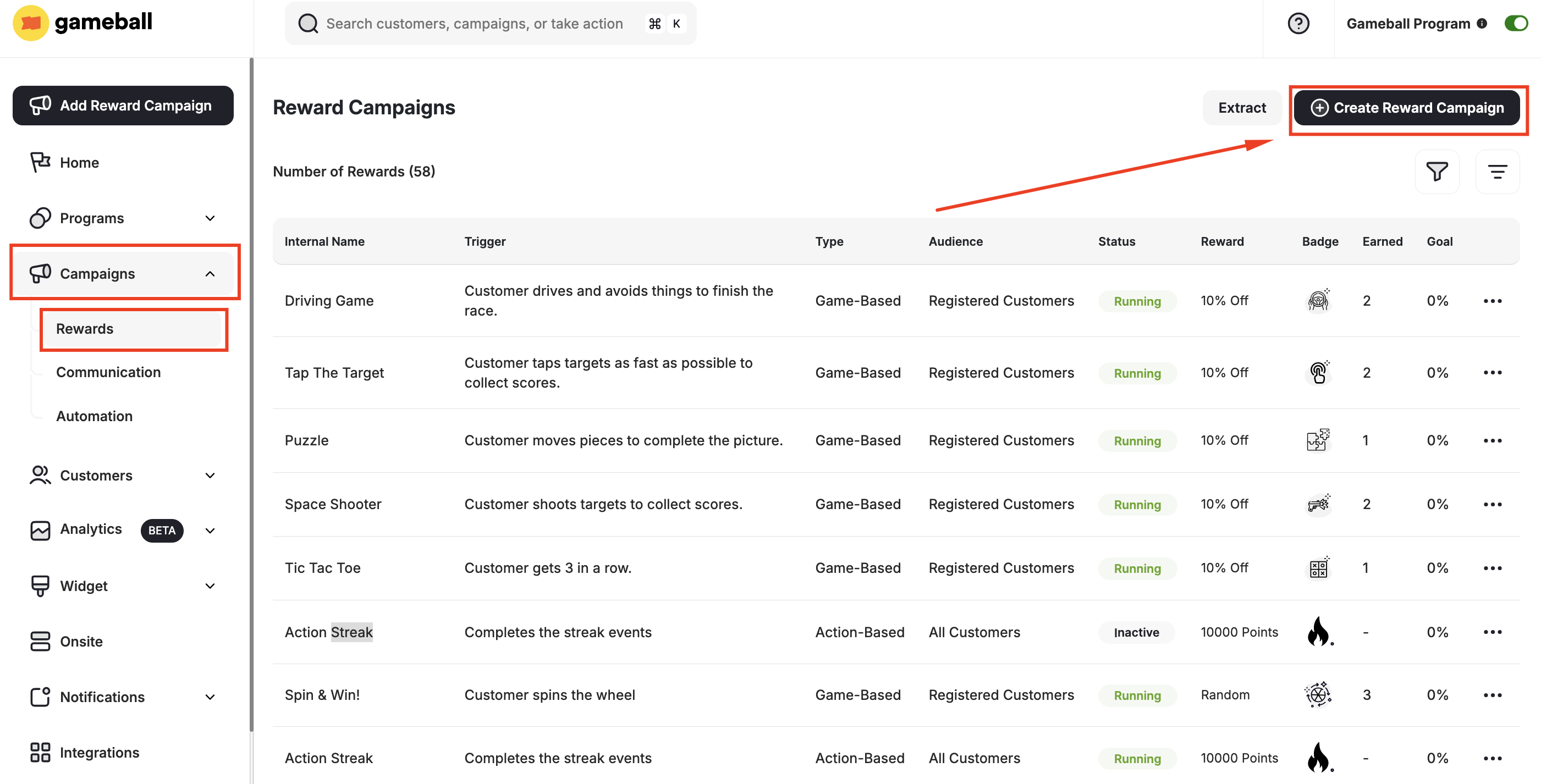
From the left bar, choose **Reward** under **Campaigns**. Click **Create New Reward Campaign**.
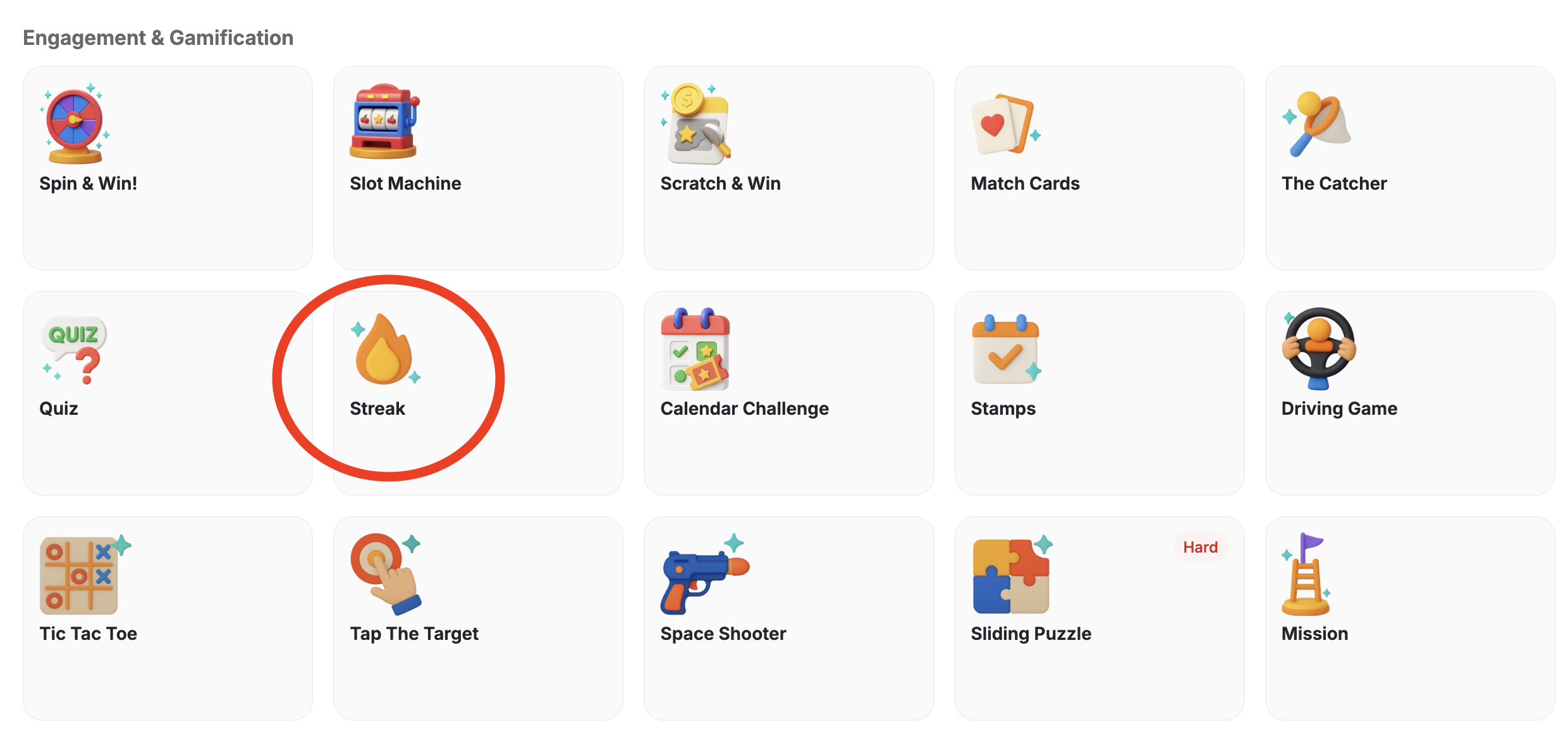
 Scroll to choose the **Streak** under **Engagement & Gamification**.
 You may follow the steps in this article to configure the general settings of this campaign. [Learn more about setting up a Reward Campaign.](/product-documentation/rewards-campaigns/start-from-scratch/create-action-based-reward-campaign)
Select the actions that will count toward the streak. Examples:
* Purchases
* Reviews
* Website visits
In the **Rewards** section, set up the streak rewarding system. For example, you might want customers to get 10 points every day they purchase until the 5th day, then 20 points daily until the 10th day, then 50 points thereafter.
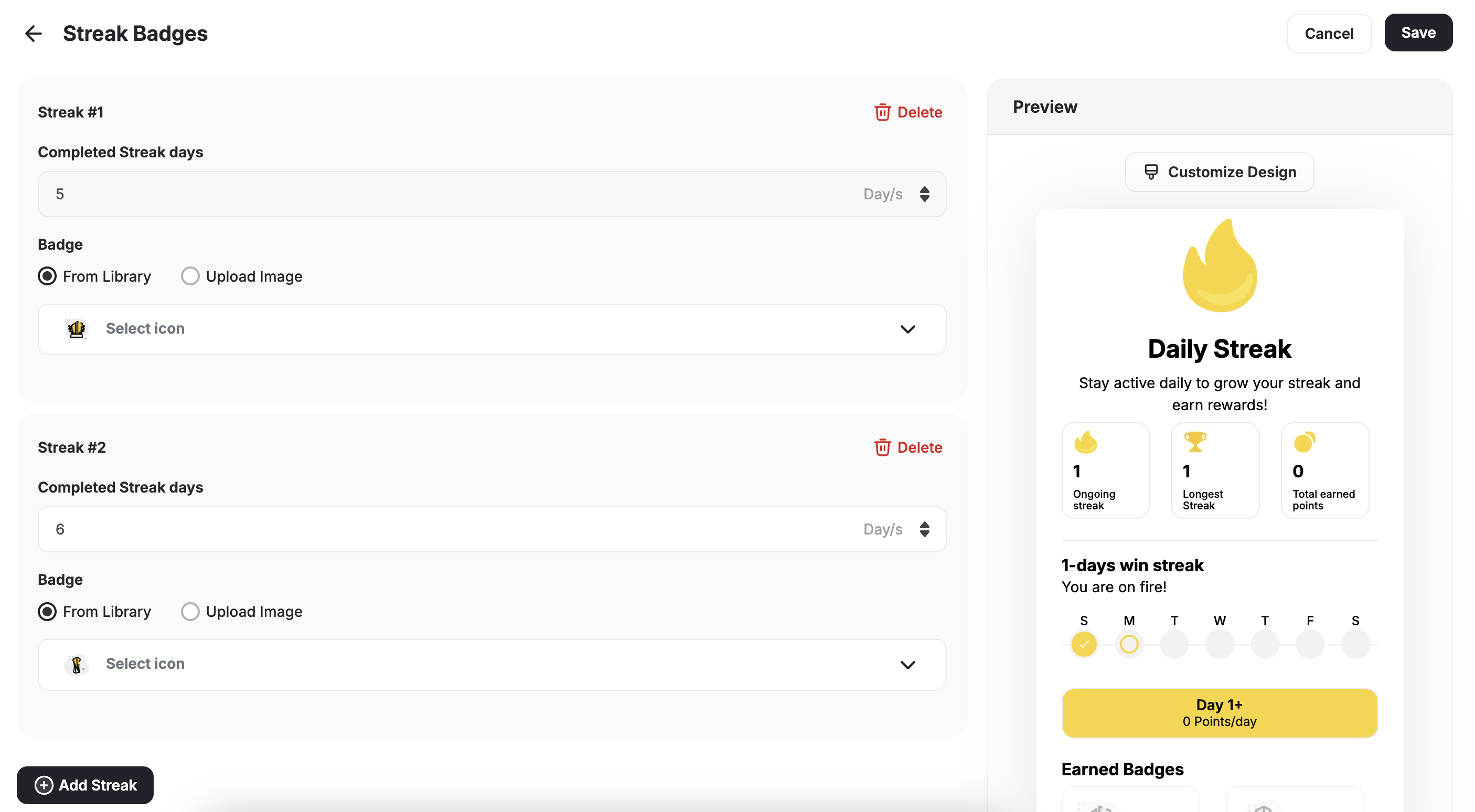
If the customer misses a day, they start over. The streak resets, but milestone badges already earned remain with the customer.
You may follow the steps in this article to configure the general settings of this campaign. [Learn more about setting up a Reward Campaign.](/product-documentation/rewards-campaigns/start-from-scratch/create-action-based-reward-campaign)
Select the actions that will count toward the streak. Examples:
* Purchases
* Reviews
* Website visits
In the **Rewards** section, set up the streak rewarding system. For example, you might want customers to get 10 points every day they purchase until the 5th day, then 20 points daily until the 10th day, then 50 points thereafter.
If the customer misses a day, they start over. The streak resets, but milestone badges already earned remain with the customer.
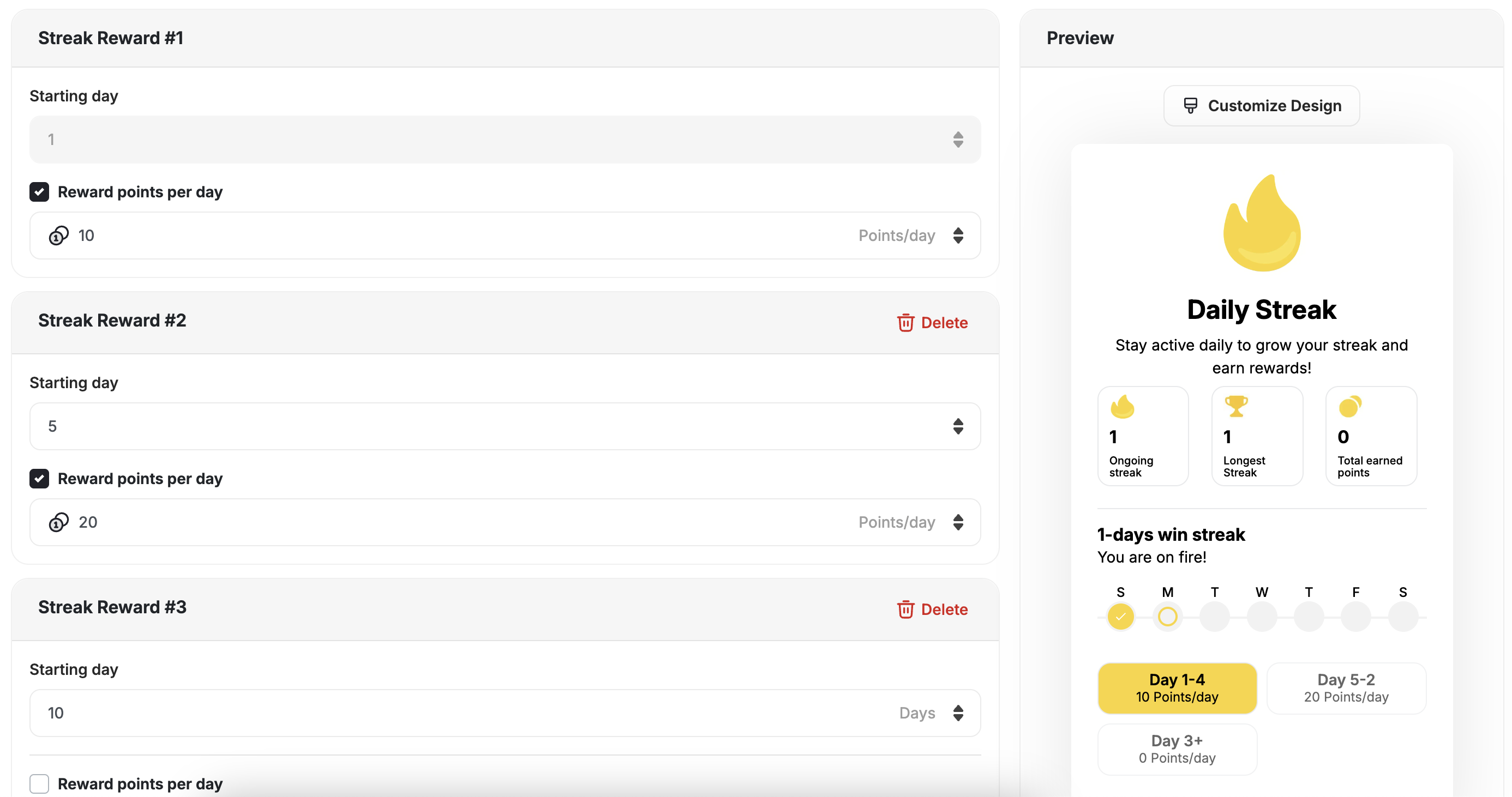 You can add up to **10 Daily Rewards**. Rewards should increase with longer streaks to encourage continued engagement.
Add the Badges of each streak. Badges are awarded when customers reach a milestone and remain permanently, even if the streak resets.
You can add up to **10 Daily Rewards**. Rewards should increase with longer streaks to encourage continued engagement.
Add the Badges of each streak. Badges are awarded when customers reach a milestone and remain permanently, even if the streak resets.
 ***
## How Gameball Tracks Daily Visits
If the trigger chosen is **Daily Visits**, here is how Gameball records customer check-ins:
A **daily visit (check-in)** is recorded when a registered customer interacts with your platform after **midnight (00:00 AM)** in their local time.
A customer visit is counted as a daily check-in in any of the following cases:
* The customer is **logged in** and loads any page that includes the **Gameball widget** (typically added via a JavaScript snippet).
* If the customer is **logged out**, they must **log in** for the visit to count.
* The platform sends **any event** on behalf of the customer (e.g., a purchase or tier-up event).
* You **retrieve customer details via the Gameball API** (e.g., calling `Get Customer` endpoint).
If you're not using a built-in Gameball plugin like **Shopify** or **Salla**, make sure the widget is integrated using our JavaScript SDK [guide](https://developer.gameball.co/installing-gameball/web) to ensure proper tracking.
On mobile, a check-in is registered under the following conditions:
* The customer **clicks on the loyalty program button** to launch the Gameball widget.
* The app **initializes the Gameball SDK**, even in the background, when the customer opens the app.
* The app sends **any event** related to the customer through Gameball's event tracking.
* You **retrieve customer details via the API** (same as on web).
Simply opening the app without triggering the widget or an event **will not** count as a check-in.
***
## Streak Achievement Events
Every time a customer progresses in a streak, Gameball fires a `streak_progression` event. You can use this event to trigger automations, send personalized messages, or build custom segmentation logic.
### Event Fired on Every Streak Progression
The `streak_progression` event fires automatically whenever a customer advances their streak — regardless of whether a reward milestone was reached.
### Using Streak Events for Automation and Personalization
You can reference this event in:
* **Automation campaigns** — trigger a flow when a customer reaches a specific streak length
* **Communication campaigns** — send a congratulatory message at key milestones
* **Segmentation** — group customers based on their current or longest streak
### Event Metadata
| Field | Description |
| ------------------------- | ----------------------------------------------------------------- |
| `campaign_id` | The ID of the streak campaign |
| `campaign_name` | The name of the streak campaign |
| `current_streak_duration` | The customer's current consecutive streak count |
| `longest_streak_duration` | The highest streak the customer has ever reached in this campaign |
* The `streak_progression` event fires on every progression, not just on reward milestones.
* If the streak resets, `current_streak_duration` resets to 0, but `longest_streak_duration` retains the historical maximum.
* Milestone badges earned remain with the customer even after a reset.
***
## Related Articles
Learn the full setup process for creating and activating reward campaigns.
Explore all reward types available and how to configure each one.
Configure in-app and email notifications triggered when customers earn rewards.
***
## How Gameball Tracks Daily Visits
If the trigger chosen is **Daily Visits**, here is how Gameball records customer check-ins:
A **daily visit (check-in)** is recorded when a registered customer interacts with your platform after **midnight (00:00 AM)** in their local time.
A customer visit is counted as a daily check-in in any of the following cases:
* The customer is **logged in** and loads any page that includes the **Gameball widget** (typically added via a JavaScript snippet).
* If the customer is **logged out**, they must **log in** for the visit to count.
* The platform sends **any event** on behalf of the customer (e.g., a purchase or tier-up event).
* You **retrieve customer details via the Gameball API** (e.g., calling `Get Customer` endpoint).
If you're not using a built-in Gameball plugin like **Shopify** or **Salla**, make sure the widget is integrated using our JavaScript SDK [guide](https://developer.gameball.co/installing-gameball/web) to ensure proper tracking.
On mobile, a check-in is registered under the following conditions:
* The customer **clicks on the loyalty program button** to launch the Gameball widget.
* The app **initializes the Gameball SDK**, even in the background, when the customer opens the app.
* The app sends **any event** related to the customer through Gameball's event tracking.
* You **retrieve customer details via the API** (same as on web).
Simply opening the app without triggering the widget or an event **will not** count as a check-in.
***
## Streak Achievement Events
Every time a customer progresses in a streak, Gameball fires a `streak_progression` event. You can use this event to trigger automations, send personalized messages, or build custom segmentation logic.
### Event Fired on Every Streak Progression
The `streak_progression` event fires automatically whenever a customer advances their streak — regardless of whether a reward milestone was reached.
### Using Streak Events for Automation and Personalization
You can reference this event in:
* **Automation campaigns** — trigger a flow when a customer reaches a specific streak length
* **Communication campaigns** — send a congratulatory message at key milestones
* **Segmentation** — group customers based on their current or longest streak
### Event Metadata
| Field | Description |
| ------------------------- | ----------------------------------------------------------------- |
| `campaign_id` | The ID of the streak campaign |
| `campaign_name` | The name of the streak campaign |
| `current_streak_duration` | The customer's current consecutive streak count |
| `longest_streak_duration` | The highest streak the customer has ever reached in this campaign |
* The `streak_progression` event fires on every progression, not just on reward milestones.
* If the streak resets, `current_streak_duration` resets to 0, but `longest_streak_duration` retains the historical maximum.
* Milestone badges earned remain with the customer even after a reset.
***
## Related Articles
Learn the full setup process for creating and activating reward campaigns.
Explore all reward types available and how to configure each one.
Configure in-app and email notifications triggered when customers earn rewards.