> ## Documentation Index
> Fetch the complete documentation index at: https://docs.gameball.co/llms.txt
> Use this file to discover all available pages before exploring further.
# How Do I Set Up a Survey Campaign?
> Collect customer feedback without leaving Gameball, and reward customers in points or coupons for completing it.
| Platform | Plan |
| ---------- | ------------- |
| Shopify | Pro & Guru |
| Salla | Pro & Guru |
| Self Serve | Contact Sales |
Collect customer feedback directly through Gameball and pay for it in points. **Survey** is a reward campaign type with its own question builder, an optional completion reward, and three ways to reach customers: inside the loyalty widget, as a storefront popup, or through a standalone shareable link.
This is a native Gameball campaign type. For the Shopify-Flow-based template that rewards customers for completing a survey on a separate app (e.g. Okendo), see [Fill a Survey (Shopify Flow)](/product-documentation/rewards-campaigns/templates/engagement-gamification/fill-a-survey).
 ***
## How to Set Up
Log in to your Gameball dashboard.
Click **Add Reward Campaign**.
Choose the **Survey** template.
Edit the campaign's setup to match your goals (see configuration sections below).
Click **Set Live** to activate the campaign.
***
## Campaign Configuration
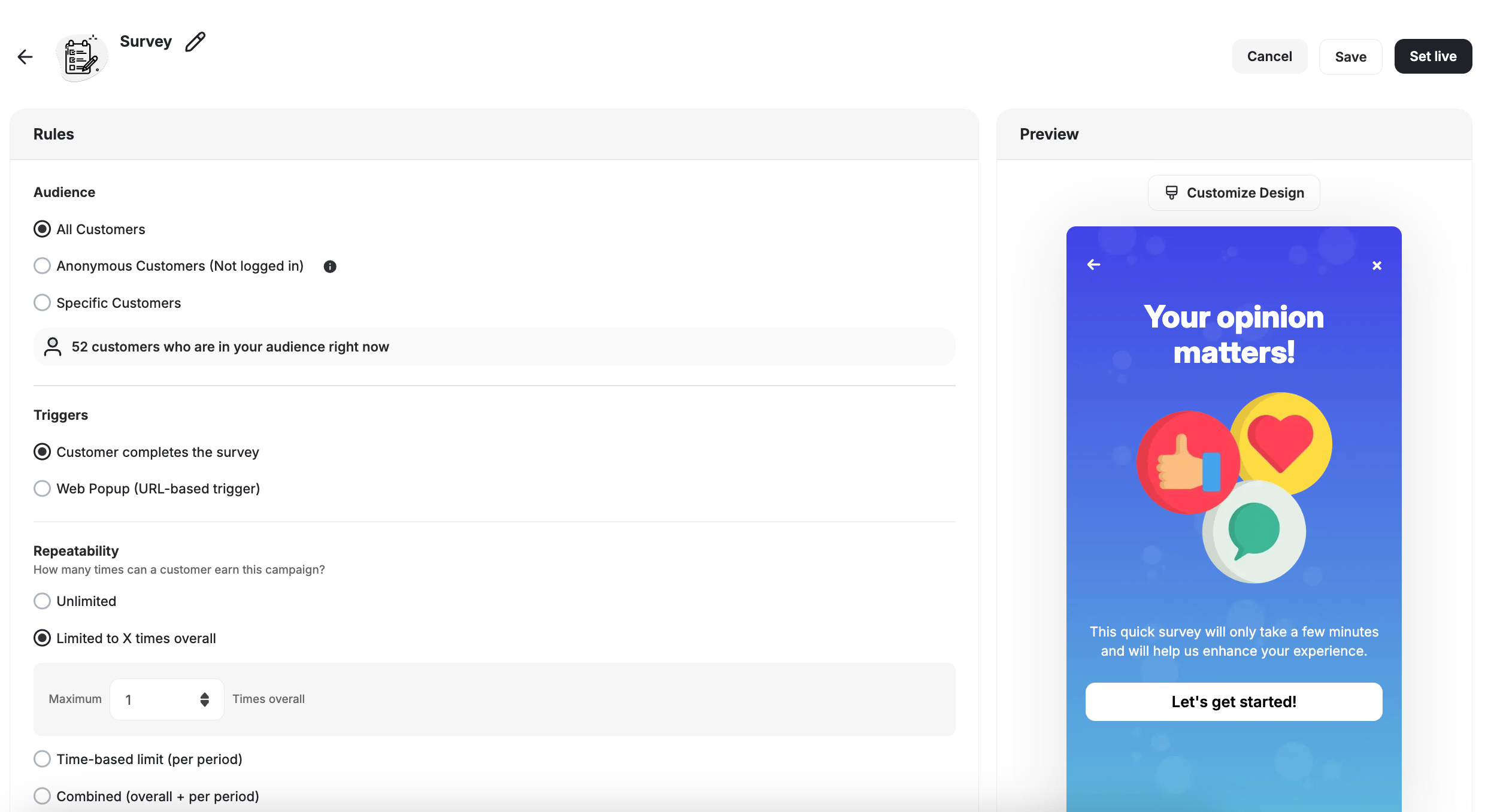
* **All Customers**
* **Anonymous Customers (Not logged in)**
* **Specific Customers:** Filter by segment, tag, or customer attributes to limit who can participate.
As you adjust the audience, Gameball shows how many customers are currently eligible to participate.
* **Customer completes the survey:** The reward is issued once the customer submits all required questions.
* **Web Popup (URL-based trigger):** Show the survey as a popup on specific storefront pages.
Choose how many times a customer can earn this campaign:
* **Unlimited**
* **Limited to X times overall**
* **Time-based limit (per period)**
* **Combined** (overall + per period)
The completion reward is issued only once per customer per allowed repetition, no matter which channel (widget, popup, or shareable link) they used.
This template uses the standard reward campaign setup. See the [Generic Setup Guide](/product-documentation/rewards-campaigns/start-from-scratch/setup-reward-campaign) for details.
***
## Question Builder
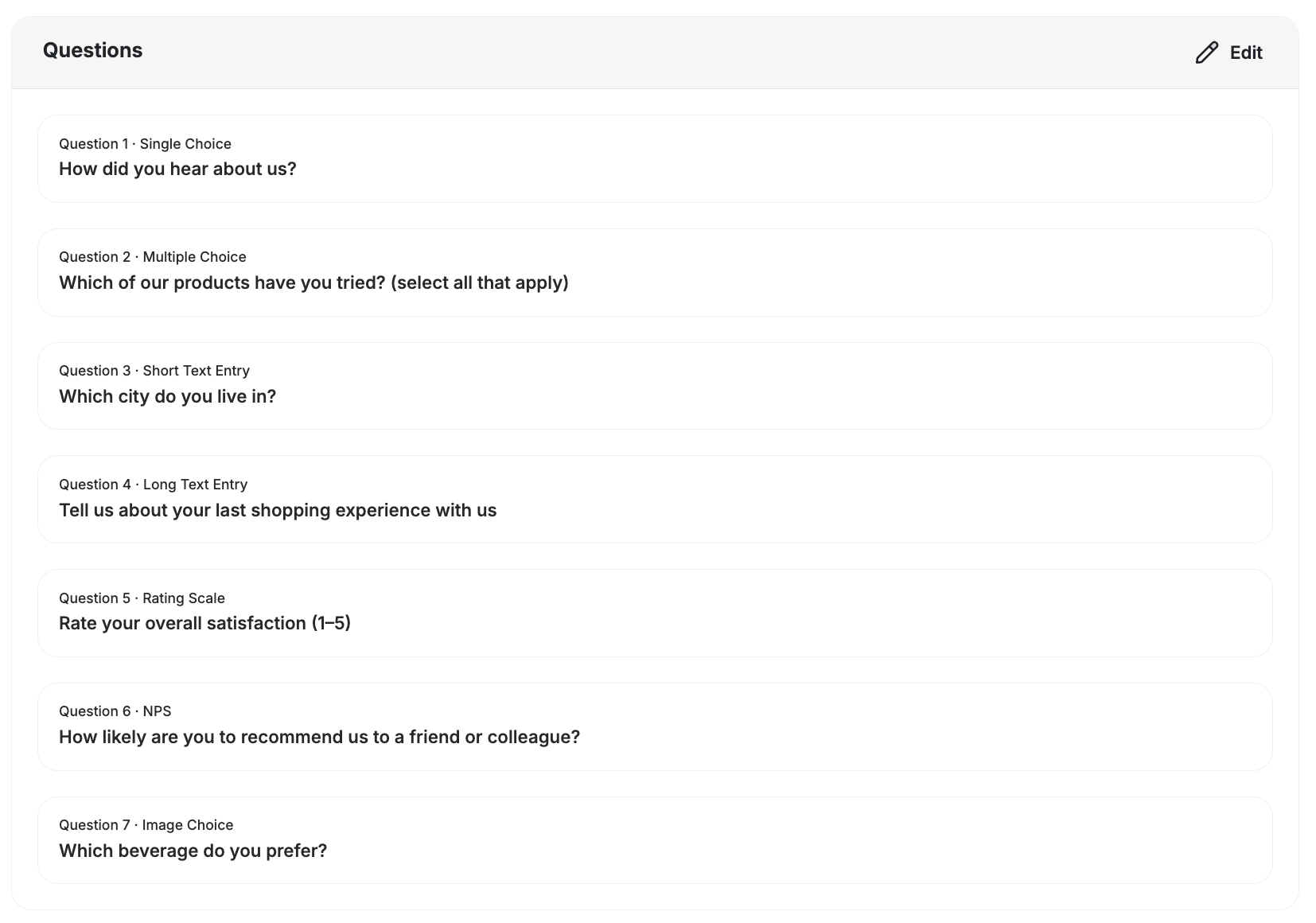
Build your survey from seven supported question types:
| Type | Description |
| ------------------- | ----------------------------------------------- |
| **Single Choice** | Customer picks one option from a list. |
| **Multiple Choice** | Customer can select more than one option. |
| **Short Text** | A single-line free-text answer. |
| **Long Text** | A multi-line free-text answer. |
| **Rating Scale** | Customer rates on a scale of 1–5 or 1–10. |
| **NPS** | Net Promoter Score question, scored 0–10. |
| **Image Choice** | Customer picks one option from a set of images. |
Add, reorder, and delete questions freely, and mark any question **Required** or **Optional**.
***
## How to Set Up
Log in to your Gameball dashboard.
Click **Add Reward Campaign**.
Choose the **Survey** template.
Edit the campaign's setup to match your goals (see configuration sections below).
Click **Set Live** to activate the campaign.
***
## Campaign Configuration
* **All Customers**
* **Anonymous Customers (Not logged in)**
* **Specific Customers:** Filter by segment, tag, or customer attributes to limit who can participate.
As you adjust the audience, Gameball shows how many customers are currently eligible to participate.
* **Customer completes the survey:** The reward is issued once the customer submits all required questions.
* **Web Popup (URL-based trigger):** Show the survey as a popup on specific storefront pages.
Choose how many times a customer can earn this campaign:
* **Unlimited**
* **Limited to X times overall**
* **Time-based limit (per period)**
* **Combined** (overall + per period)
The completion reward is issued only once per customer per allowed repetition, no matter which channel (widget, popup, or shareable link) they used.
This template uses the standard reward campaign setup. See the [Generic Setup Guide](/product-documentation/rewards-campaigns/start-from-scratch/setup-reward-campaign) for details.
***
## Question Builder
Build your survey from seven supported question types:
| Type | Description |
| ------------------- | ----------------------------------------------- |
| **Single Choice** | Customer picks one option from a list. |
| **Multiple Choice** | Customer can select more than one option. |
| **Short Text** | A single-line free-text answer. |
| **Long Text** | A multi-line free-text answer. |
| **Rating Scale** | Customer rates on a scale of 1–5 or 1–10. |
| **NPS** | Net Promoter Score question, scored 0–10. |
| **Image Choice** | Customer picks one option from a set of images. |
Add, reorder, and delete questions freely, and mark any question **Required** or **Optional**.
 Reward the survey with points or a coupon from your existing redemption rules — or run it with no reward at all. You can also set a start/end date and a total participation limit for the whole campaign, independent of per-customer repeatability.
***
## Distribution
Reach customers through three channels, configurable independently:
* **Gameball Widget:** The survey appears inside the loyalty widget.
* **Storefront Popup:** Enable popup mode with a configurable trigger — page load, time delay, or exit intent.
* **Shareable Link:** Copy an auto-generated link that renders the survey on a Gameball-hosted page, no widget required. Useful for emails, SMS, or social posts.
***
## Customization
Customize branding and copy for each stage of the survey — Intro, Question, and Success screens.
Reward the survey with points or a coupon from your existing redemption rules — or run it with no reward at all. You can also set a start/end date and a total participation limit for the whole campaign, independent of per-customer repeatability.
***
## Distribution
Reach customers through three channels, configurable independently:
* **Gameball Widget:** The survey appears inside the loyalty widget.
* **Storefront Popup:** Enable popup mode with a configurable trigger — page load, time delay, or exit intent.
* **Shareable Link:** Copy an auto-generated link that renders the survey on a Gameball-hosted page, no widget required. Useful for emails, SMS, or social posts.
***
## Customization
Customize branding and copy for each stage of the survey — Intro, Question, and Success screens.
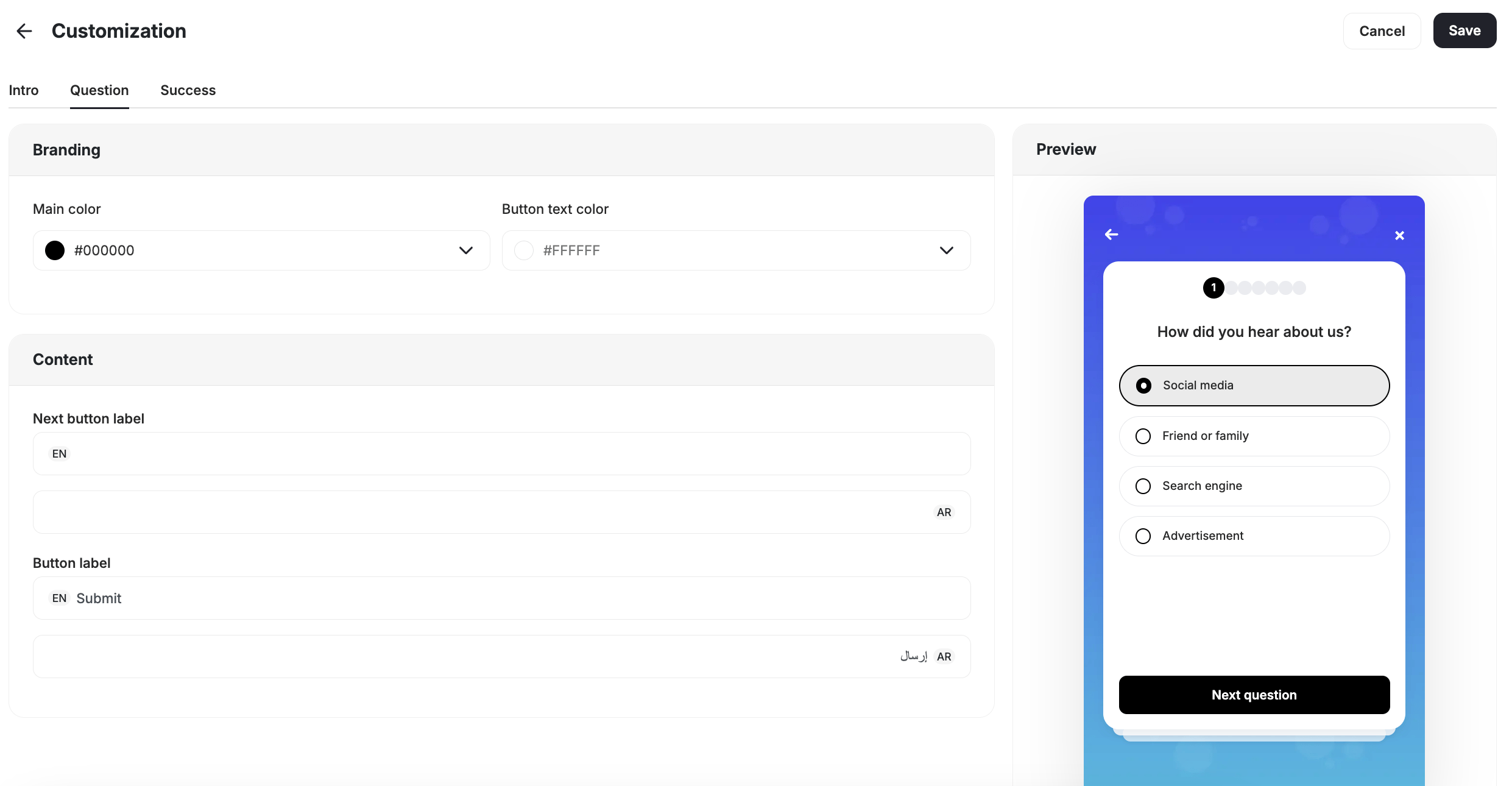 * **Branding:** Set the main color and button text color.
* **Content:** Edit button labels and other on-screen copy per screen, with support for both English and Arabic.
* Question transitions and selections are animated, with a confirmation screen shown on submission.
***
## Customer Experience & Data
* **Identified customers** are credited automatically for their responses.
* **Anonymous link visitors** are handled based on your campaign configuration.
* Any survey answer can be stored back on the customer as a **customer attribute**, so responses become segmentation and targeting criteria for future campaigns, automations, and audiences.
* Responses are stored per campaign and exportable as CSV.
* Aggregated results for every published survey are available in **Insights**. See [Survey & Quiz Response Analytics](/product-documentation/rewards-campaigns/reward-campaigns-insights#survey-quiz-response-analytics).
***
## Important Notes
**Customer Eligibility**
The survey updates dynamically based on customer eligibility, ensuring customers only see surveys they can still participate in. If a customer no longer belongs to the campaign's target segment, the survey is automatically removed from the widget and won't reappear unless eligibility is restored.
***
## Related Articles
Step-by-step guide to configuring any reward campaign.
Learn which metrics to track and how to measure campaign performance.
Reward customers for completing a survey on a connected Shopify Flow app.
* **Branding:** Set the main color and button text color.
* **Content:** Edit button labels and other on-screen copy per screen, with support for both English and Arabic.
* Question transitions and selections are animated, with a confirmation screen shown on submission.
***
## Customer Experience & Data
* **Identified customers** are credited automatically for their responses.
* **Anonymous link visitors** are handled based on your campaign configuration.
* Any survey answer can be stored back on the customer as a **customer attribute**, so responses become segmentation and targeting criteria for future campaigns, automations, and audiences.
* Responses are stored per campaign and exportable as CSV.
* Aggregated results for every published survey are available in **Insights**. See [Survey & Quiz Response Analytics](/product-documentation/rewards-campaigns/reward-campaigns-insights#survey-quiz-response-analytics).
***
## Important Notes
**Customer Eligibility**
The survey updates dynamically based on customer eligibility, ensuring customers only see surveys they can still participate in. If a customer no longer belongs to the campaign's target segment, the survey is automatically removed from the widget and won't reappear unless eligibility is restored.
***
## Related Articles
Step-by-step guide to configuring any reward campaign.
Learn which metrics to track and how to measure campaign performance.
Reward customers for completing a survey on a connected Shopify Flow app.