> ## Documentation Index
> Fetch the complete documentation index at: https://docs.gameball.co/llms.txt
> Use this file to discover all available pages before exploring further.
# How Do I Set Up Buy a Specific Product?
> Reward customers for purchasing select products to drive targeted sales and increase product visibility.
| Platform | Plan |
| ------------ | ------------------ |
| Shopify | Starter, Pro, Guru |
| Salla | Starter, Pro, Guru |
| Non-Platform | All Plans |
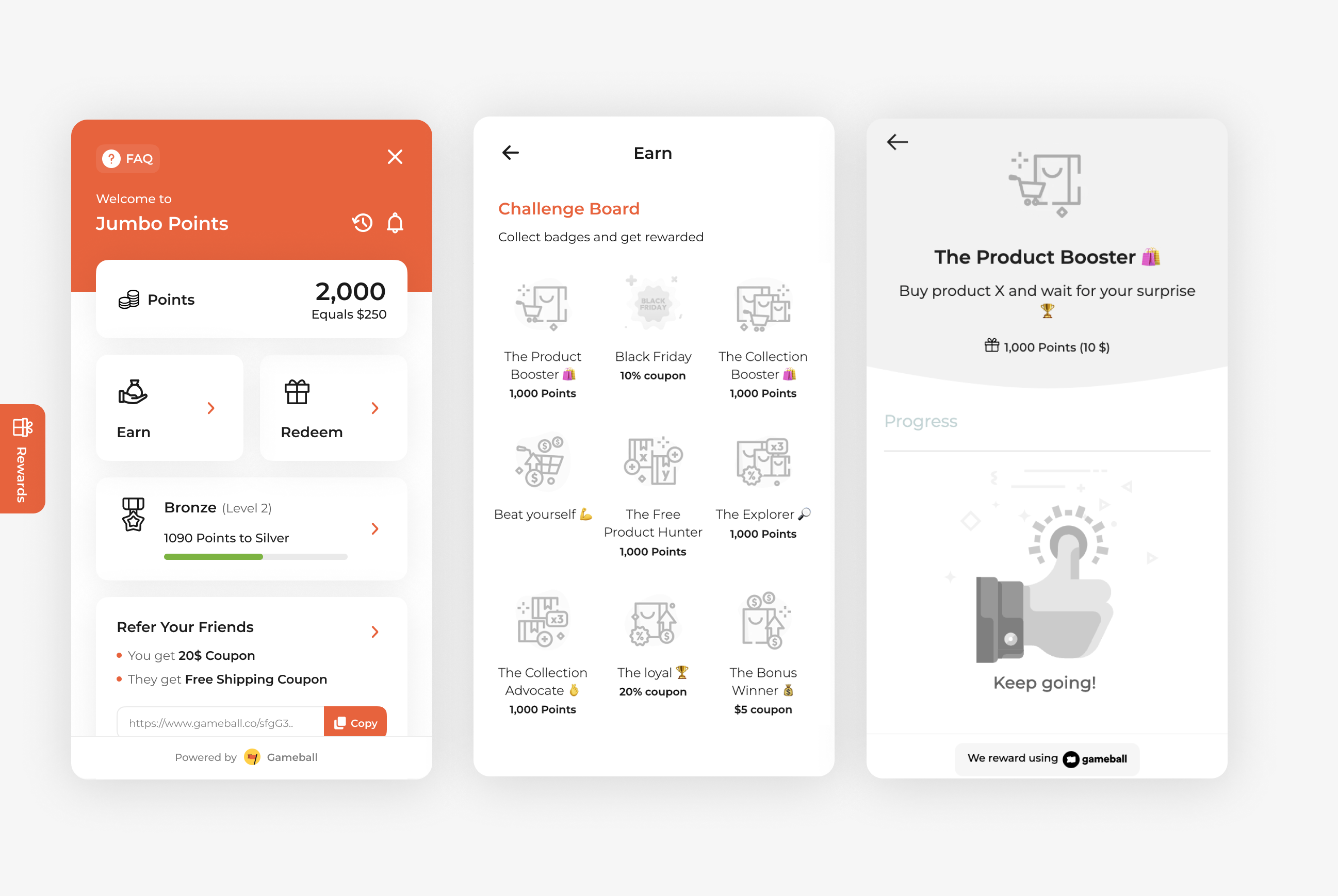
Use the ***Buy a Specific Product*** campaign to highlight and promote key items in your catalog. By rewarding customers for purchasing select products, you can drive targeted sales, increase product visibility, and encourage repeat purchases of high-priority or new stock.
 ***
## How to Set Up
Log in to your Gameball Admin Dashboard.
Click **Add Reward Campaign**.
Select the **Buy a Specific Product** template.
Configure your campaign's audience, rewards, and other settings.
Click **Set Live** to activate your campaign.
***
## Campaign Trigger
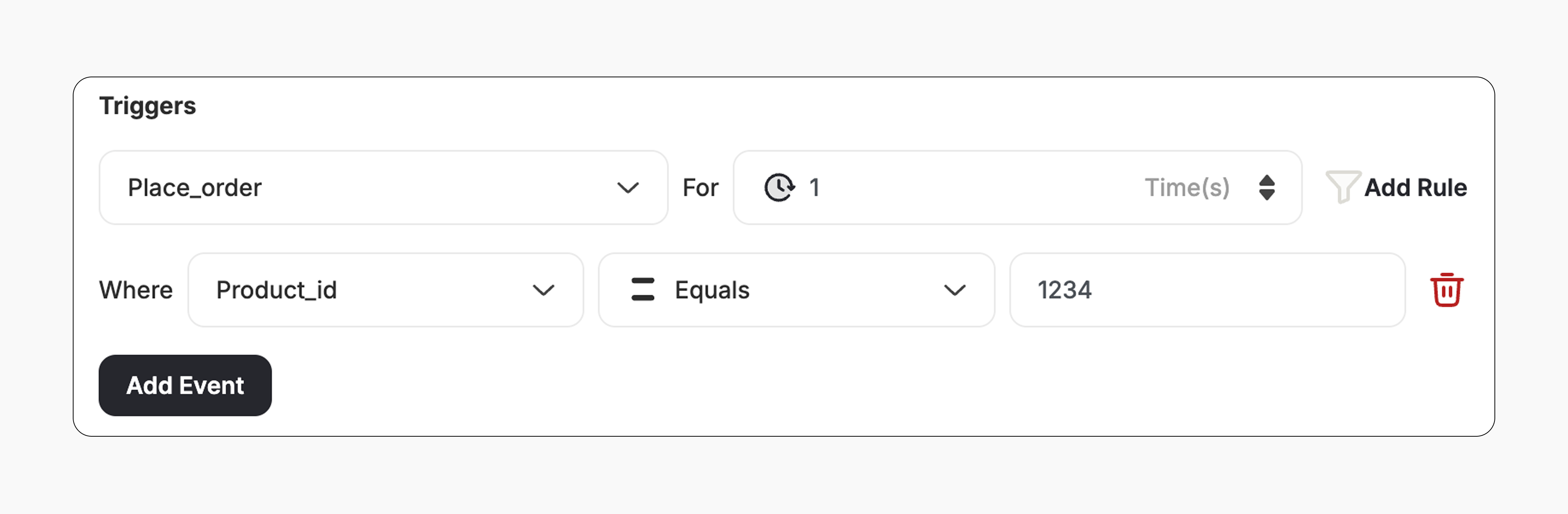
The campaign trigger is configured as follows:
1. **Action:** Place Order
2. **Times:** 1 *(Number of orders required with this condition)*
3. **Rule:** Add the **Product ID** to the trigger to specify which product you ask them to purchase.
***
## How to Set Up
Log in to your Gameball Admin Dashboard.
Click **Add Reward Campaign**.
Select the **Buy a Specific Product** template.
Configure your campaign's audience, rewards, and other settings.
Click **Set Live** to activate your campaign.
***
## Campaign Trigger
The campaign trigger is configured as follows:
1. **Action:** Place Order
2. **Times:** 1 *(Number of orders required with this condition)*
3. **Rule:** Add the **Product ID** to the trigger to specify which product you ask them to purchase.
 This template uses the standard reward campaign setup. See the [Generic Setup Guide](/product-documentation/rewards-campaigns/start-from-scratch/setup-reward-campaign) for details.
***
## How It Works for Customers
A customer **places an order** that includes the configured product/s.
Gameball automatically triggers the reward.
The customer receives the reward immediately (points, discount, badge — based on your setup).
The customer is notified via the widget or email, depending on your configuration. [Learn more](/product-documentation/rewards-campaigns/start-from-scratch/setup-reward-campaign)
***
## Important Notes
**Product-Specific Only**
The reward will only trigger if the customer's order includes the **Product ID(s)** you've specified.
**Multiple Products**
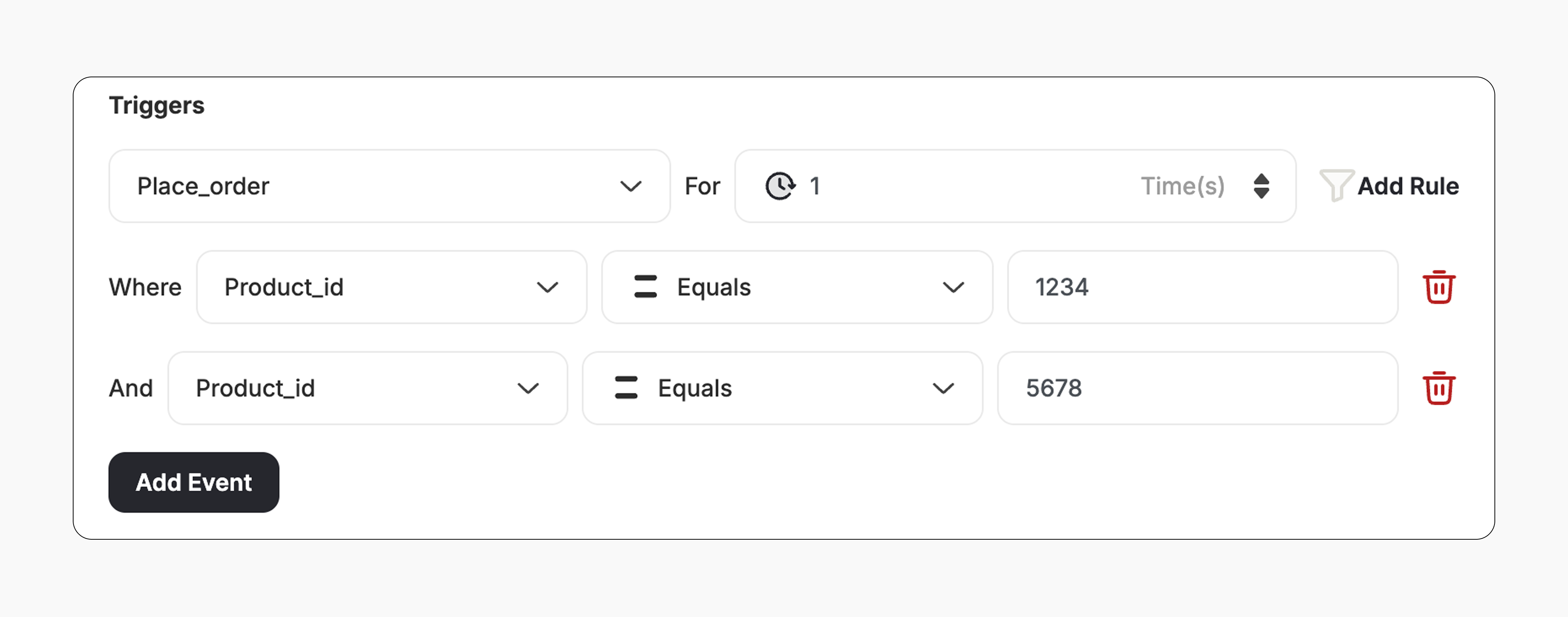
* You can add several product IDs if you want to reward purchases that contain **all** the configured products as a group.
* To do this: Click **Add Rule -> Select Product ID -> Choose "Equals" -> Enter the Product ID**
* The reward will only trigger when the customer's order includes **every product ID** listed in the campaign setup.
This template uses the standard reward campaign setup. See the [Generic Setup Guide](/product-documentation/rewards-campaigns/start-from-scratch/setup-reward-campaign) for details.
***
## How It Works for Customers
A customer **places an order** that includes the configured product/s.
Gameball automatically triggers the reward.
The customer receives the reward immediately (points, discount, badge — based on your setup).
The customer is notified via the widget or email, depending on your configuration. [Learn more](/product-documentation/rewards-campaigns/start-from-scratch/setup-reward-campaign)
***
## Important Notes
**Product-Specific Only**
The reward will only trigger if the customer's order includes the **Product ID(s)** you've specified.
**Multiple Products**
* You can add several product IDs if you want to reward purchases that contain **all** the configured products as a group.
* To do this: Click **Add Rule -> Select Product ID -> Choose "Equals" -> Enter the Product ID**
* The reward will only trigger when the customer's order includes **every product ID** listed in the campaign setup.
 ***
## Related Articles
Learn the full setup process for creating and launching reward campaigns.
Explore the different reward types available in Gameball campaigns.
Configure how customers are notified when they earn a reward.
***
## Related Articles
Learn the full setup process for creating and launching reward campaigns.
Explore the different reward types available in Gameball campaigns.
Configure how customers are notified when they earn a reward.