> ## Documentation Index
> Fetch the complete documentation index at: https://docs.gameball.co/llms.txt
> Use this file to discover all available pages before exploring further.
# How Do I Set Up Buy from a Specific Collection?
> Reward customers who shop from selected collections to boost seasonal sales, highlight new arrivals, or push slower-moving inventory.
| Platform | Plan |
| ------------ | ------------------ |
| Shopify | Starter, Pro, Guru |
| Salla | Starter, Pro, Guru |
| Non-Platform | All Plans |
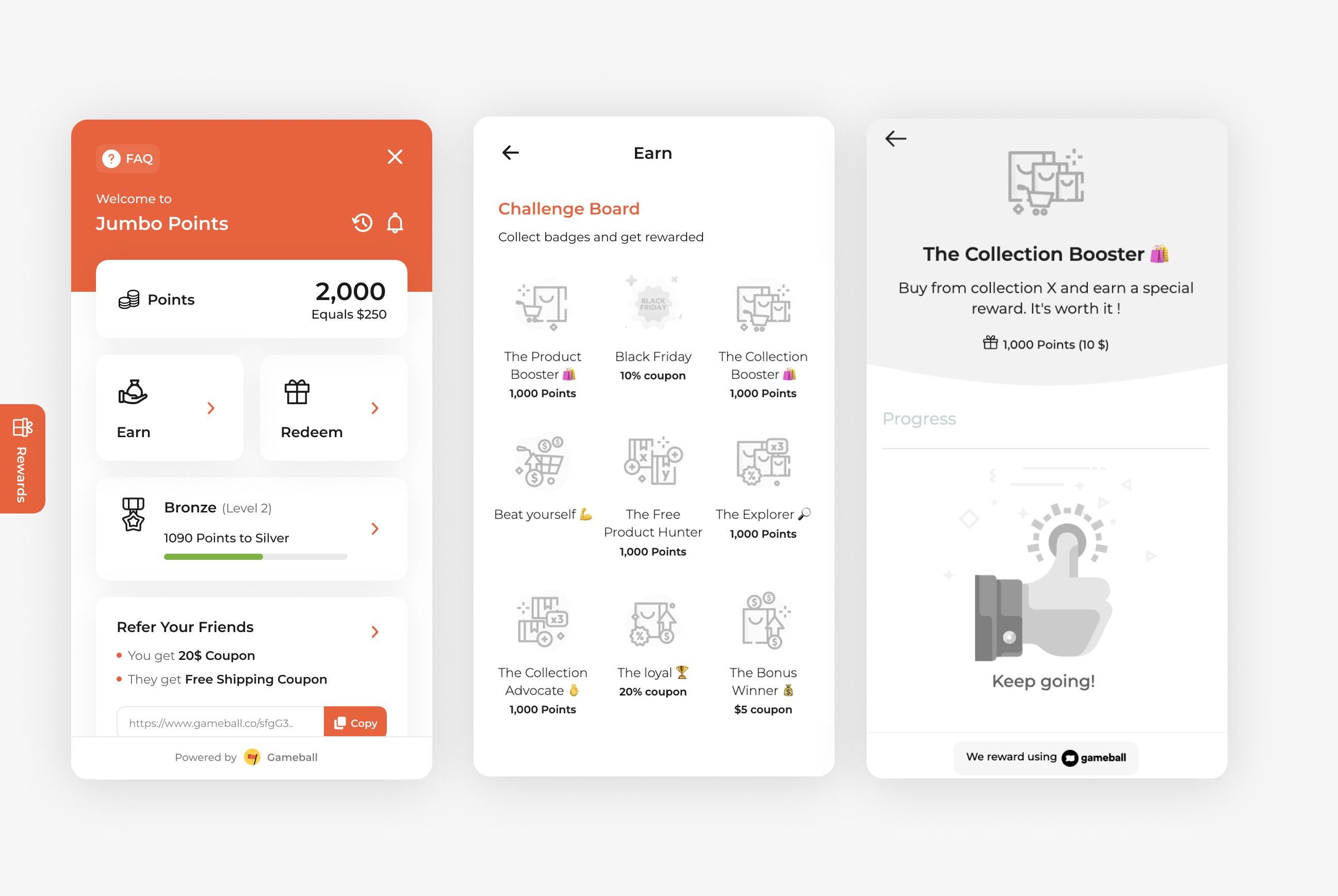
Use the ***Buy from a Specific Collection*** campaign to promote entire product categories by rewarding customers who shop from selected collections. This is a great way to boost seasonal sales, highlight new arrivals, or push slower-moving inventory by creating targeted incentives for collection-based purchases.
 ***
## How to Set Up
Log in to your Gameball Admin Dashboard.
Click **Add Reward Campaign**.
Select the **Buy from a Specific Collection** template.
Configure your campaign's audience, rewards, and other settings.
Click **Set Live** to activate your campaign.
***
## Campaign Trigger
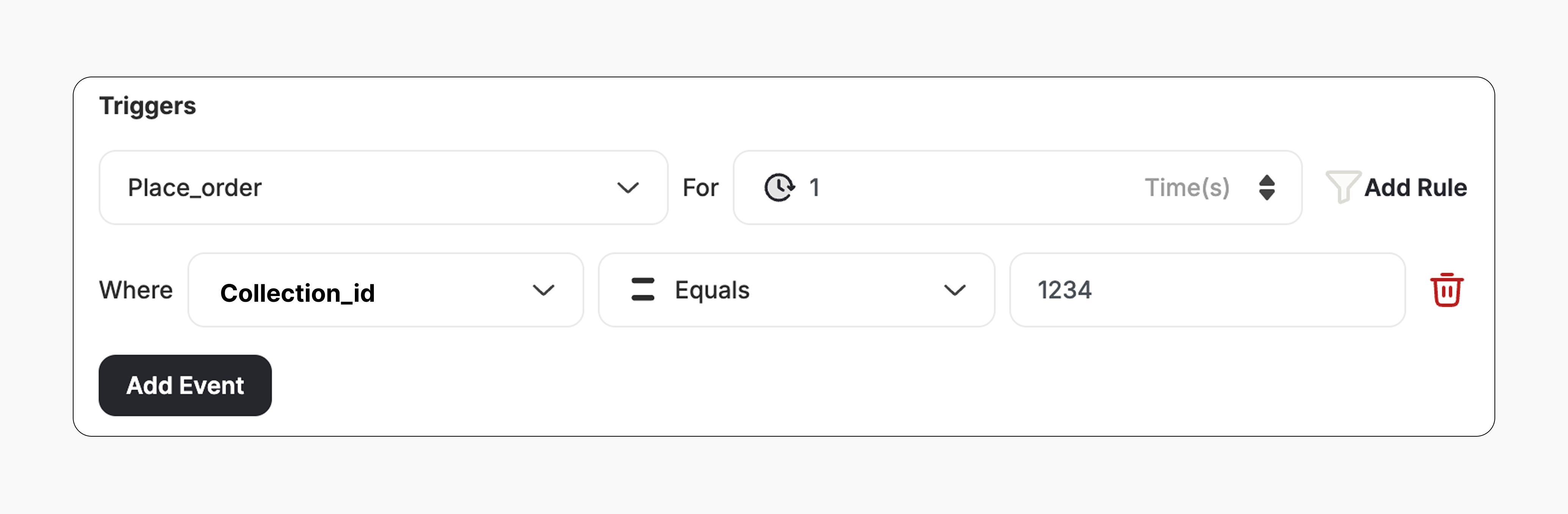
The campaign trigger is configured as follows:
1. **Action:** Place Order
2. **Times:** 1 *(Number of orders required with this condition)*
3. **Rule:** Add the **Collection ID** to the trigger to define which collection(s) qualify.
***
## How to Set Up
Log in to your Gameball Admin Dashboard.
Click **Add Reward Campaign**.
Select the **Buy from a Specific Collection** template.
Configure your campaign's audience, rewards, and other settings.
Click **Set Live** to activate your campaign.
***
## Campaign Trigger
The campaign trigger is configured as follows:
1. **Action:** Place Order
2. **Times:** 1 *(Number of orders required with this condition)*
3. **Rule:** Add the **Collection ID** to the trigger to define which collection(s) qualify.
 This template uses the standard reward campaign setup. See the [Generic Setup Guide](/product-documentation/rewards-campaigns/start-from-scratch/setup-reward-campaign) for details.
***
## How It Works for Customers
A customer **places an order** that includes at least one product from the configured collection.
Gameball automatically triggers the reward.
The customer receives the reward immediately (points, discount, badge — based on your setup).
The customer is notified via the widget or email, depending on your configuration. [Learn more](/product-documentation/rewards-campaigns/start-from-scratch/setup-reward-campaign)
***
## Important Notes
**Collection-Specific Only**
The reward will only trigger if the customer's order includes a product that belongs to the **specified collection/s**.
**Multiple Collections**
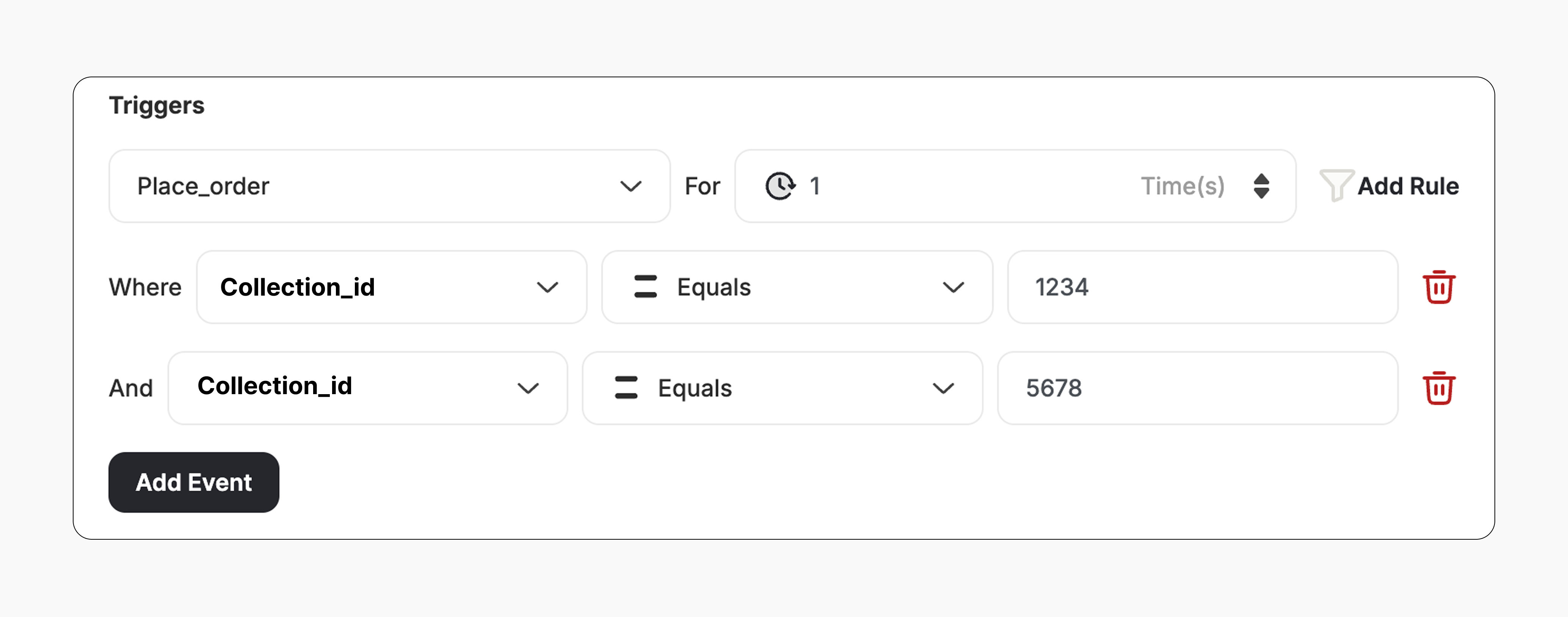
* You can add several collection IDs if you want to reward purchases that contain products from **all** the configured collections.
* To do this: Click **Add Rule -> Select Collection ID -> Choose "Equals" -> Enter the Collection ID** for each collection you want to include.
* The reward will only trigger when the customer's order includes at least one product from **every collection ID** listed in the campaign setup.
This template uses the standard reward campaign setup. See the [Generic Setup Guide](/product-documentation/rewards-campaigns/start-from-scratch/setup-reward-campaign) for details.
***
## How It Works for Customers
A customer **places an order** that includes at least one product from the configured collection.
Gameball automatically triggers the reward.
The customer receives the reward immediately (points, discount, badge — based on your setup).
The customer is notified via the widget or email, depending on your configuration. [Learn more](/product-documentation/rewards-campaigns/start-from-scratch/setup-reward-campaign)
***
## Important Notes
**Collection-Specific Only**
The reward will only trigger if the customer's order includes a product that belongs to the **specified collection/s**.
**Multiple Collections**
* You can add several collection IDs if you want to reward purchases that contain products from **all** the configured collections.
* To do this: Click **Add Rule -> Select Collection ID -> Choose "Equals" -> Enter the Collection ID** for each collection you want to include.
* The reward will only trigger when the customer's order includes at least one product from **every collection ID** listed in the campaign setup.
 ***
## Related Articles
Learn the full setup process for creating and launching reward campaigns.
Explore the different reward types available in Gameball campaigns.
Configure how customers are notified when they earn a reward.
***
## Related Articles
Learn the full setup process for creating and launching reward campaigns.
Explore the different reward types available in Gameball campaigns.
Configure how customers are notified when they earn a reward.