> ## Documentation Index
> Fetch the complete documentation index at: https://docs.gameball.co/llms.txt
> Use this file to discover all available pages before exploring further.
# How Do I Set Up Get 20% Coupon After Spending a Total of $1000?
> Reward high spenders with a 20% coupon when they reach a cumulative spending milestone of $1000 to drive long-term engagement.
| Platform | Plan |
| ------------ | ------------------ |
| Shopify | Starter, Pro, Guru |
| Salla | Starter, Pro, Guru |
| Non-Platform | All Plans |
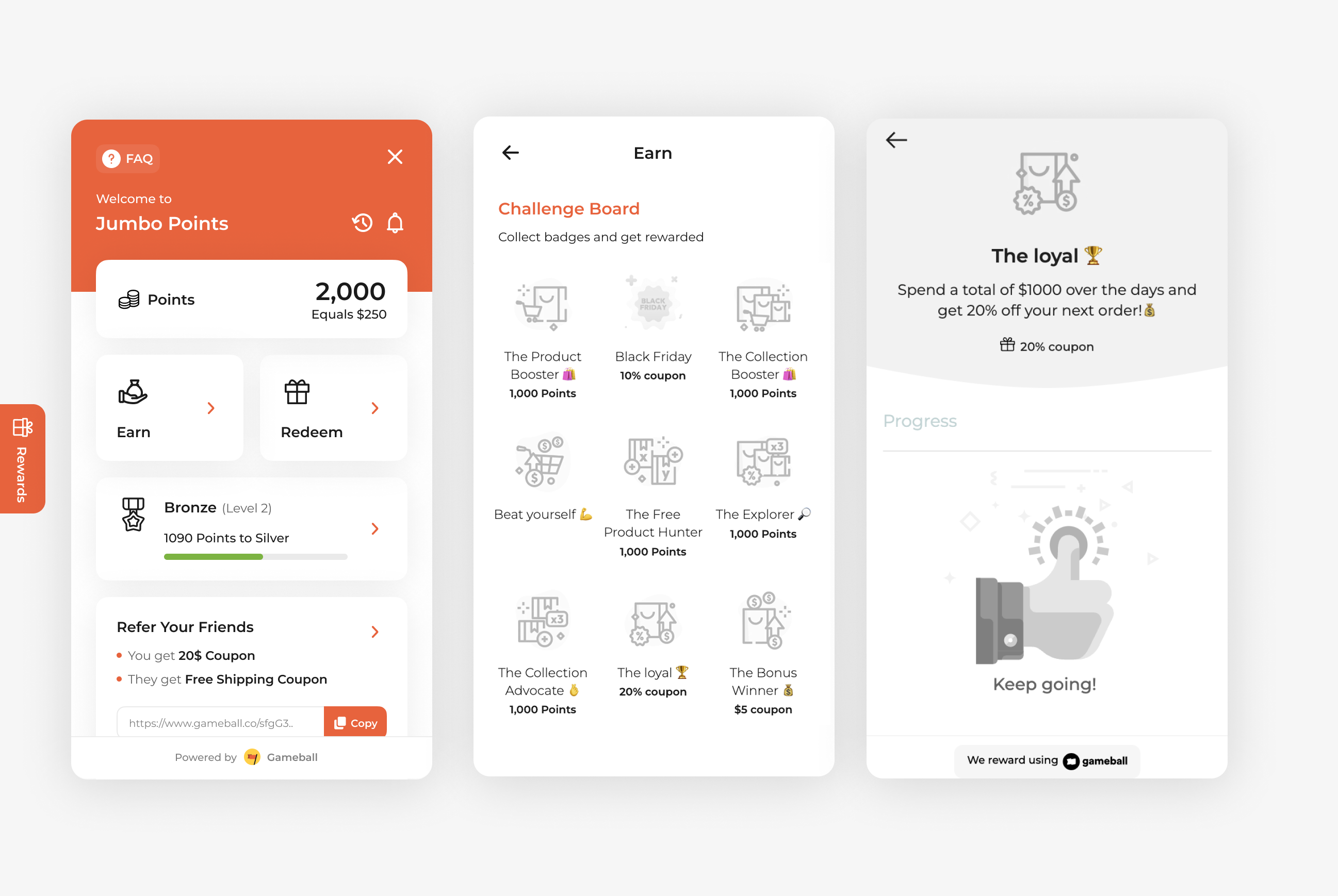
Reward your high spenders and loyal customers with a special coupon when they hit a spending milestone. The ***Spend \$1000 to Get 20% Off*** campaign is perfect for driving long-term engagement and showing appreciation to your most valuable customers. It encourages larger purchases over time and reinforces customer loyalty through meaningful rewards.
 ***
## How to Set Up
Log in to your Gameball Admin Dashboard.
Click **Add Reward Campaign**.
Select the **Get 20% coupon after spending a total of \$1000** template.
Configure your campaign's audience, rewards, and other settings.
Click **Set Live** to activate your campaign.
***
## Campaign Trigger
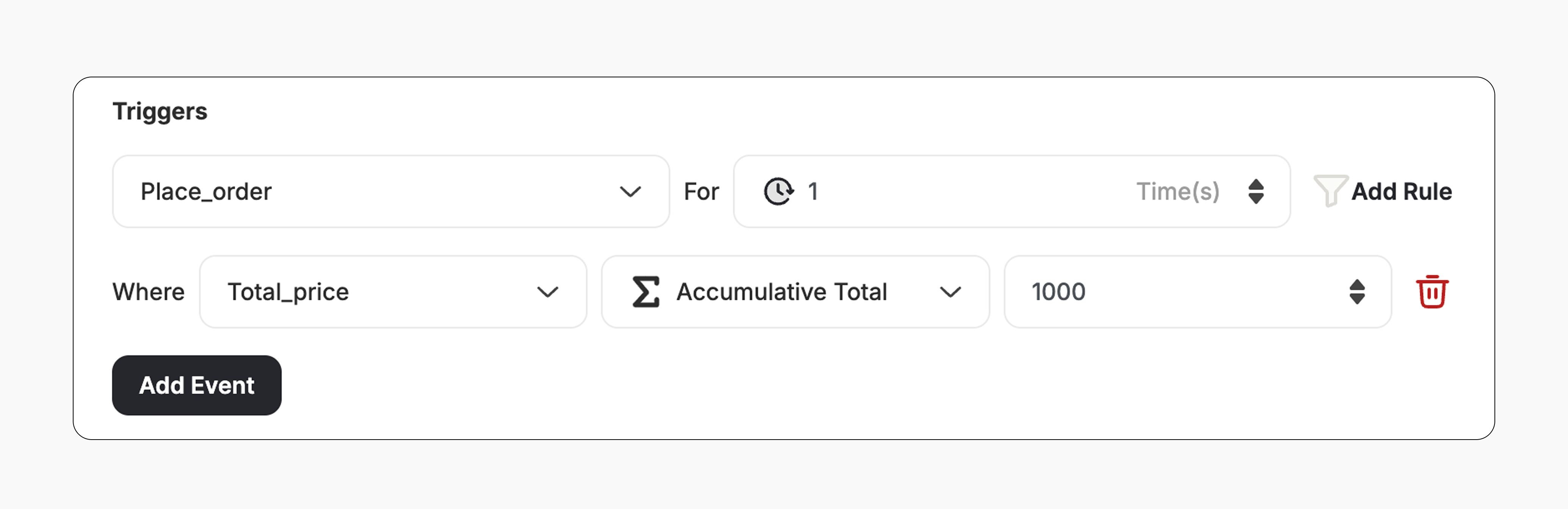
The campaign trigger is configured as follows:
1. **Action:** Place Order
2. **Times:** 1 *(Number of times the trigger condition should be occurred)*
3. **Rule:**
* **Field:** Total Price *(Order value)*
* **Operator:** Accumulative Total *(Tracks the total value of all orders placed)*
* **Value:** 1000 *(Customer must reach \$1000 in total spend)*
***
## How to Set Up
Log in to your Gameball Admin Dashboard.
Click **Add Reward Campaign**.
Select the **Get 20% coupon after spending a total of \$1000** template.
Configure your campaign's audience, rewards, and other settings.
Click **Set Live** to activate your campaign.
***
## Campaign Trigger
The campaign trigger is configured as follows:
1. **Action:** Place Order
2. **Times:** 1 *(Number of times the trigger condition should be occurred)*
3. **Rule:**
* **Field:** Total Price *(Order value)*
* **Operator:** Accumulative Total *(Tracks the total value of all orders placed)*
* **Value:** 1000 *(Customer must reach \$1000 in total spend)*
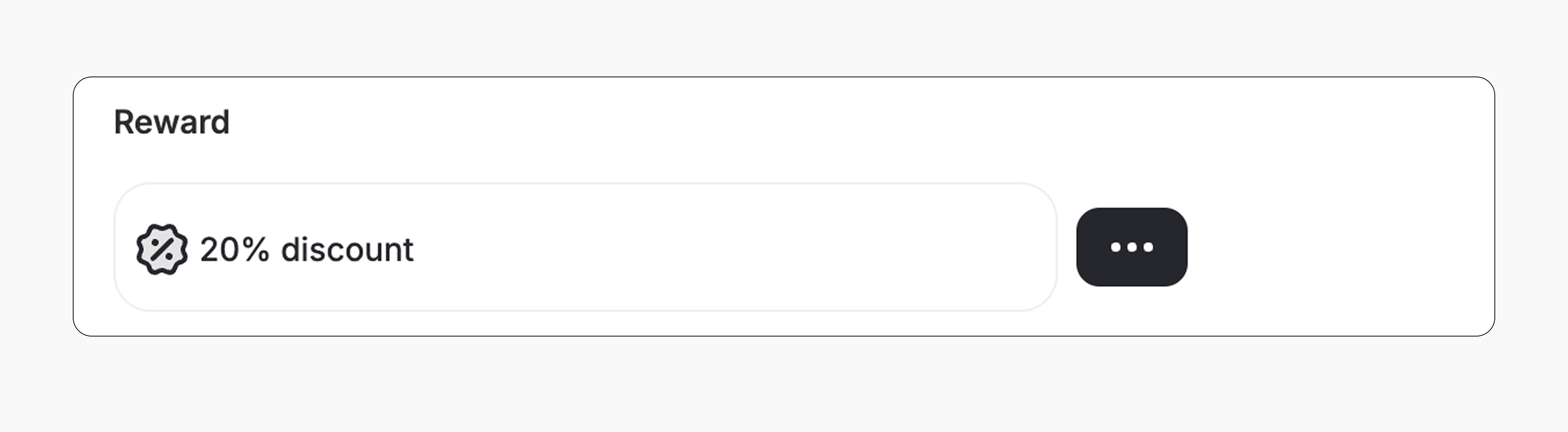
 **Reward:**
* The customer gets a **20%** coupon.
* The reward value can be adjusted from the campaign.
**Reward:**
* The customer gets a **20%** coupon.
* The reward value can be adjusted from the campaign.
 This template uses the standard reward campaign setup. See the [Generic Setup Guide](/product-documentation/rewards-campaigns/start-from-scratch/setup-reward-campaign) for details.
***
## How It Works for Customers
A customer reaches a **total spend of \$1000** over any number of purchases.
Gameball automatically triggers the reward.
The customer receives the reward immediately (points, discount, badge — based on your setup).
The customer is notified via the widget or email, depending on your configuration. [Learn more](/product-documentation/rewards-campaigns/start-from-scratch/setup-reward-campaign)
***
## Important Notes
**Cumulative Spend**
The **\$1000** spend is calculated cumulatively across all orders. It does not need to be a single transaction.
**Accumulated Spending Logic**
When using the "**Accumulative Total**" operator and setting the "**Times**" field to a value like **2 or 3**, the trigger must be fulfilled **that many times**. For example, if the condition is spending $1000 and the Times field is set to 2, the customer must spend $1000 twice (a total of \$2000) to earn the reward.
**Starts from Activation Only**
The accumulation begins **only from the moment the campaign is set live**. Any orders placed **before** activation are **not counted** toward the total spend.
**Using Other Operators ( = or >= )**
If you change the operator to **=** or **>=**, the customer must reach the specified spend in one order.
***
## Related Articles
Learn the full setup process for creating and launching reward campaigns.
Explore the different reward types available in Gameball campaigns.
Configure how customers are notified when they earn a reward.
This template uses the standard reward campaign setup. See the [Generic Setup Guide](/product-documentation/rewards-campaigns/start-from-scratch/setup-reward-campaign) for details.
***
## How It Works for Customers
A customer reaches a **total spend of \$1000** over any number of purchases.
Gameball automatically triggers the reward.
The customer receives the reward immediately (points, discount, badge — based on your setup).
The customer is notified via the widget or email, depending on your configuration. [Learn more](/product-documentation/rewards-campaigns/start-from-scratch/setup-reward-campaign)
***
## Important Notes
**Cumulative Spend**
The **\$1000** spend is calculated cumulatively across all orders. It does not need to be a single transaction.
**Accumulated Spending Logic**
When using the "**Accumulative Total**" operator and setting the "**Times**" field to a value like **2 or 3**, the trigger must be fulfilled **that many times**. For example, if the condition is spending $1000 and the Times field is set to 2, the customer must spend $1000 twice (a total of \$2000) to earn the reward.
**Starts from Activation Only**
The accumulation begins **only from the moment the campaign is set live**. Any orders placed **before** activation are **not counted** toward the total spend.
**Using Other Operators ( = or >= )**
If you change the operator to **=** or **>=**, the customer must reach the specified spend in one order.
***
## Related Articles
Learn the full setup process for creating and launching reward campaigns.
Explore the different reward types available in Gameball campaigns.
Configure how customers are notified when they earn a reward.