> ## Documentation Index
> Fetch the complete documentation index at: https://docs.gameball.co/llms.txt
> Use this file to discover all available pages before exploring further.
# What Is Explore and Manage a Customer Profile?
> Understand what data is displayed inside each customer profile and how to perform key actions.
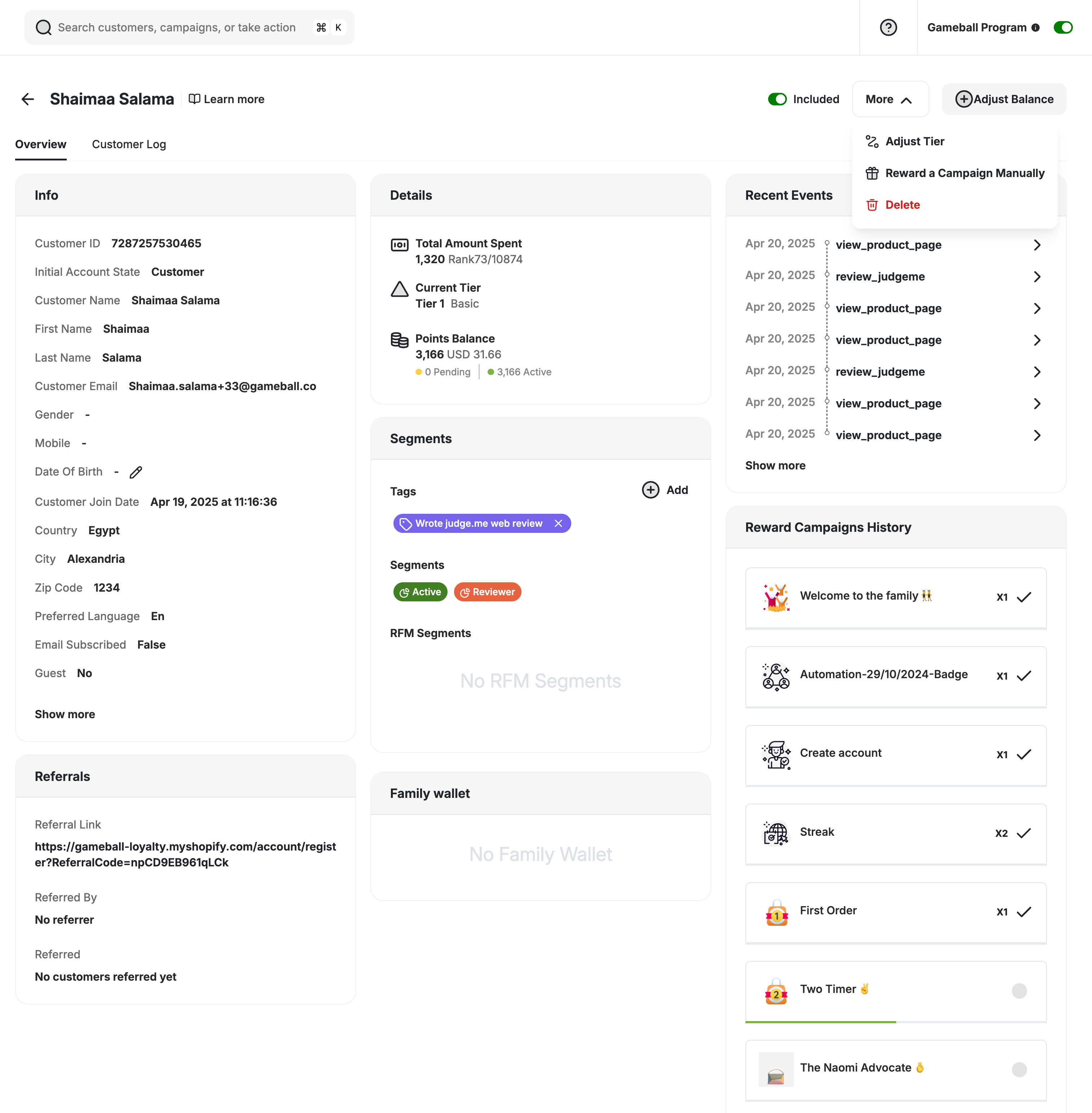
Each customer has a dedicated profile page in Gameball where you can explore all related data, behaviors, rewards, and available actions. This profile helps you gain insights into individual engagement and loyalty progress, allowing you to take quick and relevant actions.
 ***
## Profile Overview
You can access the profile of any customer by navigating to **Customers**, then clicking the name or ID of any listed customer. The profile is divided into several key sections:
You can view essential customer information grouped into the following areas:
**Info Panel**
* Includes identity and contact details such as name, email, mobile number, location, and customer status (e.g., guest or registered).
* Displays unique attributes and behavioral indicators such as UTMs and devices used.
* Shows whether the customer is subscribed to your emails and their preferred language.
Learn more in the [Customer Profile Attributes](/product-documentation/understanding-your-customers/customer-profile/customer-profile-attributes) article.
This panel includes:
* The customer's unique **referral link**
* Who referred them (if any)
* A list of customers they have referred
To learn more, visit [Gameball Referral Program](/product-documentation/loyalty-programs/launching-referral-program).
* **Total Amount Spent**: Overall spending captured through your platform.
* **Current Tier**: Customer's current VIP tier.
* **Points Balance**: Total earned points, broken down into active and pending.
You can view the tags and segments the customer belongs to:
* **Tags**: Manually added labels to help with grouping and targeting. [Learn more](/product-documentation/understanding-your-customers/customer-profile/group-your-customers-by-tags)
* **Segments**: Rule-based or RFM segments automatically applied based on behaviors and configurations. [Learn more](/product-documentation/segmentation/how-to-segment-customers)
* **RFM Segments**: Behavioral-based classifications for recency, frequency, and monetary value. [Learn more](/product-documentation/segmentation/introduction-to-gameball-rfm-segments)
If your program has **Family Wallet** enabled, this section will show the customer's wallet group with the combined points balance.
Learn more in the [Family Wallet](/product-documentation/loyalty-programs/gameball-family-wallet) article.
Displays a timeline of customer interactions or events triggered on your platform. You can click **Show More** to load additional recent events.
Learn more in the [Customer Events](/product-documentation/understanding-your-customers/customer-profile/customer-events) article.
This section lists all the campaigns the customer has completed or participated in. For each campaign, you can:
* View the name and type of campaign
* See how many times it was completed
* Identify which are completed vs. in-progress
* See message type icons (email, in-app, etc.) and key dates like **Sent** and **Clicked** at a glance.
* Cards are sorted by **newest first**, with a **Load More** option for long histories.
* When empty, you will see: *"No Communication Activities Yet."*
* Each automation now displays its **name**, **status (Completed, Waiting, or Exited)**, and key dates (Entry, Complete, or Exit).
* Compact one-line view for simple automations.
* When empty, you will see: *"No Active Automations."*
Clicking a campaign name will redirect you to its configuration page.
***
## Actions You Can Take
At the top of the customer profile, you will find several management options:
| Action | Description |
| ------------------------------ | ------------------------------------------------------------------------------------------------------------------------------------------------------------------------------------------------------------------------- |
| **Include/Exclude Customer** | You can use the toggle on the top of the page to include or exclude the customer from your Gameball loyalty program. |
| **Adjust Balance** | Add or deduct points from their balance. |
| **Adjust Tier** | Manually change the customer's VIP tier. |
| **Reward a Campaign Manually** | Trigger any configured campaign for this customer manually. |
| **Extract** | Export the customer activities list to a CSV file. Read more about this through [Export Your Customer Activities Log](/product-documentation/understanding-your-customers/your-customers/export-customer-activities-log). |
| **Delete** | Remove the customer from Gameball (only available for non-platform-based clients). |
***
## Related Articles
Learn about all customer profile attributes and how to customize them.
Gain insights on launching and managing your referral program.
***
## Profile Overview
You can access the profile of any customer by navigating to **Customers**, then clicking the name or ID of any listed customer. The profile is divided into several key sections:
You can view essential customer information grouped into the following areas:
**Info Panel**
* Includes identity and contact details such as name, email, mobile number, location, and customer status (e.g., guest or registered).
* Displays unique attributes and behavioral indicators such as UTMs and devices used.
* Shows whether the customer is subscribed to your emails and their preferred language.
Learn more in the [Customer Profile Attributes](/product-documentation/understanding-your-customers/customer-profile/customer-profile-attributes) article.
This panel includes:
* The customer's unique **referral link**
* Who referred them (if any)
* A list of customers they have referred
To learn more, visit [Gameball Referral Program](/product-documentation/loyalty-programs/launching-referral-program).
* **Total Amount Spent**: Overall spending captured through your platform.
* **Current Tier**: Customer's current VIP tier.
* **Points Balance**: Total earned points, broken down into active and pending.
You can view the tags and segments the customer belongs to:
* **Tags**: Manually added labels to help with grouping and targeting. [Learn more](/product-documentation/understanding-your-customers/customer-profile/group-your-customers-by-tags)
* **Segments**: Rule-based or RFM segments automatically applied based on behaviors and configurations. [Learn more](/product-documentation/segmentation/how-to-segment-customers)
* **RFM Segments**: Behavioral-based classifications for recency, frequency, and monetary value. [Learn more](/product-documentation/segmentation/introduction-to-gameball-rfm-segments)
If your program has **Family Wallet** enabled, this section will show the customer's wallet group with the combined points balance.
Learn more in the [Family Wallet](/product-documentation/loyalty-programs/gameball-family-wallet) article.
Displays a timeline of customer interactions or events triggered on your platform. You can click **Show More** to load additional recent events.
Learn more in the [Customer Events](/product-documentation/understanding-your-customers/customer-profile/customer-events) article.
This section lists all the campaigns the customer has completed or participated in. For each campaign, you can:
* View the name and type of campaign
* See how many times it was completed
* Identify which are completed vs. in-progress
* See message type icons (email, in-app, etc.) and key dates like **Sent** and **Clicked** at a glance.
* Cards are sorted by **newest first**, with a **Load More** option for long histories.
* When empty, you will see: *"No Communication Activities Yet."*
* Each automation now displays its **name**, **status (Completed, Waiting, or Exited)**, and key dates (Entry, Complete, or Exit).
* Compact one-line view for simple automations.
* When empty, you will see: *"No Active Automations."*
Clicking a campaign name will redirect you to its configuration page.
***
## Actions You Can Take
At the top of the customer profile, you will find several management options:
| Action | Description |
| ------------------------------ | ------------------------------------------------------------------------------------------------------------------------------------------------------------------------------------------------------------------------- |
| **Include/Exclude Customer** | You can use the toggle on the top of the page to include or exclude the customer from your Gameball loyalty program. |
| **Adjust Balance** | Add or deduct points from their balance. |
| **Adjust Tier** | Manually change the customer's VIP tier. |
| **Reward a Campaign Manually** | Trigger any configured campaign for this customer manually. |
| **Extract** | Export the customer activities list to a CSV file. Read more about this through [Export Your Customer Activities Log](/product-documentation/understanding-your-customers/your-customers/export-customer-activities-log). |
| **Delete** | Remove the customer from Gameball (only available for non-platform-based clients). |
***
## Related Articles
Learn about all customer profile attributes and how to customize them.
Gain insights on launching and managing your referral program.