> ## Documentation Index
> Fetch the complete documentation index at: https://docs.gameball.co/llms.txt
> Use this file to discover all available pages before exploring further.
# How Do I Update My Existing Customer Data in Bulk Using CSV?
> Learn how to update your existing customers' points, tiers, and attributes in bulk by uploading a CSV file through the Gameball dashboard.
Use the bulk update flow to modify existing customer data — such as points balances, tier assignments, or profile attributes — across multiple customers at once using a CSV file.
***
## Step 1: Go to the Updating Page
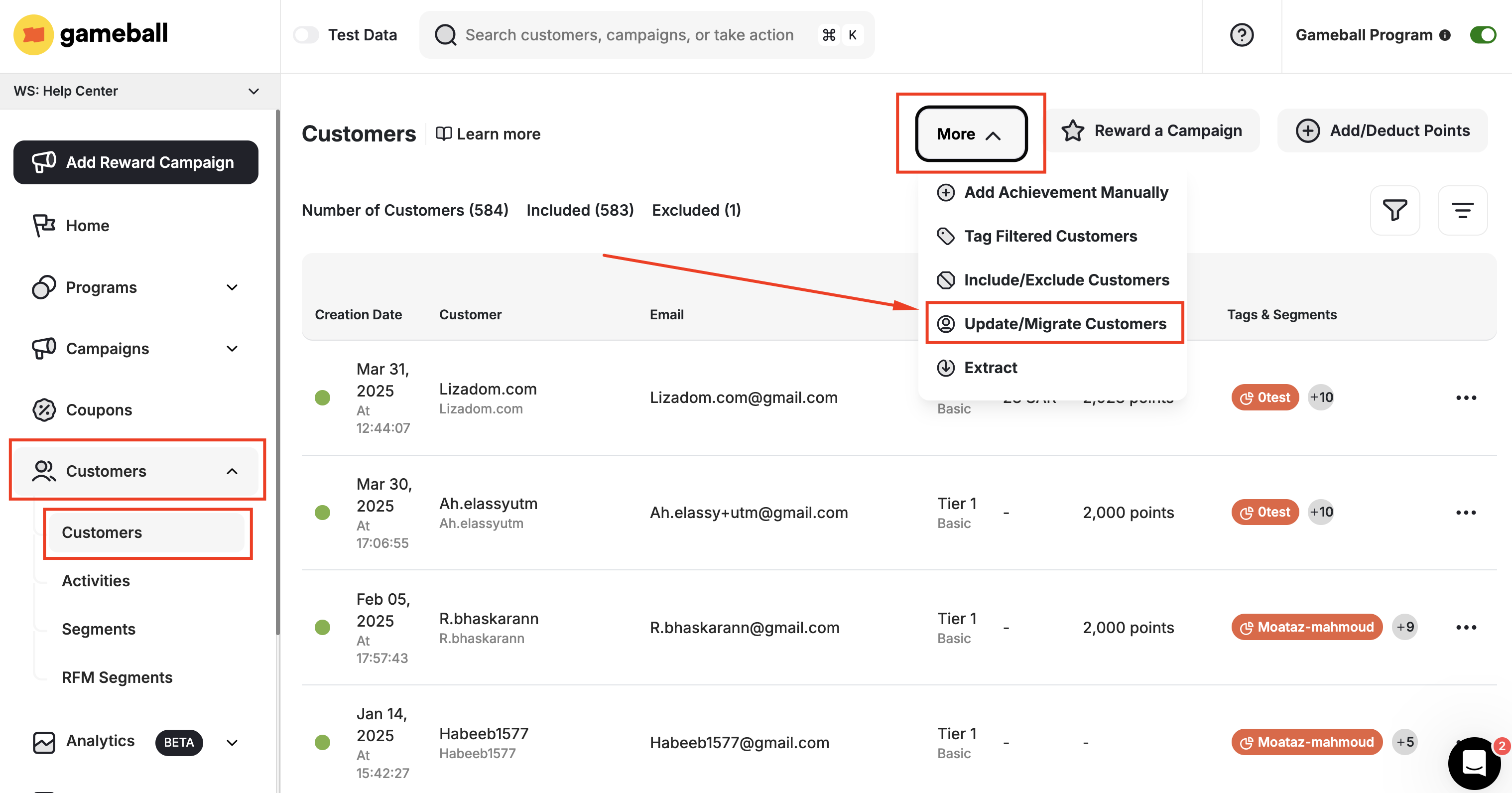
From the **Gameball Admin Dashboard**, navigate to **Customers > Customers Section > More > Update Customers**.
 ***
## Step 2: Pick What to Update
Choose what you want to update for your customers:
Update customers' points balances.
Assign or change customers' VIP tier levels.
Update profile attributes such as tags, birthday, or email subscription status.
If you need to update more than one element (for example, points and tiers), you can do them separately by repeating the process for each.
***
## Step 3: Upload Your Customer File
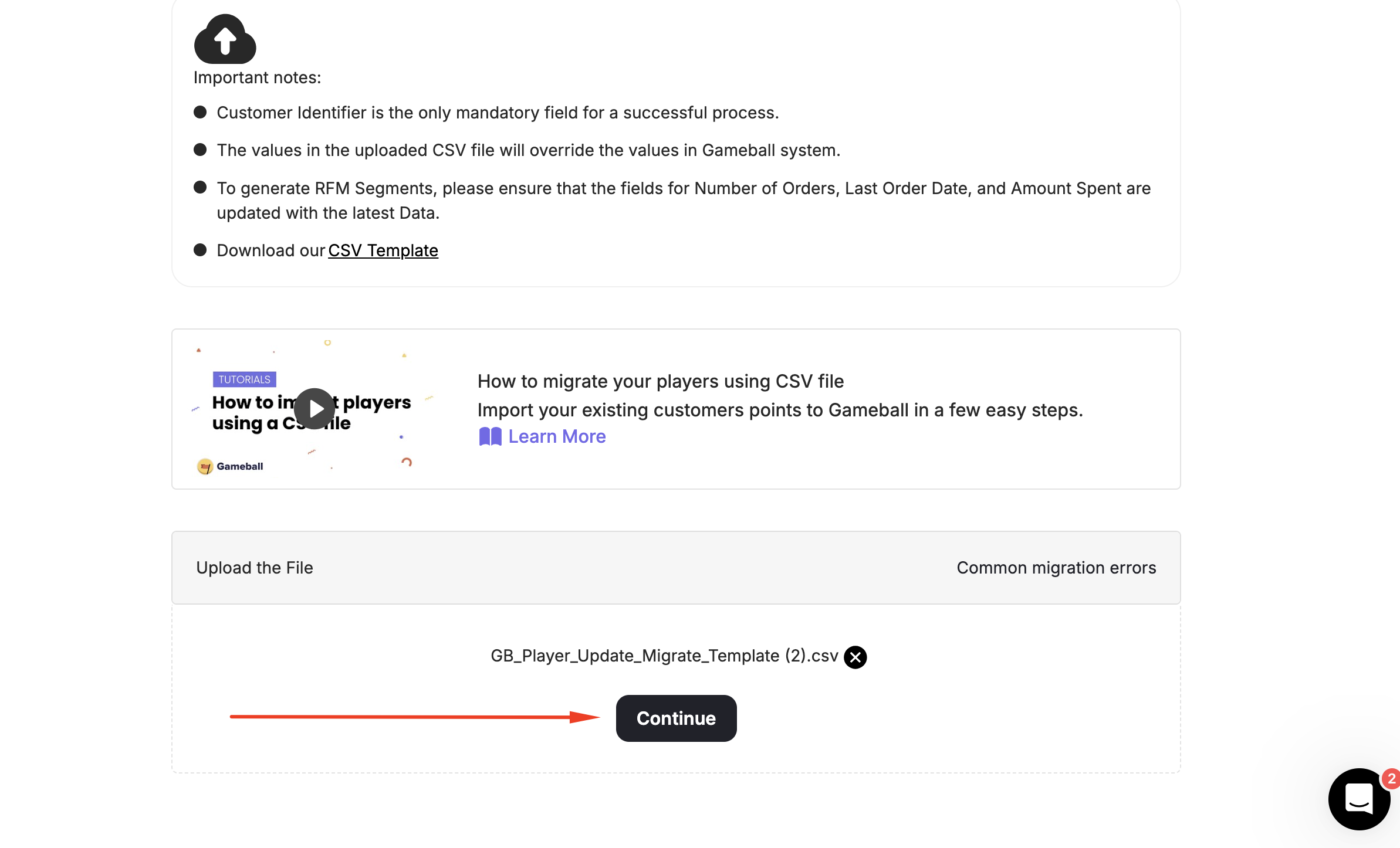
Select your CSV file and click **Open**. Once Gameball reads the file, click **Continue**.
***
## Step 2: Pick What to Update
Choose what you want to update for your customers:
Update customers' points balances.
Assign or change customers' VIP tier levels.
Update profile attributes such as tags, birthday, or email subscription status.
If you need to update more than one element (for example, points and tiers), you can do them separately by repeating the process for each.
***
## Step 3: Upload Your Customer File
Select your CSV file and click **Open**. Once Gameball reads the file, click **Continue**.
 ***
## Step 4: Map Your Attributes
Match the column headers in your CSV to the corresponding Gameball fields.
***
## Step 4: Map Your Attributes
Match the column headers in your CSV to the corresponding Gameball fields.
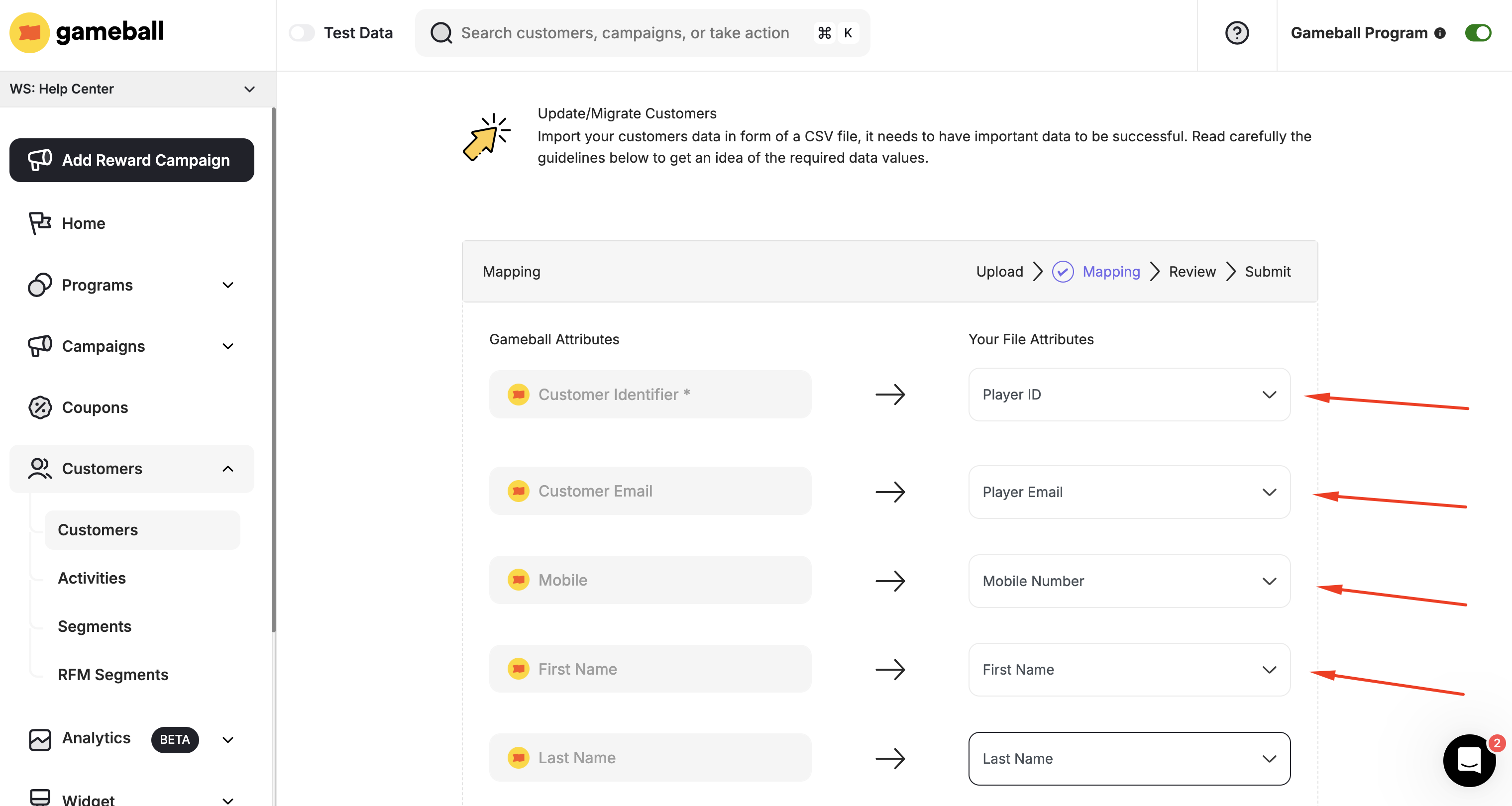 The only mandatory field is the **Customer Identifier** — this can be the customer's unique ID or email address.
**For tier updates**, choose the Tiering-up Recalculation Method by clicking the **Edit Icon** under **Tier Name**:
| Option | Description |
| ------------------------------ | --------------------------------------------------------------------------------------------------- |
| **Re-evaluate on next cycle** | Customers are re-evaluated at the next recalculation cycle based on your tier expiry configuration. |
| **Place in tier forever** | Customers are placed into this tier permanently with no further evaluation. |
| **Place in tier until a date** | Customers are placed into this tier until a specific date. |
**For birthday updates**, select the date format under **Date of Birth** that matches the format in your CSV file.
Supported formats: `YYYY-MM-DD`, `MM-DD-YYYY`, `DD-MM-YYYY`, `YYYY/MM/DD`, `DD/MM/YYYY`, `MM/DD/YYYY`
***
## Step 5: Review Errors
If any rows in your file contain data that doesn't match the expected format, Gameball will display the errors before submission.
If there are more than 10 errors, you will need to **download** the error sheet to see all issues — not all errors are shown on screen at once.
After fixing errors, click **Re-upload**. If the remaining errors are acceptable, click **Submit**.
***
## Step 6: Submit the File
Once submitted, you are redirected to the Customers page, where updated records are reflected. An error report is sent to the admin account's registered email.
Any value in the update sheet **overrides** what exists in the system for that customer. For example, if a customer has 300 points and the sheet says 100, their balance becomes 100. If the cell is empty, the existing value is preserved. If the cell contains 0, the value becomes 0.
***
## How to Extract Your Current Customer Data Before Updating
Navigate to your **Customers** section on the Gameball Admin Dashboard.
Click **More**, then **Extract** to download your current customer data as a CSV.
***
## Related Articles
Migrate customers from other loyalty programs into Gameball using a CSV file.
Troubleshoot errors that may occur during the customer update process.
The only mandatory field is the **Customer Identifier** — this can be the customer's unique ID or email address.
**For tier updates**, choose the Tiering-up Recalculation Method by clicking the **Edit Icon** under **Tier Name**:
| Option | Description |
| ------------------------------ | --------------------------------------------------------------------------------------------------- |
| **Re-evaluate on next cycle** | Customers are re-evaluated at the next recalculation cycle based on your tier expiry configuration. |
| **Place in tier forever** | Customers are placed into this tier permanently with no further evaluation. |
| **Place in tier until a date** | Customers are placed into this tier until a specific date. |
**For birthday updates**, select the date format under **Date of Birth** that matches the format in your CSV file.
Supported formats: `YYYY-MM-DD`, `MM-DD-YYYY`, `DD-MM-YYYY`, `YYYY/MM/DD`, `DD/MM/YYYY`, `MM/DD/YYYY`
***
## Step 5: Review Errors
If any rows in your file contain data that doesn't match the expected format, Gameball will display the errors before submission.
If there are more than 10 errors, you will need to **download** the error sheet to see all issues — not all errors are shown on screen at once.
After fixing errors, click **Re-upload**. If the remaining errors are acceptable, click **Submit**.
***
## Step 6: Submit the File
Once submitted, you are redirected to the Customers page, where updated records are reflected. An error report is sent to the admin account's registered email.
Any value in the update sheet **overrides** what exists in the system for that customer. For example, if a customer has 300 points and the sheet says 100, their balance becomes 100. If the cell is empty, the existing value is preserved. If the cell contains 0, the value becomes 0.
***
## How to Extract Your Current Customer Data Before Updating
Navigate to your **Customers** section on the Gameball Admin Dashboard.
Click **More**, then **Extract** to download your current customer data as a CSV.
***
## Related Articles
Migrate customers from other loyalty programs into Gameball using a CSV file.
Troubleshoot errors that may occur during the customer update process.