> ## Documentation Index
> Fetch the complete documentation index at: https://docs.gameball.co/llms.txt
> Use this file to discover all available pages before exploring further.
# How Do I View Order Details from Activity Logs?
> Learn how to access complete order and refund details directly from your customer's activity history.
Gameball allows you to track all order-related interactions through the **Customers Activities** tab. When a customer completes a transaction, redeems a cashback, or receives a refund, Gameball logs the event and links it to the associated order.
***
## Accessing Order Details
When an activity is linked to an order (e.g., cashback reward or refund), the **order ID** will appear as a clickable value directly within the activity log.
Go to **Customers > Activities**.
Locate any activity associated with an order (e.g., **Cashback Rewarded**, **Points Refunded**).
Click the **order ID** shown on the second line of the activity. This will open a side tab with full order details.
***
## What You'll See in the Order Details
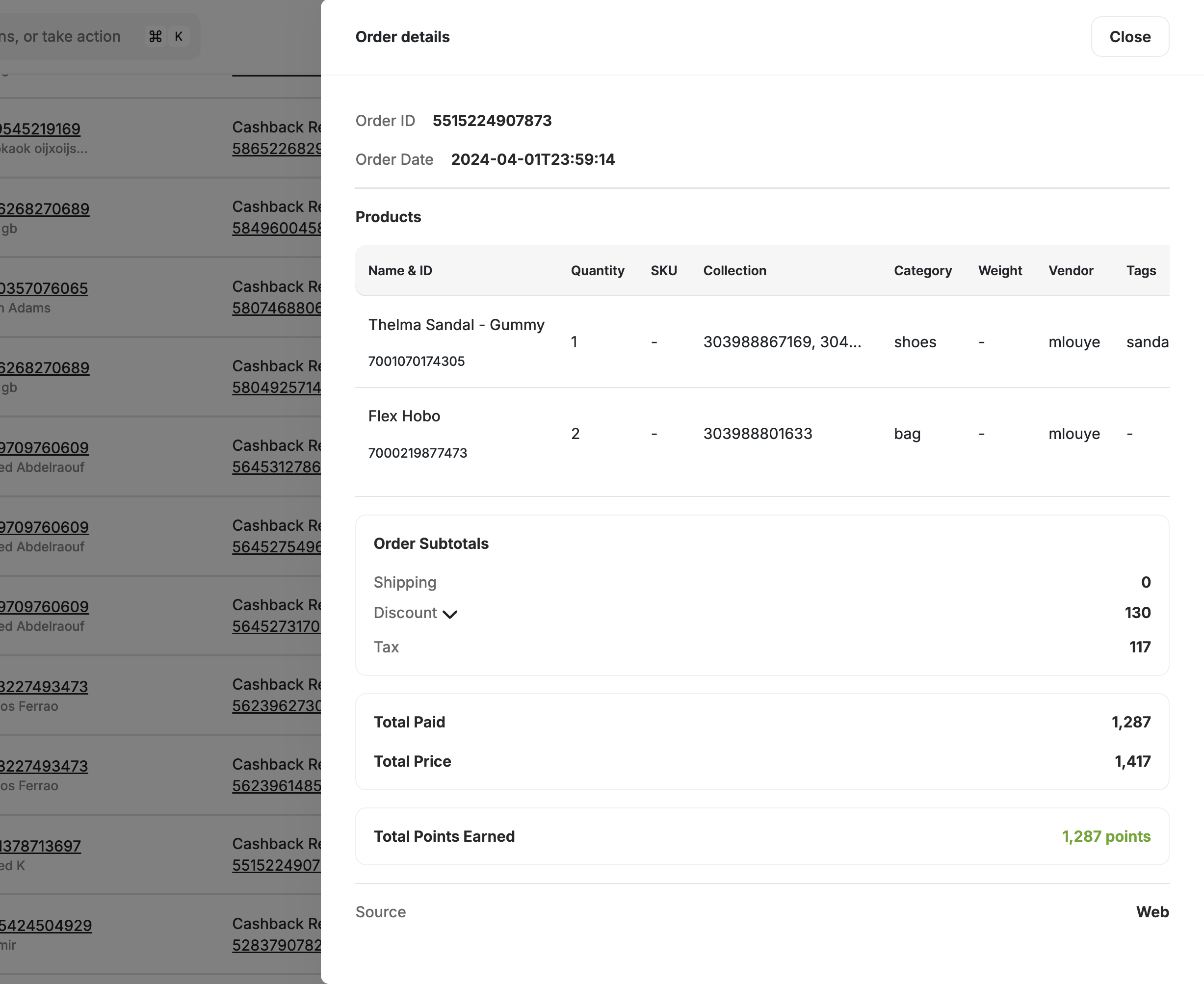 The order details side panel includes:
* **Order ID** and **Order Date**
* **Merchant Name** and **Branch Name**
* **Points Redeemed** or **Points Earned** through this order
* **Total Paid**, **Total Price**, and **Payment Method**
A breakdown of all **products** in the order, including:
* Name & ID
* Quantity, SKU, Category
* Price, Tax, and Discounts
* **Order Subtotals**: shipping, discount, and tax
Any custom key-value attributes sent in the order are shown in an **Extras** section. Empty fields are automatically hidden to keep the view clean.
Displays the channel the order was placed on: **Mobile**, **Web**, or **In-store**.
Displays the Gameball-generated coupon code that was redeemed on this order. Gameball automatically links each redeemed coupon session back to its order, so you can see exactly which coupon drove each transaction directly from the activity log.
For Shopify merchants, the order reference number (e.g., #1307) is stored as a `referenceId` on every transaction, making it easy to cross-reference orders between Shopify admin and Gameball activity logs. The field also appears as a dedicated column in exported reports.
***
## Viewing Refund Details
If the activity is related to a refund (e.g., **Points Refunded**):
Click the **refund ID** shown in the log.
You will be directed to a **Refund Details** panel. This panel includes:
* **Refund ID** and **Refund Date**
* **Merchant** and **Branch**
* **Points Refunded**
* A **View Order Details** button that links back to the original order.
This allows you to connect refund activity back to the original transaction for full context.
***
## Important Notes
* Clicking an **Order ID** opens the original transaction summary.
* Clicking a **Refund ID** shows the refund panel, including a link to the associated order.
* This feature is useful for support agents reviewing customer concerns related to rewards, cashback, or balance changes.
***
## Related Articles
Track customer activities and export logs.
View and manage individual customer profiles.
The order details side panel includes:
* **Order ID** and **Order Date**
* **Merchant Name** and **Branch Name**
* **Points Redeemed** or **Points Earned** through this order
* **Total Paid**, **Total Price**, and **Payment Method**
A breakdown of all **products** in the order, including:
* Name & ID
* Quantity, SKU, Category
* Price, Tax, and Discounts
* **Order Subtotals**: shipping, discount, and tax
Any custom key-value attributes sent in the order are shown in an **Extras** section. Empty fields are automatically hidden to keep the view clean.
Displays the channel the order was placed on: **Mobile**, **Web**, or **In-store**.
Displays the Gameball-generated coupon code that was redeemed on this order. Gameball automatically links each redeemed coupon session back to its order, so you can see exactly which coupon drove each transaction directly from the activity log.
For Shopify merchants, the order reference number (e.g., #1307) is stored as a `referenceId` on every transaction, making it easy to cross-reference orders between Shopify admin and Gameball activity logs. The field also appears as a dedicated column in exported reports.
***
## Viewing Refund Details
If the activity is related to a refund (e.g., **Points Refunded**):
Click the **refund ID** shown in the log.
You will be directed to a **Refund Details** panel. This panel includes:
* **Refund ID** and **Refund Date**
* **Merchant** and **Branch**
* **Points Refunded**
* A **View Order Details** button that links back to the original order.
This allows you to connect refund activity back to the original transaction for full context.
***
## Important Notes
* Clicking an **Order ID** opens the original transaction summary.
* Clicking a **Refund ID** shows the refund panel, including a link to the associated order.
* This feature is useful for support agents reviewing customer concerns related to rewards, cashback, or balance changes.
***
## Related Articles
Track customer activities and export logs.
View and manage individual customer profiles.