> ## Documentation Index
> Fetch the complete documentation index at: https://docs.gameball.co/llms.txt
> Use this file to discover all available pages before exploring further.
# Submitting Orders
> Integrate Gameball loyalty into order submission: earn points, redeem rewards, and apply coupons seamlessly.
This guide provides a detailed walkthrough of how to integrate Gameball's loyalty and rewards features into your order submission process. The integration covers various scenarios to enhance your customers' shopping experience, including loyalty point accumulation, coupon usage, and seamless redemption.
## Quick Overview
| Scenario | Use Case | Key APIs |
| -------------------------- | ------------------------- | --------------------------------------- |
| **Basic Order** | Earn points on purchase | `POST /order` |
| **With Points Redemption** | Redeem points at checkout | `POST /hold-points` + `POST /order` |
| **With Coupon Codes** | Apply discount codes | `POST /validate-coupon` + `POST /order` |
Each scenario outlines a practical process that focuses on customer interactions, ensuring they can easily navigate loyalty rewards, coupons, and promotions as they complete their purchases.
***
## 1️⃣ Submitting an Order
Let's explore how the **[Order API](/api-reference/order/order)** works, starting with what your customers experience and how their actions on your e-commerce platform interact with Gameball to trigger rewards and campaigns.
***
### Customer Journey
A customer, Sarah, visits your e-commerce website and adds items to her cart.
At checkout, she places an order for a pair of sneakers worth \$500 and pays successfully.
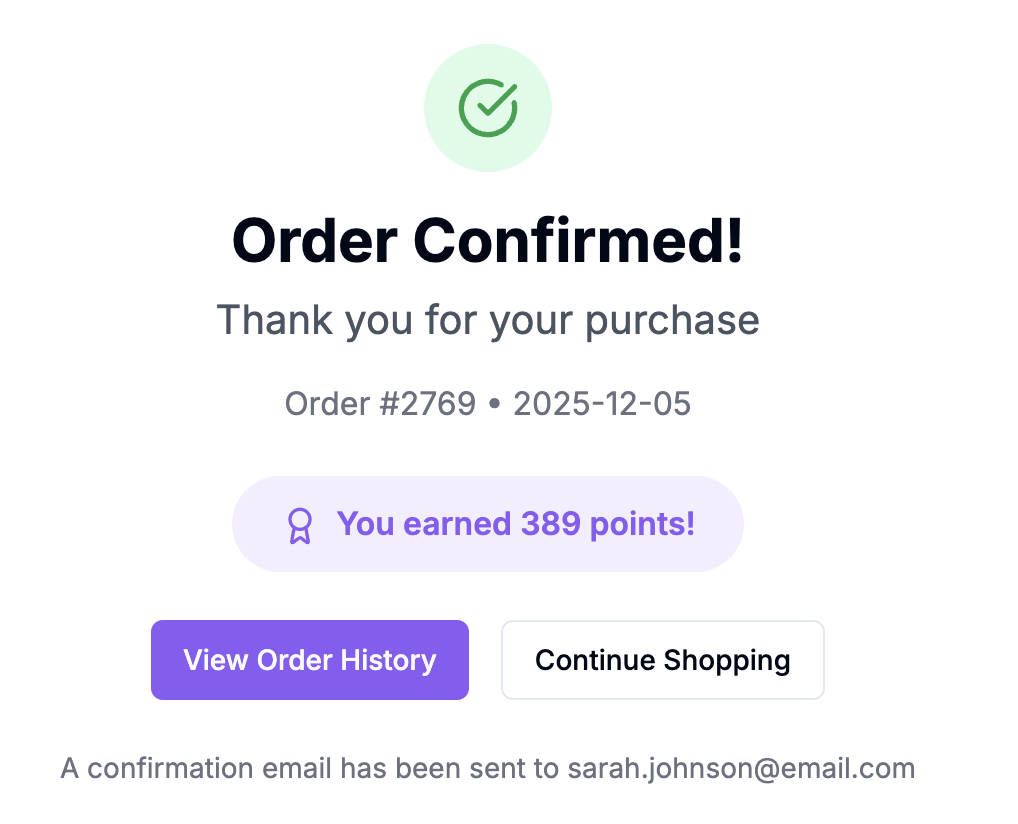
Sarah's order is confirmed and your system communicates with Gameball.
 ***
### What Happens in the Background
The moment Sarah's order is completed, your website communicates with Gameball through the **[Order API](/api-reference/order/order)**. This triggers a `place_order` event in the background, sending details like:
Basic order metadata including totals and timestamps:
```json theme={null}
{
"orderId": "ORD12345",
"orderDate": "2024-10-16T08:13:29.290Z",
"totalPaid": 500.4,
"totalPrice": 500.4,
"totalShipping": 0.4
}
```
Detailed product information for each item in the order:
```json theme={null}
{
"lineItems": [
{
"price": 120,
"quantity": 1,
"productId": "PROD98765",
"sku": "SKU98765",
"title": "Black Sneakers",
"category": ["Shoes"],
"collection": ["Summer2024"]
}
]
}
```
Customer identifier to link the order to the right profile:
```json theme={null}
{
"customerId": "15327289462816"
}
```
**Complete Order Request:**
Here's what the full API payload looks like when everything is combined:
```json theme={null}
{
"customerId": "15327289462816",
"orderId": "ORD12345",
"orderDate": "2024-10-16T08:13:29.290Z",
"totalPaid": 500.4,
"totalPrice": 500.4,
"totalShipping": 0.4,
"lineItems": [
{
"price": 500,
"quantity": 1,
"productId": "PROD98765",
"sku": "SKU98765",
"title": "Black Sneakers",
"category": ["Shoes"],
"collection": ["Summer2024"]
}
]
}
```
***
### Gameball Processing
Once the `place_order` event is triggered:
The [Order API](/api-reference/order/order) automatically sends the order details to Gameball, mapping your order attributes to event metadata.
***
### What Happens in the Background
The moment Sarah's order is completed, your website communicates with Gameball through the **[Order API](/api-reference/order/order)**. This triggers a `place_order` event in the background, sending details like:
Basic order metadata including totals and timestamps:
```json theme={null}
{
"orderId": "ORD12345",
"orderDate": "2024-10-16T08:13:29.290Z",
"totalPaid": 500.4,
"totalPrice": 500.4,
"totalShipping": 0.4
}
```
Detailed product information for each item in the order:
```json theme={null}
{
"lineItems": [
{
"price": 120,
"quantity": 1,
"productId": "PROD98765",
"sku": "SKU98765",
"title": "Black Sneakers",
"category": ["Shoes"],
"collection": ["Summer2024"]
}
]
}
```
Customer identifier to link the order to the right profile:
```json theme={null}
{
"customerId": "15327289462816"
}
```
**Complete Order Request:**
Here's what the full API payload looks like when everything is combined:
```json theme={null}
{
"customerId": "15327289462816",
"orderId": "ORD12345",
"orderDate": "2024-10-16T08:13:29.290Z",
"totalPaid": 500.4,
"totalPrice": 500.4,
"totalShipping": 0.4,
"lineItems": [
{
"price": 500,
"quantity": 1,
"productId": "PROD98765",
"sku": "SKU98765",
"title": "Black Sneakers",
"category": ["Shoes"],
"collection": ["Summer2024"]
}
]
}
```
***
### Gameball Processing
Once the `place_order` event is triggered:
The [Order API](/api-reference/order/order) automatically sends the order details to Gameball, mapping your order attributes to event metadata.
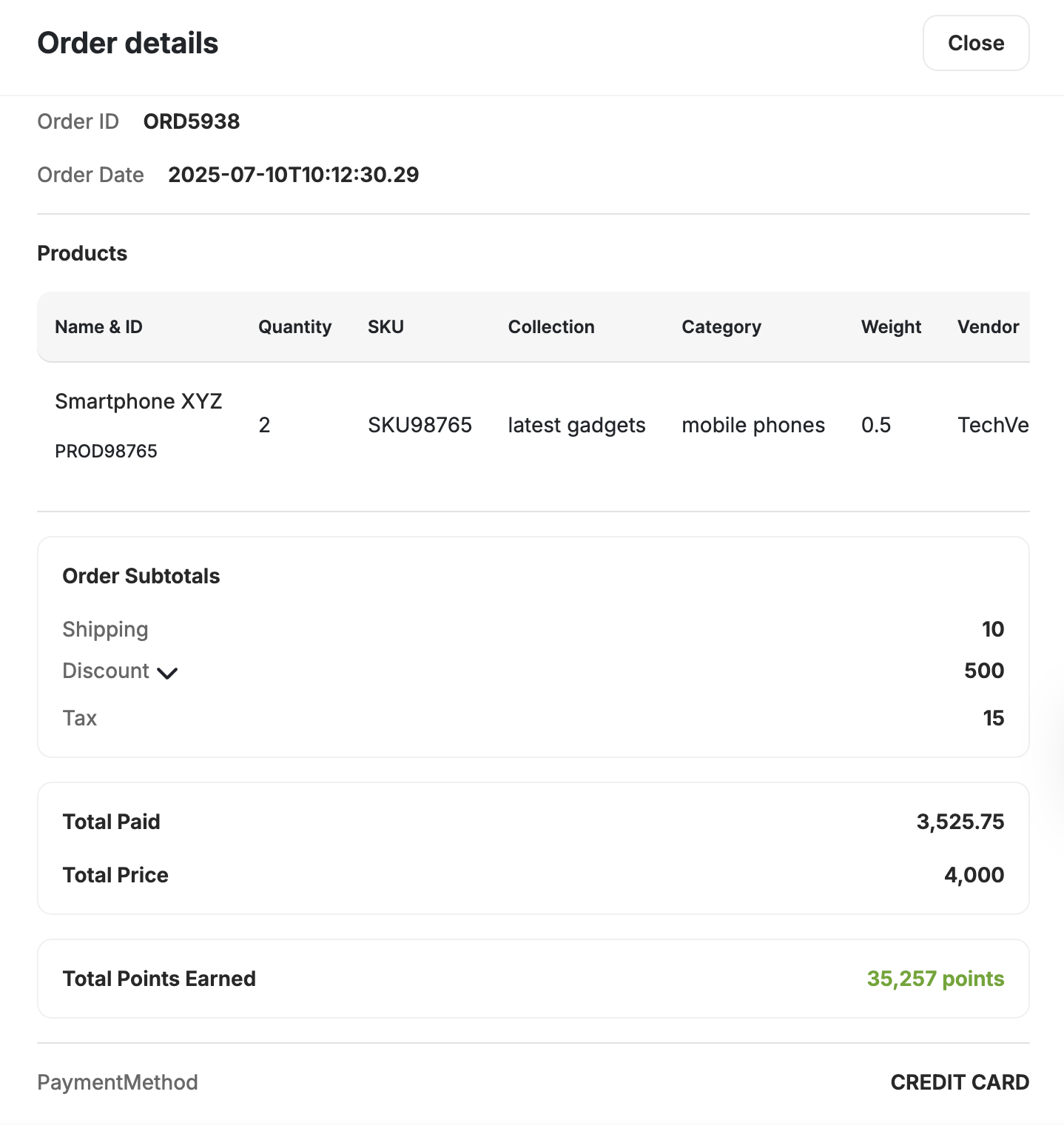 This is how orders look like on Gameball's dashboard after being placed.
Gameball evaluates the order metadata based on your configured campaigns.
Sarah earns rewards, such as cashback or loyalty points, based on your Gameball settings.
For example, if you've configured a rewards campaign for customers placing their first order, Sarah earns a \$20 amount-based coupon as a reward.
This is how orders look like on Gameball's dashboard after being placed.
Gameball evaluates the order metadata based on your configured campaigns.
Sarah earns rewards, such as cashback or loyalty points, based on your Gameball settings.
For example, if you've configured a rewards campaign for customers placing their first order, Sarah earns a \$20 amount-based coupon as a reward.
 Need to know exactly how order fields map to Gameball events? Here's the complete reference:
| Order API Attribute | Mapped to Event Object Attribute |
| ------------------------ | -------------------------------- |
| totalPaid | total\_paid |
| totalDiscount | total\_discount |
| lineItems\[i].weight | weight |
| lineItems\[i].vendor | vendor |
| lineItems\[i].sku | sku |
| lineItems\[i].title | title |
| lineItems\[i].tag | tag |
| lineItems\[i].category | category |
| lineItems\[i].collection | collection |
| extra.key\[0]:value | key\[0]:value |
***
### Seamless Automation
**Automated & Integrated**
* Auto reward triggering on purchase
* No manual event creation needed
* Multi-module integration (cashback, campaigns)
* Real-time balance updates
* Instant order-campaign linking
**Manual & Fragmented**
* Manual event creation required
* Complex multi-step tracking
* Disconnected workflows
* Delayed reward processing
* Error-prone data entry
**For instance:**
* If Sarah qualifies for cashback, Gameball calculates the amount and updates her balance instantly and you can display it using the Get Customer Balance API.
Want to show customers potential points **before** they place an order? Check out [Previewing Potential Points](/tutorials/experiences/order-handling/preview-points) to learn how to display points on product and cart pages.
Need to know exactly how order fields map to Gameball events? Here's the complete reference:
| Order API Attribute | Mapped to Event Object Attribute |
| ------------------------ | -------------------------------- |
| totalPaid | total\_paid |
| totalDiscount | total\_discount |
| lineItems\[i].weight | weight |
| lineItems\[i].vendor | vendor |
| lineItems\[i].sku | sku |
| lineItems\[i].title | title |
| lineItems\[i].tag | tag |
| lineItems\[i].category | category |
| lineItems\[i].collection | collection |
| extra.key\[0]:value | key\[0]:value |
***
### Seamless Automation
**Automated & Integrated**
* Auto reward triggering on purchase
* No manual event creation needed
* Multi-module integration (cashback, campaigns)
* Real-time balance updates
* Instant order-campaign linking
**Manual & Fragmented**
* Manual event creation required
* Complex multi-step tracking
* Disconnected workflows
* Delayed reward processing
* Error-prone data entry
**For instance:**
* If Sarah qualifies for cashback, Gameball calculates the amount and updates her balance instantly and you can display it using the Get Customer Balance API.
Want to show customers potential points **before** they place an order? Check out [Previewing Potential Points](/tutorials/experiences/order-handling/preview-points) to learn how to display points on product and cart pages.
 This image showcases the Gameball widget displaying the customer's balance. You can also retrieve the same information programmatically using the **Get Customer Balance API** for seamless integration with your application.
* If you're sending order-based notifications, Sarah might receive a message like: "Congratulations, Sarah! You've earned 100 points for your last order."
This image showcases the Gameball widget displaying the customer's balance. You can also retrieve the same information programmatically using the **Get Customer Balance API** for seamless integration with your application.
* If you're sending order-based notifications, Sarah might receive a message like: "Congratulations, Sarah! You've earned 100 points for your last order."
 ***
### Customer Experience
Sarah's experience remains smooth and rewarding:
1. She places an order without any extra steps
2. She receives instant confirmation about her reward points or cashback, enhancing her satisfaction
3. Over time, Sarah can redeem these points for discounts, keeping her engaged and loyal to your brand
***
### Why This Matters
**Seamless Customer Experience**
Keep customers engaged with rewards without adding friction to their purchase journey.
**Streamlined Internal Processes**
Save time with automatic data mapping and event creation—no manual work required.
**Flexible Campaign Targeting**
Tie specific orders or products to targeted campaigns, driving sales effectively.
***
## Related Order Integrations
If you need to integrate points redemption or coupon codes with your order submission, refer to these detailed guides:
Learn how to integrate points redemption during order submission, including how to hold points and link them to orders.
Discover how to validate, lock, and apply coupon codes when customers place orders.
***
## 🚀 Advanced Order Handling Scenarios
For most businesses, the basic order flows above are sufficient. However, certain business models require specialized configuration:
Configure rewards based on specific product collections or categories
Exclude taxes and shipping from loyalty point calculations
Handle multiple stores, merchants, or branch locations
***
***
### Customer Experience
Sarah's experience remains smooth and rewarding:
1. She places an order without any extra steps
2. She receives instant confirmation about her reward points or cashback, enhancing her satisfaction
3. Over time, Sarah can redeem these points for discounts, keeping her engaged and loyal to your brand
***
### Why This Matters
**Seamless Customer Experience**
Keep customers engaged with rewards without adding friction to their purchase journey.
**Streamlined Internal Processes**
Save time with automatic data mapping and event creation—no manual work required.
**Flexible Campaign Targeting**
Tie specific orders or products to targeted campaigns, driving sales effectively.
***
## Related Order Integrations
If you need to integrate points redemption or coupon codes with your order submission, refer to these detailed guides:
Learn how to integrate points redemption during order submission, including how to hold points and link them to orders.
Discover how to validate, lock, and apply coupon codes when customers place orders.
***
## 🚀 Advanced Order Handling Scenarios
For most businesses, the basic order flows above are sufficient. However, certain business models require specialized configuration:
Configure rewards based on specific product collections or categories
Exclude taxes and shipping from loyalty point calculations
Handle multiple stores, merchants, or branch locations
***