> ## Documentation Index
> Fetch the complete documentation index at: https://docs.gameball.co/llms.txt
> Use this file to discover all available pages before exploring further.
# Redeem Through Gameball Discount Engine
> Use Gameball's built-in discount engine for coupon validation and burning.
# **Gameball Couponing Engine Integration**
Enable your customers to convert loyalty points into discount coupons and apply them at checkout with secure, API-driven flows. Gameball’s built-in coupon engine makes issuing, validating, and redeeming coupons easy, across both **web** and **mobile**.
## **Why Use Gameball’s Couponing Engine?**
Gameball’s native engine provides:
* Unique coupon code generation (SAVE10, FREESHIP, etc.)
* Real-time coupon validation and locking to prevent misuse
* Direct coupon application at checkout via API
* Refund-safe logic (burn or release on success/failure)
* Omnichannel support, coupons work online **and** in-store
## **Implementation Overview**
Gameball supports two implementation paths:
| **Implementation** | **Description** |
| :------------------ | :--------------------------------------------------------------------------------------------------------------------------------------------- |
| **Gameball Widget** | Coupon creation, visibility, and redemption are handled automatically via the widget. You only need to validate and apply coupons at checkout. |
| **Custom UI** | You are responsible for displaying reward options, generating coupons, and surfacing them at checkout using Gameball’s APIs. |
## **Step-by-Step Integration (with Both Flows)**
### **Step 1: Show Available Redemption Options**
Handled by the widget, the customer sees eligible redemption options inside the widget.
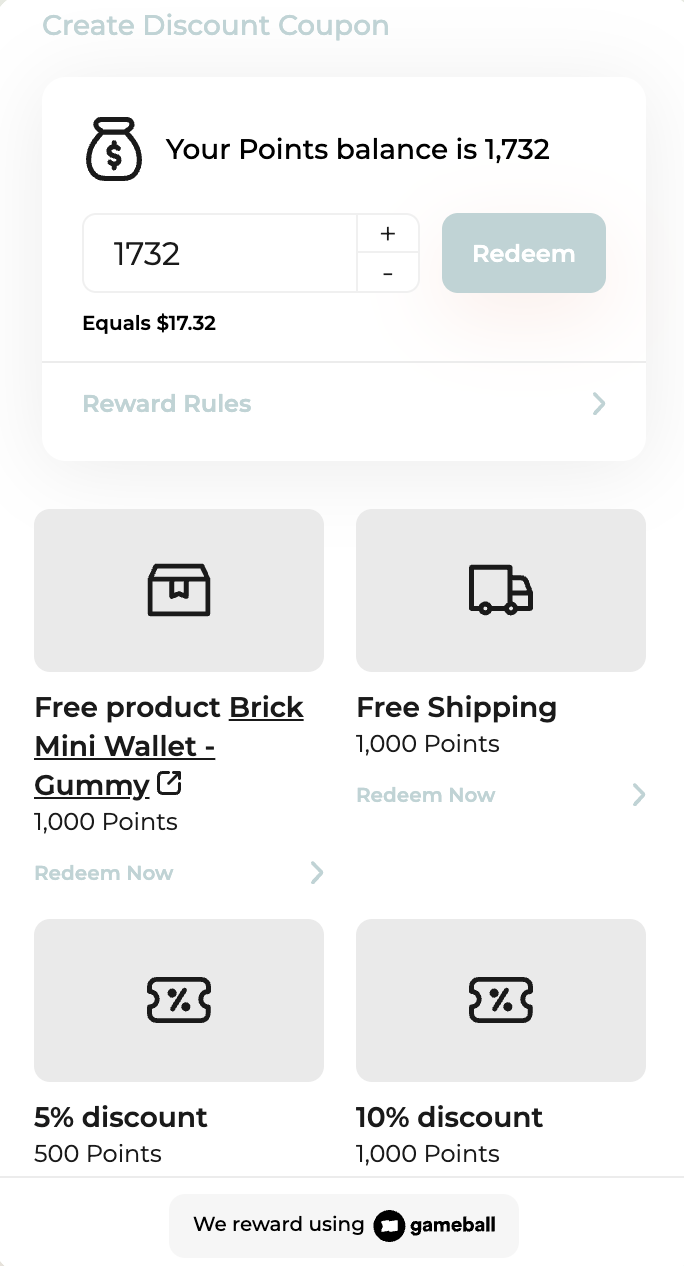 You must fetch and display all eligible redemption options.
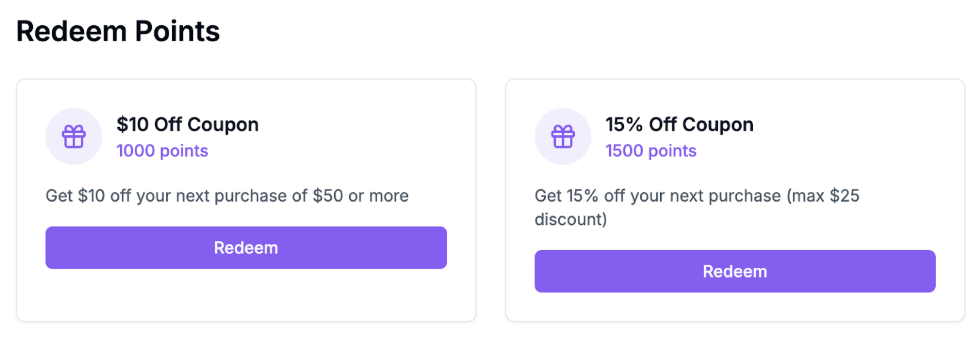 **API:**
[GET /customers//redemption-configurations](/api-reference/configurations/reward-configurations/redemption-settings)
```
{
"redemptionConfigurations": [
{
"id": 2138,
"title": "Redeem 100 Points for $10 OFF",
"pointsRequired": 100,
"coupon": {
"couponType": "fixed",
"discountValue": 10.0,
"currency": "USD",
"validityDays": 30
}
},
{
"id": 2139,
"title": "Redeem 200 Points for Free Shipping",
"pointsRequired": 200,
"coupon": {
"couponType": "free_shipping",
"validityDays": 15
}
}
]
}
```
***
### **Step 2: Generate Coupon**
Automatically triggered inside the widget when a redemption is made. No API call is needed.
**API:**
[GET /customers//redemption-configurations](/api-reference/configurations/reward-configurations/redemption-settings)
```
{
"redemptionConfigurations": [
{
"id": 2138,
"title": "Redeem 100 Points for $10 OFF",
"pointsRequired": 100,
"coupon": {
"couponType": "fixed",
"discountValue": 10.0,
"currency": "USD",
"validityDays": 30
}
},
{
"id": 2139,
"title": "Redeem 200 Points for Free Shipping",
"pointsRequired": 200,
"coupon": {
"couponType": "free_shipping",
"validityDays": 15
}
}
]
}
```
***
### **Step 2: Generate Coupon**
Automatically triggered inside the widget when a redemption is made. No API call is needed.
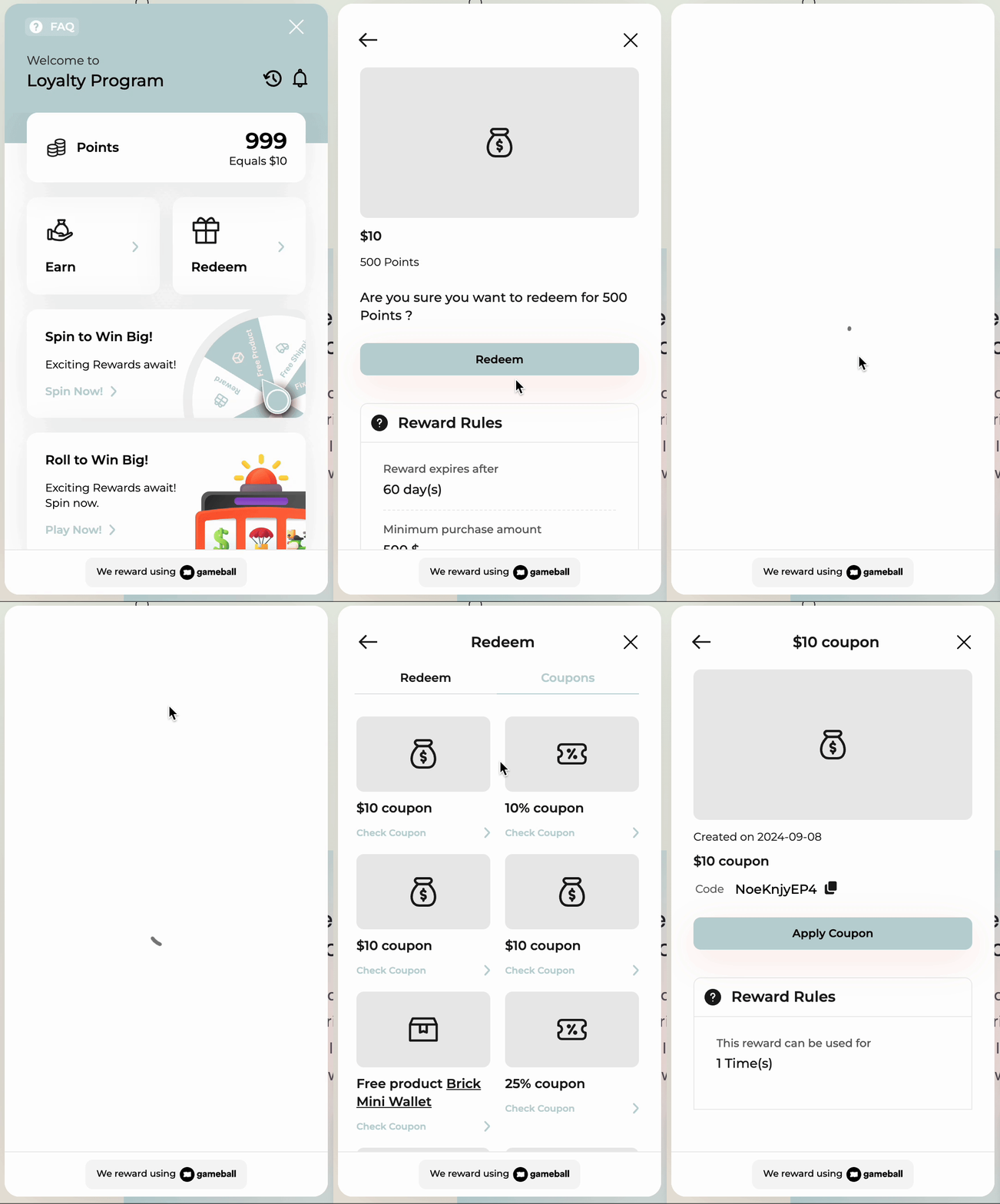 You must call the Generate Coupon API when a customer chooses a reward. By pressing the redeem button, the [Generate Coupon API](/api-reference/coupons/generate-coupon) should be triggered, where the output is another UI representing the coupon generated with the coupon code from the API's response for the customer to use
.png?fit=max&auto=format&n=aE9N_MZB2lsHVWWd&q=85&s=51a5e3b5d4b8f687e87ebce13f221c26 "Image(126) Pn")
.png?fit=max&auto=format&n=aE9N_MZB2lsHVWWd&q=85&s=125657234c5fd3e2a9681187834aa7cb "Image(125) Pn") ```json theme={null}
{
"ruleId": "12345",
"customerId": "customer123",
"email": "customer@example.com",
"mobile": "+1234567890"
}
```
```json theme={null}
{
"code": "SAVE10",
"startDate": "2024-11-01T00:00:00Z",
"expiryDate": "2024-12-01T23:59:59Z",
"usageLimit": 1,
"discountValue": 10,
"minOrderValue": 50,
"type": "fixed_discount"
}
```
***
### **Step 3: Display Coupons at Checkout**
Customers can open “My Coupons” inside the widget to copy and apply a coupon.
```json theme={null}
{
"ruleId": "12345",
"customerId": "customer123",
"email": "customer@example.com",
"mobile": "+1234567890"
}
```
```json theme={null}
{
"code": "SAVE10",
"startDate": "2024-11-01T00:00:00Z",
"expiryDate": "2024-12-01T23:59:59Z",
"usageLimit": 1,
"discountValue": 10,
"minOrderValue": 50,
"type": "fixed_discount"
}
```
***
### **Step 3: Display Coupons at Checkout**
Customers can open “My Coupons” inside the widget to copy and apply a coupon.
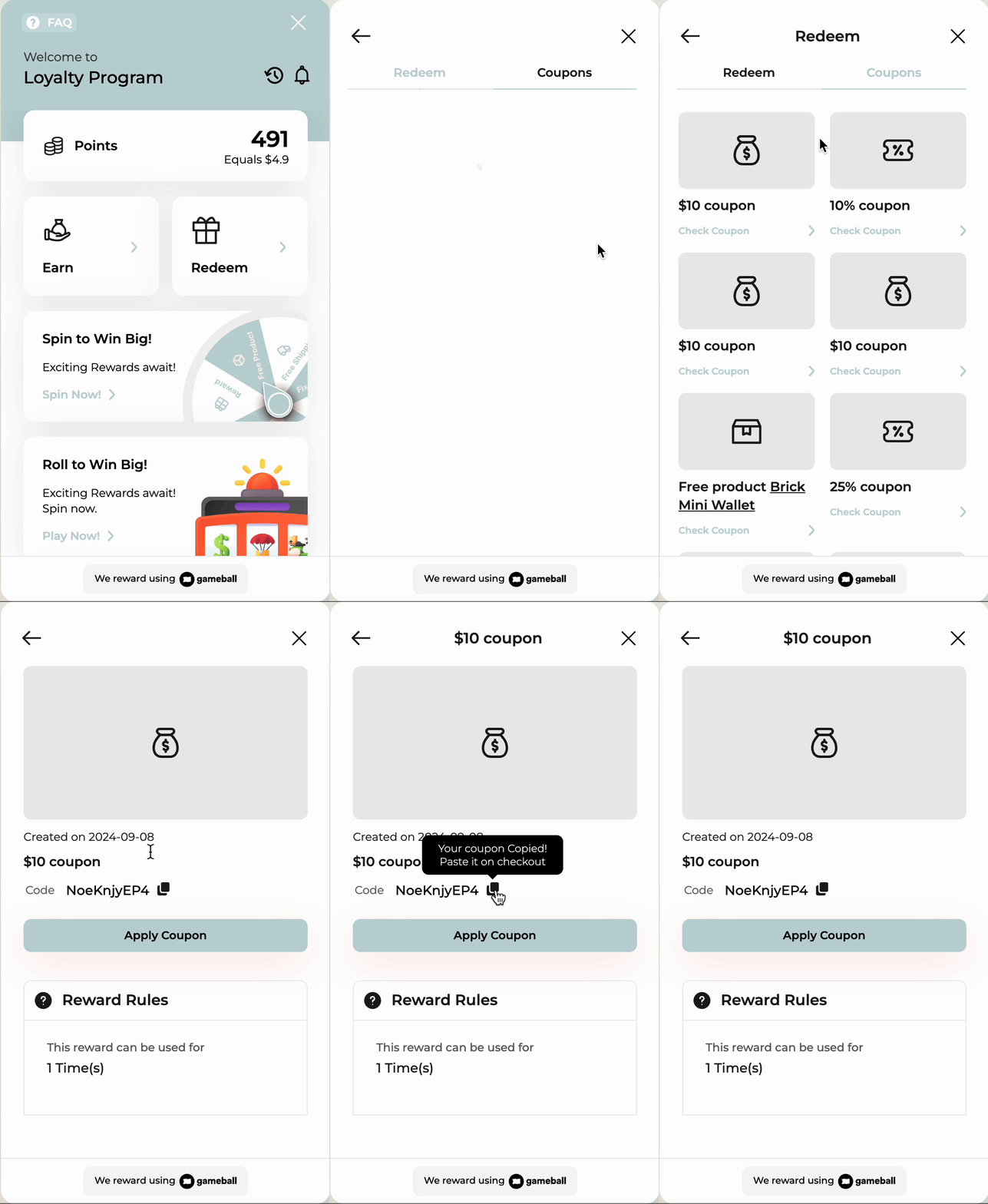 You must fetch and show all active customer coupons on your checkout page.
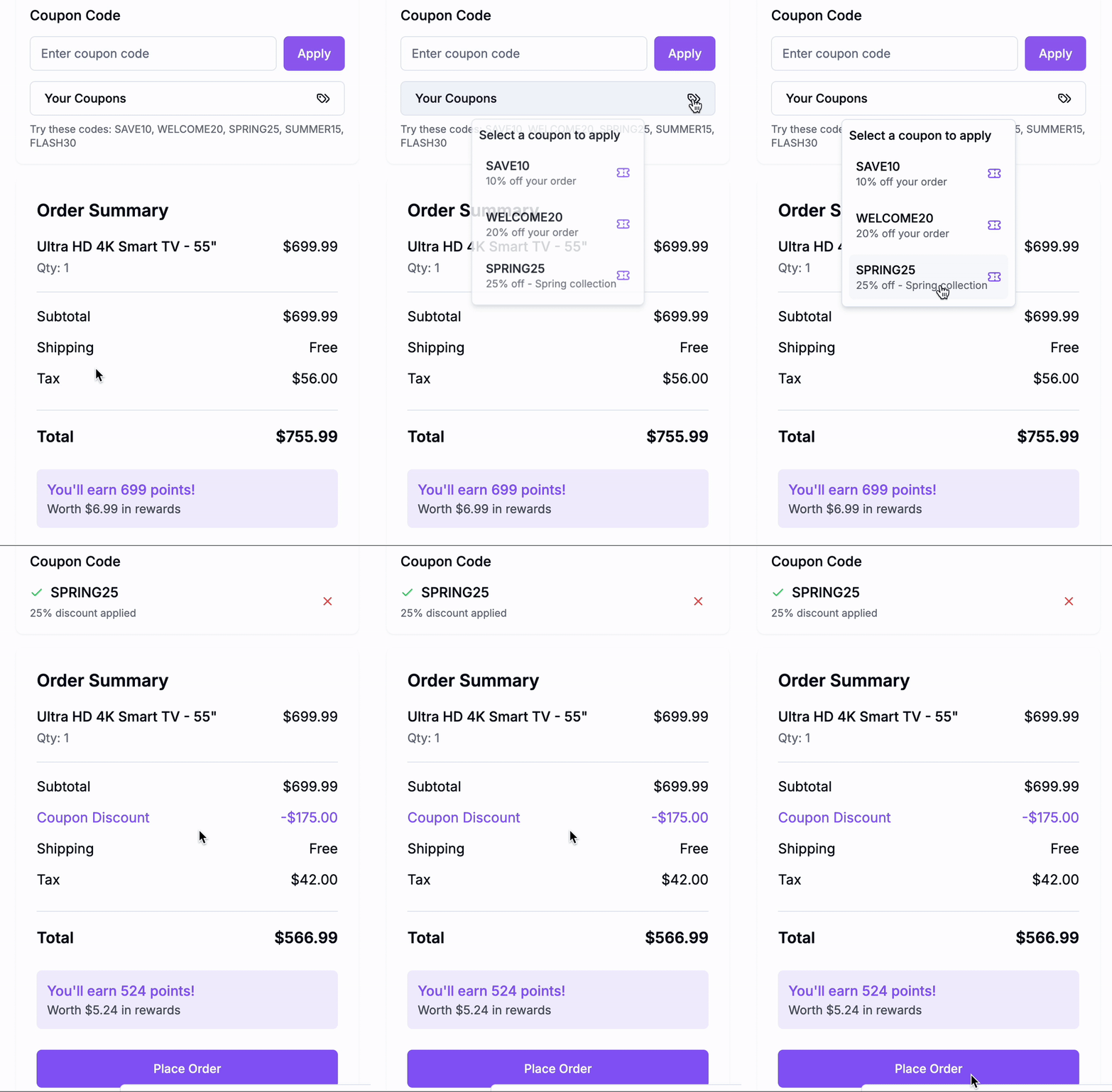 **API:**
[GET /customers//coupons](/api-reference/customers/management/get-customer-coupons)
```json theme={null}
{
"coupons": [
{
"code": "GB2024",
"type": "percentage_discount",
"value": 15,
"expiryDate": "2024-12-31T23:59:59Z",
"isUsed": false
},
{
"code": "GBFREESHIP",
"type": "free_shipping",
"value": 0,
"expiryDate": "2024-11-30T23:59:59Z",
"isUsed": false
}
]
}
```
**Suggested UI Behavior:**
* Show coupon name, value, and expiry
* Allow the customer to select one, which fills the input field automatically
***
### **Step 4: Validate & Lock the Coupon**
Not handled by widget. You must validate and lock the coupon before applying it at checkout.
Same as widget, you must validate and lock the coupon before applying it.
**API Options:**
* [Validate Single Coupon](/api-reference/coupons/validate-single-coupon)
* [Validate Multiple Coupons](/api-reference/coupons/validate-multiple-coupons)
**Use Case: Mixed Coupons Applied in a Single Order**
Imagine your checkout allows customers to stack or combine different coupon types on the same order. For example:
* One discount coupon: SAVE10 (\$10 off)
* One free shipping coupon: FREESHIP (waives shipping fees)
At checkout, the customer selects both coupons to maximize savings.
**You must:**
1. Verify that each coupon is still valid and not expired.
2. Lock both coupons together so no other session can reuse them while the customer completes payment.
In this case, POST /validate-coupons lets you validate and lock both in one atomic call.
```json theme={null}
{
"customerId": "cust_12345",
"coupons": ["SAVE10", "FREESHIP"],
"lock": true
}
```
```json theme={null}
{
"lockReference": "abc123lock",
"valid": true,
"coupons": [
{
"code": "SAVE10",
"type": "fixed_discount",
"value": 10
},
{
"code": "FREESHIP",
"type": "free_shipping",
"value": 0
}
]
}
```
Save the lockReference. It is required in the next step.
**When This is Helpful:**
* You allow **multiple coupon stacking** in one order
* You need to **lock them together** to avoid conflicts
* You want to handle validation in one API call for efficiency
### **Step 5: Burn (Apply) the Coupon**
Not handled by the widget. You must finalize the coupon usage.
Same as the widget, you must finalize usage.
**Option A: Burn Manually**
[POST /burn-coupon](/api-reference/coupons/burn-coupon)
```json theme={null}
{
"lockReference": "5e21ff4baf5d4760a8a43c7b2513298e"
}
```
**Option B: Use Order API (Recommended)**
[POST /order](/api-reference/order/order-tracking)
```
{
"customerId": "customer123",
"orderId": "ORD123",
"totalPaid": 90,
"orderDate": "2024-10-16T12:00:00Z",
"redemption": {
"lockReference": "5e21ff4baf5d4760a8a43c7b2513298e"
}
}
```
The Order API burns the coupon and logs the order in one step.
### **Step 6: Release Coupon (If Checkout Fails or Is Abandoned)**
Not handled by widget. You must manually release or rely on timeout.
Same, handle manual or automatic release based on your flow.
**API:**
[GET /customers//coupons](/api-reference/customers/management/get-customer-coupons)
```json theme={null}
{
"coupons": [
{
"code": "GB2024",
"type": "percentage_discount",
"value": 15,
"expiryDate": "2024-12-31T23:59:59Z",
"isUsed": false
},
{
"code": "GBFREESHIP",
"type": "free_shipping",
"value": 0,
"expiryDate": "2024-11-30T23:59:59Z",
"isUsed": false
}
]
}
```
**Suggested UI Behavior:**
* Show coupon name, value, and expiry
* Allow the customer to select one, which fills the input field automatically
***
### **Step 4: Validate & Lock the Coupon**
Not handled by widget. You must validate and lock the coupon before applying it at checkout.
Same as widget, you must validate and lock the coupon before applying it.
**API Options:**
* [Validate Single Coupon](/api-reference/coupons/validate-single-coupon)
* [Validate Multiple Coupons](/api-reference/coupons/validate-multiple-coupons)
**Use Case: Mixed Coupons Applied in a Single Order**
Imagine your checkout allows customers to stack or combine different coupon types on the same order. For example:
* One discount coupon: SAVE10 (\$10 off)
* One free shipping coupon: FREESHIP (waives shipping fees)
At checkout, the customer selects both coupons to maximize savings.
**You must:**
1. Verify that each coupon is still valid and not expired.
2. Lock both coupons together so no other session can reuse them while the customer completes payment.
In this case, POST /validate-coupons lets you validate and lock both in one atomic call.
```json theme={null}
{
"customerId": "cust_12345",
"coupons": ["SAVE10", "FREESHIP"],
"lock": true
}
```
```json theme={null}
{
"lockReference": "abc123lock",
"valid": true,
"coupons": [
{
"code": "SAVE10",
"type": "fixed_discount",
"value": 10
},
{
"code": "FREESHIP",
"type": "free_shipping",
"value": 0
}
]
}
```
Save the lockReference. It is required in the next step.
**When This is Helpful:**
* You allow **multiple coupon stacking** in one order
* You need to **lock them together** to avoid conflicts
* You want to handle validation in one API call for efficiency
### **Step 5: Burn (Apply) the Coupon**
Not handled by the widget. You must finalize the coupon usage.
Same as the widget, you must finalize usage.
**Option A: Burn Manually**
[POST /burn-coupon](/api-reference/coupons/burn-coupon)
```json theme={null}
{
"lockReference": "5e21ff4baf5d4760a8a43c7b2513298e"
}
```
**Option B: Use Order API (Recommended)**
[POST /order](/api-reference/order/order-tracking)
```
{
"customerId": "customer123",
"orderId": "ORD123",
"totalPaid": 90,
"orderDate": "2024-10-16T12:00:00Z",
"redemption": {
"lockReference": "5e21ff4baf5d4760a8a43c7b2513298e"
}
}
```
The Order API burns the coupon and logs the order in one step.
### **Step 6: Release Coupon (If Checkout Fails or Is Abandoned)**
Not handled by widget. You must manually release or rely on timeout.
Same, handle manual or automatic release based on your flow.
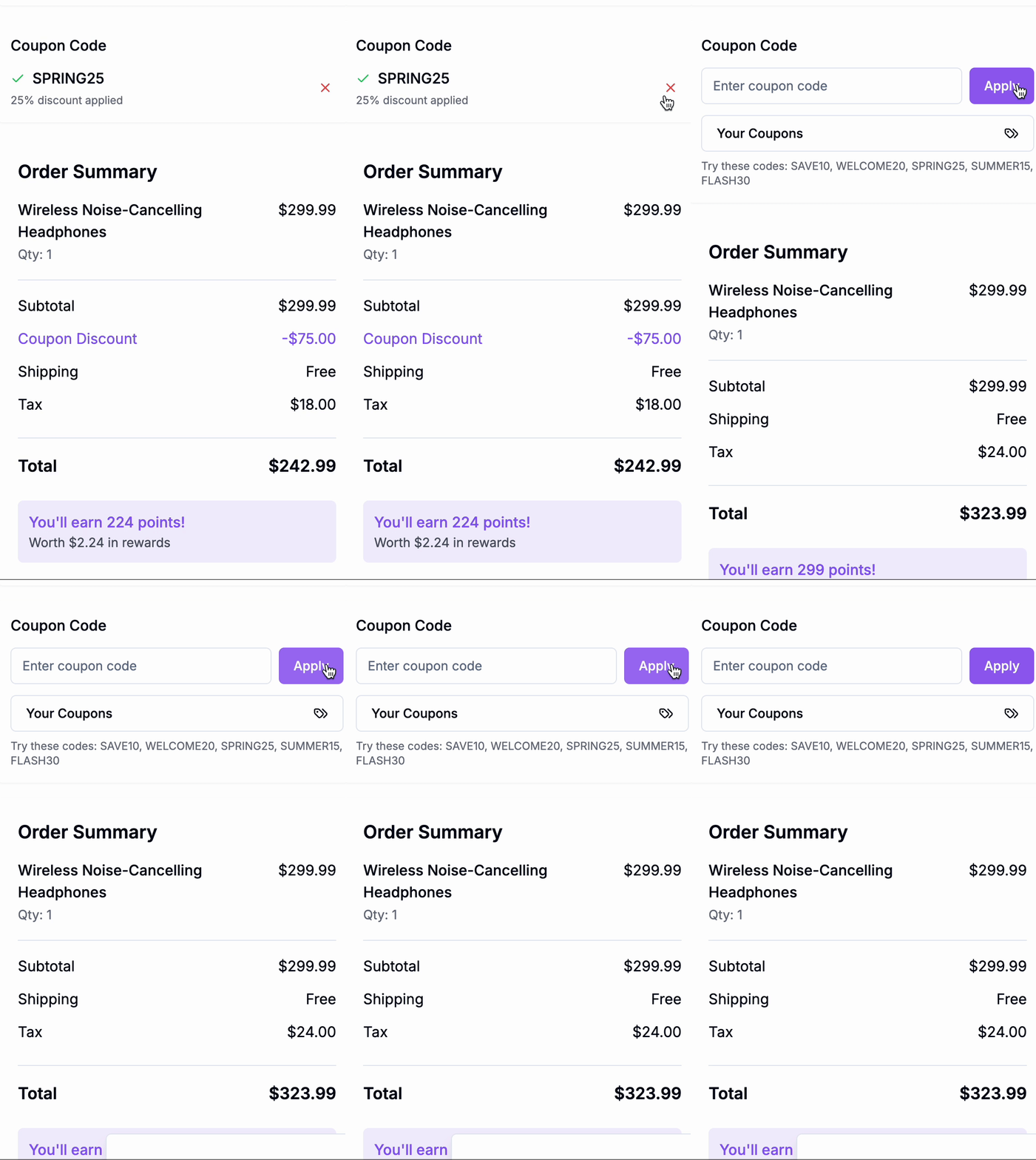 **Manual Release API:**
[POST /release-coupon](/api-reference/coupons/release-coupons)
```json theme={null}
{
"lockReference": "5e21ff4baf5d4760a8a43c7b2513298e"
}
```
**Automatic Release:**
Configure the timeout duration in your Gameball dashboard under *Coupon Settings*.
## **Summary Table**
| **Step** | **API** | **Widget** | **Custom UI** |
| :------------------------- | :------------------------------- | :--------- | :------------ |
| 1. Show Redemption Options | GET /redemption-configurations | (Auto) | (Manual) |
| 2. Generate Coupon | POST /generate-coupon | Auto | (Manual) |
| 3. Display Coupons | GET /customers/id/coupons | Auto | (Manual) |
| 4. Validate & Lock | POST /validate-coupon(s) | Auto | Required |
| 5. Burn/Apply | POST /burn-coupon or POST /order | Manual | ✅ |
| 6. Release | POST /release-coupon | ❌ | ✅ |
***
## Related Resources
Issue coupons from Gameball’s built-in engine
Display coupons generated for a customer
Confirm coupon eligibility before checkout
Finalize coupon usage after successful payment
**Manual Release API:**
[POST /release-coupon](/api-reference/coupons/release-coupons)
```json theme={null}
{
"lockReference": "5e21ff4baf5d4760a8a43c7b2513298e"
}
```
**Automatic Release:**
Configure the timeout duration in your Gameball dashboard under *Coupon Settings*.
## **Summary Table**
| **Step** | **API** | **Widget** | **Custom UI** |
| :------------------------- | :------------------------------- | :--------- | :------------ |
| 1. Show Redemption Options | GET /redemption-configurations | (Auto) | (Manual) |
| 2. Generate Coupon | POST /generate-coupon | Auto | (Manual) |
| 3. Display Coupons | GET /customers/id/coupons | Auto | (Manual) |
| 4. Validate & Lock | POST /validate-coupon(s) | Auto | Required |
| 5. Burn/Apply | POST /burn-coupon or POST /order | Manual | ✅ |
| 6. Release | POST /release-coupon | ❌ | ✅ |
***
## Related Resources
Issue coupons from Gameball’s built-in engine
Display coupons generated for a customer
Confirm coupon eligibility before checkout
Finalize coupon usage after successful payment