These data are the ones used while you are testing your Gameball engagement experience before going live, mostly used by your team. Gameball will give you the ability to test the whole experience you designed on your staging/UAT environment. No need to care about deleting the test data that you have used during the integration cycle.
Live Data
These data are the ones used once you start going live with Gameball on your platform, with the Gameball engagement experience exposed to your customers according to your configurations.
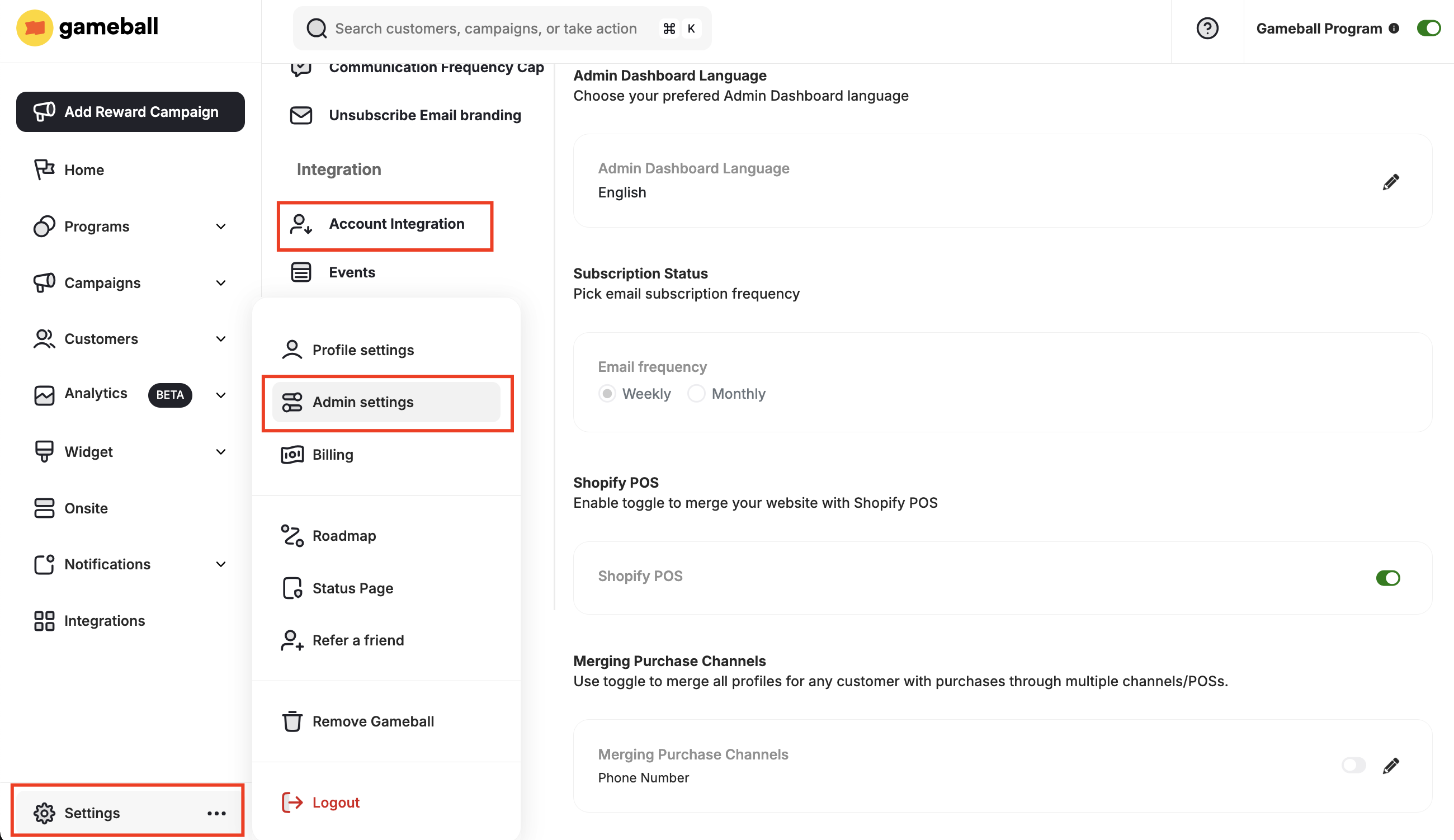
Your account will have 2 different API Keys — one for Test and the other for Live data. You can access your API Keys settings section in the Gameball Admin Dashboard through Settings > Admin Settings > Account Integration.
API Keys in Account Integration settings
You will find both your Live API Key and Test API Key.
Use Test API Key on your staging/UAT environment and Live API Key on your production environment.
How to Switch Between Test and Live Data on the Dashboard
You can switch between live and test data from the Admin Settings in your Gameball Dashboard.
1
Open Admin Settings
Navigate to Settings → Admin Settings and stay on the General tab.
2
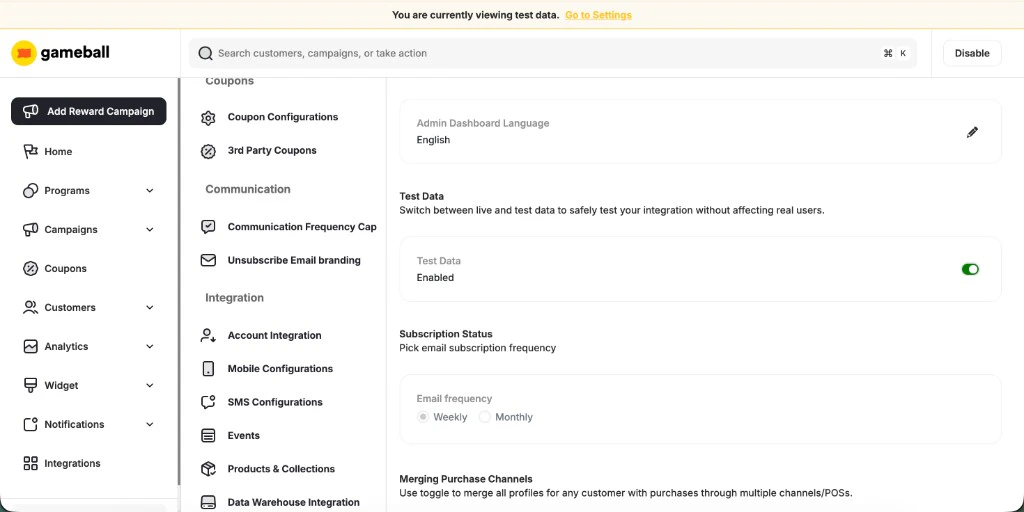
Locate the Test Data Section
Scroll to the Test Data section and click the toggle to switch modes.
Test Data toggle under Settings → Admin Settings → General
3
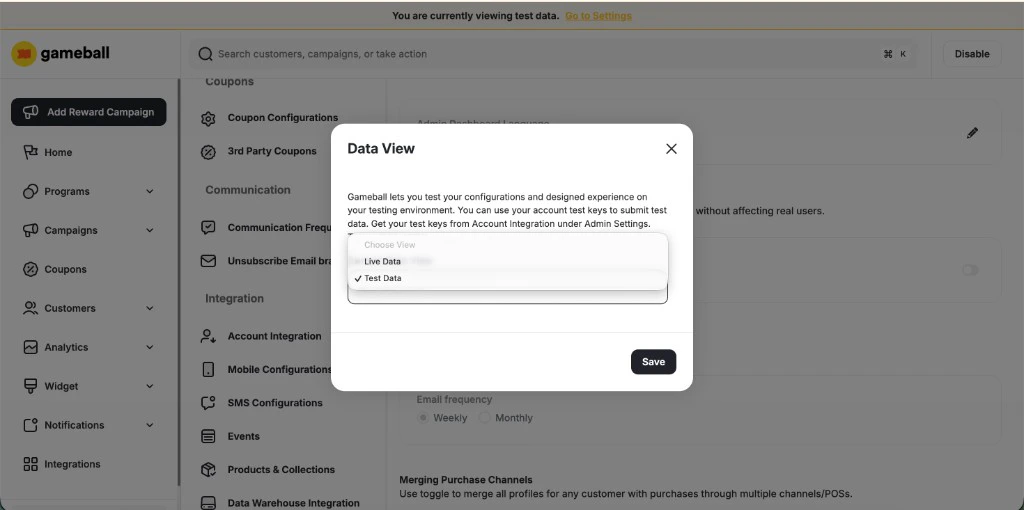
Confirm the Data View
A Data View confirmation pop-up appears with a dropdown. Select either Live Data or Test Data, then click Save.
Data View confirmation pop-up
While Test Data mode is active, a yellow banner appears at the top of every dashboard page indicating that you are currently viewing test data. Click the Go to Settings link in the banner to jump straight back to the Test Data toggle and switch modes whenever you need.
Shopify stores always display live data by default — there is no built-in test environment on Shopify. Switching between live and test data modes in the Gameball dashboard is not available for Shopify clients.If you need to test your Gameball setup before going live, the recommended approach is to create a separate Shopify development store and connect it to a separate Gameball workspace using your test API key. Note that Shopify dev stores do not support real credit card transactions, so you may need to contact Gameball support to arrange a plan for your test workspace.