

Checkout app blocks are available for Shopify Plus customers only.
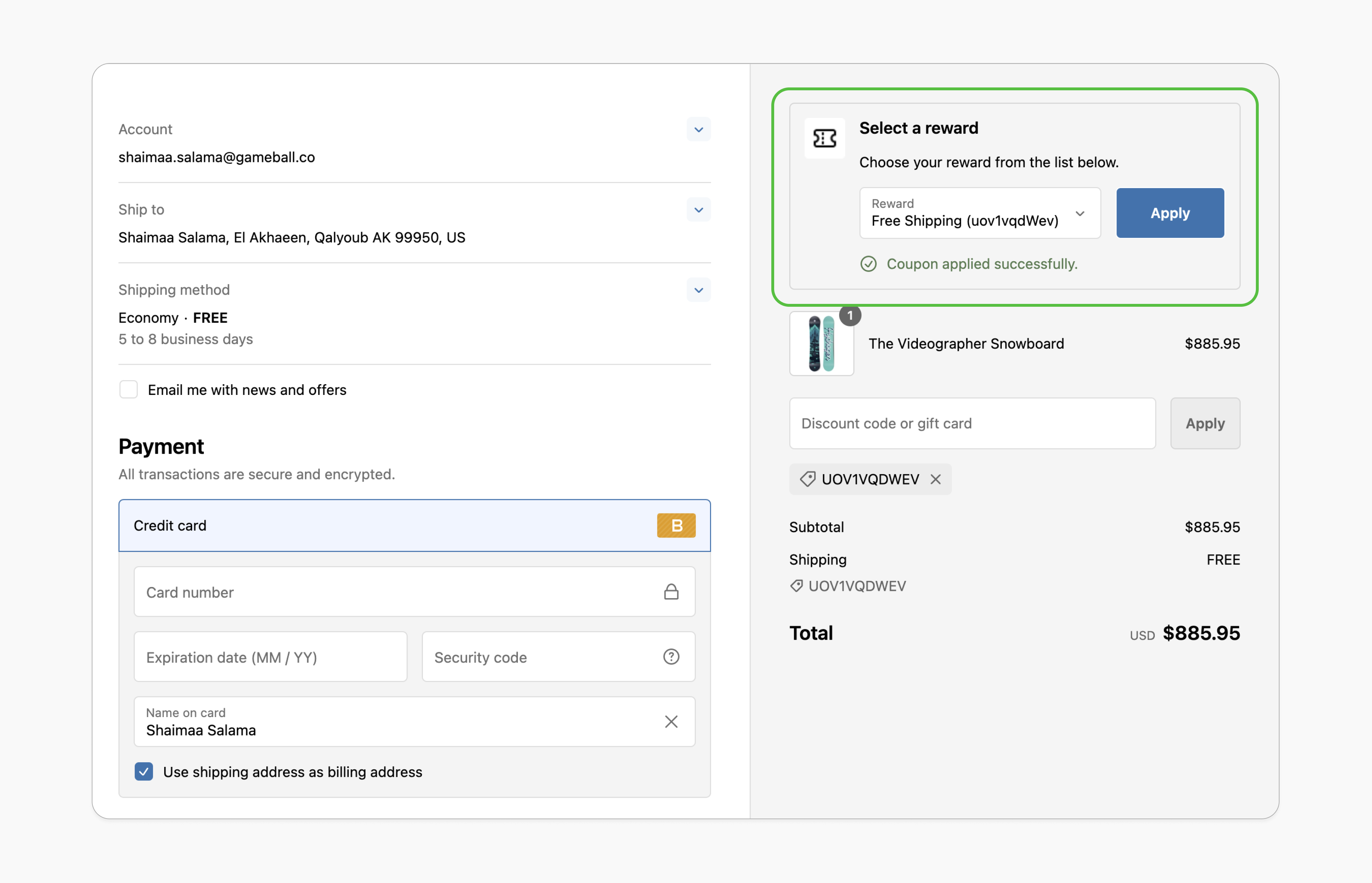
Simplified Redemption Process
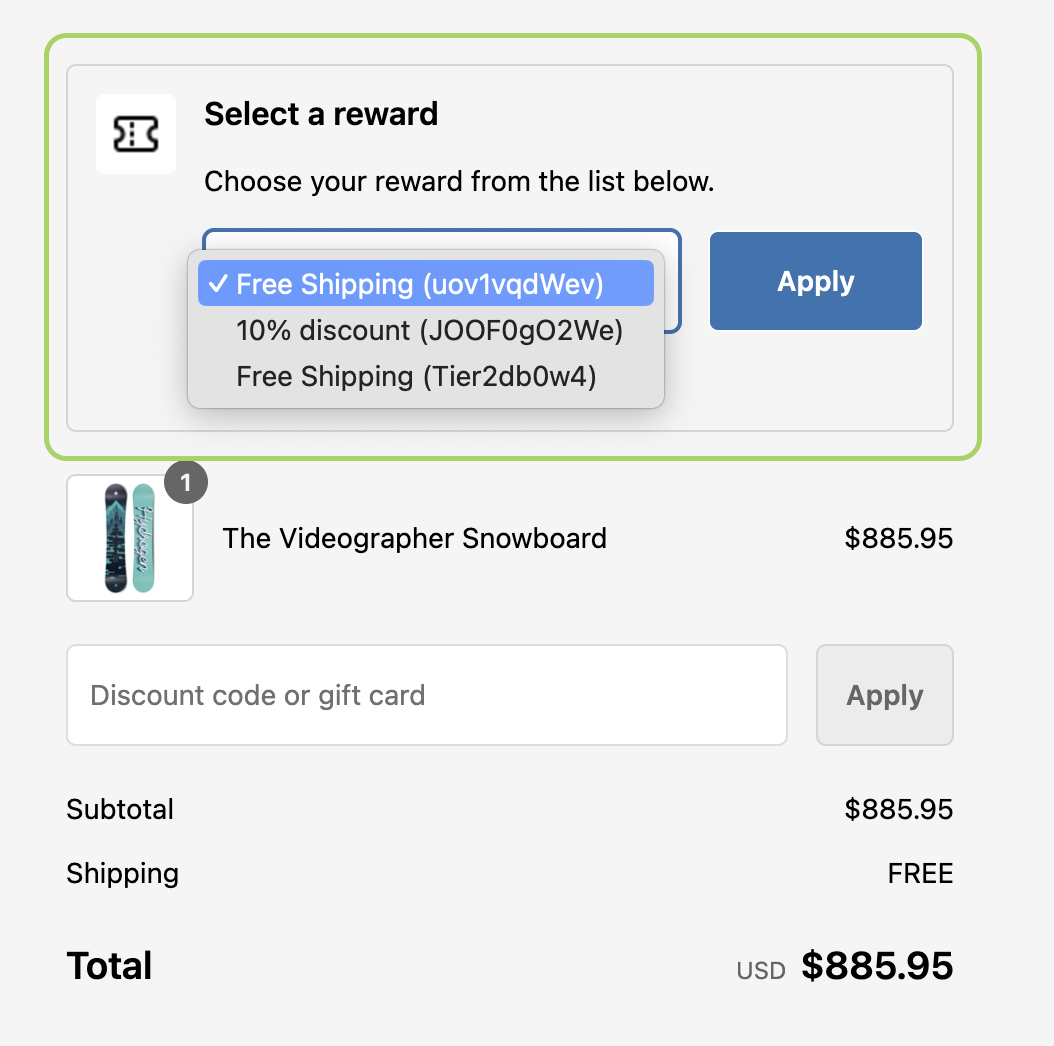
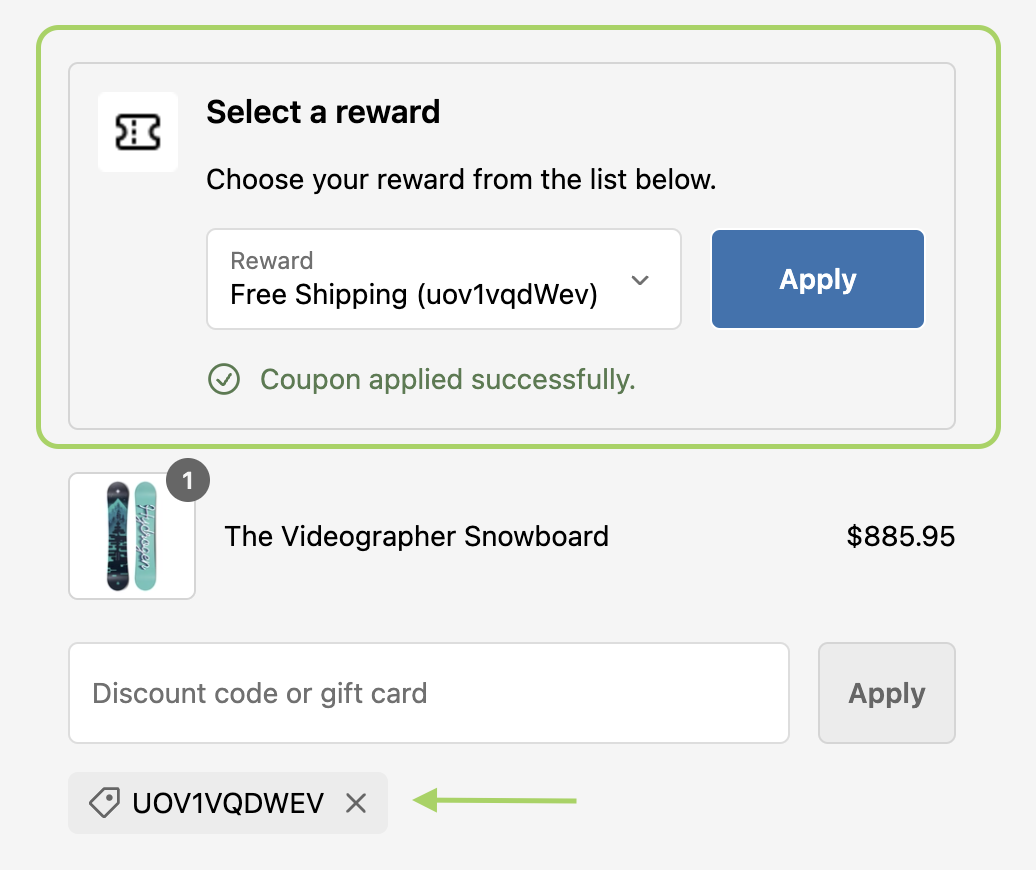
The dropdown menu makes it easy for customers to view and apply their available rewards, reducing friction and speeding up the checkout.
Increased Reward Utilization
By presenting all available rewards upfront, customers are more likely to redeem their points, boosting loyalty program engagement.
Prerequisites
1
Shopify Plus
This feature is exclusively available to merchants on the Shopify Plus plan.
2
Updated Shopify Theme
Your Shopify theme must support app blocks. Without this, the option to add the Gameball block won’t appear in the editor. Learn more.
3
Enable Gameball Embed Block
Go to the Theme Editor in your Shopify admin. Select App Embeds from the left menu, search for “Gameball,” and toggle it on.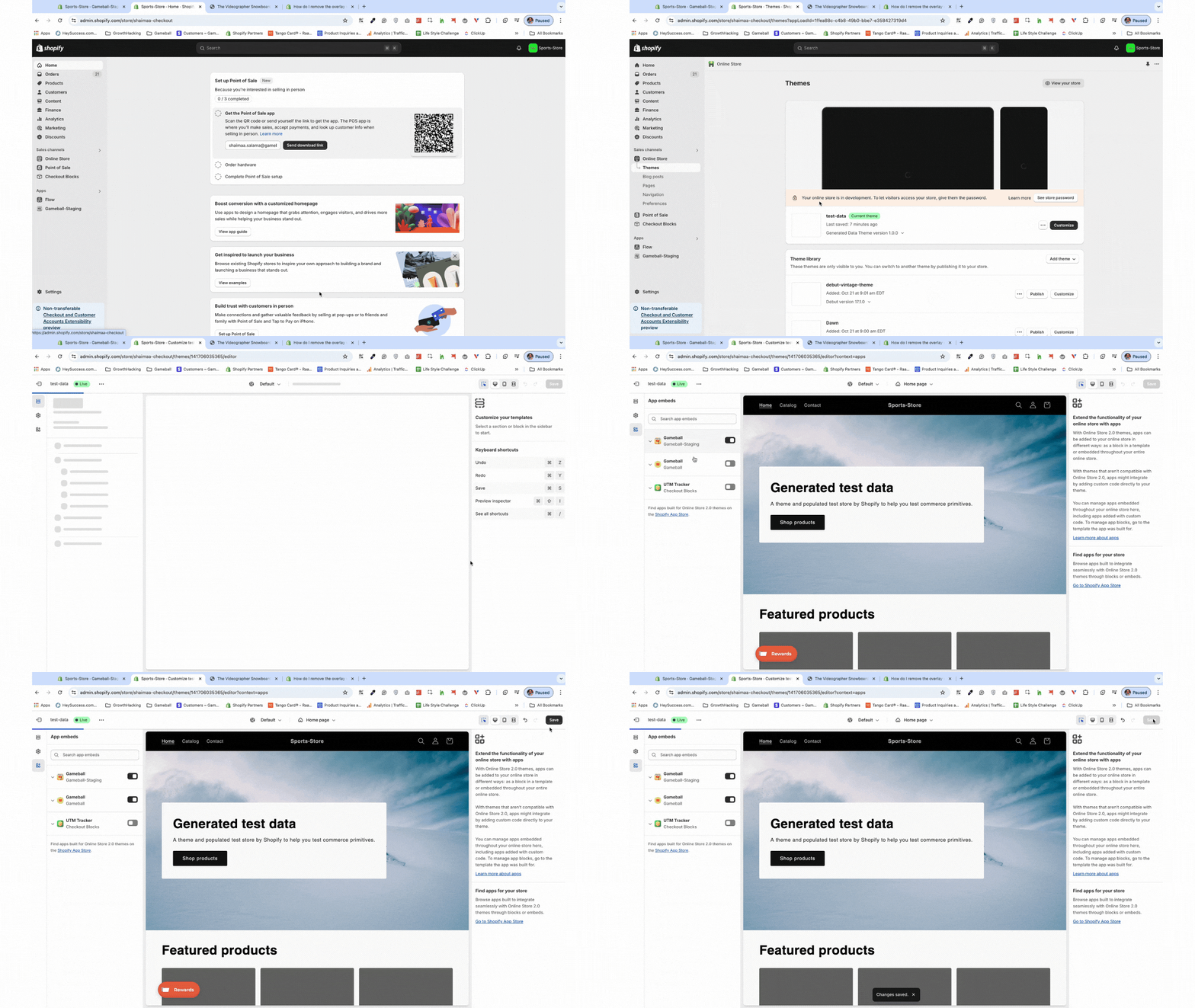
4
Activate Gameball Program
In the Gameball dashboard, make sure the toggle at the top-right is activated. Once this is enabled, you’ll be able to add the Gameball block.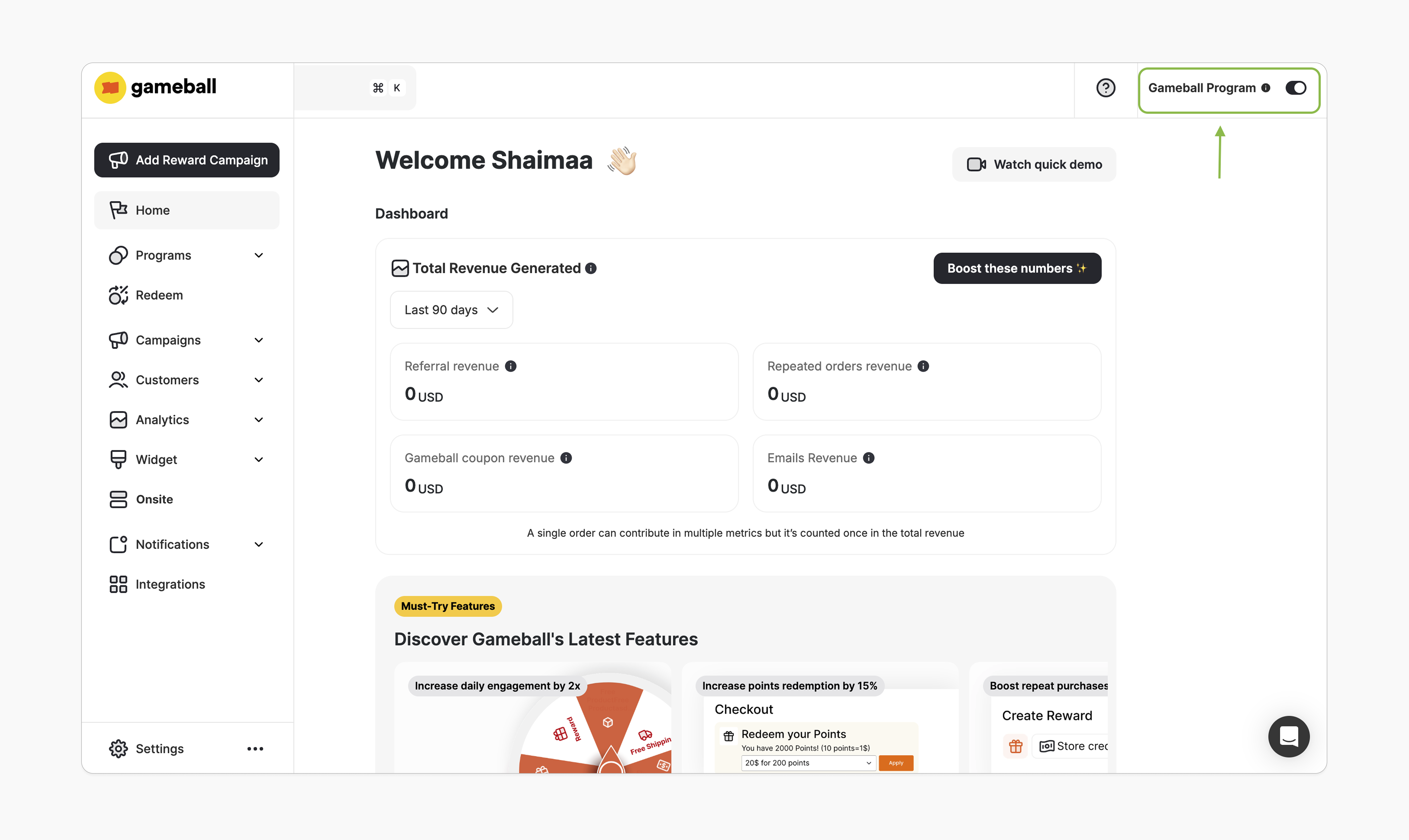
How to Install the Block
1
Navigate to Onsite
In Gameball, navigate to Onsite, click Customize.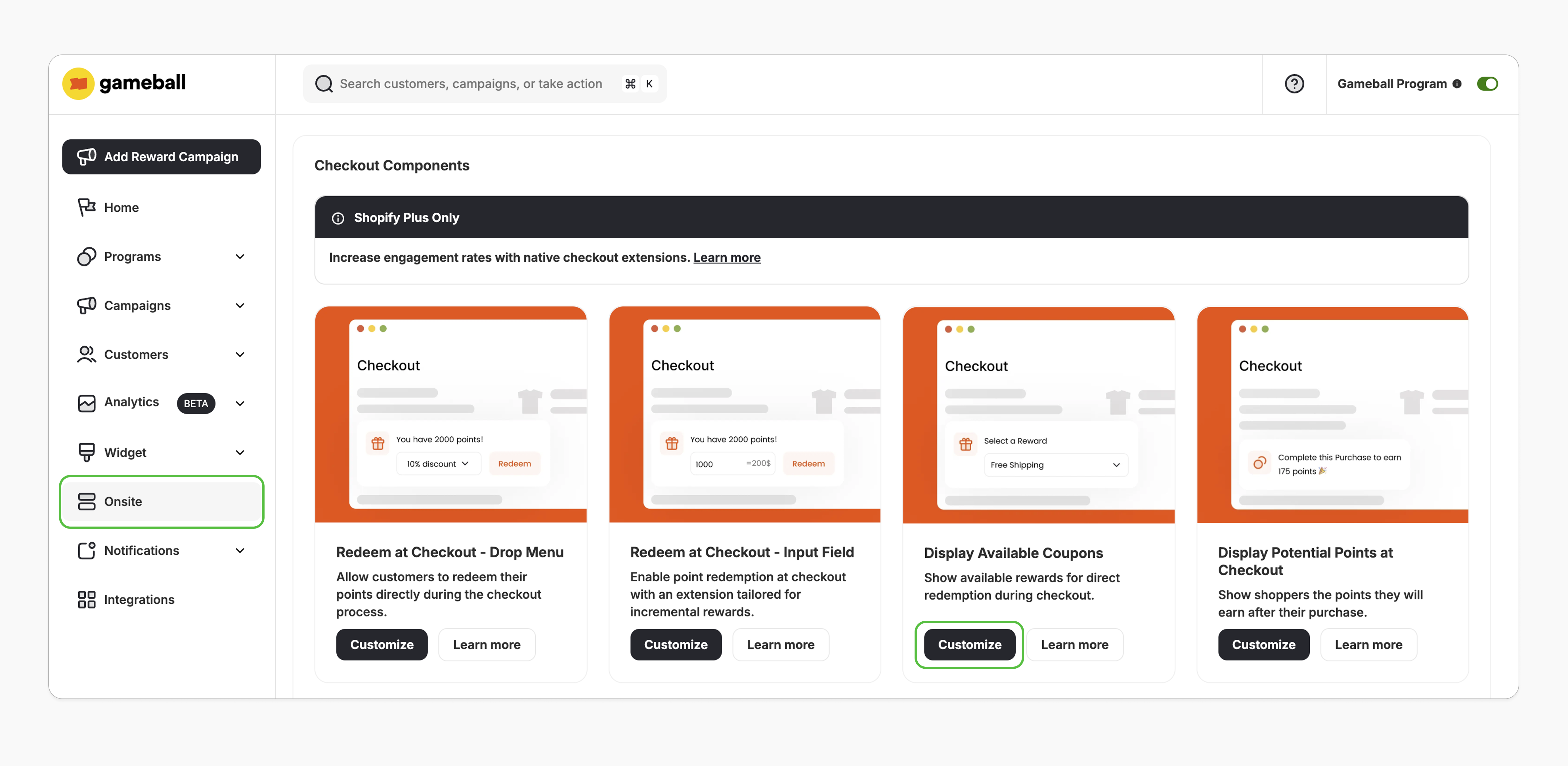
2
Open Theme Editor
You’ll be redirected to Shopify’s Theme Editor.
3
Add the App Block
In the left sidebar, under the “Order Summary,” click Add App Block > Apps, and search for the “Checkout available rewards” block.
4
Save
Select the “Checkout available rewards” app block and click Save.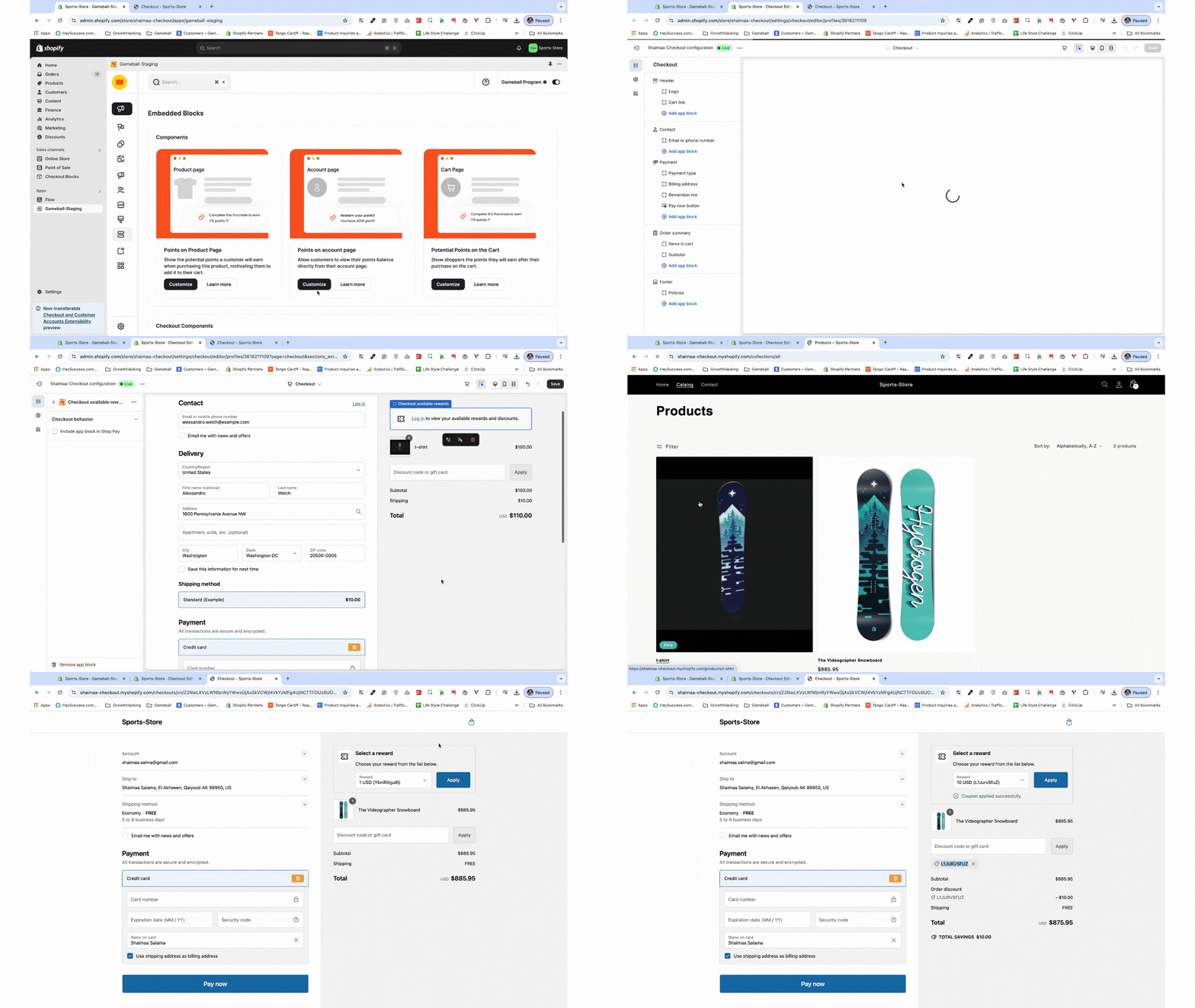
How It Works
- Not Logged-In Customers
- Logged-In Customers
If you are not logged in, the extension will prompt you to log in to view your available rewards.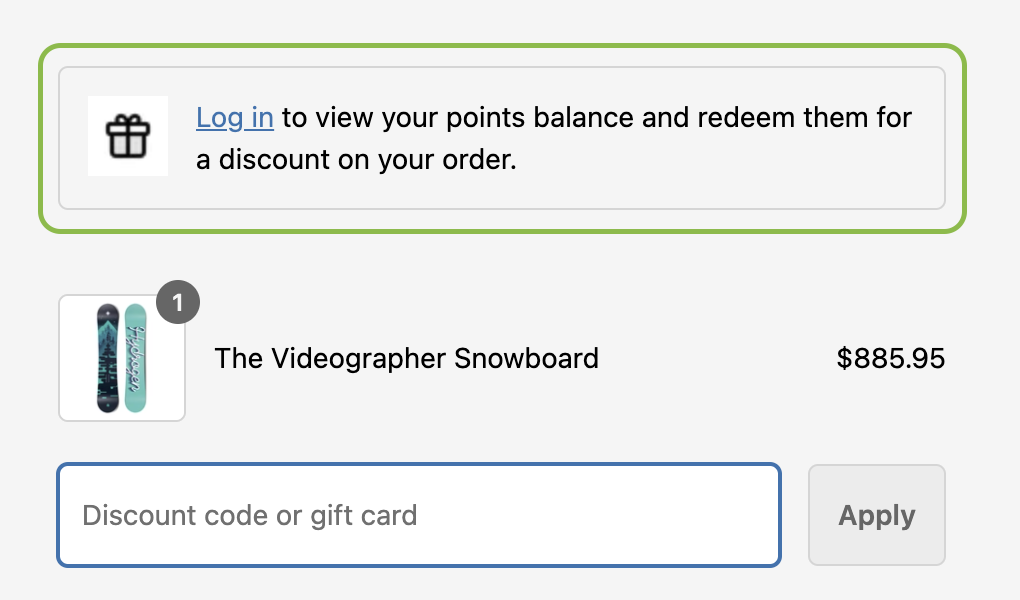
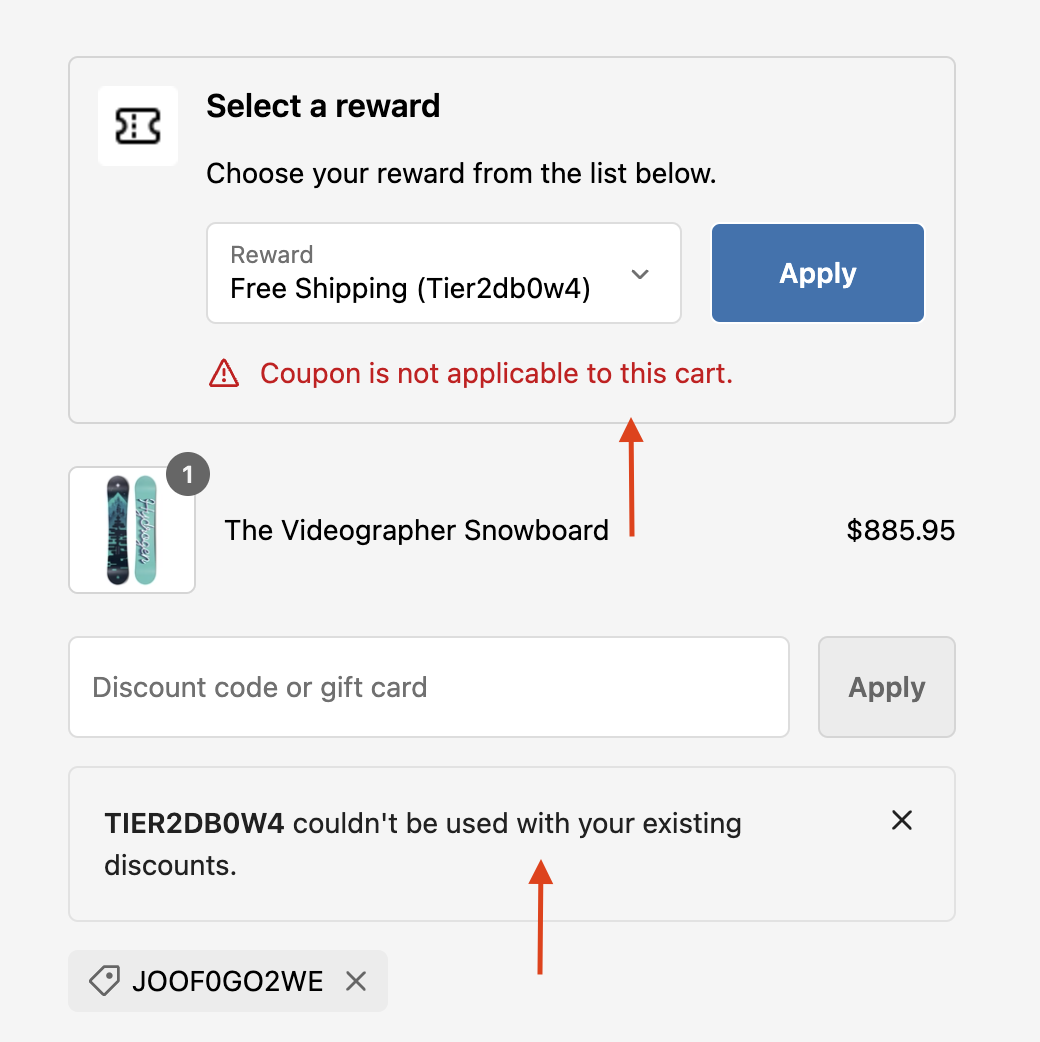
Customization
Style Customization
Style Customization
The checkout extensions have no style customization options. However, you can customize its position by simply dragging and dropping it to your desired location on the checkout page.
Content & Translation
Content & Translation
In the Gameball Dashboard, go to Widget > Content. Under the Onsite tab, edit the text and customize it for supported languages.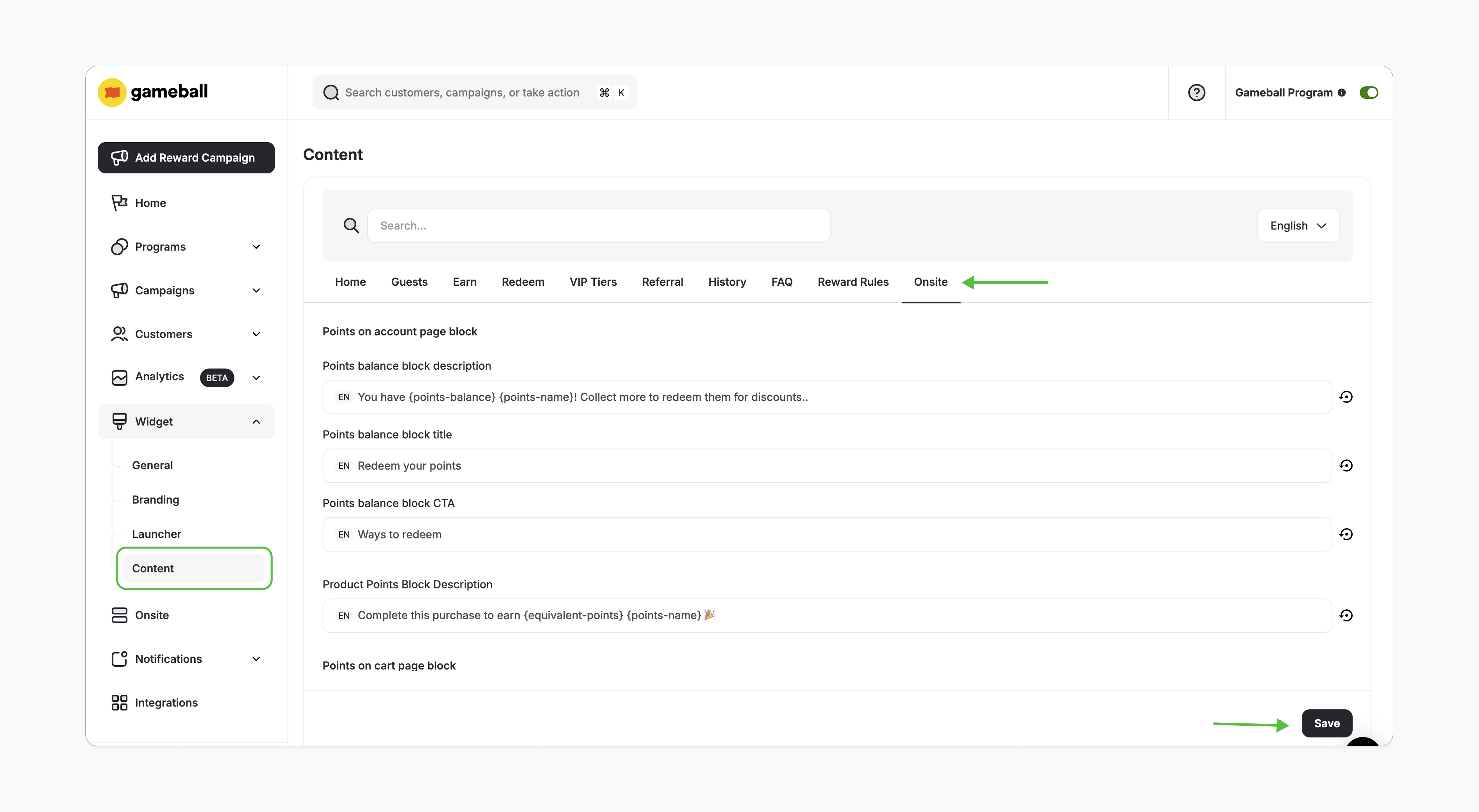
Important Notes
Frequently Asked Questions
What happens if I downgrade my plan?
What happens if I downgrade my plan?
The dropdown will automatically hide if your plan no longer supports the feature.
What should I do if I clicked on Customize but saw a "There is a problem loading the page" message?
What should I do if I clicked on Customize but saw a "There is a problem loading the page" message?
Please review the prerequisites and ensure all conditions are met. If you still encounter an issue, contact us at support@gameball.co.
Related Articles
Embed Points in Customer Profile
Display customers’ points balances in their profiles.
Display Potential Points on Product Pages
Show potential points directly on product pages.