

Gameball lets you create custom point-earning rules based on any order attribute. Rather than applying a single flat earning rate across all purchases, you can define specific conditions — such as order value, payment method, or product category — and assign different point rewards to each scenario.
How to Set Up Custom Earning Rules
1
Navigate to Earn Points
Go to Programs > Earn Points in your Gameball dashboard.
2
Open the Custom Tab
Click on the Custom tab.
3
Add a New Rule
Click Add Rule, then define your conditions. You can filter by any order attribute, such as:
- Order total price
- Product collection or category
- SKU
- Payment method
- Custom order metadata
CSV uploads support up to 100 SKUs per file. Clear validation messages are shown for any file type, size, or format issues.
4
Choose a Point Assignment Method
Select how points are calculated for orders that match your conditions:
Cashback Value (Percentage-Based)
Cashback Value (Percentage-Based)
Award a percentage of the order total as points. For example, give 5% cashback for orders from a specific collection.
Cashback Value Based on Unit
Cashback Value Based on Unit
Award a fixed number of points per currency unit spent. For example, give 2 points for every 1 EGP spent on orders paid by credit card.
Fixed Cashback Value
Fixed Cashback Value
Award a set number of points regardless of the order value. For example, give 10 points for any order above $50.
5
Save
Click Save to activate the rule. The rule will apply when all specified conditions are met.
Combining Multiple Conditions
You can stack multiple conditions within a single rule. All conditions must be met for the rule to apply. Examples:- Reward 10 points for orders where
total_pricegreater than50 - Give 5 points per $1 for
product_categoryequalsElectronics, versus 2 points per $1 forproduct_categoryequalsAccessories - Award bonus points for high-value purchases from the Summer Collection paid by credit card
Condition Attributes Reference
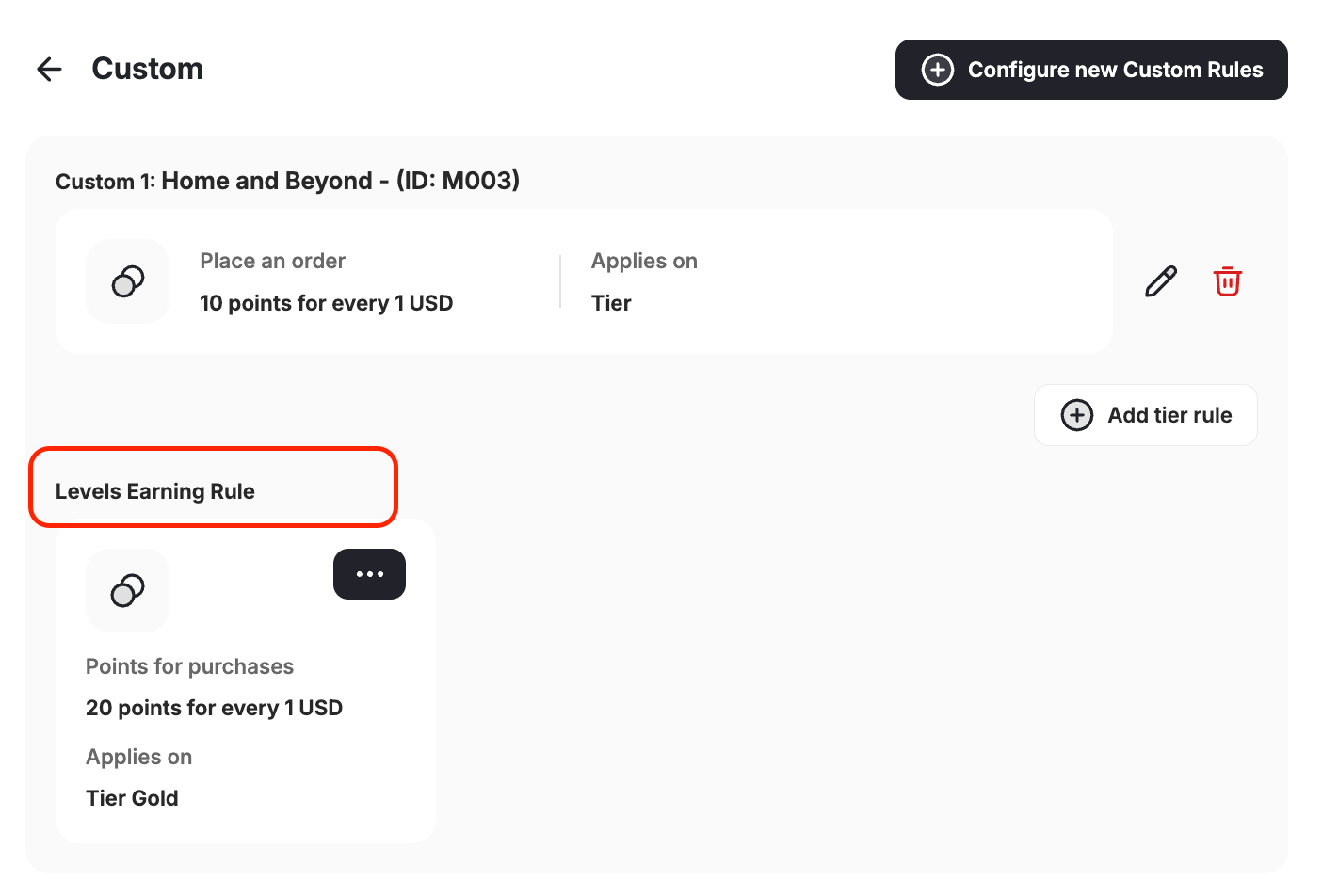
Beyond standard attributes like order total, payment method, and product category, the rule builder supports additional order-level and line-item-level attributes. These let you build more precise earning rules — including tier-specific ones. Each rule can be scoped to a specific customer tier, so Gold customers earn at a different rate than Silver customers for the exact same order condition. For example, a Gold tier customer who places an order with 5 or more items could earn 3× points, while a Silver tier customer earns 2× on the same order.Order-Level Attributes
These attributes apply to the order as a whole. Combine them with a customer tier and a point assignment method to reward customers differently based on both their loyalty status and how they shop.
For example, you can set separate rules for each tier — giving Gold customers a 3× multiplier when their order contains 5 or more items, Silver customers a 2× multiplier for the same condition, and standard customers the default rate. You can also award a bonus earn rate to customers on any tier who purchase without applying a coupon code.
Line-Item-Level Attributes
These attributes apply to individual products within the order. Use them when you want to adjust earning based on what happened to a specific item — for example, awarding a higher earn rate on full-price items or giving bonus points on taxed line items.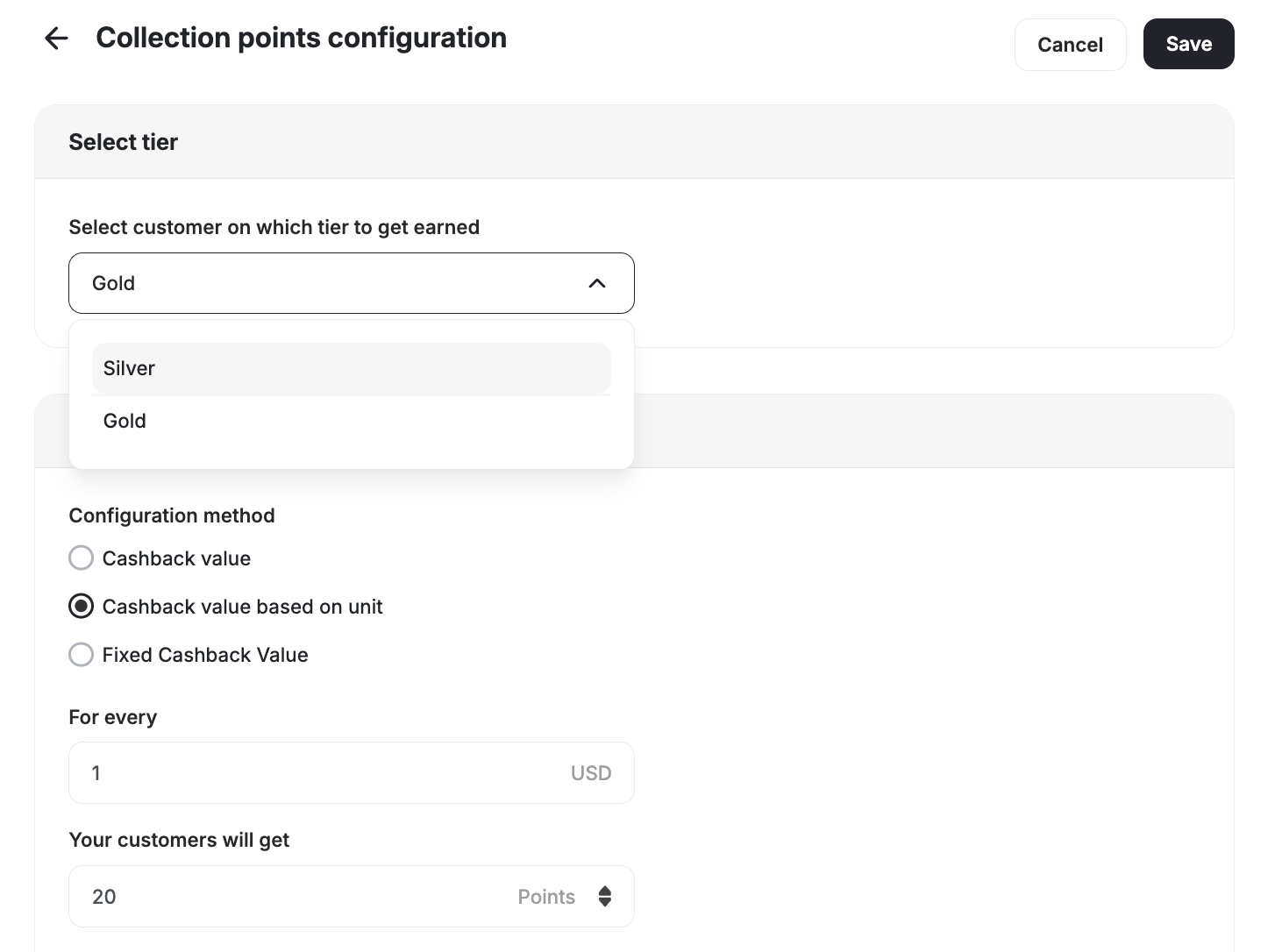
How Custom Rules Interact with Other Earn Rules
When multiple earning rules could apply to the same order, Gameball evaluates them based on rule priority. Custom rules take precedence over the default earn rule when their conditions are matched.Custom cashback rules and collection-based cashback rules cannot be active simultaneously. Enabling custom cashback deactivates the Merchant feature on the system.
Related Articles
Launch and Configure Your Earn Pointing System
Set up your base earn rule and pointing system configuration.
Collection-Based Earning Rules
Customize earning rates by product collection.
Understanding Loyalty Points Calculations
Learn how Gameball prioritizes and calculates points across different rules.