

Plan Availability
- Shopify & Salla
- Non-Platform
Creating a New Point Multiplier Reward Campaign
1
Navigate to Reward Campaigns
Log in to your Gameball Dashboard. Navigate to the Campaigns section on the left side menu and click on Rewards.
2
Select the Template
Choose Points Multiplier Reward under the ‘Start from Scratch’ section.
3
Name Your Campaign
Give your new campaign an internal name for your team, and then start the configuration.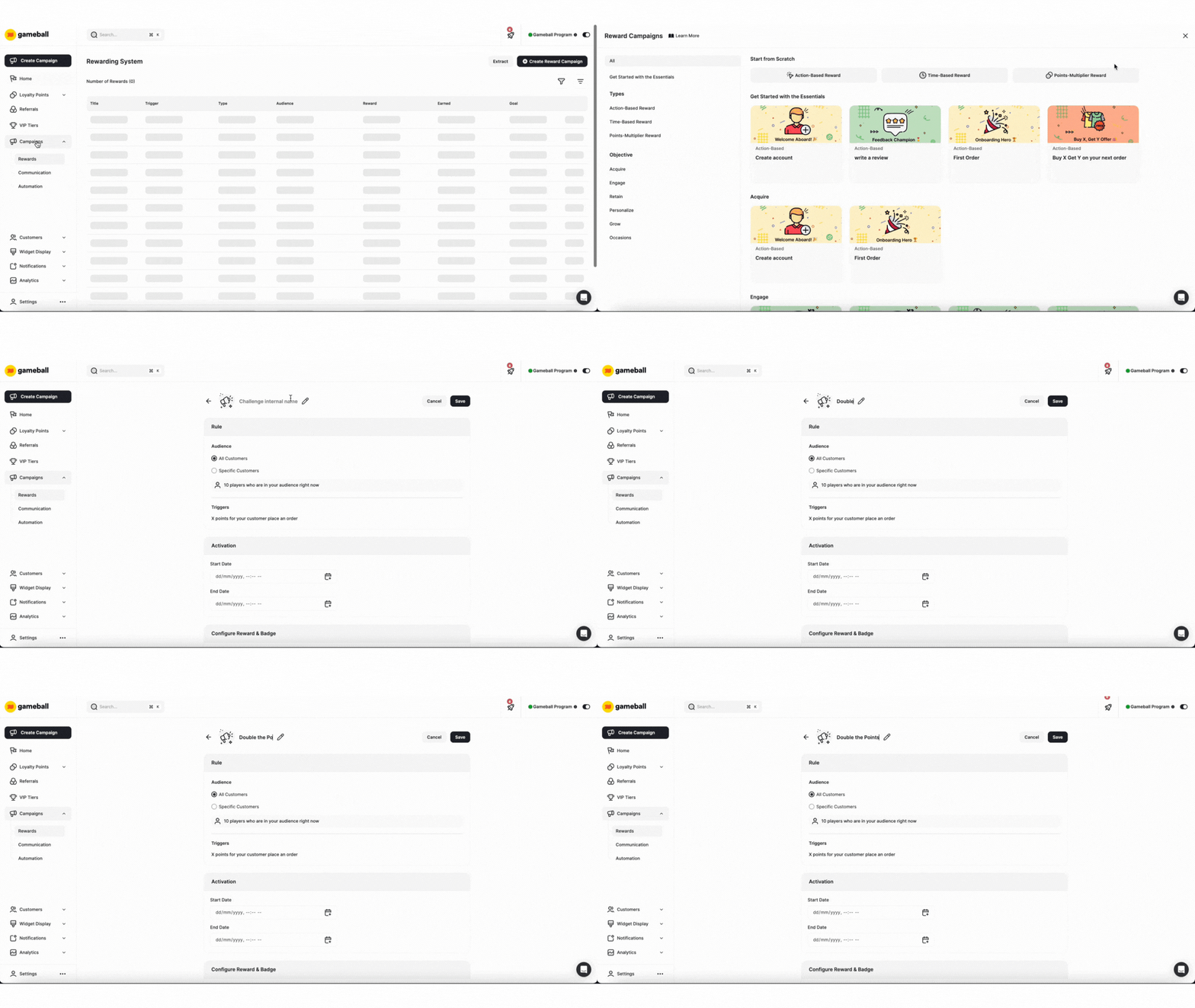
Configuration of a Point Multiplier Reward Campaign
1
Rule
Define the rules that determine when customers receive the campaign’s rewards. Utilize Gameball’s event-based engine to create sequences of rules that customers must follow to earn rewards.
Audience
Audience
Choose who is eligible to view and participate in this campaign: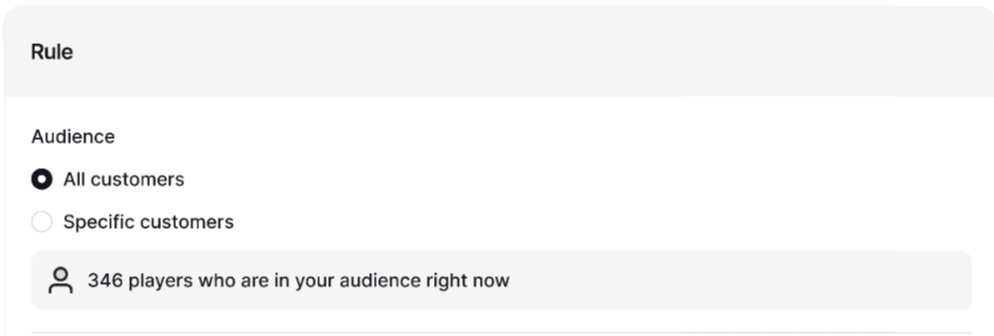
- All Customers
- Specific Customers:
- Segments
- Tags
- Customer Attributes
- Combination of Segments, Tags, or Customer Attributes
Repeatability
Repeatability
Set directly in the Rules section — no separate popup needed. Choose how many times a customer can earn this campaign:
- Unlimited
- A total limit (overall)
- A per-period limit
- A combination of both
Trigger
Trigger
For Points Multiplier rewards, the trigger is automatically set to the event “Place Order.” You now have two options to configure this campaign:
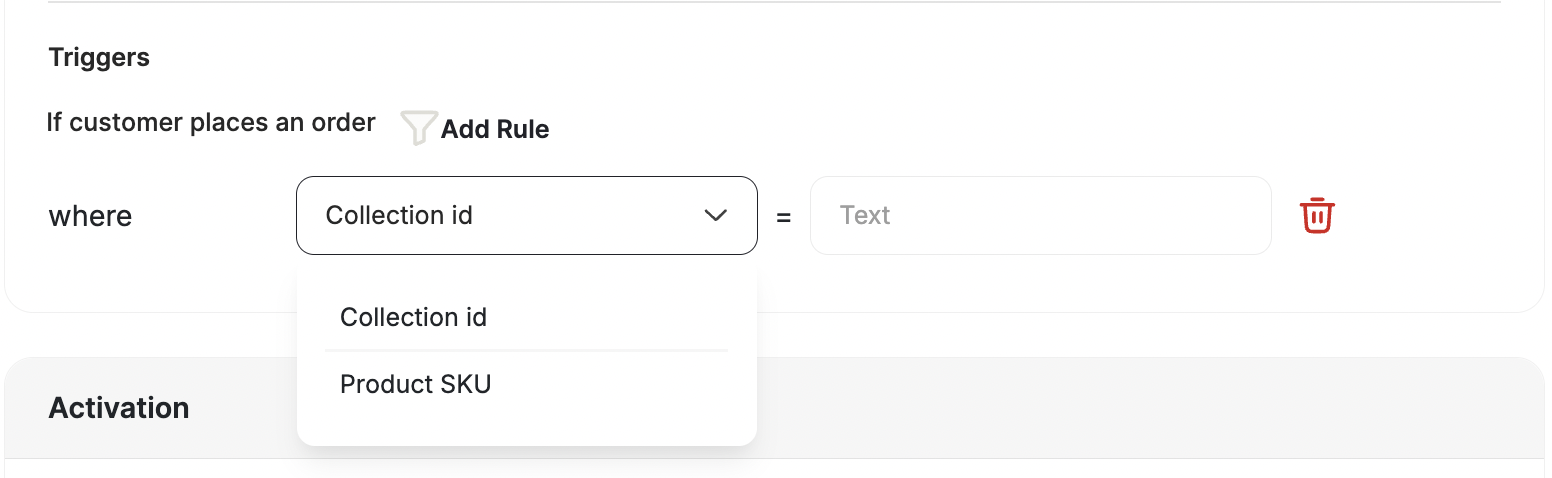
- Apply the Points Multiplier to All Orders: By default, the multiplier will apply to every order placed by your customers.
- Apply the Points Multiplier to Specific Collections or Product SKU: If you only want to apply the multiplier to a specific collection or a product (e.g., during a sale or promotion), you can add a rule that includes the collection’s ID. This way, the multiplier will only be applied to orders that include items from that particular collection or the product alone.
SKU01, SKU02, SKU03). Multiple values use OR logic — an order qualifies if it contains any one of the listed SKUs.The SKU field has a 100-character limit (total field length, not a count of SKUs). On average, this accommodates approximately 10 SKUs.
2
Activation Settings
Choose when this campaign will be available for your customers: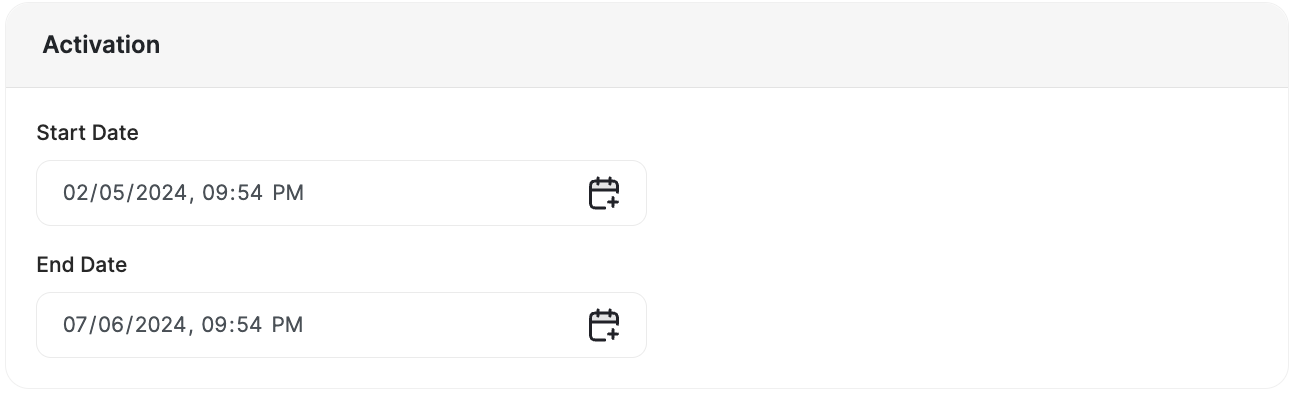
- Always Active: The campaign will always be available for its audience unless you deactivate it.
- Scheduled: The campaign will have a certain start date and end date. Before and after these dates the campaign will not be visible to the audience.
3
Rewards & Badges
Under Reward Structure, choose how you want to apply the multiplier:Default Reward — Enter any custom multiplier value. You are not limited to preset options; you can set any number (e.g., 7x). As you type, the preview at the bottom updates in real time to show the resulting earn rate based on your base earn rule (e.g., “Customers will earn 10.5 points for every 1 USD spent”).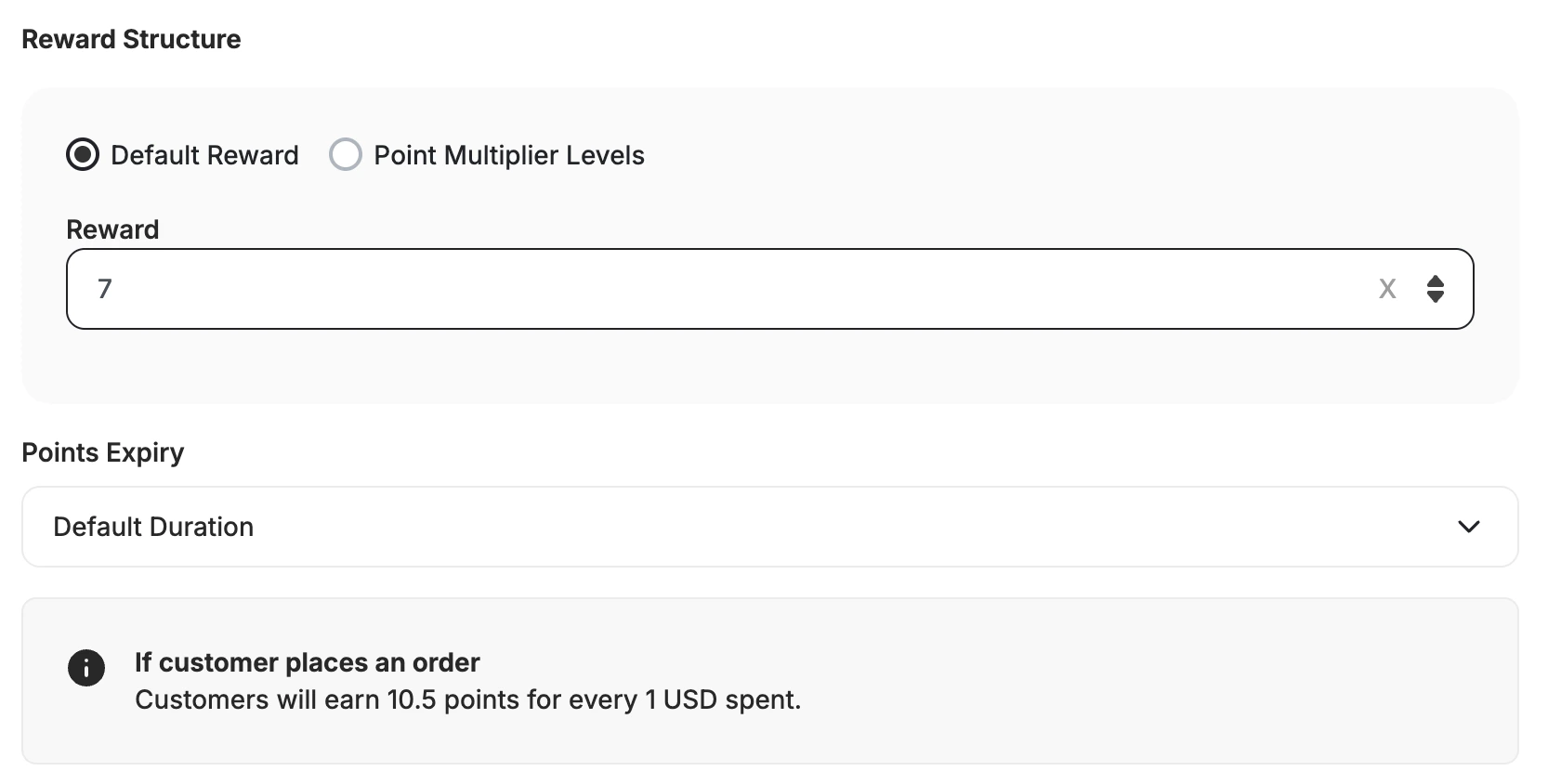
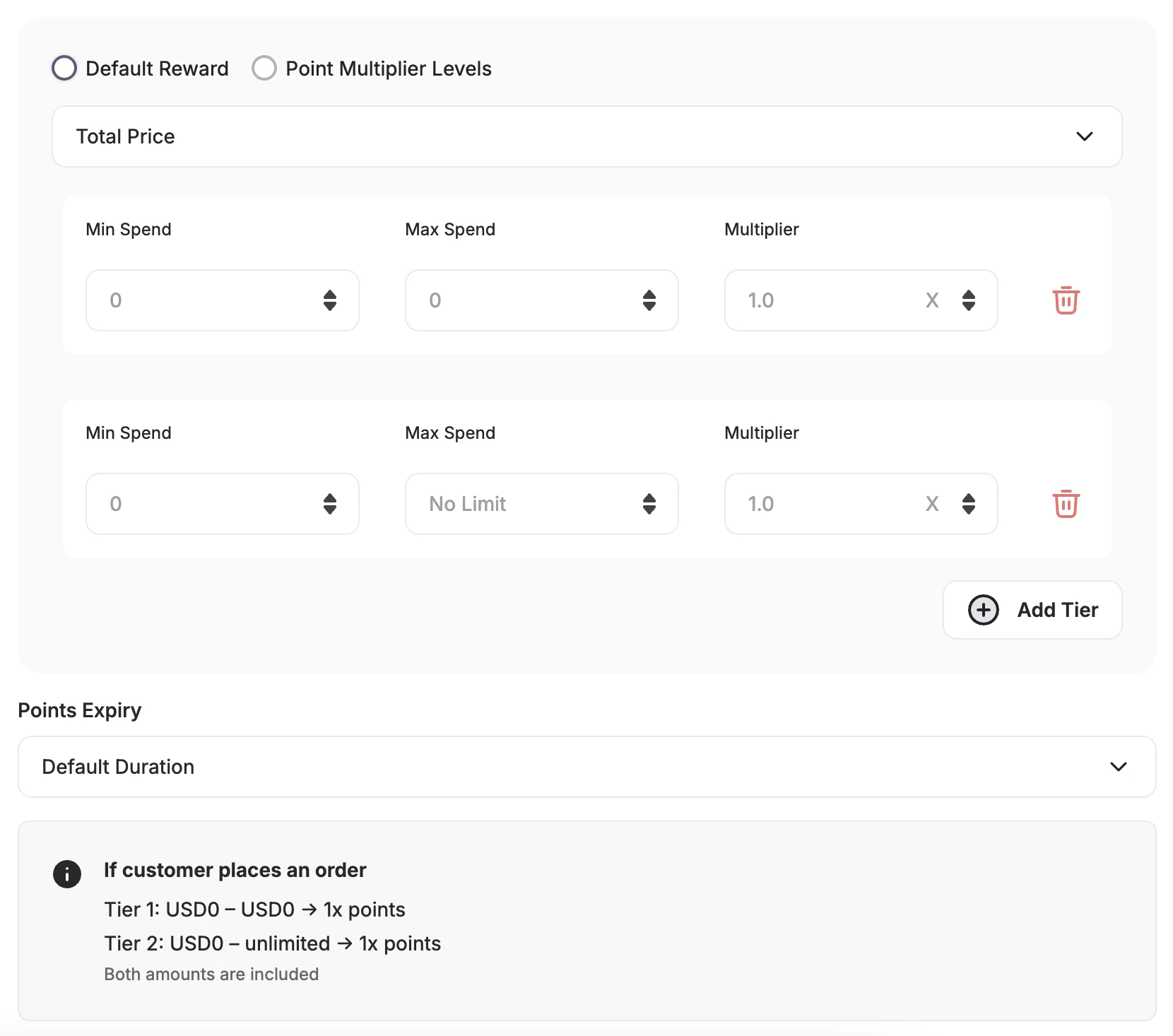
The active tier and next-tier progress are available via the API, so you can surface the earning opportunity directly in your storefront or app.
Transaction-Level Visibility
Open a Points Multiplier campaign and go to its Campaign Activity tab (next to Overview and Insights) to see exactly which orders it touched:
Multiple transactions from the same customer appear as separate rows — no aggregation hides detail. Use the filter and sort icons above the table to narrow results, and Export to download the list.
Activity Log entries also show an indicator when a multiplier was applied, linking straight back to the campaign. Activity log exports gain Applied Multiplier Campaign ID and Name columns.
Custom Expiry for Points Multiplier Campaigns
Set a configurable expiry period for points earned through point multiplier campaigns. This gives you full control over when bonus points are activated (respecting your return window) and when they expire, helping reduce fraud risk and liability.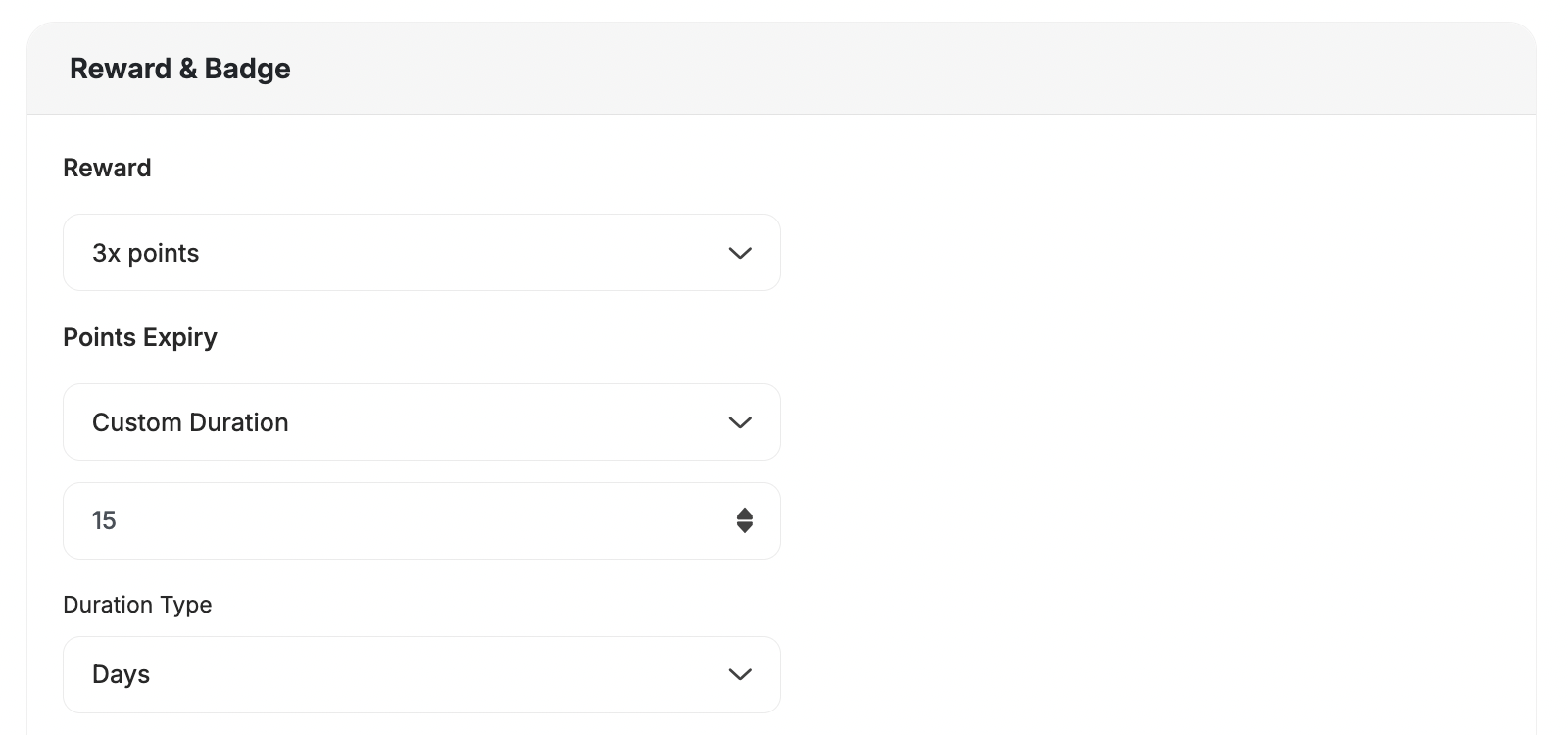
Why This Matters
Previously, points earned from multiplier campaigns (e.g., Double Points) were activated immediately without considering your return/refund window. This exposed merchants to:
With this update, you can now:
- Delay point activation until after the return window passes.
- Define a custom expiry period (days) for multiplier campaign points, just like in other reward campaigns.
- Align rewards with finalized, eligible transactions only.
Partial Returns and Condition Thresholds
If a customer earns a multiplier by meeting a condition (e.g., ordering 2 or more items) and then returns part of the order — dropping below the qualifying threshold — Gameball does not reverse the bonus points already earned. Points are deducted proportionally based on the returned item’s value (including the multiplier), but there is no retroactive reversal of the multiplier itself. For example: a customer orders 2 items, qualifies for a 2x multiplier, earns 200 points (100 base + 100 bonus), then returns 1 item. Gameball deducts 100 points (50 base + 50 bonus). The remaining 100 points stay with the customer even though they no longer meet the 2-item condition. To reduce exposure to this, use the Return Window setting to delay point activation until after your return window closes.There are other types of Reward Campaigns. Learn how to create and configure each of them below:
Related Articles
Reward Campaign Insights
Explore the full setup guide for reward campaigns, including events, rewards, and notifications.