

API Keys
You have access to three keys in your Gameball Dashboard (Settings → Admin Settings → Account Integration):Same Base URL: Both test and live use
https://api.gameball.co/api/v4.0 — you only change the API key.What’s Shared vs Separated
Shared (Mirrored Configurations)
These apply to both test and live:- Tiers and VIP levels
- Campaign rules and logic
- Widget configuration
- Point earning/redemption rules
- Experience design
Separated (Isolated Data)
Test and live maintain separate:- Customers list: Test customers don’t appear in live
- Analytics: Separate reporting for test vs live
- Point transactions: Test points isolated from live points
- Achievements: Customer progress tracked separately
Dashboard Toggle
Switch between test and live views from your Gameball Dashboard’s Admin Settings:- Navigate to Settings → Admin Settings and open the General tab.
-
Scroll to the Test Data section and click the toggle.
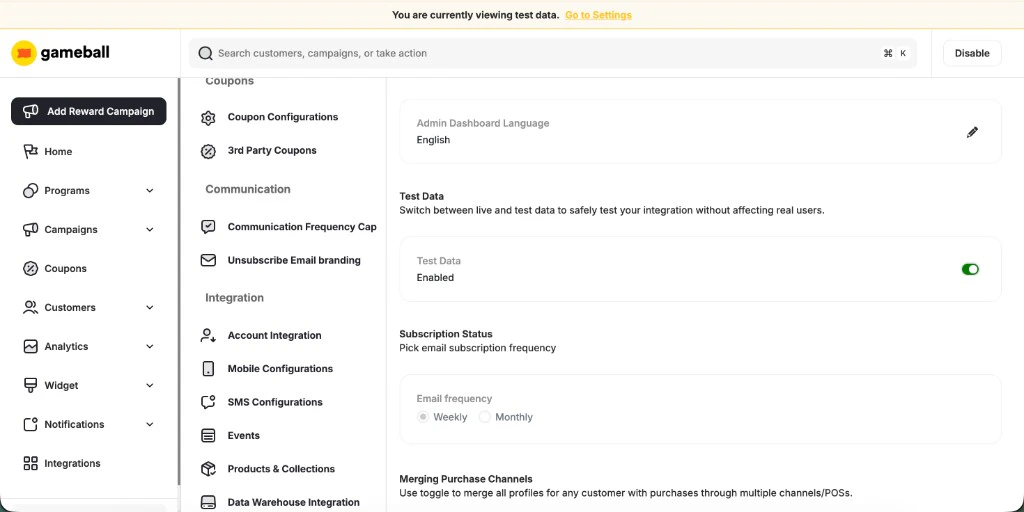
Test Data toggle under Settings → Admin Settings → General
-
In the Data View confirmation pop-up, choose Live Data or Test Data from the dropdown and click Save.
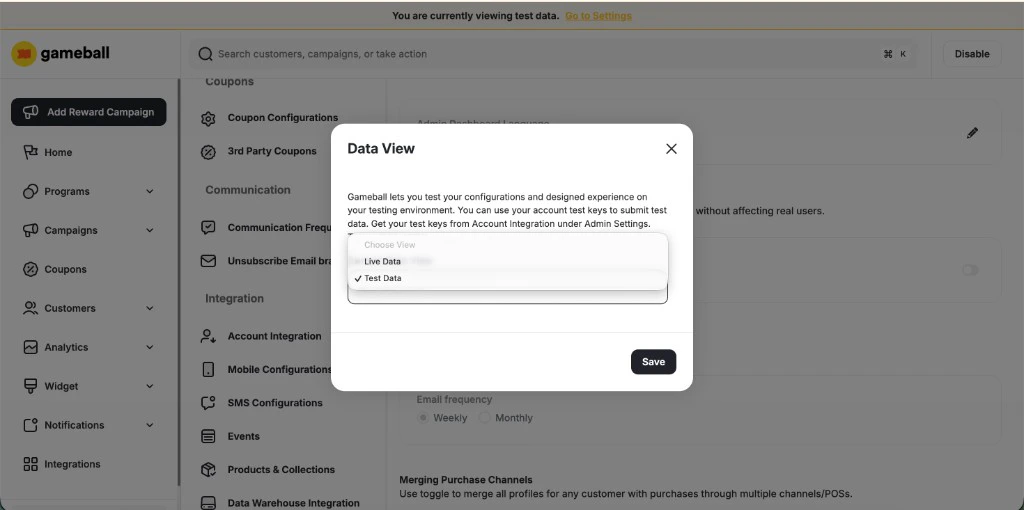
Data View confirmation pop-up
While Test Data mode is active, a yellow banner appears at the top of every dashboard page. Click the Go to Settings link in the banner to return to the Test Data toggle and switch back to Live Data at any time.
Development Workflow
1
Configure in Dashboard
Set up tiers, campaigns, point logic, and widget behavior. These configurations apply to both test and live.
2
Integrate with Test Key
Use the Test API Key in your staging/UAT environment. Build your integration and test thoroughly.
3
Validate Test Data
Switch dashboard to Test mode and verify:
- Customer registration works
- Points accrue correctly
- Campaigns trigger as expected
- Redemption flows function properly
4
QA & Edge Cases
Test edge cases, error handling, concurrent operations, and campaign expirations using test environment.
5
Switch to Live Key
Replace Test API Key with Live API Key in your production application. Live customers and data will now be tracked.
6
Monitor Live Environment
Switch dashboard to Live mode and monitor real customers, transactions, and analytics.
Key Points
Data Isolation
Test and live data never mix. Test customers, points, and transactions are completely separate.
No Migration
Test data is disposable. You cannot migrate test customers or transactions to live.
Fresh Start
When you go live, start with a clean slate. All live data begins from scratch.
Key Rotation
Gameball supports key rotation without disrupting existing integrations.
Example: Switching Environments
Test Environment (Staging)
Live Environment (Production)
Best Practices
Use Environment Variables
Use Environment Variables
Store API keys in environment variables, not hardcoded:
Test Thoroughly Before Live
Test Thoroughly Before Live
- Test all integration points with test key
- Verify campaign triggers and point calculations
- Test redemption flows and edge cases
- Validate error handling and retry logic
Treat Test Data as Disposable
Treat Test Data as Disposable
- Don’t worry about cleaning up test customers or transactions
- Test data has no impact on live environment
- Start fresh when switching to live
Monitor Both Environments
Monitor Both Environments
- Use dashboard toggle to check test behavior during development
- Monitor live analytics once in production
- Compare test vs live to validate expected behavior
High Security Mode
Enable High Security Mode in dashboard to require Secret Key for all API requests (not just point transactions). When enabled:- All endpoints require both
APIKeyandSecretKeyheaders - Provides additional protection against unauthorized access
- Recommended for high-security requirements
Related Resources
Authentication Guide
Complete guide to API keys and authentication
Get Your API Keys
Help Center guide for retrieving keys
Test and Live Data
Gameball Help Center article