

Beta. In-App Messaging is in beta and open to every Gameball account. Send questions and feedback to support@gameball.co.
Prerequisites: Your mobile app must have Gameball SDK 4.0.0 or later installed, with in-app messaging turned on by your development team. See the iOS, Android, Flutter, or React Native setup guide.
Understanding In-App Messages
In-app messages appear while the customer is already using your app. Push notifications try to bring customers back. In-app messages guide them while they are already there. Only customers who open your app can see an in-app message. Nothing is sent by push, email, or SMS.Message Types
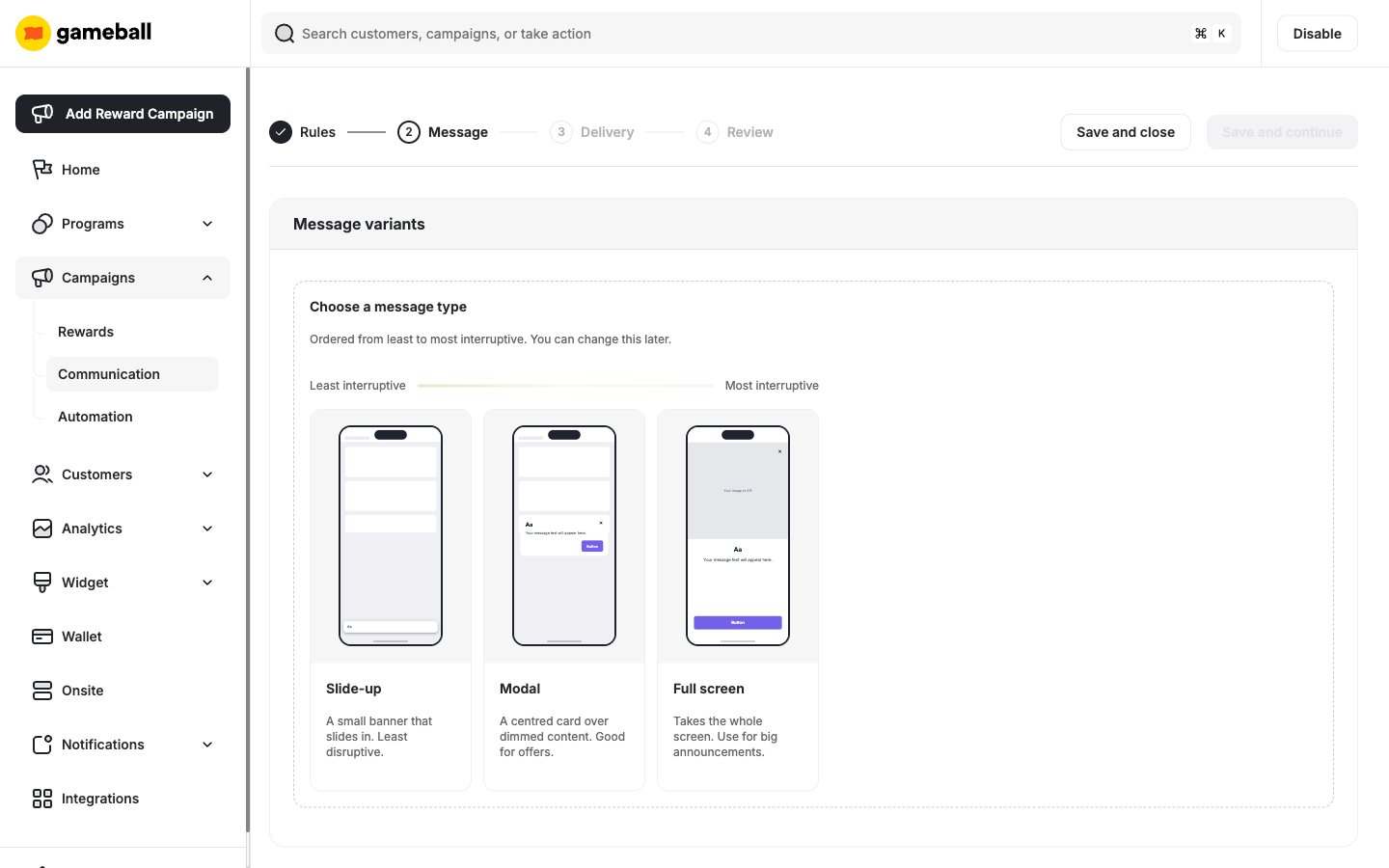
Message types are ordered from least to most interruptive.Slide-up
A small banner that slides in. The app stays usable underneath, so it is the least disruptive type. Best for nudges and reminders.
Modal
A centered card over dimmed content. Best for offers and moments that need a decision.
Full Screen
Takes the whole screen. Best for big announcements and welcome moments.
Ideas to Get Started
Here are some campaigns loyalty teams run with in-app messages:Configuring an In-App Messaging Campaign
To set up an In-App Messaging campaign from scratch in Gameball, follow these steps:- Navigate to Dashboard: Navigate to the Gameball Dashboard.
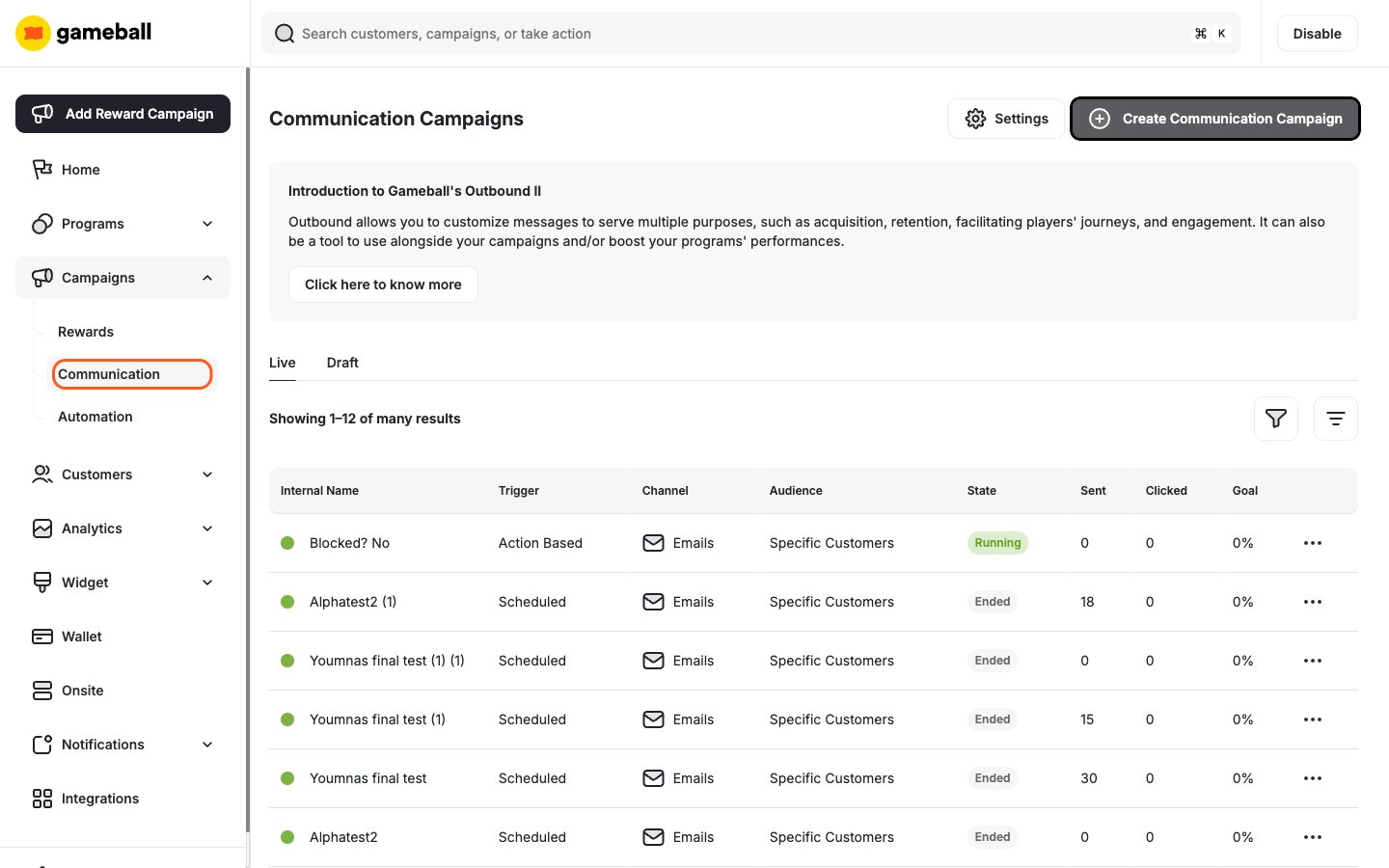
- Open Campaigns: Click on Campaigns, then Communication.
- Create a Campaign: Click Create Communication Campaign.
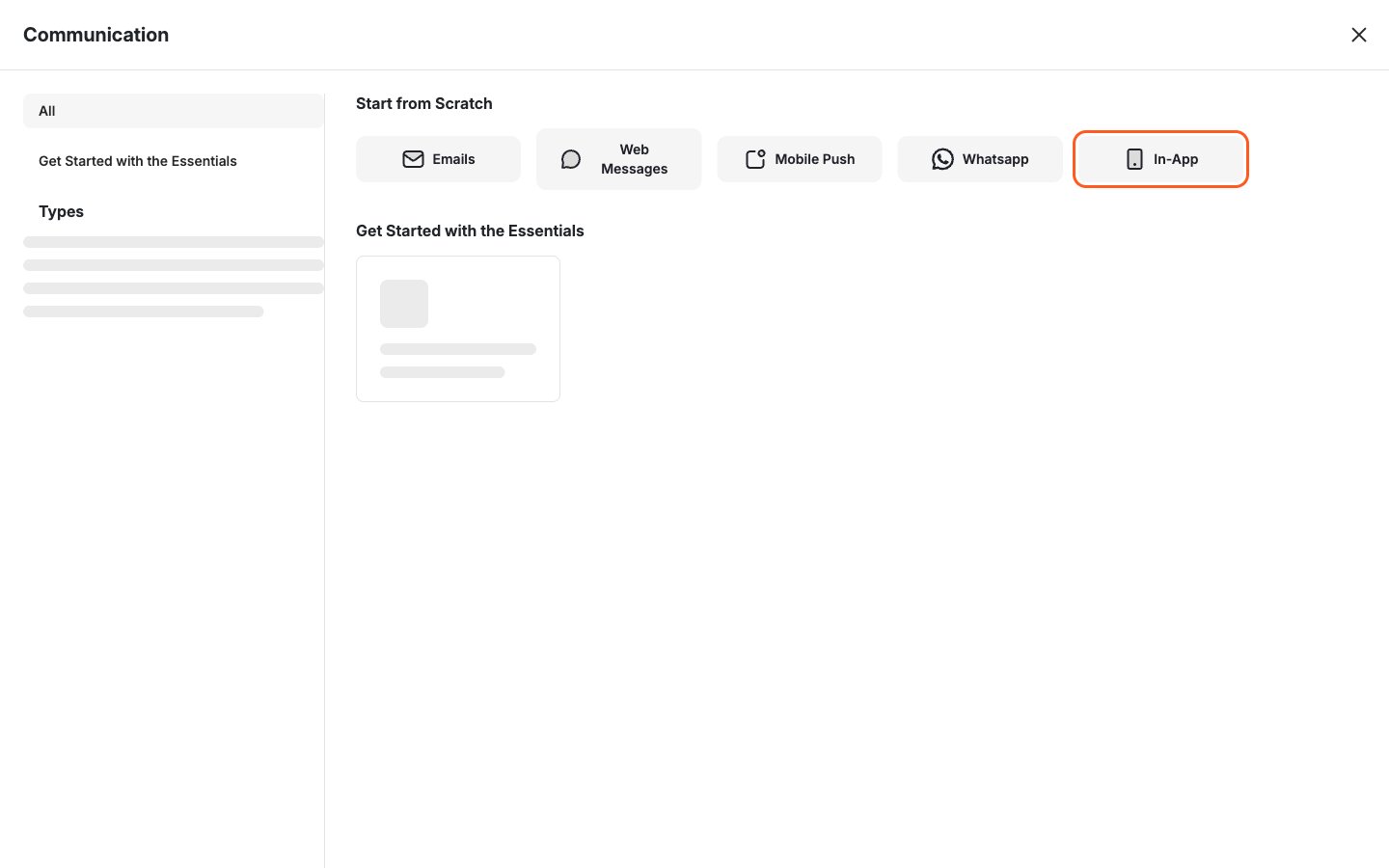
- Select In-App: At the top of the Communication window, choose In-App.
Step 1: Rules
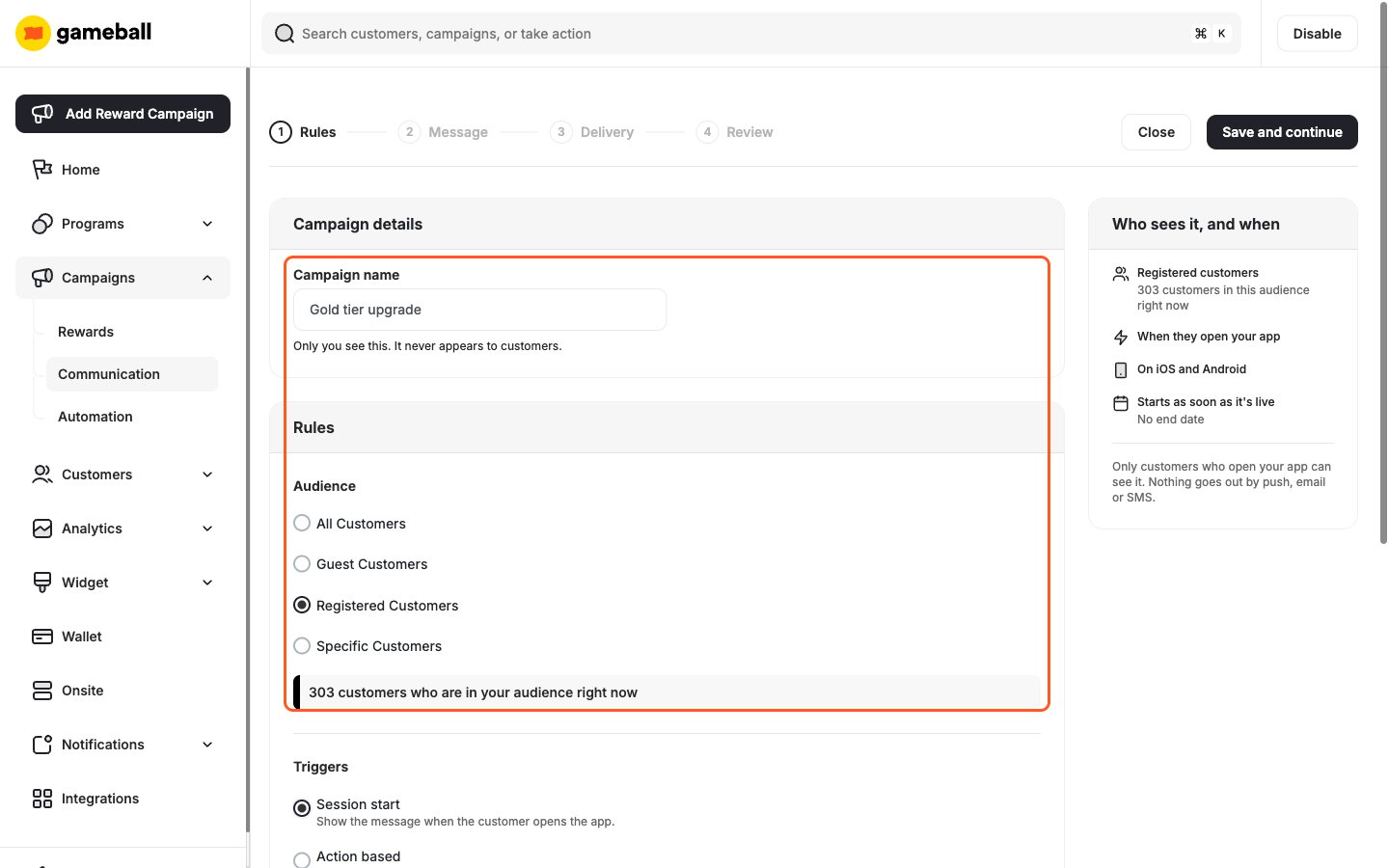
- Name Your Campaign: Enter a Campaign name. Only your team sees it. It never appears to customers.
-
Set Your Audience: In the Audience section, choose who is eligible for this message:
- All Customers
- Guest Customers
- Registered Customers
- Specific Customers
-
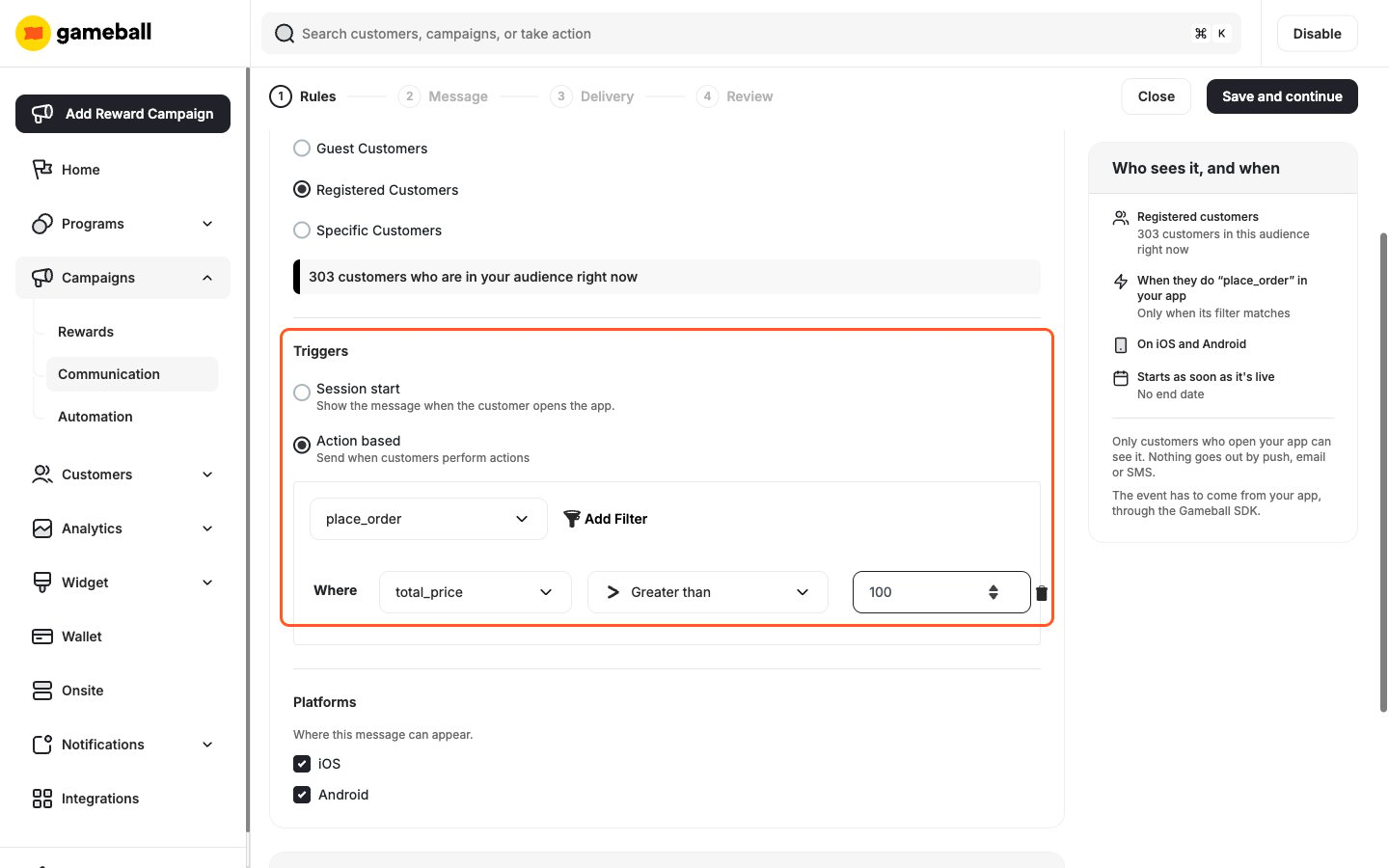
Pick a Trigger: In the Triggers section, choose when the message shows:
- Session start: Shows the message when the customer opens the app.
- Action based: Shows the message when the customer does something in your app. Choose the event, such as
place_order. To narrow it down, click Add Filter and set a condition on the event’s details, for example total_price Greater than 100.
An action-based trigger only works with events your app sends through the Gameball SDK. The event name must match what your app sends exactly, including letter case.
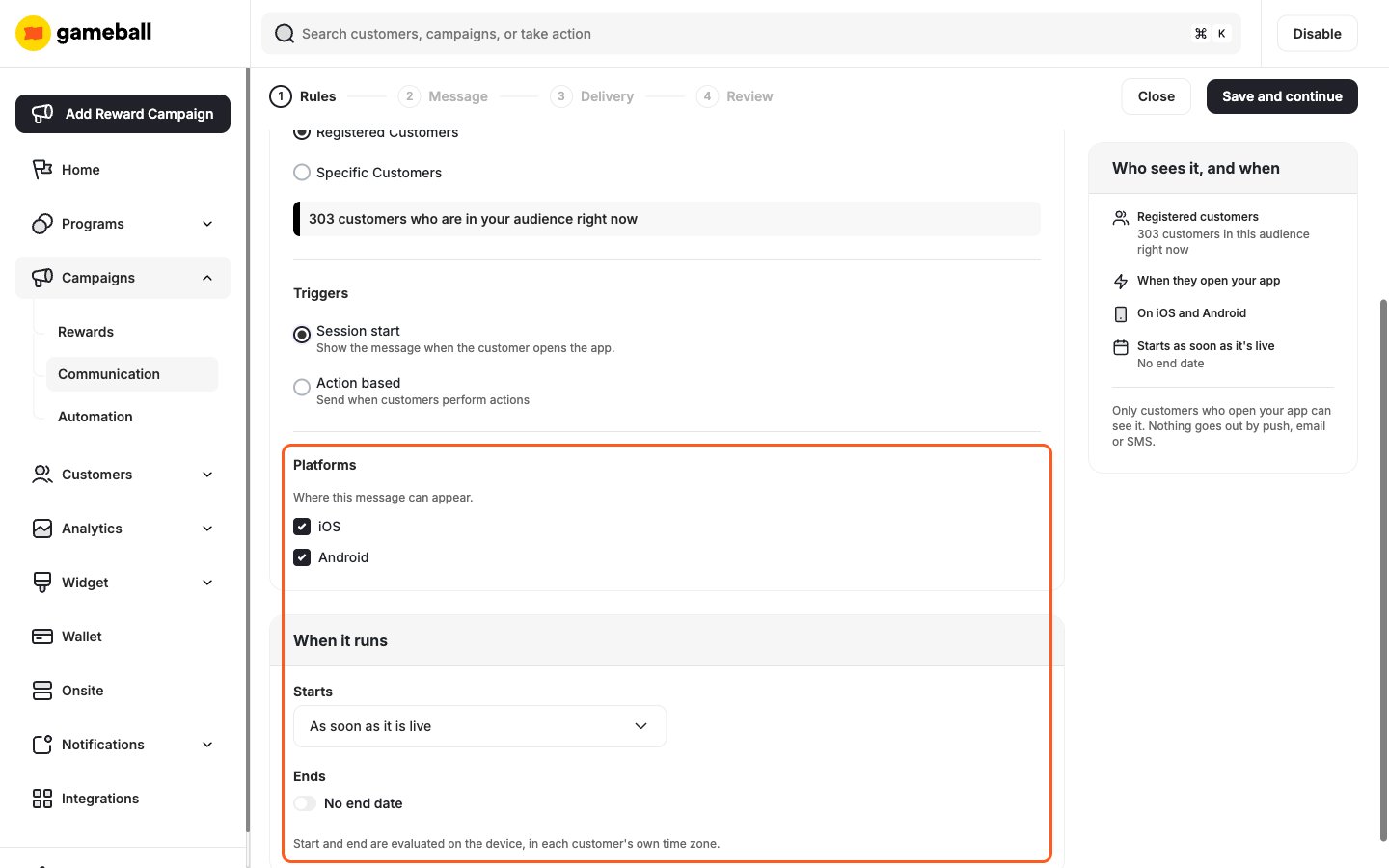
- Choose the Platforms: Under Platforms, select iOS, Android, or both.
-
Set When It Runs:
- Starts: Choose As soon as it is live, or On a specific date.
- Ends: The campaign has no end date by default. Turn on the toggle to set one.
Start and end times are evaluated on the device, in each customer’s own time zone.
- Save and Continue: Click Save and continue.
Step 2: Message
- Choose a Message Type: Pick Slide-up, Modal, or Full screen. You can change it later.
-
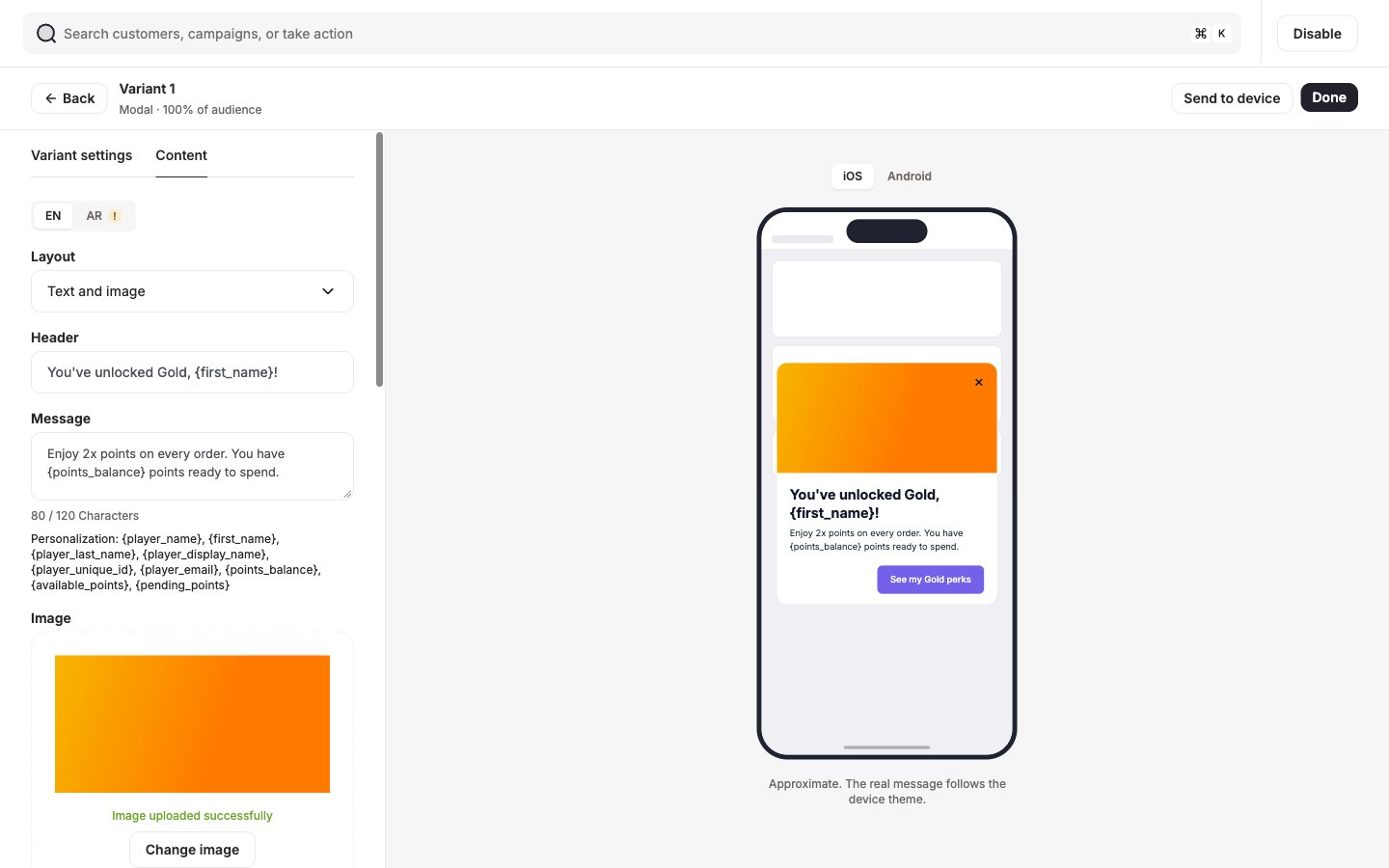
Write the Content: Write on the left and check the live preview on the right. Switch the preview between iOS and Android.
- Languages: Use the language tabs, such as EN and AR, to write the message in each language you support. A tab with a ! still needs content.
- Layout: Choose Text and image, or Image only when your image is the whole message.
- Header: Keep it short and specific.
- Message: Up to 120 characters.
-
Personalize the Message: Insert the customer’s own details with these variables:
{player_name},{first_name},{player_last_name},{player_display_name},{player_unique_id},{player_email},{points_balance},{available_points},{pending_points}. - Add an Image: Upload a PNG, JPEG, JPG, or GIF, up to 5 MB. In a slide-up or modal, the image shows at the top of the message.
-
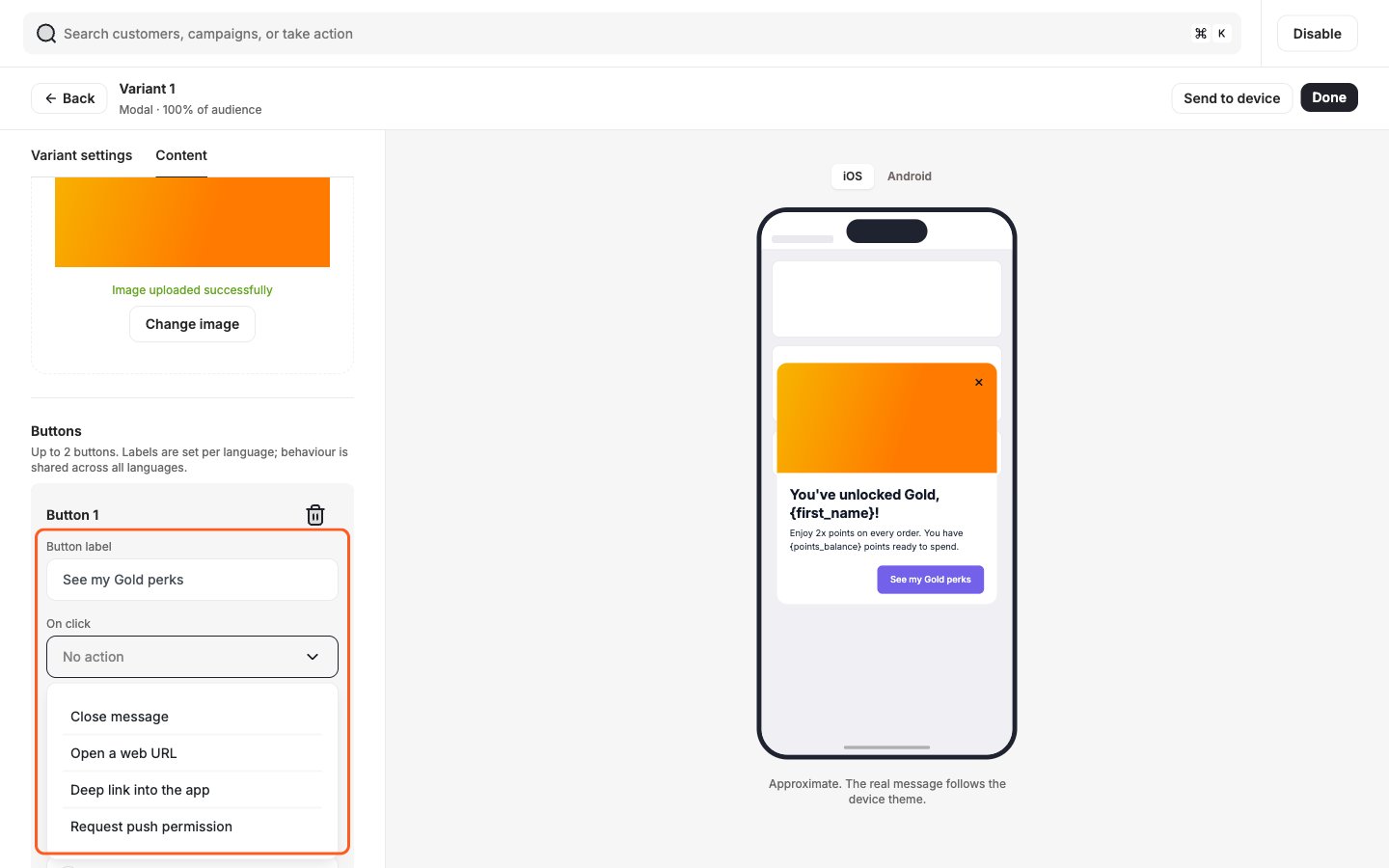
Add Buttons: Click Add button to add up to two buttons. Labels are set per language. What a button does is shared across all languages. Each button also has its own background, text, and border colors.
-
Set the Colors and Tap Behavior:
- Under Message colors, set the Background, Header, Text, Close button, and Overlay colors.
- Under Behaviour, use When tapped to choose what happens when the customer taps the message itself, outside the buttons.
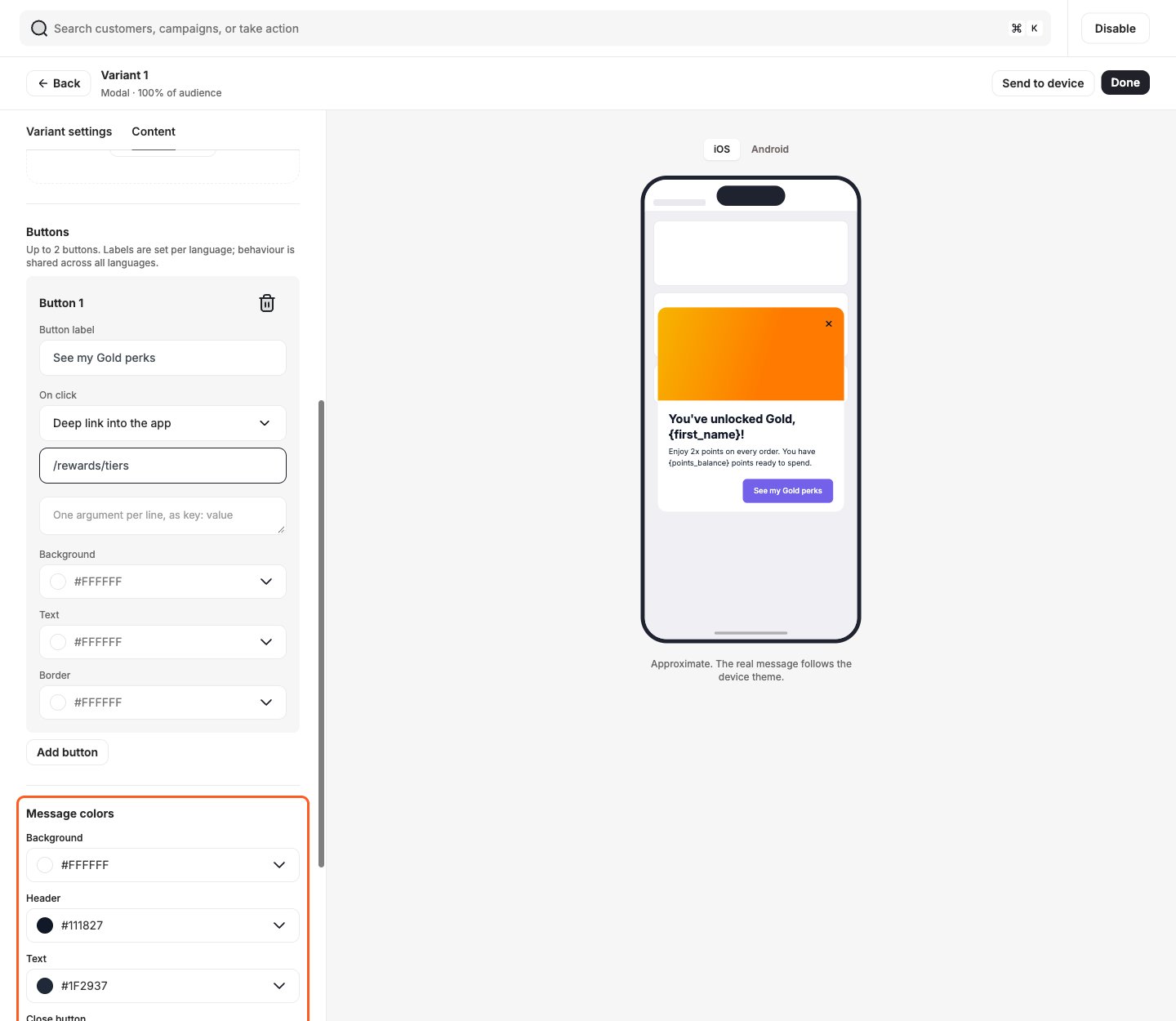
- Click Done: Click Done to save the variant. To test the variant on your own phone first, click Send to device.
Full Screen Messages
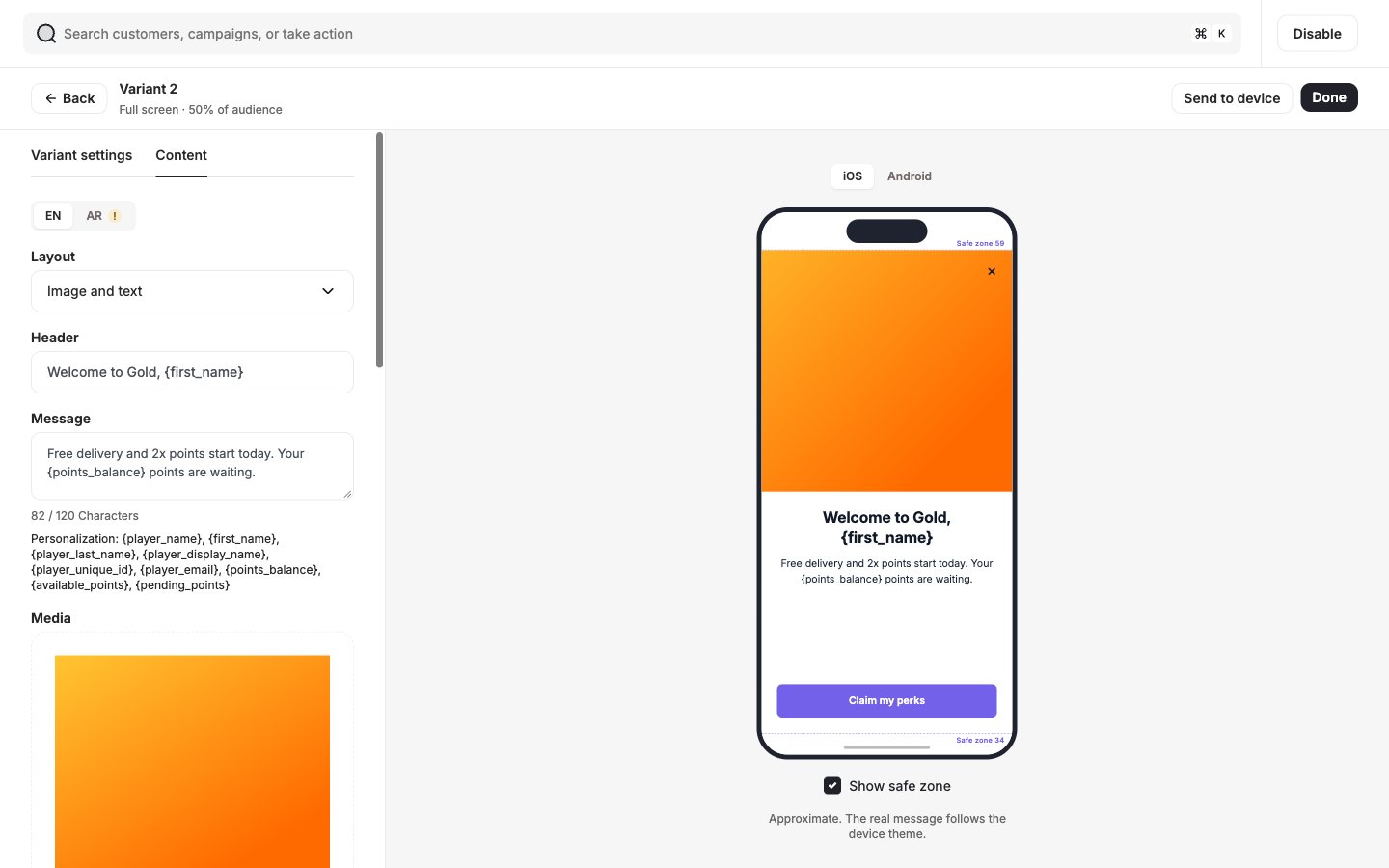
A full screen message has a few extra settings:- Media: The image fills the screen behind your text. An animated GIF plays as uploaded.
- Show safe zone: Turn it on under the preview to see the guides. Keep key content inside them so notches and home bars do not cover it.
- Orientation: Under Display, choose the orientation the message is shown in. If the device is held the other way, the message waits for the next opportunity instead of being skipped.
Variants and Control Group
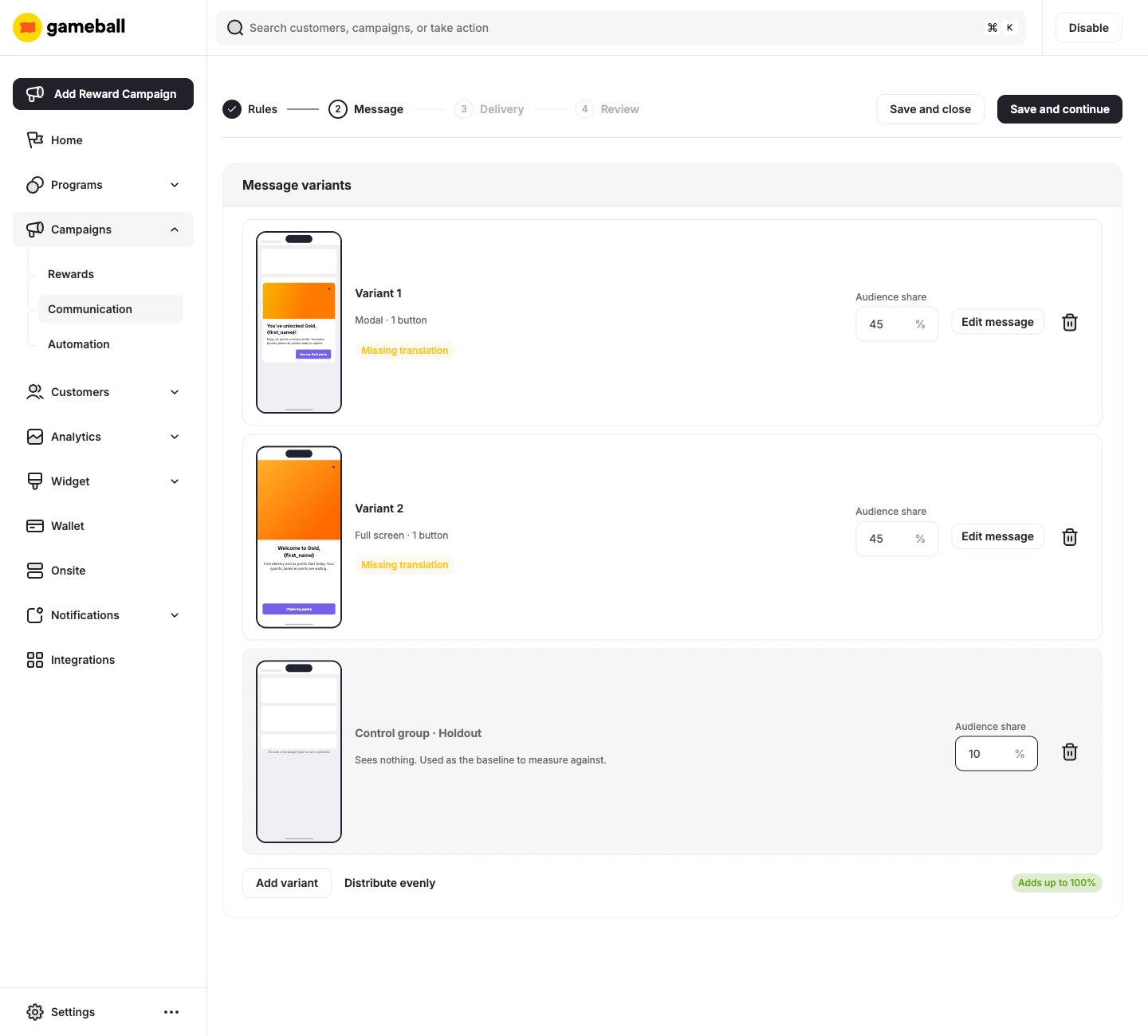
Test more than one version to see which performs better.- Add variant: Click Add variant and build another version, for example a full screen to compare with your modal.
- Split the audience: Set each variant’s Audience share. The shares must add up to 100%. Click Distribute evenly to split them equally.
- Add control group: Click Add control group. These customers are eligible but see nothing. Comparing against them shows whether the campaign made the difference, and not something else, like a seasonal spike.
Step 3: Delivery
-
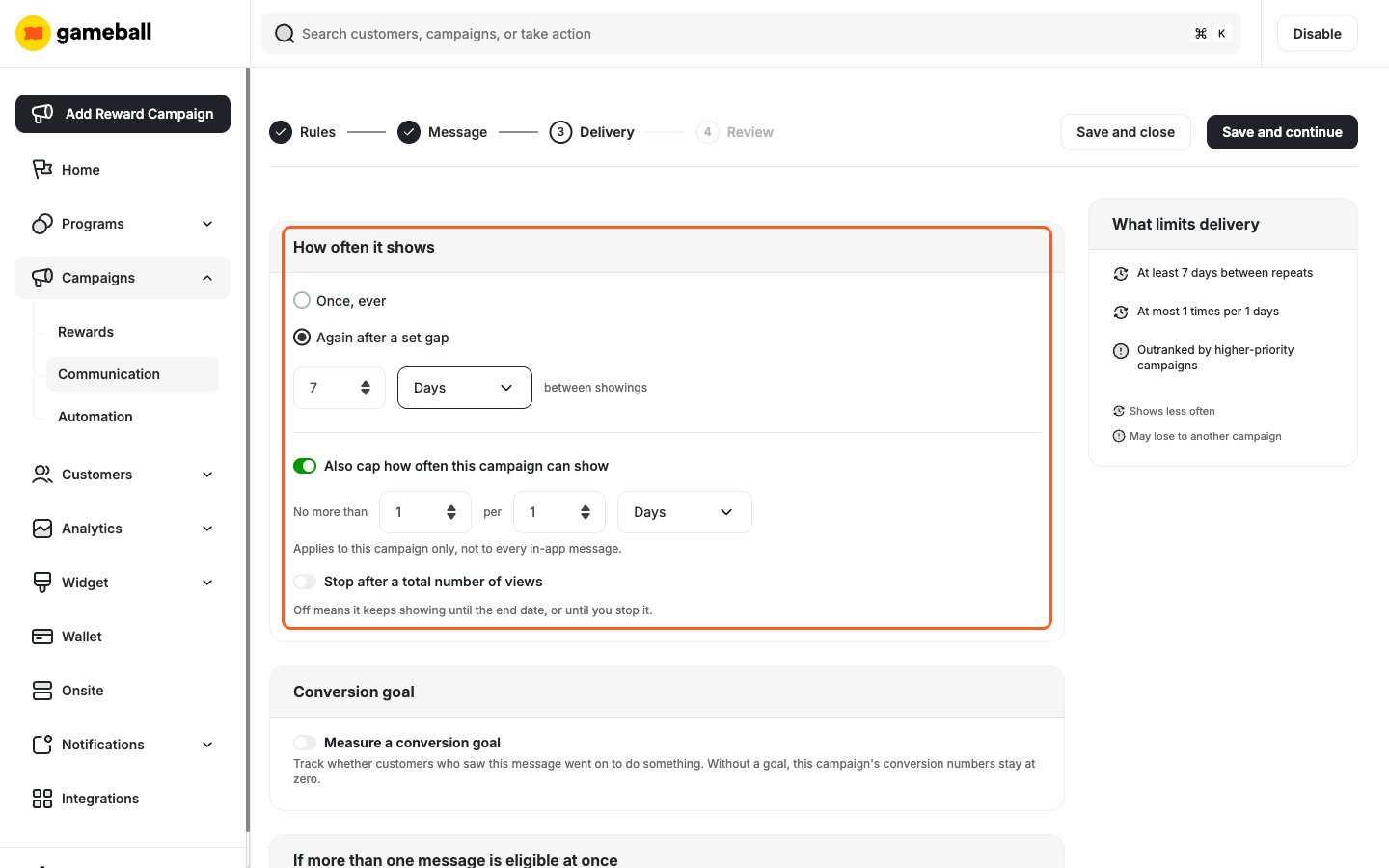
Set How Often It Shows: Choose Once, ever, or Again after a set gap and set the days between showings. You can also turn on:
- Also cap how often this campaign can show: For example, no more than once per day. This cap applies to this campaign only.
- Stop after a total number of views
-
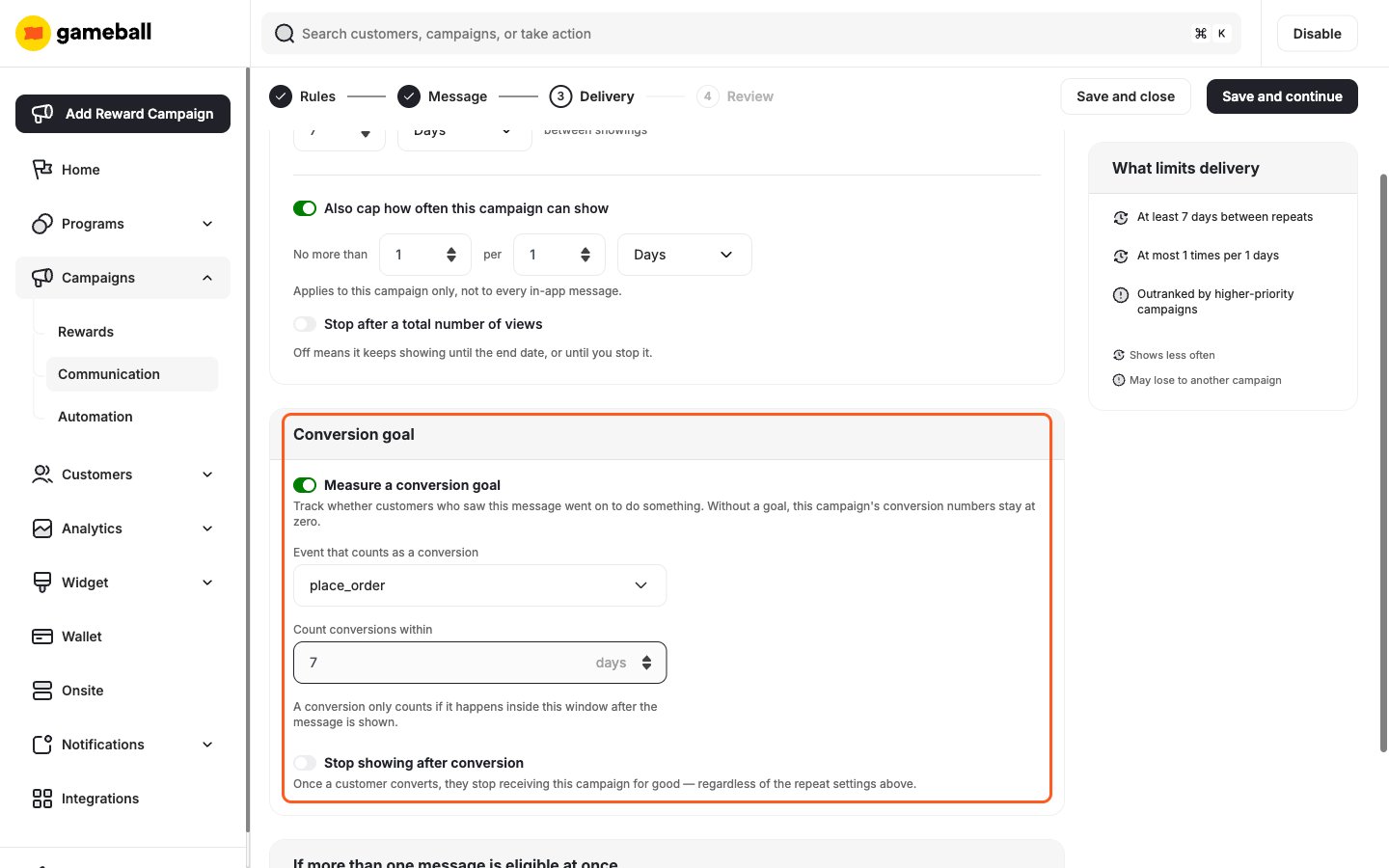
Measure a Conversion Goal: Turn on Measure a conversion goal.
- Choose the Event that counts as a conversion, such as
place_order. - Set Count conversions within, such as 7 days. A conversion only counts if it happens inside this window after the message is shown.
- Each conversion is credited to the campaign and to the variant the customer saw.
- To stop showing the campaign to customers who convert, turn on Stop showing after conversion. This applies for good, whatever the repeat settings above.
- Choose the Event that counts as a conversion, such as
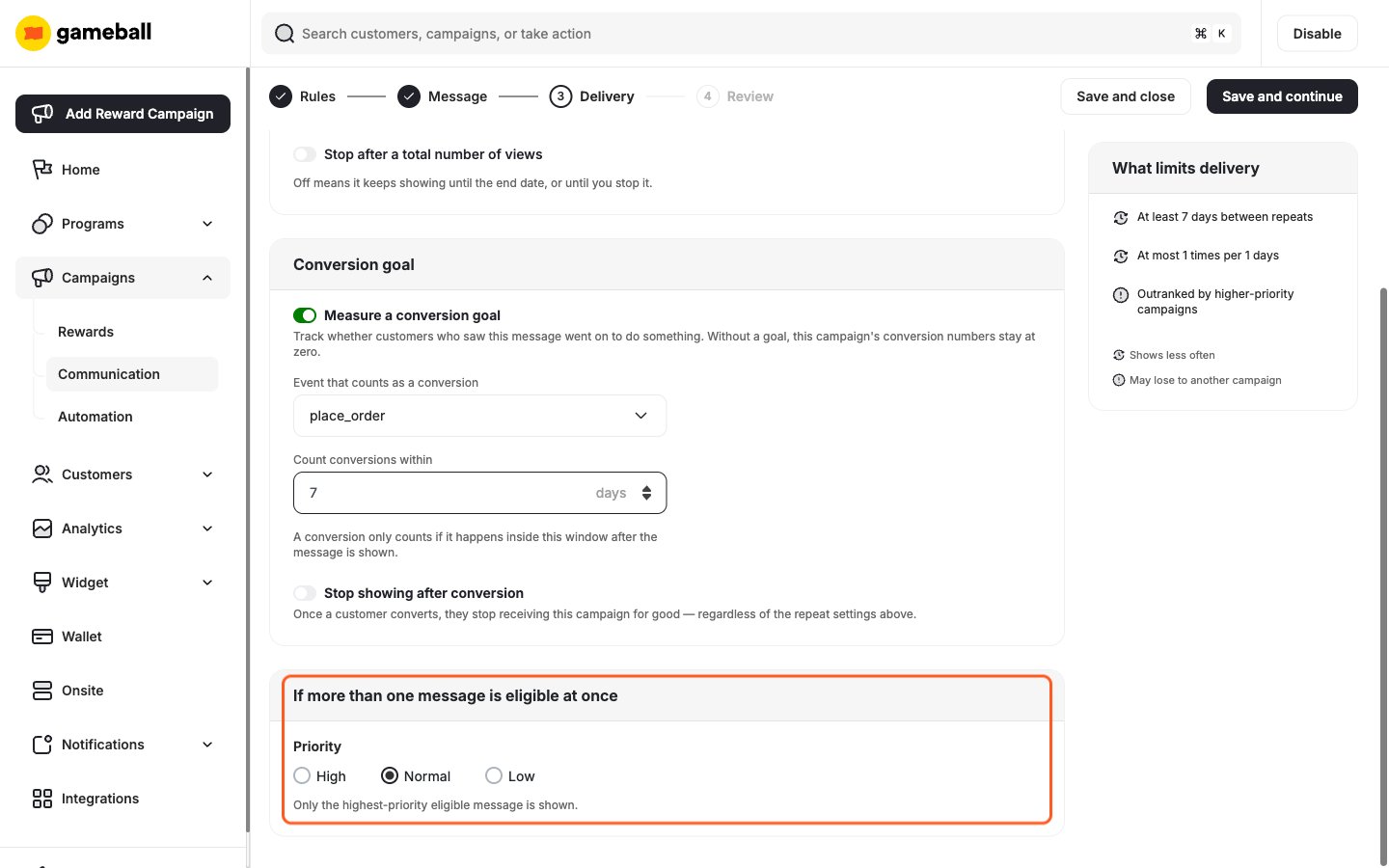
- Set the Priority: Under If more than one message is eligible at once, choose High, Normal, or Low. Only the highest-priority eligible message is shown.
- Save and Continue: Click Save and continue.
Step 4: Review
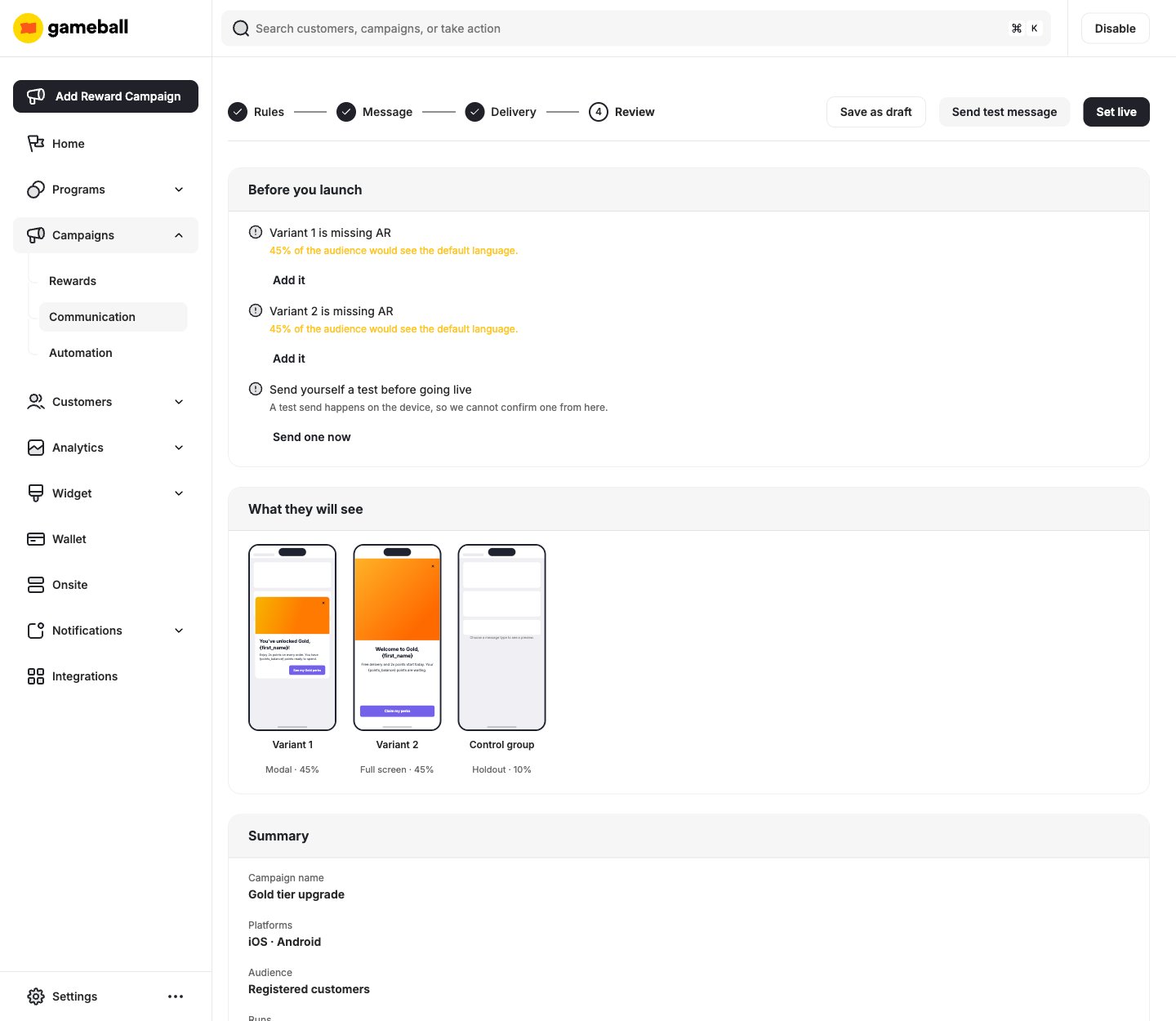
- Check Before You Launch: The Before you launch list shows anything that needs attention. For example, if a variant is missing a language, that share of your audience sees the default language instead. Click Add it to fix it.
- Review What They Will See: Check the preview of every variant and the control group, then check the Summary.
- Send a Test Message: Click Send test message and check it on your phone. The test happens on the device, so the dashboard cannot confirm it from here.
- Set Live: Click Set live. To finish later, click Save as draft.
Account-Level In-App Settings
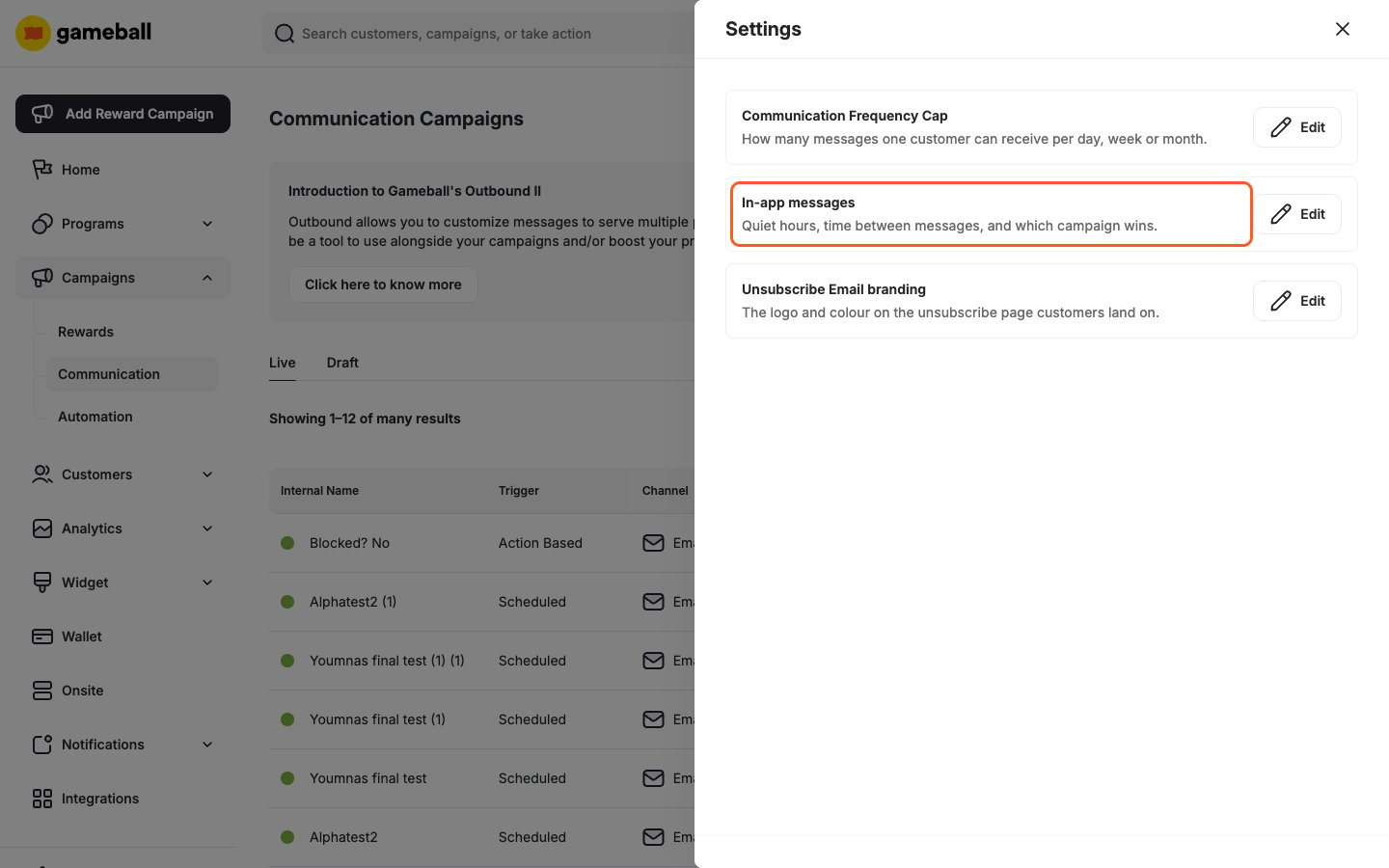
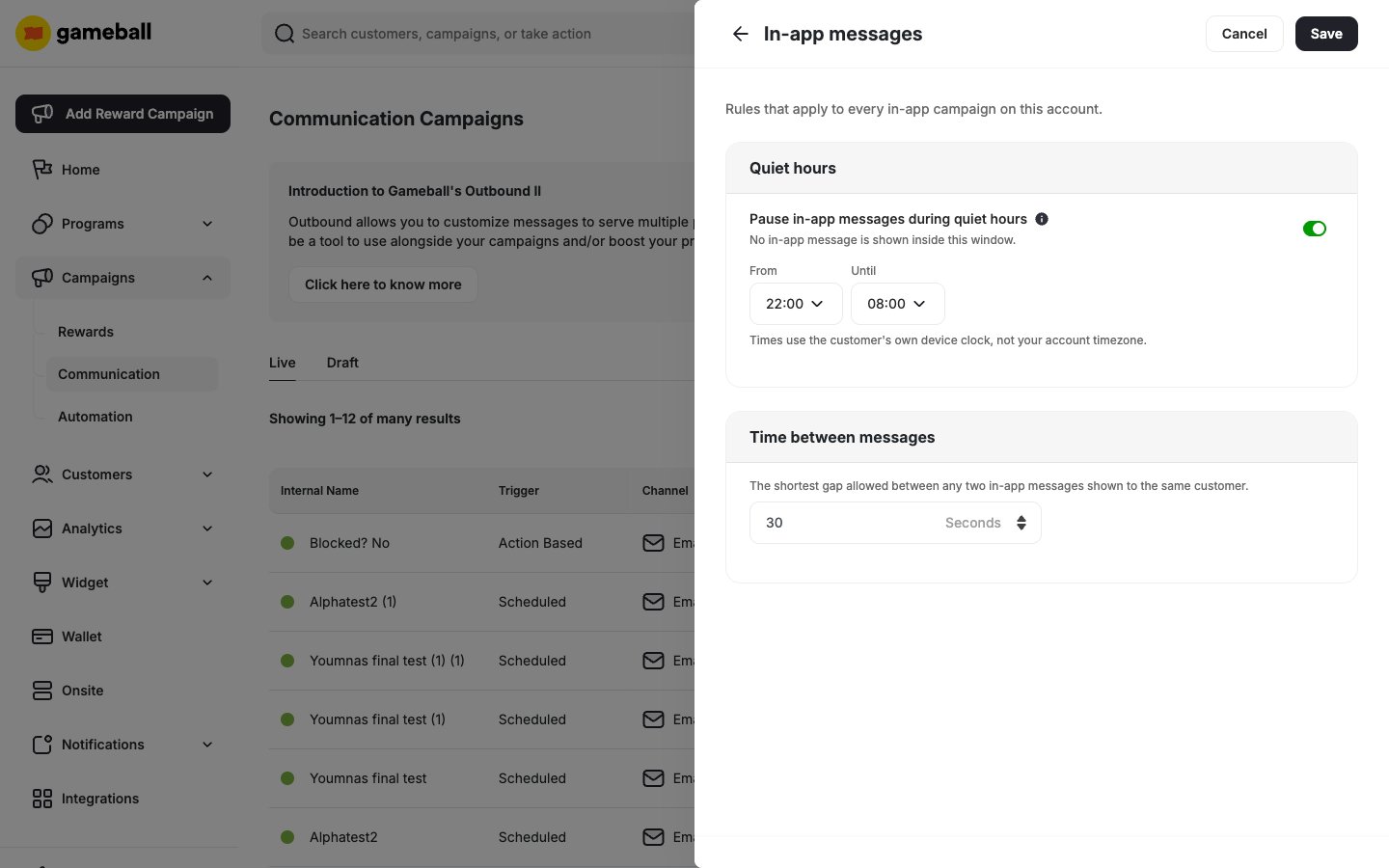
These rules apply to every in-app campaign on your account.- On the Communication Campaigns page, click Settings.
- Next to In-app messages, click Edit.
Tracking Performance
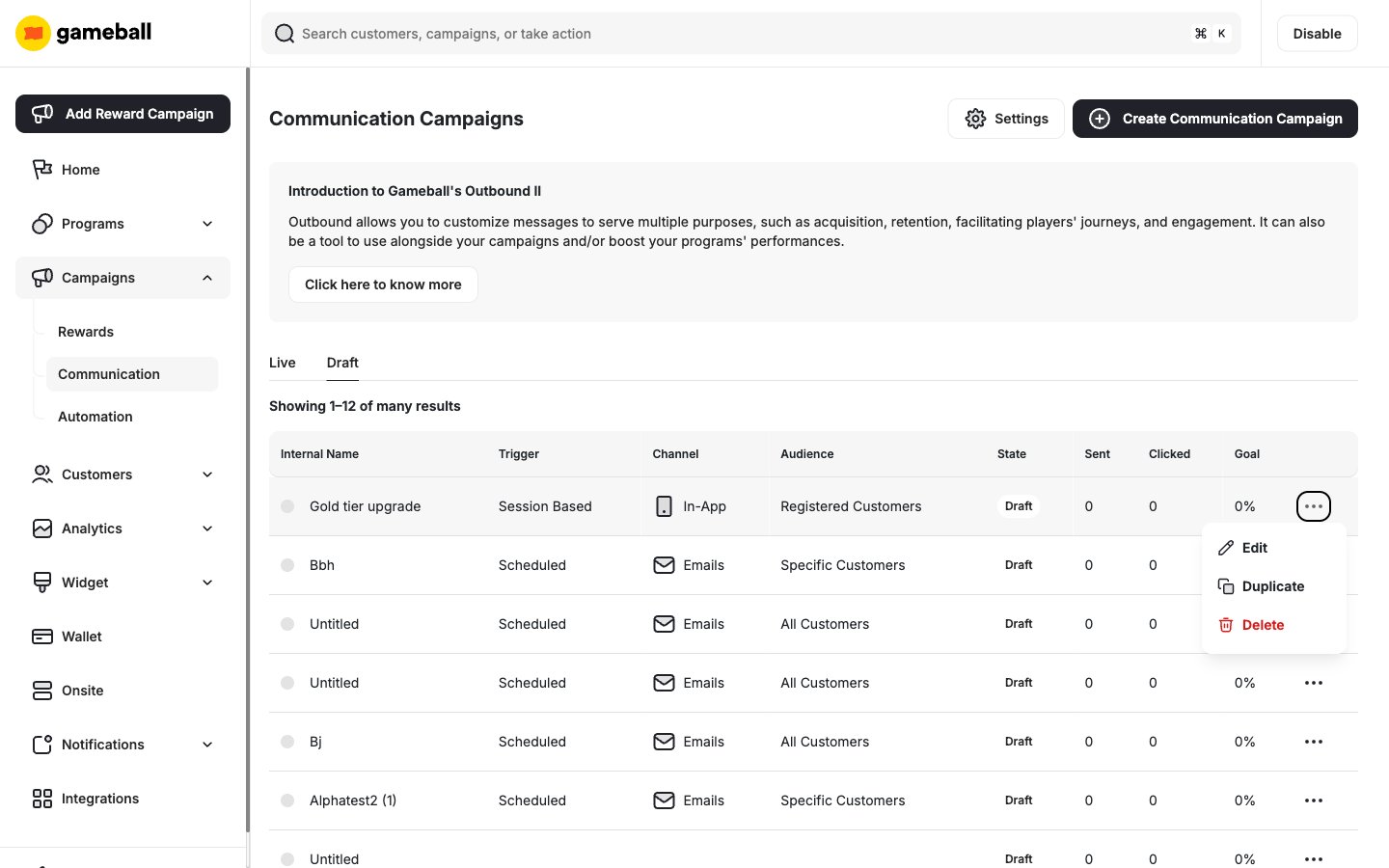
The Communication Campaigns list shows each campaign’s Trigger, Channel, Audience, State, Sent, Clicked, and Goal. In-app campaigns show In-App in the Channel column.Statistics appear 10 to 30 minutes after customers interact with a message.
Managing Campaigns
- Find your campaigns under the Live and Draft tabs on the Communication Campaigns page.
- Click the options menu next to a campaign to Edit, Duplicate, or Delete it.
- Edits to a live campaign reach customers the next time they open your app.
Important Notes
One message at a time. Only one in-app message shows at a time. If two campaigns match the same moment, the higher-priority one shows.
Common Questions
Why is my campaign not showing in the app?
Why is my campaign not showing in the app?
Check that the campaign is live, that it targets the customer’s platform, and that the customer is in the audience. Then check whether they already saw it, whether quiet hours or the time between messages is holding it back, and whether a higher-priority message showed instead. If nothing explains it, ask your development team to confirm that the app runs Gameball SDK 4.0.0 or later and that in-app messaging is turned on in it.
Do customers who don't open the app get the message?
Do customers who don't open the app get the message?
No. In-app messages only show inside your app. To reach customers outside the app, use a push notification campaign.
Can two in-app messages show at the same time?
Can two in-app messages show at the same time?
No. One message shows at a time, and priority decides which one.
Which language does a customer see?
Which language does a customer see?
The customer’s preferred language. If a variant is missing that language, they see your default language.
Do test messages affect my statistics?
Do test messages affect my statistics?
No. Test messages show normally on the device but are not counted in your campaign results.
Create and Configure Mobile Push Campaigns
Reach customers with notifications when they are outside your app.
Create and Configure Web Message Campaigns
Engage customers during their journey on your website.
Dynamic Variables in Communication Campaigns
Personalize campaign content with customer data.