

What to Use the Dynamic Variables For
By allowing event-triggered messages to dynamically incorporate event properties into their content. Whether you’re sending an email, web message, push notification, or SMS, you can now use event-specific data as variables within the message body. This update is particularly useful for transactional messages, ensuring that every communication is relevant, personalized, and context-aware.Use Cases
Subscription Renewal Completion with Personalized Details
Subscription Renewal Completion with Personalized Details
Send an automated renewal thank you message via email, push, or SMS, including customer-specific details like the subscription plan name, ID, and the amount charged.Example: “Hey [Customer Name], your [Gold Membership] subscription was renewed successfully for [Amount] and your payment ID is [Payment ID]. Enjoy our uninterrupted benefits!”
Shipment & Delivery Updates with Live Tracking Links
Shipment & Delivery Updates with Live Tracking Links
For e-commerce stores, dynamically insert tracking numbers, estimated delivery dates, and tracking links in emails and SMS.Example: “Your order [#Order ID] has been shipped! Track your package here: [Tracking Link]. Expected delivery: [Delivery Date].”
How to Set Up and Trigger Transactional Communication Campaigns Using Dynamic Variables
1
Navigate to Communication Campaigns
From the left bar, go to Campaigns then Communication, then click Create Communication Campaign.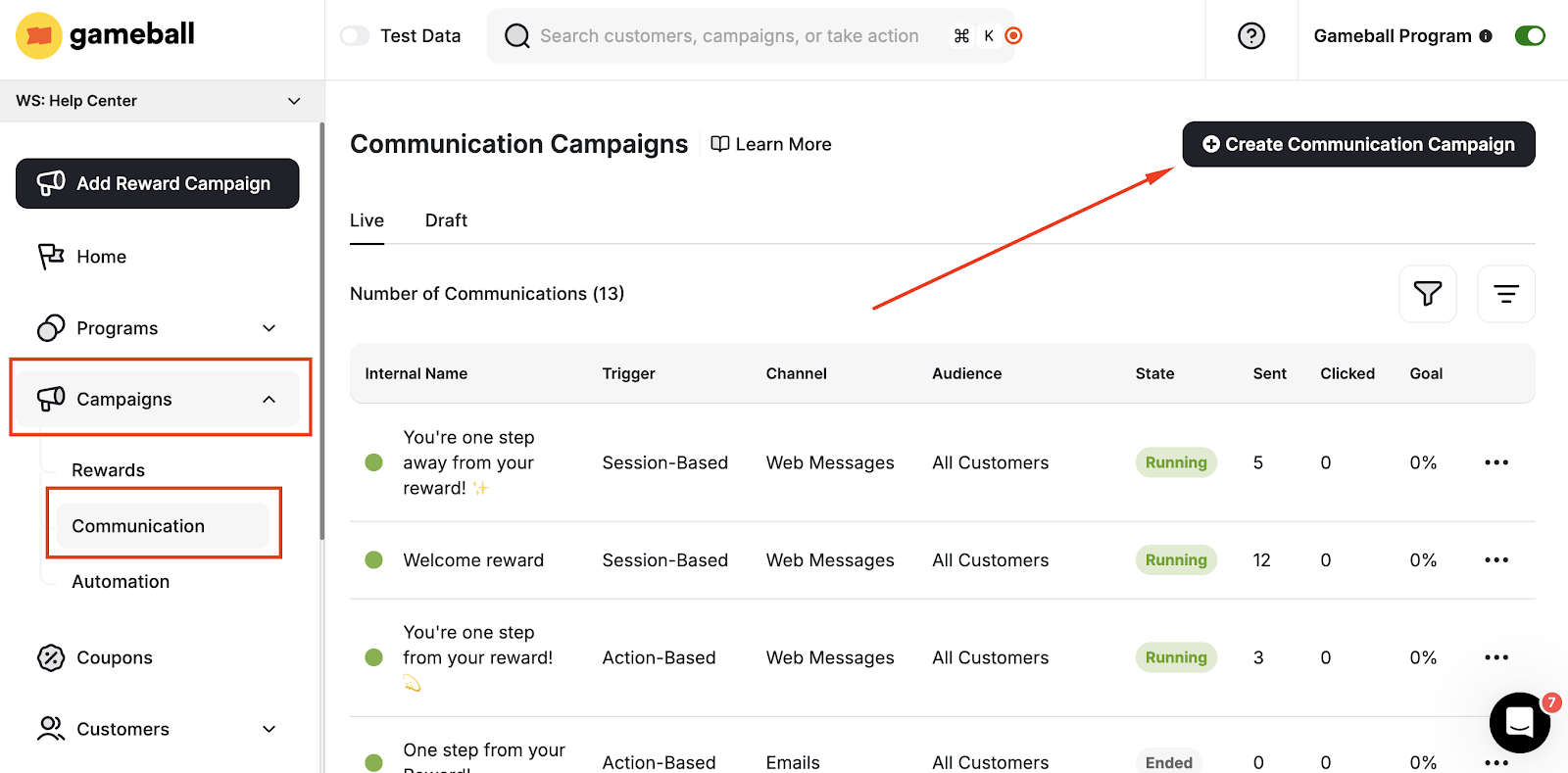
2
Choose the Campaign Type
Choose the type of campaign.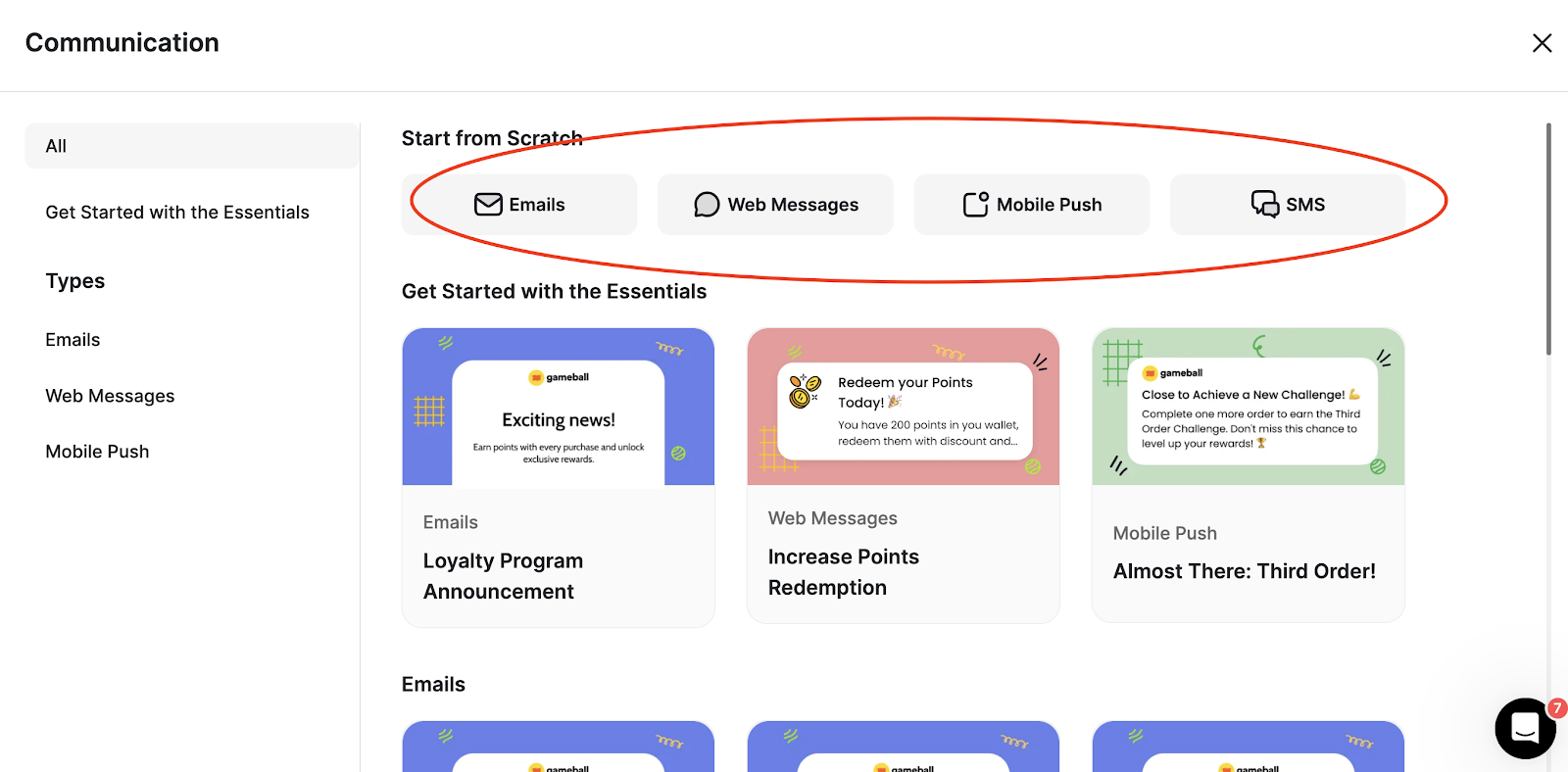
3
Follow the Configuration Steps
Follow the normal configuration steps for creating a communication campaign.
4
Select Action-Based Trigger
Under Triggers, you must choose Action based.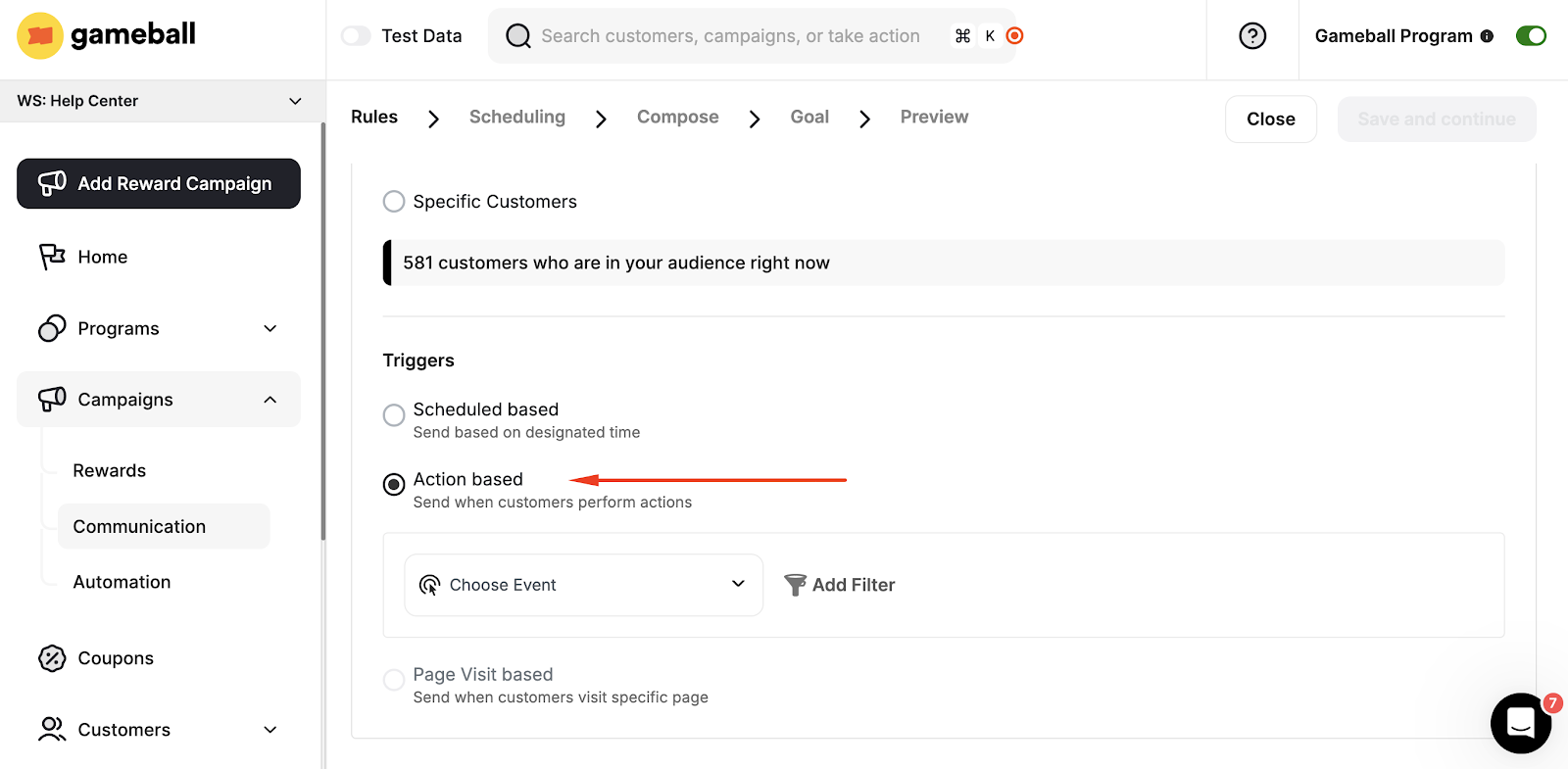
5
Choose the Transactional Action
Choose the type of transactional action you want to set as a trigger for the message. You can choose actions.
6
Proceed to Scheduling
Proceed with the scheduling step. Afterwards, you will move to the Composing part.
7
Use Dynamic Variables in the Message
In the Composing part, while composing the Head and Body of your message, you can integrate some variables into the message.To use the event-related Dynamic Variables, scroll down the list to find them under Event Variables.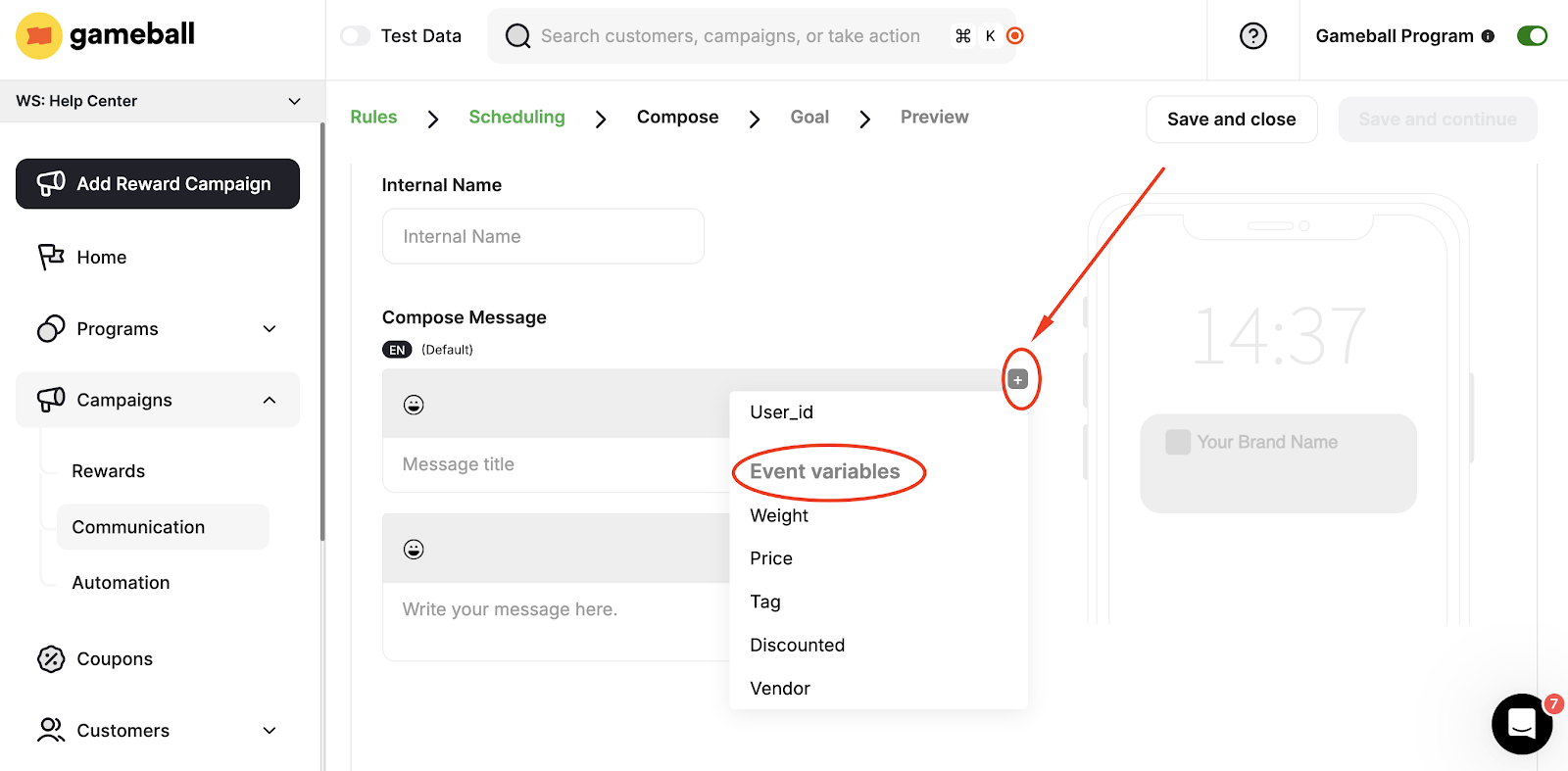
How to Set Up and Trigger Transactional Email Campaigns Using Dynamic Variables
Emails usually have a slightly different configuration process. To create an email using dynamic variables, follow the first steps of creating an action-based communication campaign, then when you reach the step for writing the content or body of the email, click Merge Tags to use the event-related variables.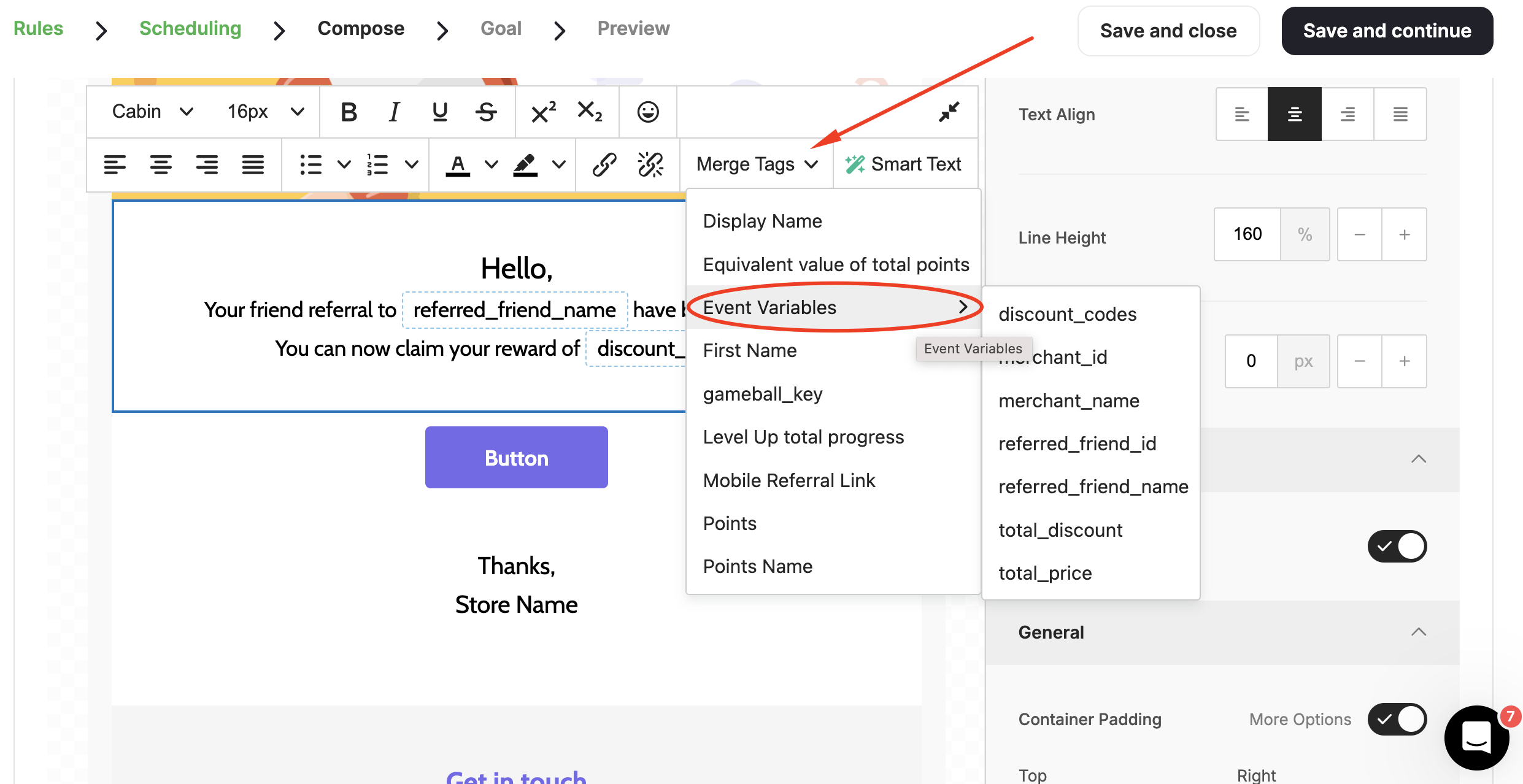
Create & Configure Email Campaigns
Learn how to build and configure email communication campaigns step by step.
Create & Configure Web Message Campaigns
Learn how to build and configure web message campaigns for real-time customer engagement.