

As a multi-brand company, you might be facing some difficulties with unifying your customer engagement under one loyalty experience. Gameball has now made that possible with its Merchants feature.
You can easily create a crossover rewards experience where your customers can redeem and use cashback points with every purchase they make at any of your brands or stores. They can also receive a different cashback value depending on the brand.
This article tackles the first step, which is creating a new merchant for your brand or store.
Prerequisites
- Ensure your subscription plan is Guru.
- Contact Gameball support to enable the Merchants feature.
How to Create a New Merchant
1
Navigate to Merchants
On the Gameball Admin Dashboard, go to Admin Settings > Merchants.
2
Create a New Merchant
Click Create New Merchant.
3
Enter Merchant Details
Enter the brand ID and name under Merchant Unique ID and Merchant Name.
4
Add Branches (Optional)
If you want to add different branches to the brand, click Add Branches. Enter the branch ID and name under Branch Unique ID and Branch Name.
5
Save the Merchant
Once all details are filled in, click Create.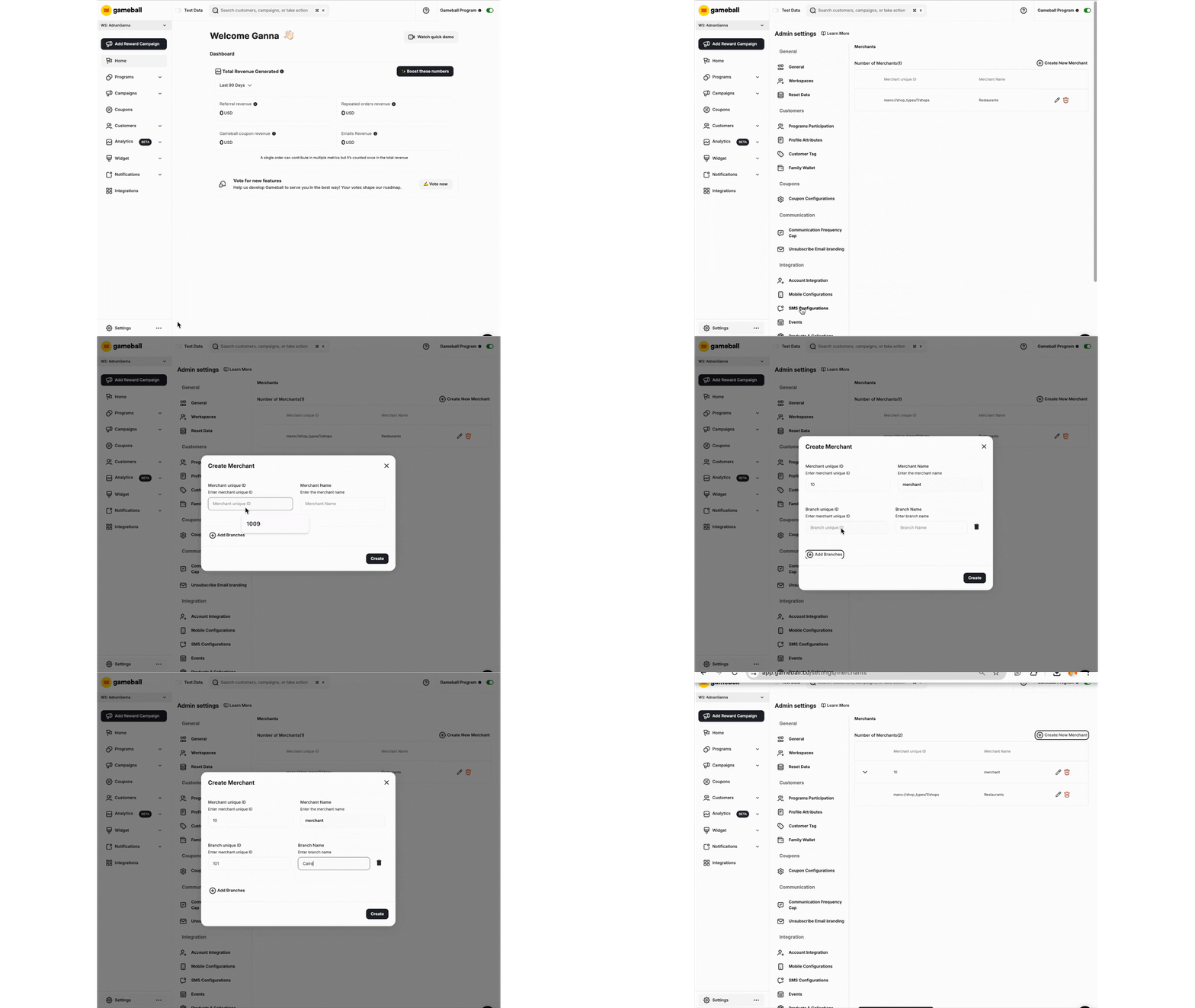
Important Notes
Common Questions
Can I add multiple branches under the same merchant?
Can I add multiple branches under the same merchant?
Yes, you can add different branches under the same merchant by clicking Add Branches during the merchant creation process.
What happens if a transaction is made with an unregistered brand?
What happens if a transaction is made with an unregistered brand?
Gameball will automatically create a new merchant and ID to complete the transaction if it does not exist.
Related Articles
Configure Cashback per Brand
Set up different cashback values for each brand or store.