

Shopify Flow is a powerful automation tool that lets you seamlessly connect Gameball Loyalty with other Shopify apps. Use it to build custom workflows and enhance your loyalty program in multiple ways.
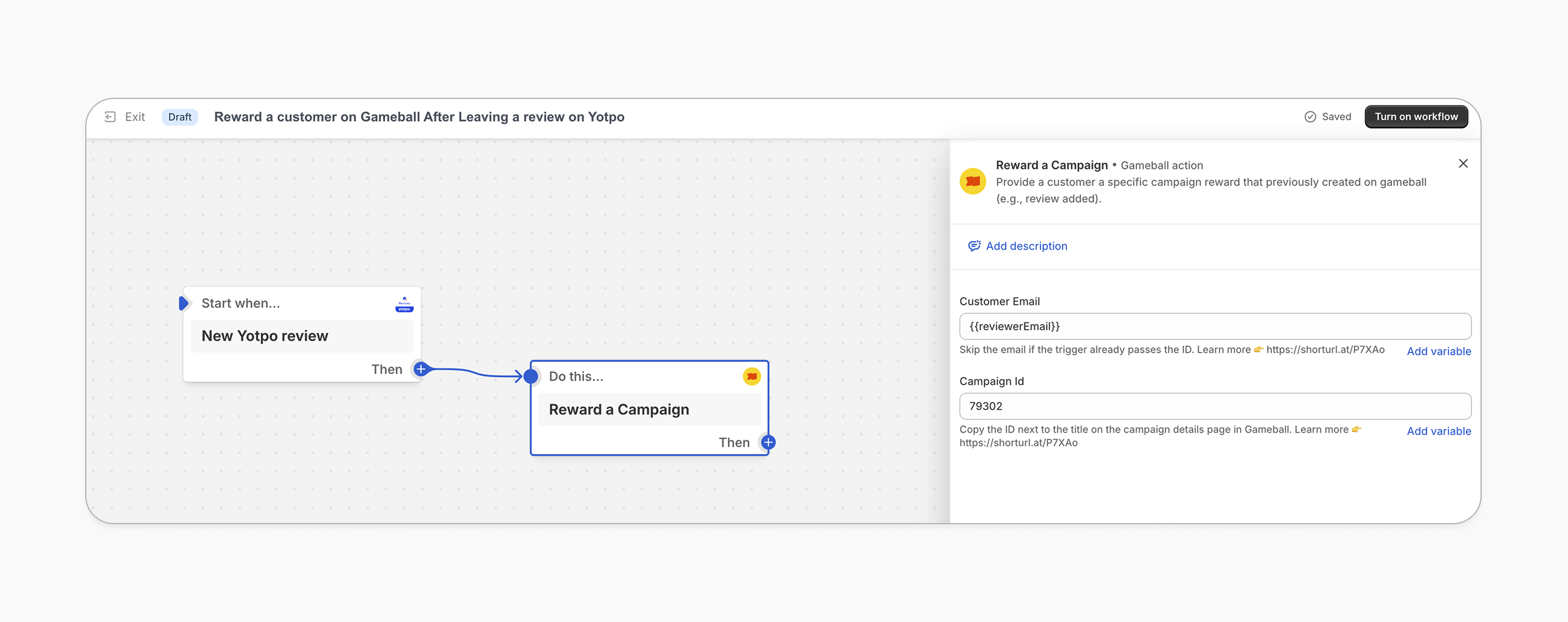
Use Shopify Flow templates to reward customers on Gameball based on actions from other apps — for example, leaving a review on Yotpo, Reviews.io, AG Product Reviews, or any other Shopify Flow-compatible review app.
A Shopify Flow workflow consists of three main parts: Triggers, Conditions, and Actions. Learn more in the full guide.
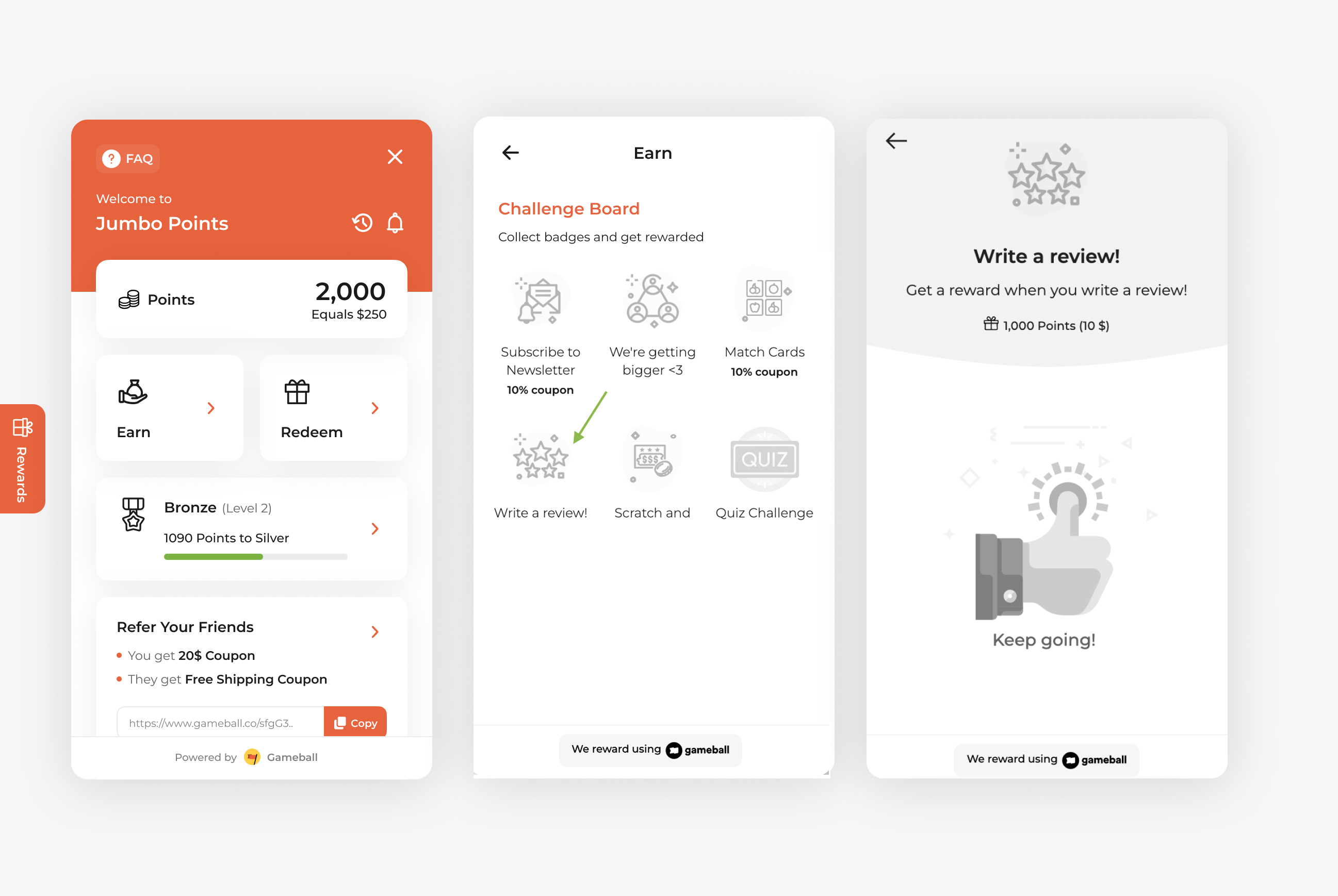
How to Set Up
- On Gameball
- On Shopify Flow
1
Open Gameball
Log in to your Gameball Admin Dashboard.
2
Add a New Reward Campaign
Click Add Reward Campaign.
3
Select the Template
Choose the “Write a review” template tagged with Shopify Flow.
4
Edit the Campaign Setup
Configure your campaign’s audience, rewards, and other settings.
5
Set Live
Click Set Live to activate your campaign.
6
Copy the Campaign ID
After creating your campaign, copy the Campaign ID from the campaign details page.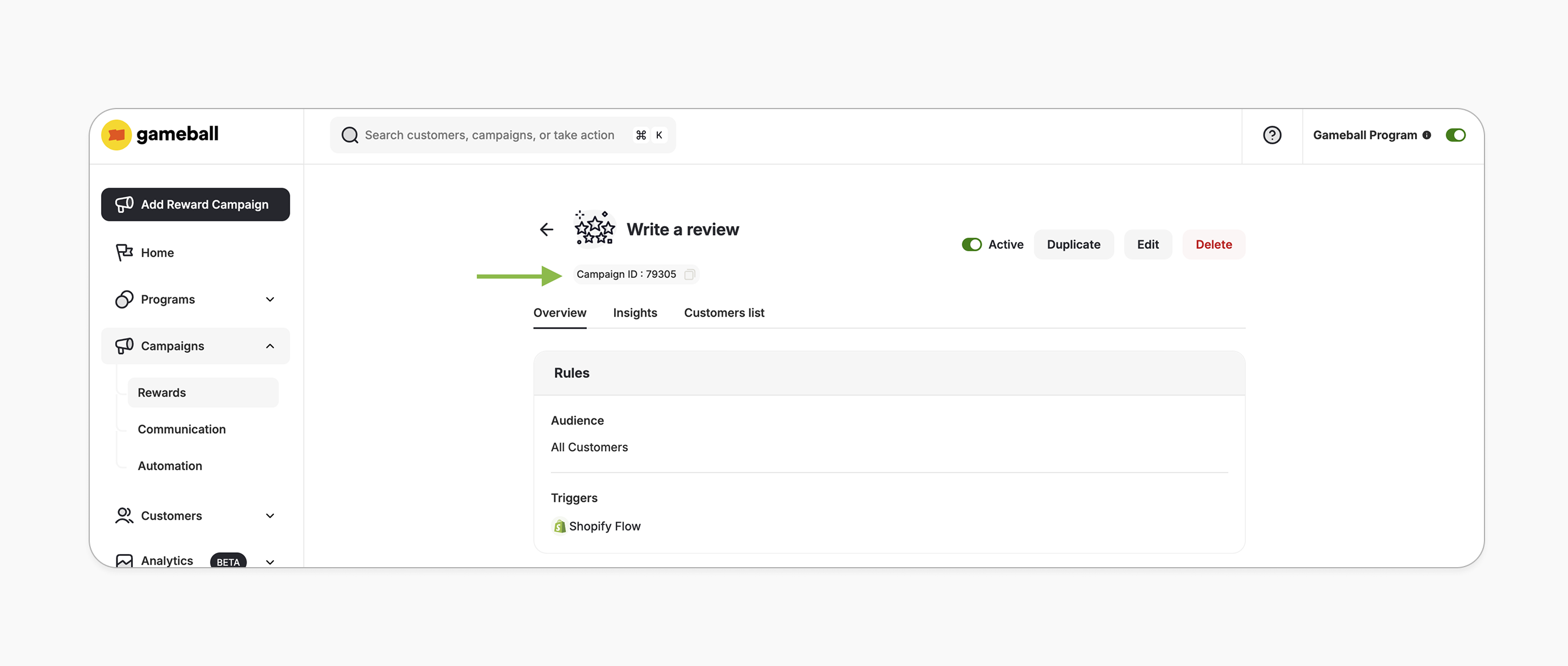
How It Works for Customers
1
Customer Leaves a Review
The customer leaves a review (e.g., via Yotpo).
2
Shopify Flow Triggers
Shopify Flow triggers the workflow based on the review response.
3
Gameball Rewards the Customer
Gameball rewards the customer with the reward set in the “write a review” campaign.
4
Reward Notification
The customer is notified via the widget or email, depending on your configuration. Learn more.
Important Notes
RepeatabilityThe Write a Review campaign template defaults to Limited to 1 time overall — meaning each customer can only earn the reward once. You can change this in the campaign setup under Repeatability, where you can allow unlimited earnings, set a higher overall cap, or define a time-based limit (e.g., once per month).
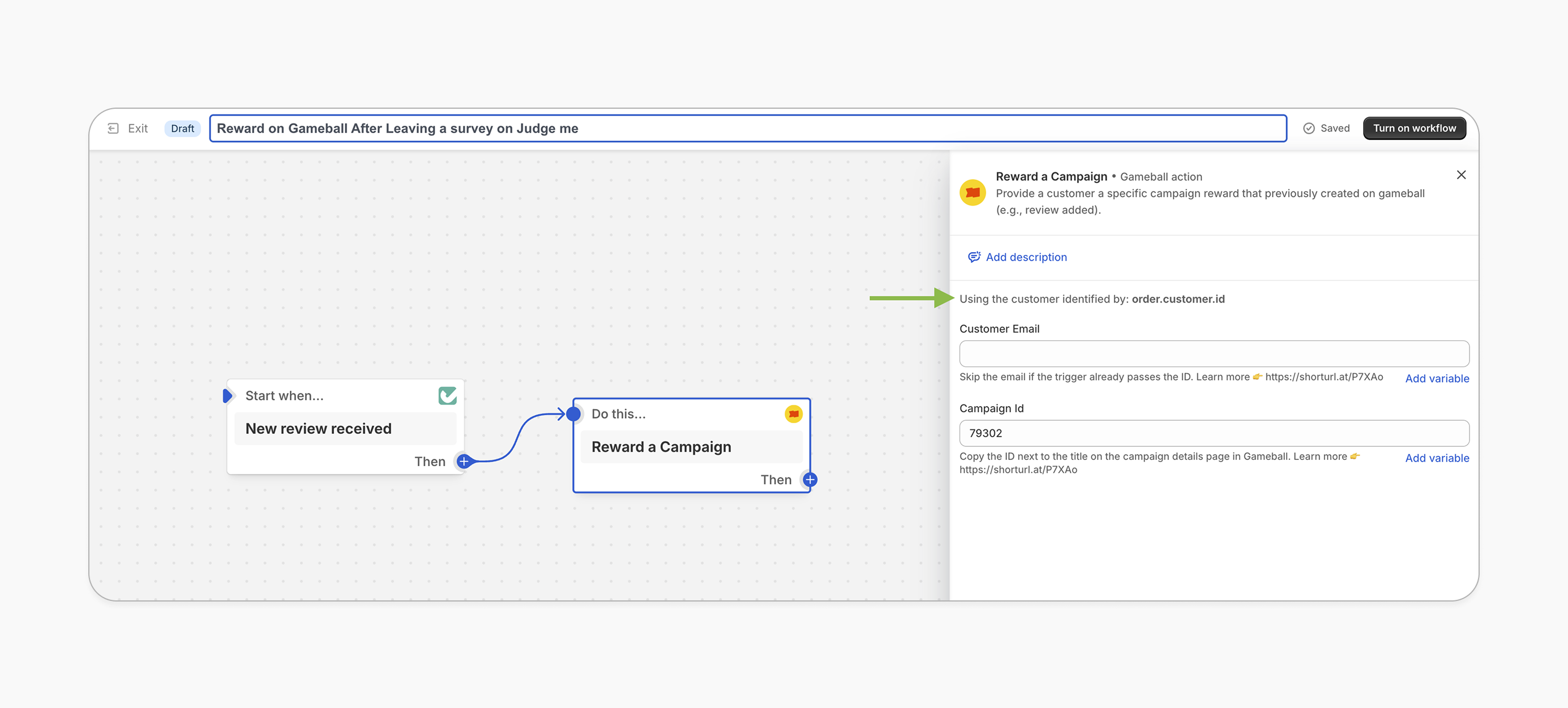
Skip Email FieldWhen setting up Gameball as an action in Shopify Flow, you may not need to fill in the email field if the trigger app already passes the customer identifier automatically. In this case, the identifier will appear just above the email field.
Related Articles
Shopify Flow Guide
Learn how to build custom workflows using Shopify Flow with Gameball.
Set Up a Reward Campaign
Learn the full setup process for creating and launching reward campaigns.
Reward Types in Gameball
Explore the different reward types available in Gameball campaigns.
Notification After Earning a Reward
Configure how customers are notified when they earn a reward.