

Plan Availability
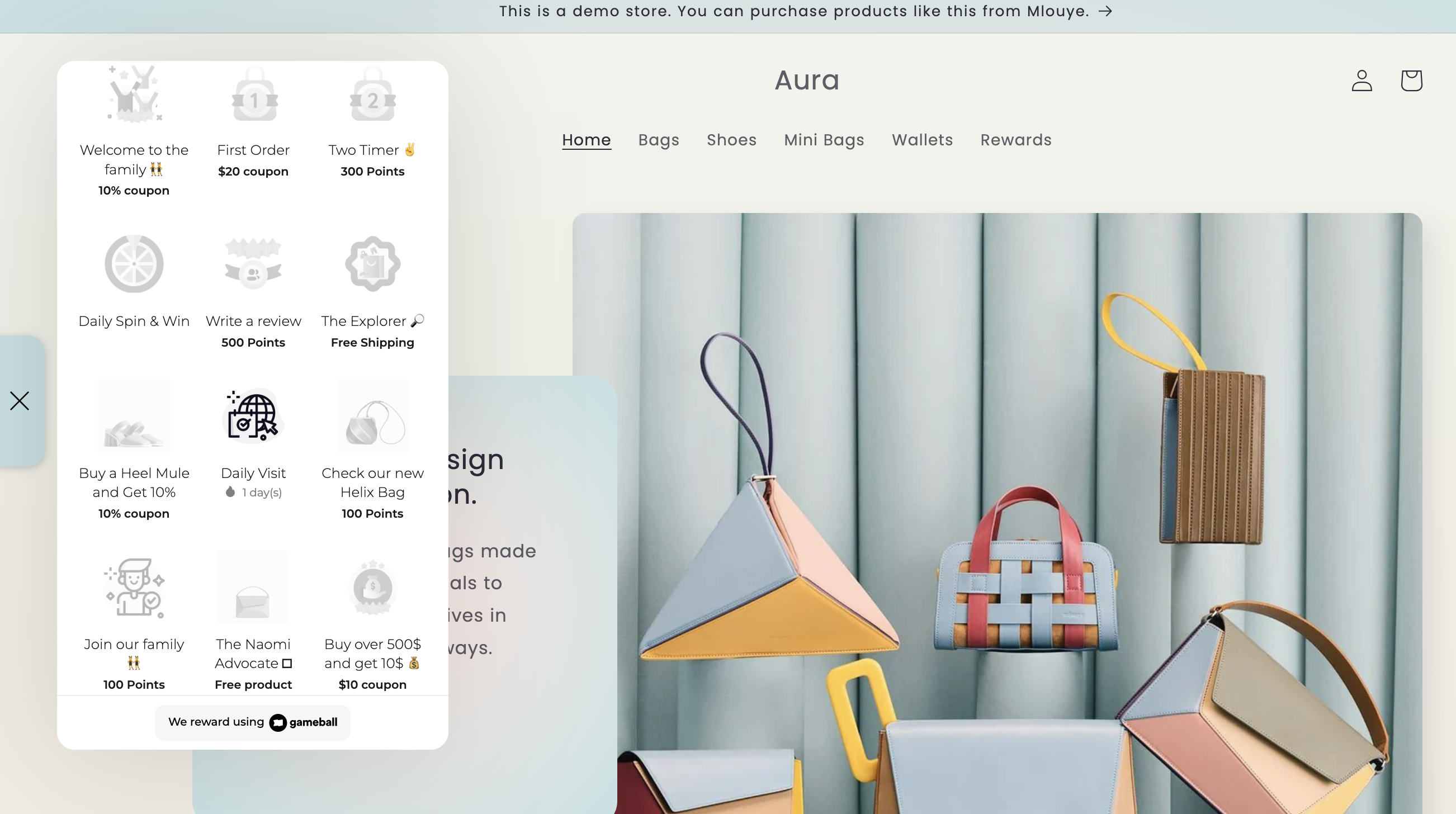
Through Gameball, you can add a game-like flavor to your customers’ experience. Turn your product categories into badges collected and achieved by your customers and added to the Gameball widget.
How Will This Work?
Every category on your Shopify store will have a badge. When your customers buy from these categories, they will earn these badges. Here are some examples of how this looks for different store types:Characters Shirts Store
Characters Shirts Store
Your store has different shirt categories; every category will have a badge like the ones below:
Kids Toys Store
Kids Toys Store
Your store has different toys/gadget categories; every category will have a badge like the ones below: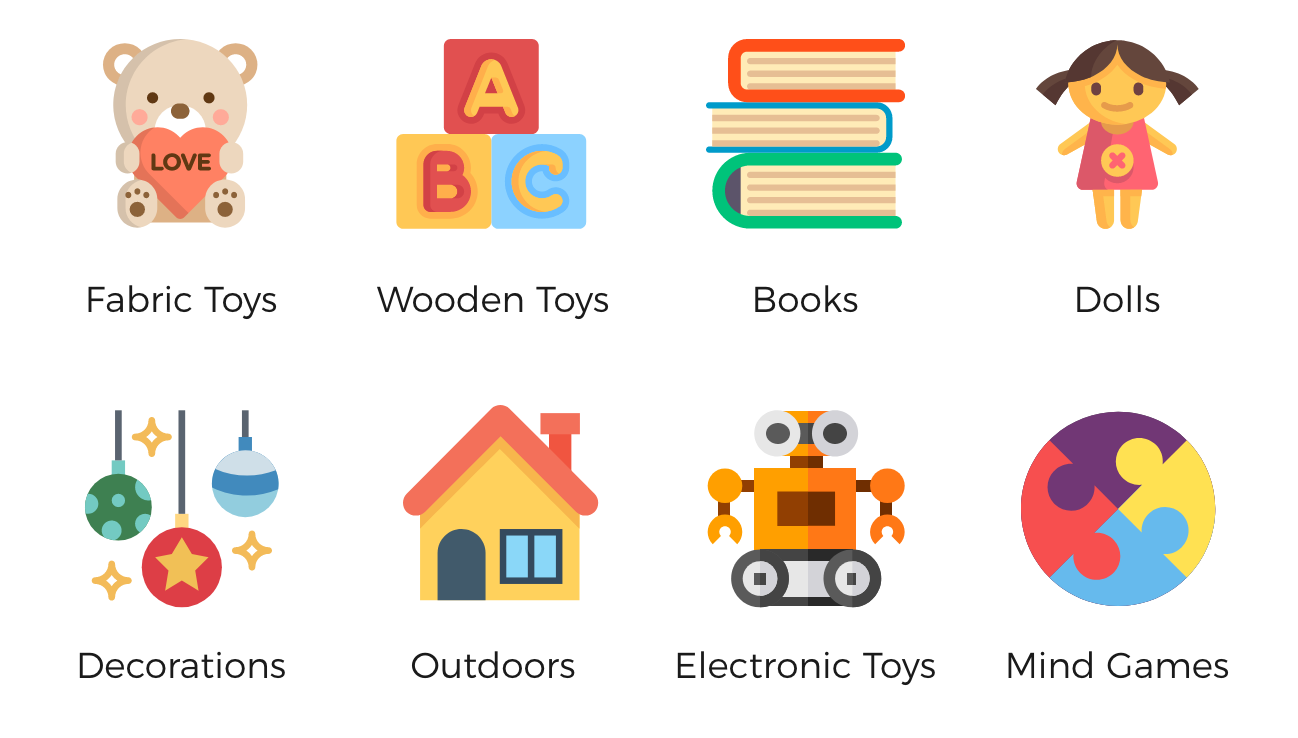
Online Hypermarket
Online Hypermarket
Your online market has different categories; every category will have a badge like the ones below: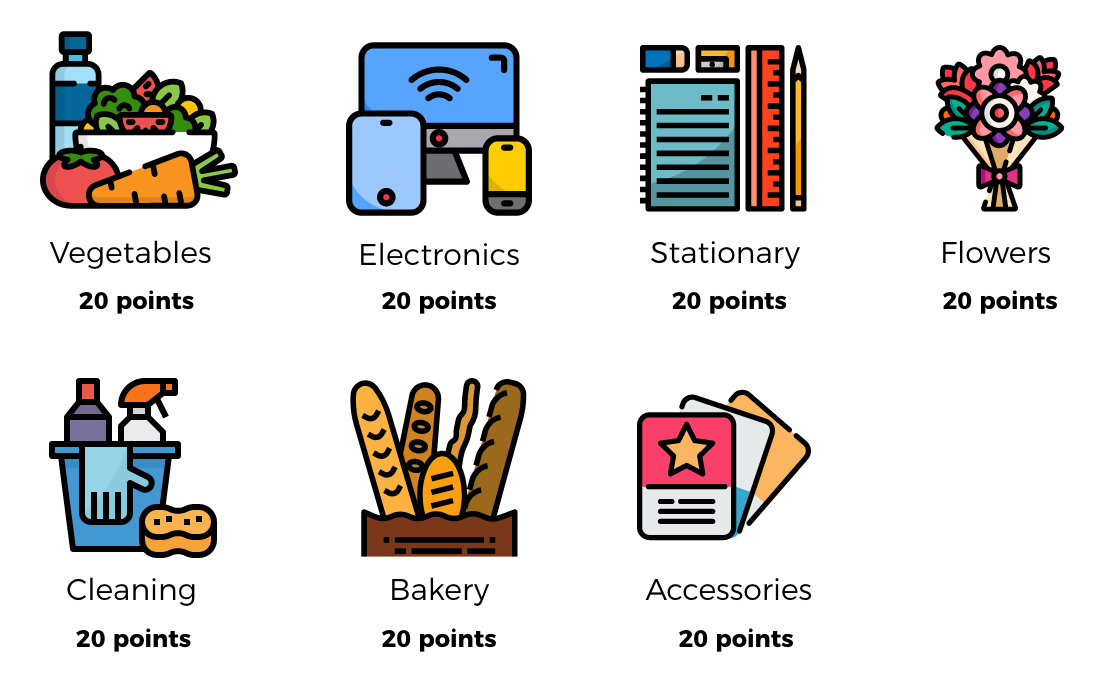
How to Configure Badges on Gameball
1
Open the Reward Campaigns Section
Open the Gameball dashboard, click Campaigns > Rewards from the main menu, then click Create Reward Campaign.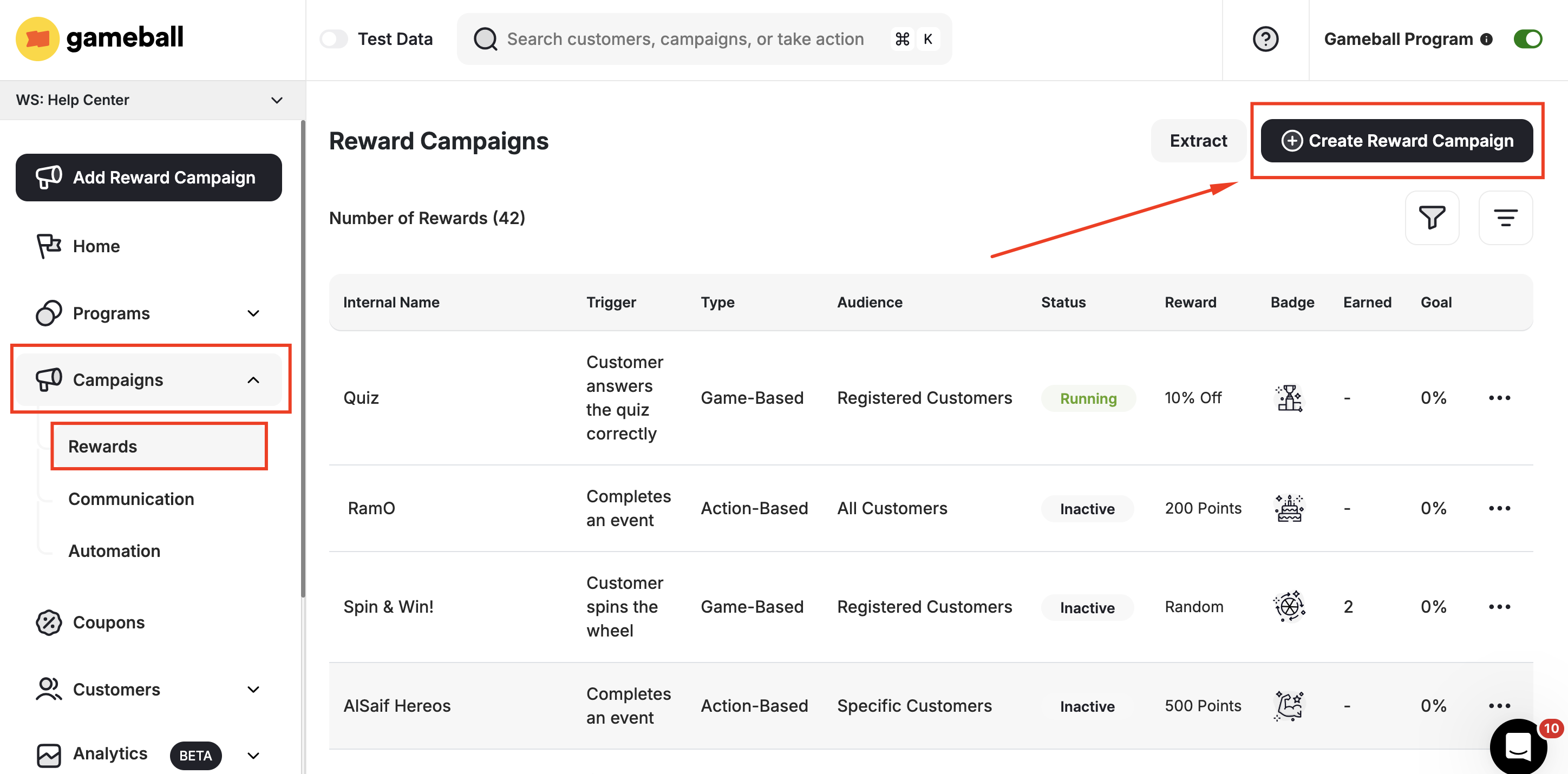
2
Select the Collection Template
Scroll down to templates under Grow and choose “Buy from a specific collection”.
3
Configure Triggers with the Category Field
At the second step, under Triggers, you will find the available metadata “category” and the “Equal” operator. Write the exact field name of the category on your Shopify store as shown in the screenshot below.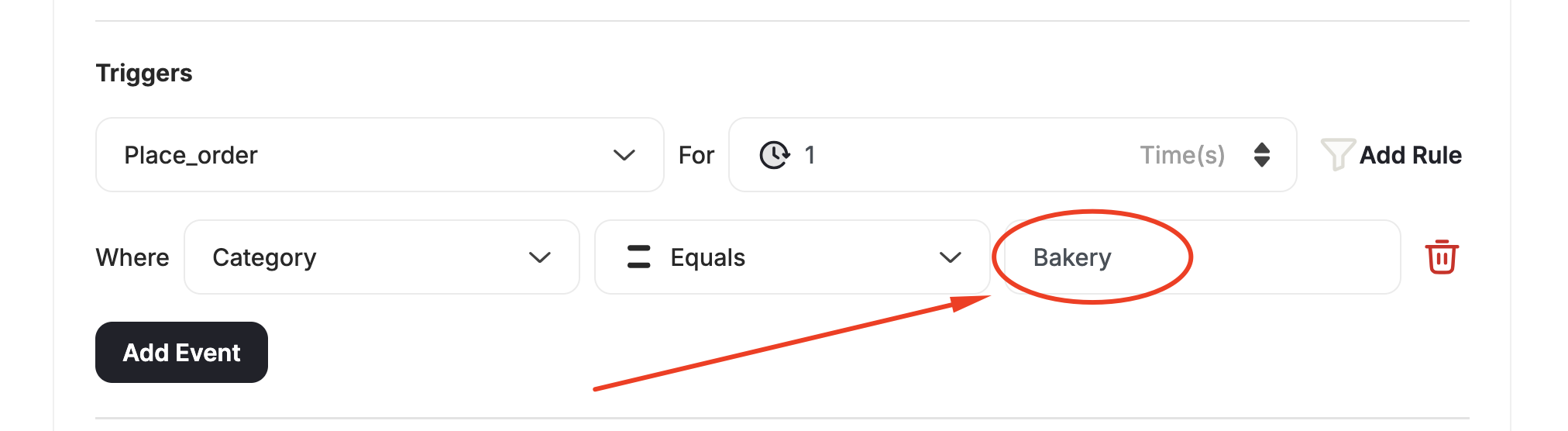
Related Articles
Create and Configure Reward Campaigns
Set up and launch customer reward campaigns on Gameball.
How Does the Campaigns Event Rule Engine Work?
Understand how the event-based rule engine drives campaign triggers.