

Plan Availability
Place Order campaigns are available on the same plans as Action-Based reward campaigns.- Shopify & Salla
- Non-Platform
Create a Place Order Campaign
1
Pick Place Order from Start from Scratch
Log in to your Gameball Dashboard, navigate to Campaigns on the left side menu and click Rewards. Click Create Reward Campaign, then choose Place Order, the first option under Start from Scratch.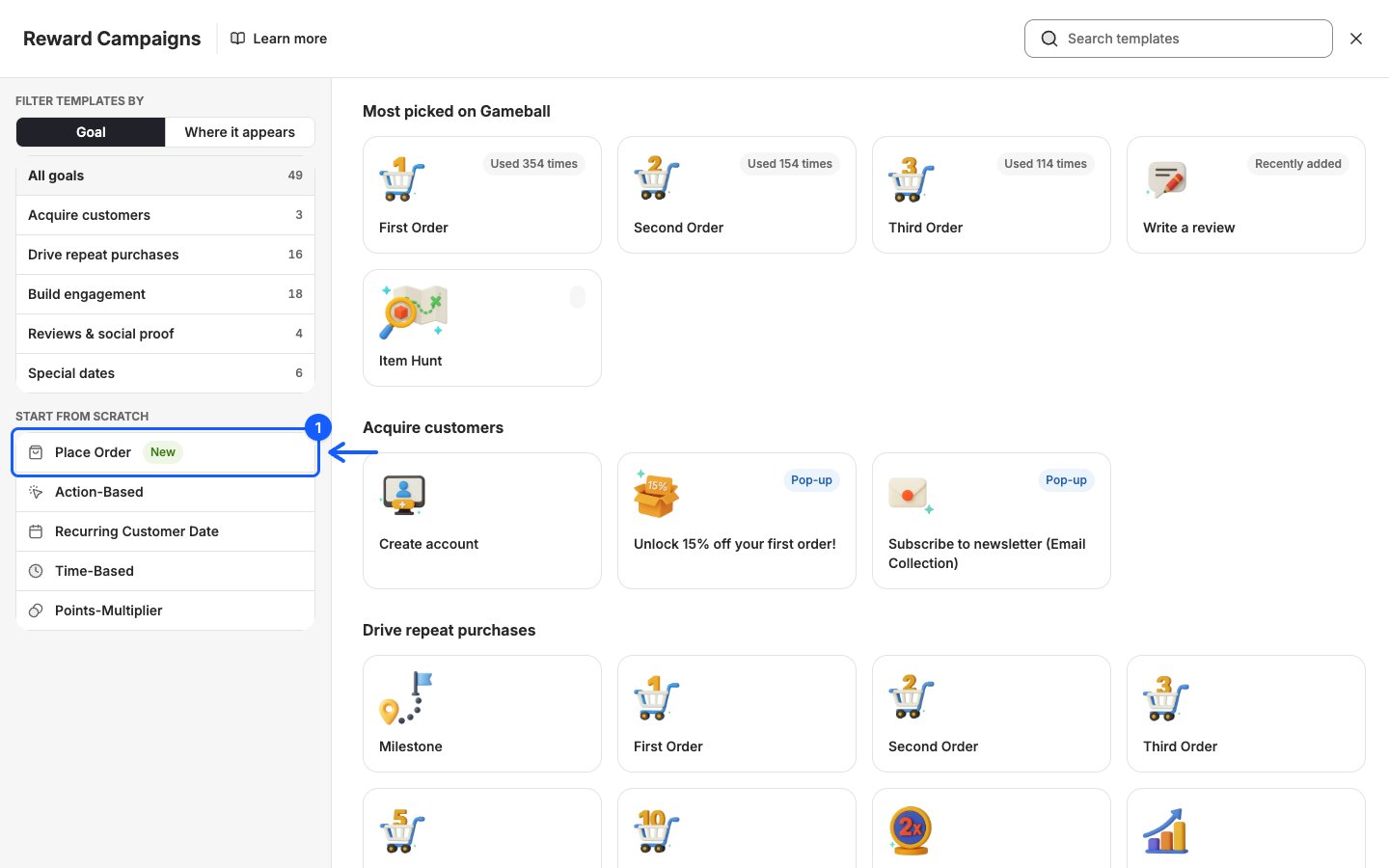
2
Set how often customers get rewarded
Under Triggers, the trigger is already set to When a customer places an order. In Reward customers every, enter the number of orders a customer must place to earn the reward.For example, enter 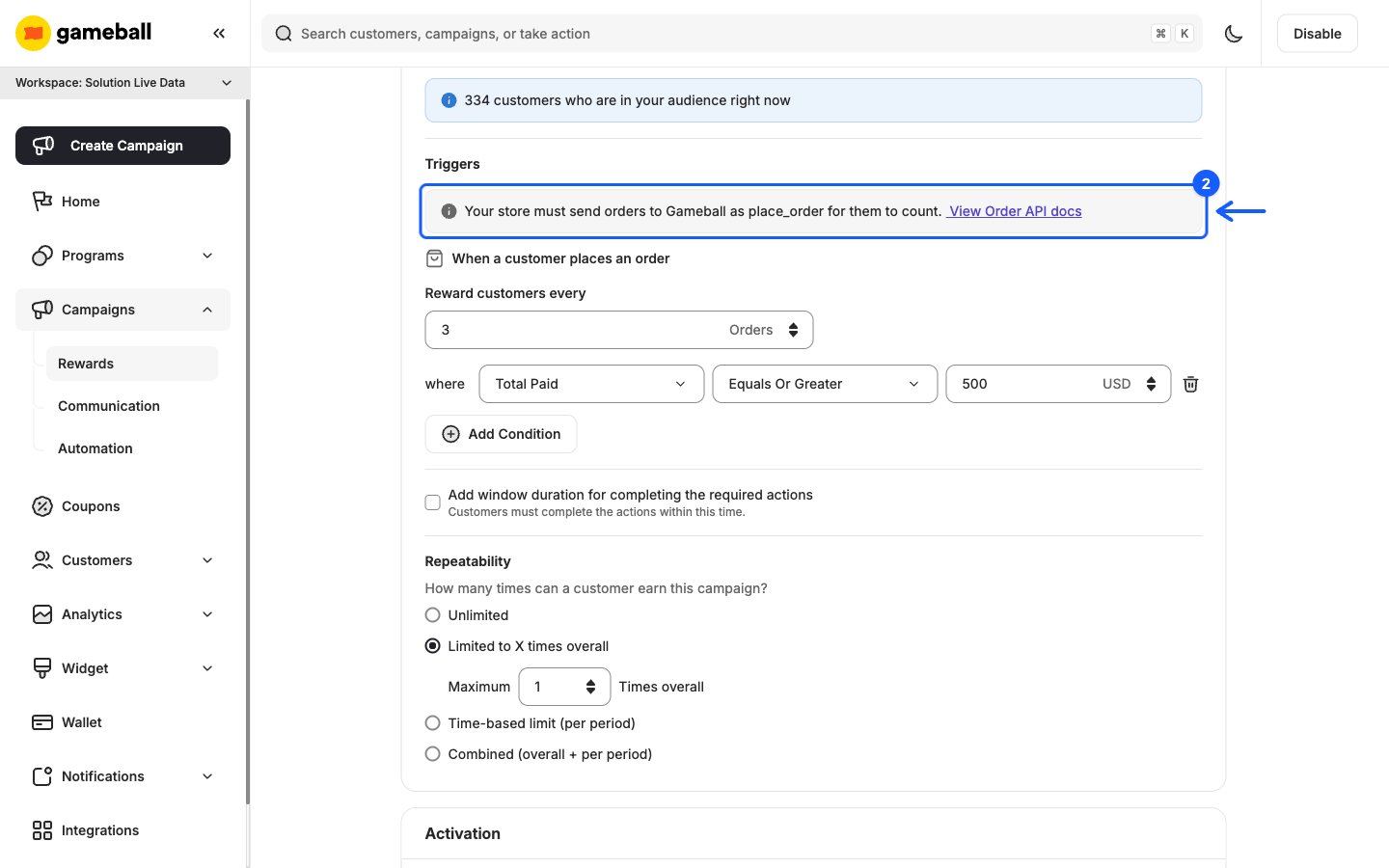
3 to reward every 3rd order: the 3rd, 6th, 9th and so on, as long as the campaign’s Repeatability allows it. With Limited to 1 time overall, only the 3rd order is rewarded. Only orders placed after the campaign goes live count.At the top of the trigger, a note reads “Your store must send orders to Gameball as place_order for them to count.” Click View Order API docs in the note to see how to send them.With a product condition, such as Collection, each matching item counts toward the number of orders. For example, with Reward customers every 3 Orders and a Collection condition, one order with 3 matching items earns the reward.
3
Add conditions to the orders that count
Click Add Condition to open the condition picker, then choose a field, an operator and a value. For example, Total Paid Equals Or Greater 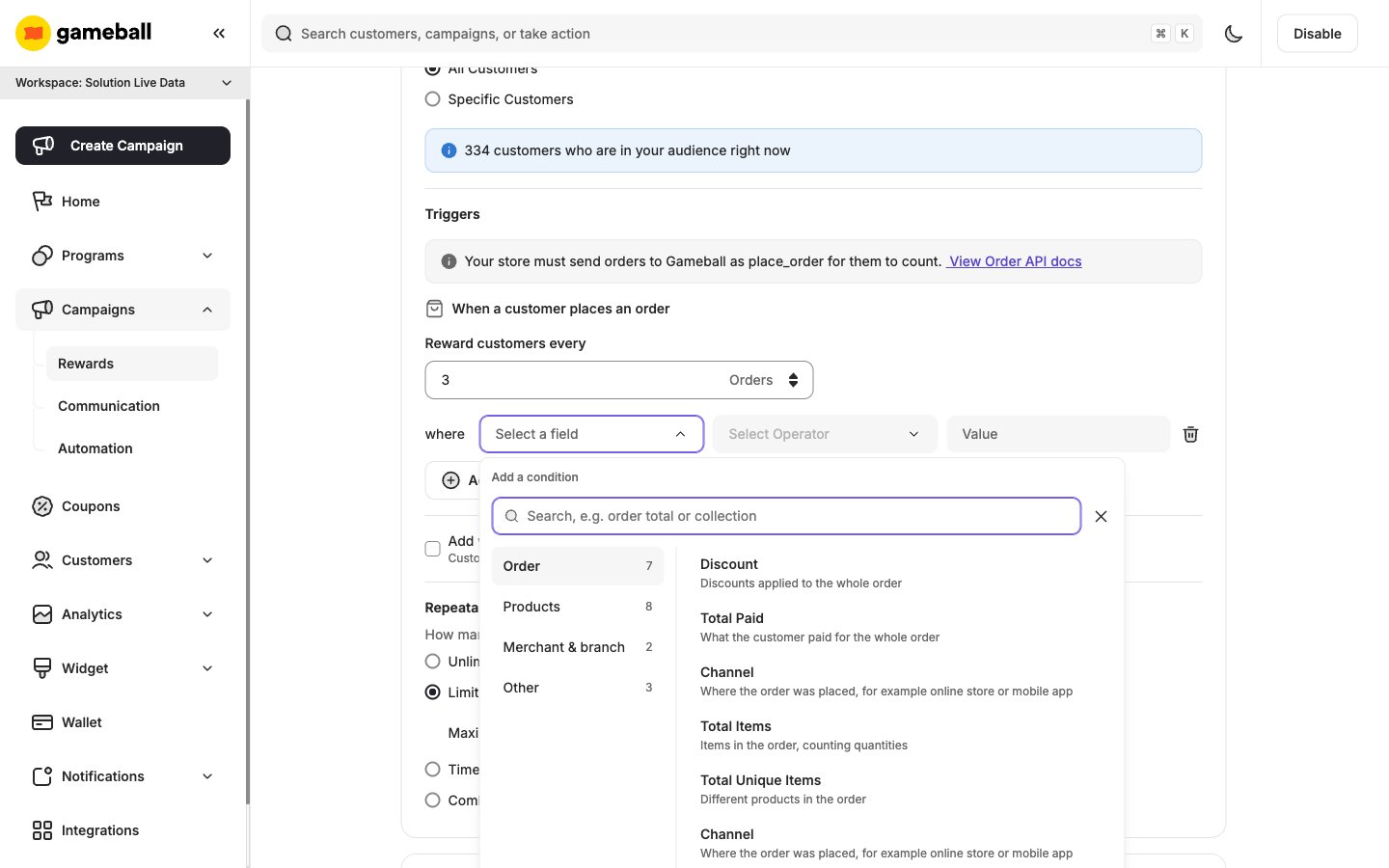
500 USD. Use the trash icon to remove a condition.Fields in the picker are grouped into Order, Products, Merchant & branch, and Other, and you can search them by name, for example “order total” or “collection”:- Order: Discount (discounts applied to the whole order), Total Paid (what the customer paid for the whole order), Channel (where the order was placed, for example online store or mobile app), Total Items (items in the order, counting quantities), Total Unique Items (different products in the order) and Coupon Codes (coupon codes used on the order)
- Products: Collection, Category, Product ID, SKU, Title, Vendor, Tags and Weight
- Merchant & branch: Merchants (which of your merchants sold the order) and Branch (which branch sold the order)
- Other: any other key your store sends with the order, shown by its key name
4
Finish the rest of the setup
Complete the remaining sections the same way as any reward campaign:
- Audience: All Customers or Specific Customers. Gameball shows how many customers are in your audience right now.
- Window duration (optional): Select Add window duration for completing the required actions to give customers a time limit for placing the required orders.
- Repeatability: Unlimited, Limited to X times overall, Time-based limit (per period), or Combined (overall + per period).
- Activation: Always Active or Scheduled.
- Details, Rewards & Badges, and Notifications.
Important Notes
If no order has reached Gameball yet, the builder shows No orders have reached Gameball yet, and you can save the campaign once your first order arrives.
Common Questions
Which orders count toward a Place Order campaign?
Which orders count toward a Place Order campaign?
Only orders sent to Gameball as
place_order after the campaign goes live count, and only if they match every condition you add to the trigger.Where do I see the place_order event?
Where do I see the place_order event?
The
place_order event is listed under Gameball events in Admin settings › Events. Learn moreRelated Articles
Set Up a Reward Campaign
Configure audience, repeatability, rewards, notifications and more.
Create an Action-Based Reward Campaign
Reward customers for any event they complete, including custom events.
Create and Send Events
See Gameball events and your custom events in Admin settings.