

Previous Steps
Dynamic attributes passed by previously chosen Event, Condition, or API (such as Order ID, Points Earned, or Friend Name). Variables depend on attributes used in the previous trigger or action.
Customer Variables
All customer-related variables such as name, ID, number, referral link, etc.
Global Variables
Variables related to your general configurations, like chosen currency, points name, score name, etc.
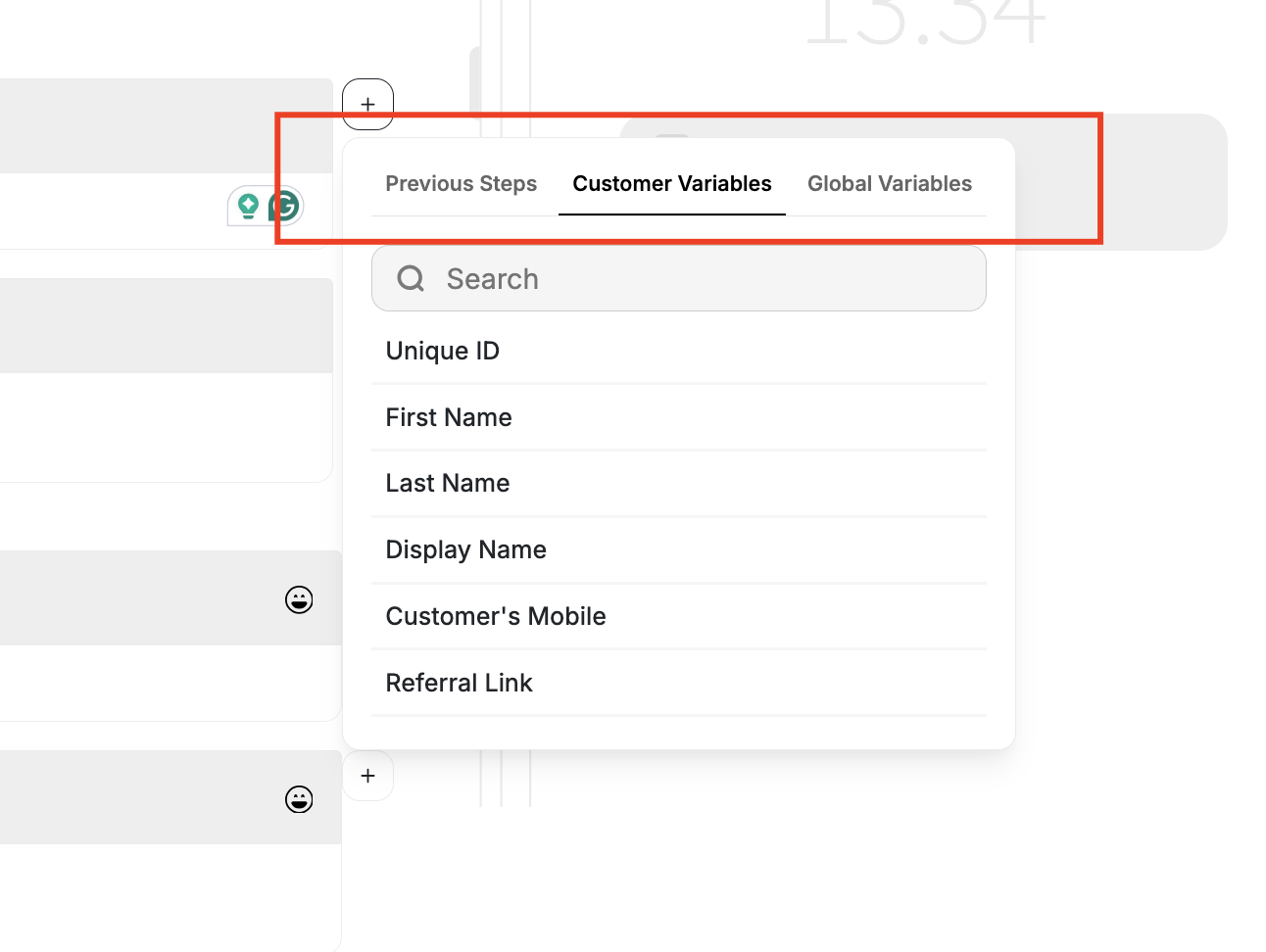
- Previous Steps
- Customer Variables
- Global Variables
Dynamic attributes passed from the preceding node. Available variables depend on what was used in the prior trigger or action — see the event-specific tables below.
Carry Over Attributes Across Automation Nodes
Dynamic attributes are passed from one node to another, such as Order ID, Points Earned, or Friend Name, from one node to another inside your automations. This enables richer personalization, smarter branching, and more context-aware automation actions.Why This Matters
Previously, attributes generated in one node (e.g., an event or Add Points) couldn’t be reused later in the same automation. That meant messages and actions couldn’t dynamically reflect the context of the customer’s previous interactions. Now, attributes flow seamlessly across nodes, allowing for smarter, fully contextual automation journeys.How It Works
Attribute Persistence
Attribute Persistence
Attributes created or received in one node (Event, Condition, or API) are automatically available to all subsequent nodes in the same automation branch. Attributes remain accessible for personalization in later actions.
Dynamic Variable Usage
Dynamic Variable Usage
Action nodes (e.g., Send Email, Send SMS, Assign Points) can now reference these carried-over attributes. The variable picker in the dashboard displays available attributes grouped by source node.
Editing & Safety
Editing & Safety
If an earlier node is edited or removed, any dependent attributes trigger a warning: “This attribute is no longer available.” Missing attributes are safely replaced with placeholders to prevent automation errors.