

Exploring Automation Campaign Triggers
Automation triggers are the catalysts that initiate predefined actions within workflows. Understanding these triggers is essential for maximizing the efficiency of automation campaigns.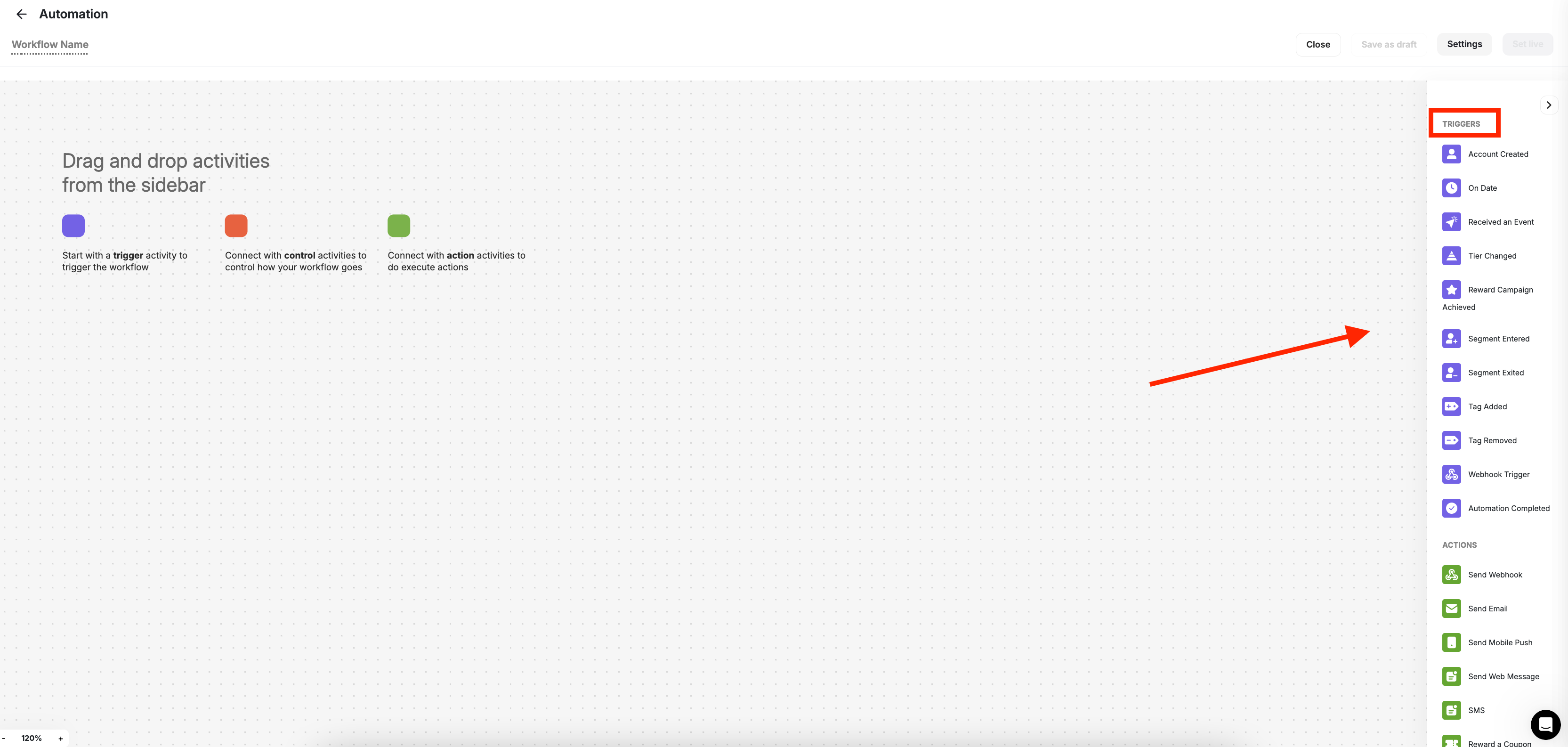
Account Created
Account Created
Triggered once a customer creates an account, the Account Created trigger marks the beginning of a user’s journey with your business. This trigger presents an opportunity for you to initiate onboarding processes, welcome new users, and provide valuable information or incentives to encourage further engagement.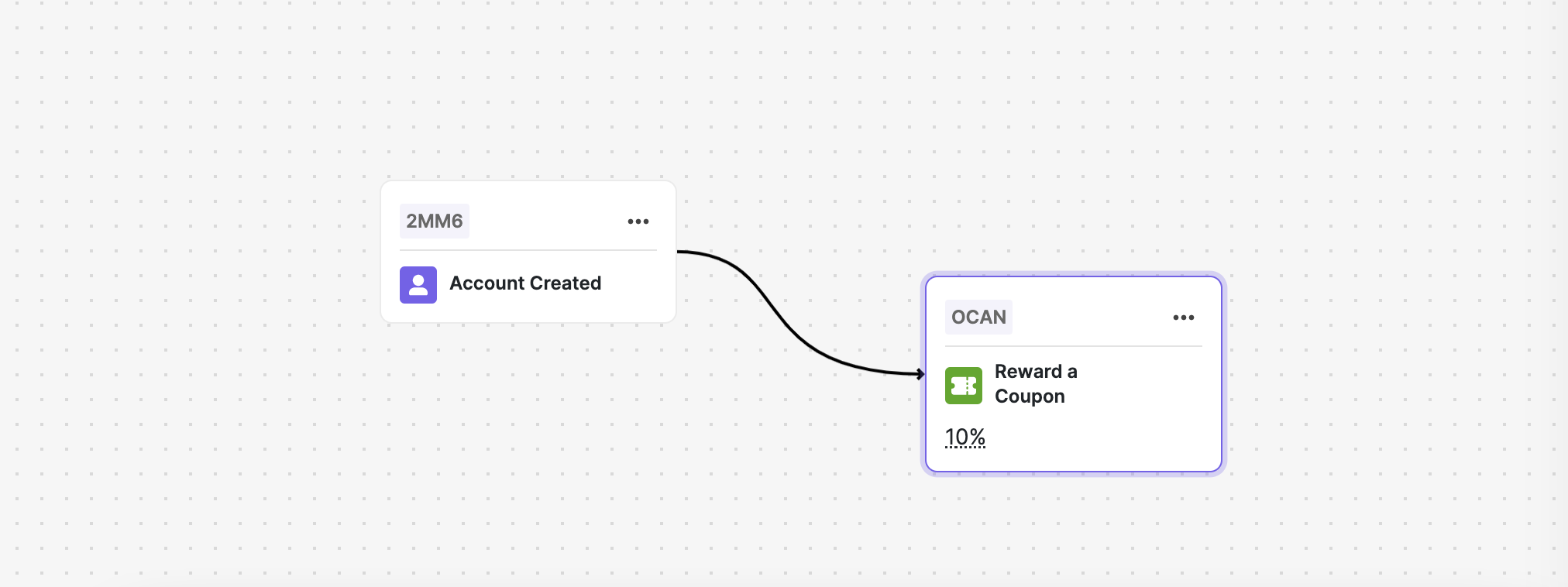
On Date Trigger
On Date Trigger
Start automation on a specific date/time with the OnDate Trigger. This feature allows businesses to schedule automation campaigns in advance, ensuring the timely execution of tasks and communications. For example, Black Friday, flash sale, brand anniversary, etc.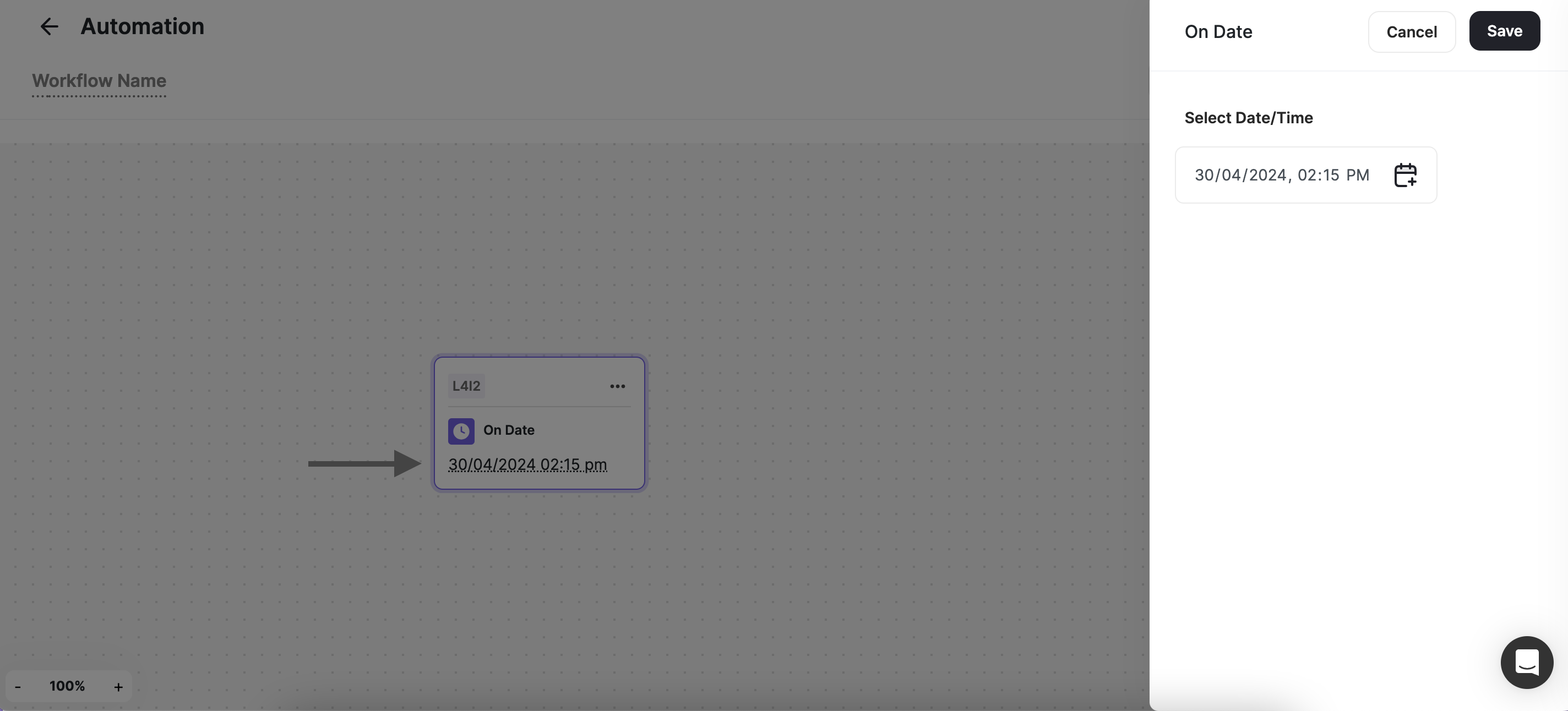
How to set up the On Date trigger
1
Open Date Configuration
Click on Set Date on the card.
2
Select an Option
From the side pop-up, Select an Option (Birthday, Join Date, or Custom).
3
Select the Date/Time
If you chose custom, then select the Date/Time.
4
Save
Press Save.
Received an Event
Received an Event
This trigger is activated when a customer completes a specific action on the platform. Whether it’s making a purchase, writing a review, filling out a survey, viewing a product, or engaging with content, the Receive Event trigger allows you to respond promptly to user interactions.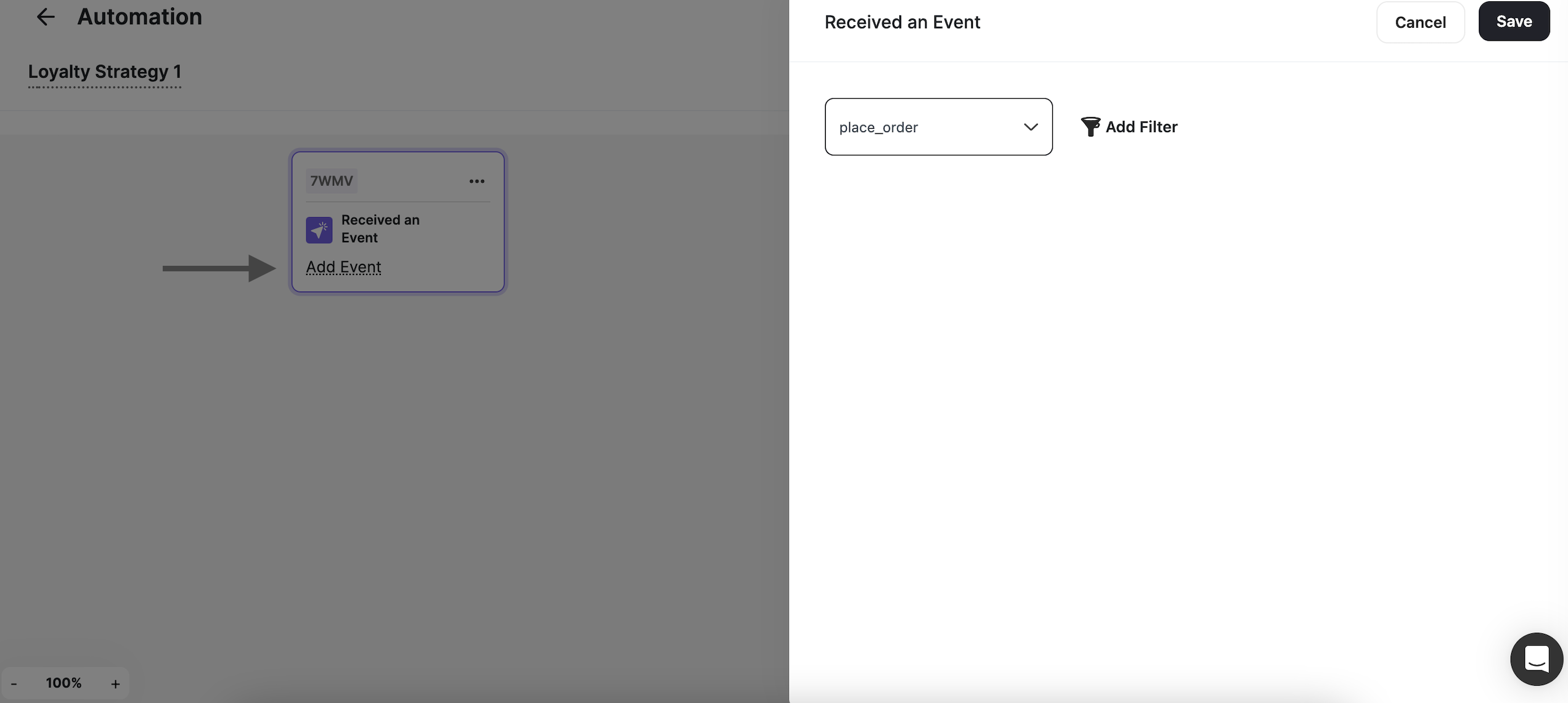
How to set up the Received an Event trigger
1
Add Event
Click on Add Event on the card.
2
Choose Event
From the side pop-up, Choose Event.
3
Apply Filters
Apply the Filters you need.
4
Save
Press Save.
When selecting “Receive Event,” you’ll need to pick the exact event criteria using the Event Engine.
Tier Changed
Tier Changed
Activated when a customer tiers up or down, the Tier Changed trigger enables businesses to tailor experiences based on a customer’s progression within a game or application. This trigger is invaluable for delivering personalized messages or rewards to users as they advance through different tiers.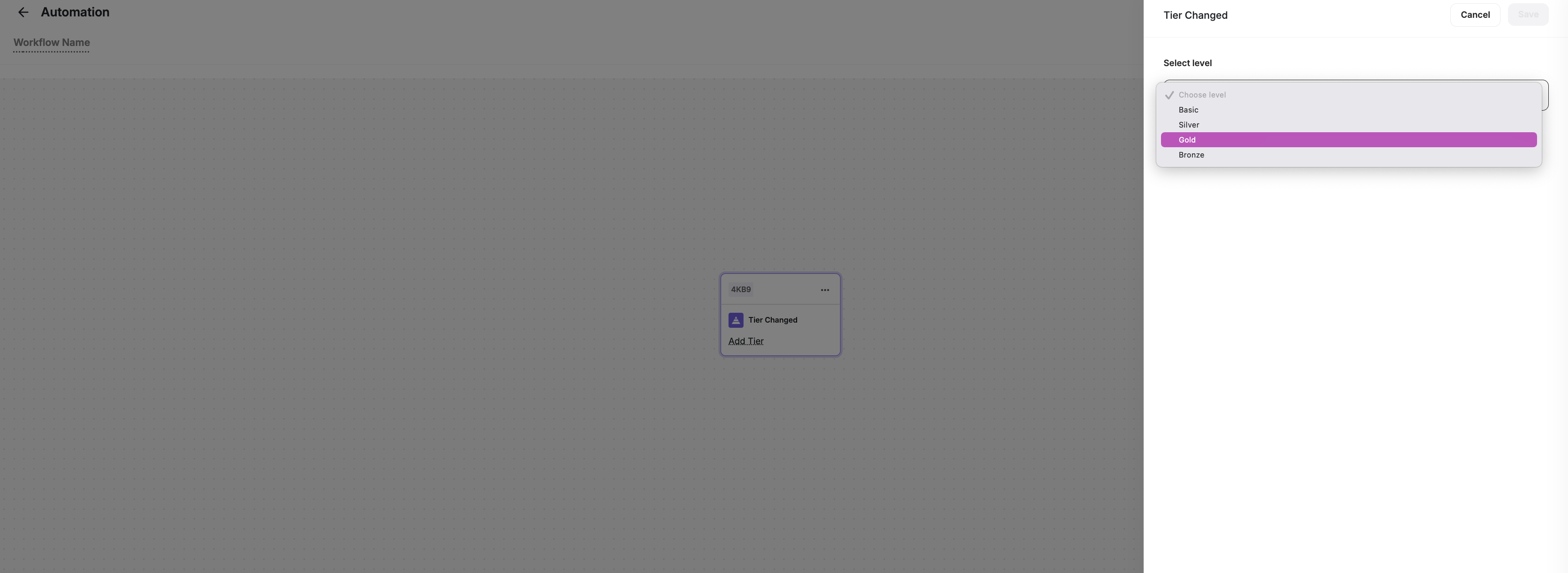
How to set up the Tier Changed trigger
1
Add Tier
Click on Add Tier on the card.
2
Choose Tier
From the side pop-up, Choose Tier.
3
Save
Press Save.
Reward Campaign Achieved
Reward Campaign Achieved
Initiated upon the completion of a designated reward campaign. This trigger empowers businesses to recognize and reward customers accomplishments effectively. Whether it’s conquering a difficult task or achieving a milestone, this trigger allows for timely acknowledgment and incentivization.
How to set up the Reward Campaign Achieved trigger
1
Choose Badge
Click on Choose Badge on the card.
2
Select the Badge
From the side pop-up, Choose the badge.
3
Save
Press Save.
Segment Entered
Segment Entered
Triggered when a customer joins a specific segment, the Segment Entered trigger enables businesses to target users based on their characteristics or behaviors. This trigger facilitates targeted communication and engagement strategies.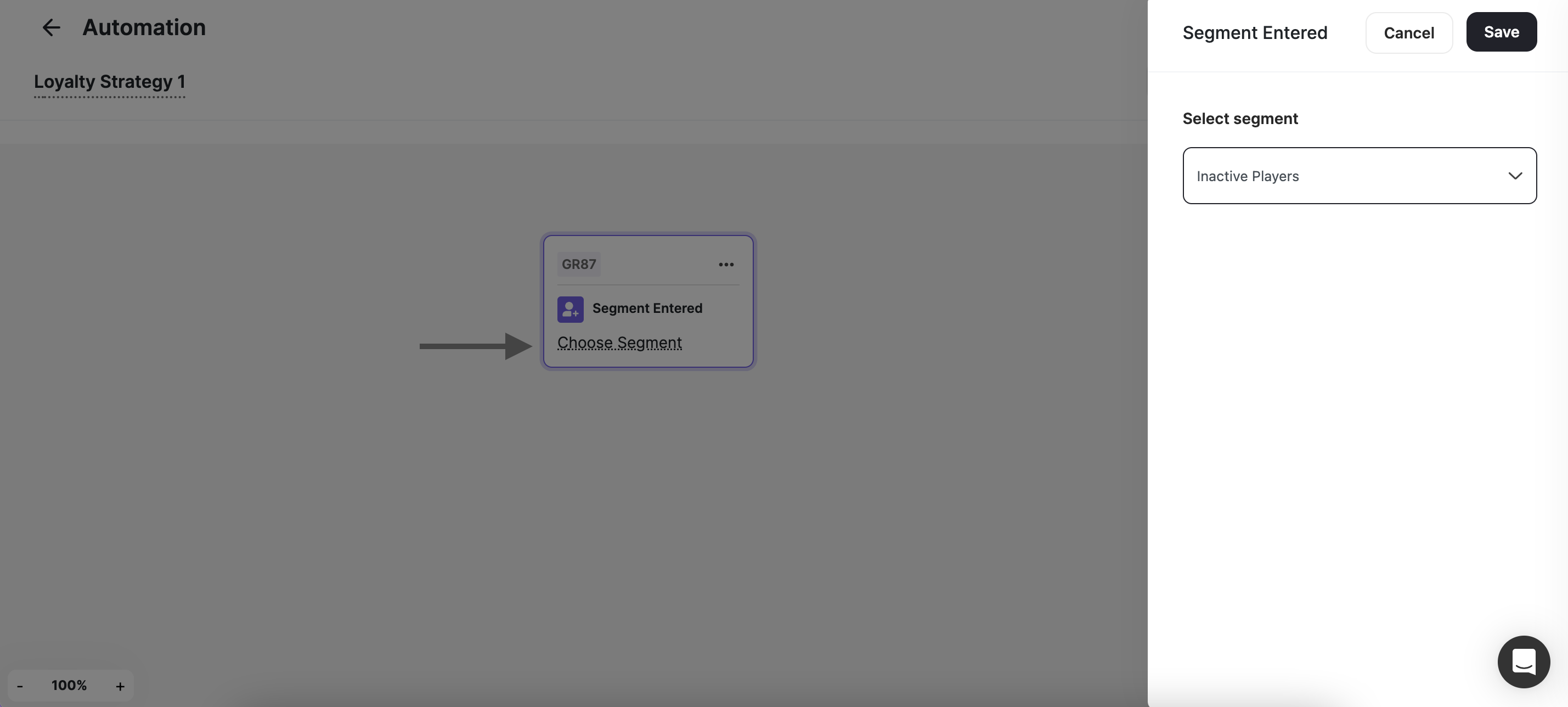
How to set up the Segment Entered trigger
1
Choose Segment
Click on Choose Segment on the card.
2
Select the Segment
From the side pop-up, select the Segment.
3
Save
Press Save.
Segment Exited
Segment Exited
Triggered when a customer leaves a specific segment, the Segment Exited trigger enables businesses to re-engage dormant customers; this trigger also facilitates targeted communication and engagement strategies.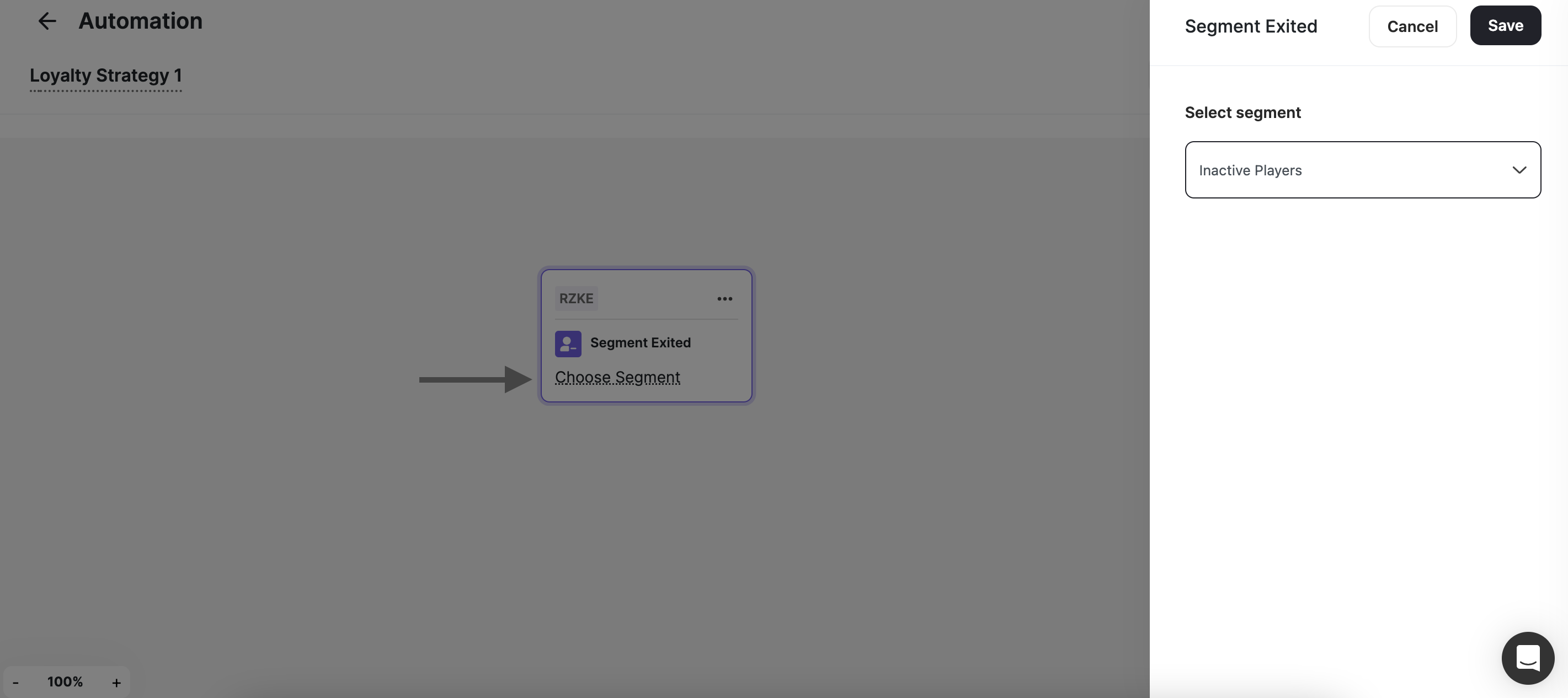
How to set up the Segment Exited trigger
1
Choose Segment
Click on Choose Segment on the card.
2
Select the Segment
From the side pop-up, Select the Segment.
3
Save
Press Save.
Tag Added
Tag Added
Activated when a specific tag is applied to a customer, the Tag Added trigger allows businesses to categorize and track users based on predefined criteria. This trigger is invaluable for implementing targeted marketing campaigns or segmenting users for personalized experiences.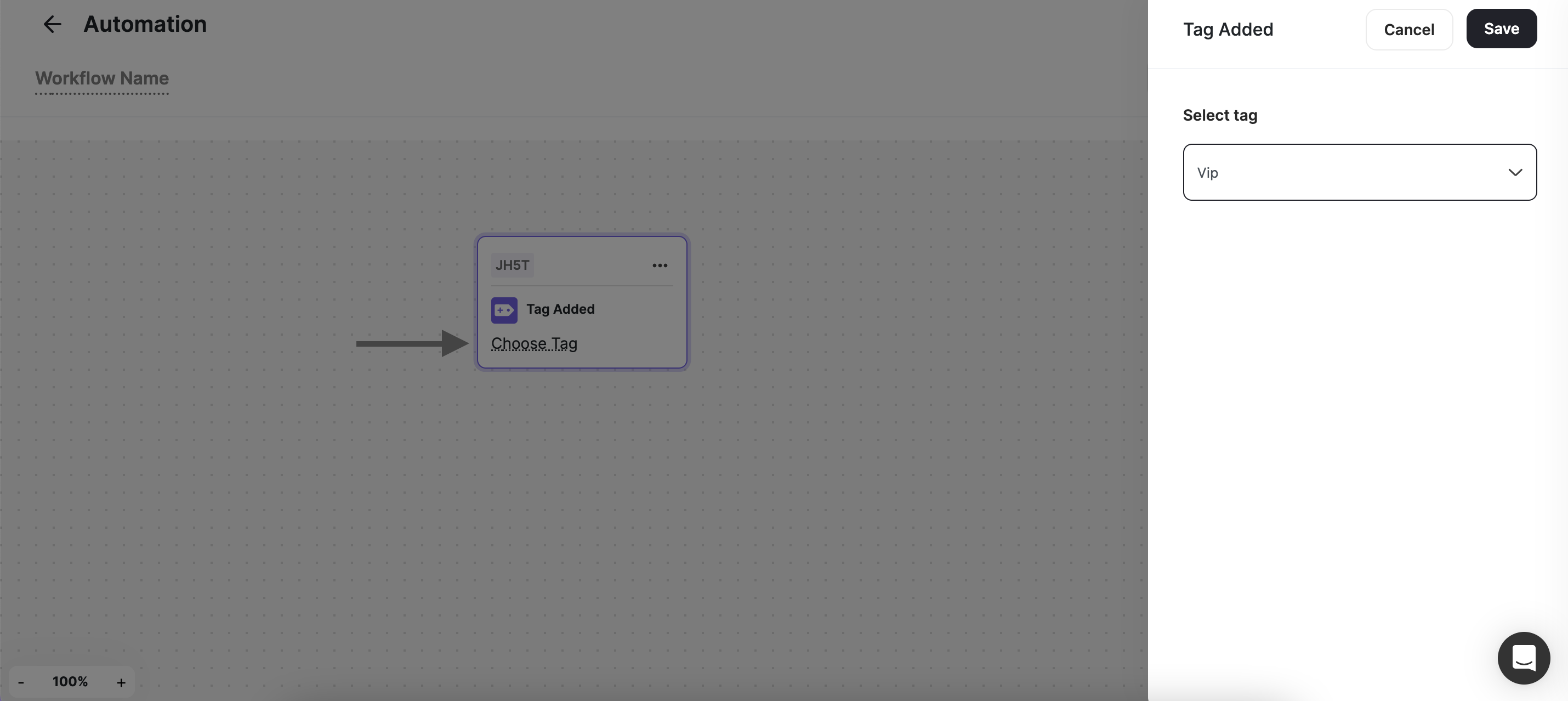
How to set up the Tag Added trigger
1
Choose Tag
Click on Choose Tag on the card.
2
Select the Tag
From the side pop-up, Select the Tag.
3
Save
Press Save.
Tag Removed
Tag Removed
Activated when a specific tag is removed from a customer, the Tag Removed trigger allows businesses to categorize and track users based on predefined criteria. This trigger is also invaluable for implementing targeted marketing campaigns or segmenting users for personalized experiences.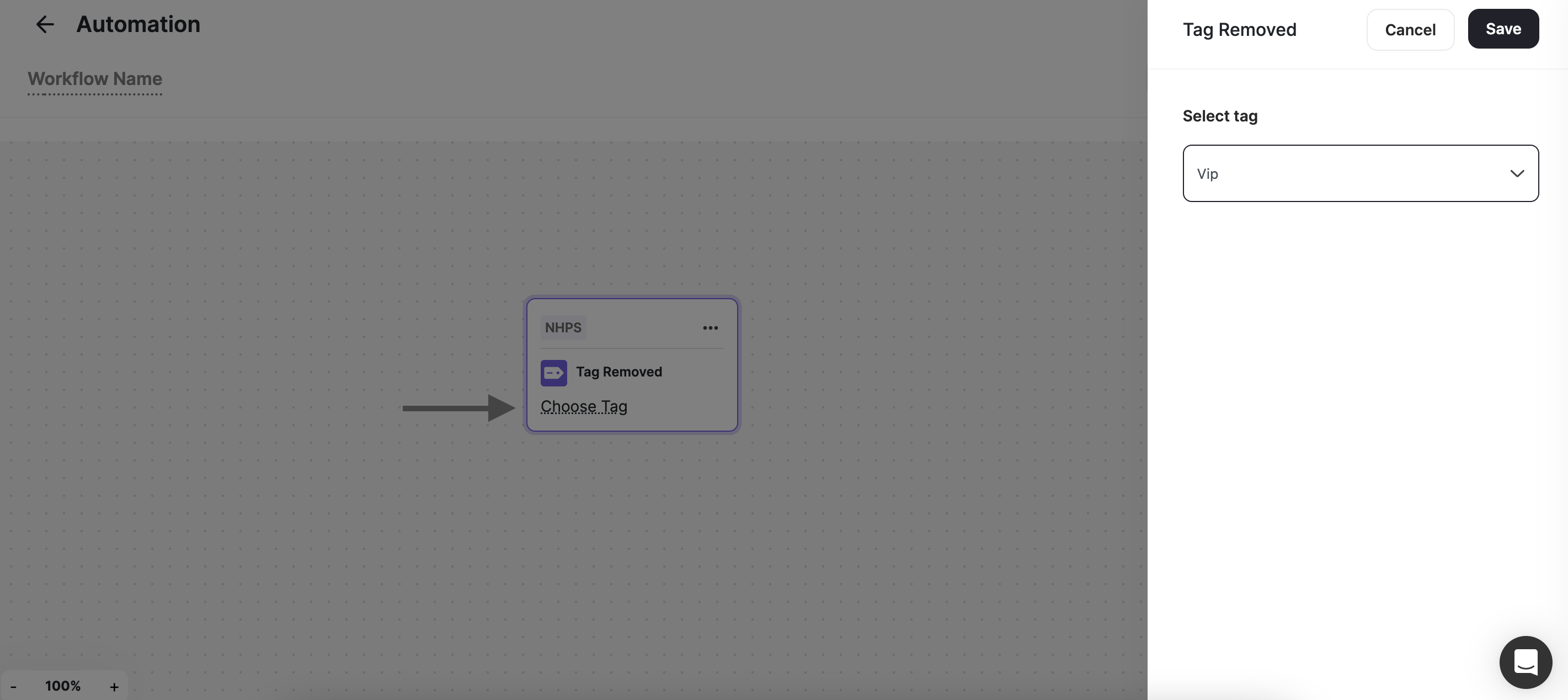
How to set up the Tag Removed trigger
1
Choose Tag
Click on Choose Tag on the card.
2
Select the Tag
From the side pop-up, Select the Tag.
3
Save
Press Save.
Webhook Trigger
Webhook Trigger
Initiated by an external app via webhook, the Webhook Trigger enables seamless integration with third-party platforms and services. This trigger opens up a world of possibilities for automating workflows across different systems, enhancing efficiency and connectivity. Learn how to set up the Webhook Trigger.
Automation Completed
Automation Completed
The Automation Completed trigger helps you to seamlessly link multiple automations, ensuring a smooth transition from one workflow to the next. When a customer completes an automation, you can automatically trigger the next one, eliminating manual intervention and enhancing engagement, ensuring a fluid, connected customer journey, allowing you to build dynamic, multi-stage automation workflows that drive engagement and retention.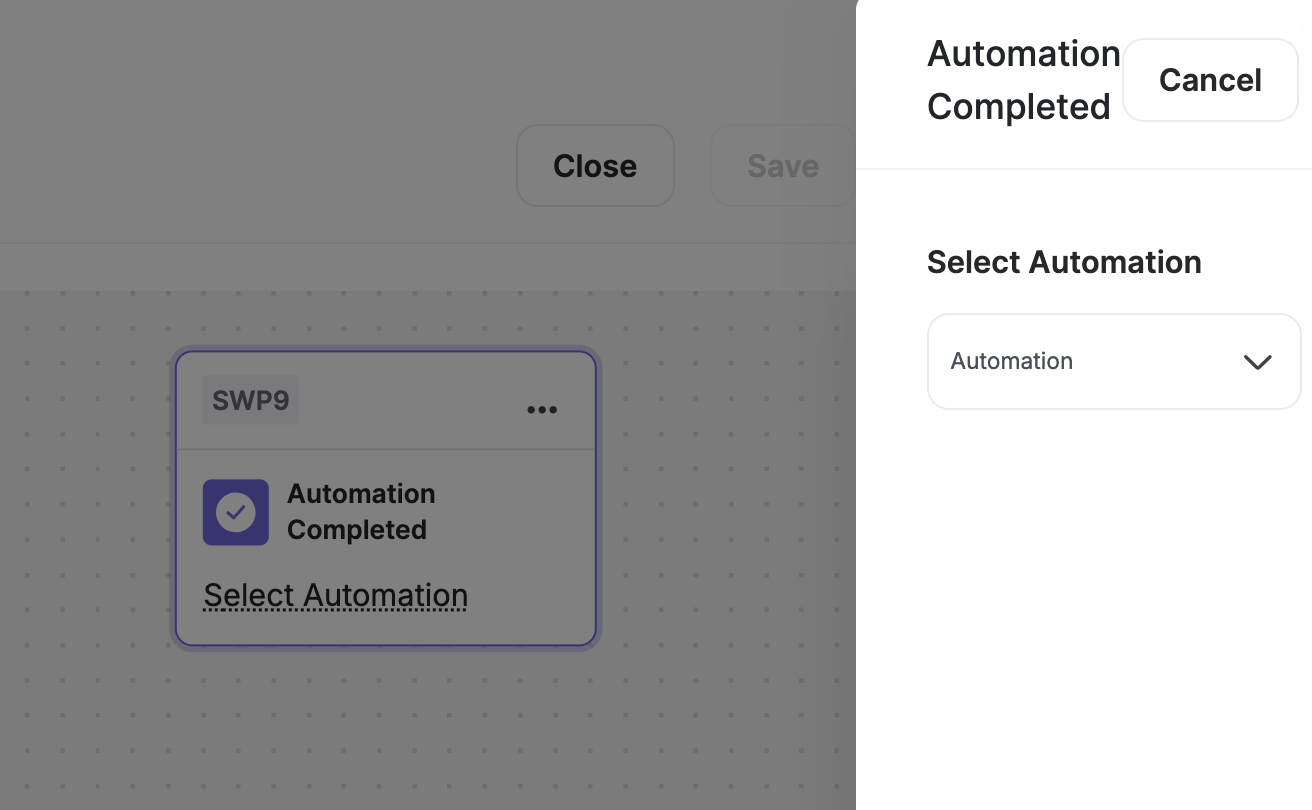
How to set up the Automation Completed trigger
1
Choose Completed Automation
Click on Completed Automation on the card.
2
Select the Automation
From the side pop-up, Select the automation.
3
Save
Press Save.
Use Cases
Progressive Onboarding
Guide new users through a structured onboarding experience by triggering the next step upon completion of the previous one. For example, once a customer completes their profile setup, they can be automatically enrolled in a tutorial about earning rewards.
Tier-Based Rewards
Encourage deeper engagement by unlocking exclusive benefits as customers progress. After a customer completes a milestone (e.g., making their first purchase), they can be automatically added to a VIP automation that grants them bonus rewards.
Reactivation Campaigns
Keep customers engaged with a multi-step retention strategy. If a customer completes a re-engagement campaign, they can be seamlessly transitioned into a follow-up automation that offers a personalized discount or gamified challenge.
Related Articles
How to Create an Automated Workflow
Step-by-step guide to building your first automation campaign.
Automation Actions
Explore all actions you can execute when automation conditions are met.
Automation Controls
Learn about conditions and branching logic available in automations.