

Webhooks in Gameball let you send and receive customer information to and from external applications, all within your automation flows. You can use webhooks as both triggers (to start an automation from an external event) and actions (to push customer data to another platform). Learn more about Automated Workflows.
Using Webhooks as a Trigger
You can create an automation triggered by an action the player initiates on an external app. For example, you want to reward your customers with 100 points for each review they leave on your review app.1
Add the Webhook Trigger
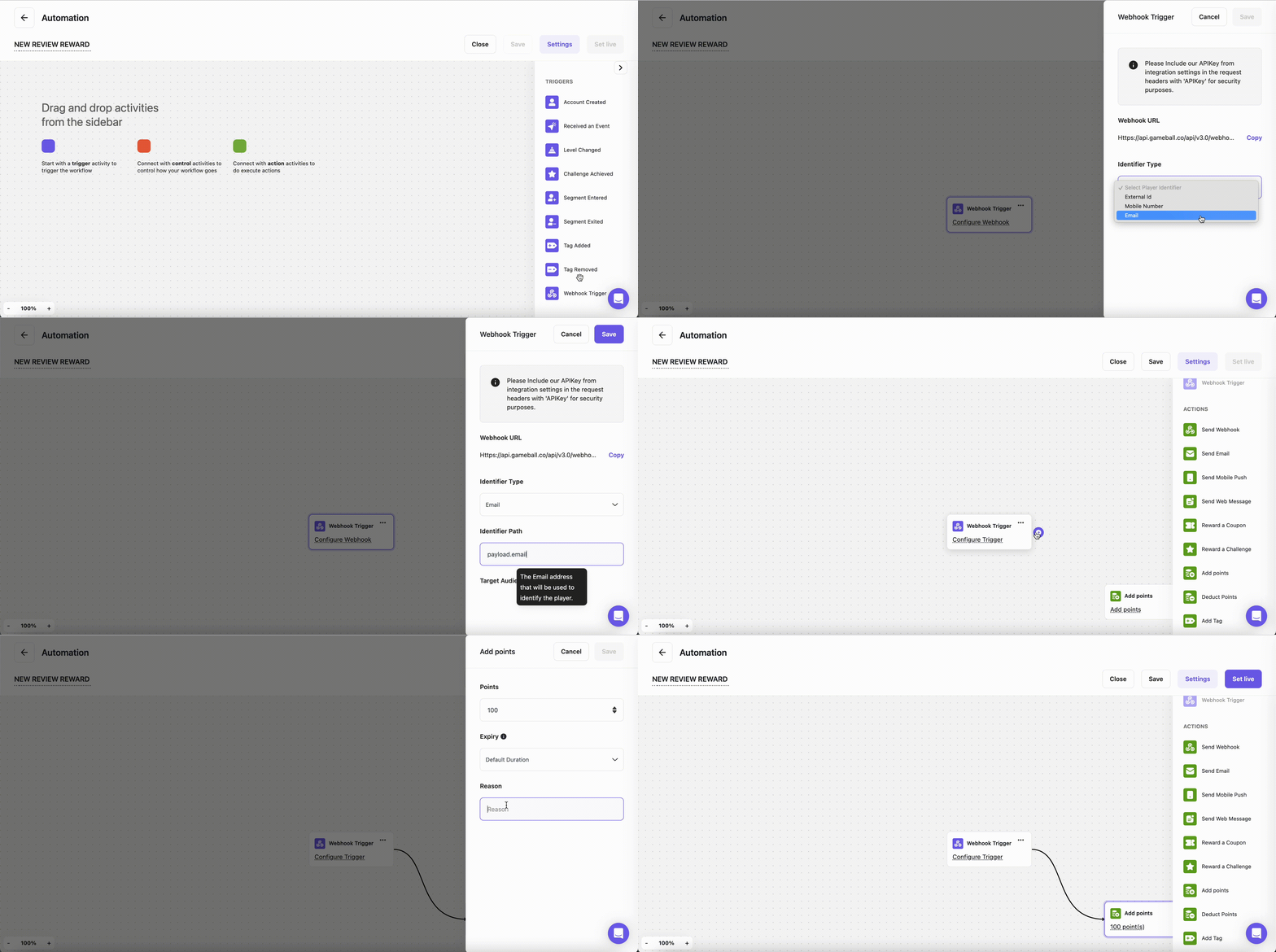
From the Triggers panel, drag Webhook Trigger and drop it onto the canvas.
2
Configure the Webhook
Set up the webhook configuration:
- Copy the Webhook URL that Gameball provides and paste it into the integration section of your external app, along with your API key for authentication.
- Select how you want to identify your players (Email, External Customer ID, or Mobile Number).
- Fill in the payload based on the selected identifier to confirm the format (e.g.,
{payload.data.email}). - Press Save.
3
Add the Points Action
Connect your trigger to the Add Points action:
- Click Add Points.
- Fill in the reward information.
- Press Save.
4
Save the Automation
Press Save to finalize your automation.
Using Webhooks as an Action
You can use webhooks as an action within your automation to send customer information to an external app. For example, you want to send a welcome email using your external mailing app to a new customer who just created an account.1
Add the Trigger
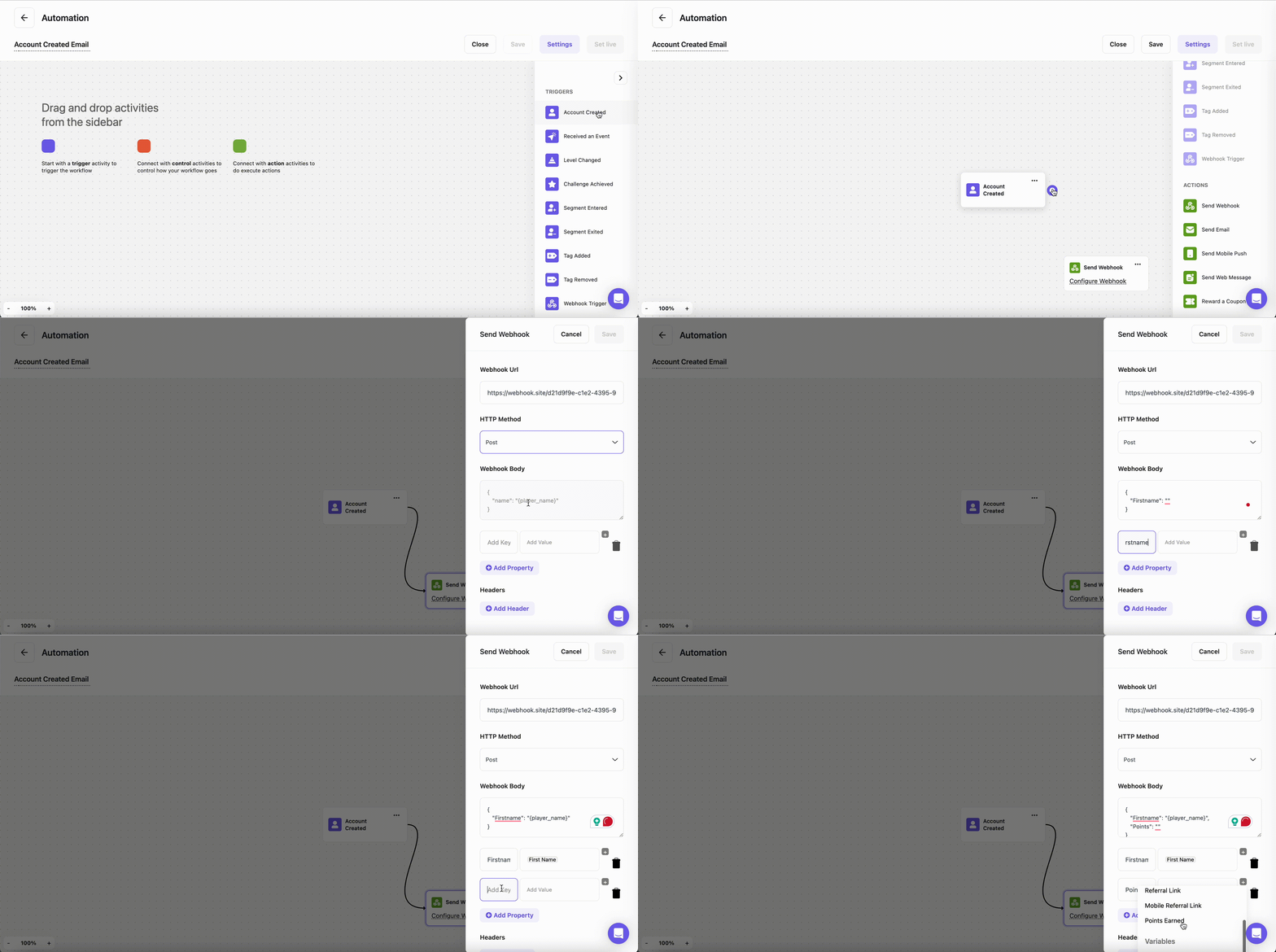
Drag the Account Created trigger onto the canvas.
2
Connect to Send Webhook
Connect it to the Send Webhook action.
3
Configure the Webhook
Set up the webhook configuration: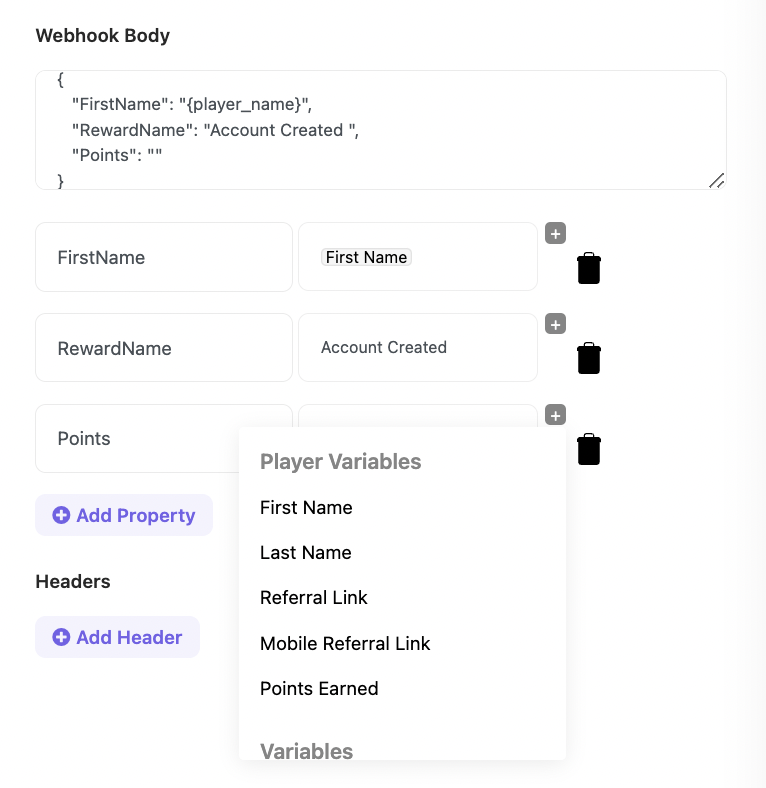
- Paste your external app’s webhook URL in the Webhook URL field.
- Choose your HTTP method (POST, GET, or PUT).
- In the Webhook body field, enter a custom JSON body. Use the variable picker to insert customer attributes — they are auto-wrapped in quotes to keep the payload valid. Use Beautify to re-indent at any time. The editor blocks saving on invalid JSON and shows an inline error.
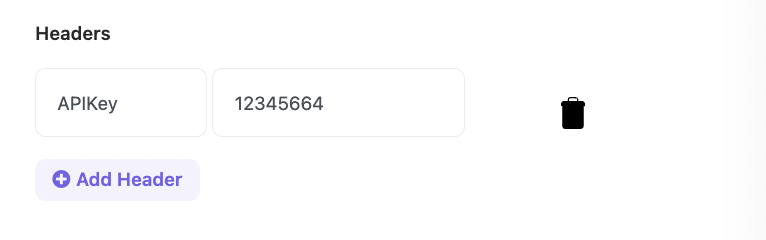
- Add the required Headers.
- Press Save.
4
Save the Automation
Press Save to finalize your automation.
The webhook body supports nested objects and arrays at any depth. Use the variable picker to insert customer attributes — for example,
{{customer.email}} — and they will be auto-quoted so your JSON stays valid.Related Articles
Introduction to Automation Campaigns
Learn the fundamentals of Gameball’s automation campaign system.
How to Create an Automation Campaign
Step-by-step guide to building and launching automation workflows.
Making Edits on Active Automation
Understand how changes to a live automation affect your customers.