

- Shopify
- Shopify (Installed Before Apr 29)
- Non-Shopify
If you installed Gameball on Shopify before April 29, your setup experience looks different. See the Shopify (Installed Before Apr 29) tab for your setup guide.
Setting Up Your Loyalty Program
Step 1: Meet Sarah
You’ll be greeted by Sarah, who walks you through the setup step by step. Click Let’s get started to begin.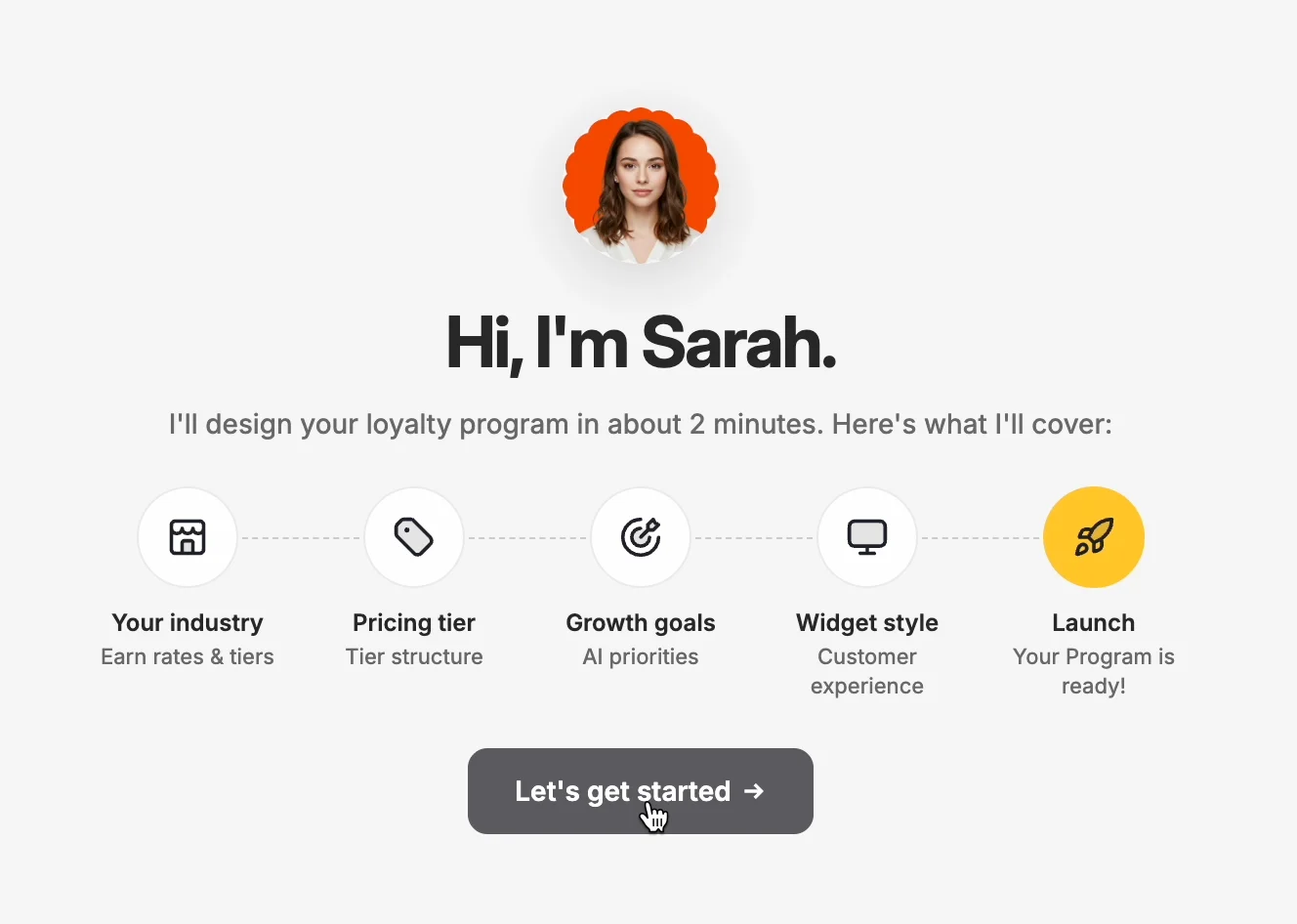
Step 2: Answer a Few Questions
Sarah asks for a few key inputs to tailor the experience to your business:1
Your Industry
Sarah uses your industry to set earn rates and tier structure as a starting point. You can adjust everything after setup.
2
Pricing Tier
This tells Sarah the price range of your products so she can calibrate reward values that feel meaningful to your customers.
3
Growth Goals
Sarah uses your goals to decide which features to prioritize — for example, if increasing retention is your main focus, she’ll configure the program accordingly.
4
Widget Style
Choose how the loyalty widget looks to your customers. This is what they’ll see when they interact with their rewards.
5
Launch Readiness
Confirm you’re ready to go. Sarah finalizes your program and hands off to Adam for campaign suggestions.
Step 3: Your Program Is Ready
Based on your answers, Gameball automatically:- Sets up your loyalty structure
- Configures your points and rewards logic
- Prepares your customer-facing widget
- Aligns everything with your stated business goals
Revenue Risks & Opportunities
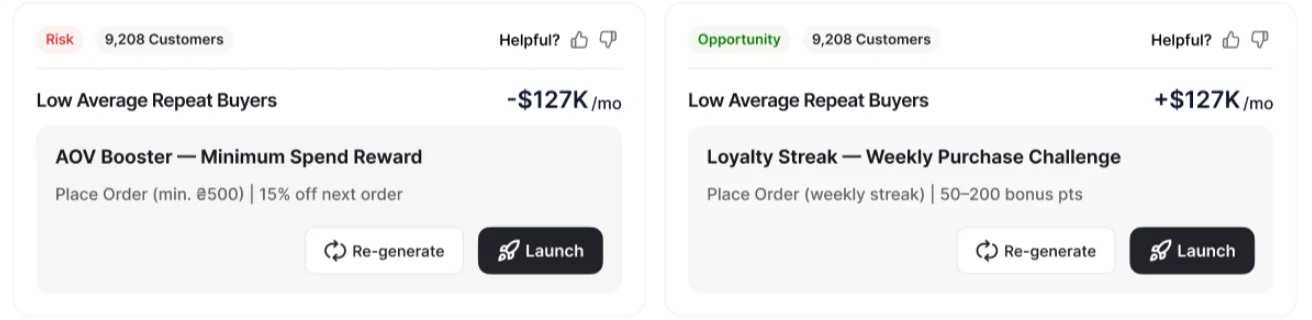
Once your program is ready, Adam analyzes your Shopify store — order history, customer behavior, and revenue patterns — and surfaces two types of insights on your homepage:- Risk — A customer segment performing below expected benchmarks on a specific metric, such as AOV, purchase frequency, or basket size. A risk is always tied to a defined segment, not a general signal about overall store performance.
- Opportunity — A segment performing at or above the expected benchmark, or showing clear untapped revenue growth potential based on behavioral signals.
Re-generating a Campaign
If a campaign doesn’t feel right for your store, click Re-generate on any card.When you do this:- The risk / opportunity stays the same
- A new variation is created with adjusted reward amounts and campaign structure
Launching a Campaign
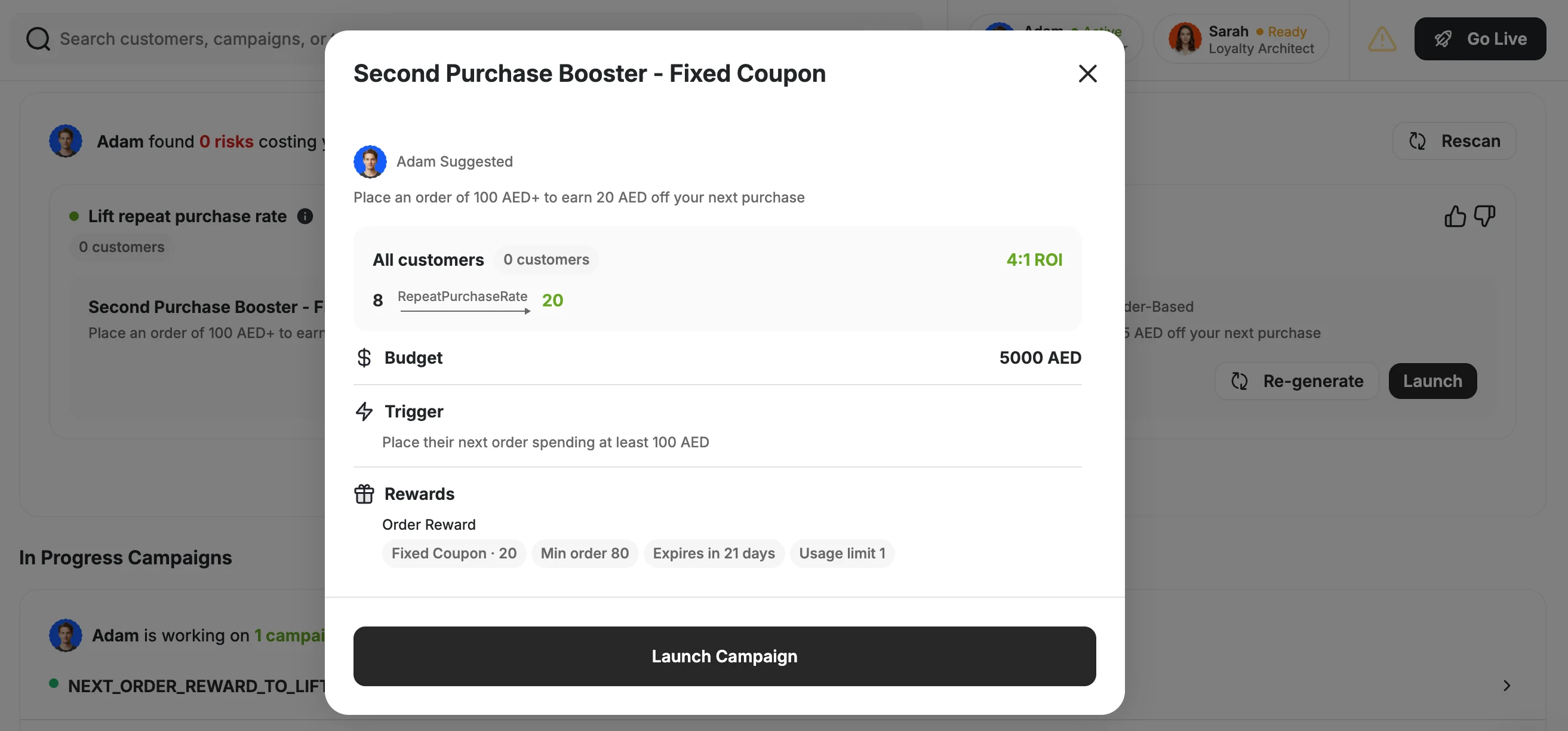
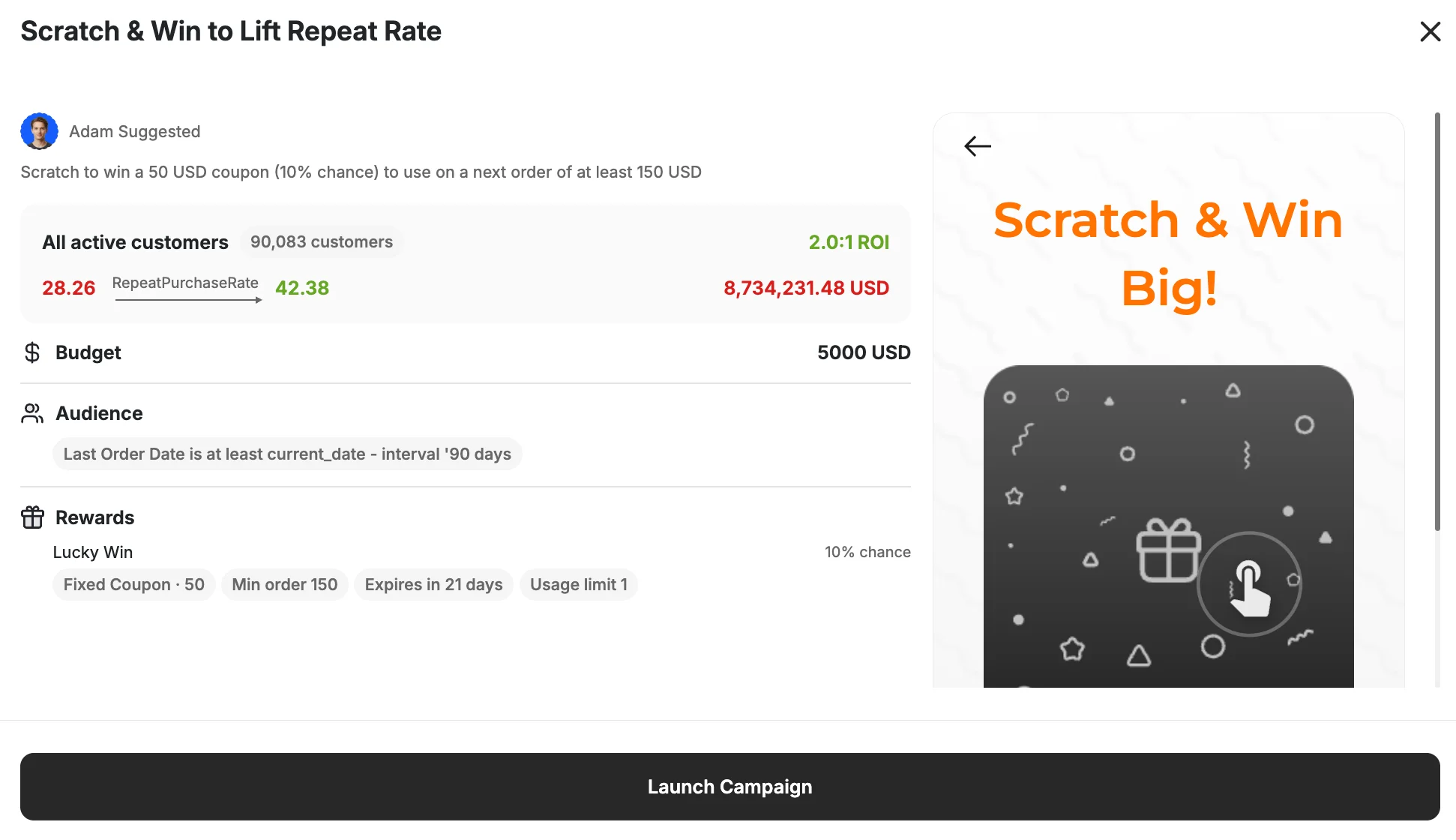
When you’re happy with a campaign, click Launch on its card to open the campaign detail view. Here you can review everything before it goes live:- Audience — which customers qualify and the estimated ROI
- Budget — the total spend cap for the campaign
- Trigger — the condition a customer must meet to earn the reward (e.g., place an order of 100 AED or more)
- Rewards — the reward type, value, minimum order, expiry, and usage limit
What You Get With This Onboarding
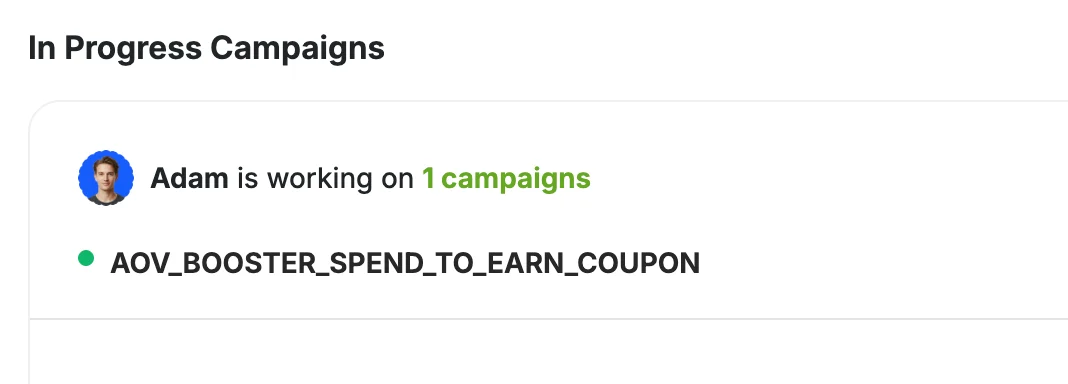
Loyalty program setup without expertise — Gameball generates a complete loyalty program from your Shopify store data, including earning rules, point values, and tier structure. No manual configuration required.Revenue risks and opportunities — Your homepage surfaces active revenue leakage risks and growth opportunities based on your store’s data, with projected revenue impact for each. Unactioned items stay at the top; launched campaigns move to In Progress.AI-recommended campaigns — For each identified risk or opportunity, Adam recommends a campaign with segment, reward, and budget pre-configured. You can view the full configuration summary, regenerate alternatives, or launch directly.Projected ROI before launch — Each campaign recommendation includes an estimated revenue impact so you know what to expect before approving.AI-generated campaign visuals — Generate campaign images using a text prompt directly from the dashboard — no design skills or external tools needed.Good to Know
- You can re-generate campaigns as many times as needed before launching
- You can edit any campaign after launch from your dashboard
- Adam’s recommendations are based on your store’s actual order history, customer behavior, and revenue patterns
More Features to Explore
Notifications
Send real-time notifications to keep your customers engaged.
Communication Campaigns
Create targeted email and in-app campaigns.
Merchant Crossover Rewards
Enable cross-merchant reward programs for your customers.