

Shopify Flow is available on all Shopify plans, including Free — as long as your Shopify account has Shopify Flow enabled.
Triggers
Customer Tier Changed (Up/Down)
Customer Tier Changed (Up/Down)
This trigger activates when a customer tiers up or down, either manually or automatically.Example: When a customer’s tier changes to the Gold tier.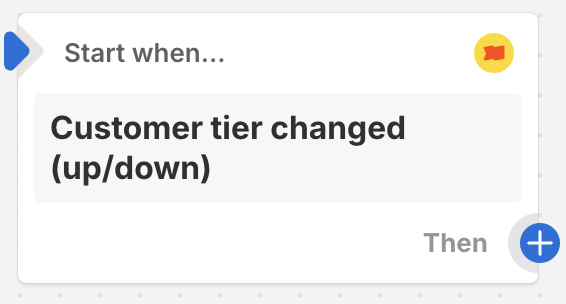
Reward Campaign Achieved
Reward Campaign Achieved
This trigger activates when a customer achieves a new Reward Campaign, either manually or automatically.Example: When a customer earns a new reward campaign when they complete their First Order.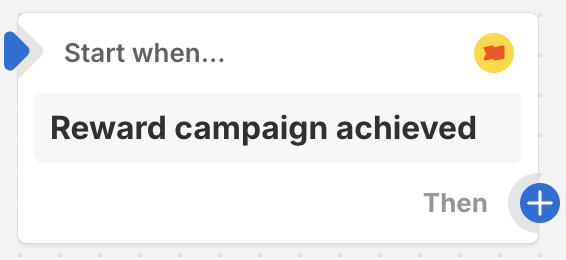
Customer Entered a New Segment
Customer Entered a New Segment
This trigger activates once a customer is added to a new Segment.Example: When a customer is placed in the Inactive segment.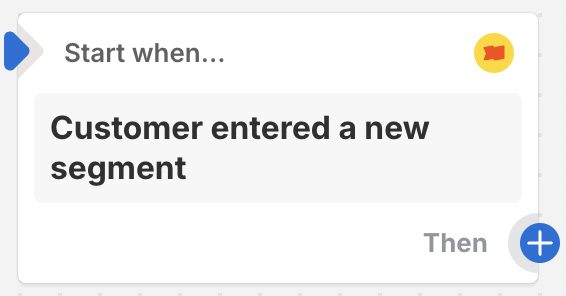
Customer Added a Birthday
Customer Added a Birthday
This trigger activates once a customer adds their birthday to Gameball’s widget.
Actions
Send an Event
Send an Event
This action allows you to send a custom event to Gameball. Learn how to set it up.Example: A customer completed a survey, so we will send this event (Survey_Completed) to Gameball.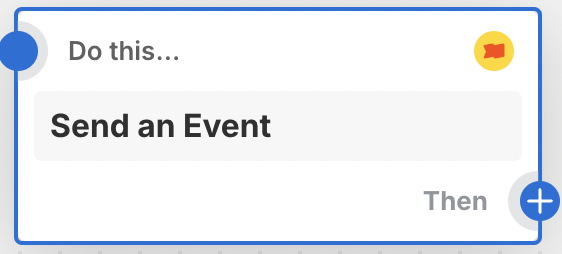
This action is only available on the Guru Plan.
Reward a Campaign
Reward a Campaign
This action rewards a customer with a specified Reward Campaign manually. Learn how to set it up.Example: Rewarding a customer with the ‘Completed First Order’ Reward Campaign.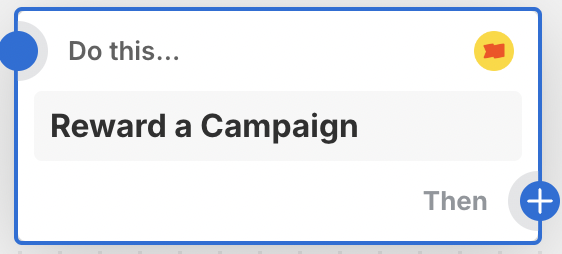
Deduct Points
Deduct Points
This action deducts a specified number of points from a customer’s account for a given reason. Learn how to set it up.Example: Deducting 50 points from a customer’s balance for a reward they got in-store.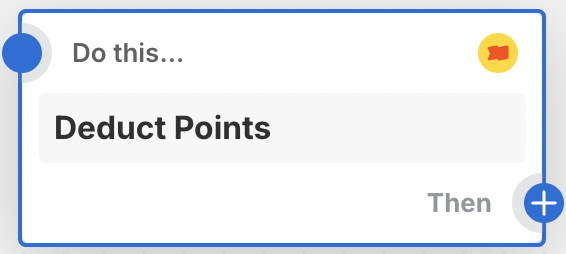
Adjust Customer Tier
Adjust Customer Tier
This action adjusts a customer’s tier to a specified tier name. Learn how to set it up.Example: Adjusting the customer tier from the Bronze tier to the Gold tier.
Add Points
Add Points
This action adds a specified number of points to a customer’s account for a given reason. Learn how to set it up.Example: Adding 100 points for a customer for adding a review on your product.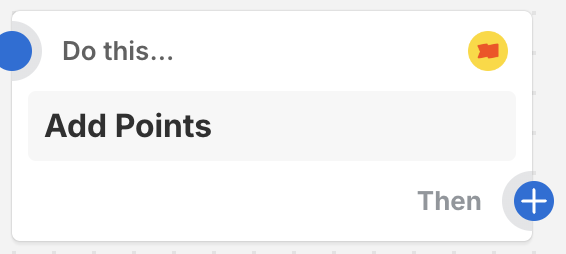
Action Setups
Send an Event Setup
This action allows you to send a custom event to Gameball. Attributes:- Customer Email: Skip the email if the trigger already passes the ID. Select it from “Add a variable”.

- Event Name: The event name to be sent to Gameball.
- Event Attribute Name X: The event attribute name (up to 5 attributes).
- Event Attribute Value X: The event attribute value.
This action is only available on the Guru Plan.
Reward a Campaign Setup
This action rewards a customer with a specified Reward Campaign manually. Attributes:- Customer Email: Skip the email if the trigger already passes the ID. Select it from “Add a variable”.
- Campaign ID: Copy the ID next to the title on the campaign details page in Gameball.

Deduct Points Setup
This action deducts a specified number of points from a customer’s account. Attributes:- Customer Email: Skip the email if the trigger already passes the ID.
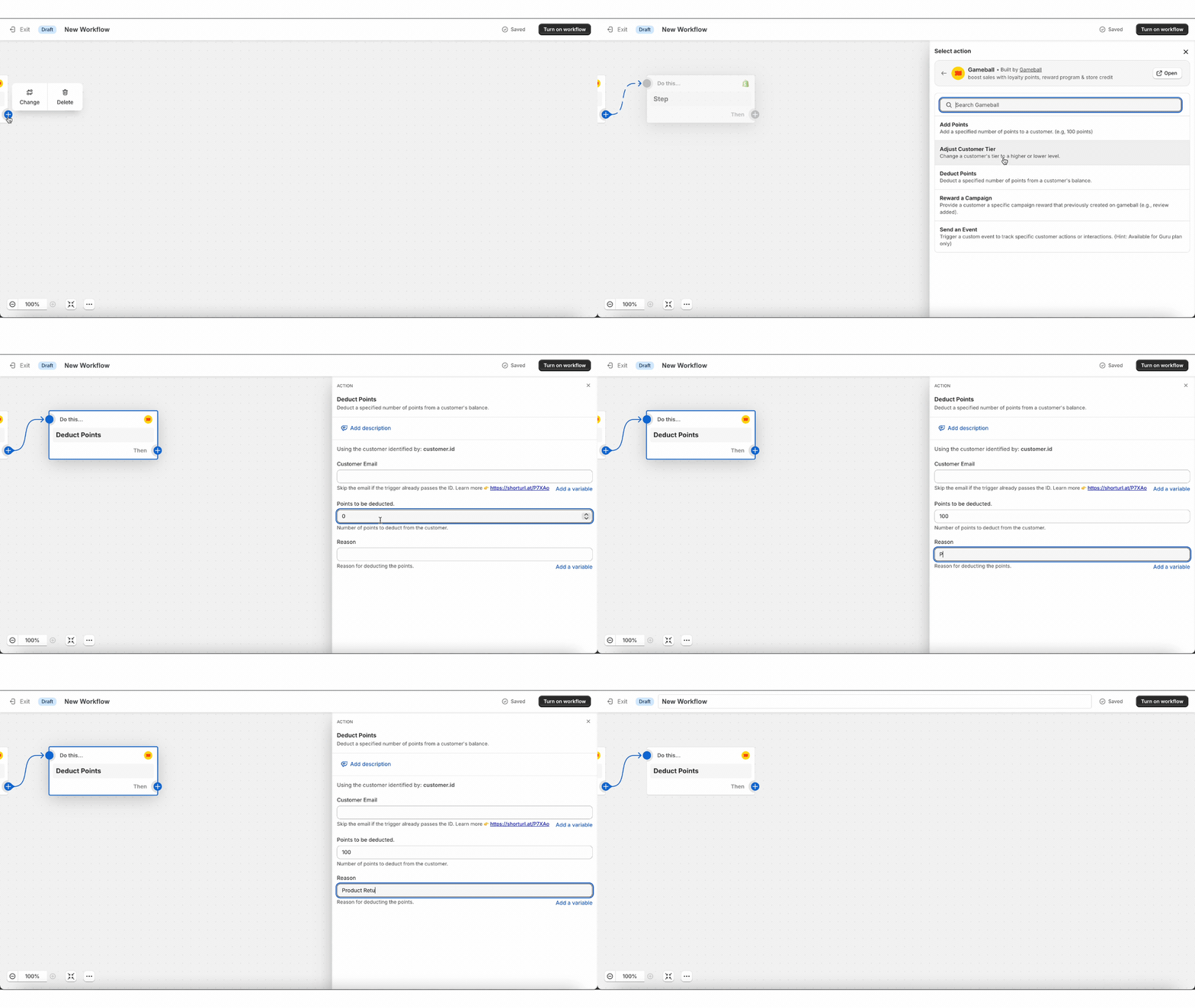
- Points to be deducted: Number of points to deduct.
- Reason: Reason for deducting the points.
Adjust Customer Tier Setup
This action adjusts a customer’s tier to a specified level name. You can choose the level behavior (forever, until a specific date, or evaluated normally). Attributes:- Customer Email: Skip the email if the trigger already passes the ID.
- Tier Order: The tier number in Gameball (e.g., 1, 2, 3).
- Tier Behavior:
- System Evaluate: Based on Gameball’s evaluation according to the chosen tiering-up method.
- Forever: The customer stays on this tier unless manually reassigned.
- Temporarily till Specific Date: The customer stays on the tier until a specific date.
- Temporarily Specific Date: If selected, add the date in format
yyyy-MM-dd. - Reason: The reason for the tier adjustment.
Add Points Setup
This action adds a specified number of points to a customer’s account. Attributes:- Customer Email: Skip the email if the trigger already passes the ID.
- Points to be added: Number of points to add.
- Reason: Reason for adding the points.
Setting Up Gameball Triggers and Actions in Shopify Flow
1
Access Shopify Flow
From your Shopify admin, go to Apps > Shopify Flow.
2
Create a Workflow
Click Create Workflow and choose a trigger from the Gameball triggers listed above.
3
Configure the Trigger
Set up the trigger by selecting the appropriate variables and conditions.
4
Add an Action
Select an action from the Gameball actions listed above and configure it with the necessary details.
5
Test and Activate
Test your workflow to ensure it works as expected, then activate the workflow.
Use Cases
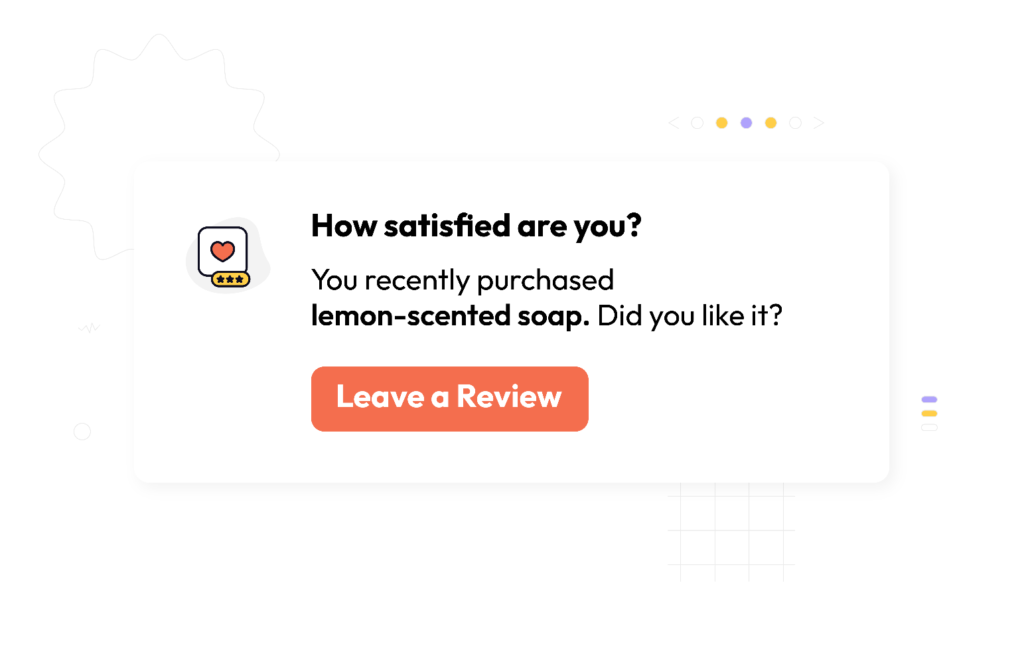
1. Rewarding Customers Who Gave a Review
- Trigger: Use an external reviews app like Reviews.io to trigger the action whenever a customer leaves a review.
- Action: Use Gameball’s Reward a Campaign action to reward customers for their feedback.
2. Adding Points for Survey Completion
- Trigger: Use an external survey app, such as Okendo, to trigger the action when a customer completes a survey.
- Action: Gameball will automatically Add Points to the customer’s account.
3. Celebrate Customer’s 3-Year Anniversary
- Trigger: Set a date trigger to recognize when a customer has been with your store for three years.
- Action: Use Gameball’s Send Event action to trigger a personalized communication campaign.
Reviews.io via Shopify Flow
Reward customers for Reviews.io reviews.
Yotpo via Shopify Flow
Reward customers for Yotpo reviews.