

Step-by-Step Instructions
1
Go to the Customers page
Go to the Customers page from the Gameball dashboard.
2
Apply filters (optional)
Apply filters if you’d like to export a specific segment.
3
Export the list
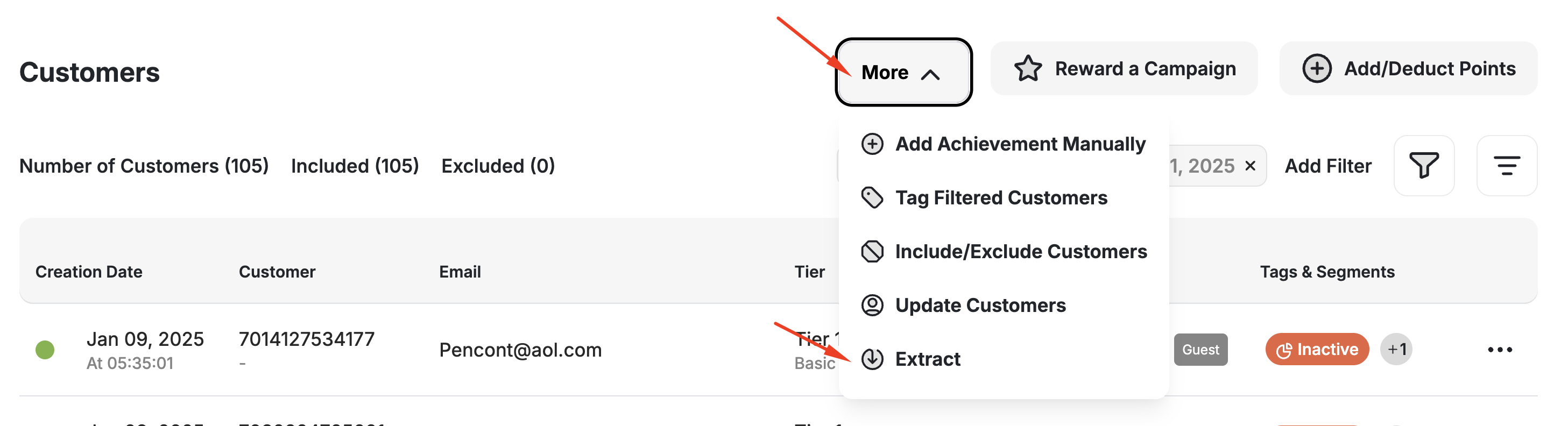
Click More then choose Extract.
4
Download the file
Your filtered customer list will be exported as a CSV file.
If you need a full export of your entire customer database (not limited by filters), please contact the Gameball support team.
Exported Fields and Their Descriptions
Here’s a description of all the columns included in your exported file:You can read more about all customer attributes included in the extracted file through the Customer Profile Attributes article. This also explains how each attribute is added, captured, or calculated by Gameball.
Related Articles
Customer Profile Attributes
Learn about all customer attributes and how they are populated.
Manage Your Customer List
View and manage your full customer list.
Update or Migrate Customers via CSV
Migrate customers from other loyalty programs.
Group Customers Using Tags
Use tags to manually group and target customers.