

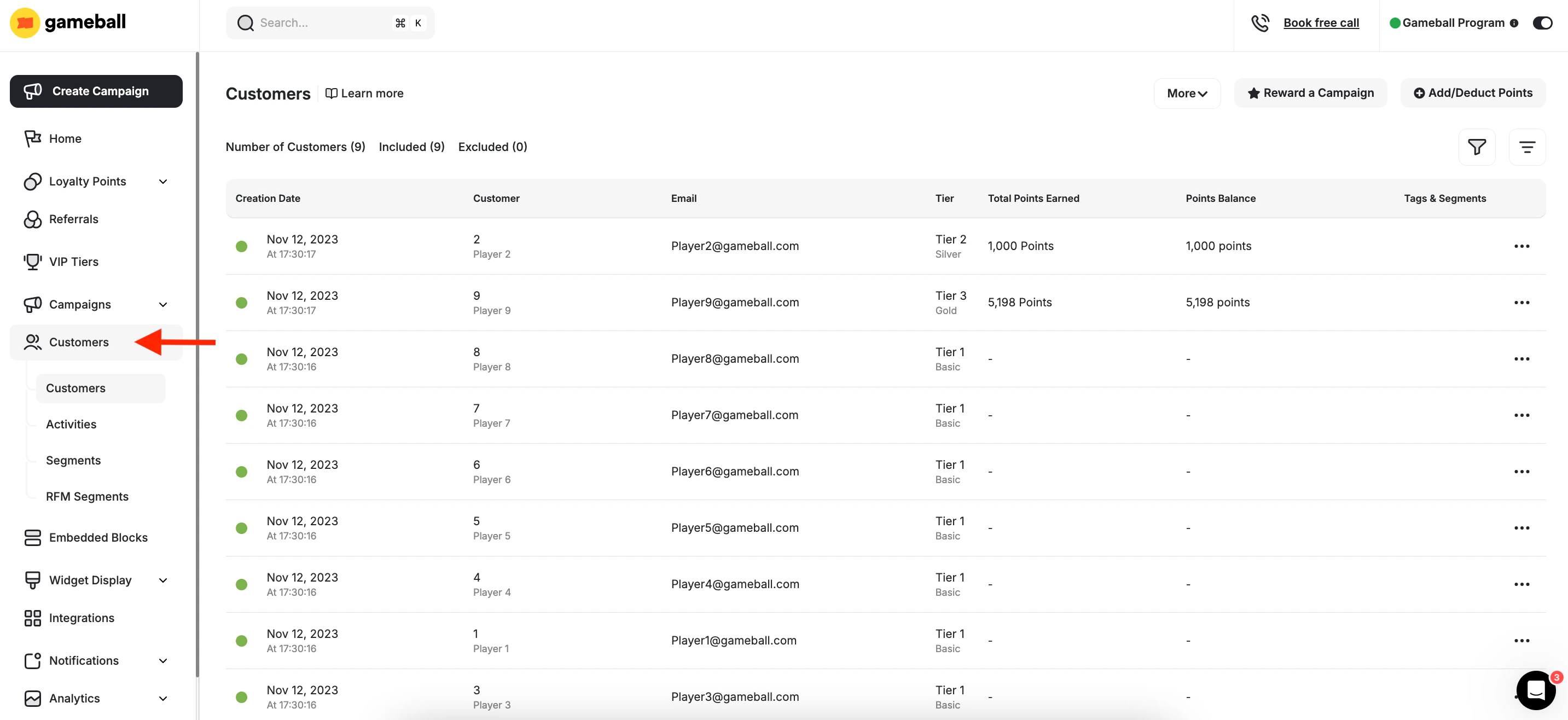
Customer List Overview
Once you access the Customers tab on your Gameball dashboard, you will see a list of all customers along with key profile attributes that help you better understand and manage each customer’s engagement level.Understand the Columns in the Customer List
Actions Available on Each Row
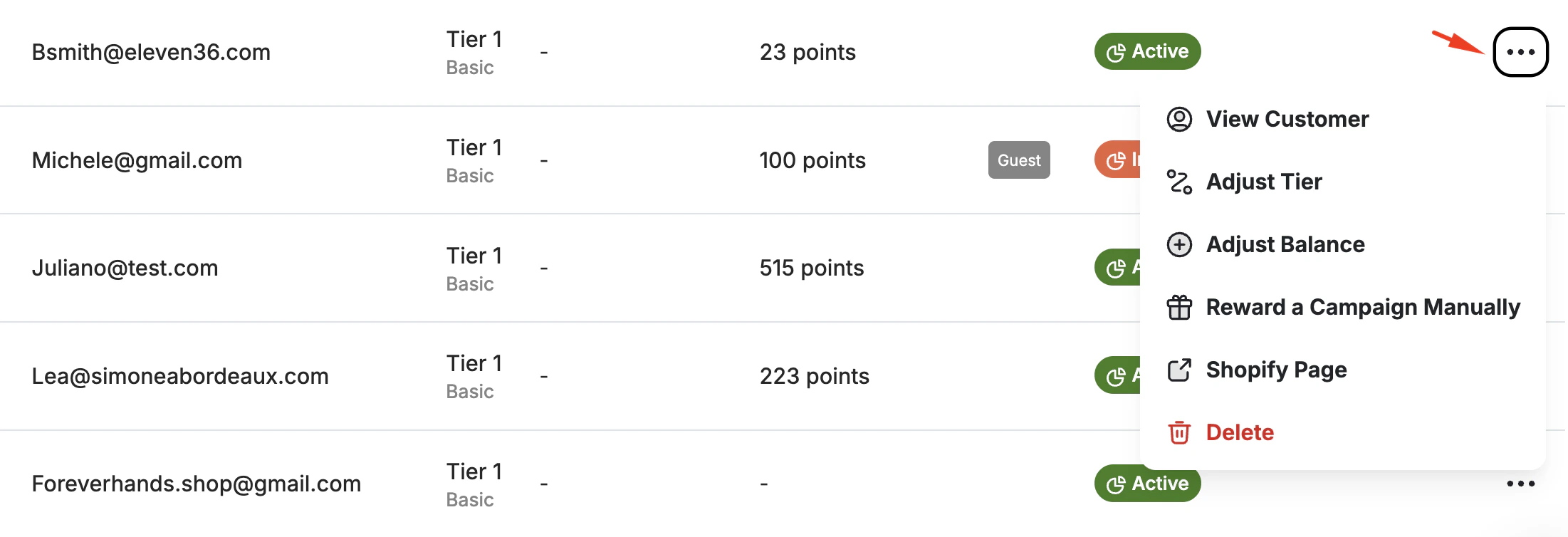
Customers Page-Level Actions
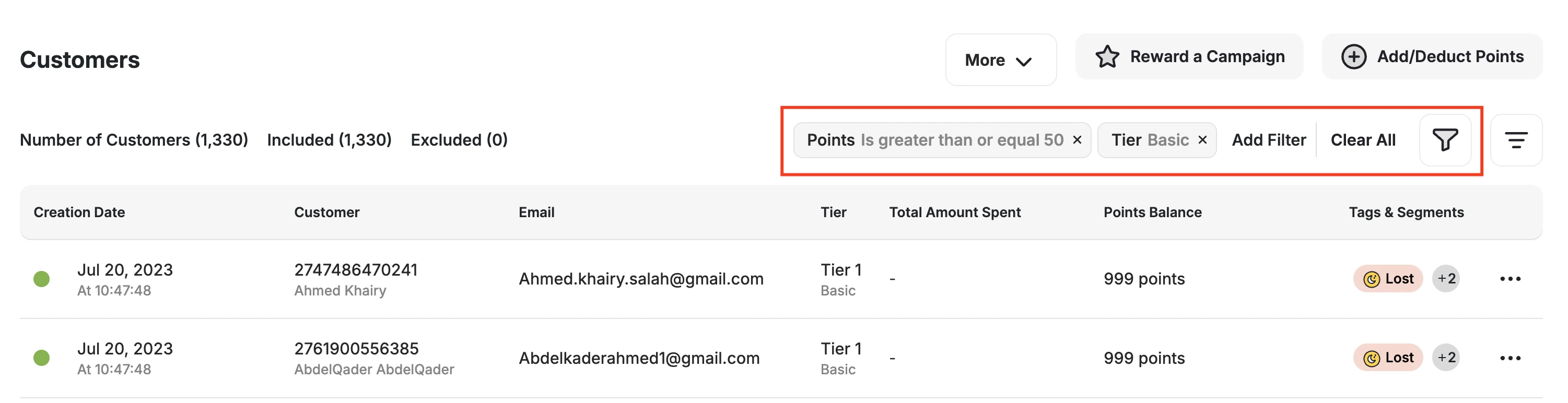
This section covers how to filter your customer list and how to apply single actions and bulk actions to one or more selected customers.Apply Filters to Refine the View
1
Open the filter panel
Click the Filter icon at the top of the Customers page.
2
Select filter options
Select from the available filter options listed below.
3
Define your criteria
Define your criteria (e.g., ranges, keywords, status).
4
Apply the filter
Click Apply Filter to view only the customers matching your selected criteria.
Available Filters
All applied filters will remain active until you manually reset or remove them. The customer list and any bulk actions will reflect only the filtered results.
Perform Bulk Actions
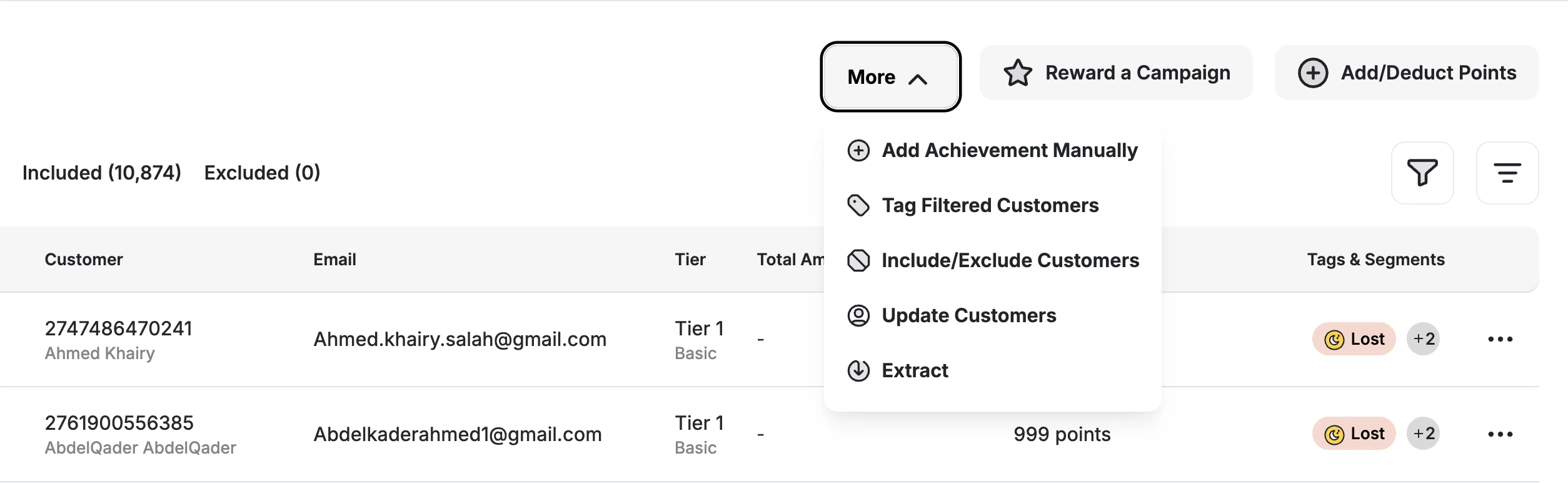
Available Bulk Actions
- You cannot delete customers in bulk.
- There are some other bulk actions you can apply using the batch creation API.
Related Articles
Export Your Customer List
Export your customer data to a CSV file with detailed fields.
Customer Activity Log
Track all customer transactions and activities.
Group Customers by Tags
Use tags to manually group and target customers.
Explore a Customer Profile
View and manage individual customer data.