

Plan Availability
You can customize the features displayed to your customers on the Gameball widget with ease. Follow these simple steps to access the General Settings of the Gameball Widget:
1
Go to the Gameball Admin Dashboard
Log in to the Gameball Admin Dashboard.
2
Navigate to Widget General Settings
From the side menu, navigate to Widget, then click on General.
Widget Language
You can display your widget in multiple languages to match your customers’ preferences. Check the list of languages you can set.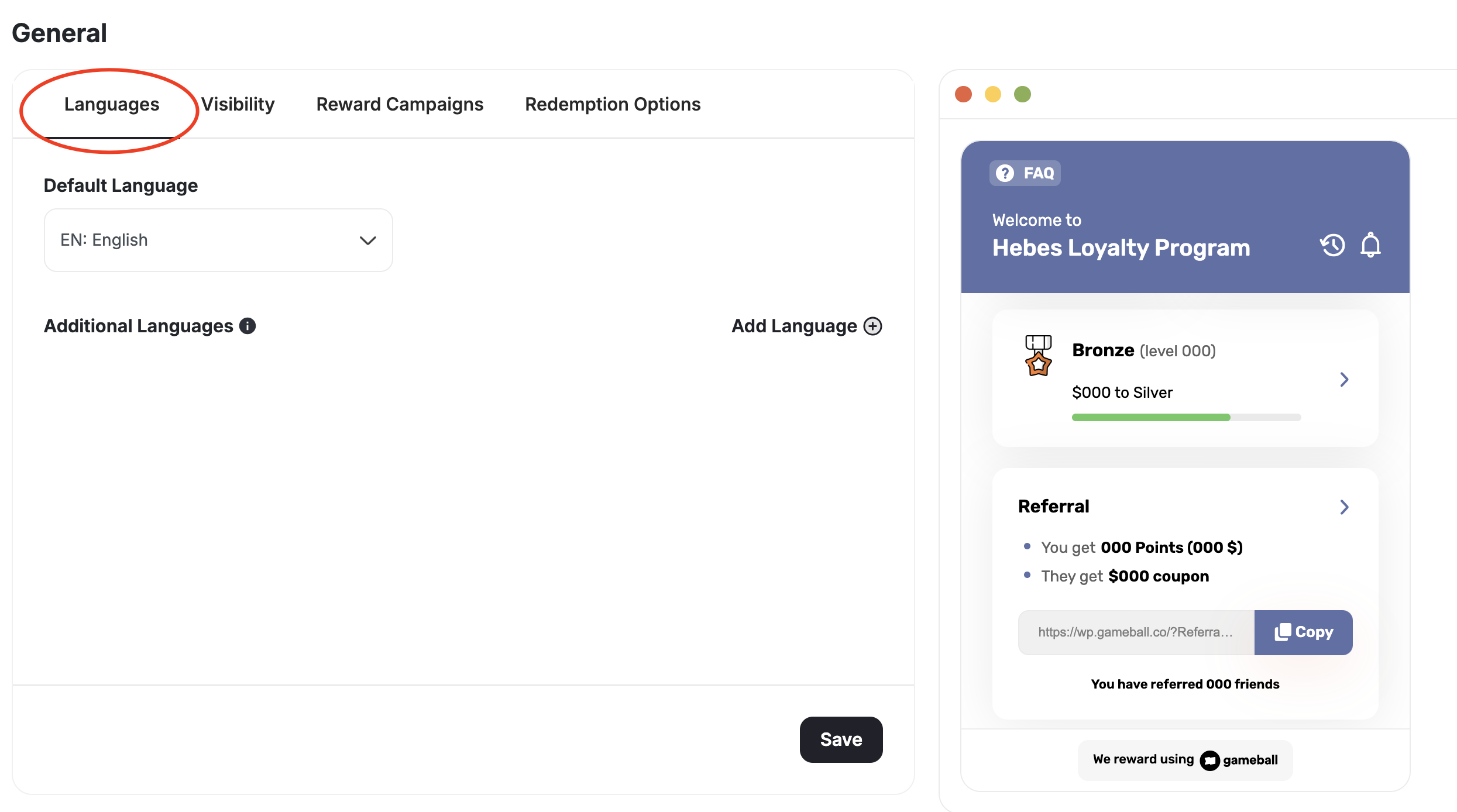
Visibility
Manage the overall visibility of the widget, including specific tabs and sections. Access these settings under the Visibility tab in the General section.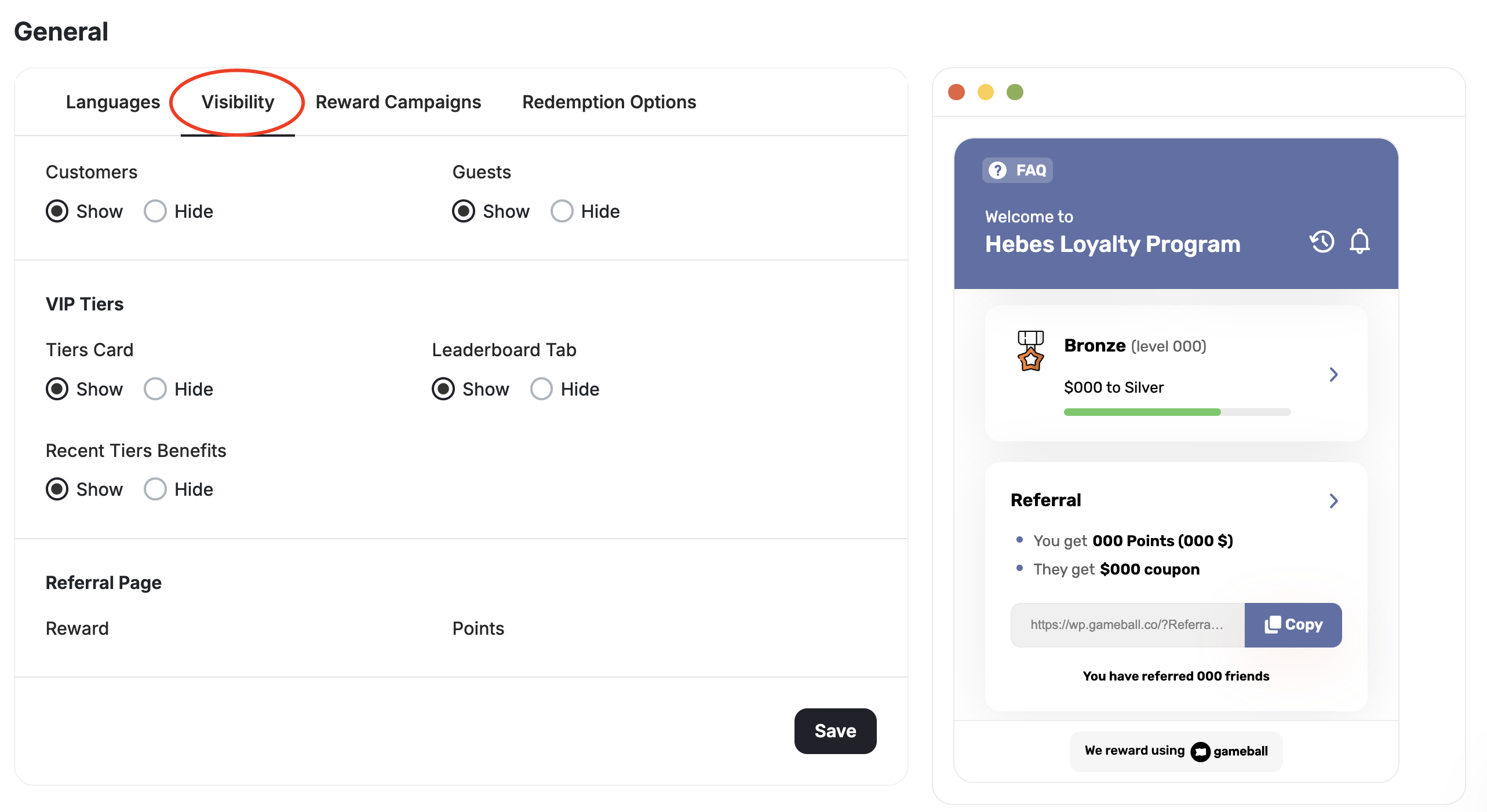
Widget Visibility
Widget Visibility
Determine who can see the Gameball customer widget, differentiating between Customers and Guests:
- Guests: A visitor to your website who does not have an account or has not logged in.
- Customers (User): A visitor who has created an account and is logged in.
These settings are only applicable in the web version of the Gameball customer profile.
Tiers and Leaderboard Visibility
Tiers and Leaderboard Visibility
Choose to show or hide specific tabs:
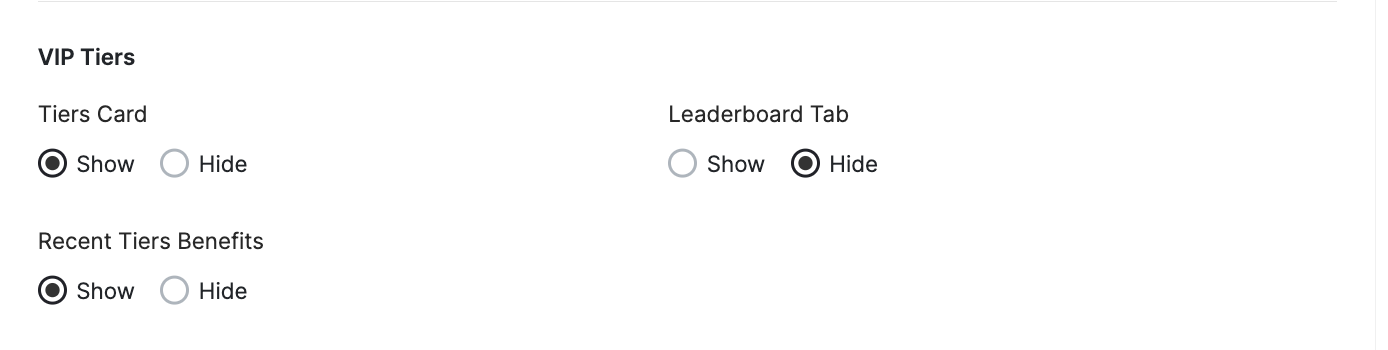
- Tiers Card: Displays the configured tiers and benefits.
- Leaderboard Tab: Shows the leaderboard.
- Recent Tiers Benefits: Displays the benefits of the previous tiers.
All Games Section
All Games Section
Control the visibility of the Play & Win section of the widget by deciding to show or hide it. This section includes all the active game campaigns you had set. Note that by hiding this section, game campaigns will act as if they do not exist for your customer, as they will not be able to access them.
Referrals Visibility
Referrals Visibility
Choose to show or hide specific sections on Referrals: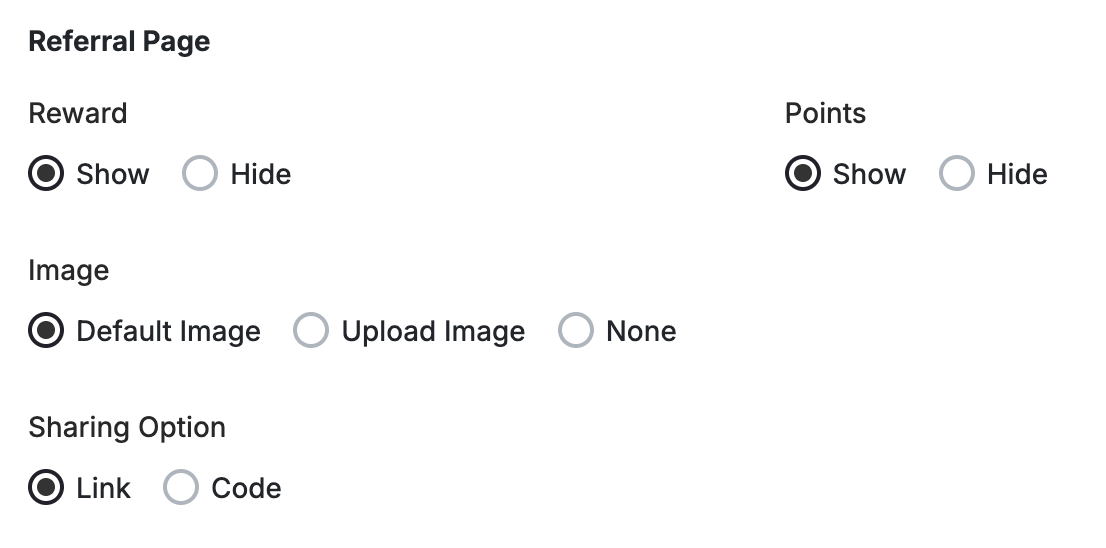
- Rewards Section: Choose to show or hide the rewards section on Referrals.
- Points in Referrals Page: Show or hide the points balance inside the referral page.
- Referral Image: Choose to go with the default referral image, upload your own image to match your brand theme, or to leave the referral section on the widget with no image.
- Sharing Option: Choose to display customers’ unique link as a full link or rather just a code. Example: Link: https://xxx.com/account/register?ReferralCode=Vg6945F76CkP1B Code: Vg6945F76CkP1B
Other Features Visibility
Other Features Visibility
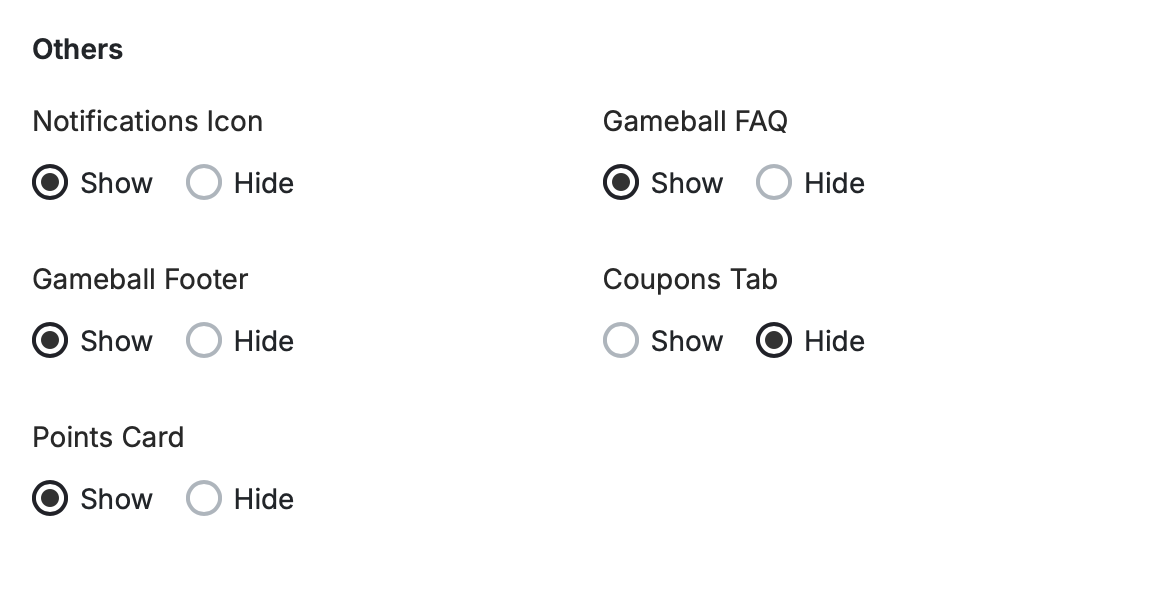
- Notifications Icon: Optional. Enable or disable the notifications tab as needed.
-
Gameball Footer: Choose whether to display the Gameball logo at the bottom of the customer/guest widget.
The remove footer feature is only available on:Shopify: Starter, Pro, and Guru plans.Salla: Pro and Guru plans.Non-Platform: All.
- Gameball FAQ: Show or hide the FAQ tab, which briefly explains your loyalty program to guests and customers.
- Coupons Tab: Show or hide the Coupons tab, which has the list of all the redeemed coupons from both the Redeem and the Referrals modules on the widget. The Coupons tab is only visible when at least one custom redemption option is active, or when the Gameball Coupon Engine add-on is enabled — in which case the tab remains available even if no redemption options are configured, so customers can still access coupons earned through campaigns and referrals.
- Points Card: Show or hide the current customer’s points balance. This is a binary toggle — showing only a monetary equivalent (e.g., store credit value) while hiding the points count is not currently supported.
-
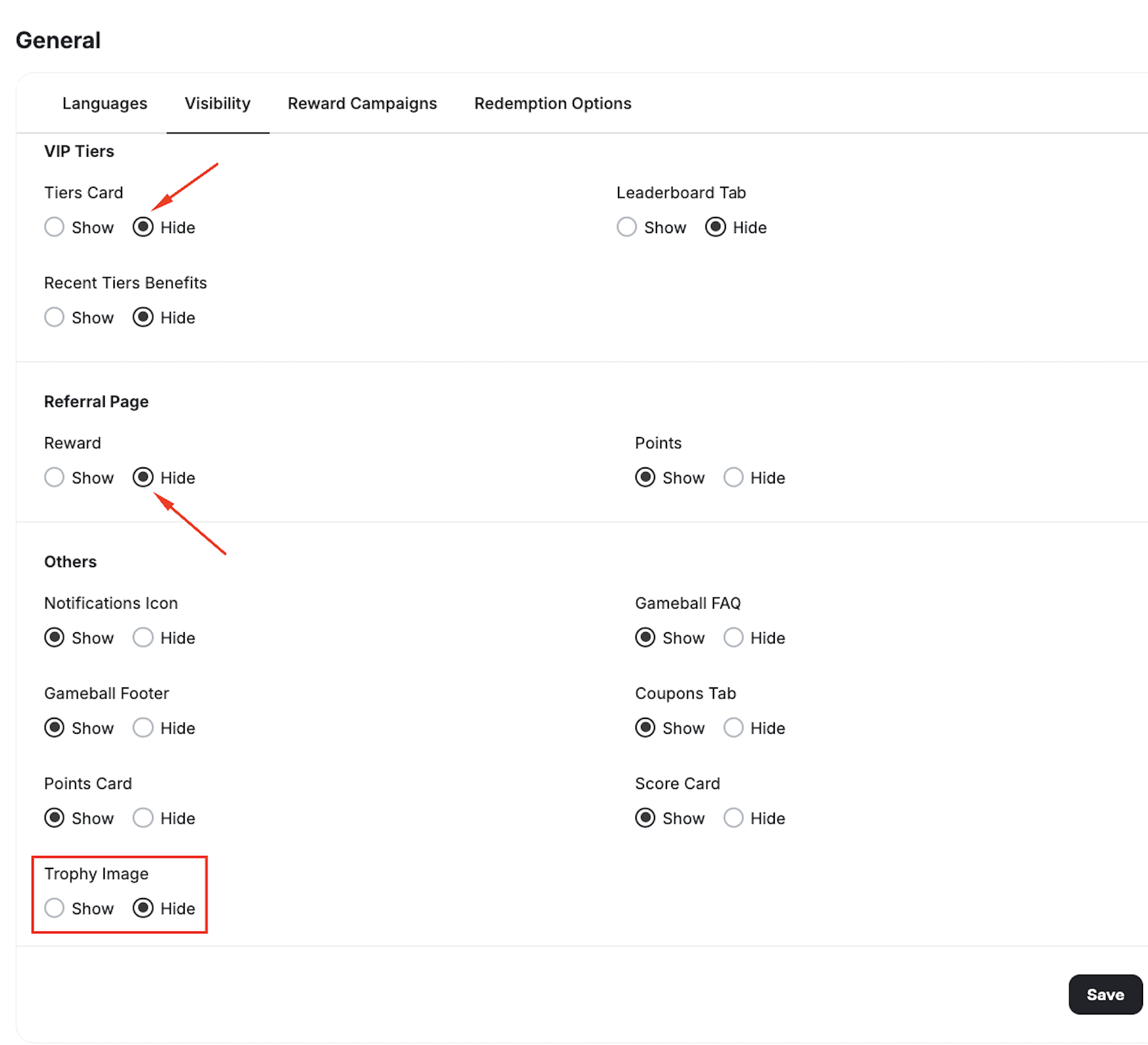
Trophy Image: Show or hide the big trophy image in the widget’s home page.
Hiding of the trophy option will be shown only in case the Tier and Referral cards are set to hidden.
Sort Reward Campaigns Badges on Widget
Organize the icons in the Reward Campaigns section of the widget by going to the Reward Campaigns tab.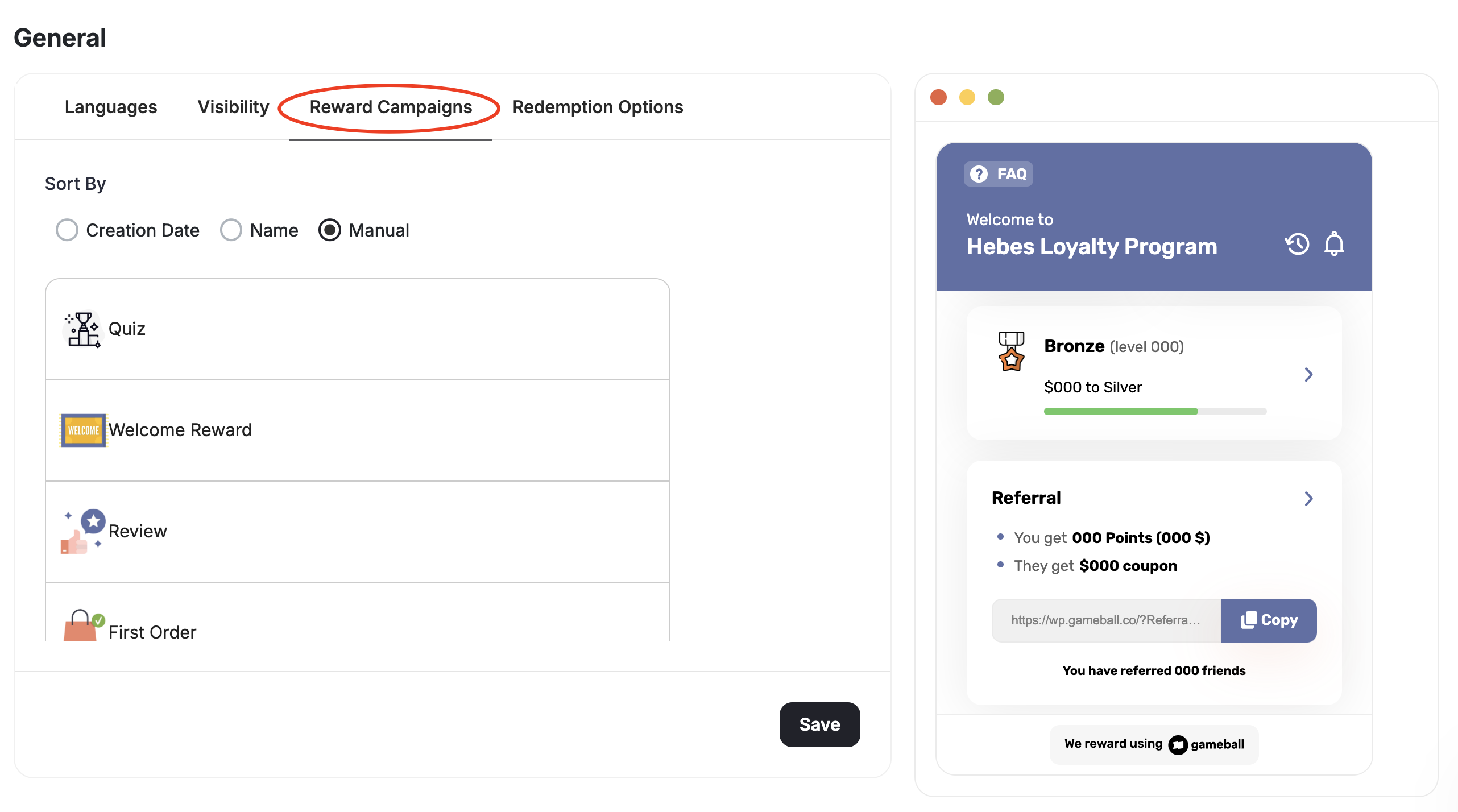
- Creation date: Display reward campaigns based on the order of their creation.
- Name: Alphabetically from A to Z.
- Manual: Drag and drop reward campaigns to arrange them as you prefer.
Redemption Options
Go to Widget > General > Redemption Options to control which redemption options appear in the widget and in what order. Each option has a Show in widget toggle. It’s on by default — turn it off to hide that option from the widget without disabling it. Hidden options remain fully callable via the API, so you can build a custom redemption flow in your own UI while keeping the default widget clean.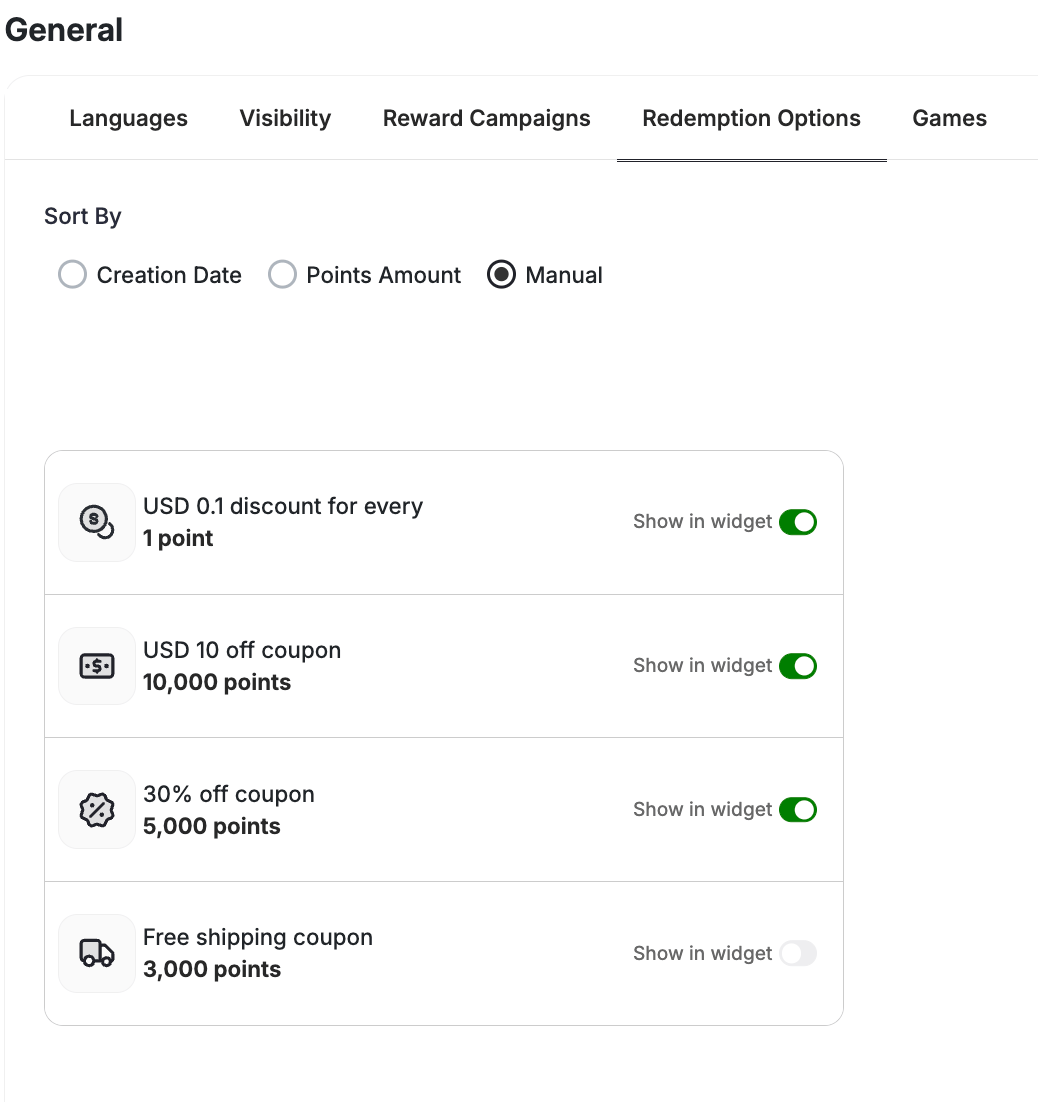
- Creation Date: Displayed chronologically by setup date.
- Points Amount: Sorted from lowest to highest cost.
- Manual: Drag and drop to arrange them exactly as you like.
Calendar Banner
Personalize the banner that appears in the widget for calendar campaigns. Navigate to Widget > Content > Games to configure the following: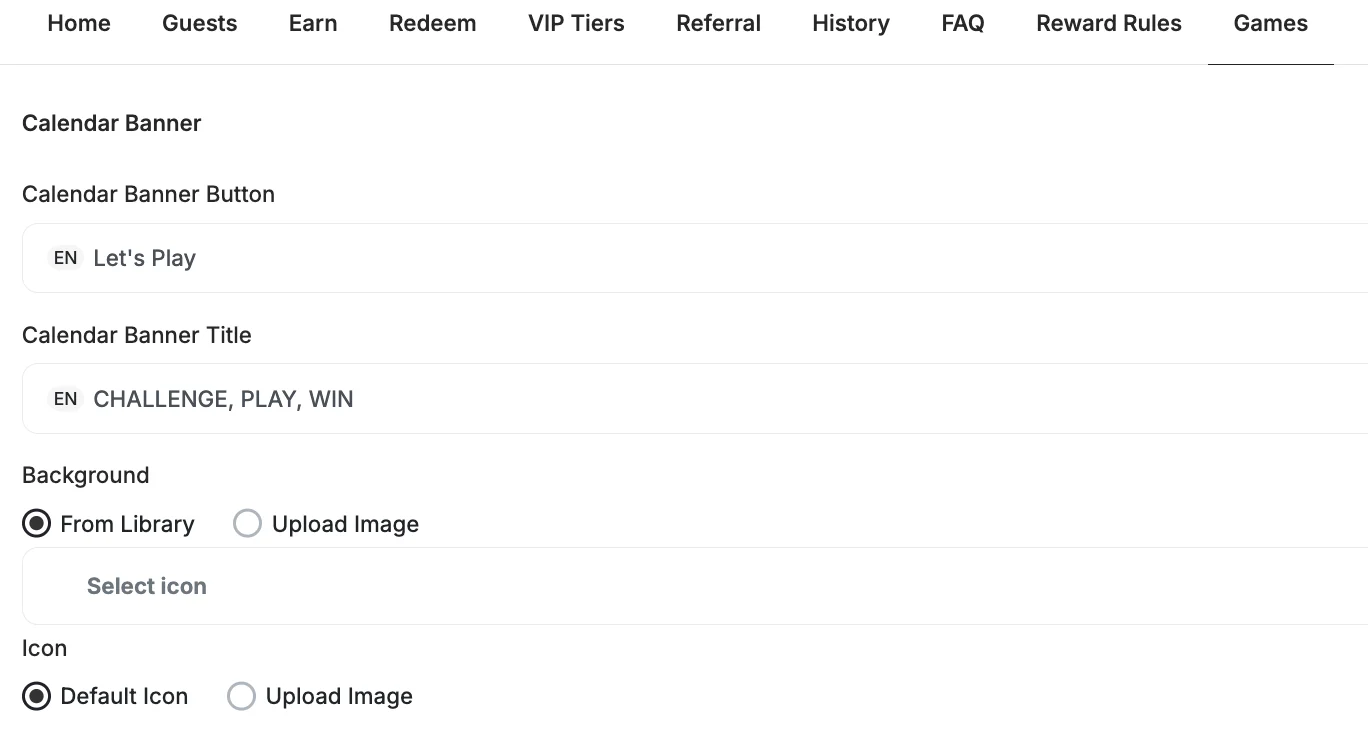
When multiple calendar campaigns run simultaneously, a selector appears so you can configure the banner for each campaign independently.
Sort Play & Win Options on Widget
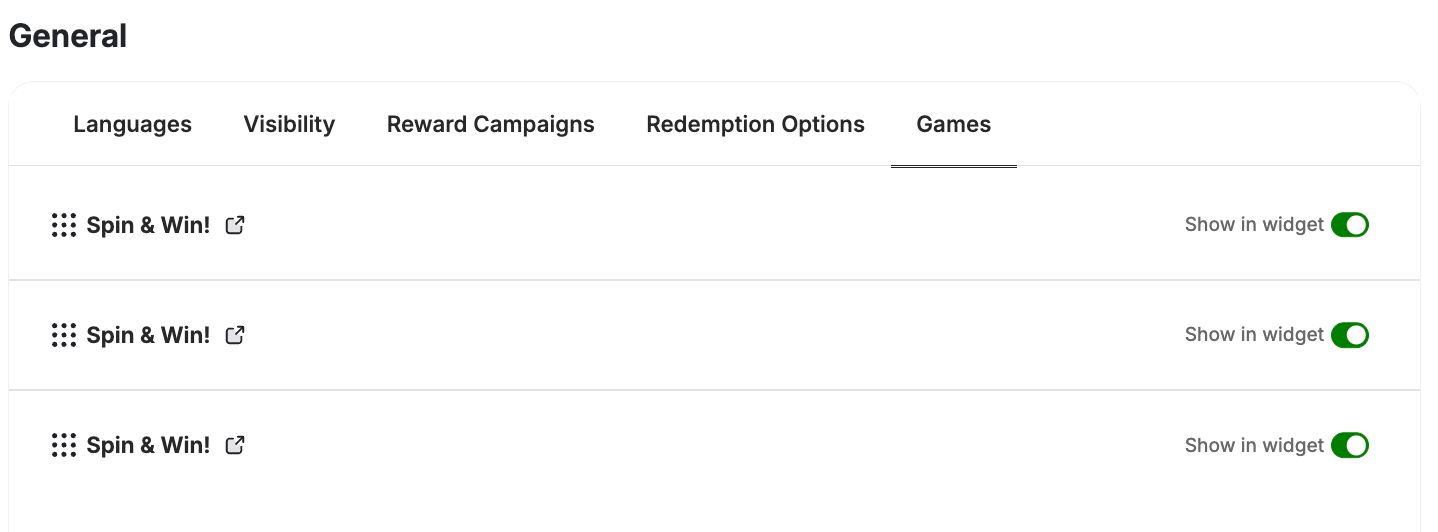
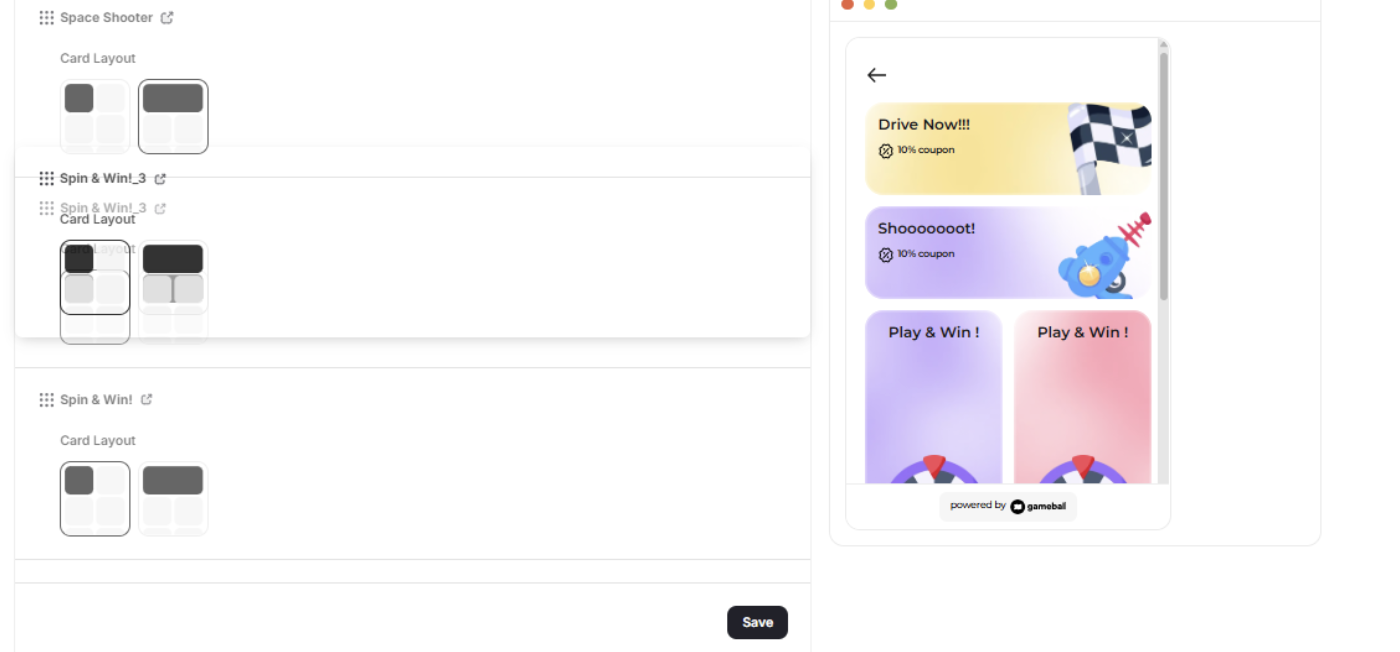
When you have multiple game campaigns customized, you will be able to control how they appear in the section as well as their order from the Play & Win Options tab under the General widget section in the dashboard.
- Drag and drop each game campaign card.
- Choose the style of each game campaign card. Choose between a square-shaped card or a rectangular-shaped card.
The “New” badge that appears on recently added game cards uses the game’s configured button color — it is not independently customizable.
What’s Next?
Guest Profile Configurations for Web
Configure the guest experience, including images, sign-up URLs, and login redirects.
Configure Widget Language
Set a default language and add additional languages to serve a multilingual audience.
Customize Widget to Match Your Brand
Adjust colors, fonts, icons, and identity to align the widget with your platform’s look and feel.