

How to Hide Gameball’s Traditional Launcher Button
1
Navigate to Launcher Shape Settings
On the Gameball Admin Dashboard, go to Widget > Launcher: Shape.
2
Choose Hide
Under Launcher, choose the Hide option.
3
Save Changes
Click Save to apply your changes.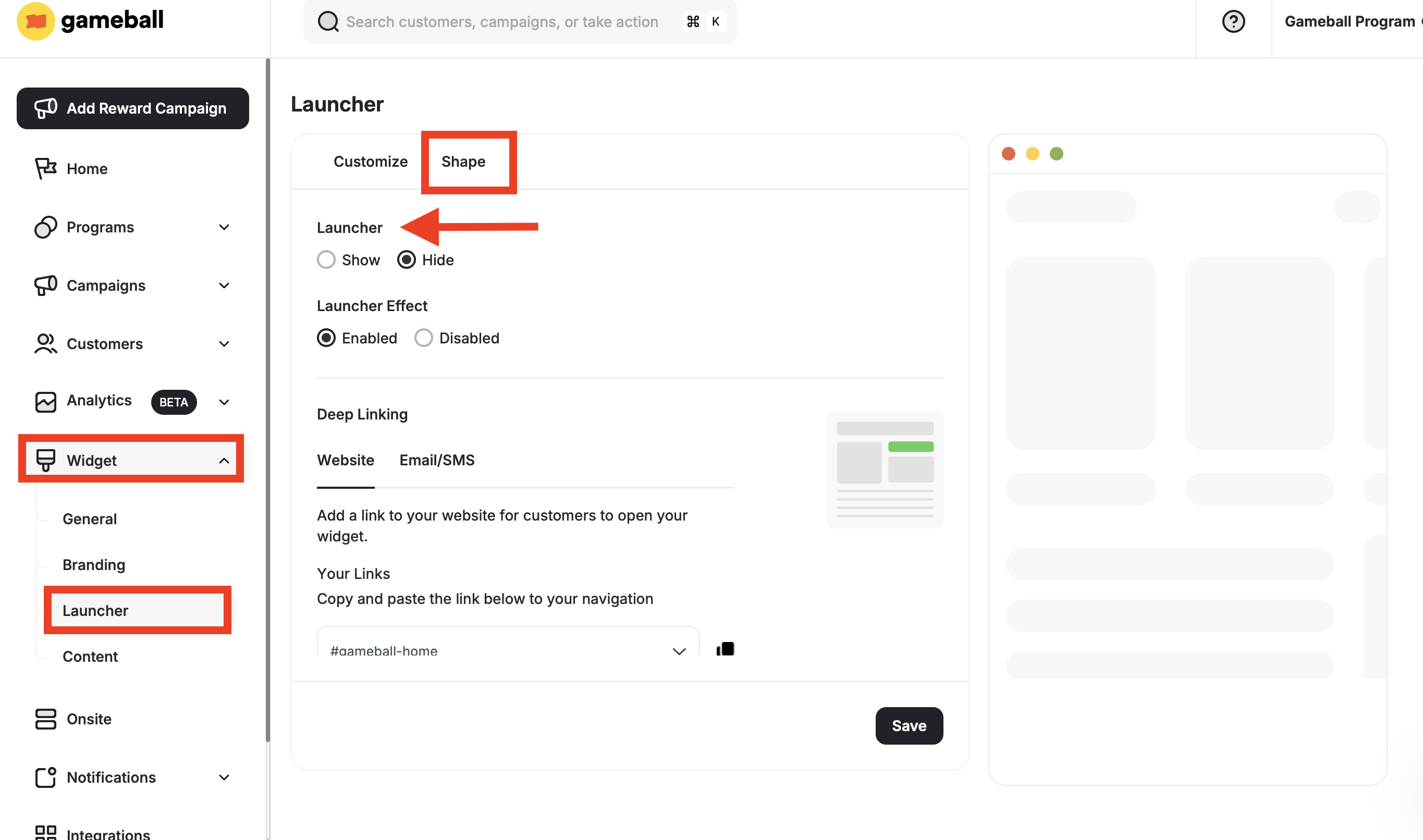
Related Articles
Customize the Widget Launcher
Control the shape, position, icon, and visibility of your loyalty launcher button.
Customize Widget to Match Your Brand
Adjust colors, fonts, icons, and identity to align the widget with your platform’s look and feel.
Enable Widget Deep Links
Let customers open any section of the widget through custom links and inline elements on your site.