

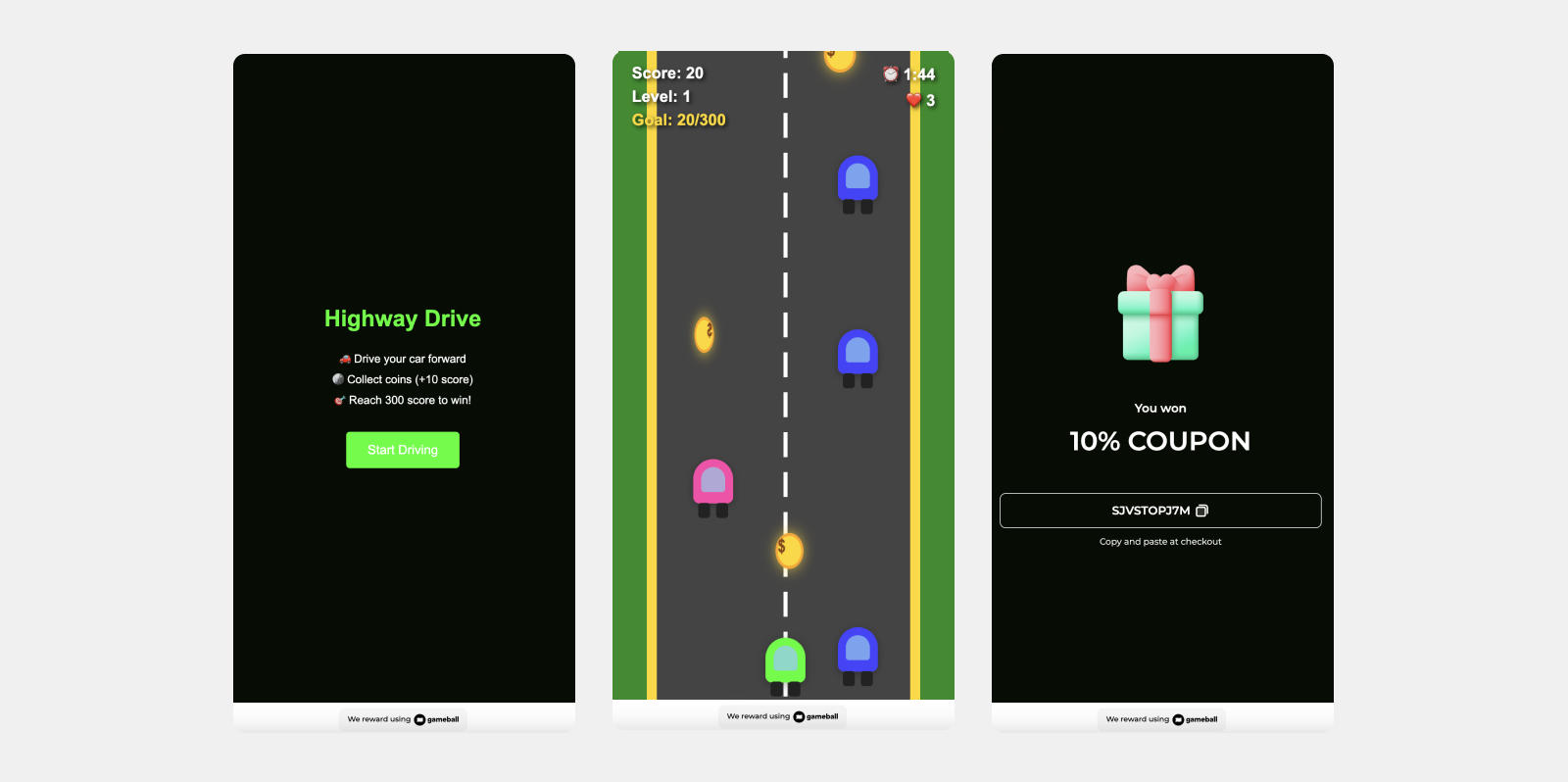
An interactive gamification tool that boosts engagement and brand awareness. Customers play Driving Game to win and unlock rewards, driving interaction, visibility, and new revenue opportunities.
How to Set Up
1
Open Gameball
Log in to your Gameball dashboard.
2
Add a Reward Campaign
Click Add Reward Campaign.
3
Select the Template
Choose the Driving Game template.
4
Configure the Campaign
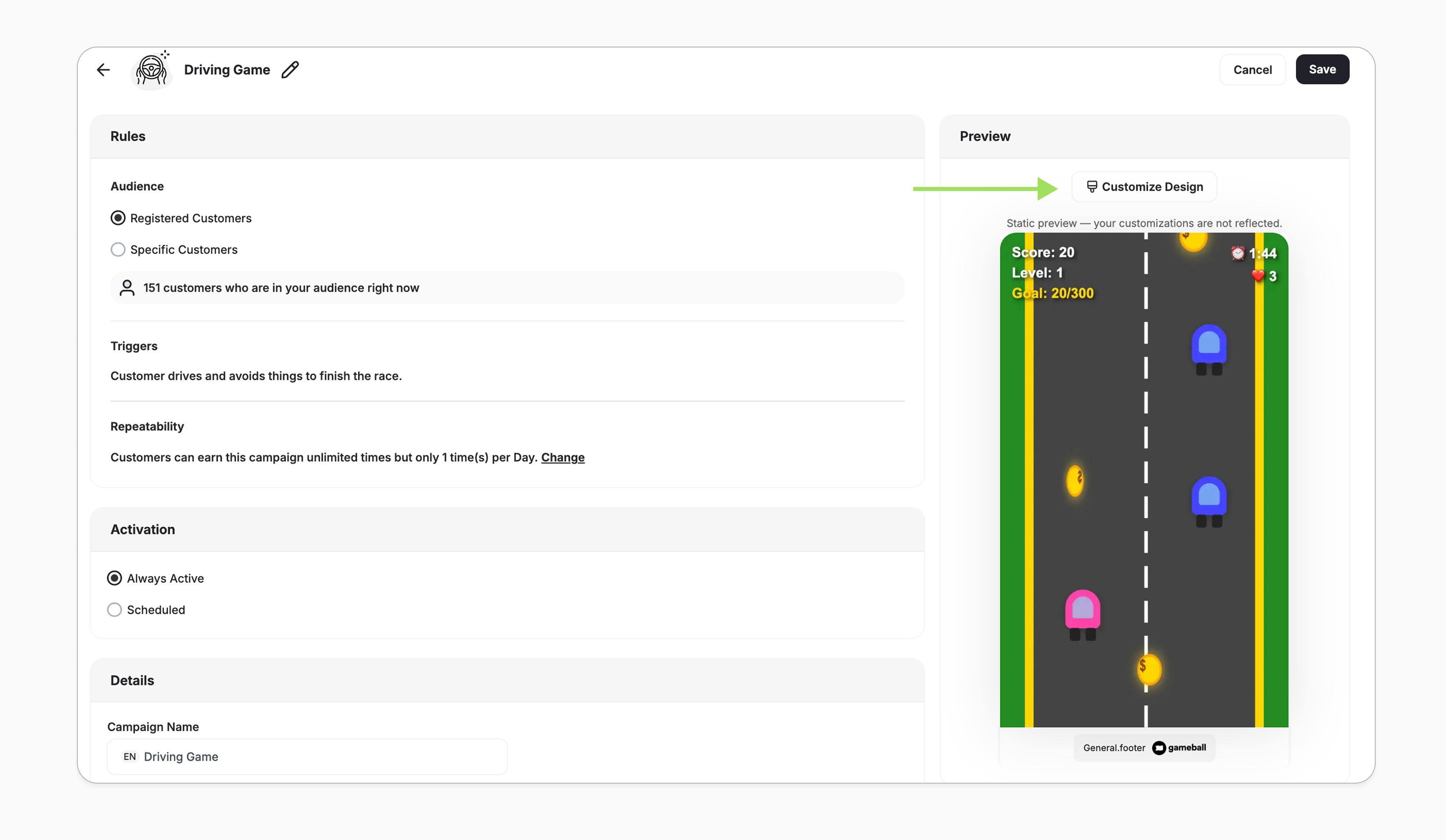
Edit the campaign’s setup to match your goals.
5
Activate
Click Set Live to activate the campaign.
Campaign Trigger
Customers can access the game through the Badges section in the widget. Tapping the badge redirects them to a screen where they can start playing and trigger the campaign to begin playing. Audience- Registered Customers: Customers who have an account on your platform (signed up).
-
Anonymous Customers: Visitors browsing anonymously without providing any contact information or identifiable details (not signed up).
- Visitors can open the game, submit basic information through the lead form, play, and receive rewards, matching the standalone game URL experience.
- Widget deep links that open a specific game work for guests as well. The widget would open directly into the game screen and allow participation without login.
- Specific Customers: You can choose for a specific selection of customers to participate in this campaign by filtering using segments, tags or customer attributes.
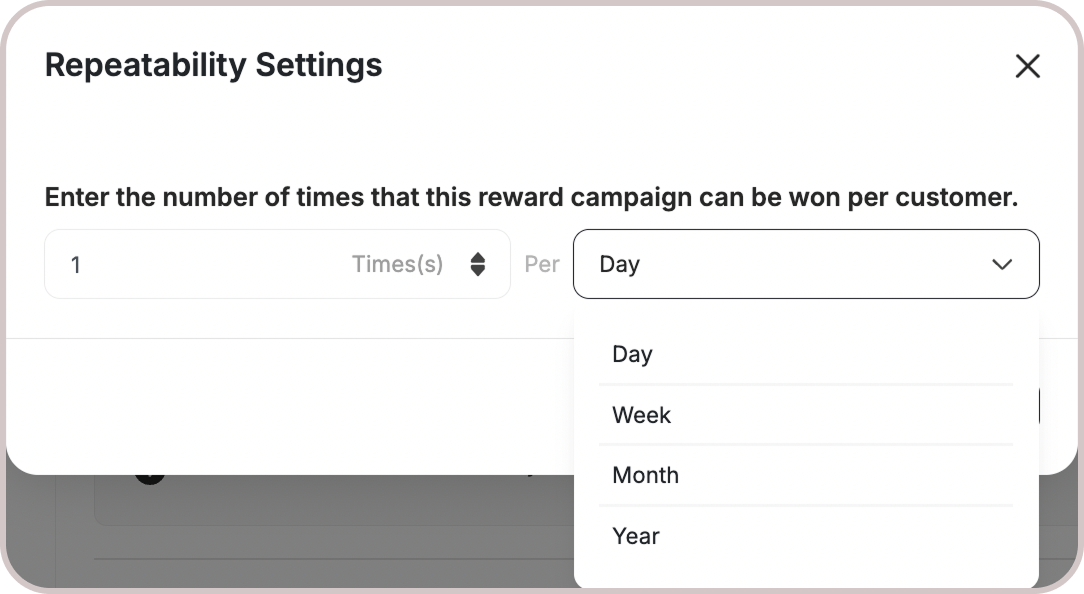
- By default, customers can play once per day. A new opportunity to replay it begins at 00:00 AM based on the chosen time zone.
- All Games campaigns support only the Limit per day/week/etc. Learn more.

How It Works for Customers
1
Play
Customers start by moving between lanes, trying to collect the coins and avoid the cards.
2
Game Ends
The game ends when the time has ended, or you finish all your lives.
3
Notification
The customer is notified via the widget or email, depending on your configuration, when they earn a reward. Learn more.
Customization
Content You can fully customize each stage of the campaign through dedicated tabs representing the different screens in the flow:- Banner
- Intro / Main Screen
- Game General Rule:
- Time Duration: Set how long each game lasts (e.g., 10s, 20s, 60s).
- Mistakes/Lives: Choose how many lives a customer has (e.g., 1, 3, or unlimited).
- Goal Score: Fixed at 300 points — this cannot be changed. Customers must reach this score to win.
- Dashboard Controls: Easily configure these settings in the game setup screen.
- Default Values: Existing defaults remain if no customization is made.
- Tooltips: Added help text explaining how time and lives impact gameplay.
- Lead Form (if audience set to Anonymous Customers - Not logged in)
- Success Screen
- No Luck Screen
- Content: Edit the headlines, descriptions, and call-to-action messages to match your tone and messaging.
Important Notes
Customer EligibilityGames in the widget update dynamically based on customer eligibility, ensuring customers only see games they can still participate in.Games are hidden when customers become ineligible.If a customer no longer belongs to the game’s target segment, the game is automatically removed from the widget and won’t reappear unless eligibility is restored.
Related Articles
Set up a reward campaign
Step-by-step guide to configuring any reward campaign.
Reward types in Gameball
Explore the different reward types you can offer customers.
Notification after earning a reward
Configure how customers are notified when they earn a reward.