

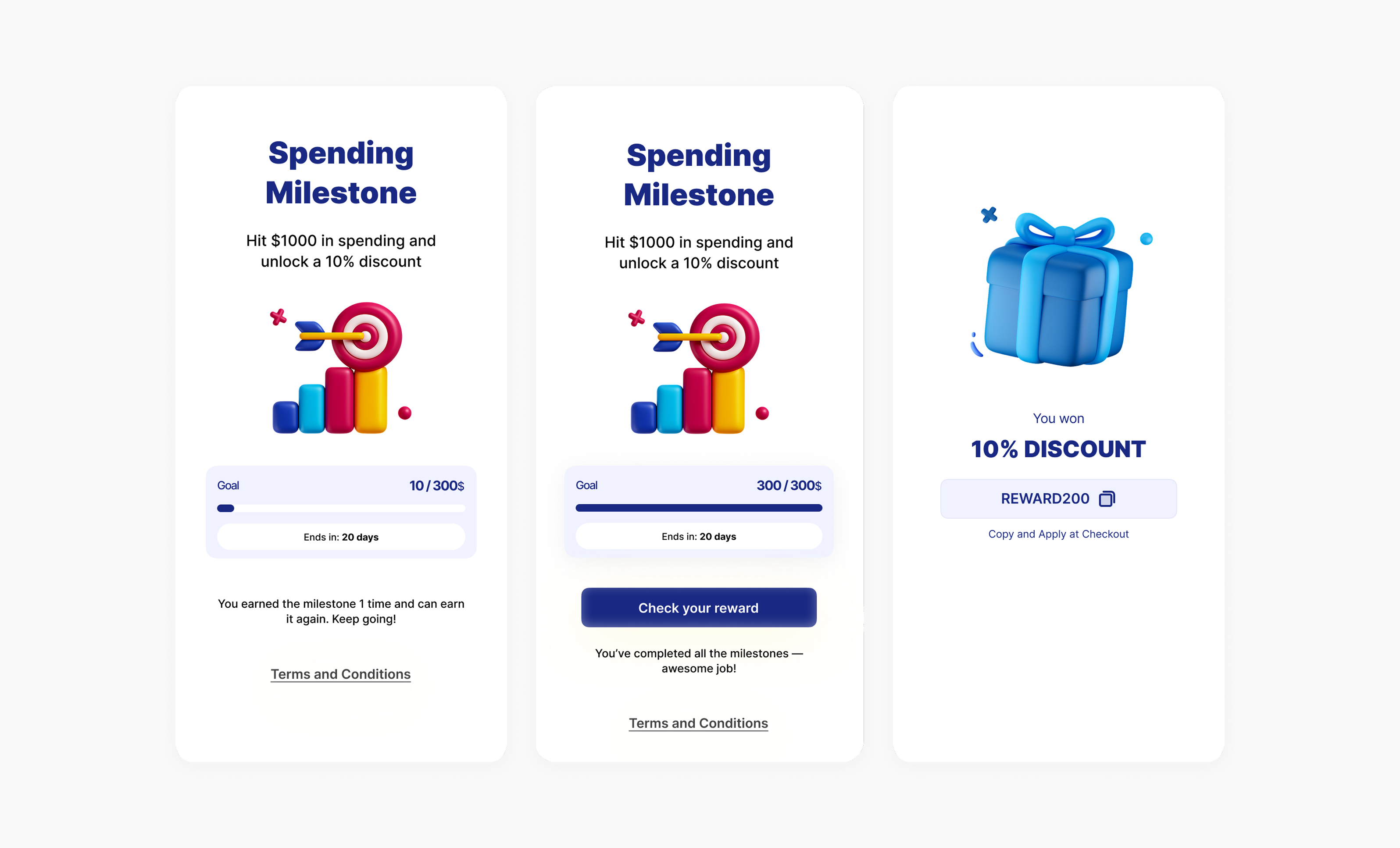
The Milestone Campaign is a rule-based campaign that accumulates a customer’s eligible spend or item count across orders during a defined period (e.g., SAR 500 per month). Help increase AOV and repeat purchase frequency.
Use Cases:
- Spending Milestones Reward based on total spend within a period. Example: “Spend $1000** and get a **$100 gift card.”
- Collection/Tag/SKU/Branch-Specific Milestones Only spending on a chosen collection/category/SKU counts. Example: “Spend $500** on **Electronics** and get **$50 off your next order.”
- Items-Purchased Milestones (count) Reward by quantity of items, regardless of price. Example: “Buy 10 items and get 20% off next order.”
How to Set Up
1
Open Gameball
Log in to your Gameball dashboard.
2
Add a Reward Campaign
Click Add Reward Campaign.
3
Select the Template
Choose the Milestone template.
4
Configure the Campaign
Edit the campaign’s setup to match your goals.
5
Activate
Click Set Live to activate the campaign.
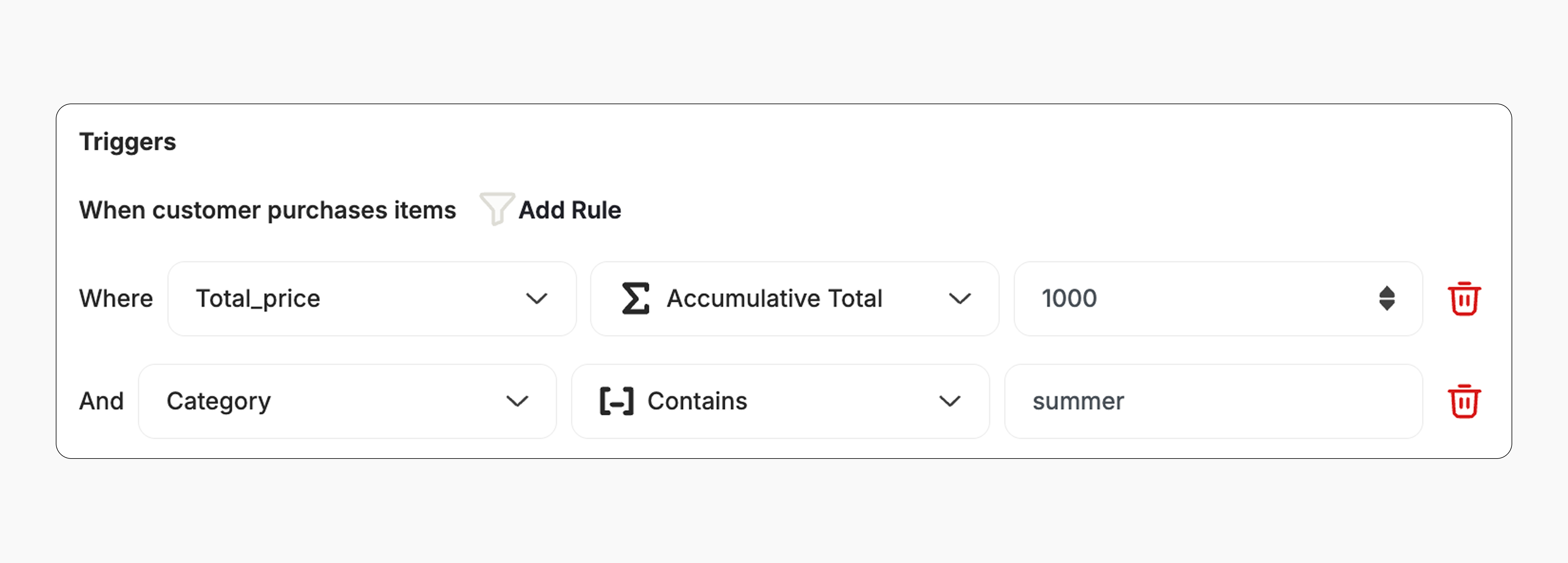
Campaign Trigger
1
Select Attribute
Select the attribute to track (e.g., Total price).
2
Choose Progress Method
Choose the progress method: Cumulative (adds up across orders).
3
Set Threshold
Set the milestone threshold that triggers the reward (e.g., $1,000).
4
Add Filters (Optional)
Add filters/conditions — e.g., item quantity, specific collection/category/SKU, branch, etc.
How It Works for Customers
1
Begin Milestone
A customer begins the milestone by placing an order that meets the configured conditions.
2
Progress Accumulates
Each eligible order counts toward the customer’s progress.
3
Milestone Completed
Once the milestone is completed, the configured reward is issued immediately (e.g., points, discount, badge).
4
New Round (if repeatable)
If the milestone is repeatable, completion starts a new round: the next eligible order resets progress, and the widget displays the new progress toward the next milestone.
Customization
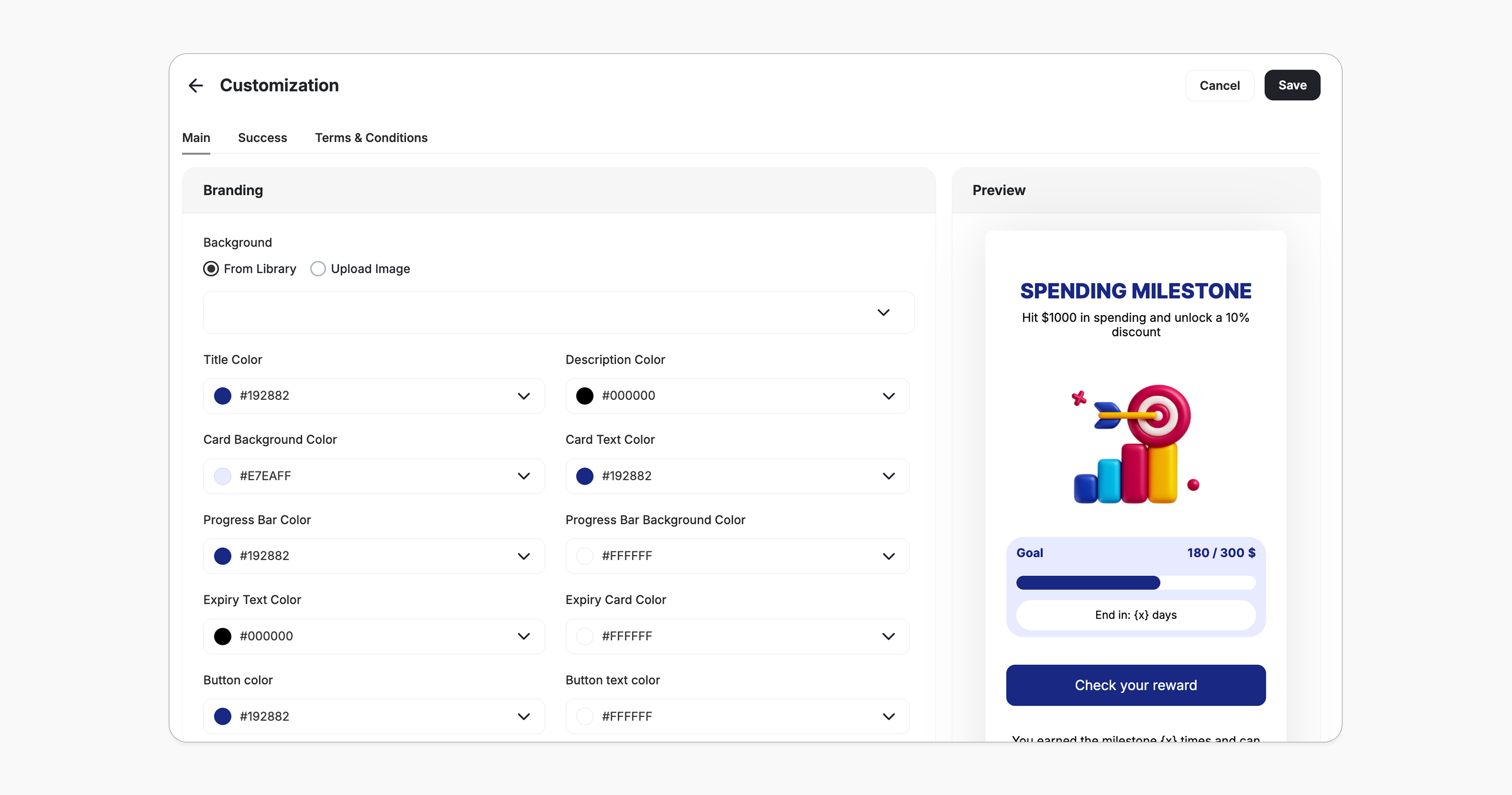
Design & Content You can fully customize each stage of the campaign through dedicated tabs representing the different screens in the flow:- Main Screen
- Success Screen
- Terms & conditions
- Branding: Adjust background colors, text colors, and upload custom artworks.
- Content: Edit the headlines, descriptions, and call-to-action messages to match your tone and messaging.
Related Articles
Set up a reward campaign
Step-by-step guide to configuring any reward campaign.
Reward types in Gameball
Explore the different reward types you can offer customers.
Notification after earning a reward
Configure how customers are notified when they earn a reward.