

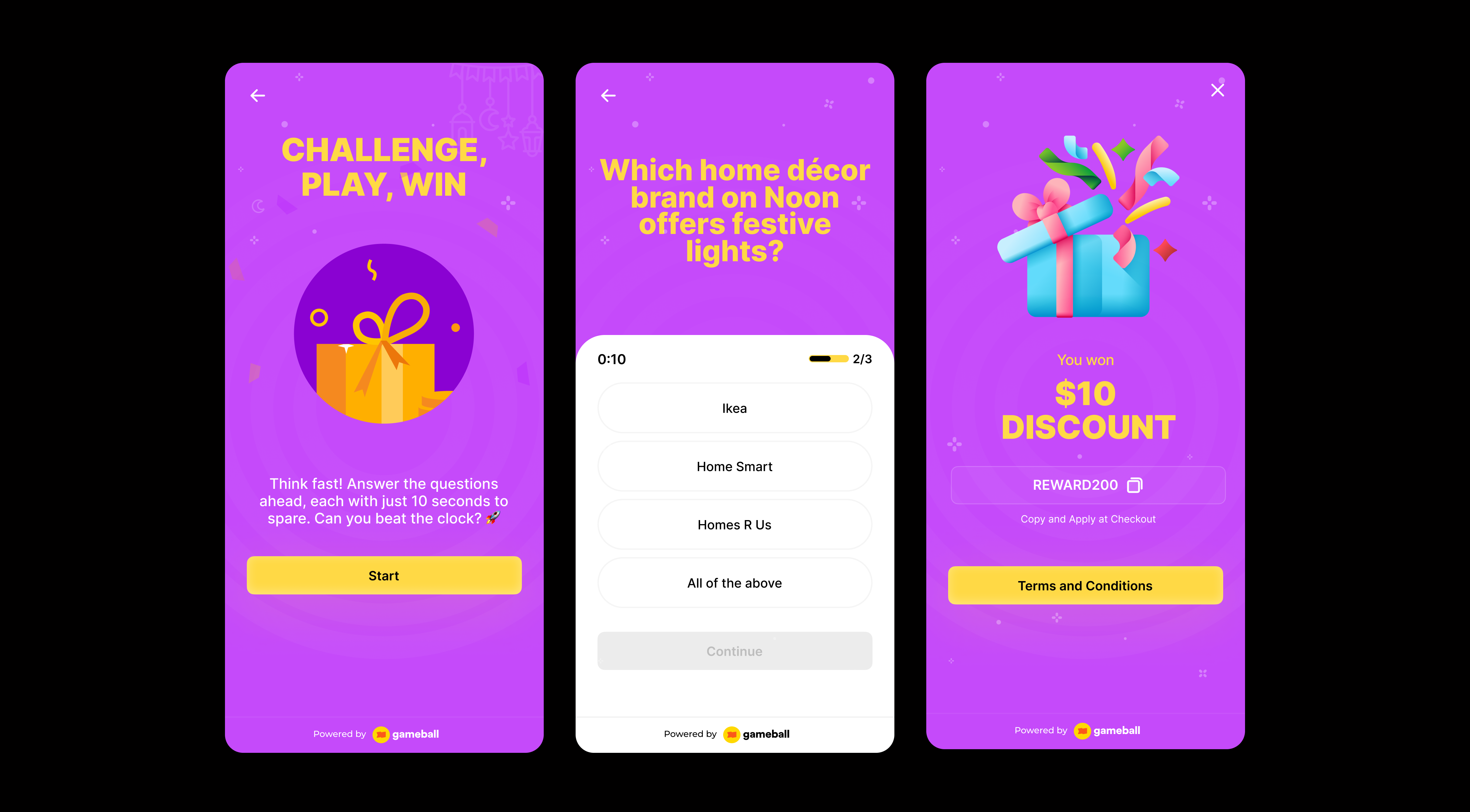
Add an educational and interactive twist to your loyalty program with the Quiz campaign. Let your customers answer questions to earn rewards based on their knowledge and engagement.
Use Cases:
- Brand-Sponsored Quizzes: Partner with brands to feature their products in quiz questions and offer branded rewards.
- Seasonal Campaigns: Run themed quizzes for holidays or events like Valentine’s Day or Black Friday with exclusive offers.
- Educational Quizzes: Teach users about your products or industry and reward them for learning.
How to Set Up
1
Open Gameball
Log in to your Gameball dashboard.
2
Add a Reward Campaign
Click Add Reward Campaign.
3
Select the Template
Choose the Quiz template.
4
Configure the Campaign
Edit the campaign’s setup to match your goals.
5
Activate
Click Set Live to activate the campaign.
Campaign Trigger
Customers can access the quiz through the Badges section in the widget. Tapping the badge redirects them to a screen where they can start playing and trigger the campaign to begin. Use the#gameball-quiz deep link to trigger the quiz campaign from a custom banner or button on your website or app. Learn more.
Audience
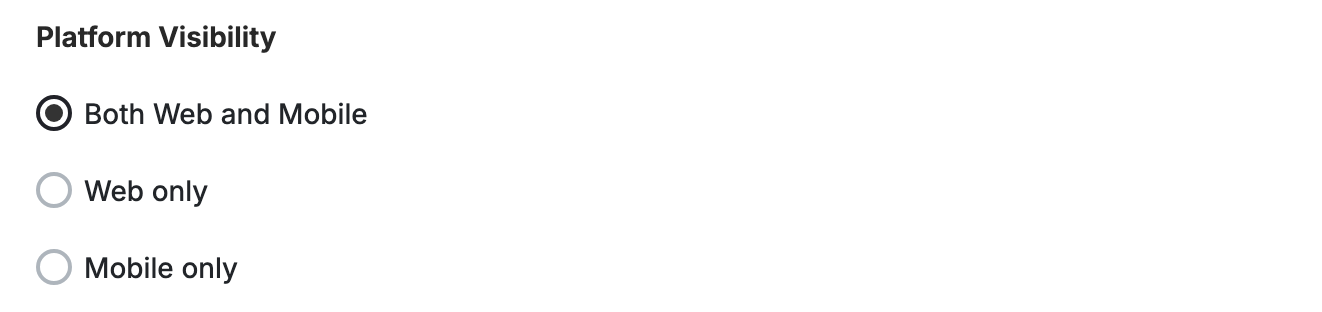
- Registered Customers: Customers who have an account on your platform (signed up).
-
Anonymous Customers: Visitors browsing anonymously without providing any contact information or identifiable details (not signed up).
- Visitors can open the game, submit basic information through the lead form, play, and receive rewards, matching the standalone game URL experience.
- Widget deep links that open a specific game work for guests as well. The widget would open directly into the game screen and allow participation without login.
- Specific Customers: You can choose for a specific selection of customers to participate in this campaign by filtering using segments, tags or customer attributes.
- No Repeatability.
- The quiz can only be played once per customer.
Quiz Setup
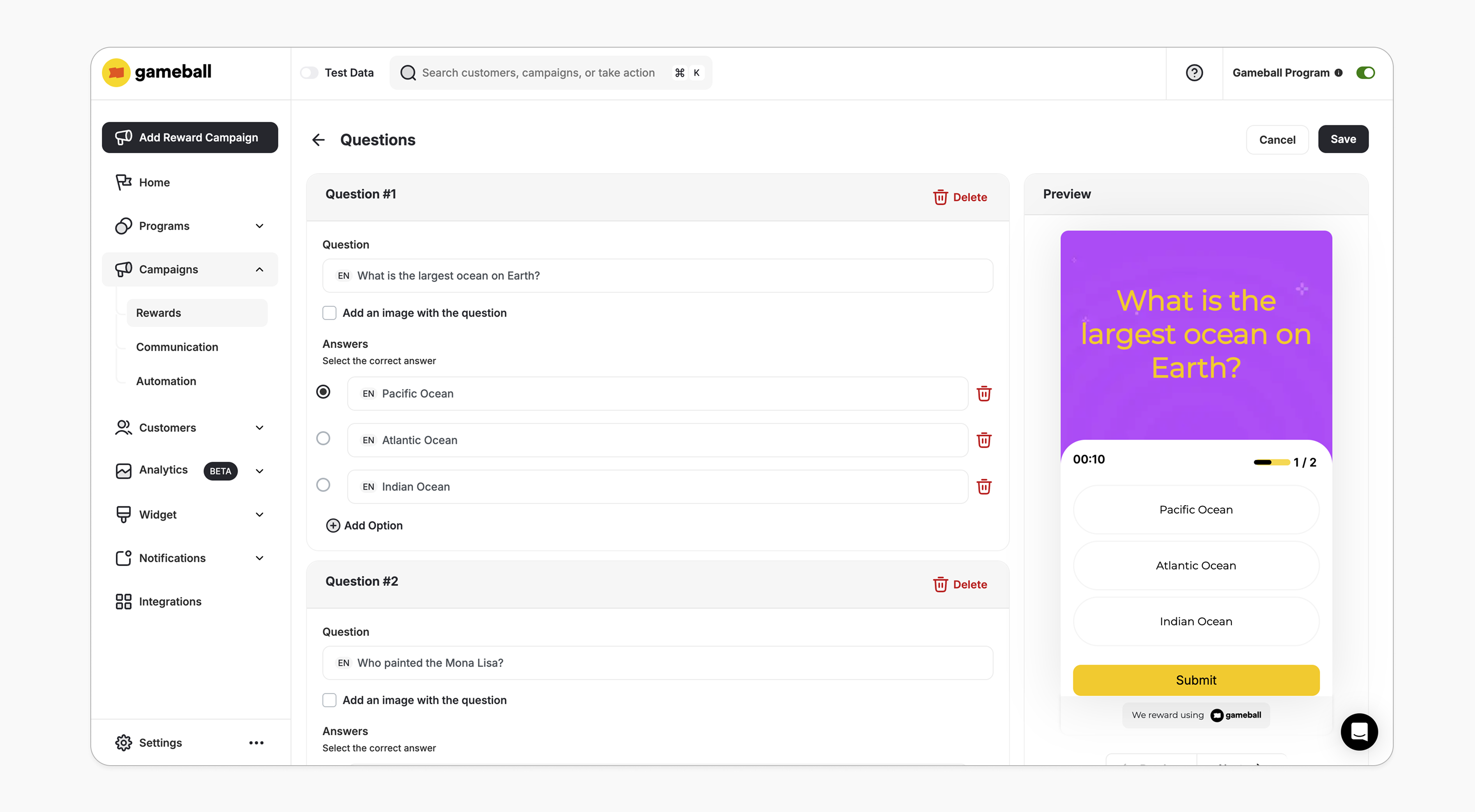
Questions- Minimum: 1 question
- Each question must include:
- The question text
- An optional image
- At least 1 answer should be added
- One correct answer must be selected
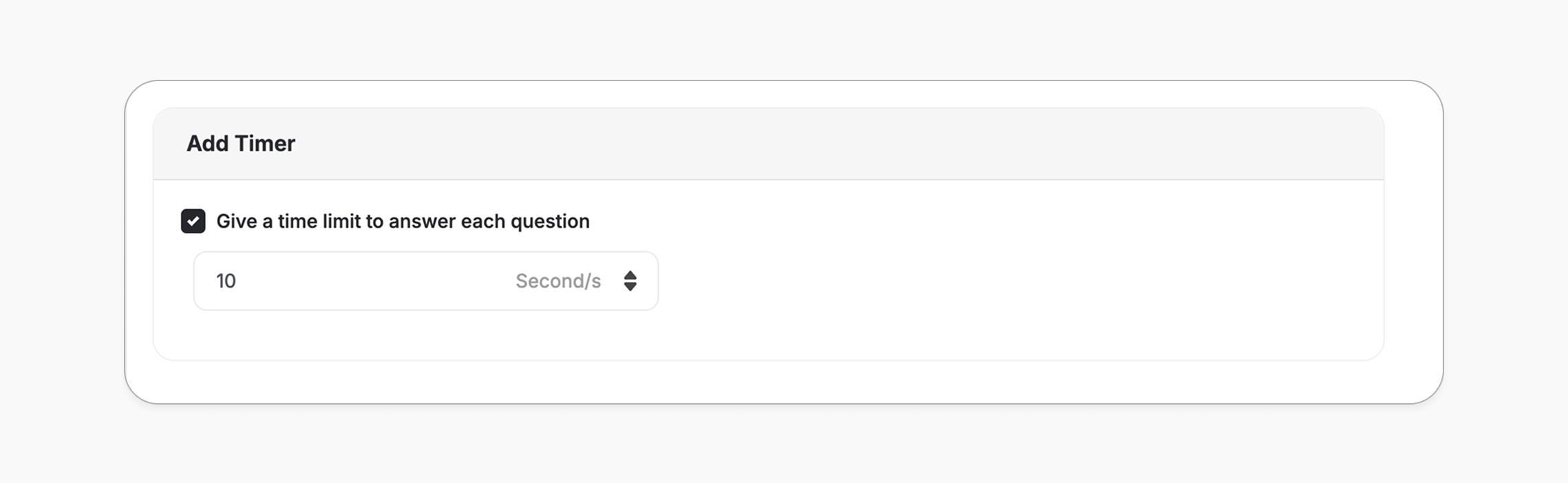
- Question Timer (Optional)
- At the end of configuring your questions, you can enable a timer that applies to each question individually (e.g., 10 or 20 seconds per question).
- This helps increase challenge and customer engagement.
How It Works for Customers
1
Answer Questions
Customers are presented with a set of questions.
2
All Correct to Win
Customers will earn the reward only if they answer all questions correctly.
3
No Luck Screen
Getting 0 answers right is always considered failure, and the customer will receive the “No Luck” widget screen. Customer must answer All questions right for them to win.
4
Notification
The customer is notified via the widget or email, depending on your configuration, when they earn a reward. Learn more.
The quiz reward is all-or-nothing. Customers must answer all questions correctly to earn the reward — there is no partial reward for getting some questions right, and no consolation reward for incorrect answers. Conditional payouts (e.g., different rewards based on correctness) are not supported.
Customization
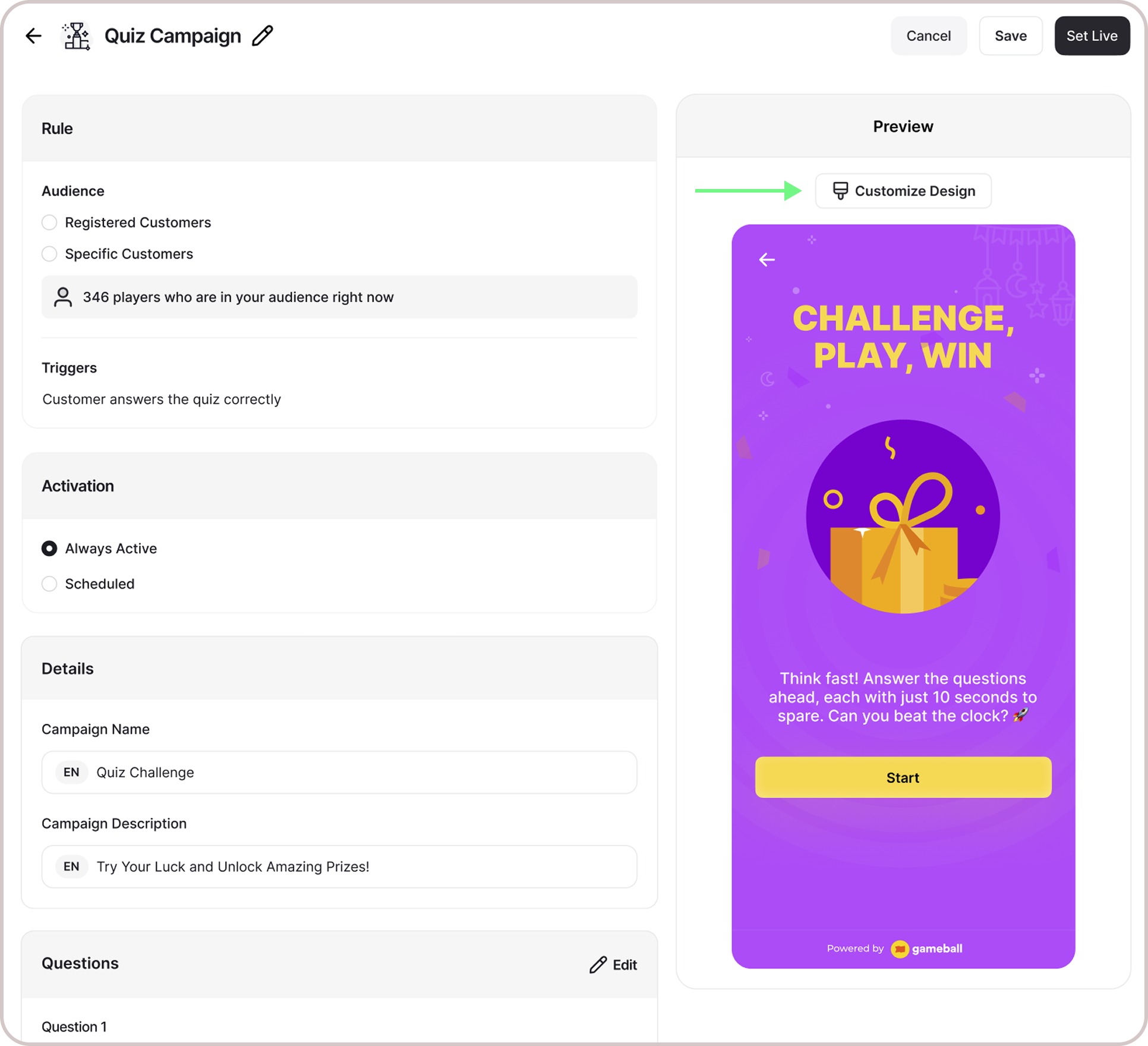
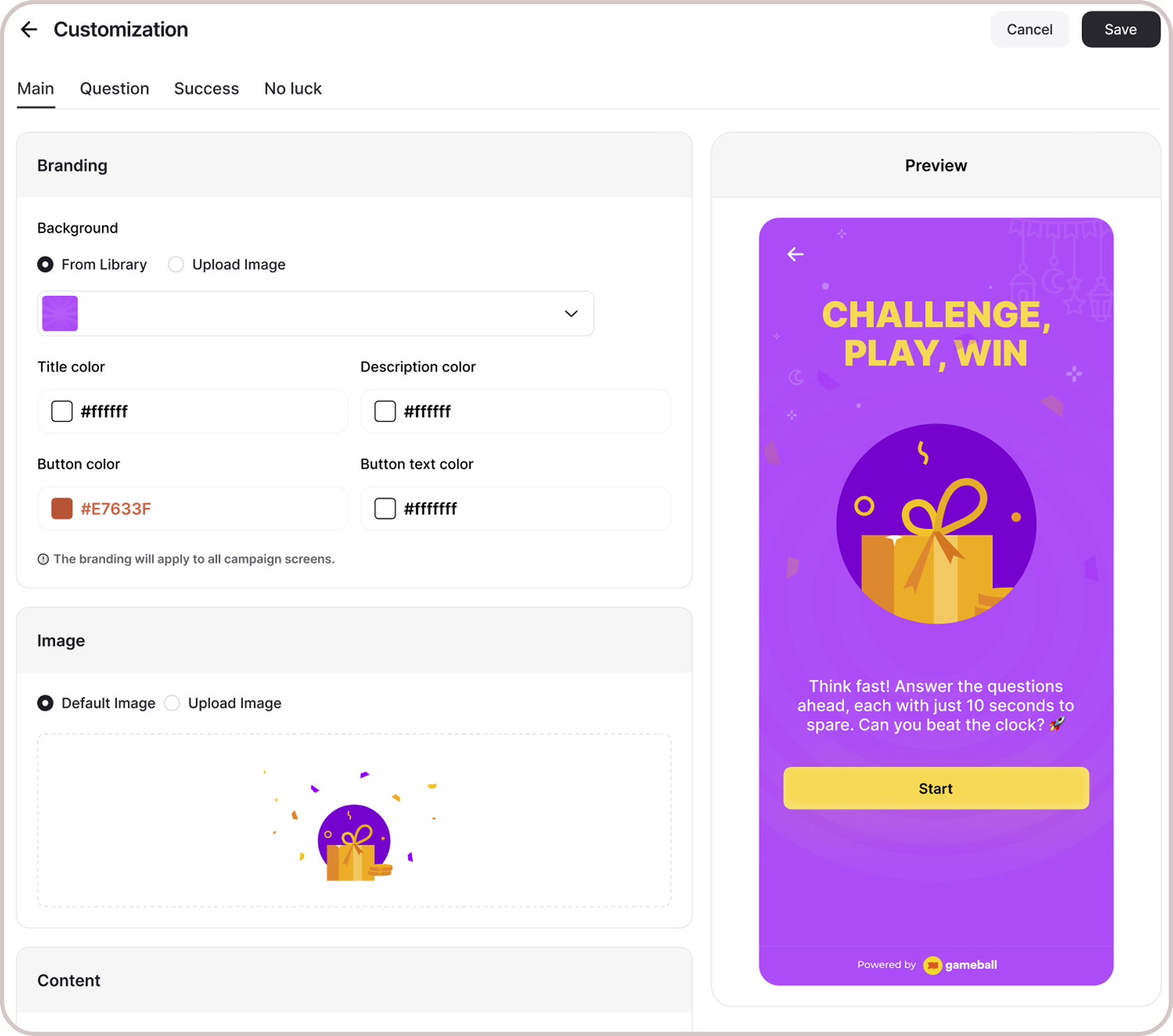
Design & Content You can fully customize each stage of the campaign through dedicated tabs representing the different screens in the flow:- Banner
- Intro / Main Screen
-
Questions Screen
Game General Rule:
- Time Duration: Set how long each game lasts (e.g., 10s, 20s, 60s).
- Mistakes/Lives: Choose how many lives a customer has (e.g., 1, 3, or unlimited).
- Default Values: Existing defaults remain if no customization is made.
- Tooltips: Added help text explaining how time and lives impact gameplay.
- Success Screen
- No Luck Screen
- Branding: Adjust background colors, text colors, and upload custom artworks. Text color customization is available across all banner options — From Library, Upload Image, and Use AI.
- Content: Edit the headlines, descriptions, and call-to-action messages to match your tone and messaging.
Customer Report
Aggregated results for every quiz question are also available on the Insights page — see Survey & Quiz Response Analytics. You can extract a customer list report directly from the quiz campaign page. The report includes one row per participating customer with the following columns:Important Notes
Customer EligibilityGames in the widget update dynamically based on customer eligibility, ensuring customers only see games they can still participate in.Games are hidden when customers become ineligible.If a customer no longer belongs to the game’s target segment, the game is automatically removed from the widget and won’t reappear unless eligibility is restored.
Related Articles
Set up a reward campaign
Step-by-step guide to configuring any reward campaign.
Reward types in Gameball
Explore the different reward types you can offer customers.
Notification after earning a reward
Configure how customers are notified when they earn a reward.