

Shopify Flow is a powerful automation tool that lets you seamlessly connect Gameball Loyalty with other Shopify apps. Use it to build custom workflows and enhance your loyalty program in multiple ways.
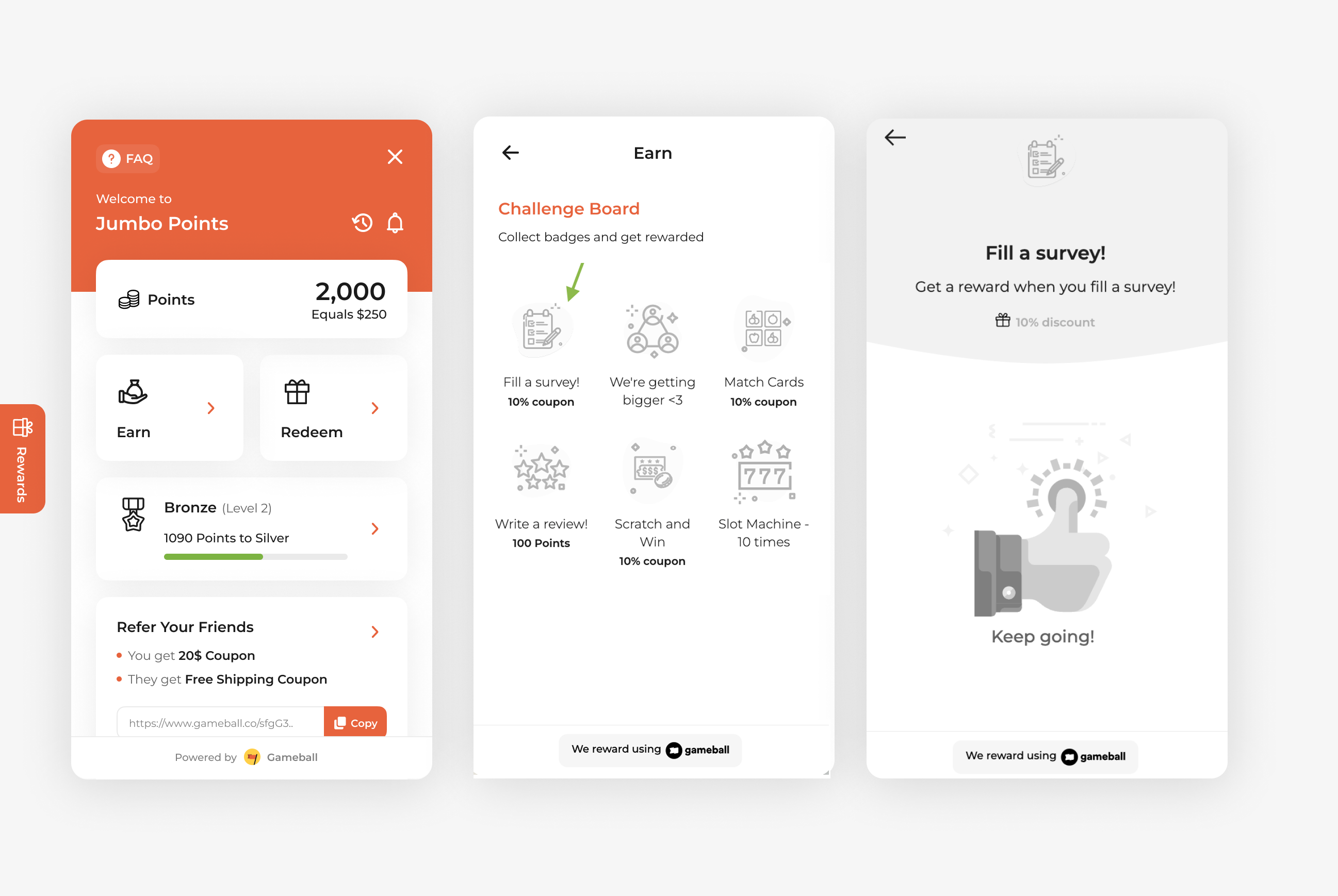
Use Shopify Flow templates to reward customers on Gameball based on actions from other apps — for example, filling a survey on Okendo.
A Shopify Flow workflow consists of three main parts: Triggers, Conditions, and Actions. Learn more in the full guide.
How to Set Up
On Gameball1
Open Gameball
Log in to your Gameball dashboard.
2
Add a Reward Campaign
Click Add Reward Campaign.
3
Select the Template
Choose the Fill a Survey template tagged with Shopify Flow.
4
Configure the Campaign
Edit the campaign’s setup to match your goals.
5
Activate
Click Set Live to activate the campaign.
6
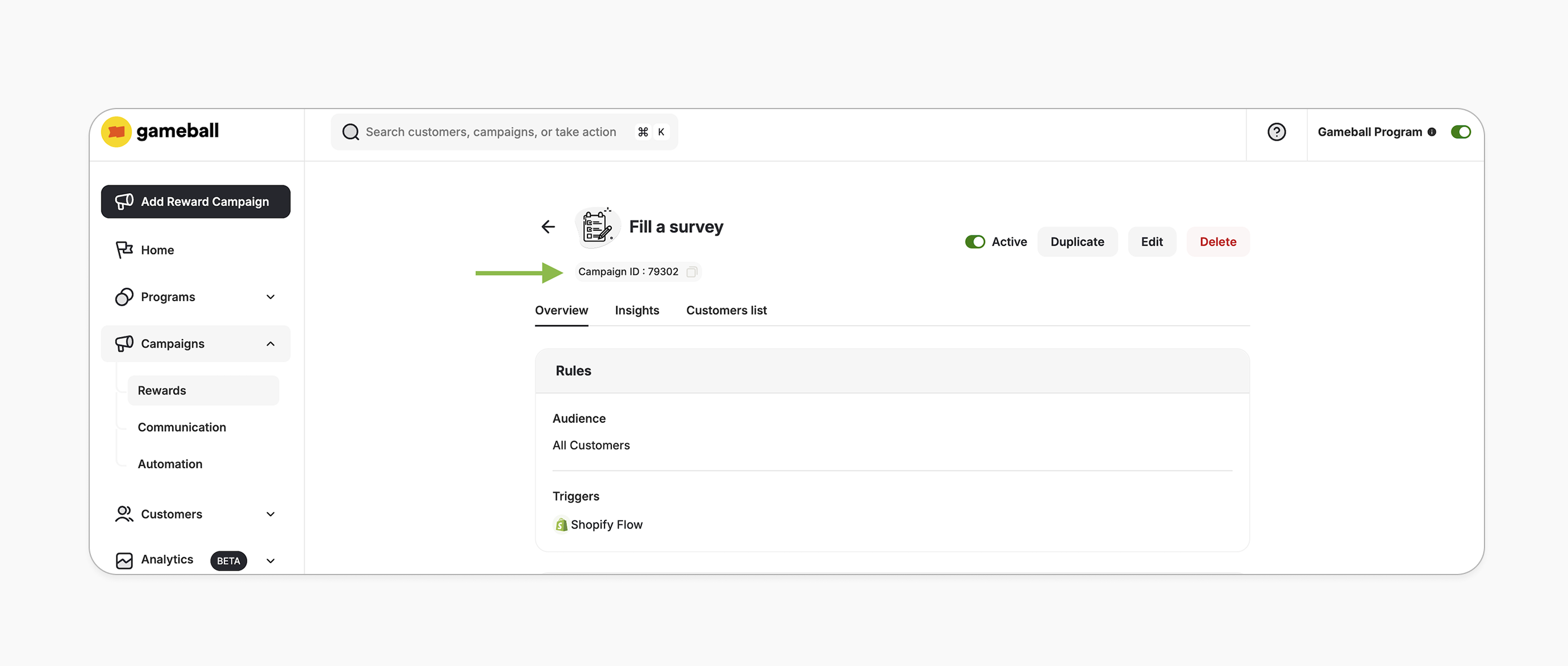
Copy Campaign ID
After creating your campaign, copy the Campaign ID.
Campaign Trigger
On Shopify Flow1
Create Workflow
From your Shopify admin, go to Apps > Shopify Flow and click Create Workflow.
2
Choose Trigger
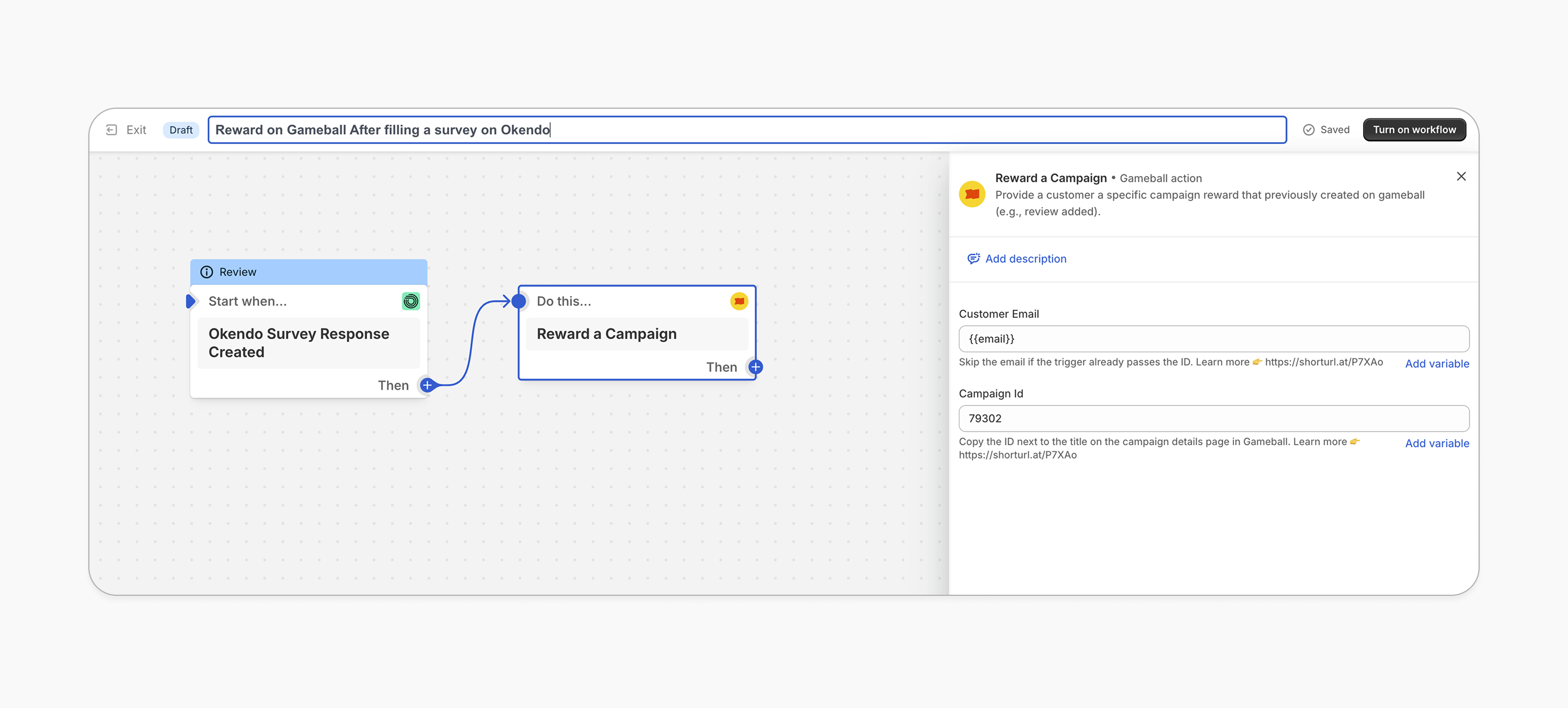
Choose “Okendo Survey Response Created” as the trigger (or another relevant app trigger).
3
Add Customer Email
Add the customer email if the trigger doesn’t pass the customer identifier automatically. See the important notes below for more details.
4
Add Reward Action
Add the “Reward a Campaign” action and paste the Campaign ID you copied from the campaign details page.
5
Save Workflow
Save the workflow to activate it.
How It Works for Customers
1
Fill Survey
Customer fills a survey (e.g., via Okendo).
2
Flow Triggers
Shopify Flow triggers the workflow based on the survey response.
3
Receive Reward
Gameball rewards the customer with the reward set in the “Fill a Survey” campaign.
4
Notification
The customer is notified via the widget or email, depending on your configuration. Learn more.
Important Notes
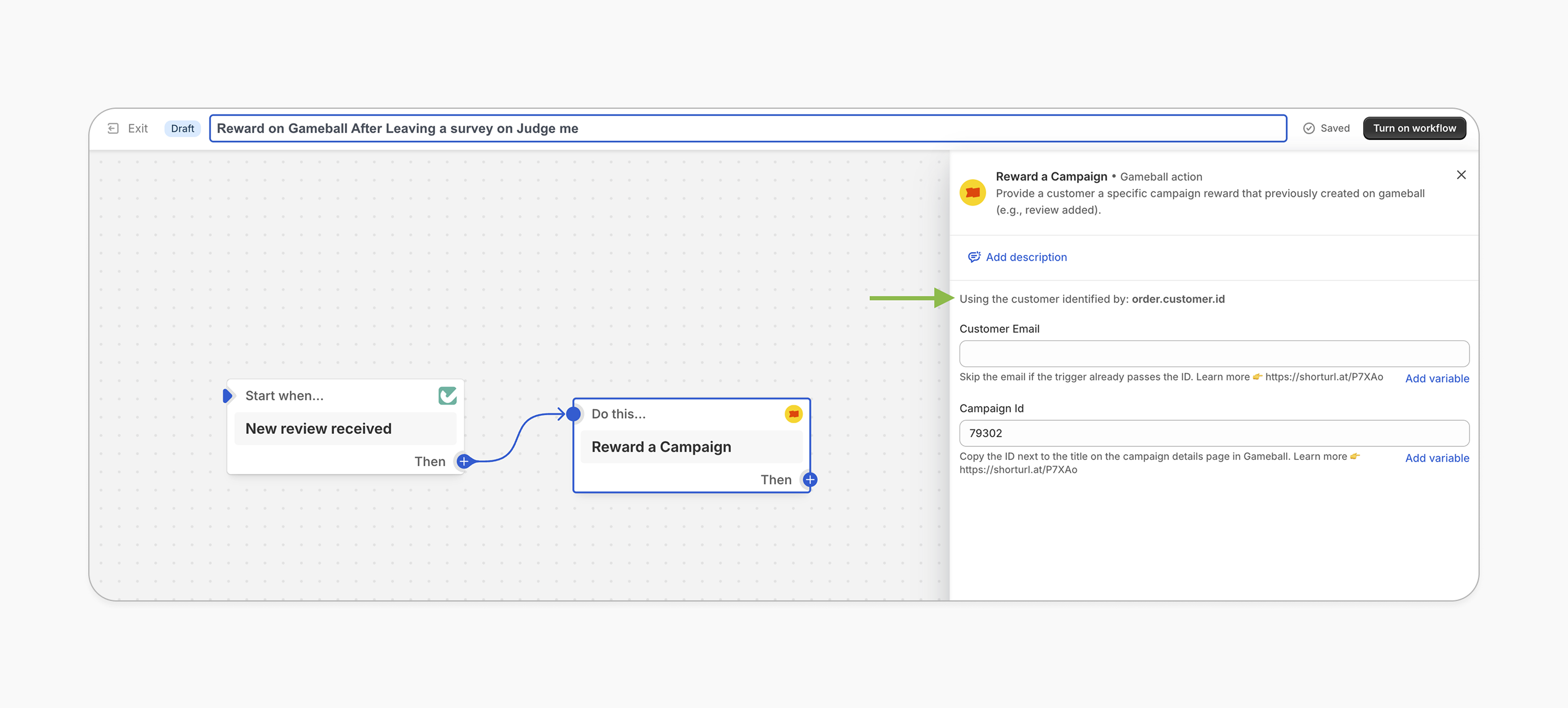
Skip Email FieldWhen setting up Gameball as an action in Shopify Flow, you may not need to fill in the email field if the trigger app already passes the customer identifier automatically. In this case, the identifier will appear just above the email field.
Related Articles
Shopify Flow Guide
Learn how to build Shopify Flow workflows with Gameball.
Set up a reward campaign
Step-by-step guide to configuring any reward campaign.
Reward types in Gameball
Explore the different reward types you can offer customers.
Notification after earning a reward
Configure how customers are notified when they earn a reward.