

Plan Availability
- Non-platform
- Shopify & Salla
Overview
Understanding how you would want to deploy entirely different loyalty and marketing programs for each platform, branch, or area your brand is in, we have created the Workspaces feature. Workspaces allow you to create an entirely different program with different configurations and program calculations so that it suits customers who could be from different countries or accustomed to different loyalty systems in certain branches. For example, if your brand is deployed in different countries, such as the US and Japan, you can create entirely different loyalty programs for each of the countries. This way, customers from the USA and Japan will each enjoy different rewards and communications. When you create a new workspace under your account, you will be given access to an entirely new and clean dashboard that is awaiting your configurations and activation.How to Create a New Workspace
After contacting Gameball’s support team and having this feature activated, you can create a new workspace by following these steps:1
Open the Workspace Menu
Go to Gameball Dashboard. Under the Gameball logo, you will find the workspace name you currently have. Click on the current workspace name, then select Create new workspace.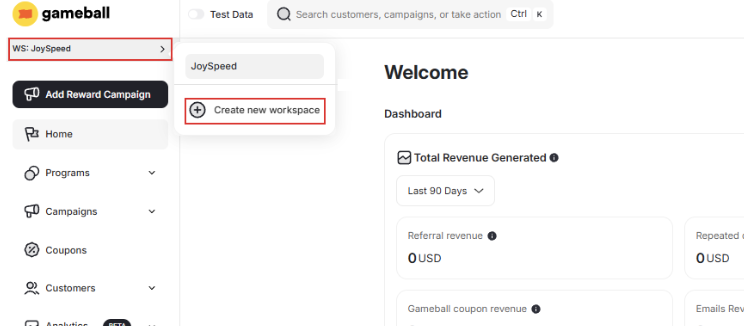
2
Configure Your New Workspace
Type down the name for your new workspace and choose your Channel. Choose between: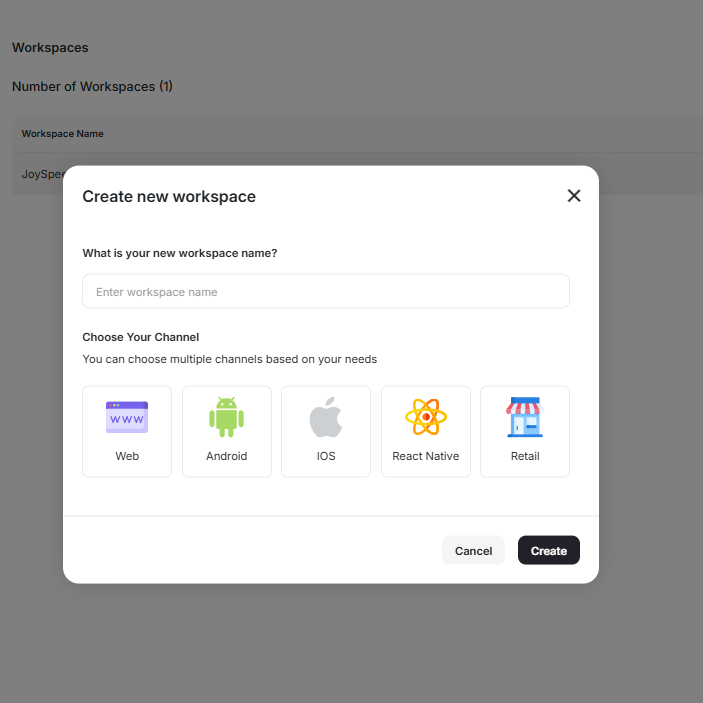
- Web
- Android
- iOS
- React Native
- Retail
3
Create the Workspace
Click Create. You will be taken to a new dashboard with no data in it, so you can start creating your programs from scratch.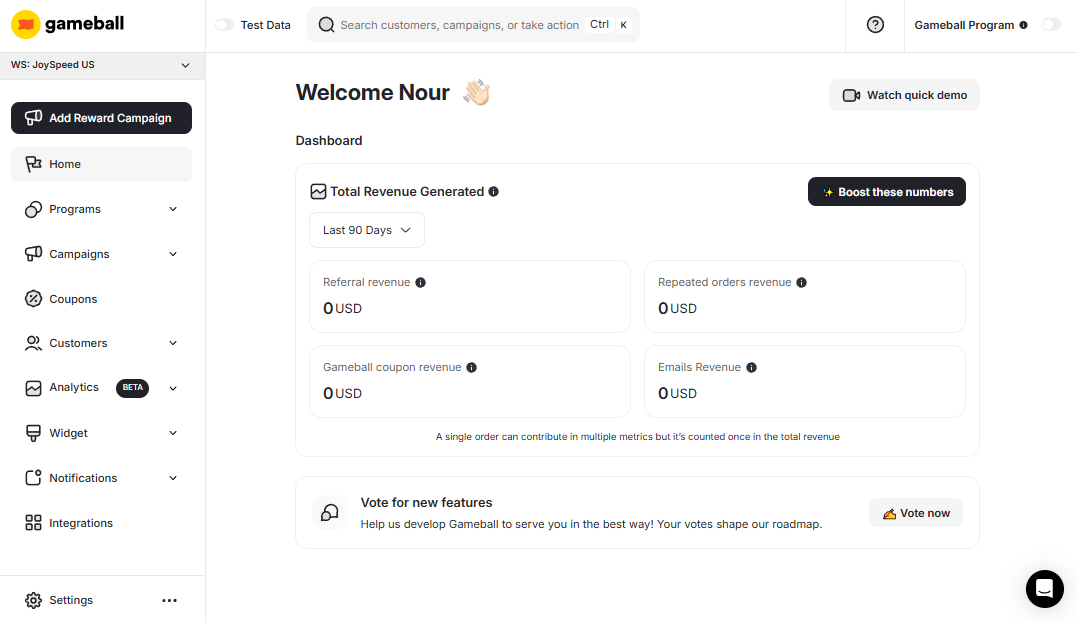
4
Navigate Between Workspaces
To navigate between workspaces, under the Gameball logo, you will find the name of the new workspace you have created. Click on it to see all workspaces, then choose the workspace you wish to access.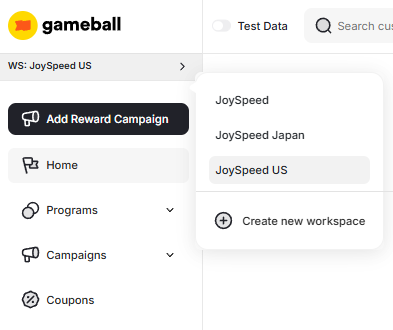
You can copy configured campaigns as they are into different workspaces. Learn more.