

Platform Availability
- Shopify
- Salla
- Custom
Accessing the Events Log
1
Navigate to Events
On your Gameball dashboard, go to Settings > Admin Settings > Events. On the top right of the events page, click on Events Logs.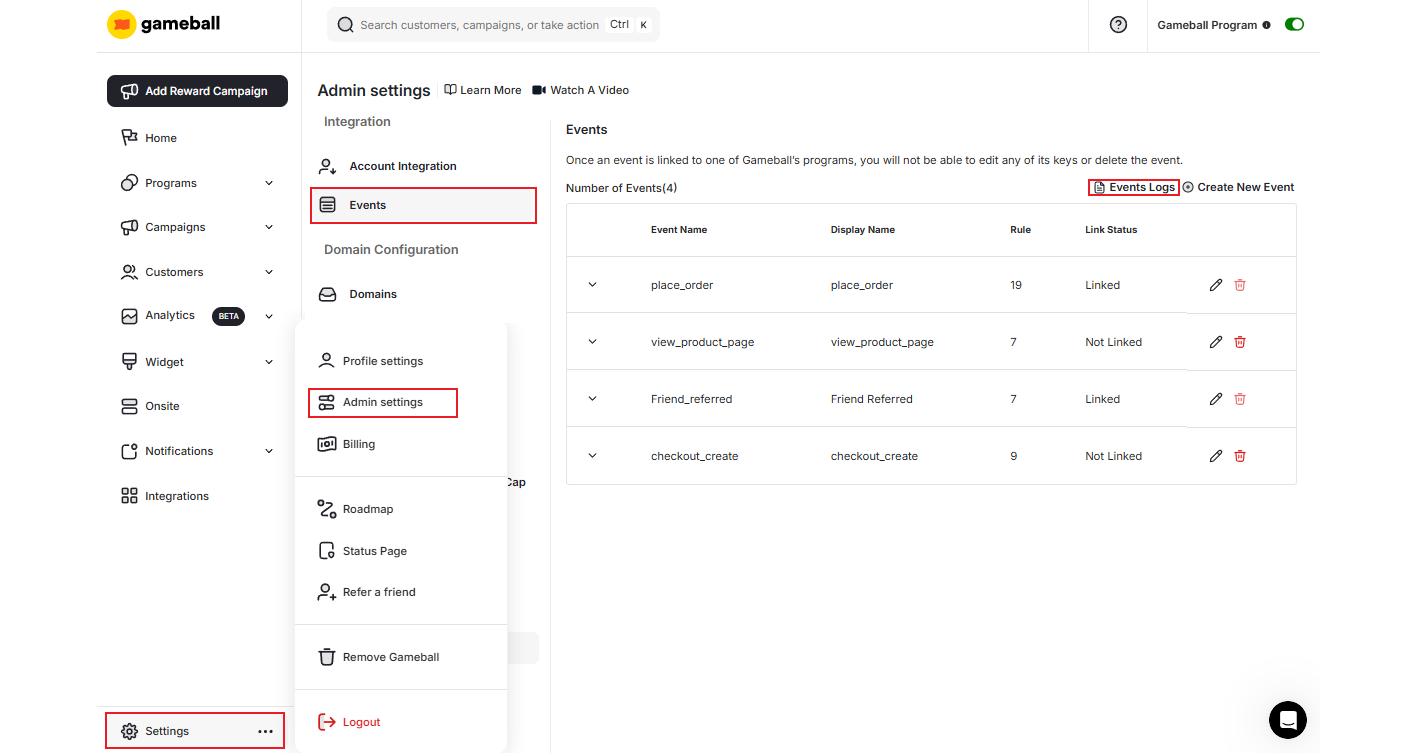
2
View Live Events
A small popup window opens where you can instantly see all live events your platform is sending to Gameball.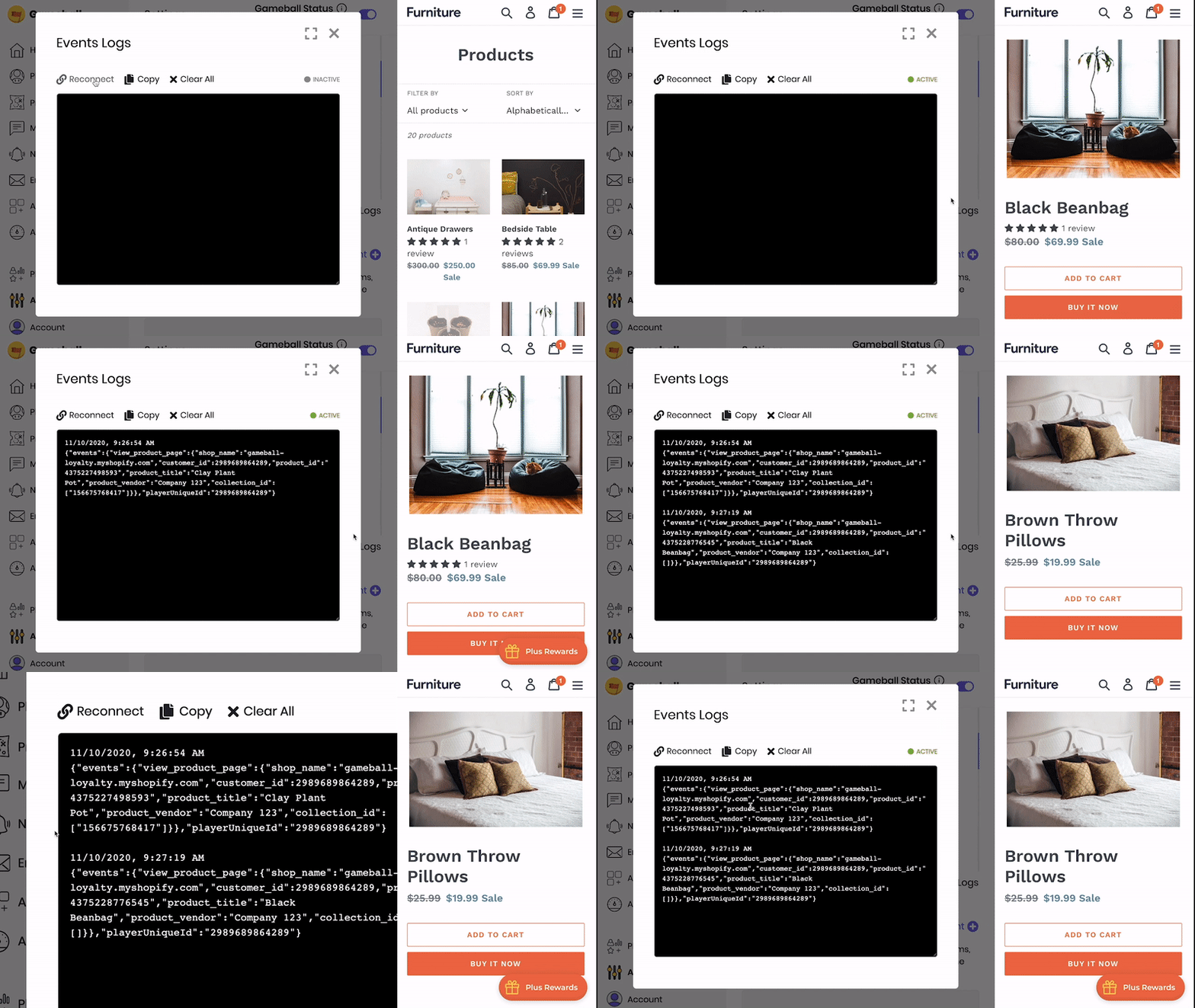
3
Use the Available Commands
In the Event Logs window, you can find the following commands:
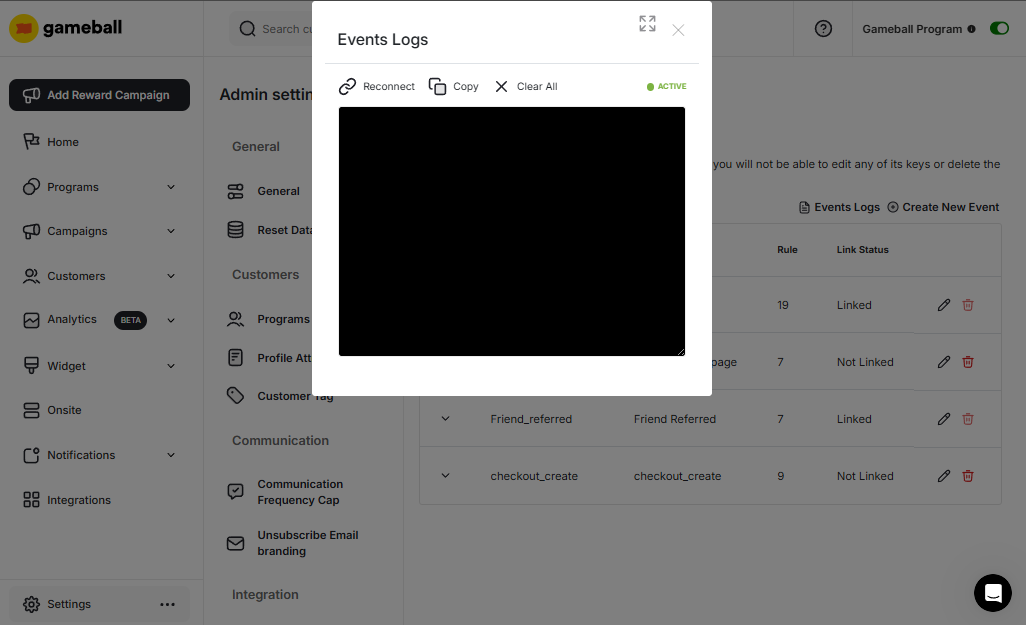
Reconnect
Reconnect
Refreshes connection in case of a connection error.
Copy
Copy
Copies all events shown in the window.
Clear All
Clear All
Clears your events log history.
Connection Status
The ACTIVE or INACTIVE alert shows the status of your connection. Click Reconnect to refresh your connection when set to INACTIVE.Check Six Events you can Create on your E-Commerce Website to learn more about the events recommended for integration by Gameball.
Related Articles
Customer Events
Understand the events associated with your customers’ activity.
Challenge Event(s) Rule Engine
Learn how the event rule engine powers challenge-based rewards.
Using Events on Shopify
A practical guide to configuring and using events on Shopify.