Overview
If you want to create loyalty events that involve specific products or collections, Gameball will need some information about them first. To provide this data, you can easily upload a CSV file containing all the details of your products or collections.How to Access
1
Navigate to Products and Collections
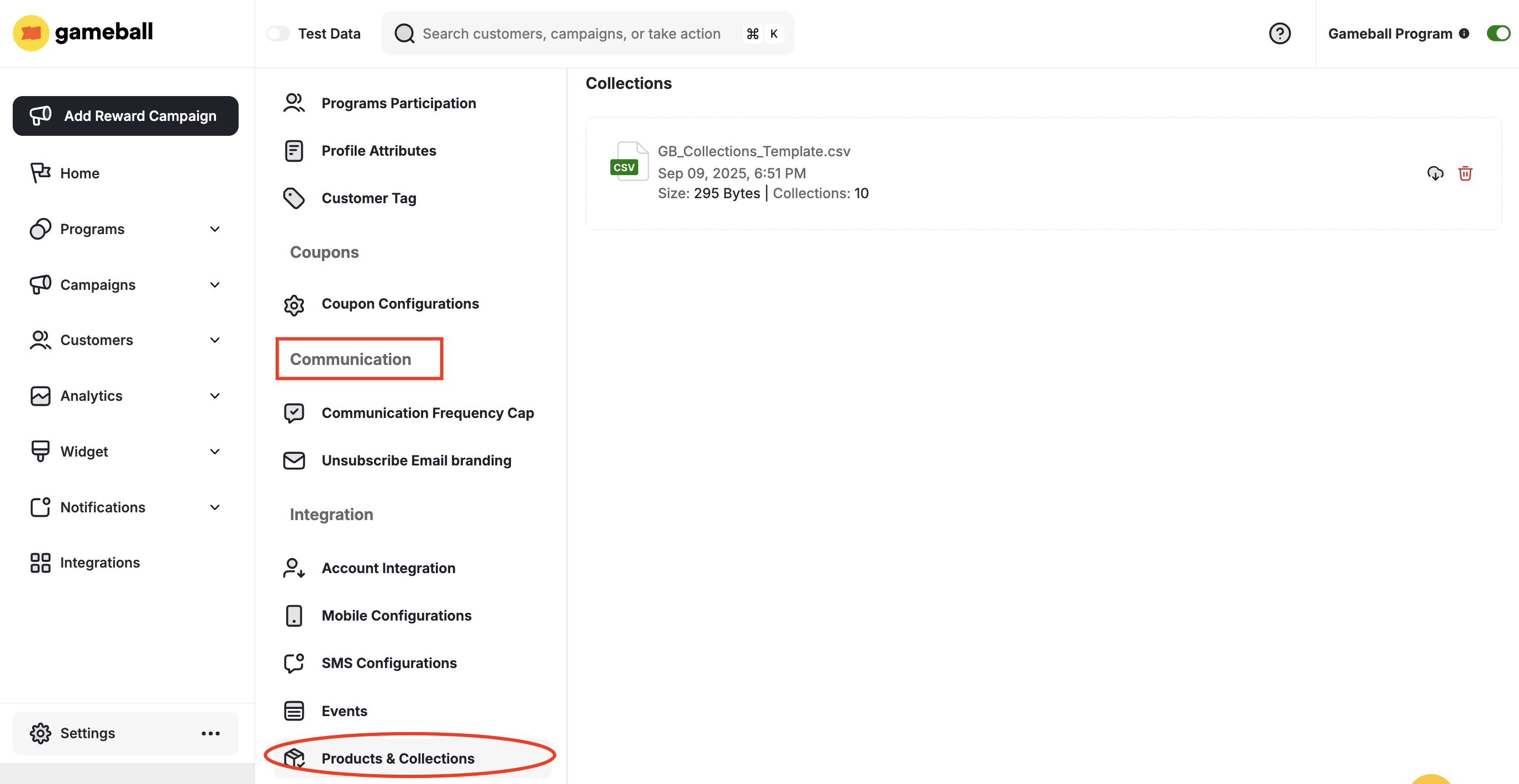
Go to Dashboard > Settings > Admin Settings > Products and Collections under Integrations.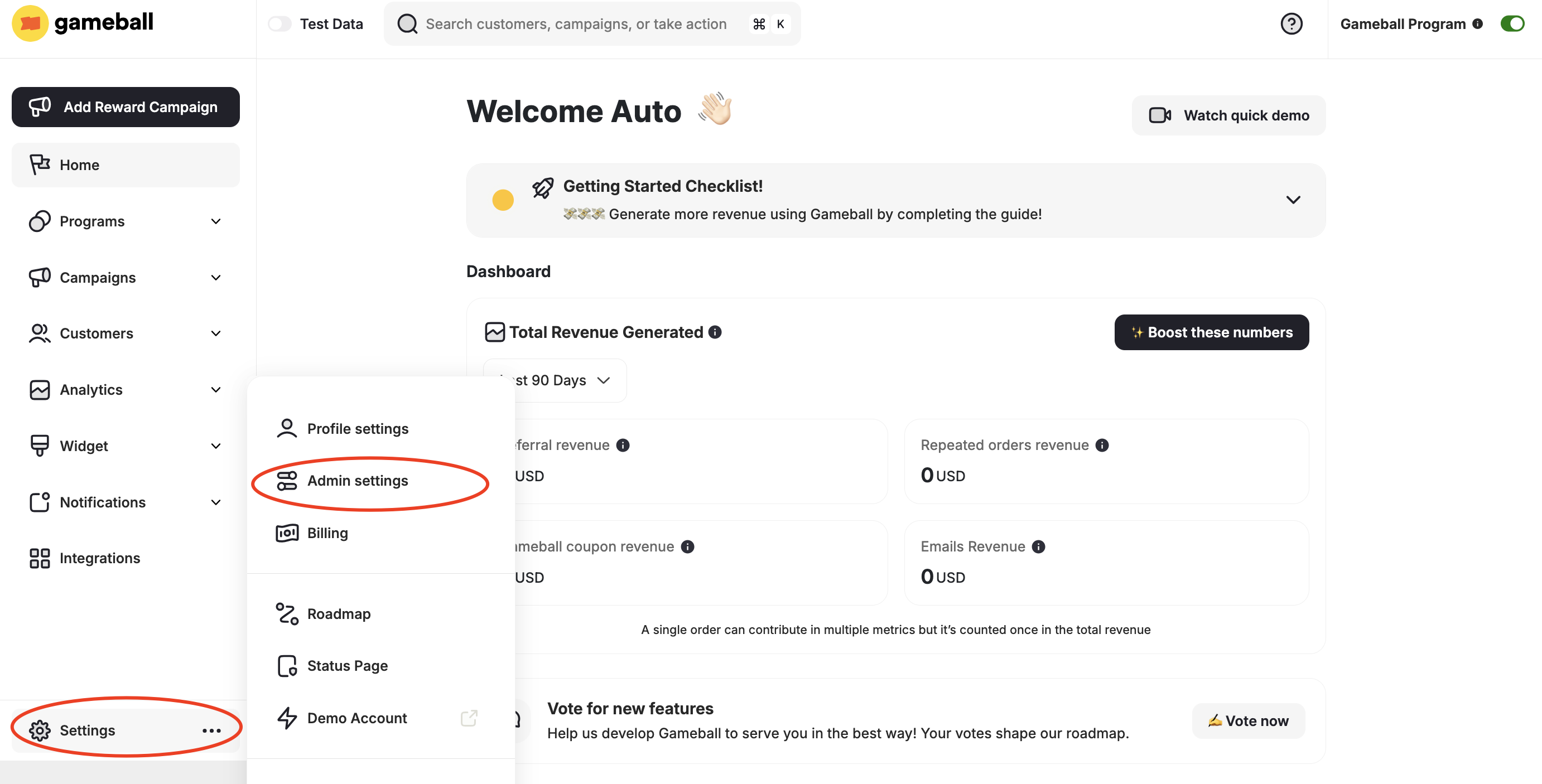
2
Upload Your CSV File
Under Products or under Collections, click “Click to upload” or drag and drop your file.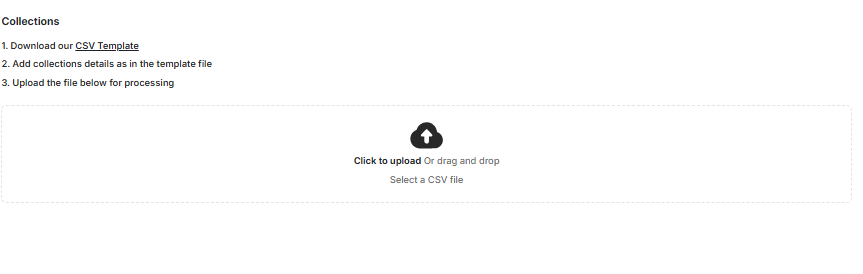
CSV File Formats
- Products
- Collections
Follow this column format for your Products CSV file: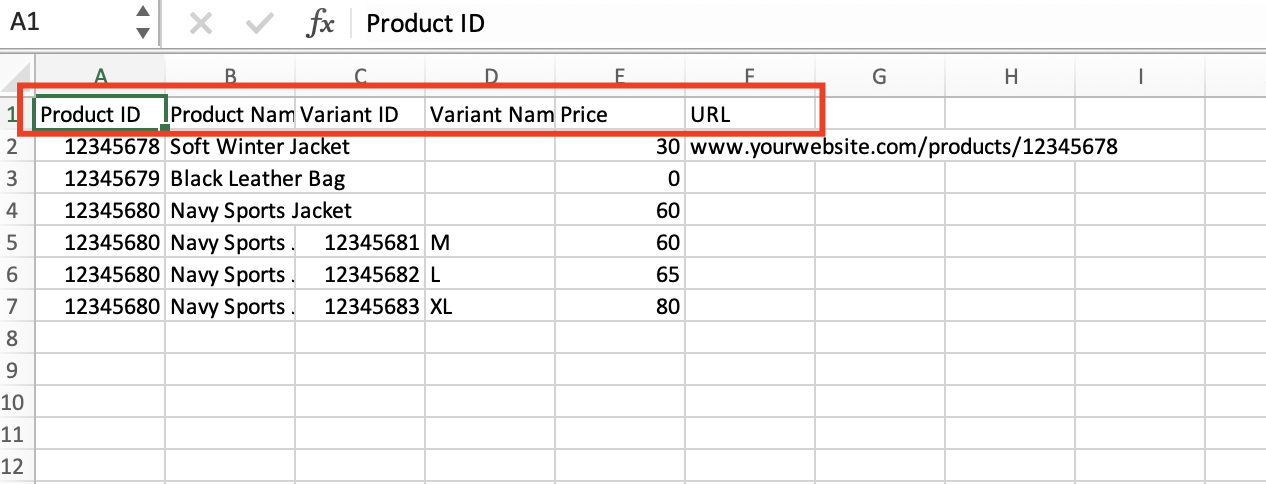
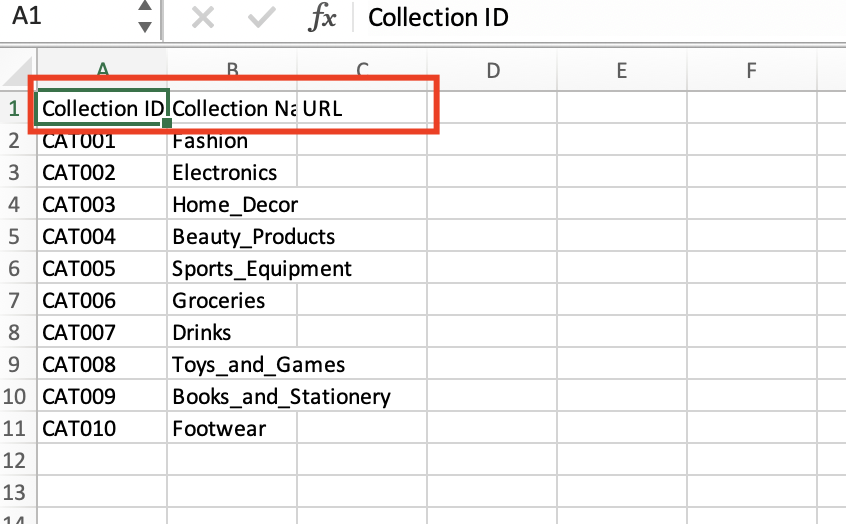

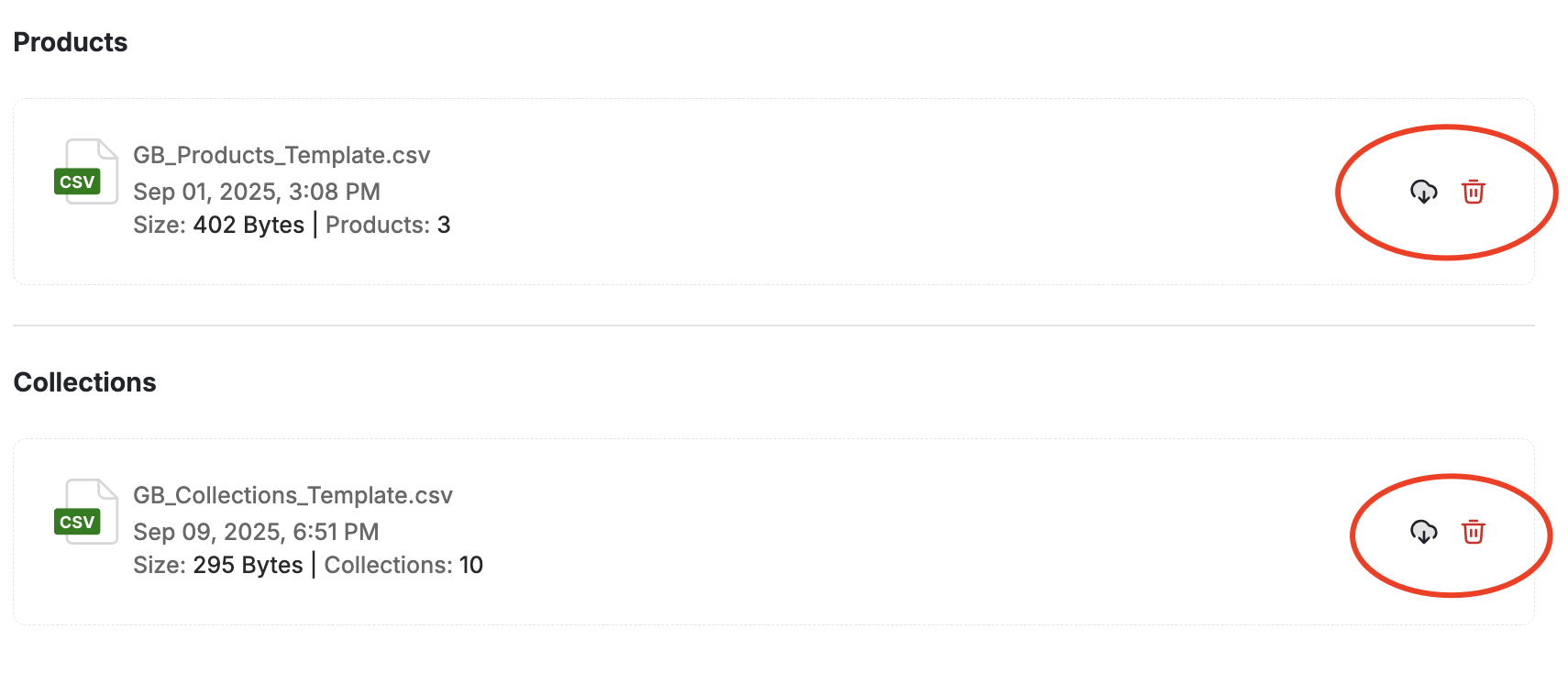
Manage Uploaded Files
To download or delete the previously uploaded file, click on the Download Current File option or the Delete Icon. The latest uploaded CSV file will be downloaded instantly.