

Publishing Your Gameball Experience
1
Open Your Gameball Admin Dashboard
Log in to your Gameball Admin Dashboard.
2
Toggle to Publish
At the upper section of any page on the dashboard, publish Gameball by switching the toggle as shown in the screenshot below.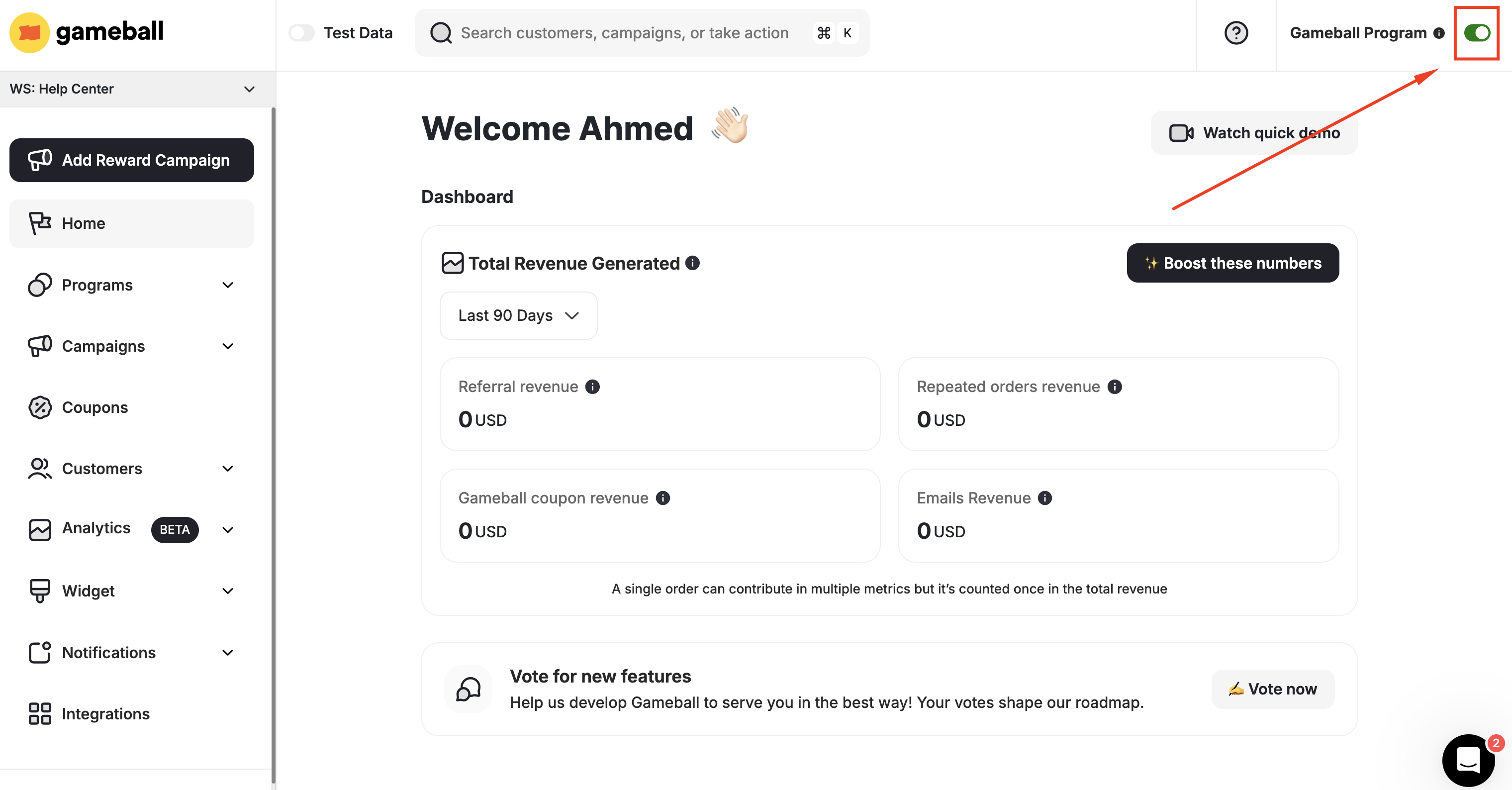
What Happens When You Deactivate the Program?
When you disable Gameball by switching off the toggle, the following applies:
Once you toggle to unpublish, your customers will no longer find the Gameball widget on your platform. Any actions like purchases done by your customers during the time Gameball is inactive will still reflect on Gameball; however, your customers will not be rewarded for their activity.
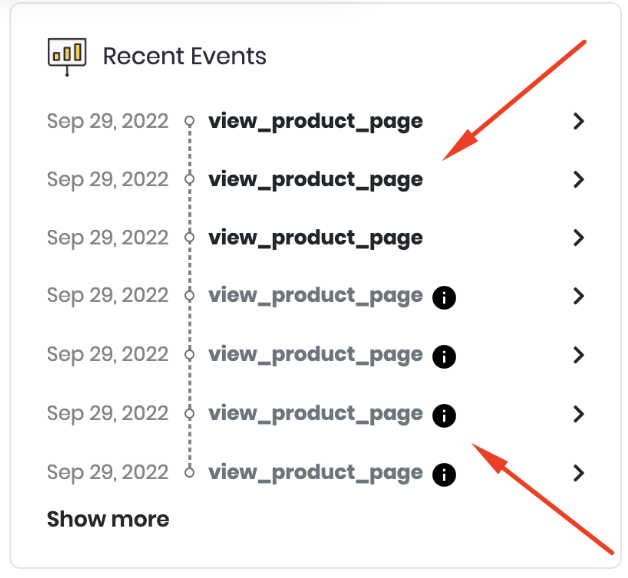
When the Gameball program is switched to unpublished, any customer event will still reflect on their profile on the dashboard; however, they will appear dimmed as these actions will have no consequence.

Related Articles
Enable Customer Account Creation on Shopify
Set up customer account creation to allow customers to join your loyalty program.
Enable Customers to Use Points as Discounts on Shopify
Let Shopify customers exchange their points for discount codes and free items.
Migrate Customers to Gameball on Shopify
Move your existing customers from a previous loyalty program to Gameball.
Control Gameball Widget Visibility
Manage where and when the Gameball widget is visible on your platform.